PDF

Bracket — Contact Analysis
Introduction
The various examples based on a bracket geometry form a suite of tutorials that summarizes the fundamentals of modeling structural mechanics problems in COMSOL Multiphysics and the Structural Mechanics Module.
This example illustrates how to solve a structural contact problem between two elastic bodies. You learn how to work with the Contact pair node and the Contact boundary condition to control structural contact between the two parts of the assembly. It is also shown how to set up pretension in bolts.
It is recommended that you review the Introduction to the Structural Mechanics Module book, which includes background information and discusses the bracket_basic.mph model, which is relevant to this example.
In the Structural Mechanics Modeling chapter of the Structural Mechanics Module User’s Guide: Contact Modeling.
Model Definition
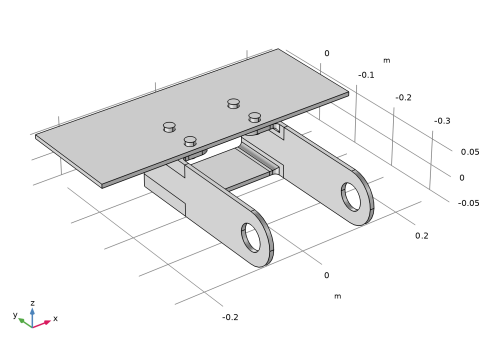
This tutorial is an extension of the model example described in the section “The Fundamentals: A Static Linear Analysis” in the Introduction to the Structural Mechanics Module book. In the original model, a displacement constraint is used to represent the mounting bolts, while in the current model the bolts and the supporting plate are modeled (see Figure 1). The contact pressures between the bracket, the bolts, and the plate are computed. In the first study, pretension in the bolts is applied and contact forces are computed between all parts of the assembly. In a second study, an external load is applied to the bracket arm, using the results from the first study as initial conditions.
During the pretension step, a penalty method is used for the contact. This is the default method, and it is fast and robust. When the service loads are applied, the contact problem is solved using the more accurate augmented Lagrangian method.
Figure 1: The geometry of the bracket, the bolts, and the supporting plate.
Results and Discussion
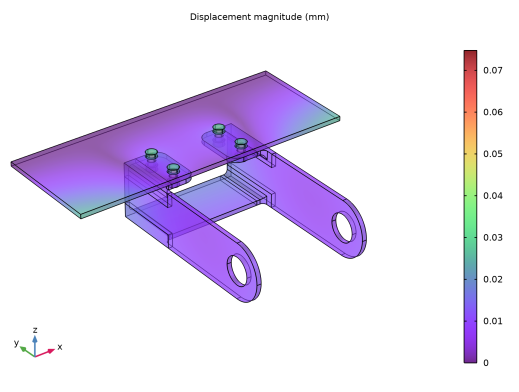
Figure 2 shows the displacement with only the pretension in the bolt. The bolts are assumed to be bonded to the plate and the bracket. If you look at the bolts in detail, you can notice a jump in displacements across the section where the pretension is applied. The pretension displacement of the bolt is applied there.
Figure 2: Total displacement under the bolt pretension load case.
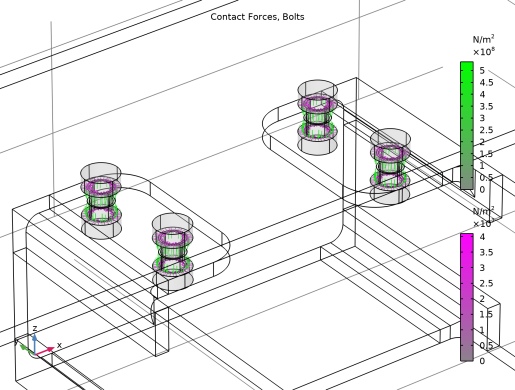
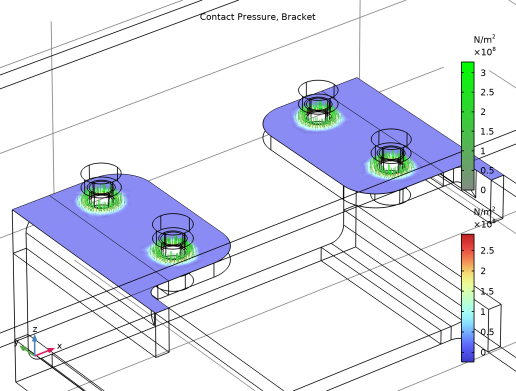
Figure 3 shows the contact pressure and friction forces acting on the bolt heads, while Figure 4 shows the distribution of contact pressure between the bracket and the plate under the bolt pretension load case. The contact forces are computed using the penalty method.
Figure 3: Contact pressure and friction forces acting on the bolt heads under the bolt pretension load case. Not that the arrows are scaled differently. In reality, the friction tractions are much smaller that the pressure, as can be seen in the color legend.
Figure 4: Contact pressure distribution between the bracket and the plate under the bolt pretension case.
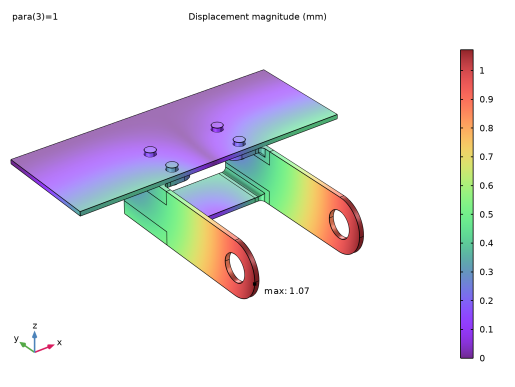
Figure 5 shows the displacement of the assembly under an external load and bolt pretension.
Figure 5: Total displacement of the assembly under an external load and bolt pretension.
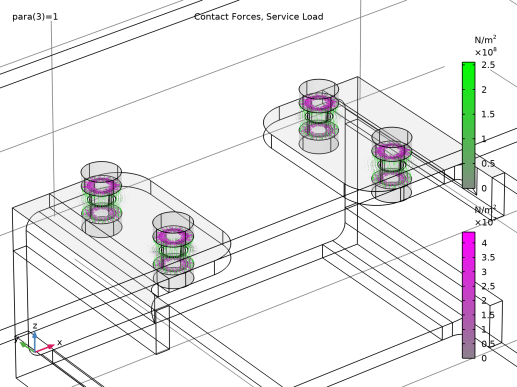
Figure 6 shows the contact pressure distribution and the friction forces under the combination of the external load and bolt pretension load case. The contact forces are here computed using the augmented Lagrangian method.
Figure 6: Contact pressure and friction forces with external load and bolt pretension.
When bolt pretension is present in a study, evaluation groups containing the bolt forces will, as a default, be added under Results. In this case, there are some interesting observations. The results are summarized in Table 1.
After the pretension study, all bolts have the same axial force. This is the prescribed pretension force.
At the first step in the service load study, (para = 0), no external forces have yet been added Still, the bolt forces have increased by about 50 N (~0.1%), and are no longer exactly equal. The reason is that the contact algorithm has been changed, resulting in a small shakedown in the results. The slight overlap of the contact surfaces that is inevitable when using the penalty method is now gone, giving a small extra stretching of the bolts.
As the service load is increased, the bolt forces change slightly.
Table 1: Bolt Forces.
Notes About the COMSOL Implementation
When modeling contact, it is recommended to use a finer mesh on the destination contact boundary than on the source contact boundary.
To solve the contact problem, you can choose between three methods: the penalty method, the augmented Lagrangian method, or the Nitsche method. The penalty method provides a fast and stable solution, while the augmented Lagrangian method ensures minimal penetration between the parts in contact and accurate contact stresses. The latter method also gives more accurate local stresses in the contact region. The Nitsche method is robust and accurate, but sometimes more expensive.
When two objects are adjacent, pairs are automatically created when the geometry is finalized. In this case, contact pairs were chosen, but it could also have been identity pairs if a permanent connection had been required. If contact pairs are present in the model, then a default Contact node is added in the physics interface. Similarly, if there are any identity pairs, a default Continuity node is added.
Read more about how to set up contact problems in the section Contact Modeling in the Structural Mechanics User’s Guide.
Application Library path: Structural_Mechanics_Module/Tutorials/bracket_contact
Modeling Instructions
Application Libraries
1
From the File menu, choose Application Libraries.
2
In the Application Libraries window, select Structural Mechanics Module > Tutorials > bracket_basic in the tree.
3
Geometry 1
Import 2 (imp2)
1
In the Geometry toolbar, click  Import.
2
In the Settings window for Import, locate the Source section.
3
Click  Browse.
4
5
Click  Import.
Bolts
1
In the Geometry toolbar, click  Selections and choose Explicit Selection.
2
In the Settings window for Explicit Selection, type Bolts in the Label text field.
3
Locate the Entities to Select section. From the Geometric entity level list, choose Object.
4
Select the object imp2(2) only.
Form Union (fin)
The Form Union/Assembly node determines how the parts of the assembly are considered in the analysis. By using the default setting, Form a union, the parts of the assembly are considered to be one single object. The mounting bolts are automatically bonded to the bracket and the support plate. Select Form an assembly to consider each part of the assembly as a separate object. The mounting bolts are not connected to the bracket or the support plate. You need to include pairs to connect the assembly parts with each other.
1
In the Model Builder window, under Component 1 (comp1) > Geometry 1 click Form Union (fin).
2
In the Settings window for Form Union/Assembly, locate the Form Union/Assembly section.
3
From the Action list, choose Form an assembly.
4
From the Pair type list, choose Contact pair.
5
From the Repair tolerance list, choose Relative.
6
In the Relative repair tolerance text field, type 1E-3.
7
Click  Build Selected.
8
Click the  Zoom Extents button in the Graphics toolbar.
Add Material
1
In the Home toolbar, click  Add Material to open the Add Material window.
2
Go to the Add Material window.
3
In the tree, select Built-in > Titanium beta-21S.
4
Click the Add to Component button in the window toolbar.
5
In the Home toolbar, click  Add Material to close the Add Material window.
Materials
Titanium beta-21S (mat2)
1
In the Settings window for Material, locate the Geometric Entity Selection section.
2
From the Selection list, choose Bolts.
Solid Mechanics (solid)
Bolt Pretension 1
1
In the Physics toolbar, click  Global and choose Bolt Pretension.
2
In the Settings window for Bolt Pretension, locate the Bolt Pretension section.
3
From the Pretension type list, choose Pretension stress.
4
In the σp text field, type 400[MPa].
Bolt Selection 1
1
In the Model Builder window, click Bolt Selection 1.
2
Bolt Pretension 1
In the Model Builder window, click Bolt Pretension 1.
Bolt Selection 2
1
In the Physics toolbar, click  Attributes and choose Bolt Selection.
2
Bolt Pretension 1
In the Model Builder window, click Bolt Pretension 1.
Bolt Selection 3
1
In the Physics toolbar, click  Attributes and choose Bolt Selection.
2
Bolt Pretension 1
In the Model Builder window, click Bolt Pretension 1.
Bolt Selection 4
1
In the Physics toolbar, click  Attributes and choose Bolt Selection.
2
Fixed Constraint 1
1
In the Model Builder window, under Component 1 (comp1) > Solid Mechanics (solid) click Fixed Constraint 1.
2
Contact 1
In the penalty formulation, the contact condition is enforced by inserting a stiff spring between the boundaries. Thus, there will always be some overlap. In this case, it is important the bolt pretensioning is based on a correct flexibility of the parts between bolt head and nut. To ensure this, increase the penalty factor from the default value.
1
In the Model Builder window, click Contact 1.
2
In the Settings window for Contact, locate the Contact Pressure Penalty Factor section.
3
From the Penalty factor control list, choose Manual tuning.
4
In the fp text field, type 10.
5
Click to expand the Contact Surface Offset and Adjustment section. Select the Force zero initial gap checkbox.
There might be some overlap in the imported geometries. Hence it is good practice to force the initial gap to be zero.
Friction 1
In the Physics toolbar, click  Attributes and choose Friction.
Small sliding is expected for this problem. To speed up the computation, adjust the mapping method in the contact pairs.
Definitions
Contact Pair 1 (ap1)
1
In the Model Builder window, expand the Component 1 (comp1) > Definitions node, then click Contact Pair 1 (ap1).
2
In the Settings window for Pair, locate the Advanced section.
3
From the Mapping method list, choose Initial configuration.
Contact Pair 2 (ap2)
1
In the Model Builder window, click Contact Pair 2 (ap2).
2
In the Settings window for Pair, locate the Advanced section.
3
From the Mapping method list, choose Initial configuration.
Contact Pair 3 (ap3)
1
In the Model Builder window, click Contact Pair 3 (ap3).
2
In the Settings window for Pair, locate the Advanced section.
3
From the Mapping method list, choose Initial configuration.
Make sure that the tangent directions of the boundary system are well defined for the contact with friction.
Boundary System 3 (sys3)
1
In the Definitions toolbar, click  Coordinate Systems and choose Boundary System.
2
In the Settings window for Boundary System, locate the Settings section.
3
Find the Coordinate names subsection. From the Axis list, choose x.
Solid Mechanics (solid)
Friction 1
1
In the Model Builder window, under Component 1 (comp1) > Solid Mechanics (solid) > Contact 1 click Friction 1.
2
In the Settings window for Friction, locate the Coordinate System Selection section.
3
From the Coordinate system list, choose Boundary System 3 (sys3).
4
Locate the Friction Parameters section. In the μ text field, type 0.1.
Contact 1
Duplicate the Contact node in order to use a higher friction coefficient for the bolt heads.
Contact 2
1
In the Model Builder window, under Component 1 (comp1) > Solid Mechanics (solid) right-click Contact 1 and choose Duplicate.
2
In the Settings window for Contact, locate the Pair Selection section.
3
From the Pairs list, choose From list.
4
5
In the Add dialog, in the Pairs list, choose Contact Pair 2 (ap2) and Contact Pair 3 (ap3).
6
Friction 1
1
In the Model Builder window, expand the Contact 2 node, then click Friction 1.
2
In the Settings window for Friction, locate the Friction Parameters section.
3
In the μ text field, type 0.2.
Definitions
Bolt Holes Circumference Plate
1
In the Definitions toolbar, click  Explicit.
2
In the Settings window for Explicit, type Bolt Holes Circumference Plate in the Label text field.
3
Locate the Input Entities section. From the Geometric entity level list, choose Edge.
4
5
Select the Group by continuous tangent checkbox.
Mesh 1
Edge 2
1
In the Mesh toolbar, click  More Generators and choose Edge.
2
In the Settings window for Edge, locate the Edge Selection section.
3
From the Selection list, choose Bolt Holes Circumference Plate.
Add an edge mesh to make sure that the geometry of the bolt holes is properly resolved by the mesh. The number of elements are chosen so that the plate mesh is coarser than that of the bracket, since the latter is the destination boundary of the contact pair. An alternative approach is to increase the extrapolation tolerance in the pair definition.
Distribution 1
1
Right-click Edge 2 and choose Distribution.
2
In the Settings window for Distribution, locate the Edge Selection section.
3
From the Selection list, choose Bolt Holes Circumference Plate.
4
Locate the Distribution section. In the Number of elements text field, type 3.
Edge 2
1
In the Model Builder window, click Edge 2.
2
3
In the Settings window for Edge, click  Build All.
Free Triangular 1
1
In the Mesh toolbar, click  More Generators and choose Free Triangular.
2
Size 1
1
Right-click Free Triangular 1 and choose Size.
2
In the Settings window for Size, locate the Element Size section.
3
Click the Custom button.
4
Locate the Element Size Parameters section.
5
Select the Maximum element size checkbox. In the associated text field, type elSize*2.
Free Triangular 1
1
In the Model Builder window, click Free Triangular 1.
2
3
In the Settings window for Free Triangular, click  Build All.
Swept 1
1
In the Model Builder window, click Swept 1.
2
In the Settings window for Swept, locate the Domain Selection section.
3
Click to select the  Activate Selection toggle button.
4
5
Click to expand the Source Faces section. Select Boundaries 3, 23, 55, 59, 72, and 94 only.
Size 2
1
Right-click Swept 1 and choose Size.
2
3
In the Settings window for Size, locate the Geometric Entity Selection section.
4
Click  Clear Selection.
5
6
Locate the Element Size section. Click the Custom button.
7
Locate the Element Size Parameters section.
8
Select the Maximum element size checkbox. In the associated text field, type elSize*2.
9
Click  Build All.
Add Study
1
In the Home toolbar, click  Add Study to open the Add Study window.
2
Go to the Add Study window.
3
Find the Studies subsection. In the Select Study tree, select Preset Studies for Selected Physics Interfaces > Bolt Pretension.
4
Click the Add Study button in the window toolbar.
5
In the Home toolbar, click  Add Study to close the Add Study window.
Study 1
Solution 1 (sol1)
In the Study toolbar, click  Show Default Solver.
Step 1: Bolt Pretension
1
In the Settings window for Bolt Pretension, locate the Study Settings section.
2
From the Tolerance list, choose User controlled.
3
In the Relative tolerance text field, type 1e-4.
Solution 1 (sol1)
1
In the Model Builder window, expand the Solution 1 (sol1) node.
2
In the Model Builder window, expand the Study 1 > Solver Configurations > Solution 1 (sol1) > Dependent Variables 1 node, then click Displacement Field (comp1.u).
3
In the Settings window for Field, locate the Scaling section.
4
In the Scale text field, type 1e-4.
5
In the Study toolbar, click  Compute.
Results
Displacement, Pretension
1
In the Settings window for 3D Plot Group, type Displacement, Pretension in the Label text field.
2
Click the  Zoom Extents button in the Graphics toolbar.
Volume 1
1
In the Model Builder window, expand the Displacement, Pretension node, then click Volume 1.
2
In the Settings window for Volume, locate the Expression section.
3
In the Expression text field, type solid.disp.
4
Locate the Coloring and Style section. From the Color table list, choose SpectrumLight.
Transparency 1
Right-click Volume 1 and choose Transparency.
Displacement, Pretension
1
Click the  Show Grid button in the Graphics toolbar.
2
In the Displacement, Pretension toolbar, click  Plot.
Result Templates
1
In the Results toolbar, click  Result Templates to open the Result Templates window.
2
Go to the Result Templates window.
3
In the tree, select Study 1/Solution 1 (sol1) > Solid Mechanics > Contact Forces (solid).
4
Click the Add Result Template button in the window toolbar.
5
In the Results toolbar, click  Result Templates to close the Result Templates window.
Results
Contact Forces, Bolts
1
In the Model Builder window, expand the Results > Contact Forces (solid) node, then click Contact Forces (solid).
2
In the Settings window for 3D Plot Group, type Contact Forces, Bolts in the Label text field.
Contact 1, Friction Force, Contact 1, Pressure
1
In the Model Builder window, under Results > Contact Forces, Bolts, Ctrl-click to select Contact 1, Pressure and Contact 1, Friction Force.
2
Contact 2, Pressure
1
In the Model Builder window, click Contact 2, Pressure.
2
In the Settings window for Arrow Surface, locate the Coloring and Style section.
3
Select the Scale factor checkbox. In the associated text field, type 1e-11.
4
Click to expand the Inherit Style section. From the Plot list, choose None.
Contact 2, Friction Force
1
In the Model Builder window, click Contact 2, Friction Force.
2
In the Settings window for Arrow Surface, locate the Coloring and Style section.
3
Select the Scale factor checkbox. In the associated text field, type 1E-10.
4
Locate the Inherit Style section. From the Plot list, choose None.
Selection 1
1
In the Model Builder window, expand the Gray Surfaces node, then click Selection 1.
2
In the Settings window for Selection, locate the Selection section.
3
From the Selection list, choose Bolts.
4
Click  Zoom to Selection to get a better view.
5
In the Contact Forces, Bolts toolbar, click  Plot.
6
Click the  Go to Default View button in the Graphics toolbar.
Duplicate Contact Forces, Bolts to create a plot showing the contact pressure between the bracket and the plate.
Contact Pressure, Bracket
1
In the Model Builder window, right-click Contact Forces, Bolts and choose Duplicate.
2
In the Settings window for 3D Plot Group, type Contact Pressure, Bracket in the Label text field.
Contact 1, Pressure
1
In the Model Builder window, expand the Contact Pressure, Bracket node.
2
Right-click Contact 1, Pressure and choose Enable.
3
In the Settings window for Arrow Surface, locate the Coloring and Style section.
4
Select the Scale factor checkbox. In the associated text field, type 2e-11.
Contact 2, Friction Force, Contact 2, Pressure
1
In the Model Builder window, under Results > Contact Pressure, Bracket, Ctrl-click to select Contact 2, Pressure and Contact 2, Friction Force.
2
Contact Pressure
1
In the Model Builder window, under Results > Contact Pressure, Bracket click Gray Surfaces.
2
In the Settings window for Surface, type Contact Pressure in the Label text field.
You will get a better plot of the contact pressure if you use a field based on the Gauss point values where the gap is actually evaluated during the solution.
3
Locate the Expression section. In the Expression text field, type gpeval(4, solid.Tn).
4
Locate the Coloring and Style section. From the Coloring list, choose Color table.
5
From the Color table list, choose RainbowLight.
Transparency 1
1
In the Model Builder window, expand the Contact Pressure node.
2
Right-click Transparency 1 and choose Disable.
Selection 1
1
In the Model Builder window, click Selection 1.
2
In the Settings window for Selection, locate the Selection section.
3
Click to select the  Activate Selection toggle button.
4
5
Click  Zoom to Selection to get a better view.
6
In the Contact Pressure, Bracket toolbar, click  Plot.
7
Click the  Go to Default View button in the Graphics toolbar.
To obtain more accurate results for the contact between the bracket and the plate, the augmented Lagrangian method is used in the second study. Create duplicates of the Contact nodes to be able to resolve Study 1 later on.
Solid Mechanics (solid)
Contact 1, Contact 2
1
In the Model Builder window, under Component 1 (comp1) > Solid Mechanics (solid), Ctrl-click to select Contact 1 and Contact 2.
2
Contact 3
1
In the Settings window for Contact, locate the Pair Selection section.
2
From the Pairs list, choose From list.
3
4
In the Add dialog, select Contact Pair 1 (ap1) in the Pairs list.
5
6
In the Settings window for Contact, locate the Contact Method section.
7
From the list, choose Augmented Lagrangian.
8
Locate the Contact Pressure Penalty Factor section. From the Tuned for list, choose Speed.
Contact 4
1
In the Model Builder window, click Contact 4.
2
In the Settings window for Contact, locate the Contact Method section.
3
From the list, choose Augmented Lagrangian.
4
Locate the Contact Pressure Penalty Factor section. From the Tuned for list, choose Speed.
Global Definitions
Parameters 1
1
In the Model Builder window, under Global Definitions click Parameters 1.
2
In the Settings window for Parameters, locate the Parameters section.
3
Definitions
Analytic 1 (an1)
1
In the Definitions toolbar, click  Analytic.
2
In the Settings window for Analytic, type load in the Function name text field.
3
Locate the Definition section. In the Expression text field, type F*cos(atan2(py,abs(px))).
4
In the Arguments text field, type F, py, px.
5
Locate the Units section. In the table, enter the following settings:
6
In the Function text field, type Pa.
Step 1 (step1)
1
In the Definitions toolbar, click  More Functions and choose Step.
2
In the Settings window for Step, locate the Parameters section.
3
In the Location text field, type 0.5.
4
Click to expand the Smoothing section. In the Size of transition zone text field, type 1.
Solid Mechanics (solid)
Boundary Load 1
1
In the Physics toolbar, click  Boundaries and choose Boundary Load.
Apply a boundary load to the bracket holes. Since the entire circumference of each hole is selected, the expression for the pressure must be truncated so that it acts only on the intended 180 degrees
2
In the Settings window for Boundary Load, locate the Boundary Selection section.
3
From the Selection list, choose Pin Holes.
4
Locate the Coordinate System Selection section. From the Coordinate system list, choose Boundary System 1 (sys1).
5
Locate the Force section. Specify the fA vector as
Add Study
1
In the Home toolbar, click  Add Study to open the Add Study window.
2
Go to the Add Study window.
3
Find the Studies subsection. In the Select Study tree, select General Studies > Stationary.
4
Click the Add Study button in the window toolbar.
5
In the Home toolbar, click  Add Study to close the Add Study window.
Study 2
Step 1: Stationary
1
In the Settings window for Stationary, click to expand the Study Extensions section.
2
Select the Auxiliary sweep checkbox.
3
4
5
Click to expand the Values of Dependent Variables section. Find the Initial values of variables solved for subsection. From the Settings list, choose User controlled.
6
From the Method list, choose Solution.
7
From the Study list, choose Study 1, Bolt Pretension.
8
Find the Values of variables not solved for subsection. From the Settings list, choose User controlled.
9
From the Method list, choose Solution.
10
From the Study list, choose Study 1, Bolt Pretension.
Solution 2 (sol2)
1
In the Study toolbar, click  Show Default Solver.
2
In the Model Builder window, expand the Solution 2 (sol2) node.
3
In the Model Builder window, expand the Study 2 > Solver Configurations > Solution 2 (sol2) > Dependent Variables 1 node, then click Contact Pressure (comp1.solid.Tn_ap1).
4
In the Settings window for Field, locate the Scaling section.
5
In the Scale text field, type 2e8.
6
In the Model Builder window, under Study 2 > Solver Configurations > Solution 2 (sol2) > Dependent Variables 1 click Contact Pressure (comp1.solid.Tn_ap2).
7
In the Settings window for Field, locate the Scaling section.
8
In the Scale text field, type 2e8.
9
In the Model Builder window, under Study 2 > Solver Configurations > Solution 2 (sol2) > Dependent Variables 1 click Contact Pressure (comp1.solid.Tn_ap3).
10
In the Settings window for Field, locate the Scaling section.
11
In the Scale text field, type 2e8.
12
In the Model Builder window, under Study 2 > Solver Configurations > Solution 2 (sol2) > Dependent Variables 1 click Friction Force (Spatial Frame) (comp1.solid.Tt_ap1).
13
In the Settings window for Field, locate the Scaling section.
14
In the Scale text field, type 2e7.
15
In the Model Builder window, under Study 2 > Solver Configurations > Solution 2 (sol2) > Dependent Variables 1 click Friction Force (Spatial Frame) (comp1.solid.Tt_ap2).
16
In the Settings window for Field, locate the Scaling section.
17
In the Scale text field, type 2e7.
18
In the Model Builder window, under Study 2 > Solver Configurations > Solution 2 (sol2) > Dependent Variables 1 click Friction Force (Spatial Frame) (comp1.solid.Tt_ap3).
19
In the Settings window for Field, locate the Scaling section.
20
In the Scale text field, type 2e7.
21
In the Study toolbar, click  Compute.
Results
Displacement, Service Load
In the Settings window for 3D Plot Group, type Displacement, Service Load in the Label text field.
Volume 1
1
In the Model Builder window, expand the Displacement, Service Load node, then click Volume 1.
2
In the Settings window for Volume, locate the Expression section.
3
In the Expression text field, type solid.disp.
4
Locate the Coloring and Style section. From the Color table list, choose SpectrumLight.
Marker 1
1
Right-click Volume 1 and choose Marker.
2
In the Settings window for Marker, locate the Text Format section.
3
In the Precision text field, type 3.
4
Locate the Display section. From the Display list, choose Max.
5
In the Displacement, Service Load toolbar, click  Plot.
6
Click the  Zoom Extents button in the Graphics toolbar.
Result Templates
1
In the Results toolbar, click  Result Templates to open the Result Templates window.
2
Go to the Result Templates window.
3
In the tree, select Study 2/Solution 2 (sol2) > Solid Mechanics > Contact Forces (solid).
4
Click the Add Result Template button in the window toolbar.
5
In the Results toolbar, click  Result Templates to close the Result Templates window.
Results
Contact Forces, Service Load
In the Settings window for 3D Plot Group, type Contact Forces, Service Load in the Label text field.
Contact 3, Pressure
1
In the Model Builder window, expand the Contact Forces, Service Load node, then click Contact 3, Pressure.
2
In the Settings window for Arrow Surface, locate the Coloring and Style section.
3
Select the Scale factor checkbox. In the associated text field, type 1e-11.
Contact 3, Friction Force
1
In the Model Builder window, click Contact 3, Friction Force.
2
In the Settings window for Arrow Surface, locate the Coloring and Style section.
3
Select the Scale factor checkbox. In the associated text field, type 1e-10.
Selection 1
1
In the Model Builder window, expand the Results > Contact Forces, Service Load > Gray Surfaces node, then click Selection 1.
2
In the Settings window for Selection, locate the Selection section.
3
From the Selection list, choose Bolts.
Also add boundaries 37, 59, 72 and 87 to the selection.
4
Click  Zoom to Selection to get a better view.
5
In the Contact Forces, Service Load toolbar, click  Plot.
If you want to generate a model which is identical to the one in the Application Libraries, follow the instructions below. Otherwise, the modeling is complete.
To be able to recompute the study with the same setting as before, disable all physics features that were added for Study 2.
Study 1
Step 1: Bolt Pretension
1
In the Model Builder window, under Study 1 click Step 1: Bolt Pretension.
2
In the Settings window for Bolt Pretension, locate the Physics and Variables Selection section.
3
Select the Modify model configuration for study step checkbox.
4
In the tree, select Component 1 (comp1) > Solid Mechanics (solid), Controls spatial frame > Contact 3.
5
Click  Disable.
6
In the tree, select Component 1 (comp1) > Solid Mechanics (solid), Controls spatial frame > Contact 4.
7
Click  Disable.
8
In the tree, select Component 1 (comp1) > Solid Mechanics (solid), Controls spatial frame > Boundary Load 1.
9
Click  Disable.
Results
Displacement, Service Load
Click the  Zoom Extents button in the Graphics toolbar.