


PDF

Angle Crack Embedded in a Plate
Introduction
In this model, a rectangular plate containing an inner crack is subjected to tension. The crack is oriented at an angle β with respect to the load direction, which implies a mix of mode I and mode II loading on the crack. The energy release rate at the two crack tips is calculated using the J-integral method. The stress intensity factors are also calculated and compared to reference values from the NAFEMS benchmark (Ref. 1).
Model definition
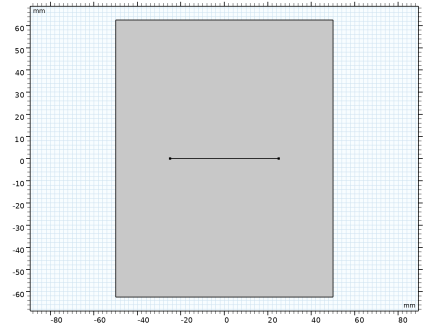
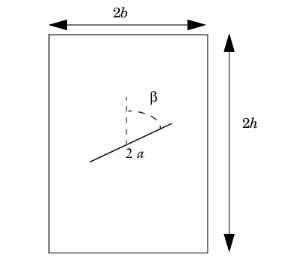
The geometry is a rectangle of size 2h × 2b with a crack of length 2a at the center. Three values for the angle β between the crack and the vertical axis are considered: 90°, 67.5°, and 22.5°.
Figure 1: Crack geometry.
Material
As specified in the benchmark, the material is linear elastic with a Young’s modulus E = 207 GPa and Poisson’s ratio ν = 0.3.
Loads and Constraints
A roller condition is applied on the bottom edge, and zero horizontal displacement is applied at the bottom-right corner to avoid rigid body motion. A uniform vertical load of σ = 100 MPa is applied on the top boundary.
J-Integral and Stress Intensity Factors
The energy release rate of a crack extension along the current direction of the crack can be calculated by the J-integral, which is calculated along a contour path around each crack tip:
Here, e1 is the unit direction vector of the crack, and m is the unit vector normal to the integration path.
The stress intensity factors KI and KII are calculated from the βK ratio between mode I (opening) and mode II (sliding) displacement.
Here, E* is the equivalent Young’s modulus. In 2D plane strain condition it is defined by
.
Results and Discussion
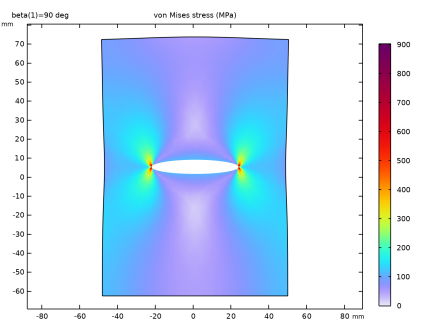
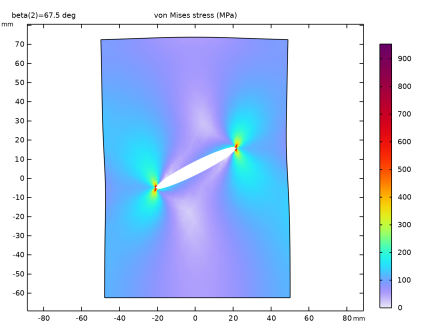
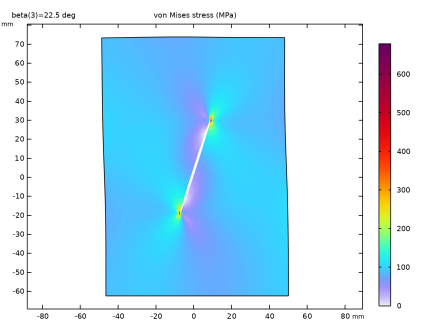
The stress plots show stress concentration at crack tips for the three angles (Figure 2-4).
Figure 2: von Mises stress at crack angle β = 90°.
Figure 3: von Mises stress at crack angle β = 67.5°.
Figure 4: von Mises stress at crack angle β = 22.5°.
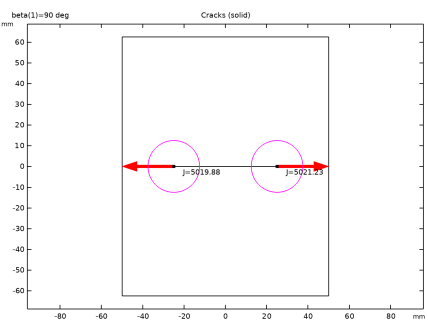
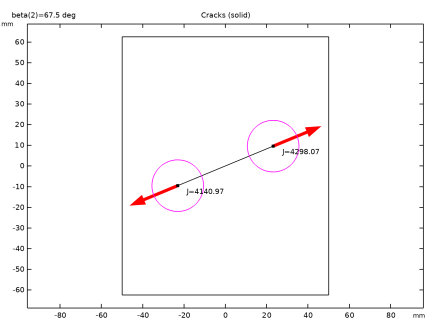
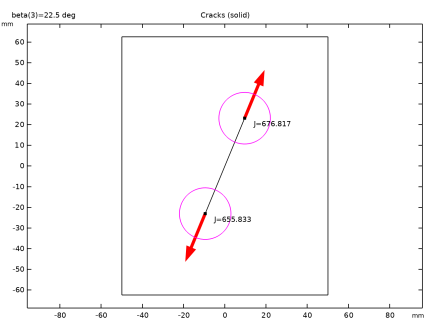
The crack directions, J-integral paths, and J-integral values are also plotted by default (Figure 5-7). The value of J is maximum for the horizontal crack, and it decreases with the angle.
Figure 5: J-integral path and value at crack angle β = 90°.
Figure 6: J-integral path and value at crack angle β = 67.5°.
Figure 7: J-integral path and value at crack angle β=  22.5°.
The values of the stress intensity factors can be compared to values reported in Ref. 1. The stress intensity factors KI and KII are given relative to . The results can differ slightly depending on the platform used to build the mesh and compute the solution.
The computed stress intensity factors are in agreement with the values reported in Ref. 1. For slanted cracks the results at the crack tips differ from each other. The difference can be explained by the fact that one side of the solid block is submitted to a roller condition, while a boundary load is applied to the other side, which makes the loading nonsymmetric.
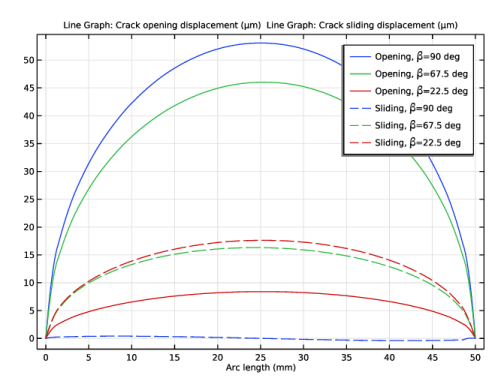
One can see that for β = 90° the crack mode is opening only, since KII is zero. When the angle is decreased the sliding mode II appears and becomes more and more important. For β = 22.5° mode II is dominant, since KII > KI. This is in good accordance with the plots of opening and sliding displacements along the crack, as plotted in Figure 8.
Figure 8: Opening and sliding displacement along crack.
Reference
1. H. Pang and R. Leggatt, “2D Test Cases in Linear Elastic Fracture Mechanics, part 3.4: Angle crack embedded in a plate,” NAFEMS, 1992.
Application Library path: Structural_Mechanics_Module/Fracture_Mechanics/angle_crack_plate
Modeling Instructions
From the File menu, choose New.
New
In the New window, click  Model Wizard.
Model Wizard
1
In the Model Wizard window, click  2D.
2
In the Select Physics tree, select Structural Mechanics > Solid Mechanics (solid).
3
Click Add.
4
Click  Study.
5
In the Select Study tree, select General Studies > Stationary.
6
Global Definitions
Parameters 1
1
In the Model Builder window, under Global Definitions click Parameters 1.
2
In the Settings window for Parameters, locate the Parameters section.
3
Geometry 1
1
In the Model Builder window, under Component 1 (comp1) click Geometry 1.
2
In the Settings window for Geometry, locate the Units section.
3
From the Length unit list, choose mm.
Rectangle 1 (r1)
1
In the Geometry toolbar, click  Rectangle.
2
In the Settings window for Rectangle, locate the Size and Shape section.
3
In the Width text field, type 2*b.
4
In the Height text field, type 2*h0.
5
Locate the Position section. From the Base list, choose Center.
Line Segment 1 (ls1)
1
In the Geometry toolbar, click  More Primitives and choose Line Segment.
2
In the Settings window for Line Segment, locate the Starting Point section.
3
From the Specify list, choose Coordinates.
4
In the x text field, type -a.
5
Locate the Endpoint section. From the Specify list, choose Coordinates.
6
In the x text field, type a.
Rotate 1 (rot1)
1
In the Geometry toolbar, click  Transforms and choose Rotate.
2
3
In the Settings window for Rotate, locate the Rotation section.
4
In the Angle text field, type 90-beta.
5
Click  Build All Objects.
Materials
Material 1 (mat1)
1
In the Model Builder window, under Component 1 (comp1) right-click Materials and choose Blank Material.
2
In the Settings window for Material, locate the Material Contents section.
3
Solid Mechanics (solid)
Crack 1
1
In the Physics toolbar, click  Boundaries and choose Crack.
2
Add two J-Integral nodes to evaluate the J-integrals at both crack tips.
J-Integral 1
In the Physics toolbar, click  Attributes and choose J-Integral.
Crack 1
In the Model Builder window, click Crack 1.
J-Integral 2
1
In the Physics toolbar, click  Attributes and choose J-Integral.
2
Roller 1
1
In the Physics toolbar, click  Boundaries and choose Roller.
2
Prescribed Displacement 1
1
In the Physics toolbar, click  Points and choose Prescribed Displacement.
2
3
In the Settings window for Prescribed Displacement, locate the Prescribed Displacement section.
4
From the Displacement in x direction list, choose Prescribed.
Boundary Load 1
1
In the Physics toolbar, click  Boundaries and choose Boundary Load.
2
3
In the Settings window for Boundary Load, locate the Force section.
4
Specify the fA vector as
Mesh 1
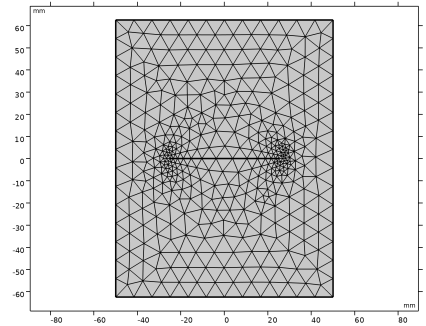
The mesh is automatically refined at crack tips. Edit the generated meshing sequence to apply a custom size.
1
In the Model Builder window, under Component 1 (comp1) click Mesh 1.
2
In the Settings window for Mesh, locate the Sequence Type section.
3
From the list, choose User-controlled mesh.
Size 1
1
In the Model Builder window, under Component 1 (comp1) > Mesh 1 click Size 1.
2
In the Settings window for Size, locate the Element Size section.
3
Click the Custom button.
4
Locate the Element Size Parameters section.
5
Select the Maximum element size checkbox. In the associated text field, type a/20.
6
In the Model Builder window, right-click Mesh 1 and choose Build All.
Study 1
Add a parametric sweep to change the crack angle.
Parametric Sweep
1
In the Study toolbar, click  Parametric Sweep.
2
In the Settings window for Parametric Sweep, locate the Study Settings section.
3
4
5
In the Study toolbar, click  Compute.
Set default units for result presentation.
Results
Preferred Units 1
1
In the Results toolbar, click  Configurations and choose Preferred Units.
2
In the Settings window for Preferred Units, locate the Units section.
3
Click  Add Physical Quantity.
4
In the Physical Quantity dialog, select General > Displacement (m) in the tree.
5
6
In the Settings window for Preferred Units, locate the Units section.
7
8
Click  Add Physical Quantity.
9
In the Physical Quantity dialog, select Solid Mechanics > Stress tensor (N/m^2) in the tree.
10
11
In the Settings window for Preferred Units, locate the Units section.
12
13
Click  Apply.
Line 1
1
In the Model Builder window, right-click Stress (solid) and choose Line.
2
In the Settings window for Line, locate the Expression section.
3
In the Expression text field, type 1.
4
Click to expand the Title section. From the Title type list, choose None.
5
Locate the Coloring and Style section. From the Coloring list, choose Uniform.
6
From the Color list, choose Black.
7
Click to expand the Inherit Style section. From the Plot list, choose Surface 1.
8
Clear the Color checkbox.
9
Clear the Color and data range checkbox.
10
Clear the Height scale factor checkbox.
11
Clear the Tube radius scale factor checkbox.
Deformation 1
Right-click Line 1 and choose Deformation.
Selection 1
1
In the Model Builder window, right-click Line 1 and choose Selection.
2
3
In the Stress (solid) toolbar, click  Plot.
Stress (solid)
1
In the Model Builder window, under Results click Stress (solid).
2
In the Settings window for 2D Plot Group, locate the Plot Settings section.
3
Clear the Plot dataset edges checkbox.
4
In the Stress (solid) toolbar, click  Plot.
5
Click  Plot First to display the results for the first angle.
6
Click  Plot Next several times to display the results for all the angles.
Result Templates
1
In the Results toolbar, click  Result Templates to open the Result Templates window.
2
Go to the Result Templates window.
3
In the tree, select Study 1/Parametric Solutions 1 (sol2) > Solid Mechanics > Cracks (solid).
4
Click the Add Result Template button in the window toolbar.
5
In the tree, select Study 1/Parametric Solutions 1 (sol2) > Solid Mechanics > Fracture Mechanics Results (solid).
6
Click the Add Result Template button in the window toolbar.
7
In the Results toolbar, click  Result Templates to close the Result Templates window.
Results
Crack Growth Direction (Crack 1)
1
In the Model Builder window, expand the Results > Cracks (solid) node, then click Crack Growth Direction (Crack 1).
2
In the Settings window for Arrow Point, locate the Coloring and Style section.
3
Clear the Scale factor checkbox.
Cracks (solid)
1
In the Model Builder window, click Cracks (solid).
2
In the Settings window for 2D Plot Group, click  Plot First to display the results for the first angle.
3
Click  Plot Next several times to display the results for all the angles.
Stress Intensity Factors, Mode 1
1
In the Model Builder window, expand the Results > Fracture Mechanics Results (solid) node, then click Stress Intensity Factors, Mode 1.
2
In the Settings window for Global Evaluation, locate the Expressions section.
3
Stress Intensity Factors, Mode 2
1
In the Model Builder window, click Stress Intensity Factors, Mode 2.
2
In the Settings window for Global Evaluation, locate the Expressions section.
3
4
In the Fracture Mechanics Results (solid) toolbar, click  Evaluate.
Stress, Multiple Angles
1
In the Model Builder window, right-click Stress (solid) and choose Duplicate.
2
In the Settings window for 2D Plot Group, type Stress, Multiple Angles in the Label text field.
3
Locate the Plot Settings section. From the View list, choose New view.
4
Locate the Color Legend section. Clear the Show legends checkbox.
5
Click to expand the Plot Array section. From the Array type list, choose Linear.
Solution Array 1
1
In the Model Builder window, expand the Stress, Multiple Angles node.
2
Right-click Surface 1 and choose Solution Array.
Line 1
1
In the Settings window for Line, click to expand the Plot Array section.
2
Select the Manual indexing checkbox.
Solution Array 1
Right-click Line 1 and choose Solution Array.
Stress, Multiple Angles
1
In the Stress, Multiple Angles toolbar, click  Plot.
2
Click the  Zoom Extents button in the Graphics toolbar.
Crack Displacement
1
In the Results toolbar, click  1D Plot Group.
2
In the Settings window for 1D Plot Group, type Crack Displacement in the Label text field.
3
Locate the Data section. From the Dataset list, choose Study 1/Parametric Solutions 1 (sol2).
Line Graph 1
1
Right-click Crack Displacement and choose Line Graph.
2
3
In the Settings window for Line Graph, click Replace Expression in the upper-right corner of the y-Axis Data section. From the menu, choose Component 1 (comp1) > Solid Mechanics > Cracks > Crack displacement - m > solid.crack1.jint1.delta_u1 - Crack opening displacement.
4
Click to expand the Legends section. Select the Show legends checkbox.
5
Find the Prefix and suffix subsection. In the Prefix text field, type Opening, \beta =.
Line Graph 2
1
In the Model Builder window, right-click Crack Displacement and choose Line Graph.
2
3
In the Settings window for Line Graph, click Replace Expression in the upper-right corner of the y-Axis Data section. From the menu, choose Component 1 (comp1) > Solid Mechanics > Cracks > Crack displacement - m > solid.crack1.jint1.delta_u2 - Crack sliding displacement.
4
Click to expand the Coloring and Style section. Find the Line style subsection. From the Line list, choose Dashed.
5
From the Color list, choose Cycle (reset).
6
Locate the Legends section. Select the Show legends checkbox.
7
Find the Prefix and suffix subsection. In the Prefix text field, type Sliding, \beta=.
8
In the Crack Displacement toolbar, click  Plot.