PDF

Trench-Gate IGBT 3D
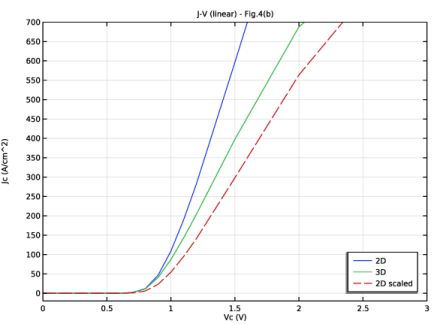
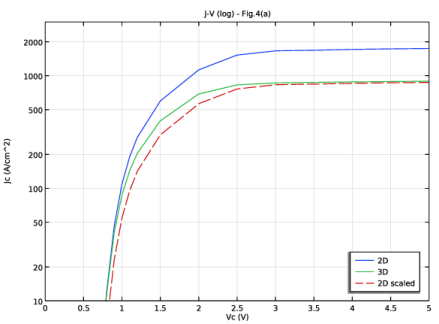
In this second half of a two-part example, a 3D model of a trench-gate IGBT is built by extruding the 2D model from the first half. Unlike the 2D model, now it is possible to arrange the alternating n+ and p+ emitters along the direction of extrusion as in the real device. This more realistic arrangement leads to better quantitative agreement with experimental data. The computed collector current density as a function of the collector voltage agrees reasonably well with the published result.
Introduction
In Ref. 1, Watanabe and others studied the effect of three-dimensional current flow on the simulation result by comparing 2D and 3D models of trench-gate IGBTs. They found that the 3D model reveals a nonuniform current distribution in the third dimension in the high current regime, where the current in the MOS channel region is limited by the electron supply from the n+-emitter. This nonuniform current distribution explains the reason why while the 3D model agrees well with measured result, the 2D model is off by the factor of the ratio of the n+-emitter length to the total emitter length.
In this example, we build the 3D model based on the 2D model in the previous example.
Model Definition
The model structure is detailed in Ref. 1, with additional details in Ref. 2.
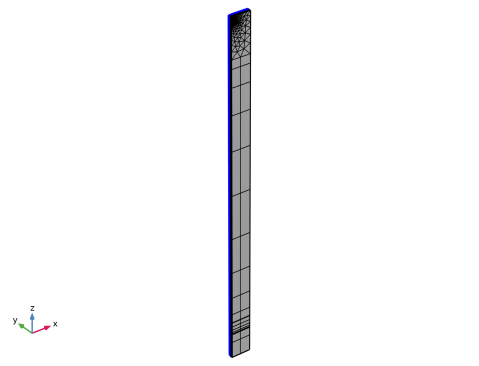
Following the reference paper, the symmetry of the physics is used and only half of the cell is drawn in the geometry. Some thin regions are created under the gate and the emitter surface, in order to mesh those high-gradient regions with thin rectangles or isosceles trapezoids. The geometry sequence is imported from the 2D model, slightly modified, and then extruded to 3D.
The Klaassen Unified Mobility Model and Caughey–Thomas Mobility Model are used. The band gap, effective density of states, and the band-gap narrowing reference concentration are modified according to Ref. 2. The Contact resistance option of metal contact boundary conditions is used to implement the mixed-mode simulation with parasitic resistance at the collector and emitter as mentioned in the reference paper. The physics is copied from the 2D model and pasted into the 3D model. Some settings still need to be updated, especially the selections and feature links such as for the mobility.
See the comments in the section Modeling Instructions for more detailed discussions on the model construction, solution processes, and result visualization.
Results and Discussion
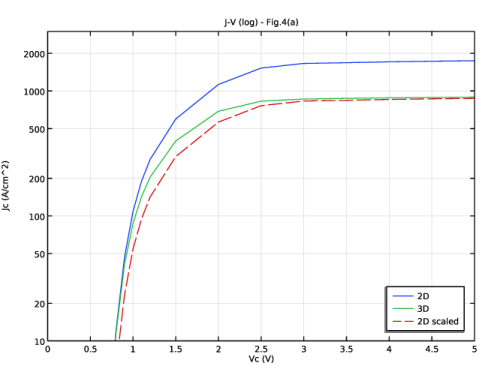
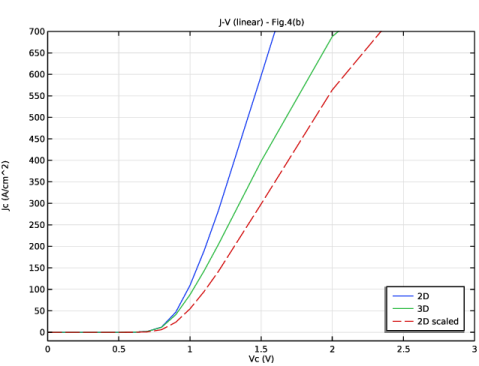
Figure 1 and Figure 2 show the collector current density as a function of the collector voltage, to be compared with Fig. 4(a) and (b) in Ref. 1. Reasonable agreement is seen.
Figure 1: Collector current density as a function of the collector voltage, log scale.
Figure 2: Collector current density as a function of the collector voltage, linear scale.
References
1. M. Watanabe and others, “Impact of three-dimensional current flow on accurate TCAD simulation for trench-gate IGBTs,” 31st International Symposium on Power Semiconductor Devices and ICs (ISPSD), pp. 311–314, 2019, doi: 10.1109/ISPSD.2019.8757640.
2. N. Shigyo and others, “Modeling and Simulation of Si IGBTs,” 2020 International Conference on Simulation of Semiconductor Processes and Devices (SISPAD), pp. 129–132, 2020, doi: 10.23919/SISPAD49475.2020.9241627.
Application Library path: Semiconductor_Module/Transistors/trench_gate_igbt_3d
Modeling Instructions
Root
Open the existing Trench-Gate IGBT 2D model (filename: trench_gate_igbt_2d.mph).
Application Libraries
1
From the File menu, choose Application Libraries.
2
In the Application Libraries window, select Semiconductor Module > Transistors > trench_gate_igbt_2d in the tree.
3
Add a 3D component for the 3D model. Set the length unit to micrometers (same as in the 2D model).
Add Component
In the Home toolbar, click  Add Component and choose 3D.
Geometry 2
1
In the Settings window for Geometry, locate the Units section.
2
From the Length unit list, choose µm.
Duplicate the 2D geometry on a work plane in 3D by importing the geometry sequence from the same existing 2D model. Then modify the contact window to match the actual 3D device. Extrude the work plane to form the 3D geometry.
Work Plane 1 (wp1)
1
In the Geometry toolbar, click  Work Plane.
2
In the Settings window for Work Plane, locate the Plane Definition section.
3
From the Plane list, choose xz-plane.
Work Plane 1 (wp1) > Plane Geometry
1
In the Model Builder window, click Plane Geometry.
2
In the Work Plane toolbar, click Insert Sequence and choose Insert Sequence.
3
Point 1 - Emitter contact
1
In the Model Builder window, under Component 2 (comp2) > Geometry 2 > Work Plane 1 (wp1) > Plane Geometry click Point 1 - Emitter contact & doping boundary (pt1).
2
In the Settings window for Point, type Point 1 - Emitter contact in the Label text field.
3
Locate the Point section. In the xw text field, type Wewin/2.
4
In the yw text field, type 0.
Extrude 1 (ext1)
1
In the Model Builder window, right-click Geometry 2 and choose Extrude.
2
In the Settings window for Extrude, locate the Distances section.
3
Mesh Control Faces 1 (mcf1)
1
In the Geometry toolbar, click  Virtual Operations and choose Mesh Control Faces.
2
Click the  Wireframe Rendering button in the Graphics toolbar.
3
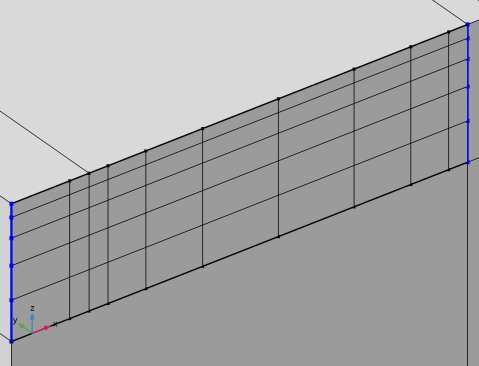
On the object fin, select Boundaries 12, 15, 28, 31, 40, 42, 43, 45, 47, 49, 51, 52, 54, 56, 67, 69, 73, 77, 80, and 82 only.
4
In the Geometry toolbar, click  Build All.
Disable the analysis of the geometry as the remaining small geometric details are needed.
5
In the Model Builder window, click Geometry 2.
6
In the Settings window for Geometry, locate the Cleanup section.
7
Clear the Automatic detection of small details checkbox.
Add built-in silicon material.
Add Material
1
In the Materials toolbar, click  Add Material to open the Add Material window.
2
Go to the Add Material window.
3
In the tree, select Semiconductors > Si - Silicon.
4
Click the Add to Component button in the window toolbar.
5
In the Materials toolbar, click  Add Material to close the Add Material window.
Copy the physics from the 2D component.
Semiconductor (semi)
1
In the Model Builder window, expand the Component 1 (comp1) node.
2
Right-click Component 1 (comp1) > Semiconductor (semi) and choose Copy.
Semiconductor (semi2)
1
In the Model Builder window, right-click Component 2 (comp2) and choose Paste Semiconductor.
2
In the Messages from Paste dialog, click OK.
Go through the physics settings that have been lost during copy/paste.
Semiconductor Material Model 1
1
In the Model Builder window, expand the Semiconductor (semi2) node, then click Semiconductor Material Model 1.
2
In the Settings window for Semiconductor Material Model, locate the Mobility Model section.
3
From the μn list, choose Electron mobility, Caughey–Thomas (semi2/smm1/mmct1).
4
From the μp list, choose Hole mobility, Caughey–Thomas (semi2/smm1/mmct1).
Caughey-Thomas Mobility Model (E) 1
1
In the Model Builder window, expand the Semiconductor Material Model 1 node, then click Caughey-Thomas Mobility Model (E) 1.
2
In the Settings window for Caughey–Thomas Mobility Model (E), locate the Input Mobilities section.
3
From the μn,in list, choose Electron mobility, Klaassen unified (semi2/smm1/mmkl1).
4
From the μp,in list, choose Hole mobility, Klaassen unified (semi2/smm1/mmkl1).
Analytic Doping Model - n-base
1
In the Model Builder window, under Component 2 (comp2) > Semiconductor (semi2) click Analytic Doping Model - n-base.
2
Analytic Doping Model - n-buffer
1
In the Model Builder window, click Analytic Doping Model - n-buffer.
2
Analytic Doping Model - p+ collector
1
In the Model Builder window, click Analytic Doping Model - p+ collector.
2
Geometric Doping Model - p-base
1
In the Model Builder window, click Geometric Doping Model - p-base.
2
Boundary Selection for Doping Profile 1
1
In the Model Builder window, expand the Geometric Doping Model - p-base node, then click Boundary Selection for Doping Profile 1.
2
3
Click the  Zoom to Selection button in the Graphics toolbar.
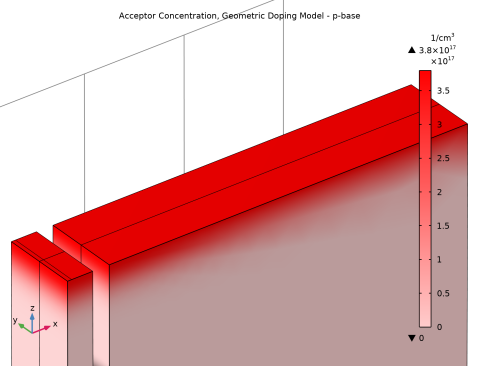
Here you can plot the preview of the doping profile for the selected feature.
Geometric Doping Model - p-base
1
In the Model Builder window, click Geometric Doping Model - p-base.
2
In the Settings window for Geometric Doping Model, click the Plot Doping Profile for Selected button in the window toolbar.
Geometric Doping Model - p+ emitter
1
In the Model Builder window, click Geometric Doping Model - p+ emitter.
2
Boundary Selection for Doping Profile 1
1
In the Model Builder window, expand the Geometric Doping Model - p+ emitter node, then click Boundary Selection for Doping Profile 1.
2
3
Click the  Zoom to Selection button in the Graphics toolbar.
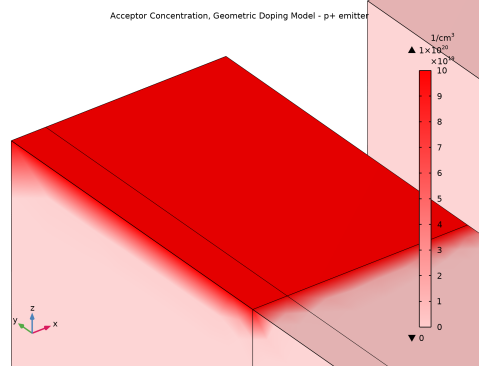
Here you can plot the preview of the doping profile for the selected feature.
Geometric Doping Model - p+ emitter
1
In the Model Builder window, click Geometric Doping Model - p+ emitter.
2
In the Settings window for Geometric Doping Model, click the Plot Doping Profile for Selected button in the window toolbar.
Geometric Doping Model - n+ emitter
1
In the Model Builder window, click Geometric Doping Model - n+ emitter.
2
Boundary Selection for Doping Profile 1
1
In the Model Builder window, expand the Geometric Doping Model - n+ emitter node, then click Boundary Selection for Doping Profile 1.
2
Trap-Assisted Recombination 1
1
In the Model Builder window, under Component 2 (comp2) > Semiconductor (semi2) click Trap-Assisted Recombination 1.
2
In the Settings window for Trap-Assisted Recombination, locate the Domain Selection section.
3
From the Selection list, choose All domains.
Metal Contact - Emitter
1
In the Model Builder window, click Metal Contact - Emitter.
2
3
In the Settings window for Metal Contact, locate the Terminal section.
4
In the Terminal name text field, type E.
Metal Contact - Collector
1
In the Model Builder window, click Metal Contact - Collector.
2
3
In the Settings window for Metal Contact, locate the Terminal section.
4
In the Terminal name text field, type C.
Thin Insulator Gate 1
1
In the Model Builder window, click Thin Insulator Gate 1.
2
3
In the Settings window for Thin Insulator Gate, locate the Terminal section.
4
In the Terminal name text field, type G.
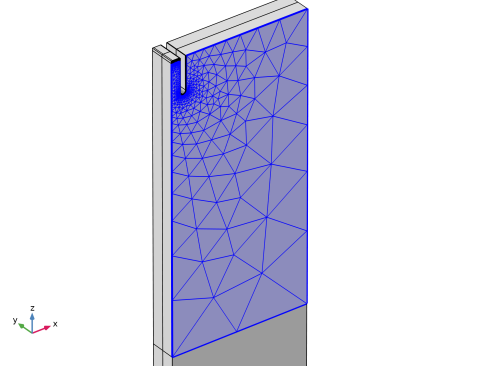
Build a similar 2D mesh on the front surface and then extrude it to 3D.
Mesh 2
Edge 1 - Metal contact
1
In the Mesh toolbar, click  More Generators and choose Edge.
2
In the Settings window for Edge, type Edge 1 - Metal contact in the Label text field.
3
Click the  Show Grid button in the Graphics toolbar.
4
Click the  Wireframe Rendering button in the Graphics toolbar.
5
6
Click to expand the Control Entities section. From the Smooth across removed control entities list, choose Off.
Distribution 1
1
Right-click Edge 1 - Metal contact and choose Distribution.
2
In the Settings window for Distribution, locate the Distribution section.
3
From the Distribution type list, choose Predefined.
4
In the Number of elements text field, type 2.
5
In the Element ratio text field, type 3.
6
Select the Reverse direction checkbox.
Size
1
In the Model Builder window, under Component 2 (comp2) > Mesh 2 click Size.
2
In the Settings window for Size, locate the Element Size section.
3
Click the Custom button.
4
Locate the Element Size Parameters section. In the Maximum element size text field, type 9.1.
5
In the Minimum element size text field, type 0.04.
6
In the Maximum element growth rate text field, type 1.25.
7
In the Curvature factor text field, type 0.35.
8
In the Resolution of narrow regions text field, type 1.1.
Edge 2 - Emitter surface
1
In the Mesh toolbar, click  More Generators and choose Edge.
2
In the Settings window for Edge, type Edge 2 - Emitter surface in the Label text field.
3
4
Locate the Control Entities section. From the Smooth across removed control entities list, choose Off.
Distribution 1
1
Right-click Edge 2 - Emitter surface and choose Distribution.
2
In the Settings window for Distribution, locate the Distribution section.
3
From the Distribution type list, choose Predefined.
4
In the Number of elements text field, type 8.
5
In the Element ratio text field, type 4.
6
Select the Symmetric distribution checkbox.
Copy Edge 1
1
In the Model Builder window, right-click Mesh 2 and choose Copying Operations > Copy Edge.
2
3
In the Settings window for Copy Edge, locate the Destination Edges section.
4
Click to select the  Activate Selection toggle button.
5
6
Click to expand the Control Entities section. From the Smooth across removed control entities list, choose Off.
Mapped 1 - Emitter depth
1
In the Mesh toolbar, click  More Generators and choose Mapped.
2
In the Settings window for Mapped, type Mapped 1 - Emitter depth in the Label text field.
3
4
Click to expand the Control Entities section. From the Smooth across removed control entities list, choose Off.
5
Click to expand the Reduce Element Skewness section. Select the Adjust edge mesh checkbox.
Distribution 1
1
Right-click Mapped 1 - Emitter depth and choose Distribution.
2
3
In the Settings window for Distribution, locate the Distribution section.
4
From the Distribution type list, choose Predefined.
5
In the Element ratio text field, type 3.
6
Select the Reverse direction checkbox.
7
Locate the Edge Selection section. Click  Zoom to Selection.
8
Click  Build Selected.
Copy Edge 2
1
In the Model Builder window, right-click Mesh 2 and choose Copying Operations > Copy Edge.
2
3
In the Settings window for Copy Edge, locate the Destination Edges section.
4
Click to select the  Activate Selection toggle button.
5
6
Locate the Control Entities section. From the Smooth across removed control entities list, choose Off.
Mapped 2 - Gate depth
1
In the Mesh toolbar, click  More Generators and choose Mapped.
2
In the Settings window for Mapped, type Mapped 2 - Gate depth in the Label text field.
3
4
Locate the Control Entities section. From the Smooth across removed control entities list, choose Off.
5
Locate the Reduce Element Skewness section. Select the Adjust edge mesh checkbox.
Distribution 1 - Left depth
1
Right-click Mapped 2 - Gate depth and choose Distribution.
2
In the Settings window for Distribution, type Distribution 1 - Left depth in the Label text field.
3
4
Locate the Distribution section. From the Distribution type list, choose Predefined.
5
In the Element ratio text field, type 10.
6
Select the Reverse direction checkbox.
Distribution 2 - Right depth
1
In the Model Builder window, right-click Mapped 2 - Gate depth and choose Distribution.
2
In the Settings window for Distribution, type Distribution 2 - Right depth in the Label text field.
3
4
Locate the Distribution section. From the Distribution type list, choose Predefined.
5
In the Element ratio text field, type 10.
Distribution 3 - Left surface
1
Right-click Mapped 2 - Gate depth and choose Distribution.
2
In the Settings window for Distribution, type Distribution 3 - Left surface in the Label text field.
3
4
Locate the Distribution section. From the Distribution type list, choose Predefined.
5
In the Number of elements text field, type 20.
6
In the Element ratio text field, type 3.
7
Select the Symmetric distribution checkbox.
Distribution 4 - Right surface
1
Right-click Mapped 2 - Gate depth and choose Distribution.
2
In the Settings window for Distribution, type Distribution 4 - Right surface in the Label text field.
3
4
Locate the Distribution section. From the Distribution type list, choose Predefined.
5
In the Number of elements text field, type 6.
6
In the Element ratio text field, type 4.
Distribution 5 - Bottom surface
1
Right-click Mapped 2 - Gate depth and choose Distribution.
2
In the Settings window for Distribution, type Distribution 5 - Bottom surface in the Label text field.
3
4
Locate the Distribution section. From the Distribution type list, choose Predefined.
5
In the Number of elements text field, type 8.
6
Locate the Edge Selection section. Click  Zoom to Selection.
7
Click  Build Selected.
Free Triangular 1
1
In the Mesh toolbar, click  More Generators and choose Free Triangular.
2
3
In the Settings window for Free Triangular, click to expand the Control Entities section.
4
From the Smooth across removed control entities list, choose Off.
5
Click  Build Selected.
Copy Edge 3
1
In the Model Builder window, right-click Mesh 2 and choose Copying Operations > Copy Edge.
2
3
In the Settings window for Copy Edge, locate the Destination Edges section.
4
Click to select the  Activate Selection toggle button.
5
6
Locate the Control Entities section. From the Smooth across removed control entities list, choose Off.
Mapped 3
1
In the Mesh toolbar, click  More Generators and choose Mapped.
2
3
In the Settings window for Mapped, locate the Control Entities section.
4
From the Smooth across removed control entities list, choose Off.
5
Locate the Reduce Element Skewness section. Select the Adjust edge mesh checkbox.
Distribution 1 - n-base
1
Right-click Mapped 3 and choose Distribution.
2
In the Settings window for Distribution, type Distribution 1 - n-base in the Label text field.
3
4
Locate the Distribution section. From the Distribution type list, choose Predefined.
5
In the Number of elements text field, type 10.
6
In the Element ratio text field, type 5.
7
Select the Symmetric distribution checkbox.
Distribution 2 - n-buffer
1
In the Model Builder window, right-click Mapped 3 and choose Distribution.
2
In the Settings window for Distribution, type Distribution 2 - n-buffer in the Label text field.
3
4
Locate the Distribution section. From the Distribution type list, choose Predefined.
5
In the Element ratio text field, type 10.
Distribution 3 - p+ collector
1
Right-click Mapped 3 and choose Distribution.
2
In the Settings window for Distribution, type Distribution 3 - p+ collector in the Label text field.
3
4
Locate the Distribution section. From the Distribution type list, choose Predefined.
5
In the Number of elements text field, type 3.
6
In the Element ratio text field, type 30.
7
Select the Reverse direction checkbox.
Swept 1
1
In the Mesh toolbar, click  Swept.
2
In the Settings window for Swept, locate the Domain Selection section.
3
From the Geometric entity level list, choose Domain.
4
5
Click to expand the Control Entities section. From the Smooth across removed control entities list, choose Off.
Distribution 1
1
Right-click Swept 1 and choose Distribution.
2
In the Settings window for Distribution, locate the Distribution section.
3
From the Distribution type list, choose Predefined.
4
In the Number of elements text field, type 4.
5
In the Element ratio text field, type 6.
6
Select the Reverse direction checkbox.
Swept 2
1
In the Model Builder window, under Component 2 (comp2) > Mesh 2 right-click Swept 1 and choose Duplicate.
2
In the Settings window for Swept, locate the Domain Selection section.
3
Click  Clear Selection.
4
Distribution 1
1
In the Model Builder window, expand the Swept 2 node, then click Distribution 1.
2
In the Settings window for Distribution, locate the Distribution section.
3
Clear the Reverse direction checkbox.
4
Click the  Go to Default View button in the Graphics toolbar.
5
Click  Build All.
Disable the 3D model in the existing study.
Study 1 - 2D
1
In the Model Builder window, click Study 1.
2
In the Settings window for Study, type Study 1 - 2D in the Label text field.
Step 1: Semiconductor Equilibrium
1
In the Model Builder window, expand the Study 1 - 2D node, then click Step 1: Semiconductor Equilibrium.
2
In the Settings window for Semiconductor Equilibrium, locate the Physics and Variables Selection section.
3
Select the Modify model configuration for study step checkbox.
4
In the tree, select Component 2 (comp2) > Semiconductor (semi2).
5
Click  Disable in Model.
Step 2: Stationary
1
In the Model Builder window, click Step 2: Stationary.
2
In the Settings window for Stationary, locate the Physics and Variables Selection section.
3
Select the Modify model configuration for study step checkbox.
4
In the tree, select Component 2 (comp2) > Semiconductor (semi2).
5
Click  Disable in Model.
Add a study for the 3D model.
Add Study
1
In the Study toolbar, click  Add Study to open the Add Study window.
2
Go to the Add Study window.
3
Find the Studies subsection. In the Select Study tree, select Empty Study.
4
Click the Add Study button in the window toolbar.
5
In the Study toolbar, click  Add Study to close the Add Study window.
Study 2 - 3D
In the Settings window for Study, type Study 2 - 3D in the Label text field.
Study 1 - 2D
Step 1: Semiconductor Equilibrium, Step 2: Stationary
1
In the Model Builder window, under Study 1 - 2D, Ctrl-click to select Step 1: Semiconductor Equilibrium and Step 2: Stationary.
2
Study 2 - 3D
In the Model Builder window, right-click Study 2 - 3D and choose Paste Multiple Items.
1
In the Settings window for Semiconductor Equilibrium, locate the Physics and Variables Selection section.
2
In the tree, select Component 1 (comp1) > Semiconductor (semi).
3
Click  Disable in Model.
4
In the tree, select Component 2 (comp2) > Semiconductor (semi2).
5
Click  Solve For.
Step 2: Stationary
1
In the Model Builder window, click Step 2: Stationary.
2
In the Settings window for Stationary, locate the Physics and Variables Selection section.
3
In the tree, select Component 1 (comp1) > Semiconductor (semi).
4
Click  Disable in Model.
5
In the tree, select Component 2 (comp2) > Semiconductor (semi2).
6
Click  Solve For.
Similar to the 2D model, use initial value based scaling and manual scaling for better error estimate for the second study step.
7
In the Study toolbar, click  Get Initial Value.
Solver Configurations
In the Model Builder window, expand the Study 2 - 3D > Solver Configurations node.
Solution 3 (sol3)
1
In the Model Builder window, expand the Study 2 - 3D > Solver Configurations > Solution 3 (sol3) node, then click Dependent Variables 2.
2
In the Settings window for Dependent Variables, locate the Scaling section.
3
From the Method list, choose Initial-value based.
4
In the Model Builder window, expand the Study 2 - 3D > Solver Configurations > Solution 3 (sol3) > Dependent Variables 2 node, then click Voltage Drop Across Contact (comp2.semi2.V_dae).
5
In the Settings window for Field, locate the Scaling section.
6
From the Method list, choose Manual.
7
In the Study toolbar, click  Compute.
Update the Jc-Vc plots to compare with the reference paper.
Results
Global 1 - 3D
1
In the Model Builder window, expand the Results > J-V (log) - Fig.4(a) node.
2
Right-click Global 1 - 2D and choose Duplicate.
3
In the Settings window for Global, type Global 1 - 3D in the Label text field.
4
Locate the Data section. From the Dataset list, choose Study 2 - 3D/Solution 3 (sol3).
5
Locate the y-Axis Data section. In the table, enter the following settings:
Global 1 - 2D scaled
1
Right-click Global 1 - 2D and choose Duplicate.
2
In the Settings window for Global, type Global 1 - 2D scaled in the Label text field.
3
Locate the y-Axis Data section. In the table, enter the following settings:
4
Click to expand the Coloring and Style section. Find the Line style subsection. From the Line list, choose Dashed.
J-V (log) - Fig.4(a)
1
In the Model Builder window, click J-V (log) - Fig.4(a).
2
In the Settings window for 1D Plot Group, click to expand the Title section.
3
From the Title type list, choose Label.
4
Locate the Plot Settings section.
5
Select the y-axis label checkbox. In the associated text field, type Jc (A/cm^2).
6
In the J-V (log) - Fig.4(a) toolbar, click  Plot.
Global 1 - 2D scaled, Global 1 - 3D
1
In the Model Builder window, under Results > J-V (log) - Fig.4(a), Ctrl-click to select Global 1 - 3D and Global 1 - 2D scaled.
2
J-V (linear) - Fig.4(b)
1
In the Model Builder window, under Results right-click J-V (linear) - Fig.4(b) and choose Paste Multiple Items.
2
In the Settings window for 1D Plot Group, locate the Title section.
3
From the Title type list, choose Label.
4
Locate the Plot Settings section.
5
Select the y-axis label checkbox. In the associated text field, type Jc (A/cm^2).
6
In the J-V (linear) - Fig.4(b) toolbar, click  Plot.
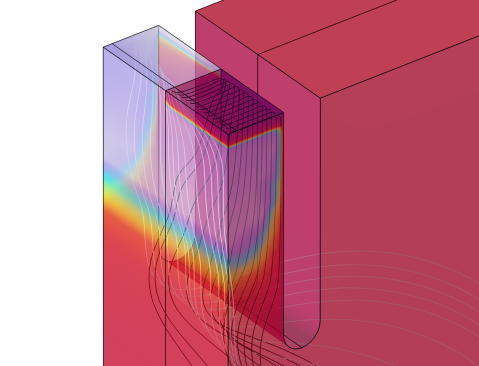
Finally plot the electron and hole current streamlines on top of the electron concentration as the model thumbnail. Notice how the electron current in the MOS channel region is nonuniform as mentioned in the reference paper. First zoom in to the region around the gate, then add the streamlines. Add transparency to the volume plot of the electron concentration to reveal the streamlines.
Semiconductor (semi2)
Thin Insulator Gate 1
1
In the Model Builder window, under Component 2 (comp2) > Semiconductor (semi2) click Thin Insulator Gate 1.
2
In the Settings window for Thin Insulator Gate, locate the Boundary Selection section.
3
Click  Zoom to Selection.
Results
Electron Concentration & Current Streamlines 3D
1
In the Model Builder window, under Results click Electron Concentration (semi2).
2
In the Settings window for 3D Plot Group, type Electron Concentration & Current Streamlines 3D in the Label text field.
Streamline 1 - Electron current
1
Right-click Electron Concentration & Current Streamlines 3D and choose Streamline.
2
In the Settings window for Streamline, type Streamline 1 - Electron current in the Label text field.
3
Click Replace Expression in the upper-right corner of the Expression section. From the menu, choose Component 2 (comp2) > Semiconductor > Currents and charge > Electron current > semi2.JnX,...,semi2.JnZ - Electron current density.
4
5
Locate the Coloring and Style section. Find the Point style subsection. From the Color list, choose Black.
Streamline 2 - Hole current
1
Right-click Electron Concentration & Current Streamlines 3D and choose Streamline.
2
In the Settings window for Streamline, type Streamline 2 - Hole current in the Label text field.
3
Click Replace Expression in the upper-right corner of the Expression section. From the menu, choose Component 2 (comp2) > Semiconductor > Currents and charge > Hole current > semi2.JpX,...,semi2.JpZ - Hole current density.
4
5
Locate the Coloring and Style section. Find the Point style subsection. From the Color list, choose White.
Transparency 1
1
In the Model Builder window, right-click Volume 1 and choose Transparency.
2
In the Electron Concentration & Current Streamlines 3D toolbar, click  Plot.
3
In the Model Builder window, click Transparency 1.