
|
|
|

 , m, e, and ε0 are the reduced Planck constant, electron mass, elementary charge, and the permittivity of vacuum, respectively. The dependent variable to be solved for, ψ(r), is the wave function: a complex scalar field whose norm, | ψ(r) |2, gives the probability of finding the electron at r. The operator
  , is the Hamiltonian, which corresponds to the total energy of the system. The Laplacian term gives the kinetic energy of the electron, whereas the potential energy is simply given by the Coulomb potential due to the positively charged nucleus at the origin. The TISE is in the form of an eigenvalue problem for the unknown total energy, E, and can be solved exactly by the usual tools of the trade: separation of variables and series expansions. The resulting eigenstates are labeled by three integers: the quantum numbers, n, l, and m, where n, l ∈ N, l ≤ n and m = −l, …, 0, …, l. Using spherical polar coordinates with θ and ϕ denoting the polar and azimuthal angles, respectively, they can be expressed as
 , expressed in terms of the Legendre polynomials
  , are known as the spherical harmonics. The eigenenergy only depends on the principal quantum number, n:
 2/(mee2) ≈ 52.9 pm is the Bohr radius. In the Schrödinger Equation interface, modify the default nodes (Effective Mass and Electron Potential Energy) so that the effective mass is equal to me (this model does not use a periodic lattice) and the electron potential energy is equal to the Coulomb potential of the nucleus. The only boundary condition needed here is ψ → 0 as r → ∞, which corresponds to bound states. Therefore, surround the sphere with a thin layer and define it as an infinite element domain. To improve the computation speed, use a mesh that becomes progressively coarser in the radial direction. Finally, specify the energy scale as eV and estimate −15 eV as the starting point for the eigenvalue search.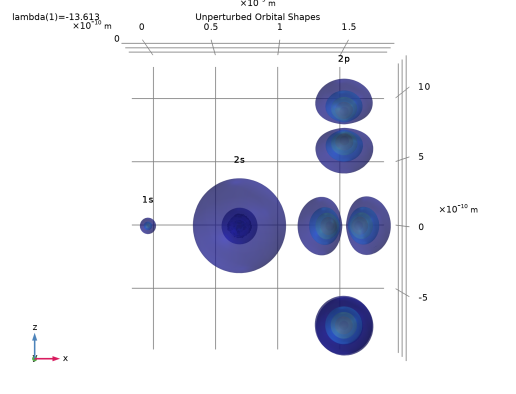

|
1
|
|
2
|
|
3
|
Click Add.
|
|
4
|
Click
 Study. Study. |
|
5
|
|
6
|
Click
 Done. Done. |
|
1
|
|
2
|
|
3
|
Click
 Load from File. Load from File. |
|
4
|
Browse to the model’s Application Libraries folder and double-click the file solving_hydrogen_atom_parameters.txt.
|
|
1
|
|
2
|
|
3
|
|
4
|
Click to expand the Layers section. In the table, enter the following settings:
|
|
1
|
In the Model Builder window, under Component 1 (comp1) right-click Definitions and choose Variables.
|
|
2
|
|
1
|
|
2
|
|
1
|
|
2
|
|
3
|
|
4
|
|
5
|
Click OK.
|
|
1
|
|
2
|
|
3
|
|
4
|
In the Add dialog, in the Input selections list, choose Simulation domain and Infinite element domain.
|
|
5
|
Click OK.
|
|
1
|
|
2
|
|
3
|
|
4
|
|
5
|
Click OK.
|
|
1
|
|
2
|
|
3
|
|
4
|
|
1
|
|
2
|
|
3
|
|
1
|
In the Model Builder window, under Component 1 (comp1) > Schrödinger Equation (schr) click Effective Mass 1.
|
|
2
|
|
3
|
|
1
|
In the Model Builder window, under Component 1 (comp1) > Schrödinger Equation (schr) click Electron Potential Energy 1.
|
|
2
|
|
3
|
Locate the Electron Potential Energy section. From the Ve list, choose User defined. In the associated text field, type -kC*e_const^2/sys2.r.
|
|
1
|
|
2
|
|
3
|
|
1
|
|
2
|
In the Settings window for Electron Potential Energy, type External field along z-axis in the Label text field.
|
|
3
|
|
4
|
Locate the Electron Potential Energy section. From the Ve list, choose User defined. In the associated text field, type e_const*Eext*z.
|
|
1
|
|
2
|
|
3
|
From the list, choose User-controlled mesh.
|
|
1
|
|
2
|
|
3
|
Click the Custom button.
|
|
4
|
|
5
|
|
1
|
|
2
|
|
3
|
|
4
|
|
1
|
|
2
|
|
3
|
|
1
|
|
2
|
|
3
|
|
4
|
|
5
|
|
6
|
|
1
|
|
2
|
|
3
|
|
4
|
|
5
|
Locate the Physics and Variables Selection section. Select the Modify model configuration for study step checkbox.
|
|
6
|
In the tree, select Component 1 (comp1) > Schrödinger Equation (schr) > External field along z-axis.
|
|
7
|
Click
 Disable. Disable. |
|
8
|
|
1
|
|
2
|
|
3
|
|
4
|
|
1
|
|
2
|
|
3
|
|
4
|
|
5
|
Locate the Plot Settings section.
|
|
6
|
|
7
|
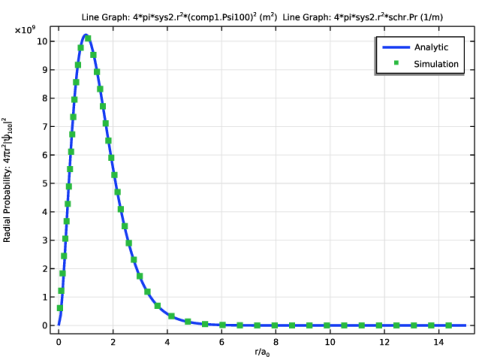
Select the y-axis label checkbox. In the associated text field, type Radial Probability: 4\pi r<sup>2</sup>|\psi<sub>100</sub>|<sup>2</sup>.
|
|
1
|
|
2
|
|
3
|
|
4
|
|
5
|
|
6
|
|
7
|
|
8
|
|
10
|
|
11
|
|
1
|
|
2
|
|
3
|
|
4
|
|
5
|
|
6
|
Locate the Coloring and Style section. Find the Line style subsection. From the Line list, choose None.
|
|
7
|
|
8
|
|
9
|
|
10
|
|
11
|
|
12
|
|
14
|
|
1
|
|
2
|
|
3
|
|
4
|
|
5
|
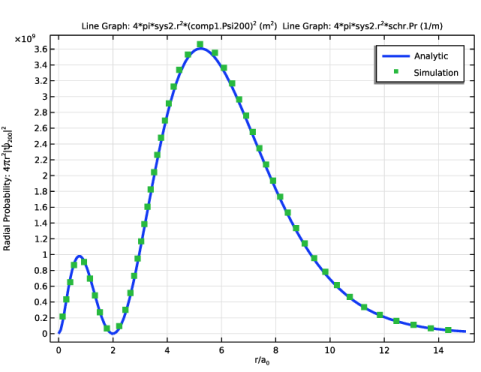
Locate the Plot Settings section. In the y-axis label text field, type Radial Probability: 4\pi r<sup>2</sup>|\psi<sub>200</sub>|<sup>2</sup>.
|
|
1
|
|
2
|
|
3
|
|
4
|
|
1
|
|
2
|
|
3
|
|
4
|
|
5
|
|
6
|
|
1
|
|
2
|
|
3
|
|
1
|
|
2
|
|
3
|
|
4
|
|
5
|
|
6
|
|
7
|
|
1
|
|
2
|
|
3
|
|
1
|
|
2
|
|
3
|
|
4
|
|
5
|
|
1
|
|
2
|
|
3
|
|
1
|
|
2
|
|
3
|
|
4
|
|
5
|
|
1
|
|
2
|
|
3
|
|
4
|
|
1
|
|
2
|
|
3
|
|
4
|
|
5
|
|
1
|
|
2
|
|
3
|
|
4
|
|
1
|
|
2
|
|
3
|
|
4
|
|
5
|
|
6
|
|
1
|
|
2
|
|
3
|
|
4
|
|
5
|
|
6
|
|
7
|
|
1
|
|
2
|
|
3
|
|
4
|
|
5
|
|
6
|
|
7
|
|
8
|
|
9
|
|
10
|
|
1
|
|
2
|
Go to the Add Study window.
|
|
3
|
Find the Studies subsection. In the Select Study tree, select Preset Studies for Selected Physics Interfaces > Eigenvalue.
|
|
4
|
Click the Add Study button in the window toolbar.
|
|
5
|
|
1
|
|
2
|
|
3
|
|
4
|
|
5
|
|
1
|
|
2
|
|
3
|
|
4
|
|
5
|
|
1
|
In the Model Builder window, expand the Results > Stark effect orbital shapes > Isosurface 2 node, then click Isosurface 2.
|
|
2
|
|
3
|
|
4
|
|
5
|
|
1
|
|
2
|
|
3
|
|
4
|
|
1
|
In the Model Builder window, expand the Isosurface 3 node, then click Results > Stark effect orbital shapes > Isosurface 4.
|
|
2
|
|
3
|
|
4
|
|
1
|
|
2
|
|
3
|
|
4
|
|
1
|
|
2
|
|
3
|
|
4
|
|
1
|
|
2
|
|
3
|
|
4
|
|
1
|
|
2
|
|
3
|
|
4
|
Select the LaTeX markup checkbox.
|
|
1
|
|
2
|
|
3
|
|
4
|
Select the LaTeX markup checkbox.
|
|
5
|
|
6
|
|
1
|
|
2
|
|
3
|
|
4
|
Select the LaTeX markup checkbox.
|
|
5
|
|
6
|
|
1
|
|
2
|
|
3
|
|
4
|
Select the LaTeX markup checkbox.
|
|
5
|
|
6
|
|
7
|
|
8
|
|
9
|
|
1
|
|
2
|
In the Settings window for Global Evaluation, type Unperturbed eigenenergies in the Label text field.
|
|
3
|
|
4
|
|
5
|
Click
 Evaluate. Evaluate. |
|
1
|
|
2
|
In the Settings window for Global Evaluation, type Stark effect eigenenergies in the Label text field.
|
|
3
|
Click
 Evaluate. Evaluate. |


