
|
|
|
 .
.
 |
If the entire time history is of interest, then the time-dependent study should use a physical solution as the initial condition. Usually, this is done by adding a Stationary study step before the time dependent study step. In addition, it is sometimes necessary to turn off the Consistent initialization under the Time Stepping section of the settings window for the Time-Dependent Solver node under the Solver Configurations tree structure.
Forward Recovery of a PIN Diode (Application Library path Semiconductor_Module/Device_Building_Blocks/pin_forward_recovery)
Reverse Recovery of a PIN Diode (Application Library path Semiconductor_Module/Device_Building_Blocks/pin_reverse_recovery)
|
|
1
|
|
2
|
|
3
|
Click Add.
|
|
4
|
|
5
|
Click Add.
|
|
6
|
Click
 Study. Study. |
|
7
|
|
8
|
Click
 Done. Done. |
|
1
|
|
2
|
|
3
|
Click
 Load from File. Load from File. |
|
4
|
Browse to the model’s Application Libraries folder and double-click the file pn_diode_circuit_parameters.txt.
|
|
1
|
|
2
|
|
3
|
|
4
|
|
1
|
|
2
|
|
3
|
|
4
|
|
5
|
|
6
|
|
7
|
|
1
|
|
2
|
|
3
|
|
4
|
|
5
|
|
1
|
|
2
|
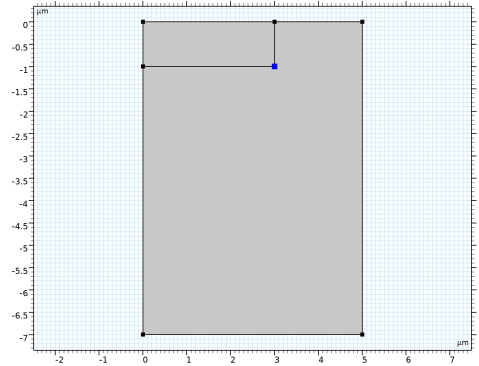
On the object r2, select Point 2 only.
|
|
3
|
|
4
|
|
1
|
|
2
|
|
3
|
|
4
|
Click
 Build All Objects. Build All Objects. |
|
1
|
|
2
|
Go to the Add Material window.
|
|
3
|
|
4
|
Click the Add to Component button in the window toolbar.
|
|
5
|
|
1
|
|
2
|
|
3
|
|
4
|
|
5
|
|
1
|
|
2
|
|
3
|
|
4
|
|
5
|
|
6
|
|
7
|
|
8
|
|
9
|
|
1
|
|
2
|
|
3
|
|
4
|
|
5
|
|
6
|
|
7
|
|
8
|
|
1
|
|
2
|
|
3
|
|
1
|
|
3
|
|
4
|
|
1
|
|
1
|
|
2
|
|
4
|
|
1
|
|
2
|
|
4
|
|
5
|
|
6
|
|
1
|
|
2
|
|
4
|
|
1
|
|
2
|
Go to the Add Physics window.
|
|
3
|
|
4
|
Click the Add to Component 1 button in the window toolbar.
|
|
5
|
|
1
|
|
2
|
|
3
|
Locate the Node Connections section. In the table, enter the following settings:
|
|
4
|
|
5
|
|
6
|
|
1
|
|
2
|
|
3
|
Locate the Node Connections section. In the table, enter the following settings:
|
|
4
|
|
5
|
|
1
|
|
2
|
|
3
|
Locate the Node Connections section. In the table, enter the following settings:
|
|
4
|
|
1
|
|
2
|
|
3
|
Click
 Range. Range. |
|
4
|
|
5
|
|
6
|
Click Replace.
|
|
7
|
|
8
|
In the Solve for column of the table, under Component 1 (comp1), clear the checkbox for Electrical Circuit 2 (cir2).
|
|
1
|
|
2
|
|
3
|
|
4
|
|
5
|
|
6
|
|
1
|
|
2
|
Go to the Add Study window.
|
|
3
|
|
4
|
Click the Add Study button in the window toolbar.
|
|
5
|
|
1
|
|
2
|
Click
 Range. Range. |
|
3
|
|
4
|
|
5
|
Click Replace.
|
|
6
|
|
7
|
|
8
|
|
9
|
Locate the Physics and Variables Selection section. In the Solve for column of the table, under Component 1 (comp1), clear the checkboxes for Semiconductor (semi) and Electrical Circuit (cir).
|
|
10
|
|
1
|
|
2
|
|
3
|
|
4
|
|
5
|
Locate the Plot Settings section.
|
|
6
|
|
7
|
|
8
|
|
1
|
|
2
|
|
3
|
|
4
|
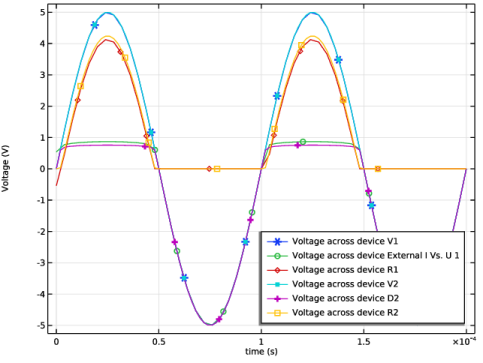
Click Replace Expression in the upper-right corner of the y-Axis Data section. From the menu, choose Component 1 (comp1) > Electrical Circuit > Devices > V1 > cir.V1.v - Voltage across device V1 - V.
|
|
5
|
Locate the y-Axis Data section. In the table, enter the following settings:
|
|
6
|
Click to expand the Coloring and Style section. Find the Line markers subsection. From the Marker list, choose Cycle.
|
|
7
|
|
1
|
|
2
|
|
3
|
|
4
|
Locate the y-Axis Data section. In the table, enter the following settings:
|
|
5
|
Locate the Coloring and Style section. Find the Line markers subsection. From the Marker list, choose Cycle.
|
|
6
|
|
7
|


