PDF

Metal–Insulator–Metal (MIM) Diode
Introduction
The MIM (Metal–Insulator–Metal) tunnel diode is a type of diode where a layer of insulating material with a thickness of a few nanometers is placed between two metal electrodes. By applying a small voltage, electrons on the metal side with energies close to the Fermi level can tunnel through the insulator layer due to a quantum-mechanical effect. In contrast, classical physics treats the layer as an impenetrable barrier, despite its extreme thinness. Electron tunneling enables MIM diodes to switch rapidly and operate efficiently at high frequencies.
This model shows how to model a simple MIM diode using the WKB tunneling model.
Model Definition
This model compares the terminal current of a MIM diode with and without considering the tunneling effect. The MIM tunnel diode is modeled as a 1D domain with a 5 nm thick insulator material. The two metal electrodes are defined at the two ends of the domain using a Metal Contact feature. A WKB Tunneling Model feature, defined at the Metal Contact, accounts for the quantum tunneling effect across the potential barrier.
The Modeling Instructions section describes the setup in detail.
Results and Discussion
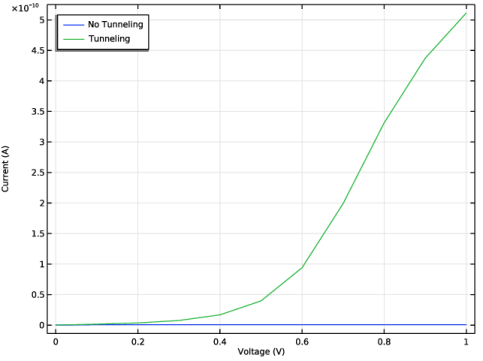
Figure 1 compares the terminal current versus voltage for the two studies, with and without tunneling.
Figure 1: Current versus voltage, with and without tunneling effect.
Application Library path: Semiconductor_Module/Device_Building_Blocks/mim_diode
Modeling Instructions
From the File menu, choose New.
New
In the New window, click  Model Wizard.
Model Wizard
1
In the Model Wizard window, click  1D.
2
In the Select Physics tree, select Semiconductor > Semiconductor (semi).
3
Click Add.
4
Click  Study.
5
In the Select Study tree, select Preset Studies for Selected Physics Interfaces > Semiconductor Equilibrium.
6
Global Definitions
Parameters 1
1
In the Model Builder window, under Global Definitions click Parameters 1.
2
In the Settings window for Parameters, locate the Parameters section.
3
Geometry 1
1
In the Model Builder window, under Component 1 (comp1) click Geometry 1.
2
In the Settings window for Geometry, locate the Units section.
3
From the Length unit list, choose nm.
Interval 1 (i1)
1
Right-click Component 1 (comp1) > Geometry 1 and choose Interval.
2
In the Settings window for Interval, locate the Interval section.
3
Add Material
1
In the Materials toolbar, click  Add Material to open the Add Material window.
2
Go to the Add Material window.
3
In the tree, select Semiconductors > C - Diamond.
4
Click the Add to Component button in the window toolbar.
5
In the Materials toolbar, click  Add Material to close the Add Material window.
Semiconductor (semi)
1
In the Settings window for Semiconductor, locate the Model Properties section.
2
From the Solution list, choose Majority carriers only.
3
Click to expand the Discretization section. From the Formulation list, choose Finite element quasi Fermi level (quadratic shape function).
Metal Contact 1
1
In the Physics toolbar, click  Boundaries and choose Metal Contact.
2
3
In the Settings window for Metal Contact, locate the Terminal section.
4
In the V0 text field, type -V0.
5
Locate the Contact Type section. From the Type list, choose Ideal Schottky.
6
Locate the Contact Properties section. In the Φ text field, type wf.
Metal Contact 2
1
Right-click Metal Contact 1 and choose Duplicate.
2
In the Settings window for Metal Contact, locate the Boundary Selection section.
3
Click  Clear Selection.
4
5
Locate the Terminal section. In the V0 text field, type 0[V].
Metal Contact 3
1
In the Model Builder window, under Component 1 (comp1) > Semiconductor (semi) right-click Metal Contact 1 and choose Duplicate.
2
In the Settings window for Metal Contact, click to expand the Extra Current Contribution section.
3
From the Extra electron current list, choose WKB tunneling model.
WKB Tunneling Model, Electrons 1
1
In the Physics toolbar, click  Attributes and choose WKB Tunneling Model, Electrons.
2
In the Settings window for WKB Tunneling Model, Electrons, locate the Potential Barrier Domain Selection section.
3
Click to select the  Activate Selection toggle button.
4
5
Locate the Opposite Boundary Selection section. Click to select the  Activate Selection toggle button.
6
Study 1 - No Tunneling
1
In the Model Builder window, click Study 1.
2
In the Settings window for Study, type Study 1 - No Tunneling in the Label text field.
Step 1: Semiconductor Equilibrium
1
In the Model Builder window, under Study 1 - No Tunneling click Step 1: Semiconductor Equilibrium.
2
In the Settings window for Semiconductor Equilibrium, locate the Physics and Variables Selection section.
3
Select the Modify model configuration for study step checkbox.
4
In the tree, select Component 1 (comp1) > Semiconductor (semi) > Metal Contact 3.
5
Click  Disable.
Step 2: Stationary
1
In the Study toolbar, click  Stationary.
2
In the Settings window for Stationary, locate the Physics and Variables Selection section.
3
Select the Modify model configuration for study step checkbox.
4
In the tree, select Component 1 (comp1) > Semiconductor (semi) > Metal Contact 3.
5
Click  Disable.
6
Click to expand the Study Extensions section. Select the Auxiliary sweep checkbox.
7
8
9
In the Study toolbar, click  Compute.
Add Study
1
In the Home toolbar, click  Add Study to open the Add Study window.
2
Go to the Add Study window.
3
Find the Studies subsection. In the Select Study tree, select General Studies > Stationary.
4
Click the Add Study button in the window toolbar.
5
In the Home toolbar, click  Add Study to close the Add Study window.
Study 2 - Tunneling
In the Settings window for Study, type Study 2 - Tunneling in the Label text field.
Step 1: Stationary
1
In the Model Builder window, under Study 2 - Tunneling click Step 1: Stationary.
2
In the Settings window for Stationary, click to expand the Values of Dependent Variables section.
3
Find the Initial values of variables solved for subsection. From the Settings list, choose User controlled.
4
From the Method list, choose Solution.
5
From the Study list, choose Study 1 - No Tunneling, Stationary.
6
From the Parameter value (V0 (V)) list, choose First.
7
Locate the Study Extensions section. Select the Auxiliary sweep checkbox.
8
9
10
In the Study toolbar, click  Compute.
Results
Net Dopant Concentration (semi), Net Dopant Concentration (semi) 1
Right-click and choose Delete.
I-V Curve
1
In the Results toolbar, click  1D Plot Group.
2
In the Settings window for 1D Plot Group, type I-V Curve in the Label text field.
3
Click to expand the Title section. From the Title type list, choose None.
4
Locate the Plot Settings section.
5
Select the x-axis label checkbox. In the associated text field, type Voltage (V).
6
Select the y-axis label checkbox. In the associated text field, type Current (A).
7
Locate the Legend section. From the Position list, choose Upper left.
No Tunneling
1
Right-click I-V Curve and choose Global.
2
In the Settings window for Global, type No Tunneling in the Label text field.
3
Locate the Data section. From the Dataset list, choose Study 1 - No Tunneling/Solution 1 (sol1).
4
Locate the y-Axis Data section. In the table, enter the following settings:
5
Click to expand the Legends section. Find the Include subsection. Select the Label checkbox.
6
Clear the Solution checkbox.
7
Clear the Description checkbox.
Tunneling
1
Right-click No Tunneling and choose Duplicate.
2
In the Settings window for Global, type Tunneling in the Label text field.
3
Locate the Data section. From the Dataset list, choose Study 2 - Tunneling/Solution 3 (sol3).
4
Locate the y-Axis Data section. In the table, enter the following settings:
5
In the I-V Curve toolbar, click  Plot.