PDF

Memristor
Introduction
A memristor, short for “memory resistor,” is a two-terminal electronic component that controls the flow of electric current while retaining a memory of the charge that has previously passed through it. As a nonvolatile memory device, it preserves stored information even after power is removed. This distinctive feature makes memristors promising candidates for next-generation memory storage systems and emerging technologies such as neuromorphic computing, resistive random-access memory (ReRAM), and artificial synapses in neural networks.
Structurally, a memristor comprises a thin semiconductor layer — typically a metal oxide — sandwiched between two metal electrodes. When a voltage is applied, charge carriers such as oxygen vacancies migrate within the oxide layer, redistributing in a way that alters the material’s conductivity and thus its resistance. This change in resistance is what gives the memristor its memory capabilities. Once the voltage is removed, the distribution of charge carriers remains stable, allowing the device to retain its resistance state without power.
The model presented here simulates the dynamic resistive switching behavior of an oxide-based memristor.
Model Definition
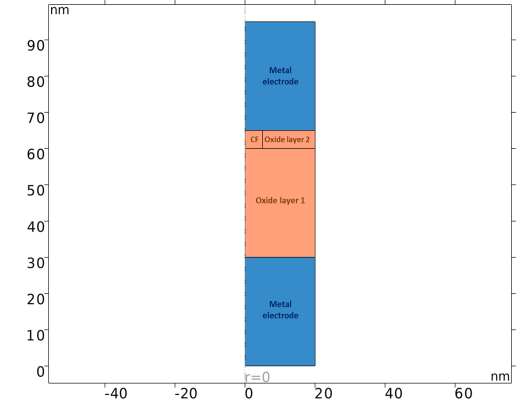
This model adopts the approach outlined in Ref. 1 to simulate the dynamic resistive switching behavior of an oxide-based memristor. It uses a 2D-axisymmetric geometry, which enables the simulation of a 3D system through a 2D cross-sectional representation. This approach significantly reduces computational costs while effectively capturing the 3D behavior of the device. The structure consists of two oxide layers — a highly resistive layer stacked atop a low-resistivity layer — with thicknesses of 30 nm and 5 nm, respectively. These oxide layers are sandwiched between two metal electrodes, each 30 nm thick, positioned at the top and bottom. Figure 1 illustrates the configuration and geometry of the modeled memristor. The domain with a high concentration of charge carriers is identified as the conductive filament (CF), where local electrical conduction exhibits metallic behavior. The concept of CF formation and rupture has been employed to explain resistive switching behavior. The material properties, such as electric conductivity and thermal conductivity for each domain, are defined according to the approach described in Ref. 1. The dynamic resistive switching behavior of the modeled memristor is governed by oxygen vacancy drift–diffusion, current continuity, and heat transfer, along with their fully coupled multiphysics interactions. The model utilizes the Joule Heating interface to account for resistive heating, while the Transport of Charge Carriers interface captures the transport equations for oxygen vacancies as charge carriers.
Figure 1: Configuration of the modeled memristor in a 2D-axisymmetric geometry, including metal electrodes and oxide layers.
The outermost boundaries of the two electrodes are defined with specific boundary conditions to ensure an accurate simulation of Joule heating effects. The bottom electrode is grounded for the electric potential, while a time-dependent voltage is applied to the top electrode. Additionally, a constant temperature is maintained at both the top and bottom contacts. For charge transport, a No flux boundary condition is imposed on all outer boundaries of the oxide domains, including the interfaces between the oxides and metal electrodes.
The detailed procedure of the implementation is described in the Modeling Instructions section.
Results and Discussion
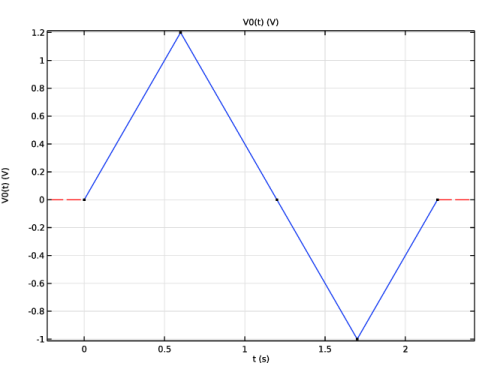
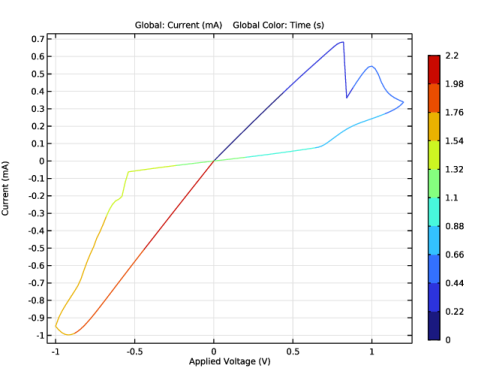
Figure 2 presents the I–V characteristics of the modeled memristor, with the color table illustrating the evolution of time with respect to the applied voltage. At the beginning of the simulation, the device is initialized in a high-conductivity state. When a positive time-dependent voltage is applied, the device undergoes a “reset” transition, shifting from high to low conductivity. In contrast, applying a negative time-dependent voltage induces a “set” transition, restoring the device to its high-conductivity state. These transitions demonstrate the resistive switching behavior characteristic of oxide-based memristors.
Figure 2: I–V characteristics of the oxide-based memristor.
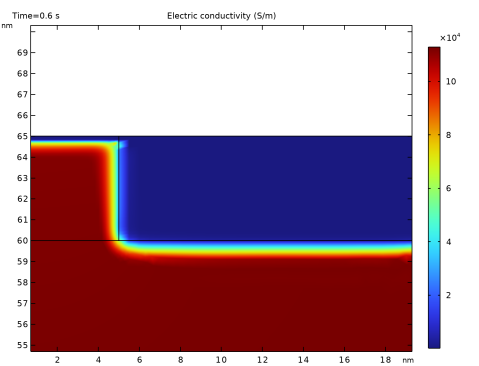
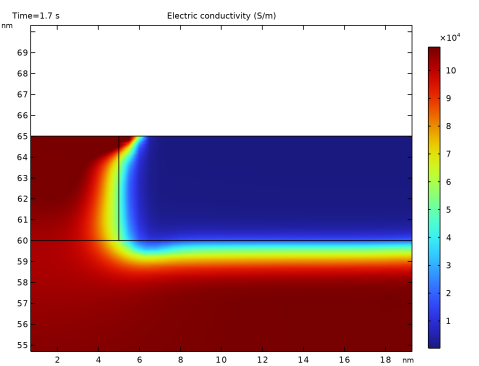
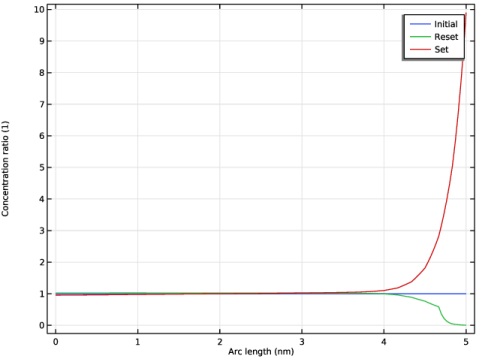
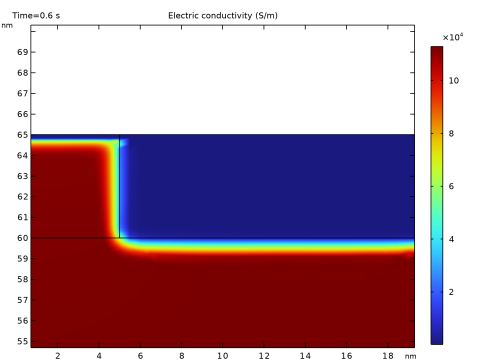
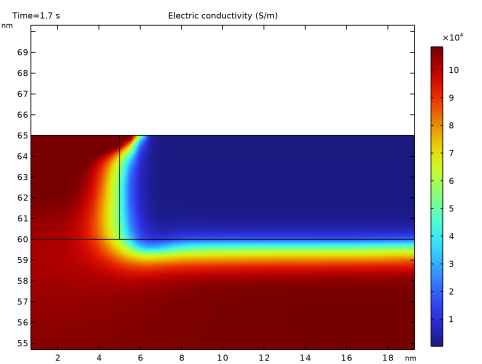
An analysis of the concentration profiles provides insight into the physical mechanisms governing the set and reset processes. Figure 3 shows the concentration ratio (defined as the charge carrier concentration divided by the initial concentration, n/n0) along the CF at r = 0, at the initial state, reset, and set processes. During the reset process, a 1 nm depletion region forms close to the CF–metal electrode interface, resulting in a decrease in electric conductivity. In contrast, during the set process, charge accumulation occurs at the interface, restoring the high-conductivity state of the memristor. The low- and high-conductivity states, corresponding to the reset and set processes, are illustrated in Figure 4 and Figure 5, respectively.
Figure 3: Concentration ratio of the charge carriers along the CF at r = 0 at the initial state, reset, and set states.
Figure 4: Electric conductivity profile illustrating the region of low electric conductivity near the CF–metal electrode interface following the reset state.
Figure 5: Electric conductivity profile illustrating the region of high electric conductivity near the CF–metal electrode interface following the set state.
Reference
1. S. Kim and others, “Comprehensive physical model of dynamic resistive switching in an oxide memristor,” ACS nano., vol. 8, no. 3, p. 2369–2376, 2014.
Application Library path: Semiconductor_Module/Device_Building_Blocks/memristor
Modeling Instructions
From the File menu, choose New.
New
In the New window, click  Model Wizard.
Model Wizard
1
In the Model Wizard window, click  2D Axisymmetric.
2
In the Select Physics tree, select Heat Transfer > Electromagnetic Heating > Joule Heating.
3
Click Add.
4
In the Select Physics tree, select Electric Discharge > Transport of Charge Carriers (tcc).
5
Click Add.
6
Click  Study.
7
In the Select Study tree, select General Studies > Time Dependent.
8
Global Definitions
Parameters 1
1
In the Model Builder window, under Global Definitions click Parameters 1.
2
In the Settings window for Parameters, locate the Parameters section.
3
Definitions
Interpolation 1 (int1)
1
In the Definitions toolbar, click  Interpolation.
2
In the Settings window for Interpolation, locate the Definition section.
3
In the Function name text field, type sigma0.
4
5
Locate the Units section. In the Function table, enter the following settings:
6
In the Argument table, enter the following settings:
Interpolation 2 (int2)
1
In the Definitions toolbar, click  Interpolation.
2
In the Settings window for Interpolation, locate the Definition section.
3
In the Function name text field, type E_AC.
4
5
Locate the Units section. In the Function table, enter the following settings:
6
In the Argument table, enter the following settings:
Interpolation 3 (int3)
1
In the Definitions toolbar, click  Interpolation.
2
In the Settings window for Interpolation, locate the Definition section.
3
In the Function name text field, type k_th0.
4
5
Locate the Units section. In the Function table, enter the following settings:
6
In the Argument table, enter the following settings:
Applied Voltage
1
In the Definitions toolbar, click  Interpolation.
2
In the Settings window for Interpolation, type Applied Voltage in the Label text field.
3
Locate the Definition section. In the Function name text field, type V0.
4
5
Locate the Units section. In the Function table, enter the following settings:
6
In the Argument table, enter the following settings:
7
A time-dependent voltage is applied at a rate of 2 V/s.
Variables 1
1
In the Model Builder window, right-click Definitions and choose Variables.
2
In the Settings window for Variables, locate the Variables section.
3
Geometry 1
1
In the Model Builder window, under Component 1 (comp1) click Geometry 1.
2
In the Settings window for Geometry, locate the Units section.
3
From the Length unit list, choose nm.
Rectangle 1 (r1)
1
In the Geometry toolbar, click  Rectangle.
2
In the Settings window for Rectangle, locate the Size and Shape section.
3
In the Width text field, type w.
4
In the Height text field, type d_BE.
Rectangle 2 (r2)
1
In the Geometry toolbar, click  Rectangle.
2
In the Settings window for Rectangle, locate the Size and Shape section.
3
In the Width text field, type w.
4
In the Height text field, type d_ox1.
5
Locate the Position section. In the z text field, type d_BE.
Rectangle 3 (r3)
1
In the Geometry toolbar, click  Rectangle.
2
In the Settings window for Rectangle, locate the Size and Shape section.
3
In the Width text field, type w.
4
In the Height text field, type d_ox2.
5
Locate the Position section. In the z text field, type d_BE+d_ox1.
6
Click to expand the Layers section. In the table, enter the following settings:
7
Select the Layers to the left checkbox.
8
Clear the Layers on bottom checkbox.
Rectangle 4 (r4)
1
In the Geometry toolbar, click  Rectangle.
2
In the Settings window for Rectangle, locate the Size and Shape section.
3
In the Width text field, type w.
4
In the Height text field, type d_TE.
5
Locate the Position section. In the z text field, type d_BE+d_ox1+d_ox2.
6
Click  Build All Objects.
Definitions
Integration 1 (intop1)
1
In the Definitions toolbar, click  Nonlocal Couplings and choose Integration.
2
In the Settings window for Integration, locate the Source Selection section.
3
From the Geometric entity level list, choose Boundary.
4
Click the  Zoom Extents button in the Graphics toolbar.
5
Variables 1
1
In the Model Builder window, click Variables 1.
2
In the Settings window for Variables, locate the Variables section.
3
Materials
Palladium
1
In the Model Builder window, under Component 1 (comp1) right-click Materials and choose Blank Material.
2
In the Settings window for Material, type Palladium in the Label text field.
3
4
Locate the Material Contents section. In the table, enter the following settings:
TaxOy
1
Right-click Materials and choose Blank Material.
2
In the Settings window for Material, type TaxOy in the Label text field.
3
4
Locate the Material Contents section. In the table, enter the following settings:
Electric Currents (ec)
1
In the Model Builder window, under Component 1 (comp1) click Electric Currents (ec).
2
In the Settings window for Electric Currents, click to expand the Equation section.
3
From the Equation form list, choose Stationary.
4
Click to expand the Discretization section. From the Electric potential list, choose Linear.
Current Conservation in Solids 1
1
In the Model Builder window, under Component 1 (comp1) > Electric Currents (ec) click Current Conservation in Solids 1.
2
In the Settings window for Current Conservation in Solids, locate the Constitutive Relation D-E section.
3
From the εr list, choose User defined.
Ground 1
1
In the Physics toolbar, click  Boundaries and choose Ground.
2
Electric Potential 1
1
In the Physics toolbar, click  Boundaries and choose Electric Potential.
2
3
In the Settings window for Electric Potential, locate the Electric Potential section.
4
In the V0 text field, type V0(t).
Heat Transfer in Solids (ht)
1
In the Model Builder window, under Component 1 (comp1) click Heat Transfer in Solids (ht).
2
In the Settings window for Heat Transfer in Solids, click to expand the Equation section.
3
From the Equation form list, choose Stationary.
4
Locate the Physical Model section. In the Tref text field, type T0.
5
Click to expand the Discretization section. From the Temperature list, choose Linear.
Solid 1
1
In the Model Builder window, under Component 1 (comp1) > Heat Transfer in Solids (ht) click Solid 1.
2
In the Settings window for Solid, locate the Thermodynamics, Solid section.
3
From the ρ list, choose User defined. From the Cp list, choose User defined.
Initial Values 1
1
In the Model Builder window, click Initial Values 1.
2
In the Settings window for Initial Values, locate the Initial Values section.
3
In the T text field, type T0.
Temperature 1
1
In the Physics toolbar, click  Boundaries and choose Temperature.
2
3
In the Settings window for Temperature, locate the Temperature section.
4
In the T0 text field, type T0.
Transport of Charge Carriers (tcc)
1
In the Model Builder window, under Component 1 (comp1) click Transport of Charge Carriers (tcc).
2
3
In the Settings window for Transport of Charge Carriers, locate the Transport Mechanisms section.
4
Clear the Electric field drift checkbox.
5
Select the Convection checkbox.
Transport Properties 1
1
In the Model Builder window, under Component 1 (comp1) > Transport of Charge Carriers (tcc) click Transport Properties 1.
2
In the Settings window for Transport Properties, locate the Convection section.
3
Specify the u vector as
4
Locate the Diffusion section. In the Dn text field, type D_n.
Initial Values 2
1
In the Physics toolbar, click  Domains and choose Initial Values.
2
3
In the Settings window for Initial Values, locate the Initial Values section.
4
In the nn text field, type n0.
No Flux 1
1
In the Physics toolbar, click  Boundaries and choose No Flux.
2
In the Settings window for No Flux, locate the Boundary Selection section.
3
From the Selection list, choose All boundaries.
Mesh 1
1
In the Model Builder window, under Component 1 (comp1) click Mesh 1.
2
In the Settings window for Mesh, locate the Physics-Controlled Mesh section.
3
From the Element size list, choose Extremely fine.
4
Right-click Component 1 (comp1) > Mesh 1 and choose Edit Physics-Induced Sequence.
Mapped 1
1
In the Mesh toolbar, click  Mapped.
2
In the Settings window for Mapped, locate the Domain Selection section.
3
From the Geometric entity level list, choose Domain.
4
Distribution 1
1
Right-click Mapped 1 and choose Distribution.
2
3
In the Settings window for Distribution, locate the Distribution section.
4
In the Number of elements text field, type 30.
5
Click the  Zoom to Selection button in the Graphics toolbar.
Mapped 1
1
In the Model Builder window, click Mapped 1.
2
Free Triangular 1
In the Model Builder window, right-click Free Triangular 1 and choose Build All.
Study 1
Step 1: Time Dependent
1
In the Model Builder window, under Study 1 click Step 1: Time Dependent.
2
In the Settings window for Time Dependent, locate the Study Settings section.
3
In the Output times text field, type range(0,0.01,2.2).
4
In the Study toolbar, click  Compute.
Results
I-V
1
In the Results toolbar, click  1D Plot Group.
2
In the Settings window for 1D Plot Group, type I-V in the Label text field.
Global 1
Right-click I-V and choose Global.
Color Expression 1
1
In the Model Builder window, right-click Global 1 and choose Color Expression.
2
In the Settings window for Color Expression, locate the Expression section.
3
In the Expression text field, type t.
4
Click to expand the Title section. From the Title type list, choose Automatic.
5
Locate the Coloring and Style section. From the Color table type list, choose Discrete.
Global 1
1
In the Model Builder window, click Global 1.
2
In the Settings window for Global, locate the y-Axis Data section.
3
4
Locate the x-Axis Data section. From the Parameter list, choose Expression.
5
In the Expression text field, type V0(t).
6
Click to expand the Legends section. Clear the Show legends checkbox.
7
In the I-V toolbar, click  Plot.
Concentration Ratio-z
1
In the Results toolbar, click  1D Plot Group.
2
In the Settings window for 1D Plot Group, type Concentration Ratio-z in the Label text field.
Initial
1
Right-click Concentration Ratio-z and choose Line Graph.
2
In the Settings window for Line Graph, type Initial in the Label text field.
3
Locate the Data section. From the Dataset list, choose Study 1/Solution 1 (sol1).
4
From the Time selection list, choose First.
5
6
Locate the y-Axis Data section. In the Expression text field, type k.
7
Click to expand the Title section. From the Title type list, choose None.
8
Click to expand the Legends section. Select the Show legends checkbox.
9
Find the Include subsection. Select the Label checkbox.
10
Clear the Solution checkbox.
Reset
1
Right-click Initial and choose Duplicate.
2
In the Settings window for Line Graph, type Reset in the Label text field.
3
Locate the Data section. From the Time selection list, choose Manual.
4
In the Time indices (1-221) text field, type 61.
Set
1
Right-click Reset and choose Duplicate.
2
In the Settings window for Line Graph, type Set in the Label text field.
3
Locate the Data section. In the Time indices (1-221) text field, type 171.
4
In the Concentration Ratio-z toolbar, click  Plot.
Electric Conductivity
1
In the Results toolbar, click  2D Plot Group.
2
In the Settings window for 2D Plot Group, type Electric Conductivity in the Label text field.
Surface 1
1
Right-click Electric Conductivity and choose Surface.
2
In the Settings window for Surface, locate the Expression section.
3
In the Expression text field, type sigma.
Electric Conductivity
1
In the Model Builder window, click Electric Conductivity.
2
In the Settings window for 2D Plot Group, locate the Data section.
3
From the Time (s) list, choose 0.6.
4
In the Electric Conductivity toolbar, click  Plot.
This profile illustrates the reduced electric conductivity near the CF–metal electrode interface as a result of the reset process.
5
From the Time (s) list, choose 1.7.
6
In the Electric Conductivity toolbar, click  Plot.
This profile illustrates the increased electric conductivity near the CF–metal electrode interface as a result of the set process.
Thermal Conductivity
1
Right-click Electric Conductivity and choose Duplicate.
2
In the Settings window for 2D Plot Group, type Thermal Conductivity in the Label text field.
Surface 1
1
In the Model Builder window, expand the Thermal Conductivity node, then click Surface 1.
2
In the Settings window for Surface, locate the Expression section.
3
In the Expression text field, type k_th.
4
In the Thermal Conductivity toolbar, click  Plot.
Thumbnail
1
In the Results toolbar, click  3D Plot Group.
2
In the Settings window for 3D Plot Group, type Thumbnail in the Label text field.
3
Click to expand the Title section. From the Title type list, choose None.
4
Locate the Plot Settings section. Clear the Plot dataset edges checkbox.
Volume 1
1
Right-click Thumbnail and choose Volume.
2
In the Settings window for Volume, click Replace Expression in the upper-right corner of the Expression section. From the menu, choose Component 1 (comp1) > Electric Currents > Electric > ec.normE - Electric field norm - V/m.
3
Locate the Coloring and Style section. From the Color table list, choose Prism.
Transparency 1
1
Right-click Volume 1 and choose Transparency.
2
In the Settings window for Transparency, locate the Transparency section.
3
Find the Transparency subsection. Set the Transparency value to 0.35.
Volume 2
1
In the Model Builder window, right-click Thumbnail and choose Volume.
2
In the Settings window for Volume, locate the Expression section.
3
In the Expression text field, type sigma.
4
Locate the Coloring and Style section. From the Color table list, choose RainbowLight.
Thumbnail
1
In the Model Builder window, click Thumbnail.
2
In the Settings window for 3D Plot Group, locate the Data section.
3
From the Time (s) list, choose 1.7.
4
Click the  Show Grid button in the Graphics toolbar.
5
Click the  Show Legends button in the Graphics toolbar.
6
In the Thumbnail toolbar, click  Plot.