PDF

Heterojunction Tunneling
This benchmark model simulates a graded heterojunction using the thermionic emission formulation for the charge transfer over the junction. It shows the additional contribution to the current density from the quantum tunneling effect across the potential barrier, using the WKB approximation. Even though the simulated system is 1D in nature, a 2D model is created to illustrate the procedure for simulating a more general configuration. Also demonstrated is the setup of user-defined ternary material properties. The computed I–V curves, their temperature dependence, and energy band diagrams all agree well with results from the literature.
Introduction
At a Schottky contact or a heterojunction where a thin layer of potential barrier forms due to the band bending, if the barrier width and/or barrier height are small, significant contribution to the current density can result from the quantum tunneling of the charge carriers across the barrier.
Within the drift–diffusion formulation of the semiconductor physics, the effect of tunneling can be incorporated as an extra current contribution scaling factor δ, with the current density scaled by the factor (1+δ). Using the WKB approximation, the scaling factor can be computed as a double integral (Ref. 1). See the Semiconductor Module User’s Guide for more details on the WKB Tunneling Model implemented in the Semiconductor physics interface.
Model Definition
This model compares the simulated current density of a graded heterojunction with and without tunneling at different temperatures. All material properties and the device configuration are taken from the reference paper Ref. 1, in particular section 3.3, in order to compare the simulation results.
The device is an MBE grown AlxGa1-xAs graded heterojunction that forms a triangular shaped potential barrier for the electrons. To obtain the best fit to the experimental data, the authors of the paper have run each of their simulations with a selected set of material and device parameters that are not necessarily the same as the nominal experimental parameters. To compare the simulation results, we use the same set of simulation parameters selected by the authors, without any further justification other than the arguments already made by the authors in the paper.
The triangular barrier is formed by spatially varying the Al mole fraction of the AlxGa1-xAs layer. The Modeling Instructions section shows how to create a material with properties depending on local variables such as the mole fraction, as well as depending on parameters and variables such as the reference temperature, lattice temperature, and doping concentrations. The mole fraction is in turn defined by a spatially varying variable. A variable can be made spatially varying by using explicit expressions, or using different definitions in different domains. See the Modeling Instructions section for both techniques.
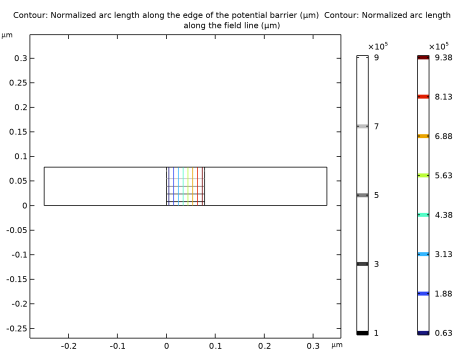
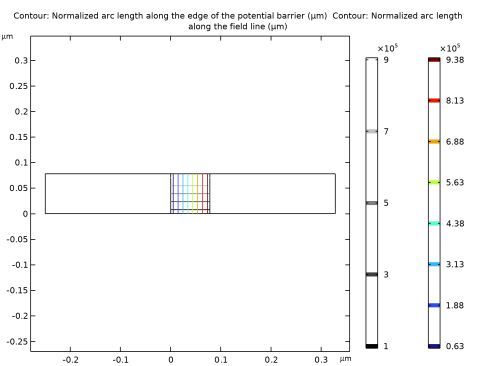
Even though the simulated system is 1D in nature, we use a 2D model to illustrate the procedure for simulating a more general device configuration. In particular, we show how to use the Curvilinear Coordinates mathematics interface to create coordinates (approximately) along the electric field lines and the tunneling boundary. The solutions of two Curvilinear Coordinates interfaces are shown in the graph below. The coordinates along the electric field line are the vertical contours, parallel to the equipotential contours. The coordinates along the tunneling boundary are the horizontal contours, parallel to the electric field lines.
Figure 1: The solutions of two Curvilinear Coordinates interfaces. The vertical contours are the coordinates for the electric field line and the horizontal contours are the coordinates for the tunneling boundary.
Since the tunneling effect is highly sensitive to the shape of the potential barrier, we switch to the finite element quasi-Fermi level formulation. The default finite volume formulation would require much finer mesh, due to its discontinuous nature. Incomplete ionization, mobility model, and Shockley–Read–Hall recombination are included with parameters given by the reference paper, which also assumes Maxwell–Boltzmann statistics.
Results and Discussion
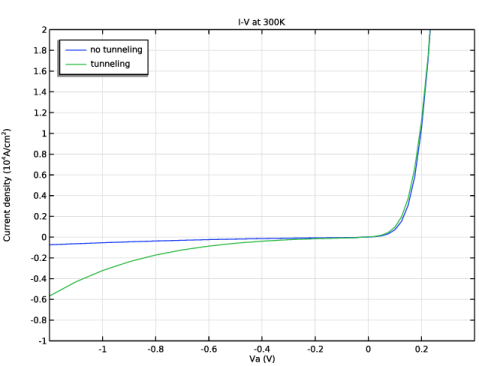
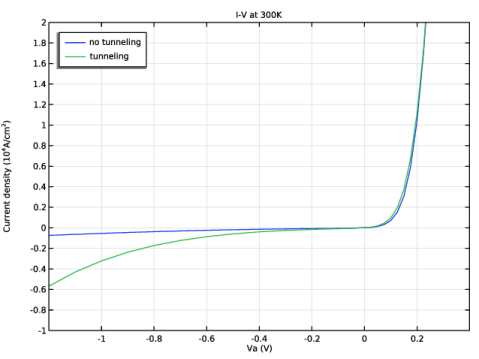
Figure 2 shows a comparison of the current density vs. voltage (J–V) curves at 300 K between the cases with and without tunneling. The figure is in good agreement with the reference paper (Fig. 12 in Ref. 1).
Figure 2: Comparison of the current density vs. voltage (J–V) curves obtained with and without tunneling.
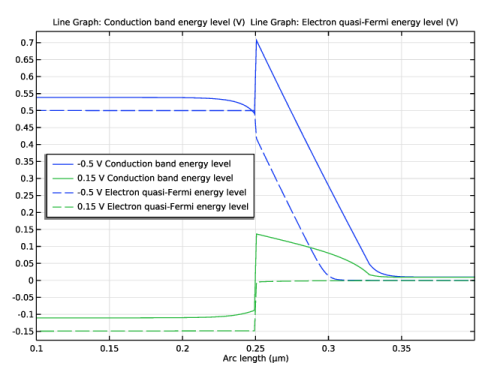
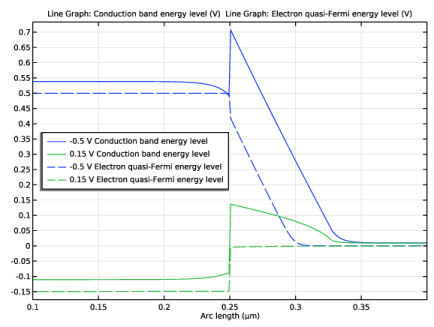
Figure 3 shows the conduction band diagram and the electron quasi-Fermi level at two bias voltages. The figure agrees well with Fig. 13 in Ref. 1.
Figure 3: Band diagram and quasi-Fermi level under forward and reverse bias.
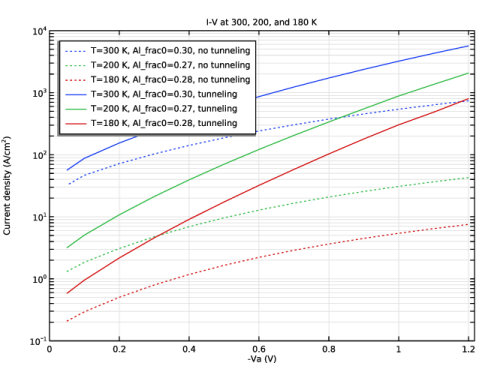
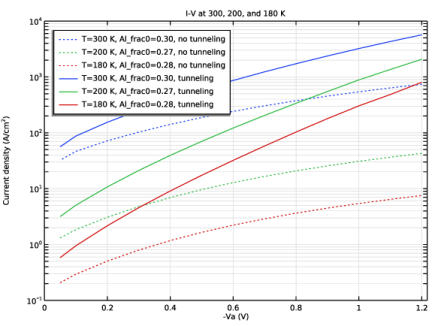
Figure 4 shows good agreement of the J–V curves at different temperatures.
Figure 4: J–V curves at different temperatures agree well with Fig. 14 in Ref. 1.
Reference
1. K. Yang, J.R. East, and G.I. Haddad, “Numerical Modeling of Abrupt Heterojunctions using a Thermionic-Field Emission Boundary Condition,” Solid State Electronics, vol. 36, no. 3, pp. 321–330, 1993.
Application Library path: Semiconductor_Module/Verification_Examples/heterojunction_tunneling
Modeling Instructions
From the File menu, choose New.
New
In the New window, click  Model Wizard.
Model Wizard
1
In the Model Wizard window, The model is 1D in nature. However to demonstrate the general procedure for setting up 2D and 3D models, we will build an equivalent 2D model.
2
3
In the Select Physics tree, select Semiconductor > Semiconductor (semi).
4
Click Add.
In addition to the Semiconductor interface, we will use two Curvilinear Coordinates mathematical interfaces to set up the coordinate system for the tunneling effect. This procedure is not necessary for this simple example which is 1D in nature, however it will be required for true 2D models.
5
In the Select Physics tree, select Mathematics > Curvilinear Coordinates (cc).
6
Click Add.
7
Click Add.
8
Click  Study.
9
In the Select Study tree, select General Studies > Stationary.
10
Geometry 1
The model wizard brings us to the Geometry node in the Model Builder tree structure. We can use this opportunity to set the length unit to µm.
1
In the Model Builder window, under Component 1 (comp1) click Geometry 1.
2
In the Settings window for Geometry, locate the Units section.
3
From the Length unit list, choose µm.
Load some global parameters from a text file. These parameters are independent of space and time in a model.
Global Definitions
Parameters 1
1
In the Model Builder window, under Global Definitions click Parameters 1.
2
In the Settings window for Parameters, locate the Parameters section.
3
Click  Load from File.
4
Create the geometry of three rectangular domains according to Fig. 2(b) in the reference paper.
Geometry 1
Rectangle 1 (r1)
1
In the Geometry toolbar, click  Rectangle.
2
In the Settings window for Rectangle, locate the Size and Shape section.
3
In the Width text field, type d1+d2+d3.
4
In the Height text field, type d2.
5
Locate the Position section. In the x text field, type -d1.
6
Click to expand the Layers section. Clear the Layers on bottom checkbox.
7
Select the Layers to the left checkbox.
8
9
Click  Build All Objects.
Define local variables and operators. The variables can be spatially varying and can be grouped into different nodes for convenience.
First, use three separate Variables nodes for the n doping and mole fraction of Al in each of the three domains.
Definitions
Variables for Domain 1
1
In the Model Builder window, under Component 1 (comp1) right-click Definitions and choose Variables.
2
In the Settings window for Variables, type Variables for Domain 1 in the Label text field.
3
Locate the Geometric Entity Selection section. From the Geometric entity level list, choose Domain.
4
5
Locate the Variables section. In the table, enter the following settings:
Variables for Domain 2
1
Right-click Variables for Domain 1 and choose Duplicate.
2
In the Settings window for Variables, type Variables for Domain 2 in the Label text field.
3
4
Locate the Variables section. In the table, enter the following settings:
Variables for Domain 3
1
In the Model Builder window, right-click Variables for Domain 1 and choose Duplicate.
2
In the Settings window for Variables, type Variables for Domain 3 in the Label text field.
3
In the table, change the definition of N_D as shown below, and leave Al_frac unchanged.
4
Locate the Variables section. In the table, enter the following settings:
Define material properties according to the reference paper. The electron effective mass will be needed when we define variables for the tunneling effect later.
Materials
Al(x)Ga(1-x)As (Yang et al 1993)
1
In the Model Builder window, under Component 1 (comp1) right-click Materials and choose Blank Material.
2
In the Settings window for Material, type Al(x)Ga(1-x)As (Yang et al 1993) in the Label text field.
First define local material variables for the mole fraction and the effective masses.
3
In the Model Builder window, expand the Component 1 (comp1) > Materials > Al(x)Ga(1-x)As (Yang et al 1993) (mat1) node, then click Basic (def).
4
In the Settings window for Basic, locate the Local Properties section.
5
In the Local properties table, enter the following settings:
Note that these variables are accessed with the scope name def, for example def.x, because the tag of the Basic node is def.
Then enter the material properties using formulas and descriptions given in the reference paper.
6
In the Model Builder window, under Component 1 (comp1) > Materials click Al(x)Ga(1-x)As (Yang et al 1993) (mat1).
7
In the Settings window for Material, locate the Material Contents section.
8
Before defining the variables for the tunneling effect, we need to prepare the coordinate systems.
In this example, domain 2 happens to cover the region of interest for the line integration across the potential barrier. In general, the region of interest can be defined by different boundaries drawn in the geometry, which may or may not coincide with the material boundaries.
First, set up the coordinate along the heterojunction using the first Curvilinear Coordinates mathematical interface.
Curvilinear Coordinates (cc)
1
In the Model Builder window, under Component 1 (comp1) click Curvilinear Coordinates (cc).
2
Diffusion Method 1
In the Physics toolbar, click  Domains and choose Diffusion Method.
Inlet 1
1
In the Physics toolbar, click  Attributes and choose Inlet.
2
Diffusion Method 1
In the Model Builder window, click Diffusion Method 1.
Outlet 1
1
In the Physics toolbar, click  Attributes and choose Outlet.
2
Next, set up the coordinate along the field lines using the second Curvilinear Coordinates mathematical interface. Here we assume the field lines are perpendicular to the heterojunction, which should be a good approximation when the tunneling effect is significant.
Curvilinear Coordinates 2 (cc2)
1
In the Model Builder window, under Component 1 (comp1) click Curvilinear Coordinates 2 (cc2).
2
Diffusion Method 1
In the Physics toolbar, click  Domains and choose Diffusion Method.
Inlet 1
1
In the Physics toolbar, click  Attributes and choose Inlet.
2
Diffusion Method 1
In the Model Builder window, click Diffusion Method 1.
Outlet 1
1
In the Physics toolbar, click  Attributes and choose Outlet.
2
Give the coordinates convenient names for subsequent definitions.
Definitions
Variables for tunneling
1
In the Model Builder window, under Component 1 (comp1) right-click Definitions and choose Variables.
2
In the Settings window for Variables, type Variables for tunneling in the Label text field.
3
Locate the Geometric Entity Selection section. From the Geometric entity level list, choose Domain.
4
5
Locate the Variables section. In the table, enter the following settings:
Set up the device physics. Since the tunneling effect is highly sensitive to the shape of the potential barrier, we switch to the finite element quasi-Fermi level formulation. The default finite volume formulation would require much finer mesh, due to its discontinuous nature.
Semiconductor (semi)
1
In the Model Builder window, under Component 1 (comp1) click Semiconductor (semi).
2
In the Settings window for Semiconductor, locate the Thickness section.
3
In the d text field, type thickness.
4
Click to expand the Discretization section. From the Formulation list, choose Finite element quasi Fermi level (quadratic shape function).
Enable Advanced Physics Options to unhide and set the reference temperature.
5
Click the  Show More Options button in the Model Builder toolbar.
6
In the Show More Options dialog, in the tree, select the checkbox for the node Physics > Advanced Physics Options.
7
8
In the Settings window for Semiconductor, click to expand the Reference Temperature section.
9
In the T0 text field, type T0.
Set up the lattice temperature and incomplete ionization according to the reference paper. Note that the paper does not use a consistent formula for the donor activation energy for all examples, and here we take the values for the example in section 3.3 of the paper which we reproduce in this tutorial.
Semiconductor Material Model 1
1
In the Model Builder window, under Component 1 (comp1) > Semiconductor (semi) click Semiconductor Material Model 1.
2
In the Settings window for Semiconductor Material Model, locate the Model Input section.
3
In the T text field, type T.
4
Click to expand the Dopant Ionization section. From the Dopant ionization list, choose Incomplete ionization.
5
In the ΔEdEc Ed text field, type 0.005[V]+0.03[V]*material.def.x/Al_frac0.
Note the use of the prefix material in the expression so that the software will use the material properties assigned to each domain, in the same way that the option of From material works in many lists for material properties in the user interface.
6
In the ΔEaEa Ev text field, type 0.026[V].
Set the model of the heterojunction to thermionic emission. This heterojunction boundary condition will be used to compute the case of no tunneling, to be compared with the case that includes tunneling.
Continuity/Heterojunction 1
1
In the Model Builder window, click Continuity/Heterojunction 1.
2
In the Settings window for Continuity/Heterojunction, locate the Heterojunction section.
3
From the Continuity model list, choose Thermionic emission.
Duplicate the heterojunction boundary condition to add extra current contribution from the tunneling effect at the abrupt junction (the left heterojunction). In this example, only electron tunneling is significant.
Continuity/Heterojunction 2
1
Right-click Component 1 (comp1) > Semiconductor (semi) > Continuity/Heterojunction 1 and choose Duplicate.
2
In the Settings window for Continuity/Heterojunction, locate the Boundary Selection section.
3
Click  Clear Selection.
4
5
Click to expand the Extra Current Contribution section. From the Extra electron current list, choose WKB tunneling model.
Add a WKB Tunneling Model subnode to set up the tunneling effect.
WKB Tunneling Model, Electrons 1
1
In the Physics toolbar, click  Attributes and choose WKB Tunneling Model, Electrons.
As mentioned earlier, domain 2 covers the region of interest for the line integration across the potential barrier.
2
In the Settings window for WKB Tunneling Model, Electrons, locate the Potential Barrier Domain Selection section.
3
Click to select the  Activate Selection toggle button.
4
Select the boundary that is on the other side of domain 2 from the tunneling boundary.
5
Locate the Opposite Boundary Selection section. Click to select the  Activate Selection toggle button.
6
The electron effective mass is defined in the material properties.
7
Locate the WKB Tunneling Model, Electrons section. In the m text field, type material.def.me.
The field line and tunneling boundary coordinates have been defined earlier as variables in terms of the curvilinear coordinates.
8
In the flc text field, type flcc.
9
In the bndc text field, type pbcc.
Add doping and SRH recombination. The latter requires more material parameters.
Analytic Doping Model 1
1
In the Physics toolbar, click  Domains and choose Analytic Doping Model.
2
In the Settings window for Analytic Doping Model, locate the Domain Selection section.
3
From the Selection list, choose All domains.
4
Locate the Impurity section. From the Impurity type list, choose Donor doping (n-type).
5
In the ND0 text field, type N_D.
Trap-Assisted Recombination 1
1
In the Physics toolbar, click  Domains and choose Trap-Assisted Recombination.
2
In the Settings window for Trap-Assisted Recombination, locate the Domain Selection section.
3
From the Selection list, choose All domains.
Materials
Al(x)Ga(1-x)As (Yang et al 1993) (mat1)
1
In the Model Builder window, under Component 1 (comp1) > Materials click Al(x)Ga(1-x)As (Yang et al 1993) (mat1).
2
In the Settings window for Material, locate the Material Contents section.
3
Add metal contacts.
Semiconductor (semi)
Metal Contact 1
1
In the Physics toolbar, click  Boundaries and choose Metal Contact.
2
3
In the Settings window for Metal Contact, locate the Terminal section.
4
In the V0 text field, type Va.
Metal Contact 2
1
In the Physics toolbar, click  Boundaries and choose Metal Contact.
2
Adjust mesh to save computation time. Mesh refinement studies are always recommended.
Mesh 1
In the Model Builder window, under Component 1 (comp1) right-click Mesh 1 and choose Edit Physics-Induced Sequence.
Size 1
1
In the Model Builder window, under Component 1 (comp1) > Mesh 1 click Size 1.
2
First solve the case of no tunneling effects. Sweep the applied voltage to obtain the I-V curve.
Study 1: no tunneling
1
In the Model Builder window, click Study 1.
2
In the Settings window for Study, type Study 1: no tunneling in the Label text field.
Step 1: Stationary
For this study we only solve for the Semiconductor physics, so leave it enabled and disable the two Curvilinear Coordinates interfaces.
1
In the Model Builder window, under Study 1: no tunneling click Step 1: Stationary.
2
In the Settings window for Stationary, locate the Physics and Variables Selection section.
3
In the Solve for column of the table, under Component 1 (comp1), clear the checkboxes for Curvilinear Coordinates (cc) and Curvilinear Coordinates 2 (cc2).
4
Select the Modify model configuration for study step checkbox.
5
In the tree, select Component 1 (comp1) > Semiconductor (semi) > Continuity/Heterojunction 2.
6
Click  Disable.
7
Click to expand the Study Extensions section. Select the Auxiliary sweep checkbox.
8
9
10
In the Study toolbar, click  Compute.
Results
P-Type
The model has only n-type dopant therefore, the p-type part of the default generated plot is not needed.
1
In the Model Builder window, expand the Net Dopant Concentration (semi) node.
2
Right-click P-Type and choose Delete.
Plot the I-V curve for the no tunneling case. Set the scale and range to be the same as Fig. 12 in the reference paper for ease of comparison.
I-V at 300 K
1
In the Results toolbar, click  1D Plot Group.
2
In the Settings window for 1D Plot Group, type I-V at 300 K in the Label text field.
3
Click to expand the Title section. From the Title type list, choose Manual.
4
In the Title text area, type I-V at 300K.
5
Locate the Plot Settings section.
6
Select the y-axis label checkbox. In the associated text field, type Current density (10<sup>4</sup>A/cm<sup>2</sup>).
7
Locate the Axis section. Select the Manual axis limits checkbox.
8
In the x minimum text field, type -1.2.
9
In the x maximum text field, type 0.4.
10
In the y maximum text field, type 2.
11
Locate the Legend section. From the Position list, choose Upper left.
Global 1
1
Right-click I-V at 300 K and choose Global.
2
In the Settings window for Global, locate the y-Axis Data section.
3
4
In the I-V at 300 K toolbar, click  Plot.
Solve the equations for the curvilinear systems before solving the case with the tunneling effect. In general, the curvilinear coordinates provide a good approximation to the field lines and equipotential contours where the tunneling effect is significant.
Add Study
1
In the Home toolbar, click  Add Study to open the Add Study window.
2
Go to the Add Study window.
For this study we only solve for the two Curvilinear Coordinates interfaces, so leave them enabled and disable the Semiconductor physics.
3
Find the Physics interfaces in study subsection. In the table, clear the Solve checkbox for Semiconductor (semi).
4
Find the Studies subsection. In the Select Study tree, select General Studies > Stationary.
5
Click the Add Study button in the window toolbar.
6
In the Home toolbar, click  Add Study to close the Add Study window.
Study 2: curvilinear coordinates
1
In the Settings window for Study, type Study 2: curvilinear coordinates in the Label text field.
2
In the Study toolbar, click  Compute.
Plot the curvilinear coordinates, which in general provide a good approximation to the field lines and equipotential contours where the tunneling effect is significant.
Results
Curvilinear coordinates
1
In the Results toolbar, click  2D Plot Group.
2
In the Settings window for 2D Plot Group, type Curvilinear coordinates in the Label text field.
3
Locate the Data section. From the Dataset list, choose Study 2: curvilinear coordinates/Solution 2 (sol2).
Contour 1
1
Right-click Curvilinear coordinates and choose Contour.
2
In the Settings window for Contour, locate the Expression section.
3
In the Expression text field, type pbcc.
4
Locate the Levels section. In the Total levels text field, type 5.
Contour 2
1
Right-click Contour 1 and choose Duplicate.
2
In the Settings window for Contour, locate the Expression section.
3
In the Expression text field, type flcc.
4
Locate the Levels section. In the Total levels text field, type 8.
Contour 1
1
In the Model Builder window, click Contour 1.
2
In the Settings window for Contour, locate the Coloring and Style section.
3
From the Color table list, choose GrayScale.
4
In the Curvilinear coordinates toolbar, click  Plot.
Now solve the case with tunneling effects. Since we will only solve the semiconductor physics, not the curvilinear systems, we use the Initial values of variables solved for settings to provide a good initial condition for the semiconductor physics from Study 1, but we use the Values of variables not solved for settings to provide the curvilinear coordinates from the solution of Study 2. Sweep the applied voltage to obtain the I-V curve.
Add Study
1
In the Home toolbar, click  Add Study to open the Add Study window.
2
Go to the Add Study window.
For this study we only solve for the Semiconductor physics, so leave it enabled and disable the two Curvilinear Coordinates interfaces.
3
Find the Physics interfaces in study subsection. In the table, clear the Solve checkboxes for Curvilinear Coordinates (cc) and Curvilinear Coordinates 2 (cc2).
4
Find the Studies subsection. In the Select Study tree, select General Studies > Stationary.
5
Click the Add Study button in the window toolbar.
6
In the Home toolbar, click  Add Study to close the Add Study window.
Study 3: tunneling
In the Settings window for Study, type Study 3: tunneling in the Label text field.
Step 1: Stationary
1
In the Model Builder window, under Study 3: tunneling click Step 1: Stationary.
2
In the Settings window for Stationary, click to expand the Values of Dependent Variables section.
3
Find the Initial values of variables solved for subsection. From the Settings list, choose User controlled.
4
From the Method list, choose Solution.
5
From the Study list, choose Study 1: no tunneling, Stationary.
6
From the Parameter value (Va (V)) list, choose -1.2 V.
7
Find the Values of variables not solved for subsection. From the Settings list, choose User controlled.
8
From the Method list, choose Solution.
9
From the Study list, choose Study 2: curvilinear coordinates, Stationary.
10
Locate the Study Extensions section. Select the Auxiliary sweep checkbox.
11
12
13
In the Study toolbar, click  Compute.
Results
Net Dopant Concentration (semi) 1
In the Model Builder window, under Results right-click Net Dopant Concentration (semi) 1 and choose Delete.
Add the tunneling result to the I-V curve plot. This matches well with Fig. 12 in the reference paper.
Global 2
1
In the Model Builder window, under Results > I-V at 300 K right-click Global 1 and choose Duplicate.
2
In the Settings window for Global, locate the Data section.
3
From the Dataset list, choose Study 3: tunneling/Solution 3 (sol3).
4
Locate the y-Axis Data section. In the table, enter the following settings:
5
In the I-V at 300 K toolbar, click  Plot.
Add a 1D plot group to plot the band diagram at two bias points -0.5 V and 0.15 V. This compares well with Fig. 13 in the reference paper.
Conduction band profiles
1
In the Results toolbar, click  1D Plot Group.
2
In the Settings window for 1D Plot Group, type Conduction band profiles in the Label text field.
3
Locate the Data section. From the Dataset list, choose Study 3: tunneling/Solution 3 (sol3).
4
From the Parameter selection (Va) list, choose From list.
To select the two bias points -0.5 V and 0.15 V, hold down the Control key to enable multiple selection by mouse clicking.
5
In the Parameter values (Va (V)) list, choose -0.5 and 0.15.
Line Graph 1
1
Right-click Conduction band profiles and choose Line Graph.
2
3
In the Settings window for Line Graph, locate the y-Axis Data section.
4
In the Expression text field, type semi.Ec.
5
Click to expand the Quality section. From the Evaluation settings list, choose Manual.
6
From the Smoothing list, choose Everywhere.
7
Click to expand the Legends section. Select the Show legends checkbox.
8
Find the Include subsection. Select the Description checkbox.
Line Graph 2
1
Right-click Line Graph 1 and choose Duplicate.
2
In the Settings window for Line Graph, locate the y-Axis Data section.
3
In the Expression text field, type semi.Efn.
4
Click to expand the Coloring and Style section. Find the Line style subsection. From the Line list, choose Dashed.
5
From the Color list, choose Cycle (reset).
Conduction band profiles
1
In the Model Builder window, click Conduction band profiles.
2
In the Settings window for 1D Plot Group, locate the Axis section.
3
Select the Manual axis limits checkbox.
4
In the x minimum text field, type 0.1.
5
In the x maximum text field, type 0.4.
6
Locate the Legend section. From the Position list, choose Middle left.
7
In the Conduction band profiles toolbar, click  Plot.
Now add two studies for the low-temperature cases, to compare with Fig. 14 in the reference paper. First create an empty study and copy over the study step for the nontunneling case from Study 1.
Add Study
1
In the Home toolbar, click  Add Study to open the Add Study window.
2
Go to the Add Study window.
3
Find the Studies subsection. In the Select Study tree, select Empty Study.
4
Click the Add Study button in the window toolbar.
5
In the Home toolbar, click  Add Study to close the Add Study window.
Study 4: no tunneling, lower Ts
In the Settings window for Study, type Study 4: no tunneling, lower Ts in the Label text field.
Study 1: no tunneling
Step 1: Stationary
In the Model Builder window, under Study 1: no tunneling right-click Step 1: Stationary and choose Copy.
Study 4: no tunneling, lower Ts
In the Model Builder window, right-click Study 4: no tunneling, lower Ts and choose Paste Stationary.
The very nonlinear equation system often needs to be parametrically swept from a favorable initial condition. In this case, we found it easier for convergence to start the sweep from the other end of the parameter range, with the corresponding solution from Study 1 as the initial condition.
1
In the Settings window for Stationary, locate the Study Extensions section.
2
3
Click to expand the Values of Dependent Variables section. Find the Initial values of variables solved for subsection. From the Settings list, choose User controlled.
4
From the Method list, choose Solution.
5
From the Study list, choose Study 1: no tunneling, Stationary.
6
From the Parameter value (Va (V)) list, choose -0.05 V.
Add a parametric sweep node for the two low-temperature cases, with the Al fraction adjusted for each case according to the reference paper.
Parametric Sweep
1
In the Study toolbar, click  Parametric Sweep.
2
In the Settings window for Parametric Sweep, locate the Study Settings section.
3
4
5
6
7
In the Study toolbar, click  Compute.
Results
Net Dopant Concentration (semi) 1
In the Model Builder window, under Results right-click Net Dopant Concentration (semi) 1 and choose Delete.
Add a 1D plot group to plot the I-V curves at the three temperatures for the nontunneling cases computed so far.
I-V at different Ts
1
In the Results toolbar, click  1D Plot Group.
2
In the Settings window for 1D Plot Group, type I-V at different Ts in the Label text field.
Global 1
1
Right-click I-V at different Ts and choose Global.
2
In the Settings window for Global, locate the y-Axis Data section.
3
4
Locate the x-Axis Data section. From the Parameter list, choose Expression.
5
In the Expression text field, type -Va.
6
Click to expand the Coloring and Style section. Find the Line style subsection. From the Line list, choose Dotted.
I-V at different Ts
1
In the Model Builder window, click I-V at different Ts.
2
In the Settings window for 1D Plot Group, locate the Data section.
3
From the Parameter selection (Va) list, choose From list.
4
In the Parameter values (Va (V)) list, choose -1.2, -1.1, -1, -0.9, -0.8, -0.7, -0.6, -0.5, -0.4, -0.3, -0.2, -0.1, and -0.05.
5
Locate the Title section. From the Title type list, choose Manual.
6
In the Title text area, type I-V at 300, 200, and 180 K.
7
Locate the Plot Settings section.
8
Select the y-axis label checkbox. In the associated text field, type Current density (A/cm<sup>2</sup>).
Global 2
1
In the Model Builder window, under Results > I-V at different Ts right-click Global 1 and choose Duplicate.
2
In the Settings window for Global, locate the Data section.
3
From the Dataset list, choose Study 4: no tunneling, lower Ts/Parametric Solutions 1 (sol5).
4
Locate the y-Axis Data section. In the table, enter the following settings:
5
Click the  y-Axis Log Scale button in the Graphics toolbar.
6
In the I-V at different Ts toolbar, click  Plot.
Create another empty study and copy the study steps from Study 4 to modify for the tunneling case. Similar to Study 3, here we use the Initial values of variables solved for settings to provide a good initial condition for the semiconductor physics from Study 4, but we use the Values of variables not solved for settings to provide the curvilinear coordinates from the solution of Study 2.
Add Study
1
In the Home toolbar, click  Add Study to open the Add Study window.
2
Go to the Add Study window.
3
Find the Studies subsection. In the Select Study tree, select Empty Study.
4
Click the Add Study button in the window toolbar.
5
In the Home toolbar, click  Add Study to close the Add Study window.
Study 5: tunneling, lower Ts
In the Settings window for Study, type Study 5: tunneling, lower Ts in the Label text field.
Study 4: no tunneling, lower Ts
Parametric Sweep
In the Model Builder window, under Study 4: no tunneling, lower Ts right-click Parametric Sweep and choose Copy.
Study 5: tunneling, lower Ts
In the Model Builder window, right-click Study 5: tunneling, lower Ts and choose Paste Parametric Sweep.
Study 4: no tunneling, lower Ts
Step 1: Stationary
In the Model Builder window, under Study 4: no tunneling, lower Ts right-click Step 1: Stationary and choose Copy.
Study 5: tunneling, lower Ts
In the Model Builder window, right-click Study 5: tunneling, lower Ts and choose Paste Stationary.
1
In the Settings window for Stationary, locate the Physics and Variables Selection section.
2
Clear the Modify model configuration for study step checkbox.
3
Locate the Values of Dependent Variables section. Find the Initial values of variables solved for subsection. From the Study list, choose Study 4: no tunneling, lower Ts, Stationary.
4
From the Solution list, choose Parametric Solutions 1 (sol5).
5
From the Use list, choose T=200, Al_frac0=0.27 (sol6).
6
From the Parameter value (Va (V)) list, choose First.
7
Find the Values of variables not solved for subsection. From the Settings list, choose User controlled.
8
From the Method list, choose Solution.
9
From the Study list, choose Study 2: curvilinear coordinates, Stationary.
10
In the Study toolbar, click  Compute.
Results
Net Dopant Concentration (semi) 1
In the Model Builder window, under Results right-click Net Dopant Concentration (semi) 1 and choose Delete.
Add the tunneling result to the I-V curve plot. This matches well with Fig. 14 in the reference paper.
Global 3
1
In the Model Builder window, under Results > I-V at different Ts right-click Global 1 and choose Duplicate.
2
In the Settings window for Global, locate the Data section.
3
From the Dataset list, choose Study 3: tunneling/Solution 3 (sol3).
4
From the Parameter selection (Va) list, choose From list.
5
In the Parameter values (Va (V)) list, choose -1.2, -1.1, -1, -0.9, -0.8, -0.7, -0.6, -0.5, -0.4, -0.3, -0.2, -0.1, and -0.05.
6
Locate the y-Axis Data section. In the table, enter the following settings:
7
Locate the Coloring and Style section. Find the Line style subsection. From the Line list, choose Solid.
8
From the Color list, choose Cycle (reset).
Global 4
1
Right-click Global 3 and choose Duplicate.
2
In the Settings window for Global, locate the Data section.
3
From the Dataset list, choose Study 5: tunneling, lower Ts/Parametric Solutions 2 (sol9).
4
Locate the y-Axis Data section. In the table, enter the following settings:
5
Locate the Coloring and Style section. From the Color list, choose Cycle.
I-V at different Ts
1
In the Model Builder window, click I-V at different Ts.
2
In the Settings window for 1D Plot Group, locate the Axis section.
3
Select the Manual axis limits checkbox.
4
In the x minimum text field, type 0.
5
In the y minimum text field, type 0.1.
6
In the y maximum text field, type 1e4.
7
Locate the Legend section. From the Position list, choose Upper left.
8
In the I-V at different Ts toolbar, click  Plot.