
PDF

3D Analysis of a Bipolar Transistor
This model shows how to set up a 3D simulation of a NPN bipolar transistor. It is a 3D version of the device shown in the Bipolar Transistor model and demonstrates how to extend semiconductor modeling into 3D using COMSOL Multiphysics. As in the 2D version of this model, the device is simulated whilst operating in the common-emitter regime. A voltage-driven study is computed to characterize the current–voltage response of the device, and two current driven studies are performed to simulate the device operating as an analog current amplifier.
Introduction
Bipolar transistors rely on both electron and hole currents in order to function whereas unipolar transistors, such as MOSFET devices, operate utilizing only one species of carrier. Bipolar transistors have largely been replaced in integrated circuits by field-effect devices; however, they are still important in analog electronics — particularly in power control circuitry where they can be used as switches and current amplifiers.
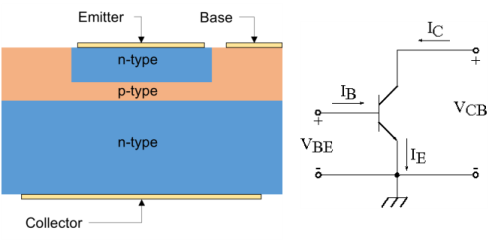
Figure 1: Left: Simplified cross section through a bipolar transistor showing the structure of the device. Right: Circuit diagram showing the common emitter configuration.
A bipolar transistor consists of three regions known as the emitter, base, and collector. In an NPN transistor the p-type base region is sandwiched between the n-type emitter and collector regions, as shown in the left panel of Figure 1. In the common emitter configuration the emitter contact is the common ground for both the base and collector contacts, that is, the base and collector voltages are measured relative to the emitter, which is grounded. This is shown schematically in the right panel of Figure 1.
In normal operation, the base–emitter junction is under forward bias and the base–collector junction is under reverse bias. Electrons are injected over the forward bias p–n junction from the emitter into the base. They then diffuse through the base region as minority carriers. Those electrons which reach the base–collector junction are swept to the collector contact by the electric field of the depleted region near the reverse bias p–n junction.
The effective resistance between the emitter and collector can be varied by applying a current to the base. In this way, the collector–emitter current can be controlled by a smaller base–emitter current. In this configuration the device functions as a current amplifier, as the collector–emitter current (at a given collector–emitter voltage) is proportional to the base–emitter current. Typically, the current gain can have values of the order of 100 which makes bipolar transistors attractive in a wide range of power management circuitry. For example, a small current from some sensing circuitry, such as a photodiode or temperature probe, could be used to control a larger current needed to operate a motor or a heating element.
The model presented here preforms a detailed DC current–voltage characterization of the bipolar transistor device. The current gain is computed as a function of the collector current, along with an emitter–collector I–V curve for fixed currents applied to the base.
Model Definition
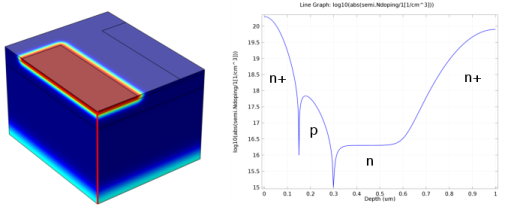
The model geometry is shown in Figure 2. Due to the symmetry of the device only one quarter of the whole structure is explicitly modeled. The modeled doping profile is shown in Figure 3. As is typical of the profile used in silicon bipolar transistors, it consists of four regions (n+, p, n, and n+), described in detail in Modeling Instructions.
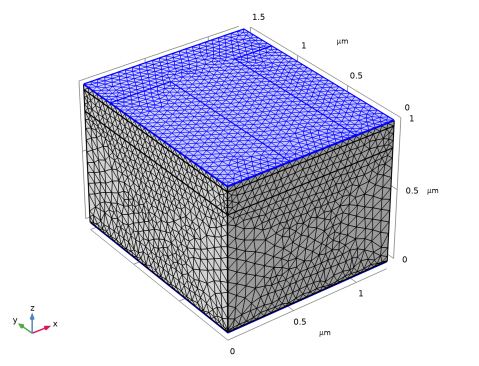
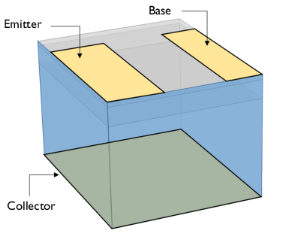
Figure 2: Model geometry, the symmetry planes are highlighted in blue and the boundaries to which the three electric contacts are applied are labeled.
Figure 3: Dopant distribution for the bipolar transistor device. Left: Volume plot showing the total net dopant concentration, the emitter region can be clearly seen in red; the boundary between the base and collector is not apparent due to the large magnitude of the concentration in the n+ regions. Right: Line cut of the total net dopant concentration taken along the red line shown in the left-hand pane. The p-type base region can be seen in this plot.
The physics and studies settings in this model are exactly the same as in the 2D model Bipolar Transistor.
Results and Discussion
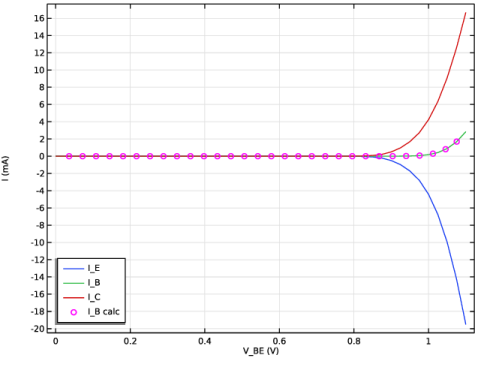
Figure 4 displays the current at each terminal as a function of the base–emitter voltage (VBE) for a fixed collector–emitter voltage (VCE =0.5 V). Note that the figure shows the terminal currents using the COMSOL Multiphysics sign convention: current that flows from the contact into the semiconductor is positive, and current that flows out of the semiconductor into the contact is negative. The figure also shows that the current is conserved. This can be seen as the sum of the base and collector currents have equal magnitude and opposite sign to the emitter current, i.e: the base current can be calculated from the other currents using
The results are in good agreement with the 2D model Bipolar Transistor. Note that when comparing 2D and 3D results, the total current should be scaled with reference to the effective thickness.
Figure 4: Terminal currents as a function of the base–emitter voltage (VBE) for a fixed collector–emitter voltage (VCE = 0.5 V).
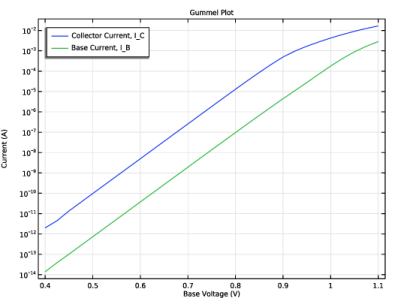
Figure 5: Gummel plot showing the magnitude of the collector and base current as a function of the base voltage.
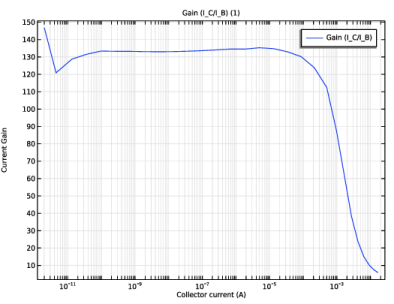
Figure 6: Current gain as a function of collector current for a fixed base voltage of VCE=0.5 V.
Figure 5 shows the Gummel plot for the modeled bipolar transistor. The Gummel plot shows the magnitude of the collector and base currents, plotted on a logarithmic scale, as a function of the base voltage.
Figure 6 shows the current gain, defined as IC/IB, as a function of the collector current at a fixed base voltage of VCE=0.5 V.
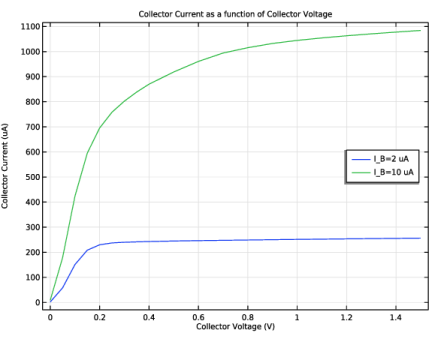
Figure 7: Plot of collector current vs. collector voltage for IB = 2 μA and IB = 10 μA. Note that varying the base current controls the resistance between the emitter and collector.
Figure 7 shows the collector current as a function of collector voltage for two different values of base current 2 μA and 10 μA. This figure shows the collector I–V curve for the device in the common emitter configuration. Initially the current increases linearly with increasing emitter–collector voltage, before reaching a saturation level. The gradient of the linear regime and the magnitude of the saturation current depend on the base current.
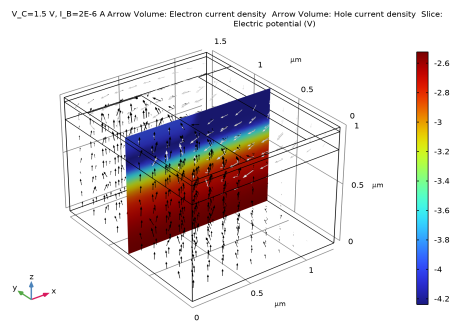
Figure 8 shows the voltage and carrier current densities throughout the device. With VCE = 1.5 V the device is in the forward-active regime. In this regime the emitter–base junction is forward biased and the base–collector junction is reverse biased. Electrons are injected from the emitter into the base through the forward biased junction. These electrons then diffuse through the p-type base region as minority carriers. Those that make it to the reverse biased base–collector junction are swept toward the collector terminal by the junction electric field. The thickness of the base region must be small enough to allow the electrons to diffuse through with high probability. Holes can travel easily from the base to the emitter regions through the forward biased emitter–base junction, but they cannot traverse the reverse biased base–collector junction. Hence the hole current flows between the emitter and base terminals without entering the lower n-doped region, and the electron current flows between the emitter and collector terminals.
Figure 8: Voltage and current density for IB = 2 μA and VCE = 1.5 V. The color shows the voltage and the arrows show the current density for electrons (black) and holes (white). Note that the hole current flows from the base to the emitter and does not enter the lower n-doped region, whilst the electron current flows between the collector and emitter. This current pattern is due to the two p–n junctions that form the device. The electric field is largest around the junctions, as can be seen by the rapid change in voltage between the differently doped regions.
Application Library path: Semiconductor_Module/Transistors/bipolar_transistor_3d
Modeling Instructions
From the File menu, choose New.
New
In the New window, click  Model Wizard.
Model Wizard
1
In the Model Wizard window, click  3D.
2
In the Select Physics tree, select Semiconductor > Semiconductor (semi).
3
Click Add.
4
Click  Study.
5
In the Select Study tree, select General Studies > Stationary.
6
Global Definitions
Import the model parameters from bipolar_transistor_3d_parameters.txt.
1
In the Model Builder window, click Global Definitions.
2
In the Settings window for Parameters, locate the Parameters section.
3
Geometry 1
1
In the Model Builder window, under Component 1 (comp1) click Geometry 1.
2
In the Settings window for Geometry, locate the Units section.
3
From the Length unit list, choose µm.
Block 1 (blk1)
1
In the Geometry toolbar, click  Block.
Add silicon as the material for the device.
2
In the Settings window for Block, locate the Size and Shape section.
3
In the Width text field, type w_BJT/2.
4
In the Depth text field, type l_BJT/2.
5
In the Height text field, type d_BJT.
Block 2 (blk2)
1
In the Geometry toolbar, click  Block.
2
In the Settings window for Block, locate the Size and Shape section.
3
In the Width text field, type w_BJT/2.
4
In the Depth text field, type l_BJT/2.
5
In the Height text field, type 1*d_E.
6
Locate the Position section. In the z text field, type d_BJT-1.25*d_E.
Work Plane 1 (wp1)
1
In the Geometry toolbar, click  Work Plane.
2
In the Settings window for Work Plane, locate the Plane Definition section.
3
In the z-coordinate text field, type d_BJT.
4
Click  Go to Plane Geometry.
Work Plane 1 (wp1) > Rectangle 1 (r1)
1
In the Work Plane toolbar, click  Rectangle.
2
In the Settings window for Rectangle, locate the Size and Shape section.
3
In the Width text field, type w_cE.
4
In the Height text field, type l_E/2-2*d_E.
Work Plane 1 (wp1) > Rectangle 2 (r2)
1
In the Work Plane toolbar, click  Rectangle.
2
In the Settings window for Rectangle, locate the Size and Shape section.
3
In the Width text field, type w_BJT/2-w_EB-w_E/2.
4
In the Height text field, type l_cB/2-2*d_E.
5
Locate the Position section. In the xw text field, type w_BJT/2-w_cB.
6
In the Model Builder window, right-click Geometry 1 and choose Build All.
Semiconductor (semi)
1
In the Model Builder window, under Component 1 (comp1) click Semiconductor (semi).
2
In the Settings window for Semiconductor, click to expand the Discretization section.
3
From the Formulation list, choose Finite element, log formulation (linear shape function).
Add Material
1
In the Home toolbar, click  Add Material to open the Add Material window.
2
Go to the Add Material window.
3
In the tree, select Semiconductors > Si - Silicon.
4
Click the Add to Component button in the window toolbar.
5
In the Home toolbar, click  Add Material to close the Add Material window.
Materials
Si - Silicon (mat1)
Now the physics can be configured for the model. The first step is to create the required dopant distribution. This is achieved using four Analytic Doping Model features, one to specify a constant background level and then one for each of the emitter, base, and collector regions.
Add a constant background n-doping to the device.
Semiconductor (semi)
Constant Background n Doping
1
In the Physics toolbar, click  Domains and choose Analytic Doping Model.
2
In the Settings window for Analytic Doping Model, locate the Domain Selection section.
3
From the Selection list, choose All domains.
4
Locate the Impurity section. From the Impurity type list, choose Donor doping (n-type).
5
In the ND0 text field, type N_epi.
6
In the Label text field, type Constant Background n Doping.
Base p Doping
1
In the Physics toolbar, click  Domains and choose Analytic Doping Model.
Add a layer of p-type doping to for the base region.
2
In the Settings window for Analytic Doping Model, locate the Domain Selection section.
3
From the Selection list, choose All domains.
4
Locate the Distribution section. From the list, choose Box.
5
Locate the Impurity section. In the NA0 text field, type N_B+N_epi.
6
Locate the Uniform Region section. Specify the r0 vector as
7
In the W text field, type w_BJT/2.
8
In the D text field, type l_cB/2.
9
In the H text field, type d_E.
10
Locate the Profile section. In the dj text field, type d_E.
11
From the Nb list, choose Donor concentration (semi/adm1).
12
In the Label text field, type Base p Doping.
Emitter n Doping
1
In the Physics toolbar, click  Domains and choose Analytic Doping Model.
Add an n-type region for the emitter.
2
In the Settings window for Analytic Doping Model, locate the Domain Selection section.
3
From the Selection list, choose All domains.
4
Locate the Distribution section. From the list, choose Box.
5
Locate the Impurity section. From the Impurity type list, choose Donor doping (n-type).
6
In the ND0 text field, type N_E+N_B.
7
Locate the Uniform Region section. Specify the r0 vector as
8
In the W text field, type w_E/2-d_E.
9
In the D text field, type l_E/2-2*d_E.
10
Locate the Profile section. In the dj text field, type d_E.
11
In the Nb text field, type N_B.
12
In the Label text field, type Emitter n Doping.
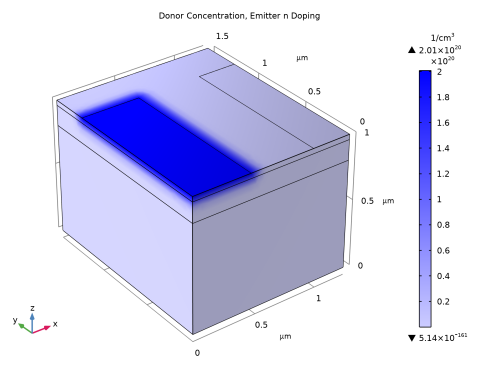
Here you can plot the preview of the doping profile for the selected feature.
13
Click the Plot Doping Profile for Selected button in the window toolbar.
Add another n-type region for the collector.
Collector n Doping
1
In the Physics toolbar, click  Domains and choose Analytic Doping Model.
2
In the Settings window for Analytic Doping Model, locate the Domain Selection section.
3
From the Selection list, choose All domains.
4
Locate the Distribution section. From the list, choose Box.
5
Locate the Impurity section. From the Impurity type list, choose Donor doping (n-type).
6
In the ND0 text field, type N_C.
7
Locate the Uniform Region section. In the W text field, type w_BJT/2.
8
In the D text field, type l_BJT/2.
9
Locate the Profile section. In the dj text field, type 1.3*d_C.
10
From the Nb list, choose Donor concentration (semi/adm1).
11
In the Label text field, type Collector n Doping.
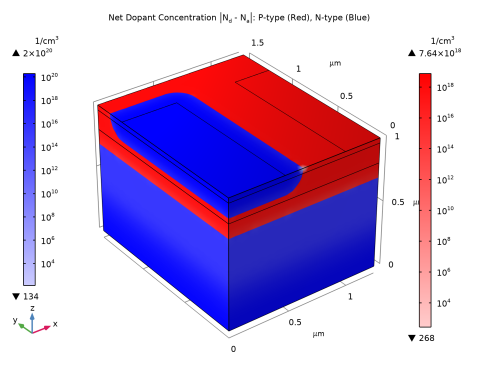
Here you can plot the preview of the doping profile for all the features.
12
Click the Plot Net Doping Profile for All button in the window toolbar.
Add a Trap-Assisted Recombination feature to the model.
Trap-Assisted Recombination 1
1
In the Physics toolbar, click  Domains and choose Trap-Assisted Recombination.
2
In the Settings window for Trap-Assisted Recombination, locate the Domain Selection section.
3
From the Selection list, choose All domains.
Next add Metal Contact features to define the emitter, base, and collector contacts.
Emitter Voltage
1
In the Physics toolbar, click  Boundaries and choose Metal Contact.
2
3
In the Settings window for Metal Contact, locate the Terminal section.
4
In the V0 text field, type V_E.
5
In the Label text field, type Emitter Voltage.
Base Voltage
1
In the Physics toolbar, click  Boundaries and choose Metal Contact.
2
3
In the Settings window for Metal Contact, locate the Terminal section.
4
In the V0 text field, type V_B.
5
In the Label text field, type Base Voltage.
Collector Voltage
1
In the Physics toolbar, click  Boundaries and choose Metal Contact.
2
3
In the Settings window for Metal Contact, locate the Terminal section.
4
In the V0 text field, type V_C.
5
In the Label text field, type Collector Voltage.
As well as applying a voltage to all three contacts, this model also requires the application of a current to the base and collector contacts. This is achieved by duplicating each of the respective voltage-applying contacts and selecting to apply a current. In each study the relevant contact boundary conditions are chosen by selectively disabling the features which are not required.
Base Current
1
In the Model Builder window, right-click Base Voltage and choose Duplicate.
2
In the Settings window for Metal Contact, locate the Terminal section.
3
From the Terminal type list, choose Current.
4
In the I0 text field, type I_B.
5
In the Label text field, type Base Current.
Mesh 1
1
In the Model Builder window, under Component 1 (comp1) click Mesh 1.
2
In the Settings window for Mesh, locate the Sequence Type section.
3
From the list, choose User-controlled mesh.
Boundary Layers 1
In the Mesh toolbar, click  Boundary Layers.
Boundary Layer Properties
1
In the Model Builder window, click Boundary Layer Properties.
2
3
In the Settings window for Boundary Layer Properties, locate the Layers section.
4
In the Stretching factor text field, type 1.5.
5
From the Thickness specification list, choose First layer.
6
In the Thickness text field, type 1e-4.
7
Click  Build All.
First, perform a Stationary Study to sweep the collector voltage. The solution will be used as initial values by the next study.
V_C Sweep, V_B=0 V, V_E=0 V
1
In the Model Builder window, click Study 1.
2
In the Settings window for Study, type V_C Sweep, V_B=0 V, V_E=0 V in the Label text field.
3
Locate the Study Settings section. Clear the Generate default plots checkbox.
Step 1: Stationary
1
In the Model Builder window, under V_C Sweep, V_B=0 V, V_E=0 V click Step 1: Stationary.
2
In the Settings window for Stationary, click to collapse the Study Settings section.
3
Click to expand the Study Settings section. Locate the Physics and Variables Selection section. Select the Modify model configuration for study step checkbox.
4
In the tree, select Component 1 (comp1) > Semiconductor (semi) > Base Current.
5
6
Click to expand the Study Extensions section. Select the Auxiliary sweep checkbox.
7
From the Sweep type list, choose All combinations.
8
9
10
11
12
13
14
In the Study toolbar, click  Compute.
Next, add a Stationary Study to perform a sweep of the base voltage.
Add Study
1
In the Study toolbar, click  Add Study to open the Add Study window.
2
Go to the Add Study window.
3
Find the Studies subsection. In the Select Study tree, select General Studies > Stationary.
4
Click the Add Study button in the window toolbar.
5
In the Study toolbar, click  Add Study to close the Add Study window.
V_B Sweep, V_C=0.5 V, V_E=0 V
1
In the Settings window for Study, type V_B Sweep, V_C=0.5 V, V_E=0 V in the Label text field.
2
Locate the Study Settings section. Clear the Generate default plots checkbox.
Define the sweep for the full base voltage (V_B) study.
1
In the Model Builder window, under V_B Sweep, V_C=0.5 V, V_E=0 V click Step 1: Stationary.
2
In the Settings window for Stationary, locate the Physics and Variables Selection section.
3
Select the Modify model configuration for study step checkbox.
4
In the tree, select Component 1 (comp1) > Semiconductor (semi) > Base Current.
5
6
Click to expand the Values of Dependent Variables section. Find the Initial values of variables solved for subsection. From the Settings list, choose User controlled.
7
From the Method list, choose Solution.
8
From the Study list, choose V_C Sweep, V_B=0 V, V_E=0 V, Stationary.
9
From the Parameter value (V_C (V),V_B (V),V_E (V)) list, choose Last.
10
Locate the Study Extensions section. Select the Auxiliary sweep checkbox.
11
12
13
In the Study toolbar, click  Compute.
Plot the current at each terminal as a function of the base voltage (V_B). Note that currents which flow from the contact into the semiconductor have positive sign and those which flow from the semiconductor into a contact have negative sign.
Results
1D Plot Group 1
1
In the Results toolbar, click  1D Plot Group.
2
In the Settings window for 1D Plot Group, locate the Data section.
3
From the Dataset list, choose V_B Sweep, V_C=0.5 V, V_E=0 V/Solution 2 (sol2).
Global 1
1
Right-click 1D Plot Group 1 and choose Global.
2
In the Settings window for Global, click Replace Expression in the upper-right corner of the y-Axis Data section. From the menu, choose Component 1 (comp1) > Semiconductor > Terminals > semi.I0_1 - Terminal current - A.
3
Click Add Expression in the upper-right corner of the y-Axis Data section. From the menu, choose Component 1 (comp1) > Semiconductor > Terminals > semi.I0_2 - Terminal current - A.
4
Click Add Expression in the upper-right corner of the y-Axis Data section. From the menu, choose Component 1 (comp1) > Semiconductor > Terminals > semi.I0_3 - Terminal current - A.
5
Locate the y-Axis Data section. In the table, enter the following settings:
6
In the 1D Plot Group 1 toolbar, click  Plot.
The current is conserved. To see this, add a plot of I_B=-(I_E+I_C) to the graph, which, due to the software sign convention, corresponds with emitter current being equal to the sum of the base and collector currents.
Global 2
1
In the Model Builder window, right-click 1D Plot Group 1 and choose Global.
2
In the Settings window for Global, locate the y-Axis Data section.
3
4
Click to expand the Coloring and Style section. Find the Line style subsection. From the Line list, choose None.
5
From the Color list, choose Magenta.
6
Find the Line markers subsection. From the Marker list, choose Circle.
7
From the Positioning list, choose Interpolated.
8
In the Number text field, type 30.
I_E, I_B and I_C as a function of V_BE
1
In the Model Builder window, click 1D Plot Group 1.
2
In the Settings window for 1D Plot Group, click to expand the Title section.
3
From the Title type list, choose None.
4
Locate the Plot Settings section. Select the x-axis label checkbox.
5
Select the y-axis label checkbox.
6
In the x-axis label text field, type V_BE (V).
7
In the y-axis label text field, type I (mA).
8
Locate the Legend section. From the Position list, choose Lower left.
9
In the 1D Plot Group 1 toolbar, click  Plot.
10
In the Label text field, type I_E, I_B and I_C as a function of V_BE.
Plot the collector and base currents as a function of the base-emitter voltage. This kind of plot is known as a Gummel plot, and is useful in device characterization.
1D Plot Group 2
1
In the Results toolbar, click  1D Plot Group.
2
In the Settings window for 1D Plot Group, locate the Data section.
3
From the Dataset list, choose V_B Sweep, V_C=0.5 V, V_E=0 V/Solution 2 (sol2).
Global 1
1
Right-click 1D Plot Group 2 and choose Global.
2
In the Settings window for Global, locate the y-Axis Data section.
3
Gummel Plot, I_C and I_B as a function of V_BE
1
In the Model Builder window, click 1D Plot Group 2.
2
In the Settings window for 1D Plot Group, locate the Legend section.
3
From the Position list, choose Upper left.
4
Locate the Title section. From the Title type list, choose Manual.
5
In the Title text area, type Gummel Plot.
6
Locate the Plot Settings section.
7
Select the x-axis label checkbox. In the associated text field, type Base Voltage (V).
8
Select the y-axis label checkbox. In the associated text field, type Current (A).
9
Click the  y-Axis Log Scale button in the Graphics toolbar.
Restrict the data range to exclude very small current values.
10
Locate the Data section. From the Parameter selection (V_B) list, choose Manual.
11
In the Parameter indices (1-45) text field, type range(17,1,45).
12
In the 1D Plot Group 2 toolbar, click  Plot.
13
In the Label text field, type Gummel Plot, I_C and I_B as a function of V_BE.
Another useful characterization quantity is the DC current gain curve, which is the ratio of the collector to base current (I_C/I_B) as a function of collector current.
1D Plot Group 3
1
In the Results toolbar, click  1D Plot Group.
2
In the Settings window for 1D Plot Group, locate the Data section.
3
From the Dataset list, choose V_B Sweep, V_C=0.5 V, V_E=0 V/Solution 2 (sol2).
4
Locate the Axis section. Select the x-axis log scale checkbox.
Global 1
1
Right-click 1D Plot Group 3 and choose Global.
2
In the Settings window for Global, locate the y-Axis Data section.
3
4
Locate the x-Axis Data section. From the Parameter list, choose Expression.
5
In the Expression text field, type semi.I0_3.
Current Gain
1
In the Model Builder window, click 1D Plot Group 3.
2
In the Settings window for 1D Plot Group, locate the Plot Settings section.
3
Select the x-axis label checkbox. In the associated text field, type Collector current (A).
4
Select the y-axis label checkbox. In the associated text field, type Current Gain.
Restrict the data range to exclude very small current values.
5
Locate the Data section. From the Parameter selection (V_B) list, choose Manual.
6
In the Parameter indices (1-45) text field, type range(17,1,45).
7
In the 1D Plot Group 3 toolbar, click  Plot.
8
In the Label text field, type Current Gain.
The collector current as a function of the collector voltage can be controlled by applying a base current. In this way, the output characteristics of the device can be controlled by an input current from, say, a sensing circuit. This effect can be seen by plotting the collector current as a function of the collector voltage for two different values of the base current.
As the required studies are current driven it is helpful to provide good initial values.
Semiconductor (semi)
Base Current
1
In the Model Builder window, under Component 1 (comp1) > Semiconductor (semi) click Base Current.
2
In the Settings window for Metal Contact, locate the Terminal section.
3
In the Vinit text field, type 0.8[V].
Add Study
1
In the Home toolbar, click  Add Study to open the Add Study window.
2
Go to the Add Study window.
3
Find the Studies subsection. In the Select Study tree, select General Studies > Stationary.
4
Click the Add Study button in the window toolbar.
5
In the Home toolbar, click  Add Study to close the Add Study window.
V_C Sweep, V_E=0 V, for I_B=2[uA]
1
In the Settings window for Study, type V_C Sweep, V_E=0 V, for I_B=2[uA] in the Label text field.
2
Locate the Study Settings section. Clear the Generate default plots checkbox.
Step 1: Stationary
1
In the Model Builder window, under V_C Sweep, V_E=0 V, for I_B=2[uA] click Step 1: Stationary.
2
In the Settings window for Stationary, locate the Values of Dependent Variables section.
3
Find the Initial values of variables solved for subsection. From the Settings list, choose User controlled.
4
From the Method list, choose Solution.
5
From the Study list, choose V_B Sweep, V_C=0.5 V, V_E=0 V, Stationary.
6
From the Parameter value (V_B (V)) list, choose 0.85 V.
7
Locate the Study Extensions section. Select the Auxiliary sweep checkbox.
8
From the Sweep type list, choose All combinations.
9
10
11
12
13
In the Study toolbar, click  Compute.
To investigate the effect that a larger base current has on the response of the collector current to the collector voltage sweep a similar study will be performed with a base current of 10 uA.
The study is the same as the previous one, but the base current (I_B) is set to a value of 10 uA instead of 2 uA.
Add Study
1
In the Study toolbar, click  Add Study to open the Add Study window.
2
Go to the Add Study window.
3
Find the Studies subsection. In the Select Study tree, select Empty Study.
4
Click the Add Study button in the window toolbar.
5
In the Study toolbar, click  Add Study to close the Add Study window.
V_C Sweep, V_E=0 V, for I_B=10[uA]
1
In the Settings window for Study, locate the Study Settings section.
2
Clear the Generate default plots checkbox.
3
In the Label text field, type V_C Sweep, V_E=0 V, for I_B=10[uA].
V_C Sweep, V_E=0 V, for I_B=2[uA]
Right-click Step 1: Stationary and choose Copy.
V_C Sweep, V_E=0 V, for I_B=10[uA]
In the Model Builder window, right-click V_C Sweep, V_E=0 V, for I_B=10[uA] and choose Paste Stationary.
1
In the Settings window for Stationary, locate the Study Extensions section.
2
3
In the Study toolbar, click  Compute.
Plotting both curves on the same graph allows for direct comparison.
Results
Common-emitter output characteristics
1
In the Results toolbar, click  1D Plot Group.
2
Right-click 1D Plot Group 4 and choose Rename.
3
In the Rename 1D Plot Group dialog, type Common-emitter output characteristics in the New label text field.
4
Global 1
1
Right-click Common-emitter output characteristics and choose Global.
2
In the Settings window for Global, locate the Data section.
3
From the Dataset list, choose V_C Sweep, V_E=0 V, for I_B=2[uA]/Solution 3 (sol3).
4
Locate the y-Axis Data section. In the table, enter the following settings:
5
Click to expand the Legends section. From the Legends list, choose Manual.
6
Global 2
1
In the Model Builder window, right-click Common-emitter output characteristics and choose Global.
2
In the Settings window for Global, locate the Data section.
3
From the Dataset list, choose V_C Sweep, V_E=0 V, for I_B=10[uA]/Solution 4 (sol4).
4
Locate the y-Axis Data section. In the table, enter the following settings:
5
Locate the Legends section. From the Legends list, choose Manual.
6
Common-emitter output characteristics
1
In the Model Builder window, click Common-emitter output characteristics.
2
In the Settings window for 1D Plot Group, locate the Title section.
3
From the Title type list, choose Manual.
4
In the Title text area, type Collector Current as a function of Collector Voltage.
5
Locate the Plot Settings section.
6
Select the x-axis label checkbox. In the associated text field, type Collector Voltage (V).
7
Select the y-axis label checkbox. In the associated text field, type Collector Current (uA).
8
Locate the Legend section. From the Position list, choose Middle right.
9
In the Common-emitter output characteristics toolbar, click  Plot.
Current Density
1
In the Results toolbar, click  3D Plot Group.
2
In the Settings window for 3D Plot Group, type Current Density in the Label text field.
3
Locate the Data section. From the Dataset list, choose V_C Sweep, V_E=0 V, for I_B=2[uA]/Solution 3 (sol3).
Arrow Volume 1
1
Right-click Current Density and choose Arrow Volume.
2
In the Settings window for Arrow Volume, locate the Expression section.
3
In the X-component text field, type semi.JnX.
4
In the Y-component text field, type semi.JnY.
5
In the Z-component text field, type semi.JnZ.
6
Locate the Arrow Positioning section. Find the X grid points subsection. In the Points text field, type 10.
7
Find the Y grid points subsection. In the Points text field, type 10.
8
Find the Z grid points subsection. In the Points text field, type 10.
9
Locate the Coloring and Style section. From the Arrow length list, choose Logarithmic.
10
From the Color list, choose Black.
Arrow Volume 2
1
Right-click Arrow Volume 1 and choose Duplicate.
2
In the Settings window for Arrow Volume, locate the Expression section.
3
In the X-component text field, type semi.JpX.
4
In the Y-component text field, type semi.JpY.
5
In the Z-component text field, type semi.JpZ.
6
Locate the Coloring and Style section. From the Color list, choose White.
To aid in understanding the current flow throughout the device it is useful to add a slice plot of the voltage to highlight the emitter-base and base-collector junctions.
Slice 1
1
In the Model Builder window, right-click Current Density and choose Slice.
2
Click the  Go to Default View button in the Graphics toolbar.
3
In the Settings window for Slice, locate the Plane Data section.
4
From the Plane list, choose ZX-planes.
5
In the Planes text field, type 1.
6
Locate the Expression section. In the Expression text field, type V.
7
In the Current Density toolbar, click  Plot.
The value of V_C for which the final plot group is plotted can be changed in order to investigate the operation of the bipolar transistor. To do this, click on Current Density in the Model Builder, locate the Data section of the 3D plot group panel and change the value of Parameter value (V_C).
At V_C = 0 V the electron and hole currents flow in unison from the base contact to both the collector and emitter contacts. This is expected, as the device is being driven by a base current. The net collector current is very small as the electron and hole currents are nearly balanced.
At V_C = 1.5 V the device is operating in the saturation regime. The hole current flows mainly from the base to the emitter and the electron current flows mainly from the collector to the emitter. This results in a large net current at the collector contact.