PDF

Turbocharger Supported on Floating Ring Bearings
Introduction
A turbocharger is usually supported by hydrodynamic journal bearings, most often floating ring bearings. These bearings are the extension of the cylindrical journal bearings in which a ring is inserted between the journal and bushing surfaces. Therefore, such a bearing can be considered as two cylindrical journal bearings working in series. However, the two films are not completely disconnected; rather they are connected through the oil channels in the ring.
A time-dependent analysis is performed to analyze the dynamics of a turbocharger supported on a pair of floating ring bearings. The results include the stress in the rotor, pressure in the bearing, ring speed and torque, and flow through the channels in the ring.
Model Definition
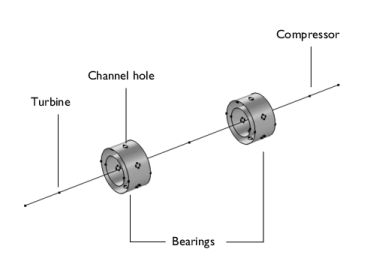
The model consists of a turbocharger rotor supported by two floating ring bearings, one near the compressor and another near the turbine, making both the compressor and the turbine overhung on the shaft. The schematic of the rotor is shown in Figure 1.
Figure 1: Rotor sketch.
The rotor of the turbocharger is modeled using the Beam Rotor interface and the bearings are modeled using the Floating Ring Bearing feature. The connection between the inner and the outer film is established using an Inner-Outer Film Connection subfeature of the Floating Ring Bearing. The coupling between the rotor and the bearing is handled using a multiphysics coupling feature. The Disk feature is used to model the inertia of the turbine and the compressor. The properties of the rotor are given in Table 1.
205 GPa
7800 kg/m3
0.1 L
0.3 L
0.7 L
0.9 L
1.4 kg
6.3 x 10⁻⁴ kg·m2
1.26 x 10⁻⁴ kg·m2
4.5 x 10⁻⁴ kg·m2
9 x10⁻⁴ kg·m2
Bearing properties are given in Table 2.
The rotor is rotating at 8,000 rpm and is initially concentric with the bearing. A gravity load acts on the rotor. A time-dependent analysis is performed to analyze the response of the turbocharger system.
Results and Discussion
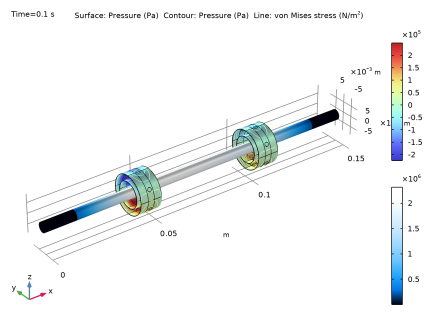
The pressure in the bearings and the stress in the rotor is shown in Figure 2. The maximum stress occurs in the central region of the rotor. The pressure is maximal in the bottom of the bearing because the rotor moves downward from the bearing center due to the gravitational force. The clearances between the journal and the ring and that between the ring and the bushing decrease due to this motion.
Figure 2: Pressure and stress in the turbocharger at 0.1 s.
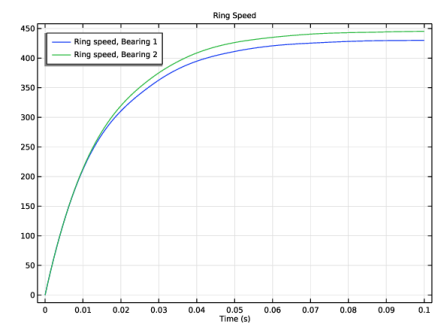
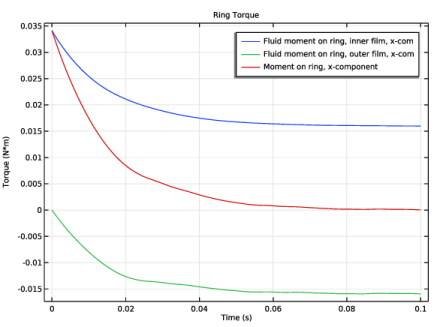
The variation of the axial rotational speed of the ring is shown in Figure 3. Initially the ring and bushing are stationary but the journal is moving at the prescribed angular velocity. Thus, there is a relative slip motion in the inner film alone in the beginning. The outer film has no slip motion. The slip in the inner film produces a viscous torque on the ring but there is no torque from the outer film at this stage. The torque on the ring is shown in Figure 4. Due to the net torque on the ring, it starts rotating axially. The ring rotation decreases the relative slip in the inner film while increasing the same in the outer film. As a result, the torque from the inner film reduces and at the same time torque from the outer film increases. Also, the torque from the outer film opposes the torque from the inner film. Consequently, the net angular acceleration of the ring decreases as the ring picks up speed. Eventually, the ring will attain a speed at which the torque from both the inner and outer films are equal and opposite and at this stage the net angular acceleration of the ring becomes zero. Therefore, ring continues to rotate at this speed after this.
Figure 3: Ring speed.
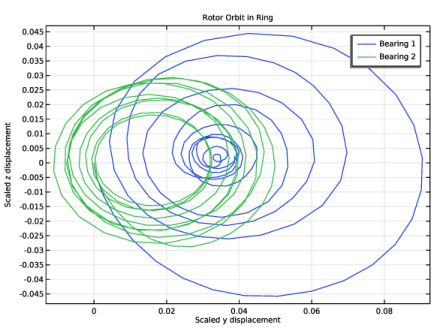
The orbit of rotor in the ring, shown in Figure 5, shows that after going through the initial transient phase, the rotor performs a small amplitude whirl in the ring about an equilibrium point.
Figure 4: Torque on the ring.
Figure 5: Rotor orbit in the ring.
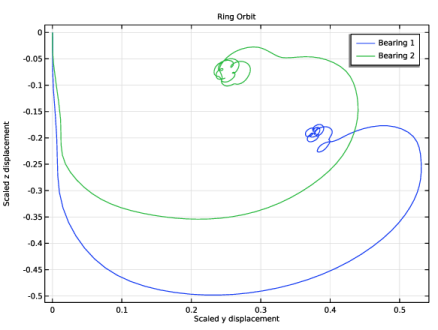
As shown in Figure 6, the ring orbit characteristics are also similar to the rotor. However, the amplitude of the ring whirl in steady state is very small compared to the rotor.
Figure 6: Ring orbit.
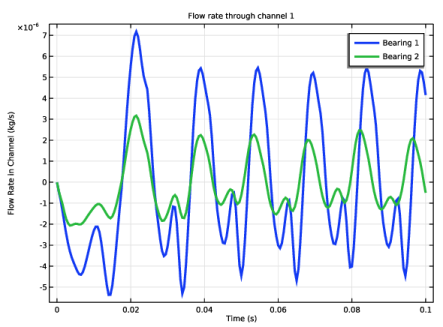
Figure 7: Mass-flow rate through channels.
The mass-flow rate in the first channel of both bearings is shown in Figure 7. The transient response exhibits nonperiodic behavior in the flow rate, but as it reaches steady state the flow-rate variation becomes periodic. Also, note that the flow rate changes from positive to negative values during a cycle, showing that the flow goes both from the inner film to the outer film and vice versa.
Application Library path: Rotordynamics_Module/Automotive_and_Aerospace/turbocharger_transient_analysis
Modeling Instructions
From the File menu, choose New.
New
In the New window, click  Model Wizard.
Model Wizard
1
In the Model Wizard window, click  3D.
2
In the Select Physics tree, select Structural Mechanics > Rotordynamics > Beam Rotor with Hydrodynamic Bearing.
3
Click Add.
4
Click  Study.
5
In the Select Study tree, select General Studies > Time Dependent.
6
Import the parameters for the turbocharger.
Global Definitions
Parameters 1
1
In the Model Builder window, under Global Definitions click Parameters 1.
2
In the Settings window for Parameters, locate the Parameters section.
3
Click  Load from File.
4
Browse to the model’s Application Libraries folder and double-click the file turbocharger_transient_analysis_rotor_parameters.txt.
Parameters 2
1
In the Home toolbar, click  Parameters and choose Add > Parameters.
2
In the Settings window for Parameters, locate the Parameters section.
3
Click  Load from File.
4
Browse to the model’s Application Libraries folder and double-click the file turbocharger_transient_analysis_bearing_parameters.txt.
Geometry 1
Polygon 1 (pol1)
1
In the Geometry toolbar, click  More Primitives and choose Polygon.
2
In the Settings window for Polygon, locate the Coordinates section.
3
From the Data source list, choose Vectors.
4
In the x text field, type x1 x2 x3 L/2.
5
In the y text field, type 0.
6
In the z text field, type 0.
7
Locate the Selections of Resulting Entities section. Find the Cumulative selection subsection. Click New.
8
In the New Cumulative Selection dialog, type Rotor in the Name text field.
9
Cylinder 1 (cyl1)
1
In the Geometry toolbar, click  Cylinder.
2
In the Settings window for Cylinder, locate the Object Type section.
3
From the Type list, choose Surface.
4
Locate the Size and Shape section. In the Radius text field, type R_o.
5
In the Height text field, type Lb.
6
Locate the Position section. In the x text field, type x3-Lb/2.
7
Locate the Axis section. From the Axis type list, choose x-axis.
8
Locate the Selections of Resulting Entities section. Find the Cumulative selection subsection. Click New.
9
In the New Cumulative Selection dialog, type Bearing Surface in the Name text field.
10
Cylinder 2 (cyl2)
1
Right-click Cylinder 1 (cyl1) and choose Duplicate.
2
In the Settings window for Cylinder, locate the Size and Shape section.
3
In the Radius text field, type R_i.
Cylinder 1 (cyl1)
1
In the Model Builder window, click Cylinder 1 (cyl1).
2
In the Settings window for Cylinder, click to expand the Layers section.
Cylinder 3 (cyl3)
1
Right-click Component 1 (comp1) > Geometry 1 > Cylinder 1 (cyl1) and choose Duplicate.
2
In the Settings window for Cylinder, locate the Size and Shape section.
3
In the Height text field, type 0.3*Lb.
4
Locate the Position section. In the x text field, type x3-0.15*Lb.
Cylinder 4 (cyl4)
1
Right-click Cylinder 3 (cyl3) and choose Duplicate.
2
In the Settings window for Cylinder, locate the Size and Shape section.
3
In the Radius text field, type R_i.
Cylinder 5 (cyl5)
1
In the Geometry toolbar, click  Cylinder.
2
In the Settings window for Cylinder, locate the Size and Shape section.
3
In the Radius text field, type 0.1*R_o.
4
In the Height text field, type 2.5*(R_o-R_i).
5
Locate the Position section. In the x text field, type x3.
6
In the z text field, type 0.5*R_i.
7
Locate the Selections of Resulting Entities section. Find the Cumulative selection subsection. From the Contribute to list, choose Bearing Surface.
Rotate 1 (rot1)
1
In the Geometry toolbar, click  Transforms and choose Rotate.
2
3
In the Settings window for Rotate, locate the Rotation section.
4
In the Angle text field, type range(0,60,300).
5
From the Axis type list, choose x-axis.
6
Locate the Selections of Resulting Entities section. Find the Cumulative selection subsection. Click New.
7
In the New Cumulative Selection dialog, type Auxiliary cylinders in the Name text field.
8
Union 1 (uni1)
1
In the Geometry toolbar, click  Booleans and Partitions and choose Union.
2
In the Settings window for Union, locate the Union section.
3
From the Input objects list, choose Bearing Surface.
4
Select the Keep input objects checkbox.
Delete Entities 1 (del1)
1
In the Model Builder window, right-click Geometry 1 and choose Delete Entities.
2
In the Settings window for Delete Entities, locate the Entities or Objects to Delete section.
3
From the Geometric entity level list, choose Domain.
4
From the Selection list, choose Auxiliary cylinders.
Mirror 1 (mir1)
1
In the Geometry toolbar, click  Transforms and choose Mirror.
2
Click in the Graphics window and then press Ctrl+A to select all objects.
3
In the Settings window for Mirror, locate the Point on Plane of Reflection section.
4
In the x text field, type L/2.
5
Locate the Normal Vector to Plane of Reflection section. In the x text field, type 1.
6
In the z text field, type 0.
7
Click  Build All Objects.
8
Click the  Go to Default View button in the Graphics toolbar.
9
Locate the Input section. Click to select the  Activate Selection toggle button for Input objects.
10
Select the Keep input objects checkbox.
11
Click  Build All Objects.
12
Click the  Go to Default View button in the Graphics toolbar.
Create some selections for the later use.
Definitions
Inner film, bearing 1
1
In the Definitions toolbar, click  Explicit.
2
In the Settings window for Explicit, locate the Input Entities section.
3
From the Geometric entity level list, choose Boundary.
4
5
Select the Group by continuous tangent checkbox.
6
In the Label text field, type Inner film, bearing 1.
Outer film, bearing 1
1
In the Definitions toolbar, click  Explicit.
2
In the Settings window for Explicit, type Outer film, bearing 1 in the Label text field.
3
Locate the Input Entities section. From the Geometric entity level list, choose Boundary.
4
5
Select the Group by continuous tangent checkbox.
Inner film, bearing 2
1
In the Model Builder window, right-click Inner film, bearing 1 and choose Duplicate.
2
In the Settings window for Explicit, type Inner film, bearing 2 in the Label text field.
3
Locate the Input Entities section. Click  Clear Selection.
4
Outer film, bearing 2
1
In the Model Builder window, right-click Outer film, bearing 1 and choose Duplicate.
2
In the Settings window for Explicit, type Outer film, bearing 2 in the Label text field.
3
Locate the Input Entities section. Click  Clear Selection.
4
Bearing 1
1
In the Definitions toolbar, click  Union.
2
In the Settings window for Union, locate the Geometric Entity Level section.
3
From the Level list, choose Boundary.
4
Locate the Input Entities section. Under Selections to add, click  Add.
5
In the Add dialog, in the Selections to add list, choose Inner film, bearing 1 and Outer film, bearing 1.
6
7
In the Settings window for Union, type Bearing 1 in the Label text field.
Bearing 2
1
Right-click Bearing 1 and choose Duplicate.
2
In the Settings window for Union, type Bearing 2 in the Label text field.
3
Locate the Input Entities section. In the Selections to add list box, select Inner film, bearing 1.
4
Under Selections to add, click  Delete.
5
Under Selections to add, click  Delete.
6
Under Selections to add, click  Add.
7
In the Add dialog, in the Selections to add list, choose Inner film, bearing 2 and Outer film, bearing 2.
8
Inner film
1
In the Definitions toolbar, click  Union.
2
In the Settings window for Union, locate the Geometric Entity Level section.
3
From the Level list, choose Boundary.
4
Locate the Input Entities section. Under Selections to add, click  Add.
5
In the Add dialog, in the Selections to add list, choose Inner film, bearing 1 and Inner film, bearing 2.
6
7
In the Settings window for Union, type Inner film in the Label text field.
Outer film
1
Right-click Inner film and choose Duplicate.
2
In the Settings window for Union, type Outer film in the Label text field.
3
Locate the Input Entities section. In the Selections to add list box, select Inner film, bearing 1.
4
Under Selections to add, click  Delete.
5
Under Selections to add, click  Delete.
6
Under Selections to add, click  Add.
7
In the Add dialog, in the Selections to add list, choose Outer film, bearing 1 and Outer film, bearing 2.
8
Channel, inner film, bearing 1
1
In the Definitions toolbar, click  Cylinder.
2
Click the  Go to Default View button in the Graphics toolbar.
3
In the Settings window for Cylinder, locate the Geometric Entity Level section.
4
From the Level list, choose Boundary.
5
Locate the Axis section. From the Axis type list, choose x-axis.
6
Locate the Size and Shape section. In the Outer radius text field, type 0.5*(R_i+R_o).
7
In the Inner radius text field, type 0.5*R_i.
8
In the Top distance text field, type 0.11*R_o.
9
In the Bottom distance text field, type -0.11*R_o.
10
Locate the Position section. In the x text field, type x3.
11
Locate the Output Entities section. From the Include entity if list, choose Entity inside cylinder.
12
In the Label text field, type Channel, inner film, bearing 1.
Channel, outer film, bearing 1
1
Right-click Channel, inner film, bearing 1 and choose Duplicate.
2
In the Settings window for Cylinder, locate the Size and Shape section.
3
In the Outer radius text field, type 1.1*R_o.
4
In the Inner radius text field, type 0.5*(R_i+R_o).
5
In the Label text field, type Channel, outer film, bearing 1.
Channel, inner film, bearing 1, Channel, outer film, bearing 1
1
In the Model Builder window, under Component 1 (comp1) > Definitions > Selections, Ctrl-click to select Channel, inner film, bearing 1 and Channel, outer film, bearing 1.
2
Channel, inner film, bearing 2
1
In the Settings window for Cylinder, locate the Position section.
2
In the x text field, type x4.
3
In the Label text field, type Channel, inner film, bearing 2.
Channel, outer film, bearing 2
1
In the Model Builder window, under Component 1 (comp1) > Definitions > Selections click Channel, outer film, bearing 1.1.
2
In the Settings window for Cylinder, type Channel, outer film, bearing 2 in the Label text field.
3
Locate the Position section. In the x text field, type x4.
Materials
Material 1 (mat1)
1
In the Model Builder window, under Component 1 (comp1) right-click Materials and choose Blank Material.
2
In the Settings window for Material, locate the Geometric Entity Selection section.
3
From the Geometric entity level list, choose Edge.
4
From the Selection list, choose Rotor.
5
Locate the Material Contents section. In the table, enter the following settings:
Beam Rotor (rotbm)
1
In the Model Builder window, under Component 1 (comp1) click Beam Rotor (rotbm).
2
In the Settings window for Beam Rotor, locate the Edge Selection section.
3
From the Selection list, choose Rotor.
4
Locate the Rotor Speed section. In the text field, type Ow.
5
Click to expand the Result Settings section. Find the General settings subsection. Clear the Include undeformed geometry in stress/whirl plot checkbox.
Rotor Cross Section 1
1
In the Model Builder window, under Component 1 (comp1) > Beam Rotor (rotbm) click Rotor Cross Section 1.
2
In the Settings window for Rotor Cross Section, locate the Cross-Section Definition section.
3
In the do text field, type 2*R_i.
Disk: Turbine
1
In the Physics toolbar, click  Points and choose Disk.
2
In the Settings window for Disk, type Disk: Turbine in the Label text field.
3
Locate the Disk Properties section. From the Center of mass list, choose Offset from selected points.
4
In the zr text field, type 1e-4*R_i.
5
In the m text field, type m_t.
6
In the Ip text field, type Ip_t.
7
In the Id text field, type Id_t.
8
Disk: Compressor
1
Right-click Disk: Turbine and choose Duplicate.
2
In the Settings window for Disk, type Disk: Compressor in the Label text field.
3
Locate the Point Selection section. Click  Clear Selection.
4
5
Locate the Disk Properties section. In the m text field, type m_c.
6
In the Ip text field, type Ip_c.
7
In the Id text field, type Id_c.
Gravity 1
In the Physics toolbar, click  Edges and choose Gravity.
Hydrodynamic Bearing (hdb)
Add two Floating Ring Bearing features for both the bearings.
Floating Ring Bearing 1
1
In the Physics toolbar, click  Boundaries and choose Floating Ring Bearing.
2
In the Settings window for Floating Ring Bearing, locate the Boundary Selection section.
3
From the Selection list, choose Bearing 1.
4
Locate the Bearing Properties section. In the mring text field, type m_r.
5
6
Specify the Iring matrix as
7
From the Xc list, choose From geometry.
8
Locate the Fluid Properties section. From the μ list, choose User defined. In the associated text field, type mu0.
9
From the ρ list, choose User defined.
Definitions
Bearing 1
1
In the Model Builder window, under Component 1 (comp1) > Definitions > Selections click Bearing 1.
2
In the Settings window for Union, locate the Input Entities section.
3
In the Selections to add list box, select Outer film, bearing 1.
Hydrodynamic Bearing (hdb)
Inner Film Properties 1
1
In the Model Builder window, expand the Floating Ring Bearing 1 node, then click Inner Film Properties 1.
2
In the Settings window for Inner Film Properties, locate the Boundary Selection section.
3
From the Selection list, choose Inner film, bearing 1.
4
Locate the Clearance section. In the C text field, type C_i.
Outer Film Properties 1
1
In the Model Builder window, click Outer Film Properties 1.
2
In the Settings window for Outer Film Properties, locate the Boundary Selection section.
3
From the Selection list, choose Outer film, bearing 1.
4
Locate the Clearance section. In the C text field, type C_o.
Floating Ring Bearing 1
In the Model Builder window, click Floating Ring Bearing 1.
Inner–Outer Film Connection 1
1
In the Physics toolbar, click  Attributes and choose Inner–Outer Film Connection.
2
In the Settings window for Inner–Outer Film Connection, locate the Channel, Inner Film section.
3
From the Selection list, choose Channel, inner film, bearing 1.
4
Locate the Channel, Outer Film section. From the Selection list, choose Channel, outer film, bearing 1.
Floating Ring Bearing 2
1
Right-click Floating Ring Bearing 1 and choose Duplicate.
2
In the Settings window for Floating Ring Bearing, locate the Boundary Selection section.
3
From the Selection list, choose Bearing 2.
Inner Film Properties 1
1
In the Model Builder window, expand the Floating Ring Bearing 2 node, then click Inner Film Properties 1.
2
In the Settings window for Inner Film Properties, locate the Boundary Selection section.
3
From the Selection list, choose Inner film, bearing 2.
Outer Film Properties 1
1
In the Model Builder window, click Outer Film Properties 1.
2
In the Settings window for Outer Film Properties, locate the Boundary Selection section.
3
From the Selection list, choose Outer film, bearing 2.
Inner–Outer Film Connection 1
1
In the Model Builder window, click Inner–Outer Film Connection 1.
2
In the Settings window for Inner–Outer Film Connection, locate the Channel, Inner Film section.
3
From the Selection list, choose Channel, inner film, bearing 2.
4
Locate the Channel, Outer Film section. From the Selection list, choose Channel, outer film, bearing 2.
Create the selection for the outer edges on the bearing to use it in the mesh.
Border 1
1
In the Model Builder window, under Component 1 (comp1) > Hydrodynamic Bearing (hdb) click Border 1.
2
In the Settings window for Border, locate the Edge Selection section.
3
Click  Create Selection.
4
In the Create Selection dialog, type Bearing Outer Edges in the Selection name text field.
5
Multiphysics
Beam Rotor–Bearing Coupling 1 (brbc1)
1
In the Model Builder window, under Component 1 (comp1) > Multiphysics click Beam Rotor–Bearing Coupling 1 (brbc1).
2
In the Settings window for Beam Rotor–Bearing Coupling, locate the Boundary Selection section.
3
From the Selection list, choose Inner film, bearing 1.
Duplicate the multiphysics coupling feature for coupling with the second bearing.
Beam Rotor–Bearing Coupling 2 (brbc2)
1
Right-click Component 1 (comp1) > Multiphysics > Beam Rotor–Bearing Coupling 1 (brbc1) and choose Duplicate.
2
In the Settings window for Beam Rotor–Bearing Coupling, locate the Boundary Selection section.
3
From the Selection list, choose Inner film, bearing 2.
Mesh 1
Edge 1
1
In the Mesh toolbar, click  More Generators and choose Edge.
2
In the Settings window for Edge, locate the Edge Selection section.
3
From the Selection list, choose Rotor.
Distribution 1
1
Right-click Edge 1 and choose Distribution.
2
In the Settings window for Distribution, locate the Edge Selection section.
3
Click  Clear Selection.
4
5
Locate the Distribution section. In the Number of elements text field, type 10.
Distribution 2
1
In the Model Builder window, right-click Edge 1 and choose Distribution.
2
In the Settings window for Distribution, locate the Edge Selection section.
3
Click  Clear Selection.
4
5
Locate the Distribution section. In the Number of elements text field, type 20.
Mapped 1
1
In the Mesh toolbar, click  More Generators and choose Mapped.
2
Distribution 1
1
Right-click Mapped 1 and choose Distribution.
2
3
In the Settings window for Distribution, locate the Distribution section.
4
In the Number of elements text field, type 15.
Distribution 2
1
In the Model Builder window, right-click Mapped 1 and choose Distribution.
2
Click the  Go to Default View button in the Graphics toolbar.
3
4
In the Settings window for Distribution, locate the Distribution section.
5
In the Number of elements text field, type 2.
Size
1
In the Model Builder window, under Component 1 (comp1) > Mesh 1 click Size.
2
In the Settings window for Size, locate the Element Size section.
3
From the Predefined list, choose Finer.
4
Click  Build All.
Free Triangular 1
1
In the Mesh toolbar, click  More Generators and choose Free Triangular.
2
In the Settings window for Free Triangular, locate the Boundary Selection section.
3
From the Geometric entity level list, choose Remaining.
4
Click  Build All.
Study 1
Step 1: Time Dependent
1
In the Model Builder window, under Study 1 click Step 1: Time Dependent.
2
In the Settings window for Time Dependent, locate the Study Settings section.
3
In the Output times text field, type range(0,5e-4,0.1).
Solution 1 (sol1)
1
In the Study toolbar, click  Show Default Solver.
2
In the Model Builder window, expand the Solution 1 (sol1) node, then click Time-Dependent Solver 1.
3
In the Settings window for Time-Dependent Solver, click to expand the Time Stepping section.
4
From the Method list, choose BDF.
5
From the Steps taken by solver list, choose Intermediate.
6
From the Maximum BDF order list, choose 2.
7
In the Model Builder window, expand the Study 1 > Solver Configurations > Solution 1 (sol1) > Dependent Variables 1 node, then click Displacement Field (comp1.u).
8
In the Settings window for Field, locate the Scaling section.
9
In the Scale text field, type 1e-5.
10
In the Study toolbar, click  Compute.
Stress in the rotor and pressure in the bearing are the default plots. Copy the Line node from the stress plot and paste it in the pressure plot to show the rotor and the bearing together. This plot is shown in Figure 2.
Results
Line 1
1
In the Model Builder window, expand the Results > Stress (rotbm) node.
2
Right-click Line 1 and choose Copy.
Line 1
1
In the Model Builder window, right-click Fluid Pressure (hdb) and choose Paste Line.
2
In the Settings window for Line, locate the Coloring and Style section.
3
From the Color table list, choose JupiterAuroraBorealis.
4
Select the Radius scale factor checkbox. In the associated text field, type 0.4.
Deformation
1
In the Model Builder window, expand the Line 1 node, then click Deformation.
2
In the Settings window for Deformation, locate the Scale section.
3
Select the Scale factor checkbox. In the associated text field, type 50.
Surface 1
Pressure distribution in the films is obtained in the ring frame. Add the deformation node to convert the distribution in the stationary frame.
Deformation 1
1
In the Model Builder window, right-click Surface 1 and choose Deformation.
2
In the Settings window for Deformation, locate the Expression section.
3
In the X-component text field, type hdb.uRax.
4
In the Y-component text field, type hdb.uRay.
5
In the Z-component text field, type hdb.uRaz.
6
Locate the Scale section. Select the Scale factor checkbox.
7
Right-click Deformation 1 and choose Copy.
Deformation 1
In the Model Builder window, right-click Contour 1 and choose Paste Deformation.
Fluid Pressure (hdb)
1
In the Settings window for 3D Plot Group, locate the Color Legend section.
2
From the Position list, choose Right double.
3
Click the  Go to Default View button in the Graphics toolbar.
4
In the Fluid Pressure (hdb) toolbar, click  Plot.
The speed of the ring initially increases due to the viscous forces on the inner and outer film and reaches steady state when the torque on the ring from both films is balanced. Follow the instructions below to generate the ring speed plot shown in Figure 3.
1D Plot Group 3
In the Results toolbar, click  1D Plot Group.
Global 1
1
Right-click 1D Plot Group 3 and choose Global.
2
In the Settings window for Global, locate the y-Axis Data section.
3
4
In the 1D Plot Group 3 toolbar, click  Plot.
Ring Speed
1
In the Model Builder window, under Results click 1D Plot Group 3.
2
In the Settings window for 1D Plot Group, type Ring Speed in the Label text field.
3
Locate the Legend section. From the Position list, choose Upper left.
4
Click to expand the Title section. From the Title type list, choose Label.
5
Click the  Go to Default View button in the Graphics toolbar.
6
In the Ring Speed toolbar, click  Plot.
It is also interesting to analyze the torque on the ring from both the films. Follow the instructions below to plot the ring torque shown in Figure 4.
Ring Torque
1
In the Results toolbar, click  1D Plot Group.
2
In the Settings window for 1D Plot Group, type Ring Torque in the Label text field.
3
Locate the Title section. From the Title type list, choose Label.
4
Locate the Plot Settings section.
5
Select the y-axis label checkbox. In the associated text field, type Torque (N*m).
Global 1
1
Right-click Ring Torque and choose Global.
2
In the Settings window for Global, click Replace Expression in the upper-right corner of the y-Axis Data section. From the menu, choose Component 1 (comp1) > Hydrodynamic Bearing > Fluid loads > Fluid moment on ring, inner film - N·m > hdb.frb2.Mr_inx - Fluid moment on ring, inner film, x-component.
3
Click Add Expression in the upper-right corner of the y-Axis Data section. From the menu, choose Component 1 (comp1) > Hydrodynamic Bearing > Fluid loads > Fluid moment on ring, outer film - N·m > hdb.frb2.Mr_outx - Fluid moment on ring, outer film, x-component.
4
Locate the y-Axis Data section. In the table, enter the following settings:
5
Click the  Go to Default View button in the Graphics toolbar.
6
In the Ring Torque toolbar, click  Plot.
7
Use the following instructions to plot the orbit of the rotor within the ring as shown in Figure 5.
Rotor Orbit in Ring
1
In the Results toolbar, click  1D Plot Group.
2
In the Settings window for 1D Plot Group, type Rotor Orbit in Ring in the Label text field.
3
Locate the Title section. From the Title type list, choose Label.
4
Locate the Plot Settings section.
5
Select the x-axis label checkbox. In the associated text field, type Scaled y displacement.
6
Select the y-axis label checkbox. In the associated text field, type Scaled z displacement.
Global 1
1
Right-click Rotor Orbit in Ring and choose Global.
2
In the Settings window for Global, click Replace Expression in the upper-right corner of the y-Axis Data section. From the menu, choose Component 1 (comp1) > Hydrodynamic Bearing > Floating Ring Bearing 1 > Displacement and velocity > Journal displacement relative to ring (scaled) > hdb.frb1.uJRz_rel - Journal displacement relative to ring (scaled), z-component.
3
Locate the x-Axis Data section. From the Parameter list, choose Expression.
4
Click Replace Expression in the upper-right corner of the x-Axis Data section. From the menu, choose Component 1 (comp1) > Hydrodynamic Bearing > Floating Ring Bearing 1 > Displacement and velocity > Journal displacement relative to ring (scaled) > hdb.frb1.uJRy_rel - Journal displacement relative to ring (scaled), y-component.
5
Click to expand the Legends section. From the Legends list, choose Manual.
6
Global 2
1
Right-click Global 1 and choose Duplicate.
2
In the Settings window for Global, click Replace Expression in the upper-right corner of the y-Axis Data section. From the menu, choose Component 1 (comp1) > Hydrodynamic Bearing > Floating Ring Bearing 2 > Displacement and velocity > Journal displacement relative to ring (scaled) > hdb.frb2.uJRz_rel - Journal displacement relative to ring (scaled), z-component.
3
Click Replace Expression in the upper-right corner of the x-Axis Data section. From the menu, choose Component 1 (comp1) > Hydrodynamic Bearing > Floating Ring Bearing 2 > Displacement and velocity > Journal displacement relative to ring (scaled) > hdb.frb2.uJRy_rel - Journal displacement relative to ring (scaled), y-component.
4
Locate the Legends section. In the table, enter the following settings:
5
Click the  Go to Default View button in the Graphics toolbar.
6
In the Rotor Orbit in Ring toolbar, click  Plot.
Use the following instructions to plot the orbit of the ring as shown in Figure 6.
Ring Orbit
1
In the Results toolbar, click  1D Plot Group.
2
In the Settings window for 1D Plot Group, type Ring Orbit in the Label text field.
3
Locate the Title section. From the Title type list, choose Label.
4
Locate the Plot Settings section.
5
Select the x-axis label checkbox. In the associated text field, type Scaled y displacement.
6
Select the y-axis label checkbox. In the associated text field, type Scaled z displacement.
Global 1
1
Right-click Ring Orbit and choose Global.
2
In the Settings window for Global, click Replace Expression in the upper-right corner of the y-Axis Data section. From the menu, choose Component 1 (comp1) > Hydrodynamic Bearing > Floating Ring Bearing 1 > Displacement and velocity > Ring displacement relative to bearing (scaled) > hdb.frb1.uRBz_rel - Ring displacement relative to bearing (scaled), z-component.
3
Click Replace Expression in the upper-right corner of the x-Axis Data section. From the menu, choose Component 1 (comp1) > Hydrodynamic Bearing > Floating Ring Bearing 1 > Displacement and velocity > Ring displacement relative to bearing (scaled) > hdb.frb1.uRBy_rel - Ring displacement relative to bearing (scaled), y-component.
4
Locate the x-Axis Data section. Select the Description checkbox.
5
Locate the Legends section. From the Legends list, choose Manual.
6
Global 2
1
Right-click Global 1 and choose Duplicate.
2
In the Settings window for Global, click Replace Expression in the upper-right corner of the y-Axis Data section. From the menu, choose Component 1 (comp1) > Hydrodynamic Bearing > Floating Ring Bearing 2 > Displacement and velocity > Ring displacement relative to bearing (scaled) > hdb.frb2.uRBz_rel - Ring displacement relative to bearing (scaled), z-component.
3
Click Replace Expression in the upper-right corner of the x-Axis Data section. From the menu, choose Component 1 (comp1) > Hydrodynamic Bearing > Floating Ring Bearing 2 > Displacement and velocity > Ring displacement relative to bearing (scaled) > hdb.frb2.uRBy_rel - Ring displacement relative to bearing (scaled), y-component.
4
Locate the Legends section. In the table, enter the following settings:
5
Click the  Go to Default View button in the Graphics toolbar.
6
In the Ring Orbit toolbar, click  Plot.
It is also interesting to analyze the flow through the channels in the ring. Use the following instructions to plot the flow rate from the first channel of both the rings as shown in Figure 7.
Flow rate in Channel
1
In the Results toolbar, click  1D Plot Group.
2
In the Settings window for 1D Plot Group, locate the Title section.
3
From the Title type list, choose Manual.
4
In the Title text area, type Flow rate through channel 1.
5
In the Label text field, type Flow rate in Channel.
6
Locate the Plot Settings section.
7
Select the y-axis label checkbox. In the associated text field, type Flow Rate in Channel (kg/s).
Global 1
1
Right-click Flow rate in Channel and choose Global.
2
In the Settings window for Global, locate the y-Axis Data section.
3
4
Click to expand the Coloring and Style section. From the Width list, choose 3.
5
Click the  Go to Default View button in the Graphics toolbar.
6
In the Flow rate in Channel toolbar, click  Plot.
Finally generate the animation of the stress and pressure in the turbocharger.
Animation 1
1
In the Results toolbar, click  Animation and choose Player.
2
In the Settings window for Animation, locate the Scene section.
3
From the Subject list, choose Fluid Pressure (hdb).
4
Locate the Frames section. In the Number of frames text field, type 100.
5
Click the  Play button in the Graphics toolbar.
Fluid Pressure (hdb)
1
Click the  Zoom Extents button in the Graphics toolbar.
2
In the Model Builder window, under Results click Fluid Pressure (hdb).
3
In the Fluid Pressure (hdb) toolbar, click  Plot.