PDF

Comparison of Different Hydrodynamic Bearings
Introduction
This example compares the load-carrying abilities of several hydrodynamic journal bearings types. The simulation is performed using the Hydrodynamic Bearing interface, which solves the Reynolds equation to compute the pressure distribution in a thin fluid film. This example includes a cylindrical, elliptical, split halves, and various multilobe bearings.
Model Definition
In total, eight different bearings are compared. The journals rotate inside the bearings at a constant velocity of 2000 rpm, and their static equilibrium positions are determined under external loads in the range W ∈ [102,105] N.
The bearing types include cylindrical, elliptical, split halves, as well as various multilobe bearings. These are all categorized as fixed-profile bearings.
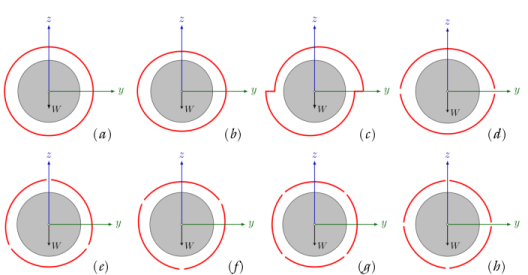
The bearing configurations analyzed in this model are shown in Figure 1.
Figure 1: Modeled bearing configurations, (a) Cylindrical, (b) Elliptical, (c) Split halves, (d)2-lobe, (e) 3-lobe (LOP), (f) 3-lobe (LBP), (g) 4-lobe (LOP), (h) 4-lobe (LBP).
The cylindrical bearing, also known as a plain bearing, is the most simple type of hydrodynamic journal bearing. It is characterized by its uniform initial film thickness, meaning the film thickness remains constant if the journal is concentric with the bearing.
The elliptical bearing has, as its name suggests, an elliptically shaped profile. This non-uniform profile preloads the bearing, which allows to generate a hydrodynamic pressure even went the journal is concentric with the bearing.
Another type of bearing that possess this ability is the split halves bearing. This bearing type has a profile discontinuity caused by an offset between its upper and lower parts. The offset implies that the bearing is unidirectional.
The multilobe bearing comes in many distinct configurations. Commonly, these are assembled by a number non-concentric lobes (sometime referred to as pads). This example focuses on the two, three and four lobe configurations. Two distinct variations of the three and four lobe bearings will be considered, namely, the load-on-pad (LOP) and the load-between-pad (LBP) configuration. These configurations differ only in their orientation relative to the applied load direction.
Fluid Properties
The parameters needed for the computation are the dynamic viscosity, the density at cavitation pressure, and the compressibility. The fluid parameters used in this model are summarized in Table 1. These resemble the fluid properties of a generic oil.
210-8 Pa-1
Bearing Data
All bearings, except for the cylindrical bearing, are preloaded so that their minimum and maximum initial film thickness are identical. This can be achieved by defining
(1)
where the clearance C0 is selected as 200 μm.
Cylindrical
The initial film thickness in a cylindrical bearing is given by
where C is the constant clearance. The clearance is selected as C = C0.
Elliptical
The initial film thickness in an elliptical bearing can be expressed as
where Cmin and Cmax are minimum and maximum manufactured clearance, and θ is the circumferential coordinate relative to the local y direction. The minimum and maximum clearances are selected in accordance with Equation 1.
Split Halves
The initial film thickness in a split halves bearing is given by
where C is the clearance in the non-preloaded configuration, and d is the preload. The preload is often expressed relative to the clearance. Here the non-preloaded clearance and the preload are selected as C = C0 and d = d0, respectively.
Multilobe
The initial clearance in a multilobe bearing is expressed as
where C is the clearance in the non-preloaded configuration, d is the preload, αm is the mid-pad angle of the ith lobe, and N is the number of lobes. For this bearing type, the clearance and preload are selected as:
These expressions can be simplified for the two, three and four-lobe bearings. These are summarized in table Table 2.
Results and Discussion
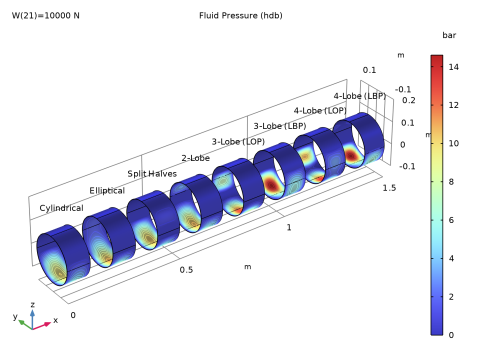
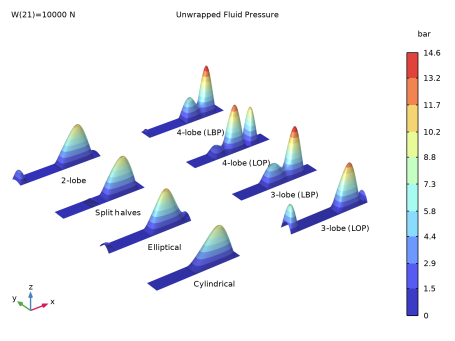
Figure 2 shows the pressure distribution in all bearings under an external load of 10 kN. The resulting pressure profiles are clearly distinct for each configuration. It can be seen that the three and four lobe configurations show higher peak pressure compared to the other bearing types.
Figure 2: Fluid-film pressure profile.
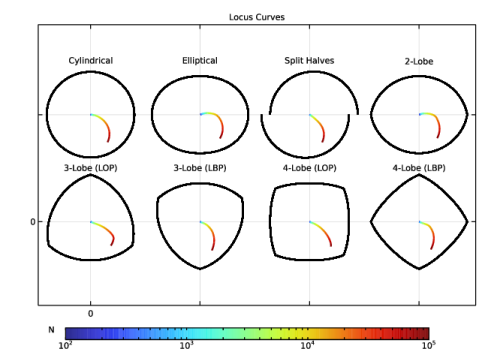
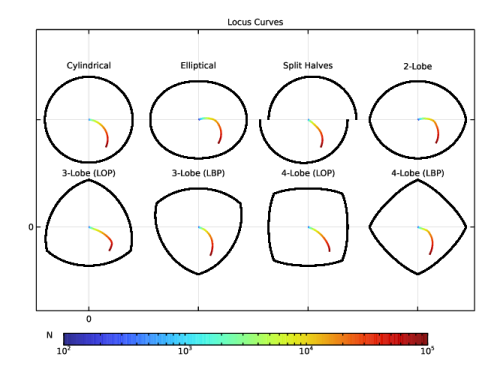
Figure 3 shows the static equilibrium position as function of external load for the different bearing types. These curves are often referred to as locus curves, where the color indicates the magnitude of the external load. For all bearing types, the journal moves toward the bearing center as the applied load decreases to zero. However, the locus curves are unique for each individual bearing.
Figure 3: Locus curves.
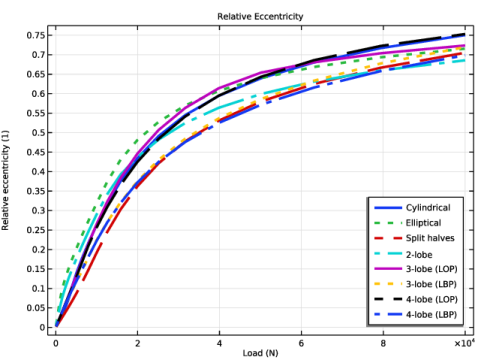
Figure 4 shows the relative eccentricity of the different bearing types as function of the external load. The journals approach the bearing centers as the external load decreases. At the maximum load, the cylindrical and 4-lobe (LOP) bearings show the highest eccentricities, whereas the 2-lobe bearing has the smallest eccentricity.
Figure 4: Relative eccentricity as function of external load.
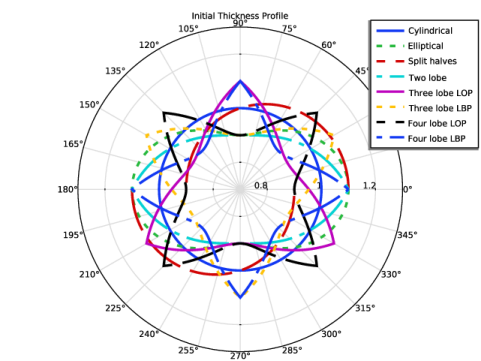
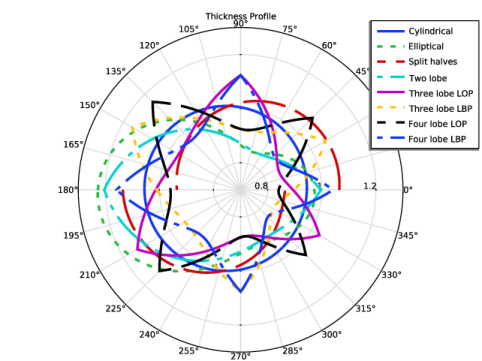
Figure 5 shows the film thickness profiles when the journals are concentric with the bearings. The geometric parameters of bearings are selected such that the minimum and maximum clearances are the same among all bearings, except for the cylindrical bearing.
Figure 5: Initial thickness profile.
Figure 6 shows the film thickness when the journals are located at their associated static equilibrium due to an external load of approximately 2500 N.
Figure 6: Current thickness profile.
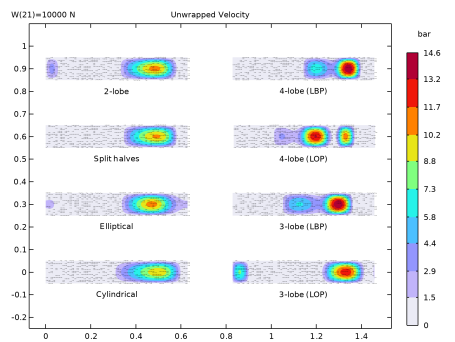
Figure 7 and Figure 8 illustrate the fluid pressure and velocity on an unwrapped surface due to an external load of 10 kN.
Figure 7: Unwrapped fluid-film pressure profile.
Figure 8: Unwrapped fluid-film pressure and velocity field.
Application Library path: Rotordynamics_Module/Tutorials/hydrodynamic_bearings_comparison
Modeling Instructions
From the File menu, choose New.
New
In the New window, click  Model Wizard.
Model Wizard
1
In the Model Wizard window, click  3D.
2
In the Select Physics tree, select Structural Mechanics > Rotordynamics > Hydrodynamic Bearing (hdb).
3
Click Add.
4
Click  Study.
5
In the Select Study tree, select General Studies > Stationary.
6
Global Definitions
Parameters 1
1
In the Model Builder window, under Global Definitions click Parameters 1.
2
In the Settings window for Parameters, locate the Parameters section.
3
Click  Load from File.
4
Geometry 1
Cylinder 1 (cyl1)
1
In the Geometry toolbar, click  Cylinder.
2
In the Settings window for Cylinder, locate the Size and Shape section.
3
In the Radius text field, type Rj.
4
In the Height text field, type H.
5
Locate the Axis section. From the Axis type list, choose x-axis.
6
Locate the Object Type section. From the Type list, choose Surface.
7
Click  Build Selected.
Array 1 (arr1)
Replicate 7 more cylinders along the x direction by executing the following commands.
1
In the Geometry toolbar, click  Transforms and choose Array.
2
3
In the Settings window for Array, locate the Size section.
4
In the x size text field, type 8.
5
Locate the Displacement section. In the x text field, type 2*H.
Form Union (fin)
1
In the Geometry toolbar, click  Build All.
2
Click the  Zoom Extents button in the Graphics toolbar.
Definitions
Cylindrical bearing
1
In the Definitions toolbar, click  Explicit.
2
In the Settings window for Explicit, type Cylindrical bearing in the Label text field.
3
Locate the Input Entities section. From the Geometric entity level list, choose Boundary.
4
5
Select the Group by continuous tangent checkbox.
Selecting this checkbox allows automatic selection of multiple surfaces across which the tangent is continuous.
Elliptical bearing
1
Right-click Cylindrical bearing and choose Duplicate.
2
In the Settings window for Explicit, type Elliptical bearing in the Label text field.
3
Locate the Input Entities section. Click  Clear Selection.
4
Explicit Selections
1
Repeat above sequence of commands to add more Explicit selections using the information given in the following table:
The table above displays the entire selection for each bearing. But to create for example the Hydrodynamic Journal Bearing (Split halves) selection, selecting surface 9 is enough. This is so because you duplicate the existing selection to create the new ones and the Group by continuous tangent checkbox is already selected within the old.
2
In the Model Builder window, collapse the Definitions node.
Hydrodynamic Bearing (hdb)
1
In the Model Builder window, under Component 1 (comp1) click Hydrodynamic Bearing (hdb).
2
In the Settings window for Hydrodynamic Bearing, locate the Physical Model section.
3
From the Fluid type list, choose Liquid with cavitation.
Hydrodynamic Journal Bearing (Cylindrical)
1
In the Model Builder window, under Component 1 (comp1) > Hydrodynamic Bearing (hdb) click Hydrodynamic Journal Bearing 1.
2
In the Settings window for Hydrodynamic Journal Bearing, type Hydrodynamic Journal Bearing (Cylindrical) in the Label text field.
3
Locate the Bearing Properties section. In the C text field, type C0.
4
Locate the Journal Properties section. From the Specify list, choose Load.
5
Specify the Wj vector as
6
Specify the uj0 vector as
7
From the Velocity of the journal list, choose Revolutions per time.
8
In the fj text field, type Omega.
9
Locate the Fluid Properties section. From the μ list, choose User defined. In the associated text field, type mu.
10
In the ρc text field, type rhoc.
11
In the β text field, type beta.
12
Locate the Bearing Properties section. From the Xc list, choose From geometry.
Hydrodynamic Journal Bearing (Elliptical)
1
Right-click Hydrodynamic Journal Bearing (Cylindrical) and choose Duplicate.
2
In the Settings window for Hydrodynamic Journal Bearing, type Hydrodynamic Journal Bearing (Elliptical) in the Label text field.
3
Locate the Boundary Selection section. From the Selection list, choose Elliptical bearing.
4
Locate the Bearing Properties section. From the Bearing type list, choose Elliptical.
5
In the Cmin text field, type Cmin.
6
In the Cmax text field, type Cmax.
Hydrodynamic Journal Bearing (Split halves)
1
Right-click Hydrodynamic Journal Bearing (Elliptical) and choose Duplicate.
2
In the Settings window for Hydrodynamic Journal Bearing, type Hydrodynamic Journal Bearing (Split halves) in the Label text field.
3
Locate the Boundary Selection section. From the Selection list, choose Split halves bearing.
4
Locate the Bearing Properties section. From the Bearing type list, choose Split halves.
5
In the C text field, type C0.
6
From the Preload factor list, choose Compute from offset.
7
In the d text field, type d0.
Hydrodynamic Journal Bearing (2-lobe)
1
Right-click Hydrodynamic Journal Bearing (Split halves) and choose Duplicate.
2
In the Settings window for Hydrodynamic Journal Bearing, type Hydrodynamic Journal Bearing (2-lobe) in the Label text field.
3
Locate the Boundary Selection section. From the Selection list, choose Two lobe bearing.
4
Locate the Bearing Properties section. From the Bearing type list, choose Multilobe.
5
In the C text field, type C_2l.
6
From the Preload factor list, choose Compute from offset.
7
In the d text field, type d_2l.
Hydrodynamic Journal Bearing (3-lobe LOP)
1
Right-click Hydrodynamic Journal Bearing (2-lobe) and choose Duplicate.
2
In the Settings window for Hydrodynamic Journal Bearing, type Hydrodynamic Journal Bearing (3-lobe LOP) in the Label text field.
3
Locate the Boundary Selection section. From the Selection list, choose Three Lobe bearing (LOP).
4
Locate the Bearing Properties section. In the C text field, type C_3l.
5
In the d text field, type d_3l.
6
In the N text field, type 3.
Hydrodynamic Journal Bearing (3-lobe LBP)
1
Right-click Hydrodynamic Journal Bearing (3-lobe LOP) and choose Duplicate.
2
In the Settings window for Hydrodynamic Journal Bearing, type Hydrodynamic Journal Bearing (3-lobe LBP) in the Label text field.
3
Locate the Boundary Selection section. From the Selection list, choose Three lobe  bearing (LBP).
Hydrodynamic Journal Bearing (4-lobe LOP)
1
Right-click Hydrodynamic Journal Bearing (3-lobe LBP) and choose Duplicate.
2
In the Settings window for Hydrodynamic Journal Bearing, type Hydrodynamic Journal Bearing (4-lobe LOP) in the Label text field.
3
Locate the Boundary Selection section. From the Selection list, choose Four lobe bearing (LOP).
4
Locate the Bearing Properties section. In the C text field, type C_4l.
5
In the d text field, type d_4l.
6
In the N text field, type 4.
Hydrodynamic Journal Bearing (4-lobe LBP)
1
Right-click Hydrodynamic Journal Bearing (4-lobe LOP) and choose Duplicate.
2
In the Settings window for Hydrodynamic Journal Bearing, type Hydrodynamic Journal Bearing (4-lobe LBP) in the Label text field.
3
Locate the Boundary Selection section. From the Selection list, choose Four lobe bearing (LBP).
Next set the orientation of the bearings using the following instructions.
Bearing Orientation Hydrodynamic Journal Bearing (3-lobe LOP)
1
In the Physics toolbar, click  Boundaries and choose Bearing Orientation.
2
In the Settings window for Bearing Orientation, type Bearing Orientation Hydrodynamic Journal Bearing (3-lobe LOP) in the Label text field.
3
Locate the Boundary Selection section. From the Selection list, choose Three Lobe bearing (LOP).
4
Locate the Bearing Orientation section. In the ϕ text field, type -pi/6.
Bearing Orientation Hydrodynamic Journal Bearing (3-lobe LBP)
1
Right-click Bearing Orientation Hydrodynamic Journal Bearing (3-lobe LOP) and choose Duplicate.
2
In the Settings window for Bearing Orientation, type Bearing Orientation Hydrodynamic Journal Bearing (3-lobe LBP) in the Label text field.
3
Locate the Boundary Selection section. From the Selection list, choose Three lobe  bearing (LBP).
4
Locate the Bearing Orientation section. In the ϕ text field, type pi/6.
Bearing Orientation Hydrodynamic Journal Bearing (4-lobe LOP)
1
Right-click Bearing Orientation Hydrodynamic Journal Bearing (3-lobe LBP) and choose Duplicate.
2
In the Settings window for Bearing Orientation, type Bearing Orientation Hydrodynamic Journal Bearing (4-lobe LOP) in the Label text field.
3
Locate the Boundary Selection section. From the Selection list, choose Four lobe bearing (LOP).
4
Locate the Bearing Orientation section. In the ϕ text field, type pi/4.
Mesh 1
Mapped 1
1
In the Mesh toolbar, click  More Generators and choose Mapped.
2
In the Settings window for Mapped, locate the Boundary Selection section.
3
From the Selection list, choose All boundaries.
Distribution 1
1
Right-click Mapped 1 and choose Distribution.
2
In the Settings window for Distribution, locate the Edge Selection section.
3
From the Selection list, choose All edges.
4
Locate the Distribution section. In the Number of elements text field, type 15.
5
In the Model Builder window, right-click Mesh 1 and choose Build All.
Study 1
Step 1: Stationary
1
In the Model Builder window, under Study 1 click Step 1: Stationary.
2
In the Settings window for Stationary, click to expand the Study Extensions section.
Use following instructions to add an Auxiliary sweep on load W.
3
Select the Auxiliary sweep checkbox.
4
5
6
In the Study toolbar, click  Compute.
Set preferred units for the pressure by following the instructions below.
Results
Preferred Units 1
1
In the Results toolbar, click  Configurations and choose Preferred Units.
2
In the Settings window for Preferred Units, locate the Units section.
3
Click  Add Physical Quantity.
4
In the Physical Quantity dialog, type pres in the text field.
5
In the tree, select General > Pressure (Pa).
6
7
In the Settings window for Preferred Units, locate the Units section.
8
9
Click  Apply.
Fluid Pressure (hdb)
1
In the Model Builder window, under Results click Fluid Pressure (hdb).
2
In the Settings window for 3D Plot Group, locate the Data section.
3
From the Parameter value (W (N)) list, choose 10000.
4
Click to expand the Title section. From the Title type list, choose Label.
5
Locate the Color Legend section. Select the Show units checkbox.
The dependent variable pfilm in the default plot does not represent the physical pressure and can have a negative value in the cavitated zone. Use physics scope variable hdb.p instead to show the physical pressure in the bearings.
Surface 1
1
In the Model Builder window, expand the Fluid Pressure (hdb) node, then click Surface 1.
2
In the Settings window for Surface, locate the Expression section.
3
In the Expression text field, type hdb.p.
Contour 1
1
In the Model Builder window, click Contour 1.
2
In the Settings window for Contour, locate the Expression section.
3
In the Expression text field, type hdb.p.
4
In the Fluid Pressure (hdb) toolbar, click  Plot.
5
Click the  Zoom Extents button in the Graphics toolbar.
Fluid Pressure (hdb)
In the Model Builder window, click Fluid Pressure (hdb).
Table Annotation 1
1
In the Fluid Pressure (hdb) toolbar, click  More Plots and choose Table Annotation.
2
In the Settings window for Table Annotation, locate the Data section.
3
From the Source list, choose Local table.
4
5
Locate the Coloring and Style section. Clear the Show point checkbox.
6
From the Anchor point list, choose Center.
7
In the Fluid Pressure (hdb) toolbar, click  Plot.
Now, follow the instructions below to create a plot that shows the locus curves for the different journal bearings. The instructions below illustrate how to create the plot for the first two bearings. You can repeat the instructions for the remaining bearings, or open the application library model to see how it can be done.
Parameters
1
In the Results toolbar, click  Parameters.
2
In the Settings window for Parameters, locate the Parameters section.
3
4
In the Model Builder window, collapse the Results node.
Locus Curves
1
In the Results toolbar, click  1D Plot Group.
2
In the Settings window for 1D Plot Group, type Locus Curves in the Label text field.
3
Click to expand the Title section. From the Title type list, choose Label.
4
Locate the Axis section. Select the Preserve aspect ratio checkbox.
Locus Curve (Cylindrical)
1
Right-click Locus Curves and choose Global.
2
In the Settings window for Global, type Locus Curve (Cylindrical) in the Label text field.
3
Locate the y-Axis Data section. In the table, enter the following settings:
4
Locate the x-Axis Data section. From the Parameter list, choose Expression.
5
In the Expression text field, type hdb.hjb1.uJy/C0.
6
Click to expand the Coloring and Style section. From the Width list, choose 2.
7
Click to expand the Legends section. Clear the Show legends checkbox.
Color Expression 1
1
Right-click Locus Curve (Cylindrical) and choose Color Expression.
2
In the Settings window for Color Expression, locate the Expression section.
3
In the Expression text field, type W.
4
Locate the Coloring and Style section. From the Scale list, choose Logarithmic.
Bearing Profile (Cylindrical)
1
In the Model Builder window, right-click Locus Curves and choose Line Graph.
2
In the Settings window for Line Graph, type Bearing Profile (Cylindrical) in the Label text field.
3
4
Locate the y-Axis Data section. In the Expression text field, type hdb.hB1*sin(hdb.Th)/C0 + offset.
5
Locate the x-Axis Data section. From the Parameter list, choose Expression.
6
In the Expression text field, type hdb.hB1*cos(hdb.Th)/C0.
7
Click to expand the Coloring and Style section. From the Color list, choose From theme.
8
From the Width list, choose 2.
Bearing Profile (Cylindrical), Locus Curve (Cylindrical)
1
In the Model Builder window, under Results > Locus Curves, Ctrl-click to select Locus Curve (Cylindrical) and Bearing Profile (Cylindrical).
2
Locus Curve (Elliptical)
1
In the Settings window for Global, type Locus Curve (Elliptical) in the Label text field.
2
Locate the y-Axis Data section. In the table, enter the following settings:
3
Locate the x-Axis Data section. In the Expression text field, type hdb.hjb2.uJy/C0 + offset.
Color Expression 1
1
In the Model Builder window, expand the Locus Curve (Elliptical) node, then click Color Expression 1.
2
In the Settings window for Color Expression, locate the Coloring and Style section.
3
Clear the Color legend checkbox.
Bearing Profile (Elliptical)
1
In the Model Builder window, under Results > Locus Curves click Bearing Profile (Cylindrical) 1.
2
In the Settings window for Line Graph, type Bearing Profile (Elliptical) in the Label text field.
3
Locate the Selection section. Click to select the  Activate Selection toggle button.
4
5
Locate the x-Axis Data section. In the Expression text field, type hdb.hB1*cos(hdb.Th)/C0 + offset.
Bearing Profile (Elliptical), Locus Curve (Elliptical)
1
In the Model Builder window, under Results > Locus Curves, Ctrl-click to select Locus Curve (Elliptical) and Bearing Profile (Elliptical).
Add a Table Annotation node to the plot to add annotations to the different bearings.
2
In the Locus Curves toolbar, click  More Plots and choose Table Annotation.
Table Annotation 1
1
In the Settings window for Table Annotation, locate the Data section.
2
From the Source list, choose Local table.
3
4
Locate the Coloring and Style section. Clear the Show point checkbox.
5
From the Anchor point list, choose Center.
6
In the Locus Curves toolbar, click  Plot.
The resulting plot should look similar to the one shown below.
Use the following instructions to plot the eccentricity of the journals against the load as shown in Figure 4.
Relative Eccentricity
1
In the Results toolbar, click  1D Plot Group.
2
In the Settings window for 1D Plot Group, type Relative Eccentricity in the Label text field.
3
Locate the Title section. From the Title type list, choose Label.
4
Locate the Plot Settings section.
5
Select the x-axis label checkbox. In the associated text field, type Load (N).
6
Select the y-axis label checkbox. In the associated text field, type Relative eccentricity (1).
Global 1
1
Right-click Relative Eccentricity and choose Global.
2
In the Settings window for Global, click Replace Expression in the upper-right corner of the y-Axis Data section. From the menu, choose Component 1 (comp1) > Hydrodynamic Bearing > Hydrodynamic Journal Bearing (Cylindrical) > Eccentricity and attitude angle > hdb.hjb1.ec_rel - Relative eccentricity - 1.
3
Locate the y-Axis Data section. In the table, enter the following settings:
Repeat this for the remaining bearings.
4
Locate the Coloring and Style section. Find the Line style subsection. From the Line list, choose Cycle.
5
From the Width list, choose 3.
Relative Eccentricity
1
In the Model Builder window, click Relative Eccentricity.
2
In the Settings window for 1D Plot Group, locate the Legend section.
3
From the Position list, choose Lower right.
4
In the Relative Eccentricity toolbar, click  Plot.
5
Click the  Zoom Extents button in the Graphics toolbar.
6
In the Model Builder window, collapse the Relative Eccentricity node.
Use the following instructions to plot the initial thickness profile of the fluid film as shown in Figure 5.
Initial Thickness Profile
1
In the Results toolbar, click  Polar Plot Group.
2
In the Settings window for Polar Plot Group, type Initial Thickness Profile in the Label text field.
3
Locate the Data section. From the Parameter selection (W) list, choose First.
4
Click to expand the Title section. From the Title type list, choose Label.
5
Locate the Axis section. Select the Manual axis limits checkbox.
6
In the r minimum text field, type 0.7.
7
In the r maximum text field, type 1.3.
Cylindrical
1
Right-click Initial Thickness Profile and choose Line Graph.
2
3
In the Settings window for Line Graph, click Replace Expression in the upper-right corner of the r-Axis Data section. From the menu, choose Component 1 (comp1) > Hydrodynamic Bearing > Journal and bearing properties > Film thickness and clearance > hdb.hi_rel - Relative film thickness, initial - 1.
4
Locate the r-Axis Data section.
5
Select the Description checkbox. In the associated text field, type Cylindrical.
6
Locate the θ Angle Data section. From the Parameter list, choose Expression.
7
In the Expression text field, type hdb.Th+hdb.ang_bearing.
8
Click to expand the Coloring and Style section. Find the Line style subsection. From the Line list, choose Cycle.
9
From the Width list, choose 3.
10
Click to expand the Legends section. Select the Show legends checkbox.
11
Find the Include subsection. Clear the Solution checkbox.
12
Select the Label checkbox.
13
In the Label text field, type Cylindrical.
Elliptical
1
Right-click Cylindrical and choose Duplicate.
2
In the Settings window for Line Graph, type Elliptical in the Label text field.
3
Locate the Selection section. Click  Clear Selection.
4
5
Locate the r-Axis Data section. In the Description text field, type Elliptical.
Line graph Nodes
Similarly add more Line Graph nodes using the information given in the following table:
Initial Thickness Profile
1
In the Model Builder window, click Initial Thickness Profile.
2
In the Initial Thickness Profile toolbar, click  Plot.
Use the following instructions to plot the current thickness profile of the fluid film as shown in Figure 6 using the following instructions.
Initial Thickness Profile 1
Right-click Initial Thickness Profile and choose Duplicate.
Initial Thickness Profile
In the Model Builder window, collapse the Results > Initial Thickness Profile node.
Current Thickness Profile
1
In the Model Builder window, under Results click Initial Thickness Profile 1.
2
In the Settings window for Polar Plot Group, type Current Thickness Profile in the Label text field.
3
Locate the Title section. From the Title type list, choose Manual.
4
In the Title text area, type Thickness Profile.
Line graph Nodes
1
Edit the existing Line Graph nodes under Polar: Current Thickness Profile using the information given in the following table:
2
In the Model Builder window, expand the Current Thickness Profile node, then click Results > Current Thickness Profile.
3
Locate the Data section. From the Parameter selection (W) list, choose From list.
4
In the Parameter values (W (N)) list box, select 2511.9.
5
Locate the Axis section. In the r minimum text field, type 0.7.
6
In the r maximum text field, type 1.3.
7
In the Current Thickness Profile toolbar, click  Plot.
8
In the Model Builder window, collapse the Results > Current Thickness Profile node.
Result Templates
Add unwrapped plots for all the bearings, to create the associated datasets.
1
In the Results toolbar, click  Result Templates to open the Result Templates window.
2
Go to the Result Templates window.
3
In the tree, select Study 1/Solution 1 (sol1) > Hydrodynamic Bearing > Unwrapped Plots (hjb1), Study 1/Solution 1 (sol1) > Hydrodynamic Bearing > Unwrapped Plots (hjb2), Study 1/Solution 1 (sol1) > Hydrodynamic Bearing > Unwrapped Plots (hjb3), Study 1/Solution 1 (sol1) > Hydrodynamic Bearing > Unwrapped Plots (hjb4), Study 1/Solution 1 (sol1) > Hydrodynamic Bearing > Unwrapped Plots (hjb5), Study 1/Solution 1 (sol1) > Hydrodynamic Bearing > Unwrapped Plots (hjb6), Study 1/Solution 1 (sol1) > Hydrodynamic Bearing > Unwrapped Plots (hjb7), and Study 1/Solution 1 (sol1) > Hydrodynamic Bearing > Unwrapped Plots (hjb8).
4
Click the Add Result Template button in the window toolbar.
5
In the Results toolbar, click  Result Templates to close the Result Templates window.
Results
Delete unnecessary plots.
Unwrapped Plots (hjb2), Unwrapped Plots (hjb3), Unwrapped Plots (hjb4), Unwrapped Plots (hjb5), Unwrapped Plots (hjb6), Unwrapped Plots (hjb7), Unwrapped Plots (hjb8)
Right-click and choose Delete.
Unwrapped Plots (hjb1)
In the Model Builder window, right-click Unwrapped Plots (hjb1) and choose Ungroup.
Now, create a plot of the unwrapped pressure for all the different bearings. The instructions below illustrate how to create the plot for the first two bearings. You can repeat the instructions for the remaining bearings, or open the application library model to see how it can be done.
Unwrapped Fluid Pressure
1
In the Settings window for 2D Plot Group, type Unwrapped Fluid Pressure in the Label text field.
2
Locate the Data section. From the Parameter value (W (N)) list, choose 10000.
3
Click to expand the Title section. From the Title type list, choose Label.
4
Locate the Color Legend section. Select the Show units checkbox.
5
Click to expand the Plot Array section. From the Array type list, choose Square.
6
From the Padding list, choose Absolute.
7
In the Row padding length text field, type 4*H.
8
In the Column padding length text field, type 4*H.
Pressure (Cylindrical)
1
In the Model Builder window, expand the Unwrapped Fluid Pressure node, then click Surface 1.
2
In the Settings window for Surface, type Pressure (Cylindrical) in the Label text field.
Pressure (Elliptical)
1
Right-click Pressure (Cylindrical) and choose Duplicate.
2
In the Settings window for Surface, type Pressure (Elliptical) in the Label text field.
3
Locate the Data section. From the Dataset list, choose Surface (hjb2).
4
From the Solution parameters list, choose From parent.
5
Click to expand the Inherit Style section. From the Plot list, choose Pressure (Cylindrical).
6
Click to expand the Plot Array section. Select the Manual indexing checkbox.
7
In the Row index text field, type 1.
Unwrapped Fluid Pressure
In the Model Builder window, click Unwrapped Fluid Pressure.
Table Annotation 1
1
In the Unwrapped Fluid Pressure toolbar, click  More Plots and choose Table Annotation.
2
In the Settings window for Table Annotation, locate the Data section.
3
From the Source list, choose Local table.
4
5
Locate the Coloring and Style section. Clear the Show point checkbox.
6
From the Anchor point list, choose Center.
7
In the Unwrapped Fluid Pressure toolbar, click  Plot.
8
Click the  Go to Default View button in the Graphics toolbar.
9
Click the  Zoom Extents button in the Graphics toolbar.
Unwrapped Fluid Pressure
In the Model Builder window, collapse the Results > Unwrapped Fluid Pressure node.
Next, create a combined unwrapped velocity plot for all the different bearings. The instructions below illustrate how to create the plot for the first two bearings. You can repeat the instructions for the remaining bearings, or open the application library model to see how it can be done.
Unwrapped Velocity
1
In the Model Builder window, under Results click Unwrapped Velocity (hjb1).
2
In the Settings window for 2D Plot Group, type Unwrapped Velocity in the Label text field.
3
Locate the Data section. From the Parameter value (W (N)) list, choose 10000.
4
Locate the Title section. From the Title type list, choose Label.
5
Locate the Color Legend section. Select the Show units checkbox.
6
Locate the Plot Array section. From the Array type list, choose Square.
7
From the Padding list, choose Absolute.
8
In the Row padding length text field, type 2*H.
9
In the Column padding length text field, type 2*H.
Pressure (Cylindrical)
1
In the Model Builder window, expand the Unwrapped Velocity node, then click Pressure.
2
In the Settings window for Surface, type Pressure (Cylindrical) in the Label text field.
3
Locate the Plot Array section. Select the Manual indexing checkbox.
Velocity (Cylindrical)
1
In the Model Builder window, click Velocity.
2
In the Settings window for Arrow Surface, type Velocity (Cylindrical) in the Label text field.
3
Click to expand the Plot Array section. Select the Manual indexing checkbox.
Pressure (Cylindrical), Velocity (Cylindrical)
1
In the Model Builder window, under Results > Unwrapped Velocity, Ctrl-click to select Pressure (Cylindrical) and Velocity (Cylindrical).
2
Pressure (Elliptical)
1
In the Settings window for Surface, type Pressure (Elliptical) in the Label text field.
2
Locate the Data section. From the Dataset list, choose Surface (hjb2).
3
From the Solution parameters list, choose From parent.
4
Locate the Inherit Style section. From the Plot list, choose Pressure (Cylindrical).
5
Locate the Plot Array section. In the Row index text field, type 1.
Velocity (Elliptical)
1
In the Model Builder window, under Results > Unwrapped Velocity click Velocity (Cylindrical) 1.
2
In the Settings window for Arrow Surface, type Velocity (Elliptical) in the Label text field.
3
Locate the Data section. From the Dataset list, choose Surface (hjb2).
4
From the Solution parameters list, choose From parent.
5
Click to expand the Inherit Style section. From the Plot list, choose Velocity (Cylindrical).
6
Locate the Plot Array section. In the Row index text field, type 1.
Unwrapped Velocity
In the Model Builder window, click Unwrapped Velocity.
Table Annotation 1
1
In the Unwrapped Velocity toolbar, click  More Plots and choose Table Annotation.
2
In the Settings window for Table Annotation, locate the Data section.
3
From the Source list, choose Local table.
4
5
Locate the Coloring and Style section. Clear the Show point checkbox.
6
From the Anchor point list, choose Center.
7
In the Unwrapped Velocity toolbar, click  Plot.
8
Click the  Zoom Extents button in the Graphics toolbar.
Unwrapped Velocity
In the Model Builder window, collapse the Results > Unwrapped Velocity node.