PDF

Comparison of Campbell Diagrams Using Different Rotor Interfaces
Introduction
When modeling rotor systems in COMSOL Multiphysics, different physics interfaces can be used depending on the required level of detail and the type of system. The modeling steps as well as the result interpretations may differ for the different interfaces.
In this example, an eigenfrequency analysis of a rotor system is performed using different physics interfaces available for rotor modeling in COMSOL Multiphysics; namely the Solid Rotor interface, the Solid Rotor, Fixed Frame interface, and the Beam Rotor interface.
The analysis is performed over a range of rotational speeds, and the resulting Campbell diagrams obtained with the different physics interfaces are compared.
Model Definition
In order to compare the results obtained with the three rotor interfaces, the geometry must fulfill any underlying assumptions of all the interfaces. An axisymmetric rotor with isotropic bearings fulfills these requirements.
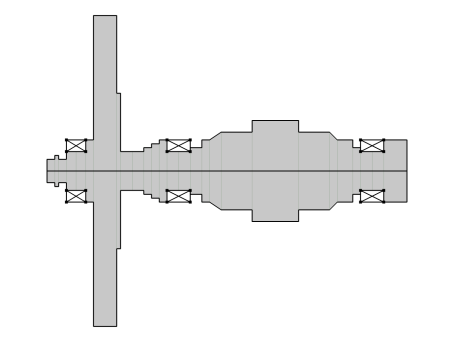
A cross-section of the axisymmetric rotor is shown in Figure 1. The rotor has a varying diameter along the axial direction, and is supported by bearings at three distinct locations.
Figure 1: A cross-section of the rotor geometry.
The locations of different rotor stations along the axial direction are given in Table 1.
Diameters of the rotor between different stations are given in Table 2.
The rotor is made of structural steel. It has two tapered segments, the first between station 18 and 19, and the second between station 22 and 23.
Three bearings support the rotor. These are all isotropic with a direct stiffness of 20 MN/m. The first bearing is located between station 4 to 6, the second bearing between station 14 to 16, and the third bearing spans from stations 25 to 27.
Stress Stiffening and Gyroscopic Moment
A spinning rotor produces stresses even in the absence of external loads. Therefore, the effective stiffness of a stationary and a spinning rotor differs. This is due to the so-called stress stiffening effect. This difference in the stiffness is sometimes also referred to as geometric stiffness.
When performing an eigenfrequency analysis by itself using the Solid Rotor interface, the stress stiffening effect will be absent. To capture this effect, a prestressed eigenfrequency analysis must be performed. This analysis consists of a study sequence including a stationary and an eigenfrequency analysis. The stationary study captures the stress state in the rotor due to it spinning. The stationary solution is then used as a linearization point in the eigenfrequency study to account for the stress stiffening effect. Note that the eigenfrequency study should use a geometrically nonlinear formulation, as otherwise, it would be equivalent to considering an unstressed state of the rotor as a linearization point and hence there is no stress stiffening effect. If you add the special study type Eigenfrequency, Prestressed, these settings are automatically taken care of. For a manually added study steps you need to change the settings manually.
In a Beam Rotor interface, only the rotor axis is explicitly considered as part of the rotor geometry. Therefore, the stress state due to rotor spin cannot be obtained in a beam rotor model. However, the gyroscopic moment in the beam rotor allows for an equivalent consideration of the geometric stiffness. Since gyroscopic moments are always present in the beam rotor interface, a prestressed analysis is not required.
Coordinate Frames and Result Interpretations
The Solid Rotor interface formulates the problem in a co-rotating frame. Thus, all results, including eigenfrequencies, should be interpreted with respected to an observer sitting in the co-rotating frame. As a result, the eigenfrequencies as observed from a space-fixed frame require some adjustment with respect to the corresponding eigenfrequencies in the co-rotating frame. The whirling mode frequencies in co-rotating frame should be shifted by the angular speed of the rotor in either direction depending on the relative direction of the whirl with respect to the spin direction of the rotor. If the whirl and spin directions are equal, then the rotor speed is added in the co-rotating frame frequency, otherwise the rotor speed is subtracted to get the effective frequency in a space-fixed frame. Axial and torsional vibration frequencies usually remain the same in both co-rotating and space-fixed frames, thus, do not require any adjustment.
This transformation is done internally in the Solid Rotor interface, and corresponding variables in a space-fixed frame can be conveniently evaluated in results processing. The Solid Rotor interface generates the Campbell diagram in the co-rotating frame. For a Campbell diagram in a co-rotating frame, forward whirl critical speeds are the intersection of eigenfrequency curves with the x-axis (0×Ω) and the backward whirl critical speeds are the intersection of eigenfrequency curves with the 2×Ω curve.
The Beam Rotor and Solid Rotor, Fixed Frame interfaces formulate the problem in a space-fixed frame. The results from these interfaces must therefore be interpreted as observed from a space-fixed frame. Eigenfrequencies do not require any transformation in these interfaces.
Results and Discussion
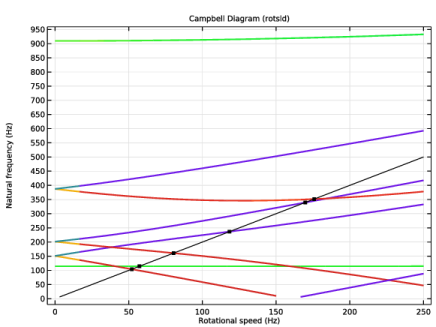
Figure 2 shows the resulting Campbell diagram obtained with the Solid Rotor interface. As previously mentioned, the eigenfrequencies are obtained in a co-rotating frame of reference. The straight black line indicates the 2×Ω curve.
Intersections between this line, or the horizontal axis, and the eigenfrequencies are considered as potential critical speeds.
The color of the lines indicates another important property of the mode, namely the directivity of the mode. The red, green and purple color indicate whether the corresponding mode is a forward, straight-line, or backward mode relative to the co-rotating frame, respectively.
Figure 2: Campbell diagram computed using the Solid Rotor interface.
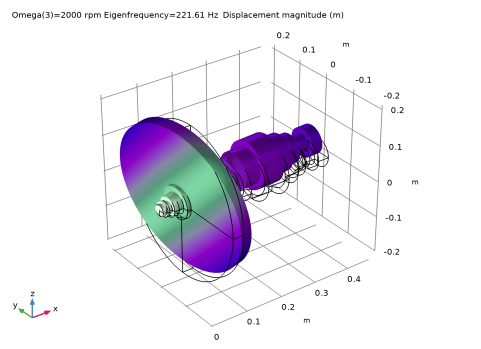
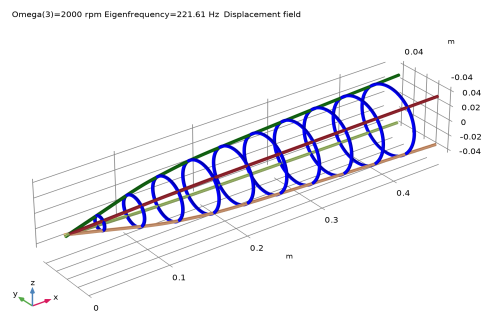
The fifth mode shape and the associated whirl are shown in Figure 3 and Figure 4, respectively.
Figure 3: Fifth eigenmode computed using the Solid Rotor interface.
Figure 4: Whirl plot for the fifth eigenmode computed using the Solid Rotor interface.
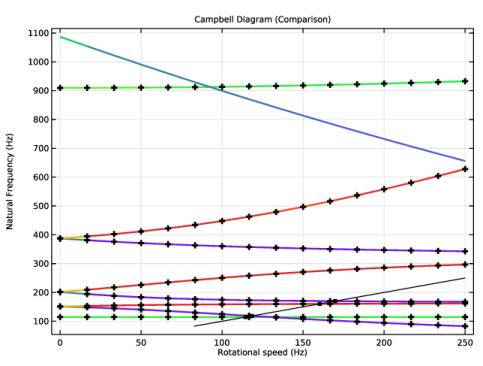
The corresponding Campbell diagram obtained using the Solid Rotor, Fixed Frame interface is shown in Figure 5. The eigenfrequencies are here obtained relative to the space-fixed frame of reference.
The straight line indicates the rotational speed of the rotor (1×Ω). Intersections between this line and the eigenfrequencies are considered potential critical speeds.
The line color indicates again the directivity of the mode, but here relative to the fixed frame of reference.
The transformed eigenfrequencies obtained with the Solid Rotor interface are included as markers. A very good agreement is found between the eigenfrequencies obtained with the two interfaces.
Figure 5: Campbell diagram obtained with the Solid Rotor, Fixed Frame interface compared with the transformed eigenfrequencies obtained with the Solid Rotor interface.
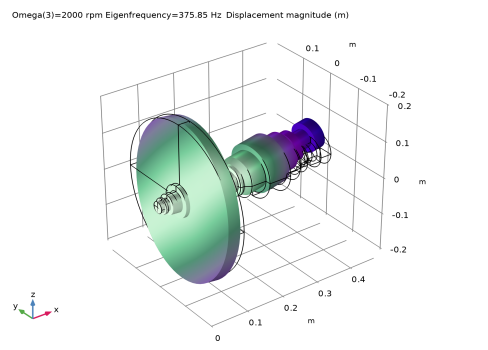
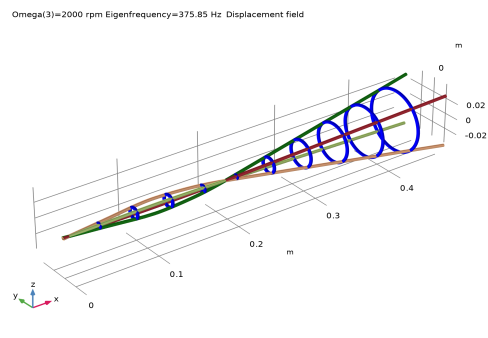
The sixth mode shape and the associated whirl are shown in Figure 6 and Figure 7.
Figure 6: The sixth eigenmode computed with the Solid Rotor, Fixed Frame interface.
Figure 7: Whirl plot of the sixth eigenmode computed with the Solid Rotor, Fixed Frame interface.
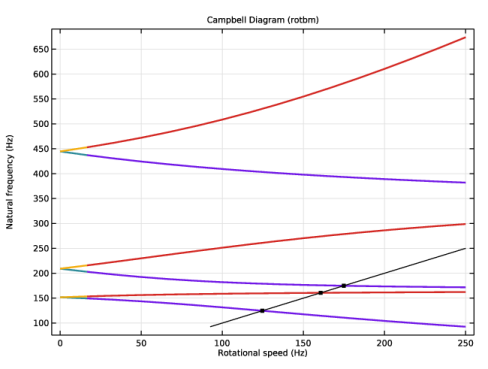
The Campbell diagram obtained using the Beam Rotor interface is visualized in Figure 8. The disk bending modes cannot be resolved with a beam rotor due to the kinematic assumptions in the beam formulation.
Figure 8: Campbell diagram computed with the Beam Rotor interface.
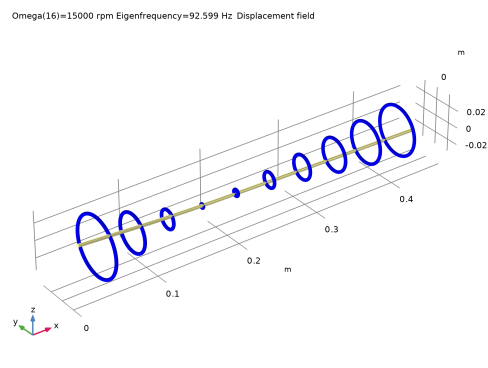
The whirl plot for the first mode computed with the Beam Rotor interface is shown in Figure 9.
Figure 9: Whirl plot for the first mode computed with the Beam Rotor interface.
Application Library path: Rotordynamics_Module/Tutorials/campbell_plot_comparison
Modeling Instructions
From the File menu, choose New.
New
In the New window, click  Model Wizard.
Model Wizard
1
In the Model Wizard window, click  3D.
You will compare the modeling of rotor using different interfaces. Add all the rotor interfaces in the physics.
2
In the Select Physics tree, select Structural Mechanics > Rotordynamics > Solid Rotor (rotsld), Structural Mechanics > Rotordynamics > Solid Rotor, Fixed Frame (srotf), and Structural Mechanics > Rotordynamics > Beam Rotor (rotbm).
3
Click Add.
4
Click  Study.
5
In the Select Study tree, select Preset Studies for Selected Physics Interfaces > Eigenfrequency, Prestressed.
6
Start by importing the parameters for modeling the rotor.
Global Definitions
Parameters: General
1
In the Model Builder window, under Global Definitions click Parameters 1.
2
In the Settings window for Parameters, locate the Parameters section.
3
Click  Load from File.
4
5
In the Label text field, type Parameters: General.
Parameters: Stations
1
In the Home toolbar, click  Parameters and choose Add > Parameters.
2
In the Settings window for Parameters, locate the Parameters section.
3
Click  Load from File.
4
5
In the Label text field, type Parameters: Stations.
Parameters: Shaft diameters
1
In the Home toolbar, click  Parameters and choose Add > Parameters.
2
In the Settings window for Parameters, locate the Parameters section.
3
Click  Load from File.
4
5
In the Label text field, type Parameters: Shaft diameters.
Now you will create the rotor geometry based on the imported parameters. Start by creating the 2D axisymmetric geometry of the rotor on a work plane.
Geometry 1
Work Plane 1 (wp1)
In the Geometry toolbar, click  Work Plane.
Work Plane 1 (wp1) > Plane Geometry
In the Model Builder window, click Plane Geometry.
Work Plane 1 (wp1) > Polygon 1 (pol1)
1
In the Work Plane toolbar, click  Polygon.
You can choose to specify the coordinates for the polygons to create the 2D axisymmetric geometry yourself. To quickly create the geometry you can import these coordinates from a file.
2
In the Settings window for Polygon, locate the Coordinates section.
3
Click  Load from File.
4
Work Plane 1 (wp1)
Revolve the 2D axisymmetric geometry to get the full rotor geometry.
Revolve 1 (rev1)
1
In the Model Builder window, under Component 1 (comp1) > Geometry 1 right-click Work Plane 1 (wp1) and choose Revolve.
2
In the Settings window for Revolve, locate the Revolution Axis section.
3
Find the Direction of revolution axis subsection. In the xw text field, type 1.
4
In the yw text field, type 0.
5
Click  Build All Objects.
6
Click the  Zoom Extents button in the Graphics toolbar.
Now create some selections of the rotor and bearings for later use.
Definitions
Beam Rotor
1
In the Definitions toolbar, click  Explicit.
2
In the Settings window for Explicit, locate the Input Entities section.
3
From the Geometric entity level list, choose Edge.
4
Click the  Wireframe Rendering button in the Graphics toolbar.
5
6
Select the Group by continuous tangent checkbox.
7
In the Label text field, type Beam Rotor.
Journal Bearing 1
1
In the Definitions toolbar, click  Explicit.
2
In the Settings window for Explicit, locate the Input Entities section.
3
From the Geometric entity level list, choose Boundary.
4
5
Select the Group by continuous tangent checkbox.
6
In the Label text field, type Journal Bearing 1.
Journal Bearing 2
1
Right-click Journal Bearing 1 and choose Duplicate.
2
In the Settings window for Explicit, locate the Input Entities section.
3
Click  Clear Selection.
4
5
In the Label text field, type Journal Bearing 2.
Journal Bearing 3
1
Right-click Journal Bearing 2 and choose Duplicate.
2
In the Settings window for Explicit, locate the Input Entities section.
3
Click  Clear Selection.
4
5
In the Label text field, type Journal Bearing 3.
For a beam rotor, you can specify different diameters between different stations by using as many Rotor Cross Section nodes as rotor segments. To avoid numerous definitions of that node, an interpolation function is used to describe the variations in diameter along the rotor axis. To create the steps in the rotor diameter, you can use a small tolerance near the stations.
Interpolation: rotor dia
1
In the Definitions toolbar, click  Interpolation.
2
In the Settings window for Interpolation, locate the Definition section.
3
Click  Load from File.
4
5
6
In the Label text field, type Interpolation: rotor dia.
7
Locate the Definition section. In the Function name text field, type dia.
8
Locate the Units section. In the Function table, enter the following settings:
9
In the Argument table, enter the following settings:
10
Add Material
1
In the Materials toolbar, click  Add Material to open the Add Material window.
2
Go to the Add Material window.
3
In the tree, select Built-in > Structural steel.
4
Click the Add to Global Materials button in the window toolbar.
5
In the Materials toolbar, click  Add Material to close the Add Material window.
Materials
Material Link: Solid
1
In the Model Builder window, under Component 1 (comp1) right-click Materials and choose More Materials > Material Link.
2
In the Settings window for Material Link, type Material Link: Solid in the Label text field.
Material Link: Beam
1
Right-click Material Link: Solid and choose Duplicate.
2
In the Settings window for Material Link, locate the Geometric Entity Selection section.
3
From the Geometric entity level list, choose Edge.
4
From the Selection list, choose Beam Rotor.
5
In the Label text field, type Material Link: Beam.
Solid Rotor (rotsld)
Rotating Frame 1
1
In the Model Builder window, under Component 1 (comp1) > Solid Rotor (rotsld) click Rotating Frame 1.
2
In the Settings window for Rotating Frame, locate the Axis of Rotation section.
3
From the e3 list, choose x-axis.
4
Locate the Rotational Velocity section. In the Ωr text field, type Omega.
Fixed Axial Rotation 1
1
In the Model Builder window, click Fixed Axial Rotation 1.
2
Journal Bearing 1
1
In the Physics toolbar, click  Boundaries and choose Journal Bearing.
2
In the Settings window for Journal Bearing, locate the Boundary Selection section.
3
From the Selection list, choose Journal Bearing 1.
4
Locate the Bearing Properties section. From the Bearing model list, choose Total spring and damping constant.
5
Specify the ku matrix as
6
Specify the kθ matrix as
Now duplicate the current bearing node to create other bearings.
Journal Bearing 2
1
Right-click Journal Bearing 1 and choose Duplicate.
2
In the Settings window for Journal Bearing, locate the Boundary Selection section.
3
From the Selection list, choose Journal Bearing 2.
4
Locate the Bearing Properties section. Specify the kθ matrix as
Journal Bearing 3
1
Right-click Journal Bearing 2 and choose Duplicate.
2
In the Settings window for Journal Bearing, locate the Boundary Selection section.
3
From the Selection list, choose Journal Bearing 3.
4
Locate the Bearing Properties section. Specify the kθ matrix as
Solid Rotor, Fixed Frame (srotf)
Rotating Frame 1
1
In the Model Builder window, under Component 1 (comp1) > Solid Rotor, Fixed Frame (srotf) click Rotating Frame 1.
2
In the Settings window for Rotating Frame, locate the Axis of Rotation section.
3
From the e3 list, choose x-axis.
4
Locate the Rotational Velocity section. In the Ωr text field, type Omega.
Fixed Axial Rotation 1
1
In the Model Builder window, click Fixed Axial Rotation 1.
2
Copy the bearing nodes from the Solid Rotor to Solid Rotor, Fixed Frame interface to create similar bearing features.
Solid Rotor (rotsld)
Journal Bearing 1, Journal Bearing 2, Journal Bearing 3
1
In the Model Builder window, under Component 1 (comp1) > Solid Rotor (rotsld), Ctrl-click to select Journal Bearing 1, Journal Bearing 2, and Journal Bearing 3.
2
Solid Rotor, Fixed Frame (srotf)
In the Model Builder window, under Component 1 (comp1) right-click Solid Rotor, Fixed Frame (srotf) and choose Paste Multiple Items.
1
In the Settings window for Journal Bearing, locate the Bearing Properties section.
2
Specify the kθ matrix as
Journal Bearing 2
1
In the Model Builder window, click Journal Bearing 2.
2
In the Settings window for Journal Bearing, locate the Bearing Properties section.
3
Specify the kθ matrix as
Journal Bearing 3
1
In the Model Builder window, click Journal Bearing 3.
2
In the Settings window for Journal Bearing, locate the Bearing Properties section.
3
Specify the kθ matrix as
Beam Rotor (rotbm)
1
In the Model Builder window, under Component 1 (comp1) click Beam Rotor (rotbm).
2
In the Settings window for Beam Rotor, locate the Edge Selection section.
3
From the Selection list, choose Beam Rotor.
4
Locate the Rotor Speed section. In the text field, type Omega.
5
Click to expand the Result Settings section. Find the General settings subsection. Clear the Include undeformed geometry in stress/whirl plot checkbox.
Rotor Cross Section 1
Use the interpolation function with axial coordinate as an argument to specify the axially varying diameter of the rotor.
1
In the Model Builder window, under Component 1 (comp1) > Beam Rotor (rotbm) click Rotor Cross Section 1.
2
In the Settings window for Rotor Cross Section, locate the Cross-Section Definition section.
3
In the do text field, type dia(x).
Journal Bearing 1
1
In the Physics toolbar, click  Points and choose Journal Bearing.
2
Click the  Go to Default View button in the Graphics toolbar.
3
Click the  Wireframe Rendering button in the Graphics toolbar.
4
5
In the Settings window for Journal Bearing, locate the Bearing Properties section.
6
From the Bearing model list, choose Total spring and damping constant.
7
Specify the ku matrix as
Journal Bearing 2
1
Right-click Journal Bearing 1 and choose Duplicate.
2
In the Settings window for Journal Bearing, locate the Point Selection section.
3
Click  Clear Selection.
4
Journal Bearing 3
1
Right-click Journal Bearing 2 and choose Duplicate.
2
In the Settings window for Journal Bearing, locate the Point Selection section.
3
Click  Clear Selection.
4
Mesh: Solid
1
In the Model Builder window, under Component 1 (comp1) click Mesh 1.
2
In the Settings window for Mesh, type Mesh: Solid in the Label text field.
Create a swept mesh for the solid geometry of the rotor. You can use this mesh for Solid Rotor and Solid Rotor, Fixed Frame interfaces.
Swept 1
In the Mesh toolbar, click  Swept.
Distribution 1
1
Right-click Swept 1 and choose Distribution.
2
In the Settings window for Distribution, locate the Distribution section.
3
In the Number of elements text field, type 24.
4
Click  Build Selected.
Now create another mesh along the axis of the rotor for the Beam Rotor interface.
Mesh: Beam
1
In the Mesh toolbar, click Add Mesh and choose Add Mesh.
2
In the Settings window for Mesh, type Mesh: Beam in the Label text field.
Edge 1
1
In the Mesh toolbar, click  More Generators and choose Edge.
2
In the Settings window for Edge, locate the Edge Selection section.
3
From the Selection list, choose Beam Rotor.
4
Click  Build All.
You will perform separate study for each interface to avoid cluster of modes from different physics into the same solution. Start with study for the Solid Rotor interface.
Study: Solid Rotor
1
In the Model Builder window, click Study 1.
2
In the Settings window for Study, type Study: Solid Rotor in the Label text field.
Parametric Sweep
1
In the Study toolbar, click  Parametric Sweep.
2
In the Settings window for Parametric Sweep, locate the Study Settings section.
3
4
Disable all physics interfaces except Solid Rotor in the study to avoid the assembly of corresponding dofs from these interfaces.
Step 1: Stationary
1
In the Model Builder window, click Step 1: Stationary.
2
In the Settings window for Stationary, locate the Physics and Variables Selection section.
3
Select the Modify model configuration for study step checkbox.
4
In the tree, select Component 1 (comp1) > Solid Rotor, Fixed Frame (srotf) and Component 1 (comp1) > Beam Rotor (rotbm).
5
Click  Disable in Model.
Step 2: Eigenfrequency
1
In the Model Builder window, click Step 2: Eigenfrequency.
2
In the Settings window for Eigenfrequency, locate the Study Settings section.
3
Select the Desired number of eigenfrequencies checkbox. In the associated text field, type 8.
4
Locate the Physics and Variables Selection section. Select the Modify model configuration for study step checkbox.
5
In the tree, select Component 1 (comp1) > Solid Rotor, Fixed Frame (srotf), Controls spatial frame and Component 1 (comp1) > Beam Rotor (rotbm).
6
Click  Disable in Model.
Activate mode following for continuous tracking of the eigenfrequencies over the swept interval.
7
Click to expand the Filtering and Sorting section. Find the Sorting subsection. Select the Mode following checkbox.
Next, increase the storage of extra eigenmodes.
Solution 1 (sol1)
1
In the Study toolbar, click  Show Default Solver.
2
In the Model Builder window, expand the Solution 1 (sol1) node.
3
In the Model Builder window, expand the Study: Solid Rotor > Solver Configurations > Solution 1 (sol1) > Eigenvalue Solver 1 node, then click Mode Following 1.
4
In the Settings window for Mode Following, locate the Mode Following section.
5
Select the Follow extra modes checkbox.
6
From the Selection list, choose Number of expected extra modes.
7
In the Number of expected extra modes text field, type 1.
8
In the Threshold for detection of new modes text field, type 1e-5.
9
In the Study toolbar, click  Compute.
Results
Mode Shape (rotsld)
The mode shape is a default plot. You can change the eigenfrequency values to look at the different modes. The sixth mode is shown in Figure 3.
1
In the Settings window for 3D Plot Group, locate the Data section.
2
From the Parameter value (Omega (rpm)) list, choose 2000.
3
From the Eigenfrequency (Hz) list, choose 221.61.
4
In the Mode Shape (rotsld) toolbar, click  Plot.
5
Click the  Go to Default View button in the Graphics toolbar.
Now, add a Whirl plot to visualize the associated whirl shape.
Result Templates
1
In the Home toolbar, click  Windows and choose Result Templates.
2
Go to the Result Templates window.
3
In the tree, select Study: Solid Rotor/Parametric Solutions 1 (sol3) > Solid Rotor > Whirl (rotf1).
4
Click the Add Result Template button in the window toolbar.
Results
Whirl (rotf1)
1
In the Settings window for 3D Plot Group, locate the Data section.
2
From the Parameter value (Omega (rpm)) list, choose 2000.
3
From the Eigenfrequency (Hz) list, choose 221.61.
4
In the Whirl (rotf1) toolbar, click  Plot.
Now, add the predefined Campbell diagram for the Solid Rotor interface.
Result Templates
1
Go to the Result Templates window.
2
In the tree, select Study: Solid Rotor/Parametric Solutions 1 (sol3) > Solid Rotor > Campbell Diagram (rotsld).
3
Click the Add Result Template button in the window toolbar.
Results
Natural Frequency
1
In the Model Builder window, expand the Campbell Diagram (rotsld) node, then click Natural Frequency.
2
In the Settings window for Global, locate the y-Axis Data section.
3
4
In the Campbell Diagram (rotsld) toolbar, click  Plot.
The study for the Solid Rotor is now complete. Add a couple of new studies for the Solid Rotor, Fixed Frame and Beam Rotor interfaces.
Add Study
1
In the Home toolbar, click  Add Study to open the Add Study window.
2
Go to the Add Study window.
3
Find the Studies subsection. In the Select Study tree, select Preset Studies for Selected Physics Interfaces > Eigenfrequency, Prestressed.
4
Find the Physics interfaces in study subsection. In the table, clear the Solve checkboxes for Solid Rotor (rotsld) and Beam Rotor (rotbm).
5
Click the Add Study button in the window toolbar.
6
Find the Studies subsection. In the Select Study tree, select General Studies > Eigenfrequency.
Note that you do not need Eigenfrequency, Prestressed study for the Beam Rotor. The spinning causes stress stiffening in the rotor. In the Solid Rotor and Solid Roor, Fixed Frame interfaces, geometric stiffness due to stress stiffening is captured using a prestressed study. In the Beam Rotor, the gyroscopic moment captures the same effect automatically.
7
Find the Physics interfaces in study subsection. In the table, clear the Solve checkboxes for Solid Rotor (rotsld) and Solid Rotor, Fixed Frame (srotf).
8
Click the Add Study button in the window toolbar.
9
In the Home toolbar, click  Add Study to close the Add Study window.
Study: SRFF
In the Settings window for Study, type Study: SRFF in the Label text field.
Parametric Sweep
1
In the Study toolbar, click  Parametric Sweep.
2
In the Settings window for Parametric Sweep, locate the Study Settings section.
3
4
Step 1: Stationary
In this study you will disable all other interfaces except Solid Rotor, Fixed Frame.
1
In the Model Builder window, click Step 1: Stationary.
2
In the Settings window for Stationary, locate the Physics and Variables Selection section.
3
Select the Modify model configuration for study step checkbox.
4
In the tree, select Component 1 (comp1) > Solid Rotor (rotsld) and Component 1 (comp1) > Beam Rotor (rotbm).
5
Click  Disable in Model.
6
Click to expand the Mesh Selection section. In the table, enter the following settings:
Step 2: Eigenfrequency
1
In the Model Builder window, click Step 2: Eigenfrequency.
2
In the Settings window for Eigenfrequency, locate the Study Settings section.
3
Select the Desired number of eigenfrequencies checkbox. In the associated text field, type 9.
4
Locate the Physics and Variables Selection section. Select the Modify model configuration for study step checkbox.
5
In the tree, select Component 1 (comp1) > Solid Rotor (rotsld), Controls spatial frame and Component 1 (comp1) > Beam Rotor (rotbm).
6
Click  Disable in Model.
7
Click to expand the Mesh Selection section. In the table, enter the following settings:
8
Click to expand the Filtering and Sorting section. Find the Sorting subsection. Select the Mode following checkbox.
9
In the Study toolbar, click  Compute.
Results
Mode Shape (srotf)
The mode shape is a default plot. Change the eigenfrequency values to analyze different modes. The eighth mode is shown in Figure 6.
1
In the Settings window for 3D Plot Group, locate the Data section.
2
From the Parameter value (Omega (rpm)) list, choose 2000.
3
From the Eigenfrequency (Hz) list, choose 375.85.
4
In the Mode Shape (srotf) toolbar, click  Plot.
Now, add a Whirl plot to visualize the associated whirl shape.
Result Templates
1
Go to the Result Templates window.
2
In the tree, select Study: SRFF/Parametric Solutions 2 (sol22) > Solid Rotor, Fixed Frame > Whirl (rotf1).
3
Click the Add Result Template button in the window toolbar.
Results
Whirl (rotf1) 1
1
In the Settings window for 3D Plot Group, locate the Data section.
2
From the Parameter value (Omega (rpm)) list, choose 2000.
3
From the Eigenfrequency (Hz) list, choose 375.85.
4
In the Whirl (rotf1) 1 toolbar, click  Plot.
Now, create a Campbell diagram that compares the eigenfrequencies obtained with the Solid Rotor, and the Solid Rotor, Fixed Frame interfaces.
Result Templates
1
Go to the Result Templates window.
2
In the tree, select Study: SRFF/Parametric Solutions 2 (sol22) > Solid Rotor, Fixed Frame > Campbell Diagram (srotf).
3
Click the Add Result Template button in the window toolbar.
Results
Campbell Diagram (Comparison)
1
In the Settings window for 1D Plot Group, type Campbell Diagram (Comparison) in the Label text field.
2
Locate the Plot Settings section. Select the x-axis label checkbox.
3
Select the y-axis label checkbox. In the associated text field, type Natural Frequency (Hz).
Natural Frequency (SRFF)
1
In the Model Builder window, expand the Campbell Diagram (Comparison) node, then click Natural Frequency.
2
In the Settings window for Global, locate the y-Axis Data section.
3
4
In the Label text field, type Natural Frequency (SRFF).
Natural Frequency (Solid Rotor)
1
In the Model Builder window, right-click Campbell Diagram (Comparison) and choose Global.
2
In the Settings window for Global, type Natural Frequency (Solid Rotor) in the Label text field.
3
Locate the Data section. From the Dataset list, choose Study: Solid Rotor/Parametric Solutions 1 (sol3).
4
Locate the y-Axis Data section. In the table, enter the following settings:
5
Locate the x-Axis Data section. From the Axis source data list, choose Outer solutions.
6
From the Parameter list, choose Expression.
7
Click Replace Expression in the upper-right corner of the x-Axis Data section. From the menu, choose Component 1 (comp1) > Solid Rotor > Acceleration and velocity > rotsld.rotf1.freqr - Revolutions per time - 1/s.
8
Click to expand the Coloring and Style section. Find the Line style subsection. From the Line list, choose None.
9
Find the Line markers subsection. From the Marker list, choose Plus sign.
10
From the Color list, choose From theme.
11
Click to expand the Legends section. Clear the Show legends checkbox.
12
In the Campbell Diagram (Comparison) toolbar, click  Plot.
Study: Beam Rotor
1
In the Model Builder window, click Study 3.
2
In the Settings window for Study, type Study: Beam Rotor in the Label text field.
Parametric Sweep
1
In the Study toolbar, click  Parametric Sweep.
2
In the Settings window for Parametric Sweep, locate the Study Settings section.
3
4
Step 1: Eigenfrequency
Disable other interfaces except Beam Rotor interface like previous studies.
1
In the Model Builder window, click Step 1: Eigenfrequency.
2
In the Settings window for Eigenfrequency, locate the Physics and Variables Selection section.
3
Select the Modify model configuration for study step checkbox.
4
In the tree, select Component 1 (comp1) > Solid Rotor (rotsld) and Component 1 (comp1) > Solid Rotor, Fixed Frame (srotf).
5
Click  Disable in Model.
6
In the Study toolbar, click  Compute.
Results
Whirl (rotbm)
The default whirl plot is shown in Figure 9.
Result Templates
1
Go to the Result Templates window.
2
In the tree, select Study: Beam Rotor/Parametric Solutions 3 (sol40) > Beam Rotor > Campbell Diagram (rotbm).
3
Click the Add Result Template button in the window toolbar.
4
In the Results toolbar, click  Result Templates to close the Result Templates window.
Results
Campbell Diagram (rotbm)
The Campbell diagram from the Beam Rotor interface is shown in Figure 8.
Natural Frequency
1
In the Model Builder window, expand the Campbell Diagram (rotbm) node, then click Natural Frequency.
2
In the Settings window for Global, locate the y-Axis Data section.
3