
|
|
|



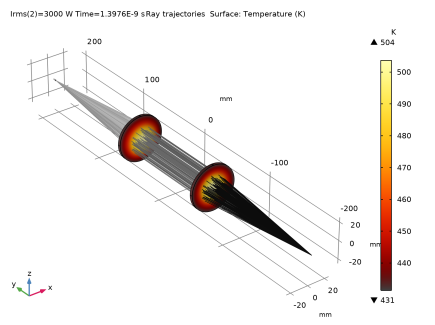
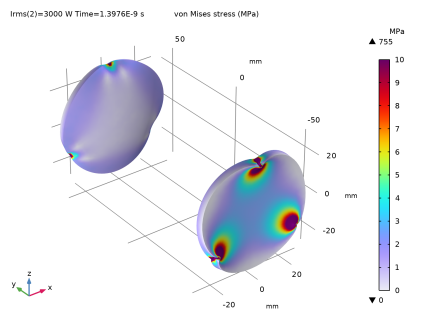
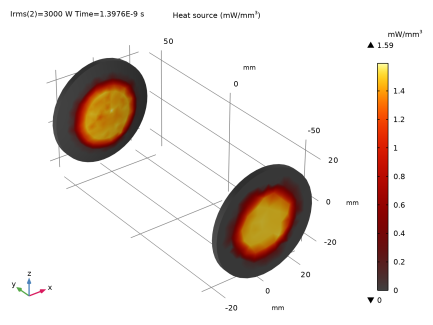
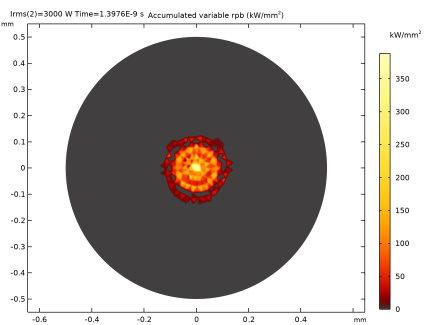
|
1
|
|
2
|
|
3
|
Click Add. This will add interfaces for Geometrical Optics and Heat Transfer in Solids and a Ray Heat Source multiphysics coupling.
|
|
4
|
|
5
|
Click Add.
|
|
6
|
Click
 Study. Study. |
|
7
|
In the Select Study tree, select Preset Studies for Selected Physics Interfaces > Geometrical Optics > Bidirectionally Coupled Ray Tracing.
|
|
8
|
Click
 Done. Done. |
|
1
|
|
2
|
|
3
|
Click
 Load from File. Load from File. |
|
4
|
Browse to the model’s Application Libraries folder and double-click the file thermally_induced_focal_shift_parameters.txt.
|
|
1
|
|
2
|
|
3
|
|
1
|
|
2
|
In the Part Libraries window, select Ray Optics Module > 3D > Spherical Lenses > spherical_lens_3d in the tree.
|
|
3
|
Click
 Add to Geometry. Add to Geometry. |
|
4
|
In the Select Part Variant dialog, select Specify clear aperture diameter in the Select part variant list.
|
|
5
|
Click OK.
|
|
1
|
In the Model Builder window, under Component 1 (comp1) > Geometry 1 click Spherical Lens 3D 1 (pi1).
|
|
2
|
|
4
|
Locate the Position and Orientation of Output section. Find the Displacement subsection. In the ywi text field, type -dis/2.
|
|
5
|
Click to expand the Boundary Selections section. Click to select row number 2 in the table.
|
|
6
|
Click New Cumulative Selection.
|
|
7
|
|
8
|
Click OK.
|
|
1
|
|
2
|
|
3
|
|
4
|
|
5
|
|
6
|
|
1
|
|
2
|
Select the object cyl1 only.
|
|
3
|
|
4
|
|
5
|
|
6
|
|
1
|
|
2
|
Select the object cyl1 only.
|
|
3
|
|
4
|
|
1
|
|
2
|
|
3
|
|
4
|
Select the object pi1 only.
|
|
5
|
|
6
|
|
1
|
|
2
|
Select the object par1 only.
|
|
3
|
|
4
|
Clear the Keep interior boundaries checkbox.
|
|
1
|
|
2
|
|
3
|
|
4
|
On the object uni1, select Boundaries 1–4, 7, and 8 only.
|
|
1
|
|
2
|
|
3
|
|
4
|
|
5
|
|
6
|
Click OK.
|
|
1
|
|
2
|
Select the object uni1 only.
|
|
3
|
|
4
|
Select the Keep input objects checkbox.
|
|
5
|
|
6
|
|
7
|
|
1
|
|
2
|
|
3
|
In the Part Libraries window, select Ray Optics Module > 3D > Apertures and Obstructions > circular_planar_annulus in the tree.
|
|
4
|
Click
 Add to Geometry. Add to Geometry. |
|
1
|
In the Model Builder window, under Component 1 (comp1) > Geometry 1 click Circular Planar Annulus 1 (pi2).
|
|
2
|
|
3
|
Locate the Input Parameters section. In the table, enter the following settings:
|
|
4
|
Locate the Position and Orientation of Output section. Find the Displacement subsection. In the ywi text field, type dis/2+Tc+bfl.
|
|
5
|
|
6
|
|
7
|
|
1
|
In the Model Builder window, under Component 1 (comp1) right-click Definitions and choose Variables.
|
|
2
|
|
3
|
Click
 Load from File. Load from File. |
|
4
|
Browse to the model’s Application Libraries folder and double-click the file thermally_induced_focal_shift_variables.txt.
|
|
1
|
|
2
|
|
3
|
In the Maximum number of secondary rays text field, type 0. Since an anti-reflective coating will be applied to the lens surfaces, it is not necessary to allocate secondary rays to model the reflection of stray light by the lens system.
|
|
1
|
In the Model Builder window, under Component 1 (comp1) > Geometrical Optics (gop) click Material Discontinuity 1.
|
|
2
|
|
3
|
|
1
|
|
2
|
|
3
|
|
1
|
|
2
|
|
3
|
|
4
|
|
5
|
|
6
|
In the Nθ text field, type 18. A conical hexapolar distribution with 18 rings will release 1027 rays.
|
|
7
|
Specify the r vector as
|
|
8
|
|
9
|
|
1
|
|
2
|
|
3
|
|
4
|
Locate the Wall Condition section. From the Wall condition list, choose Pass through. Allow the rays to pass through the target so that the location of the best focus planes can be computed.
|
|
1
|
In the Physics toolbar, click
 Attributes and choose Accumulator. The built-in accumulator for Deposited Ray Power cannot be used because the rays pass through the target. Attributes and choose Accumulator. The built-in accumulator for Deposited Ray Power cannot be used because the rays pass through the target. |
|
2
|
|
3
|
|
4
|
|
5
|
In the Dependent variable quantity table, enter the following settings:
|
|
1
|
|
2
|
|
3
|
From the Temperature list, choose Cubic Lagrange. A cubic shape order usually introduces less discretization error compared to the default.
|
|
1
|
|
2
|
|
3
|
|
4
|
|
5
|
|
6
|
|
1
|
|
2
|
|
3
|
From the Displacement field list, choose Cubic Lagrange. The ray tracing will now be done on a deformed mesh. In order to reduce the discretization error a cubic shape order should be used.
|
|
1
|
|
2
|
|
3
|
|
1
|
|
2
|
Click in the Graphics window and then press Ctrl+A to select both domains.
|
|
3
|
|
4
|
|
1
|
|
2
|
|
3
|
Find the Expression for remaining selection subsection. In the Volume reference temperature text field, type T0.
|
|
1
|
|
2
|
Go to the Add Material window.
|
|
3
|
|
4
|
Click the Add to Component button in the window toolbar.
|
|
5
|
|
1
|
|
1
|
|
2
|
|
3
|
|
4
|
|
5
|
|
6
|
Locate the Element Size Parameters section.
|
|
7
|
|
1
|
|
2
|
|
3
|
|
1
|
|
2
|
|
3
|
Click the Custom button.
|
|
4
|
Locate the Element Size Parameters section.
|
|
5
|
|
1
|
|
2
|
|
3
|
|
1
|
|
2
|
|
3
|
Click the Custom button.
|
|
4
|
Locate the Element Size Parameters section.
|
|
5
|
|
1
|
|
2
|
|
1
|
|
2
|
|
3
|
|
4
|
|
5
|
In the Lengths text field, type 0 400 range(414,0.2,419). By using smaller optical path length intervals in the vicinity of the focal plane it will be easier to observe where the mean radial displacement of the rays reaches a minimum.
|
|
6
|
Select the Include geometric nonlinearity checkbox. When this checkbox is selected, rays are traced through the deformed geometry in which thermal expansion has been taken into account. If this checkbox is cleared, the temperature dependence of the refractive index still affects the ray trajectories, but the thermal expansion has no effect.
|
|
7
|
|
1
|
|
2
|
|
3
|
Click
 Add. Add. |
|
1
|
|
2
|
|
3
|
In the Model Builder window, expand the Study 1 > Solver Configurations > Solution 1 (sol1) > Dependent Variables 2 node, then click Displacement Field (comp1.u).
|
|
4
|
|
5
|
|
6
|
|
1
|
|
2
|
|
3
|
|
4
|
From the Selection list, choose Clear Apertures. This will be used to limit the results of some plots to the convex surfaces of the two lenses.
|
|
1
|
|
2
|
|
3
|
Select the Show maximum and minimum values checkbox.
|
|
4
|
Select the Show units checkbox.
|
|
5
|
|
1
|
In the Model Builder window, expand the Results > Ray Trajectories (gop) > Ray Trajectories 1 node, then click Color Expression 1.
|
|
2
|
|
3
|
|
4
|
|
5
|
Click to expand the Range section. Locate the Coloring and Style section. From the Color table list, choose GrayPrint.
|
|
6
|
|
1
|
|
2
|
|
3
|
|
4
|
|
1
|
|
2
|
In the Settings window for Surface, click Replace Expression in the upper-right corner of the Expression section. From the menu, choose Component 1 (comp1) > Heat Transfer in Solids > Temperature > T - Temperature - K.
|
|
3
|
|
4
|
|
1
|
|
2
|
|
3
|
Clear the Plot dataset edges checkbox.
|
|
4
|
|
5
|
Select the Show units checkbox.
|
|
1
|
|
2
|
|
3
|
|
4
|
Click to expand the Range section. Specify a manual color range to make the von Mises stress easier to see.
|
|
5
|
Select the Manual color range checkbox.
|
|
6
|
|
7
|
|
8
|
|
1
|
|
2
|
In the Settings window for 3D Plot Group, type Deposited Ray Power (lenses) in the Label text field.
|
|
3
|
|
4
|
|
5
|
|
6
|
Select the Show units checkbox.
|
|
1
|
|
2
|
In the Settings window for Volume, click Replace Expression in the upper-right corner of the Expression section. From the menu, choose Component 1 (comp1) > Heating and losses > rhs1.Qsrc - Heat source - W/m³.
|
|
3
|
|
4
|
|
5
|
|
6
|
|
7
|
|
8
|
|
9
|
|
1
|
|
2
|
|
3
|
|
4
|
|
1
|
|
2
|
In the Settings window for 2D Plot Group, type Deposited Ray Power (target) in the Label text field.
|
|
3
|
|
4
|
|
5
|
|
1
|
|
2
|
In the Settings window for Surface, click Replace Expression in the upper-right corner of the Expression section. From the menu, choose Component 1 (comp1) > Geometrical Optics > Accumulated variables > Accumulated variable comp1.gop.wall1.bacc1.rpb > gop.wall1.bacc1.rpb - Accumulated variable rpb - W/m².
|
|
3
|
|
4
|
|
5
|
|
6
|
|
1
|
|
2
|
|
3
|
|
1
|
|
2
|
|
3
|
|
4
|
|
1
|
|
2
|
|
3
|
|
4
|
Click to expand the Title section. Locate the Coloring and Style section. From the Color table list, choose Viridis.
|
|
5
|
|
1
|
|
2
|
|
3
|
|
4
|
|
5
|
Click
 Range. Range. |
|
6
|
|
7
|
|
8
|
Click Replace.
|
|
1
|
|
2
|
|
4
|
|
5
|
|
6
|
In the Expression text field, type gop.qavey. This is the average position along the optical axis at each time step.
|
|
1
|
|
2
|
|
3
|
Select the x-axis label checkbox.
|
|
4
|
Select the y-axis label checkbox.
|
|
5
|
|
6
|
|
7
|
|
8
|
|
1
|
|
2
|
|
3
|
|
1
|
|
2
|
|
3
|
|
1
|
|
2
|
|
3
|
|
4
|
|
1
|
|
2
|
|
3
|
|
4
|
Click to expand the Focal Plane Orientation section. Click Create Focal Plane Dataset. This will create an Intersection Point 3D dataset on the plane that minimizes the RMS spot size.
|
|
5
|
|
6
|
|
7
|
|
1
|
|
2
|
|
3
|
|
4
|
|
5
|
|
1
|
In the Model Builder window, under Results > Spot Diagrams right-click Spot Diagram 1 and choose Duplicate.
|
|
2
|
|
3
|
|
4
|
Locate the Focal Plane Orientation section. Click Create Focal Plane Dataset. As before, this action will create another Intersection Point 3D dataset.
|
|
5
|
|
6
|


