PDF

Plano-Convex Lens Orientation
Introduction
Light collimation or focusing is a basic task often needed when working with lasers in the lab where singlets are used due to their simplicity. If a plano-convex lens is used for the task, there is a correct lens orientation that minimizes aberrations. A useful rule-of-thumb is to minimize ray refraction at every surface, which can be achieved by placing the lens with the curved side facing the collimated beam.
Model Definition
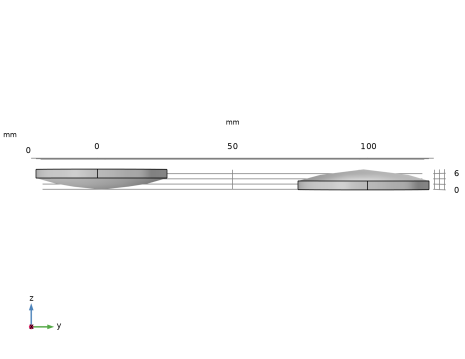
This model uses two plano-convex lenses from the Part Libraries with the default options, as shown in Figure 1. Collimated beams traveling in the +z direction are focused by each lens and the focusing performance is visualized using Spot Diagram and Geometric Modulation Transfer Function (MTF) plots.
Figure 1: Two plano-convex lenses with different orientations.
Results and Discussion
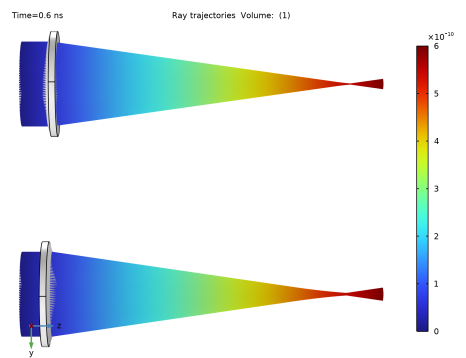
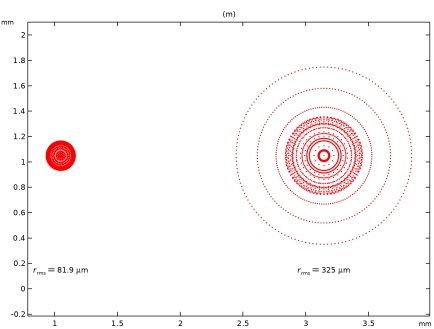
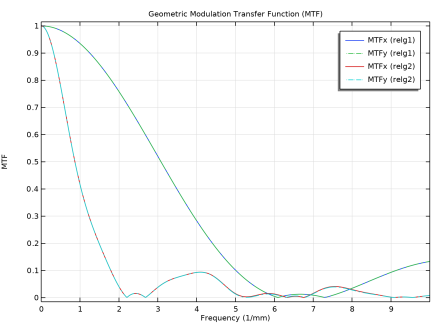
The configuration where the convex side is facing the collimated beam provides the tightest focus, as qualitatively shown in Figure 2. The spot diagram and the geometric modulation transfer function — shown in Figure 3 and Figure 4, respectively — provide a more quantitative measure.
Figure 2: Ray trajectories plot shows convex side facing collimated beam focuses the beam more tightly.
Computing the geometric MTF requires multiple steps that are automatically set up but can be modified. An Intersection Point 3D dataset is created for the Spot Diagram. A line spread function is estimated from the Intersection Point 3D dataset by using an Evaluation Group for each release feature, which is then fed into Kernel Density Estimation (KDE) datasets. Each Kernel Density Estimation (KDE) dataset is subsequently fed into Spatial FFT datasets. Finally, Spatial FFT datasets are used to create a Line Graph for each release feature, resulting in the plot shown in Figure 4.
Figure 3: Spot diagram shows roughly four times difference in the spot size.
Figure 4: Geometric modulation transfer function (MTF).
Application Library path: Ray_Optics_Module/Lenses_Cameras_and_Telescopes/planoconvex_lens_orientation
Modeling Instructions
From the File menu, choose New.
New
In the New window, click  Model Wizard.
Model Wizard
1
In the Model Wizard window, click  3D.
2
In the Select Physics tree, select Optics > Ray Optics > Geometrical Optics (gop).
3
Click Add.
4
Click  Study.
5
In the Select Study tree, select Preset Studies for Selected Physics Interfaces > Ray Tracing.
6
Geometry 1
1
In the Model Builder window, under Component 1 (comp1) click Geometry 1.
2
In the Settings window for Geometry, locate the Units section.
3
From the Length unit list, choose mm.
Part Libraries
1
In the Geometry toolbar, click  Part Libraries.
2
In the Part Libraries window, select Ray Optics Module > 3D > Spherical Lenses > spherical_plano_convex_lens_3d in the tree.
3
Click  Add to Geometry.
4
In the Select Part Variant dialog, select Specify effective focal length and center thickness in the Select part variant list.
5
Geometry 1
Spherical Plano-Convex Lens 3D 2 (pi2)
1
In the Model Builder window, under Component 1 (comp1) > Geometry 1 right-click Spherical Plano-Convex Lens 3D 1 (pi1) and choose Duplicate.
2
In the Settings window for Part Instance, locate the Input Parameters section.
3
4
Locate the Position and Orientation of Output section. Find the Displacement subsection. In the ywi text field, type 100[mm].
5
In the zwi text field, type 7.5[mm].
6
Click  Build All Objects.
7
Click the  Go to YZ View button in the Graphics toolbar. Compare the geometry to Figure 1.
Materials
Material 1 (mat1)
1
In the Materials toolbar, click  Blank Material.
2
In the Settings window for Material, locate the Material Contents section.
3
Geometrical Optics (gop)
1
In the Model Builder window, under Component 1 (comp1) click Geometrical Optics (gop).
2
In the Settings window for Geometrical Optics, locate the Ray Release and Propagation section.
3
In the Maximum number of secondary rays text field, type 0.
4
Locate the Results section. From the Results list, choose Plot spot diagram and geometric MTF.
Material Discontinuity 1
1
In the Model Builder window, under Component 1 (comp1) > Geometrical Optics (gop) click Material Discontinuity 1.
2
In the Settings window for Material Discontinuity, locate the Rays to Release section.
3
From the Release reflected rays list, choose Never.
Release from Grid 1
1
In the Physics toolbar, click  Global and choose Release from Grid.
2
In the Settings window for Release from Grid, locate the Initial Coordinates section.
3
From the Grid type list, choose Hexapolar.
4
Specify the qc vector as
5
Specify the rc vector as
6
In the Rc text field, type 20[mm].
7
In the Nc text field, type 25.
8
Locate the Ray Direction Vector section. Specify the L0 vector as
Release from Grid 2
1
Right-click Release from Grid 1 and choose Duplicate.
2
In the Settings window for Release from Grid, locate the Initial Coordinates section.
3
Specify the qc vector as
Mesh 1
1
In the Model Builder window, under Component 1 (comp1) click Mesh 1.
2
In the Settings window for Mesh, locate the Physics-Controlled Mesh section.
3
From the Element size list, choose Coarser.
4
Click  Build All.
Study 1
Step 1: Ray Tracing
1
In the Model Builder window, under Study 1 click Step 1: Ray Tracing.
2
In the Settings window for Ray Tracing, locate the Study Settings section.
3
In the Output times text field, type range(0,0.01,0.6).
4
In the Study toolbar, click  Compute.
Results
Volume 1
In the Ray Trajectories (gop) toolbar, click  Volume.
Material Appearance 1
1
In the Ray Trajectories (gop) toolbar, click  Material Appearance.
2
Click the  Show Grid button in the Graphics toolbar.
3
Click the  Rotate Right 90° button in the Graphics toolbar.
4
Click the  Zoom Extents button in the Graphics toolbar. The ray trajectories should look like Figure 2.
5
Click the  Go to Default View button in the Graphics toolbar.
Intersection Point 3D 1
1
In the Model Builder window, expand the Results > Datasets node, then click Intersection Point 3D 1.
2
In the Settings window for Intersection Point 3D, locate the Surface section.
3
Find the Point subsection. In the x text field, type 0.
4
In the y text field, type 0.
5
In the z text field, type 150[mm].
Spot Diagram
1
In the Model Builder window, under Results click Spot Diagram.
2
In the Spot Diagram toolbar, click  Plot.
3
Click the  Zoom Extents button in the Graphics toolbar. The spot diagram should look like Figure 3.
LSF Data (relg1)
1
In the Model Builder window, click LSF Data (relg1).
2
In the LSF Data (relg1) toolbar, click  Evaluate.
LSF Data (relg2)
1
In the Model Builder window, click LSF Data (relg2).
2
In the LSF Data (relg2) toolbar, click  Evaluate.
Geometric MTF
1
In the Model Builder window, click Geometric MTF.
2
In the Settings window for 1D Plot Group, locate the Axis section.
3
Select the Manual axis limits checkbox.
4
In the x minimum text field, type 0.
5
In the x maximum text field, type 10.
MTFy (relg1)
1
In the Model Builder window, expand the Geometric MTF node, then click MTFy (relg1).
2
In the Settings window for Line Graph, click to expand the Coloring and Style section.
3
Find the Line style subsection. From the Line list, choose Dash-dot.
MTFy (relg2)
1
In the Model Builder window, click MTFy (relg2).
2
In the Settings window for Line Graph, click to expand the Coloring and Style section.
3
Find the Line style subsection. From the Line list, choose Dash-dot.
4
In the Geometric MTF toolbar, click  Plot. The MTF plot should look like Figure 4.