


PDF

Petzval Lens Geometric Modulation
Transfer Function
Introduction
In this tutorial we demonstrate how to compute the geometric modulation transfer function (MTF) of a lens. The optical transfer function (OTF) is a measure of an optical systems ability to resolve an object at a given spatial frequency. The OTF is defined as
(1) ,
where the contrast is defined in terms of the intensity as
(2) .
The OTF is a vector quantity including a phase term. When referring to the modulation transfer function, only the amplitude is considered.
The modulation transfer function at a given spatial frequency ν can be computed from the line spread function (LSF). In the context of an image of a point source (or, a collimated source at infinity), the LSF is an integration in a single direction of the point spread function (PSF). The MTF is then given by (Ref. 1)
(3) ,
in which the expressions for Lc and Ls are
(4) ,
and
(5) .
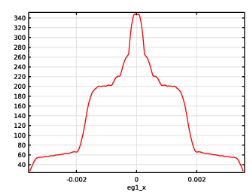
which is equivalent to the magnitude of the Fourier transform of the LSF. The LSF is given in terms of δ, the spatial location on the detector plane. The MTF, which is computed in the sagittal (x) or tangential (y) directions, is the response of the LSF to a signal that is spatially periodic at the frequency ν in either of these directions. Here, the fast Fourier transform (FFT) will be used to compute the MTF due to its computational efficiency.
Geometric Modulation Transfer Function
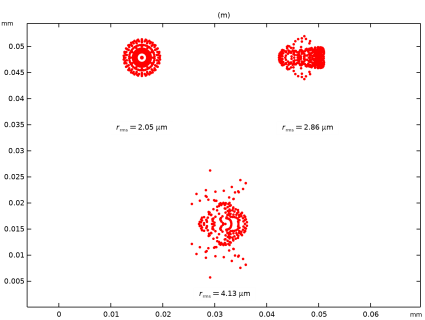
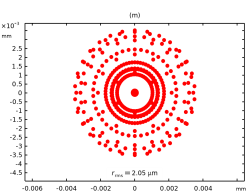
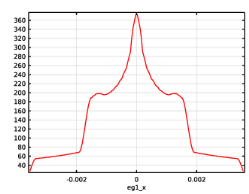
The MTF can be calculated using the results of a Geometrical Optics ray trace. The LSF is generated using the number density of ray intersections at the focal plane (that is, the spot diagram; see Figure 2). The LSF of the spot diagram shown in Figure 2 can be computed using the Kernel Density Estimation (KDE) dataset. Another approach is to use binning however the KDE approach ensures that the discretization error in estimating the LSF from a finite number of rays asymptotically approaches zero as the number of rays is increased. MTF is then computed using the Spatial FFT dataset.
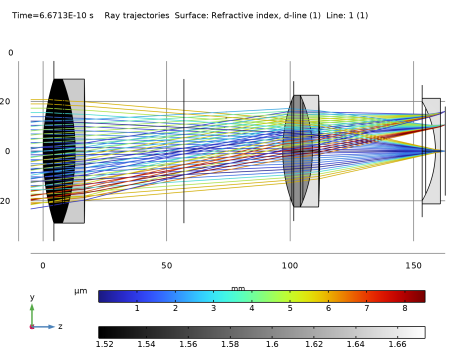
Figure 1: The Petzval lens with 3 fields.
Model Definition
The model used for this example is the Petzval Lens, which can be found in the Ray Optics Module Application Library. The lens has a 100 mm focal length and includes a field flattening lens to provide good image quality over a ±10° field of view (Ref. 2). An overview can be seen in Figure 1.
Detailed step-by-step instructions for creating and running the method can be found in the section Modeling Instructions.
Figure 2: Spot diagram for 3 fields.
Results and Discussion
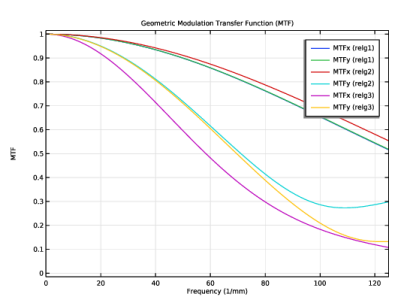
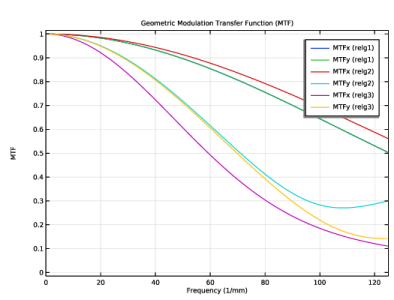
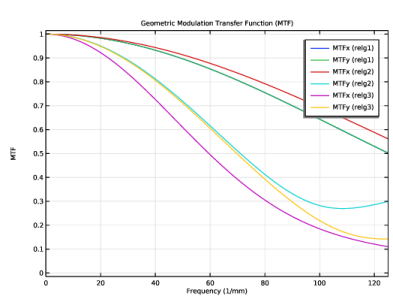
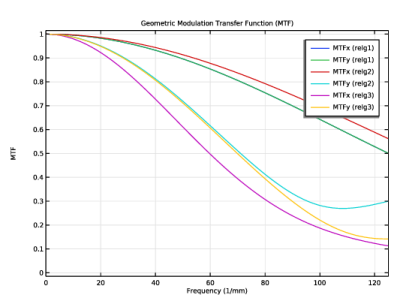
The accuracy of the MTF plots depend on the sufficient sampling of the exit pupil. Therefore, a small number of rays are released to confirm the initial settings such as Intersection Point 3D dataset parameters and the resulting MTF plot is shown in Figure 3. The number of rays are then increased until the MTF plots stop changing in the frequency range of interest as shown in Figure 4 to Figure 6.
Figure 3: The modulation transfer function (MTF) of the Petzval lens with Nring = 12.
Figure 4: The modulation transfer function (MTF) of the Petzval lens with Nring = 50.
Figure 5: The modulation transfer function (MTF) of the Petzval lens with Nring = 70.
Figure 6: The modulation transfer function (MTF) of the Petzval lens with Nring = 100.
References
1. W.J. Smith, Modern lens design, vol. 2. New York, NY, USA: McGraw Hill, 2005.
2. M.J. Kidger, Fundamental Optical Design, SPIE Press, 2001.
Application Library path: Ray_Optics_Module/Lenses_Cameras_and_Telescopes/petzval_lens_geometric_modulation_transfer_function
Modeling Instructions
Root
In the Home toolbar, click  Windows and choose Application Libraries.
Application Libraries
1
In the Model Builder window, click the root node.
2
In the Application Libraries window, select Ray Optics Module > Lenses, Cameras, and Telescopes > petzval_lens in the tree.
3
Geometrical Optics (gop)
1
In the Model Builder window, expand the Component 1 (comp1) node, then click Geometrical Optics (gop).
2
In the Settings window for Geometrical Optics, locate the Ray Release and Propagation section.
3
From the Wavelength distribution of released rays list, choose Monochromatic.
4
Locate the Results section. From the Results list, choose Plot spot diagram and geometric MTF.
Ray Properties 1
1
In the Model Builder window, expand the Geometrical Optics (gop) node, then click Ray Properties 1.
2
In the Settings window for Ray Properties, locate the Ray Properties section.
3
In the λ0 text field, type 550[nm].
Results
1
In the Model Builder window, click Results.
2
In the Settings window for Results, locate the Update of Results section.
3
Select the Recompute all plot data after solving checkbox.
4
Select the Reevaluate all evaluation groups after solving checkbox.
Study 1
1
In the Study toolbar, click  Compute.
2
Click  Reset Default Plots.
Results
Ray Diagram 1
1
In the Model Builder window, under Results click Ray Diagram 1.
2
In the Ray Diagram 1 toolbar, click  Plot.
3
Click the  Zoom Extents button in the Graphics toolbar. Compare the resulting image to Figure 1.
Spot Diagram 1
Minimum RMS (root-mean-squared) width for the on-axis ray release can be computed using filter functionality of the Spot Diagram. Filtering will be activated to compute the intersection plane parameters and then subsequently deactivated to plot the Spot Diagram for all the releases.
1
In the Model Builder window, expand the Results > Spot Diagram node, then click Spot Diagram 1.
2
In the Settings window for Spot Diagram, locate the Filters section.
3
Select the Filter by release feature index checkbox.
4
Click to expand the Focal Plane Orientation section. Click Recompute Focal Plane Dataset. Note that the new intersection plane position yields a much smaller RMS width.
5
Click the  Zoom Extents button in the Graphics toolbar.
6
Locate the Filters section. Clear the Filter by release feature index checkbox.
7
In the Spot Diagram toolbar, click  Plot. Compare the resulting image to Figure 2.
Intersection Point 3D 1
The intersection Point 3D dataset parameters can be inspected and modified to values with a more reasonable precision.
1
In the Model Builder window, expand the Results > Datasets node, then click Intersection Point 3D 1.
2
In the Settings window for Intersection Point 3D, locate the Surface section.
3
Find the Point subsection. In the x text field, type 0.
4
In the y text field, type 0.
5
In the z text field, type 162.755[mm].
6
Find the Normal vector subsection. In the x text field, type 0.
7
In the y text field, type 0.
Evaluation groups must be evaluated again after changing the Intersection Point 3D dataset parameters to ensure the values are updated.
LSF Data (relg1)
1
In the Model Builder window, under Results click LSF Data (relg1).
2
In the LSF Data (relg1) toolbar, click  Evaluate.
LSF Data (relg2)
1
In the Model Builder window, click LSF Data (relg2).
2
In the LSF Data (relg2) toolbar, click  Evaluate.
LSF Data (relg3)
1
In the Model Builder window, click LSF Data (relg3).
2
In the LSF Data (relg3) toolbar, click  Evaluate.
Geometric MTF
1
In the Model Builder window, click Geometric MTF.
2
In the Settings window for 1D Plot Group, locate the Axis section.
3
Select the Manual axis limits checkbox.
4
In the x minimum text field, type 0.
5
In the x maximum text field, type 125.
6
In the Geometric MTF toolbar, click  Plot. Compare the resulting plot to Figure 3.
To ensure sufficient sampling of the exit pupil, the number of rays is increased and minimal changes to the Geometric MTF in the frequency range of interest is confirmed.
Global Definitions
Parameters 2: General
1
In the Model Builder window, under Global Definitions click Parameters 2: General.
2
In the Settings window for Parameters, locate the Parameters section.
3
4
In the Home toolbar, click  Compute.
Results
LSFx (eg1)
Line spread function (LSF) can be inspected by using the plot functionality of the KDE dataset.
1
In the Model Builder window, under Results > Datasets click LSFx (eg1).
2
In the Settings window for Kernel Density Estimation, click  Plot.
Geometric MTF
1
In the Model Builder window, under Results click Geometric MTF.
2
In the Geometric MTF toolbar, click  Plot. Compare the resulting plot to Figure 4.
Global Definitions
Parameters 2: General
1
In the Model Builder window, under Global Definitions click Parameters 2: General.
2
In the Settings window for Parameters, locate the Parameters section.
3
4
In the Home toolbar, click  Compute.
Results
Geometric MTF
1
In the Model Builder window, under Results click Geometric MTF.
2
In the Geometric MTF toolbar, click  Plot. Compare the resulting plot to Figure 5.
Global Definitions
Parameters 2: General
1
In the Model Builder window, under Global Definitions click Parameters 2: General.
2
In the Settings window for Parameters, locate the Parameters section.
3
4
In the Home toolbar, click  Compute.
Results
LSFx (eg1)
1
In the Model Builder window, under Results > Datasets click LSFx (eg1).
2
In the Settings window for Kernel Density Estimation, click  Plot.
Geometric MTF
1
In the Model Builder window, under Results click Geometric MTF.
2
In the Geometric MTF toolbar, click  Plot. Compare the resulting plot to Figure 6. It should be noted that the symmetries in the ray release will impact the spot diagram. Therefore, changes to the MTF due to different release types should be noted.