
|
|
|

|
•
|
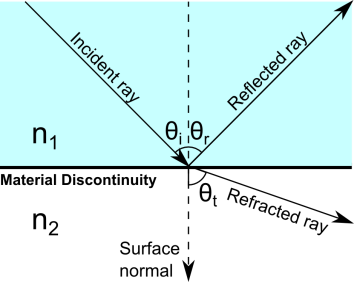
n1 (dimensionless) is the refractive index of the medium containing the incident ray,
|
|
•
|
n2 (dimensionless) is the refractive index of the medium containing the refracted ray,
|
|
•
|
θi (SI unit: rad) is the angle of incidence, and
|
|
•
|
θt (SI unit: rad) is the angle of refraction.
|

















 |
The Stokes parameters are also computed along the ray paths in 2D geometries, so in principle the Fresnel rhomb could instead be modeled in 2D. However, in 3D it is easier to visualize the state of ray polarization because the 3D Ray Trajectories plot includes a built-in option to display polarization ellipses along the ray trajectories.
|
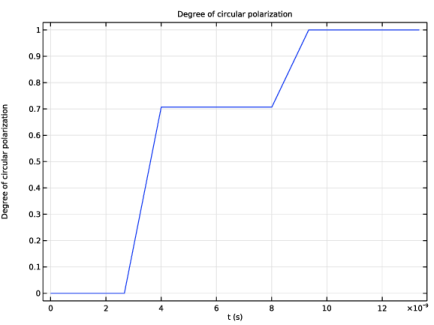
 ; values with magnitude between zero and one indicate varying degrees of elliptical polarization. After two reflections, the magnitude is approximately unity, corresponding to circular polarization.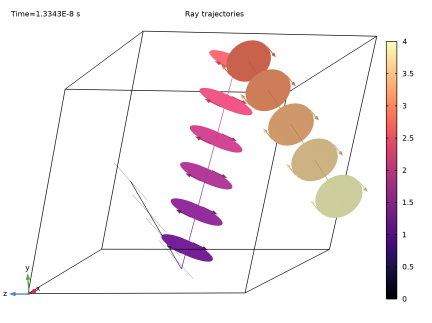
|
1
|
|
2
|
In the Select Physics tree, select Mathematics > ODE and DAE Interfaces > Global ODEs and DAEs (ge).
|
|
3
|
Click Add.
|
|
4
|
Click
 Study. Study. |
|
5
|
|
6
|
Click
 Done. Done. |
|
1
|
|
2
|
|
1
|
In the Model Builder window, under Component 1 (comp1) > Global ODEs and DAEs (ge) click Global Equations 1 (ODE1).
|
|
2
|
|
1
|
Go to the Table 1 window.
|
|
1
|
In the Model Builder window, expand the Component 1 (comp1) > Geometry 1 node, then click Global Definitions > Parameters 1.
|
|
2
|
|
1
|
|
2
|
|
4
|
Click
 Build Selected. Build Selected. |
|
1
|
In the Model Builder window, under Component 1 (comp1) > Geometry 1 right-click Work Plane 1 (wp1) and choose Extrude.
|
|
2
|
|
1
|
|
2
|
Go to the Add Physics window.
|
|
3
|
|
4
|
In the Physics interfaces in study section, clear the checkbox next to Study 1, which is not compatible with the Geometrical Optics interface.
|
|
5
|
Click the Add to Component 1 button in the window toolbar.
|
|
6
|
|
1
|
|
2
|
Go to the Add Study window.
|
|
3
|
Find the Studies subsection. In the Select Study tree, select Preset Studies for Selected Physics Interfaces > Geometrical Optics > Ray Tracing.
|
|
4
|
In the Physics interfaces in study section, clear the checkbox next to Global ODEs and DAEs (ge), which will not be solved for in the second study.
|
|
5
|
Click the Add Study button in the window toolbar.
|
|
6
|
|
1
|
|
2
|
|
3
|
Locate the Material Contents section. In the table, enter the following settings:
|
|
1
|
|
2
|
In the Settings window for Geometrical Optics, locate the Material Properties of Exterior and Unmeshed Domains section.
|
|
3
|
|
4
|
Locate the Ray Release and Propagation section. In the Maximum number of secondary rays text field, type 0.
|
|
5
|
Locate the Intensity Computation section. From the Intensity computation list, choose Compute intensity.
|
|
6
|
|
1
|
|
2
|
|
3
|
|
4
|
|
5
|
|
6
|
Locate the Initial Polarization section. From the Initial polarization type list, choose Fully polarized.
|
|
7
|
|
8
|
|
1
|
|
3
|
|
4
|
|
1
|
|
2
|
|
3
|
|
4
|
Click
 Range. Range. |
|
5
|
|
6
|
|
7
|
Click Replace.
|
|
8
|
|
1
|
|
2
|
|
3
|
|
4
|
|
1
|
|
2
|
In the Settings window for Color Expression, click Replace Expression in the upper-right corner of the Expression section. From the menu, choose Component 1 (comp1) > Geometrical Optics > Ray properties > gop.L - Optical path length - m.
|
|
3
|
|
4
|
|
5
|
Rotate the Graphics window so that the polarization ellipses of the ray can be clearly seen as it exits the prism. Click the Show Grid button to get a clearer view. Then compare the resulting plot to Figure 2.
|
|
1
|
|
2
|
|
3
|
|
4
|
|
5
|
|
6
|
Locate the Plot Settings section.
|
|
7
|
Select the y-axis label checkbox. In the associated text field, type Degree of circular polarization.
|
|
1
|
|
2
|
|
3
|


