

PDF

Alvarez Lens
Introduction
Freeform optics has generated renewed interest due to advances in fabrication and manufacturing technology. This model studies a specific freeform design called the Alvarez lens, where two complementary cubic surfaces are shifted laterally with respect to each other to achieve variable optical power. Departure from conventional (mostly spherical) optical surfaces provides additional degrees of freedom, can open up many opportunities for systems design, and achieve better optical performance. For example, in Ref. 1 a modified Alvarez lens is used to design a miniature multimodal microscope with variable depth focusing in a small form factor.
Model Definition
The model uses a design described in Ref. 2, in which the surface sags are described as
where t1(X, Y) and t2(X, Y) are the surface sags of the first and the second elements; a is a surface coefficient; X and Y are the normalized coordinates
and rn is the normalizing radius. For transverse shifts of ΔX, ΔY and zero longitudinal shift, the total contribution to phase for both surfaces is given by
Note that for ΔX = 0, the total profile becomes quadratic and proportional to ΔY:
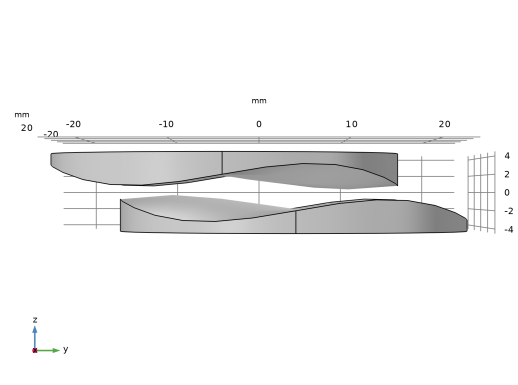
A longitudinal shift of zero is not physical and therefore the optical power and the aberrations introduced in the model deviate slightly from the expressions above. Geometry module can be used to easily parameterize and model these effects. The parameters shown in Table 1 are used for the initial values and a parametric sweep varies the relative shift in the y direction to observe the change in the optical power. The geometry shown in Figure 1 is generated using the parameters in Table 1.
rn
thickness
Δx
Relative shift, x-coordinate
Δy
Relative shift, y-coordinate
Δz
Relative shift, z-coordinate
Figure 1: Alvarez lens where the cubic surfaces are laterally shifted to achieve variable optical power.
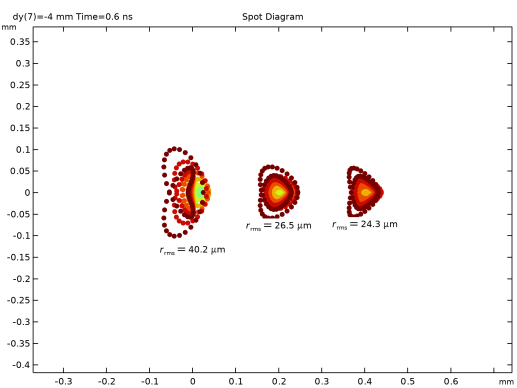
In this model, collimated rays are released with a hexapolar distribution and a parametric sweep is performed to observe the change in the focal point as a function of the lateral shift. Spot diagrams are generated to study the aberrations introduced.
Results and Discussion
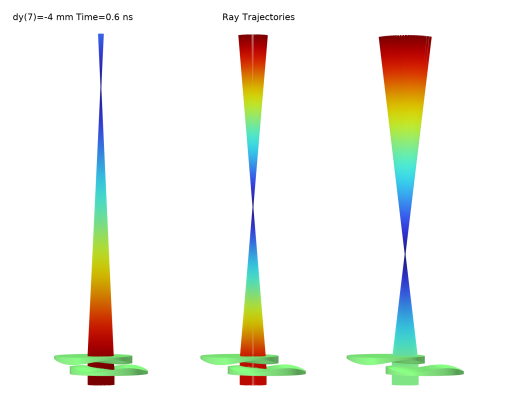
Figure 2 shows that a lateral shift in y causes a change in optical power. The corresponding spot diagrams shown in Figure 3 indicate that the aberrations change at every configuration. Ref. 1 discusses strategies for reducing aberrations for the entire range using two Alvarez lens pairs.
Figure 2: Ray trajectories for different lateral shifts demonstrate variable optical power.
Figure 3: Spot diagrams for different lateral shifts, showing that performance varies between configurations.
References
1. S.S. Rege and others, “Application of the Alvarez-Humphrey Concept to the Design of a Miniaturized Scanning Microscope,” Optics Express, vol. 12, no. 12, pp. 2574–2588, 2004.
2. D. Gonzalez-Utrera and others, “Modeling, Fabrication, and Metrology of 3D Printed Alvarez Lenses Prototypes,” Optics Express, vol. 32, no. 3, pp. 3512–3527, 2024.
Application Library path: Ray_Optics_Module/Lenses_Cameras_and_Telescopes/alvarez_lens
Modeling Instructions
From the File menu, choose New.
New
In the New window, click  Model Wizard.
Model Wizard
1
In the Model Wizard window, click  3D.
2
In the Select Physics tree, select Optics > Ray Optics > Geometrical Optics (gop).
3
Click Add.
4
Click  Study.
5
In the Select Study tree, select Preset Studies for Selected Physics Interfaces > Ray Tracing.
6
Global Definitions
Parameters 1
1
In the Model Builder window, under Global Definitions click Parameters 1.
2
In the Settings window for Parameters, locate the Parameters section.
3
Geometry 1
1
In the Model Builder window, under Component 1 (comp1) click Geometry 1.
2
In the Settings window for Geometry, locate the Units section.
3
From the Length unit list, choose mm.
Cylinder 1 (cyl1)
1
In the Geometry toolbar, click  Cylinder.
2
In the Settings window for Cylinder, locate the Size and Shape section.
3
In the Radius text field, type rn.
4
In the Height text field, type thickness.
5
Locate the Position section. In the z text field, type -thickness/2.
Parametric Surface 1 (ps1)
1
In the Geometry toolbar, click  More Primitives and choose Parametric Surface.
2
In the Settings window for Parametric Surface, locate the Parameters section.
3
Find the First parameter subsection. In the Minimum text field, type -1.
4
Find the Second parameter subsection. In the Minimum text field, type -1.
5
Locate the Expressions section. In the x text field, type s1*rn.
6
In the y text field, type s2*rn.
7
In the z text field, type 6*sqrt(8)*a*(s1^2*s2+s2^3/3) - 3*sqrt(8)*a*s2.
Partition Objects 1 (par1)
1
In the Geometry toolbar, click  Booleans and Partitions and choose Partition Objects.
2
3
In the Settings window for Partition Objects, locate the Partition Objects section.
4
Click to select the  Activate Selection toggle button for Tool objects.
5
Extract 1 (extract1)
1
In the Geometry toolbar, click  Extract.
2
In the Settings window for Extract, locate the Entities or Objects to Extract section.
3
From the Geometric entity level list, choose Domain.
4
On the object par1, select Domain 2 only.
5
From the Input object handling list, choose Create remainder object.
Move 1 (mov1)
1
In the Geometry toolbar, click  Transforms and choose Move.
2
Select the object extract1(1) only.
3
In the Settings window for Move, locate the Displacement section.
4
In the x text field, type dx.
5
In the y text field, type dy.
6
In the z text field, type dz.
Move 2 (mov2)
1
In the Geometry toolbar, click  Transforms and choose Move.
2
Select the object extract1(2) only.
3
In the Settings window for Move, locate the Displacement section.
4
In the x text field, type -dx.
5
In the y text field, type -dy.
6
In the z text field, type -dz.
7
Click  Build All Objects.
8
Click the  Go to YZ View button in the Graphics toolbar. The geometry should look like Figure 1.
Materials
Material 1 (mat1)
1
In the Materials toolbar, click  Blank Material.
2
In the Settings window for Material, locate the Material Contents section.
3
Geometrical Optics (gop)
1
In the Model Builder window, under Component 1 (comp1) click Geometrical Optics (gop).
2
In the Settings window for Geometrical Optics, locate the Ray Release and Propagation section.
3
In the Maximum number of secondary rays text field, type 0.
Material Discontinuity 1
1
In the Model Builder window, under Component 1 (comp1) > Geometrical Optics (gop) click Material Discontinuity 1.
2
In the Settings window for Material Discontinuity, locate the Rays to Release section.
3
From the Release reflected rays list, choose Never.
Release from Grid 1
1
In the Physics toolbar, click  Global and choose Release from Grid.
2
In the Settings window for Release from Grid, locate the Initial Coordinates section.
3
From the Grid type list, choose Hexapolar.
4
Specify the qc vector as
5
Specify the rc vector as
6
In the Rc text field, type rn/3.
7
In the Nc text field, type 10.
8
Locate the Ray Direction Vector section. Specify the L0 vector as
Mesh 1
1
In the Model Builder window, under Component 1 (comp1) click Mesh 1.
2
In the Settings window for Mesh, locate the Physics-Controlled Mesh section.
3
From the Element size list, choose Coarse.
4
Click  Build All.
Study 1
Step 1: Ray Tracing
1
In the Model Builder window, under Study 1 click Step 1: Ray Tracing.
2
In the Settings window for Ray Tracing, locate the Study Settings section.
3
In the Output times text field, type range(0,0.01,0.6).
Parametric Sweep
1
In the Study toolbar, click  Parametric Sweep.
2
In the Settings window for Parametric Sweep, locate the Study Settings section.
3
4
5
In the Study toolbar, click  Compute.
Results
Ray Trajectories (gop)
1
In the Settings window for 3D Plot Group, click to expand the Title section.
2
From the Title type list, choose Manual.
3
In the Title text area, type Ray Trajectories.
4
Click the  Zoom Extents button in the Graphics toolbar.
5
Clicknext to  cycle_plot_level, then choose Parameter value (dy (mm)).
6
Click  Plot First. Scroll through different values of dy and note the change in the optical power.
7
In the Model Builder window, click Ray Trajectories (gop).
8
Locate the Data section. From the Dataset list, choose None.
9
Locate the Color Legend section. Clear the Show legends checkbox.
10
Click to expand the Plot Array section. From the Array type list, choose Linear.
11
From the Array axis list, choose y.
Ray Trajectories 1
1
In the Model Builder window, click Ray Trajectories 1.
2
In the Settings window for Ray Trajectories, locate the Data section.
3
From the Dataset list, choose Ray 1.
Color Expression 1
1
In the Model Builder window, click Color Expression 1.
2
In the Settings window for Color Expression, locate the Expression section.
3
In the Expression text field, type gop.rrms.
4
In the Ray Trajectories (gop) toolbar, click  Plot.
Ray Trajectories (gop)
In the Ray Trajectories (gop) toolbar, click  Volume.
Volume 1
1
In the Settings window for Volume, locate the Data section.
2
From the Dataset list, choose Ray 1.
3
Click to expand the Plot Array section. Select the Manual indexing checkbox.
4
Click the  Go to YZ View button in the Graphics toolbar.
Ray Trajectories 2
1
In the Model Builder window, under Results > Ray Trajectories (gop) right-click Ray Trajectories 1 and choose Duplicate.
2
In the Settings window for Ray Trajectories, locate the Data section.
3
From the Parameter value (dy (mm)) list, choose -7.
4
In the Ray Trajectories (gop) toolbar, click  Plot.
Volume 2
1
In the Model Builder window, under Results > Ray Trajectories (gop) right-click Volume 1 and choose Duplicate.
2
In the Settings window for Volume, locate the Data section.
3
From the Parameter value (dy (mm)) list, choose -7.
4
Locate the Plot Array section. In the Index text field, type 1.
5
In the Ray Trajectories (gop) toolbar, click  Plot.
Ray Trajectories 3
1
In the Model Builder window, under Results > Ray Trajectories (gop) right-click Ray Trajectories 2 and choose Duplicate.
2
In the Settings window for Ray Trajectories, locate the Data section.
3
From the Parameter value (dy (mm)) list, choose -10.
4
In the Ray Trajectories (gop) toolbar, click  Plot.
Volume 3
1
In the Model Builder window, under Results > Ray Trajectories (gop) right-click Volume 2 and choose Duplicate.
2
In the Settings window for Volume, locate the Data section.
3
From the Parameter value (dy (mm)) list, choose -10.
4
Locate the Plot Array section. In the Index text field, type 2.
5
In the Ray Trajectories (gop) toolbar, click  Plot.
6
Click the  Show Axis Orientation button in the Graphics toolbar.
7
Click the  Show Grid button in the Graphics toolbar.
8
Click the  Zoom Extents button in the Graphics toolbar. The plot should look like Figure 2.
Intersection Point 3D 1
1
In the Results toolbar, click  More Datasets and choose Intersection Point 3D.
2
In the Settings window for Intersection Point 3D, locate the Data section.
3
From the Parameter selection (dy) list, choose From list.
4
In the Parameter values (dy (mm)) list box, select -4.
5
Locate the Surface section. Find the Point subsection. In the z text field, type 139.63.
Intersection Point 3D 2
1
Right-click Intersection Point 3D 1 and choose Duplicate.
2
In the Settings window for Intersection Point 3D, locate the Data section.
3
In the Parameter values (dy (mm)) list box, select -7.
4
Locate the Surface section. Find the Point subsection. In the z text field, type 79.32.
Intersection Point 3D 3
1
Right-click Intersection Point 3D 2 and choose Duplicate.
2
In the Settings window for Intersection Point 3D, locate the Data section.
3
In the Parameter values (dy (mm)) list box, select -10.
4
Locate the Surface section. Find the Point subsection. In the z text field, type 55.67.
Spot Diagram
1
In the Results toolbar, click  2D Plot Group.
2
In the Settings window for 2D Plot Group, type Spot Diagram in the Label text field.
3
Locate the Data section. From the Dataset list, choose None.
4
Click to expand the Title section. From the Title type list, choose Manual.
5
In the Title text area, type Spot Diagram.
6
Locate the Color Legend section. Clear the Show legends checkbox.
Spot Diagram 1
1
In the Spot Diagram toolbar, click  More Plots and choose Spot Diagram.
2
In the Settings window for Spot Diagram, locate the Data section.
3
From the Image surface list, choose Intersection Point 3D 1.
4
In the Spot Diagram toolbar, click  Plot.
Color Expression 1
1
In the Spot Diagram toolbar, click  Color Expression.
2
In the Settings window for Color Expression, locate the Expression section.
3
In the Expression text field, type at(0, gop.rrel).
4
In the Spot Diagram toolbar, click  Plot.
Spot Diagram 2
1
In the Model Builder window, under Results > Spot Diagram right-click Spot Diagram 1 and choose Duplicate.
2
In the Settings window for Spot Diagram, locate the Data section.
3
From the Image surface list, choose Intersection Point 3D 2.
4
Click to expand the Position section. In the x text field, type 0.2.
5
In the Spot Diagram toolbar, click  Plot.
Spot Diagram 3
1
Right-click Spot Diagram 2 and choose Duplicate.
2
In the Settings window for Spot Diagram, locate the Data section.
3
From the Image surface list, choose Intersection Point 3D 3.
4
Locate the Position section. In the x text field, type 0.4.
5
In the Spot Diagram toolbar, click  Plot.
6
Click the  Zoom Extents button in the Graphics toolbar. The plot should look like Figure 3.