PDF

Simulating Wireless Power Transfer in Circular Loop Antennas
Introduction
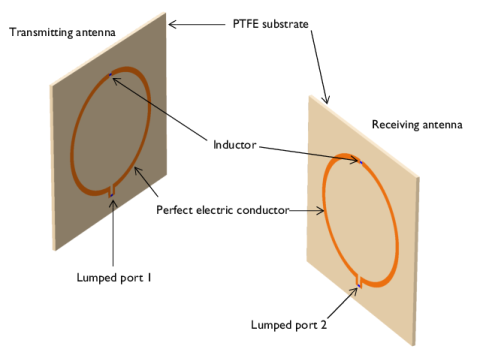
This example addresses the concept of wireless power transfer by studying the energy coupling between two circular loop antennas tuned for UHF RFID frequency whose size is reduced using chip inductors. While the orientation of a transmitting antenna is fixed, a receiving antenna is rotating and the best coupling configuration is investigated in terms of S-parameters.
Figure 1: Model set up to compute the coupling effect between two circular loop antennas based on the receiving antenna orientation. The air domain and perfectly matched layers are not shown in this figure.
Model Definition
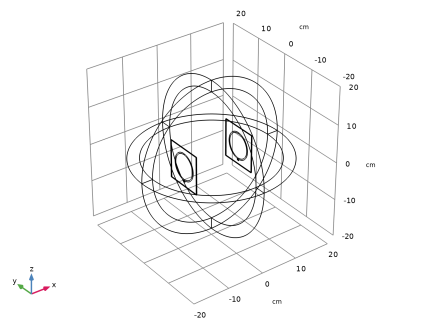
The model consists of two printed circular loop antennas enclosed by an air domain with perfectly matched layers (PML). The operating frequency of the antennas is 915 MHz for the UHF RFID communication.
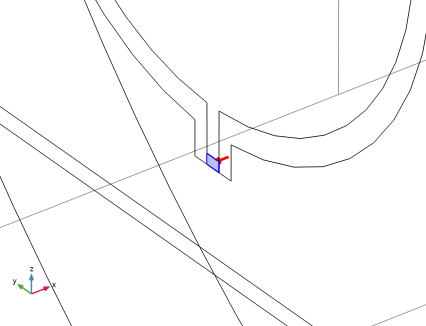
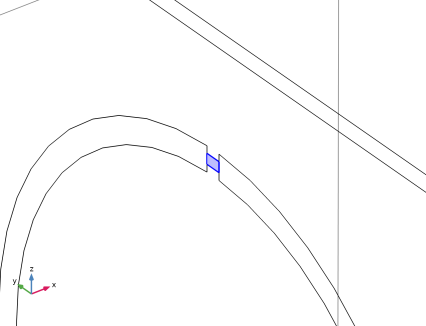
A thin copper layer is patterned on a 2 mm Polytetrafluoroethylene (PTFE) board. The thickness of the copper layer is geometrically very thin, but much thicker than the copper skin depth, δ= (2/ωμσ)1/2 2.15 μm at this frequency, so it is modeled as a perfect electric conductor (PEC). The antenna diameter is reduced down to ~0.22 λ0 by inserting a lumped inductor representing a 0805 surface mount device in the middle of each circular copper trace. On the split section of each trace configured as PEC, a lumped port with 50 Ω reference impedance is assigned to excite or terminate the antennas.
The surrounding PMLs are necessary to absorb the radiation from the transmitting antenna and describe the antenna coupling in infinite free space.
Results and Discussion
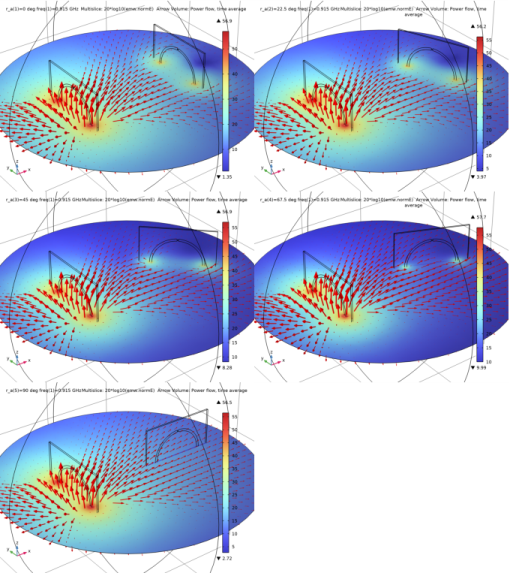
Figure 2 shows E-field norm distribution on the xy-plane and an arrow plot of the power flow from the transmitting antenna as a function of the receiving antenna rotation angle. When the two antennas are facing each other; the angle of rotation of the receiving antenna is 0 degrees and the fields are strongly coupled. When the angle of rotation of the receiving antenna is 90 degrees, there is no hot coupling area around the receiving antenna that can be visualized. The red arrows describing the power flow are penetrating the receiving antenna without noticeable distortion.
The computed input matching characteristic of the transmitting antenna via S11 is below 20 dB regardless of the receiving antenna orientation.
The coupling relation is summarized by approximating S21 in Table 1.
S21
The computed S21 value also shows almost no coupling at 90 degrees.
Figure 2: Plot of E-field norm and power flow at z = 0 while the receiving antenna is rotating from 0 to 90 degrees with a step of 22.5  degrees.
Application Library path: RF_Module/Antennas/uhf_wireless_power_transfer
Modeling Instructions
From the File menu, choose New.
New
In the New window, click  Model Wizard.
Model Wizard
1
In the Model Wizard window, click  3D.
2
In the Select Physics tree, select Radio Frequency > Electromagnetic Waves, Frequency Domain (emw).
3
Click Add.
4
Click  Study.
5
In the Select Study tree, select General Studies > Frequency Domain.
6
Study 1
Step 1: Frequency Domain
Define the study frequency ahead of performing any frequency-dependent operation such as building mesh. The physics-controlled mesh uses the specified frequency value.
1
In the Model Builder window, under Study 1 click Step 1: Frequency Domain.
2
In the Settings window for Frequency Domain, locate the Study Settings section.
3
In the Frequencies text field, type 915[MHz].
Global Definitions
Parameters 1
1
In the Model Builder window, under Global Definitions click Parameters 1.
2
In the Settings window for Parameters, locate the Parameters section.
3
Geometry 1
1
In the Model Builder window, under Component 1 (comp1) click Geometry 1.
2
In the Settings window for Geometry, locate the Units section.
3
From the Length unit list, choose cm.
Work Plane 1 (wp1)
1
In the Geometry toolbar, click  Work Plane.
2
In the Settings window for Work Plane, locate the Plane Definition section.
3
From the Plane list, choose yz-plane.
4
In the x-coordinate text field, type -8.
5
Click  Go to Plane Geometry.
Work Plane 1 (wp1) > Circle 1 (c1)
1
In the Work Plane toolbar, click  Circle.
2
In the Settings window for Circle, locate the Size and Shape section.
3
In the Radius text field, type 3.6.
Work Plane 1 (wp1) > Circle 2 (c2)
1
In the Work Plane toolbar, click  Circle.
2
In the Settings window for Circle, locate the Size and Shape section.
3
In the Radius text field, type 3.3.
Work Plane 1 (wp1) > Rectangle 1 (r1)
1
In the Work Plane toolbar, click  Rectangle.
2
In the Settings window for Rectangle, locate the Size and Shape section.
3
In the Width text field, type 0.2.
4
In the Height text field, type 8.
5
Locate the Position section. In the xw text field, type -0.1.
6
In the yw text field, type -4.
Work Plane 1 (wp1) > Difference 1 (dif1)
1
In the Work Plane toolbar, click  Booleans and Partitions and choose Difference.
2
Click the  Zoom Extents button in the Graphics toolbar.
3
4
In the Settings window for Difference, locate the Difference section.
5
Click to select the  Activate Selection toggle button for Objects to subtract.
6
Select the objects c2 and r1 only.
7
Click  Build Selected.
Work Plane 1 (wp1) > Rectangle 2 (r2)
1
In the Work Plane toolbar, click  Rectangle.
2
In the Settings window for Rectangle, locate the Size and Shape section.
3
In the Width text field, type 0.2.
4
In the Height text field, type 0.6.
5
Locate the Position section. In the xw text field, type -0.3.
6
In the yw text field, type -4.
Work Plane 1 (wp1) > Rectangle 3 (r3)
1
In the Work Plane toolbar, click  Rectangle.
2
In the Settings window for Rectangle, locate the Size and Shape section.
3
In the Width text field, type 0.2.
4
In the Height text field, type 0.6.
5
Locate the Position section. In the xw text field, type 0.1.
6
In the yw text field, type -4.
Work Plane 1 (wp1) > Union 1 (uni1)
1
In the Work Plane toolbar, click  Booleans and Partitions and choose Union.
2
In the Settings window for Union, locate the Union section.
3
Clear the Keep interior boundaries checkbox.
4
Click in the Graphics window and then press Ctrl+A to select all objects.
Work Plane 1 (wp1) > Rectangle 4 (r4)
1
In the Work Plane toolbar, click  Rectangle.
2
In the Settings window for Rectangle, locate the Size and Shape section.
3
In the Width text field, type 0.2.
4
In the Height text field, type 0.125.
5
Locate the Position section. From the Base list, choose Center.
6
In the yw text field, type -3.9375.
Work Plane 1 (wp1) > Rectangle 5 (r5)
1
In the Work Plane toolbar, click  Rectangle.
2
In the Settings window for Rectangle, locate the Size and Shape section.
3
In the Width text field, type 0.2.
4
In the Height text field, type 0.125.
5
Locate the Position section. In the yw text field, type 3.45.
6
From the Base list, choose Center.
Block 1 (blk1)
1
In the Model Builder window, right-click Geometry 1 and choose Block.
2
In the Settings window for Block, locate the Size and Shape section.
3
In the Width text field, type 0.2.
4
In the Depth text field, type 10.
5
In the Height text field, type 10.
6
Locate the Position section. From the Base list, choose Center.
7
In the x text field, type -8.1.
8
Click the  Wireframe Rendering button in the Graphics toolbar.
Mirror 1 (mir1)
1
In the Geometry toolbar, click  Transforms and choose Mirror.
2
Click the  Select All button in the Graphics toolbar.
3
In the Settings window for Mirror, locate the Normal Vector to Plane of Reflection section.
4
In the x text field, type 1.
5
In the z text field, type 0.
6
Locate the Input section. Select the Keep input objects checkbox.
7
Click  Build Selected.
8
Click the  Zoom Extents button in the Graphics toolbar.
Rotate 1 (rot1)
1
In the Geometry toolbar, click  Transforms and choose Rotate.
2
Select the objects mir1(1) and mir1(2) only.
3
In the Settings window for Rotate, locate the Rotation section.
4
In the Angle text field, type r_a.
5
Locate the Point on Axis of Rotation section. In the x text field, type 8.
Sphere 1 (sph1)
1
In the Geometry toolbar, click  Sphere.
2
In the Settings window for Sphere, locate the Size section.
3
In the Radius text field, type 20.
4
Click to expand the Layers section. In the table, enter the following settings:
5
Click  Build All Objects.
Definitions
Perfectly Matched Layer 1 (pml1)
1
In the Definitions toolbar, click  Perfectly Matched Layer.
2
In the Settings window for Perfectly Matched Layer, locate the Geometry section.
3
From the Type list, choose Spherical.
4
These are the outermost shell domains of the sphere.
Electromagnetic Waves, Frequency Domain (emw)
Perfect Electric Conductor 2
1
In the Physics toolbar, click  Boundaries and choose Perfect Electric Conductor.
2
Lumped Port 1
1
In the Physics toolbar, click  Boundaries and choose Lumped Port.
2
For the first port, wave excitation is on by default.
Lumped Port 2
1
In the Physics toolbar, click  Boundaries and choose Lumped Port.
2
Lumped Element 1
1
In the Physics toolbar, click  Boundaries and choose Lumped Element.
2
3
In the Settings window for Lumped Element, locate the Settings section.
4
From the Lumped element device list, choose Inductor.
5
In the Lelement text field, type 66[nH].
Lumped Element 2
1
In the Physics toolbar, click  Boundaries and choose Lumped Element.
2
3
In the Settings window for Lumped Element, locate the Settings section.
4
From the Lumped element device list, choose Inductor.
5
In the Lelement text field, type 66[nH].
Add Material
1
In the Materials toolbar, click  Add Material to open the Add Material window.
2
Go to the Add Material window.
3
In the tree, select Built-in > Air.
4
Click the Add to Component button in the window toolbar.
5
In the Materials toolbar, click  Add Material to close the Add Material window.
Materials
Material 2 (mat2)
1
In the Model Builder window, under Component 1 (comp1) right-click Materials and choose Blank Material.
2
3
In the Settings window for Material, locate the Material Contents section.
4
Mesh 1
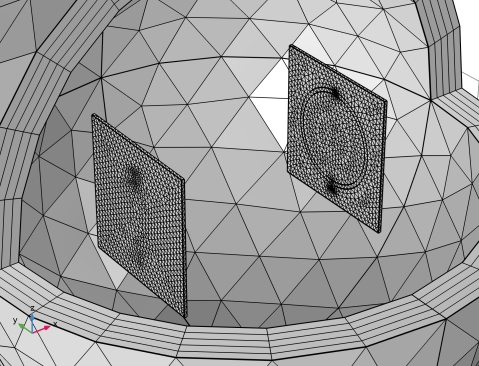
In the Model Builder window, under Component 1 (comp1) right-click Mesh 1 and choose Build All.
Definitions
Hide for Physics 1
1
In the Model Builder window, right-click View 1 and choose Hide for Physics.
2
In the Settings window for Hide for Physics, locate the Geometric Entity Selection section.
3
From the Geometric entity level list, choose Boundary.
4
You can define the above selection using the Paste Selection button in the setting window.
Mesh 1
In the Model Builder window, under Component 1 (comp1) click Mesh 1.
Study 1
Parametric Sweep
1
In the Study toolbar, click  Parametric Sweep.
2
In the Settings window for Parametric Sweep, locate the Study Settings section.
3
4
Step 1: Frequency Domain
In the Study toolbar, click  Compute.
Results
Multislice 1
1
In the Model Builder window, expand the Electric Field (emw) node, then click Multislice 1.
2
In the Settings window for Multislice, locate the Multiplane Data section.
3
Find the Y-planes subsection. In the Planes text field, type 0.
4
Find the X-planes subsection. In the Planes text field, type 0.
Visualize the norm of E-field in dB scale.
5
Locate the Expression section. In the Expression text field, type 20*log10(emw.normE).
6
In the Electric Field (emw) toolbar, click  Plot.
The field distribution of the PML domains is not of interest, so exclude them from the plot.
Probe Solution 3 (sol1)
In the Model Builder window, expand the Results > Datasets node, then click Probe Solution 3 (sol1).
Selection
1
In the Results toolbar, click  Attributes and choose Selection.
2
In the Settings window for Selection, locate the Geometric Entity Selection section.
3
From the Geometric entity level list, choose Domain.
4
Click  Paste Selection.
5
In the Paste Selection dialog, type 5, 6, 11 in the Selection text field.
6
Electric Field (emw)
Add an arrow volume plot of the power flow.
Arrow Volume 1
1
In the Model Builder window, right-click Electric Field (emw) and choose Arrow Volume.
2
In the Settings window for Arrow Volume, click Replace Expression in the upper-right corner of the Expression section. From the menu, choose Component 1 (comp1) > Electromagnetic Waves, Frequency Domain > Energy and power > emw.Poavx,...,emw.Poavz - Power flow, time average.
3
Locate the Arrow Positioning section. Find the X grid points subsection. In the Points text field, type 31.
4
Find the Y grid points subsection. In the Points text field, type 31.
5
Find the Z grid points subsection. In the Points text field, type 1.
6
Locate the Coloring and Style section. From the Arrow length list, choose Logarithmic.
7
In the Range quotient text field, type 1000.
Electric Field (emw)
1
In the Model Builder window, click Electric Field (emw).
2
In the Settings window for 3D Plot Group, locate the Data section.
3
From the Parameter value (r_a (deg)) list, choose 0.
4
In the Electric Field (emw) toolbar, click  Plot.
5
From the Parameter value (r_a (deg)) list, choose 22.5.
6
In the Electric Field (emw) toolbar, click  Plot.
7
From the Parameter value (r_a (deg)) list, choose 45.
8
In the Electric Field (emw) toolbar, click  Plot.
9
From the Parameter value (r_a (deg)) list, choose 67.5.
10
In the Electric Field (emw) toolbar, click  Plot.
11
From the Parameter value (r_a (deg)) list, choose 90.
12
In the Electric Field (emw) toolbar, click  Plot.
Compare all reproduced plots with Figure 2.
S-Parameter (emw)
The computed S11 should be below -10 dB and the computed S21 should decrease as the receiving loop antenna rotates.