





PDF

Transmission Line Parameters of a Coaxial Cable
Introduction
Transmission lines (TLs) are electromagnetic structures used to guide waves of alternating current and voltage at radio frequencies. Transmission lines are commonly found in electric and electronics applications, ranging from overhead lines spanning thousands of kilometers, to power cables used in motor application, and to copper traces in printed circuit board (PCB) designs, to give some examples. The first mathematical description of transmission-line structures dates back to 1876, when Oliver Heaviside proposed the well-known telegrapher’s equations. One of the advantages of the telegrapher’s equations is that they provide a circuital representation of a TL, which can therefore be analyzed using circuit theory rather than field theory. Another advantage of a circuital representation is that it can easily be embedded into circuit simulator tools. Typical tasks performed when analyzing transmission-line structures are: minimization of the losses, and minimization of the so-called “high-frequency effects” such as distortion, reflections, and crosstalk. Transmission line theory and its application are a cornerstone in RF and microwave engineering, and the reader is referred to the relevant literature for a comprehensive discussion about the topic; see under the section Reference. In the following, we merely provide the main theoretical background that is necessary to understand and use the simulation model.
When talking about TL models, we assume that the electromagnetic fields propagate mainly in the so-called transverse electromagnetic mode (TEM), or in the quasi-TEM mode when the losses in the conductors are small. Furthermore, defining λ as the wavelength of the line, and l the largest physical length of the line, we say that the line is electrically long when l >> λ. Transmission line theory is then necessary for electrically long lines, which require distributed models for their study, meaning, models that use the distributed parameters as computed by the Transmission Line, Parameters interface. Note that, conversely, the conductors separation in the cross section has to be electrically small for the model to be valid.
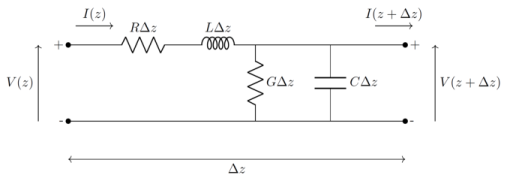
As mentioned earlier, a circuital representation of a transmission-line structure allows representing electromagnetic waves in terms of voltages and currents that can be described by resorting to circuit theory. In particular, given an section, or cell of length Δz of a generic TL that is electrically short, that is, Δz << λ, it can be proven that the section can be described by an equivalent circuit model as depicted in Figure 1. As a rule of thumb, an electrically short segment is such that its length is smaller than λ/10 or λ/20, depending on the application and the desired accuracy. Note that we will then need a number N of cells, such as NΔz = l, to cover the full length of the line and perform the desired analysis.
The lumped elements R, L, G, and C are the so-called distributed resistance, inductance, conductance, and capacitance, respectively, in per-unit-length, and are therefore commonly referred to as per-unit-length, or p.u.l. parameters. Note that we are considering only two-conductor TLs, namely transmission lines with one signal conductor and one reference conductor.
Figure 1: The equivalent-circuit representation for a section Δz of a generic TL.
Accordingly to the equivalent circuit representation provided above, the 1D, frequency-domain wave equation for the electric potential can be written as
A similar wave equation can be deduced for the current. The solution can be expressed in terms of a forward- and a backward-propagating wave as
where γ is the complex propagation constant given by
The characteristic impedance Zc of the transmission line relates the voltage and current, and can be written in terms of p.u.l. parameters as
The Transmission Line, Parameters interface computes the transmission line parameters R, L, G, and C, as well as γ and Zc for two-conductor transmission lines.
Model Definition
The first step to define the p.u.l. parameters is to designate the reference conductor for the line voltage. It can be shown that, under the TEM assumption, the sum of the currents at any cross-section must be zero; this means that one of the conductors, that is, the reference conductor must serve as a “return” for the currents on the other conductors. Once the reference conductor and the signal conductor are assigned, we can proceed with the p.u.l. parameters.
Given a section Δz, the total capacitance Ctot of the line relates the charge Q stored on the top and bottom conductors, and the voltage between them as Q = CV. Then, the p.u.l. capacitance C (SI unit: F/m) is defined as
where the capacitance carries the displacement current flowing in the transverse plane. Assuming that the charge is uniformly distributed around the periphery of the conductor, we can write Gauss’ law to relate the surface charge density ρ integrated on the closed surface S to the charge such as
In the interface, the surface charge density ρ is computed such that the voltage between the two conductors reaches the theoretical value of the applied voltage, equal to 1 V.
The conductance G (SI unit: S/m) accounts for the bound charge losses in the dielectric, considered to be dominant with respect to conduction losses, which is generally true for dielectrics. This formulation is suitable for both homogeneous and inhomogeneous media that surround the line. Therefore, the conductance G is nonzero only for dielectric defined with dielectric losses with a complex permittivity, or via a loss tangent. Note that the conductive losses in a dielectric are neglected.
As mentioned when talking about the reference conductor, the currents are equal and oppositely directed at any cross section. Therefore, the resistance R is computed as the sum of the resistance of the reference conductor and the signal conductor. To compute the resistance on the reference conductor, we basically solve for an external electric field excitation (SI unit: V/m), such as the current approaches the theoretical value of 1 A. The resistance is then computed as the ratio between the computed external electric field and the corresponding current. Similarly, for the signal conductor we solve in the same way, but the current shall approach the theoretical value of 1 A. Note that, in a good conductor, the dominant current is the conduction current, and the displacement current is negligible. Moreover, the current decays as a function of the skin depth, defined as
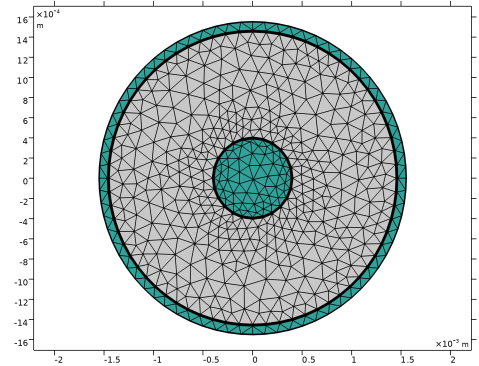
The skin depth is a measure of the exponential drop in current density with the distance to the surface inside conductors. It can be very small and needs to be resolved by the finite element mesh. This is obtained by using a special meshing method known as boundary layer meshing automatically provided by the physics-controlled mesh.
Finally, the inductance L (SI unit: H/m) as computed by the interface accounts for both the internal and external inductances; for a deeper discussion on the topic, we refer the reader to the relevant literature, see under the section Reference. In the interface, we consider the Telegrapher’s equation in the frequency domain for the voltage that reads as
where
with Li(ω) is the internal impedance. Since the impedance is already computed to extract the resistance R, we can easily define the inductance L as the imaginary part of the impedance.
Results and Discussion
After completing the computation, the transmission line parameters in Table 1 are automatically evaluated by default, and they include series resistance R, series inductance L, shunt conductance G, shunt capacitance C, all calculated per unit length, as well as characteristic impedance Zc and propagation constant γ.
4.2 Ω/m
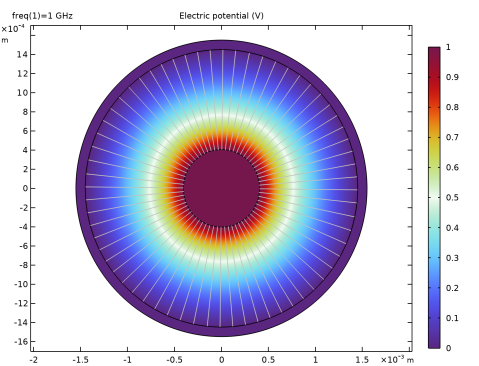
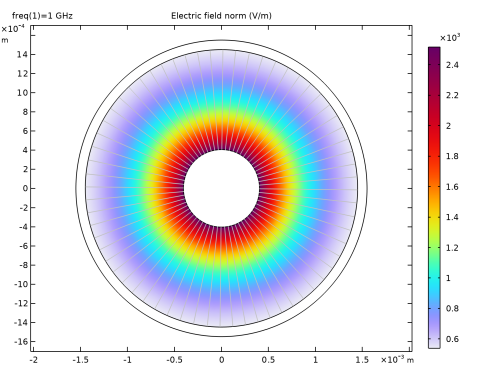
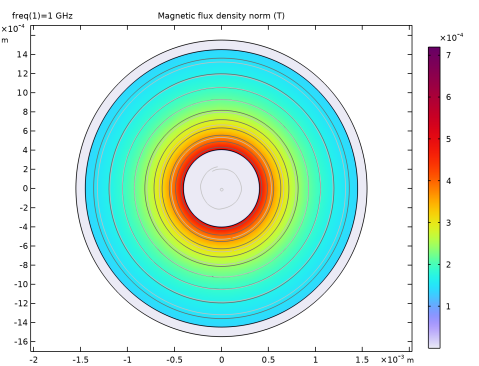
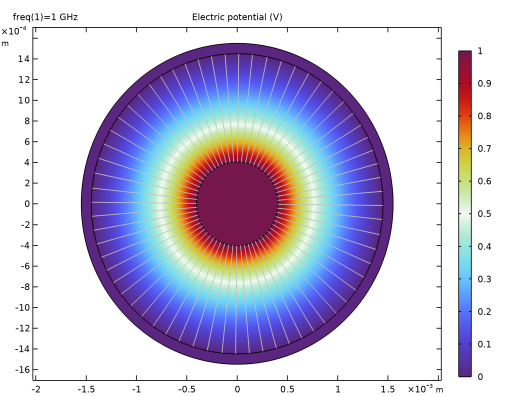
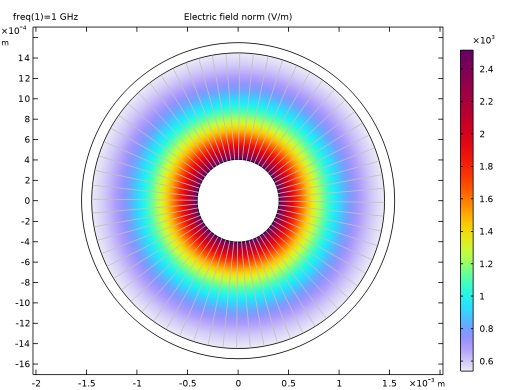
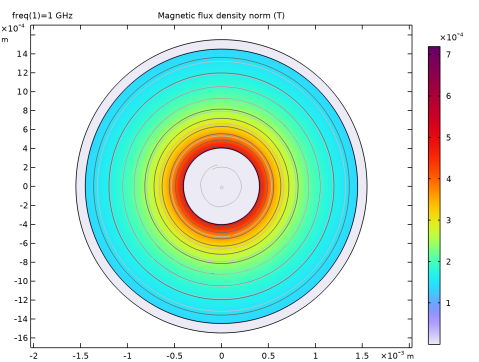
Several default plots help to understand the electromagnetic field behavior within the transmission line structure; in particular, the electric potential is depicted in Figure 2, the electric field norm is depicted in Figure 3, and the magnetic flux norm is depicted in Figure 4.
Figure 2: Surface plot of the electric potential along with a streamline plot of the electric field.
Figure 3: Surface plot of the electric field norm along with a streamline plot of the electric field.
Figure 4: Surface plot of the magnetic flux density norm along with a streamline plot of the magnetic flux density and a contour plot of the z-component of the magnetic vector potential.
Notes About the COMSOL Implementation
The TEM waves assumption underlying the Transmission Line, Parameters multiphysics interface is only valid if the distance between forward (signal path) and return (ground) conductors is substantially smaller than the wavelength in the medium (<10%).
Reference
1. C.R. Paul, Analysis of multiconductor transmission lines, John Wiley & Sons, 2007.
Application Library path: RF_Module/Transmission_Lines_and_Waveguides/transmission_line_coaxial
Modeling Instructions
From the Main Toolbar menu, choose New.
New
In the New window, click  Model Wizard.
Model Wizard
1
In the Model Wizard window, click  2D.
2
In the Select Physics tree, select Radio Frequency > Transmission Line, Parameters (tlpa).
3
Click Add.
4
Click  Study.
5
In the Select Study tree, select General Studies > Frequency Domain.
6
Global Definitions
Parameters 1
1
In the Model Builder window, under Global Definitions click Parameters 1.
2
In the Settings window for Parameters, locate the Parameters section.
3
Geometry 1
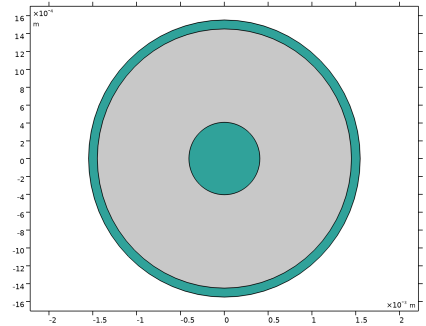
Circle 1 (c1)
1
In the Model Builder window, expand the Component 1 (comp1) > Geometry 1 node.
2
Right-click Geometry 1 and choose Circle.
3
In the Settings window for Circle, locate the Size and Shape section.
4
In the Radius text field, type Ro_coax+d_s_coax.
5
Locate the Selections of Resulting Entities section. Select the Resulting objects selection checkbox.
6
From the Color list, choose Color 16.
Circle 2 (c2)
1
In the Geometry toolbar, click  Circle.
2
In the Settings window for Circle, locate the Size and Shape section.
3
In the Radius text field, type Ro_coax.
Difference 1 (dif1)
In the Geometry toolbar, click  Booleans and Partitions and choose Difference.
Circle 1 (c1)
1
In the Model Builder window, click Circle 1 (c1).
2
In the Settings window for Circle, click  Build Selected.
3
Click the  Zoom Extents button in the Graphics toolbar.
Circle 2 (c2)
1
In the Model Builder window, click Circle 2 (c2).
2
In the Settings window for Circle, click  Build Selected.
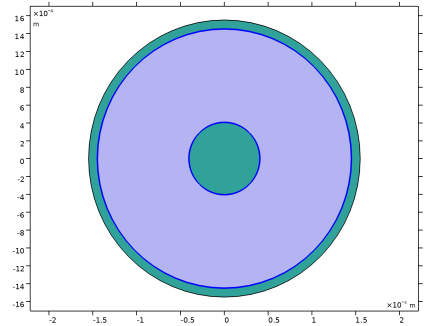
Reference Conductor
1
In the Model Builder window, under Component 1 (comp1) > Geometry 1 click Difference 1 (dif1).
2
In the Settings window for Difference, type Reference Conductor in the Label text field.
3
4
Locate the Difference section. Click to select the  Activate Selection toggle button for Objects to add.
5
6
Click to select the  Activate Selection toggle button for Objects to subtract.
7
8
Click  Build Selected.
Dielectric
1
In the Geometry toolbar, click  Circle.
2
In the Settings window for Circle, type Dielectric in the Label text field.
3
Locate the Size and Shape section. In the Radius text field, type Ro_coax.
4
Click  Build Selected.
Signal Conductor
1
In the Geometry toolbar, click  Circle.
2
In the Settings window for Circle, type Signal Conductor in the Label text field.
3
Locate the Size and Shape section. In the Radius text field, type Ri_coax.
4
Locate the Selections of Resulting Entities section. Select the Resulting objects selection checkbox.
5
From the Color list, choose Color 16.
6
Click  Build Selected.
7
In the Geometry toolbar, click  Build All.
Materials
Conductor
1
In the Model Builder window, under Component 1 (comp1) right-click Materials and choose Blank Material.
2
In the Settings window for Material, type Conductor in the Label text field.
3
4
In the Model Builder window, expand the Component 1 (comp1) > Materials > Conductor (mat1) node, then click Basic (def).
5
In the Settings window for Basic, locate the Output Properties section.
6
Click  Select Quantity.
7
In the Physical Quantity dialog, select Electromagnetics > Electric conductivity (S/m) in the tree.
8
9
In the Settings window for Basic, locate the Output Properties section.
10
11
Click  Select Quantity.
12
In the Physical Quantity dialog, select Electromagnetics > Relative permeability (1) in the tree.
13
14
In the Settings window for Basic, locate the Output Properties section.
15
16
Click  Select Quantity.
17
In the Physical Quantity dialog, select Electromagnetics > Relative permittivity (1) in the tree.
18
19
In the Settings window for Basic, locate the Output Properties section.
20
Dielectric
1
In the Model Builder window, right-click Materials and choose Blank Material.
2
In the Settings window for Material, type Dielectric in the Label text field.
3
4
In the Model Builder window, expand the Component 1 (comp1) > Materials > Dielectric (mat2) node, then click Basic (def).
5
In the Settings window for Basic, locate the Output Properties section.
6
Click  Select Quantity.
7
In the Physical Quantity dialog, select Electromagnetics > Relative permittivity (1) in the tree.
8
9
In the Settings window for Basic, locate the Output Properties section.
10
11
Click  Select Quantity.
12
In the Physical Quantity dialog, select Electromagnetics > Relative permeability (1) in the tree.
13
14
In the Settings window for Basic, locate the Output Properties section.
15
16
Click  Select Quantity.
17
In the Physical Quantity dialog, select Electromagnetics > Electric conductivity (S/m) in the tree.
18
19
In the Settings window for Basic, locate the Output Properties section.
20
Transmission Line, Parameters (tlpa)
Reference Conductor 1
1
In the Model Builder window, under Component 1 (comp1) > Transmission Line, Parameters (tlpa) click Reference Conductor 1.
2
Signal Conductor 1
1
In the Model Builder window, click Signal Conductor 1.
2
Study 1
Step 1: Frequency Domain
1
In the Model Builder window, under Study 1 click Step 1: Frequency Domain.
2
In the Settings window for Frequency Domain, locate the Study Settings section.
3
From the Frequency unit list, choose GHz.
4
In the Frequencies text field, type frq_coax.
Mesh 1
1
In the Model Builder window, expand the Results node.
2
Right-click Component 1 (comp1) > Mesh 1 and choose Build All.
Study 1
In the Study toolbar, click  Compute.
Results
Transmission Line Parameters (tlpa)
In the Transmission Line Parameters (tlpa) toolbar, click  Evaluate.
Electric Potential
1
In the Model Builder window, click Electric Potential.
2
In the Electric Potential toolbar, click  Plot.
Electric Field
1
In the Model Builder window, click Electric Field.
2
In the Electric Field toolbar, click  Plot.
Magnetic Flux Density Norm
1
In the Model Builder window, click Magnetic Flux Density Norm.
2
In the Magnetic Flux Density Norm toolbar, click  Plot.