PDF

Efficient Modeling of a Spherical Radome
Introduction
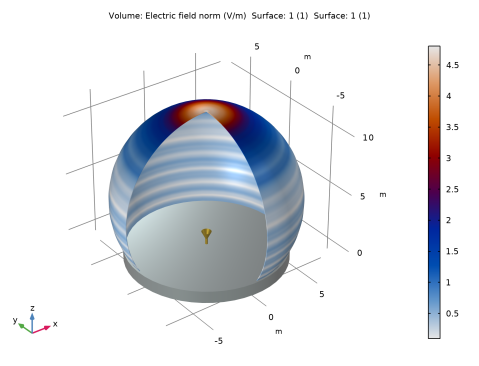
This model demonstrates an efficient approach to simulating a thin, spherical, large radome using a 2D axisymmetric formulation with cubic discretization. The axisymmetric method captures full 3D behavior for azimuthally symmetric geometries at only a fraction of the computational cost. When the simulation domains are predominantly filled with air or dielectric, using higher-order elements such as cubic element on a coarse mesh can significantly reduce computational cost while preserving accuracy.
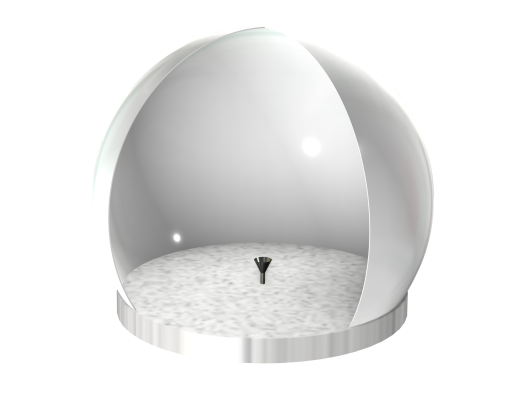
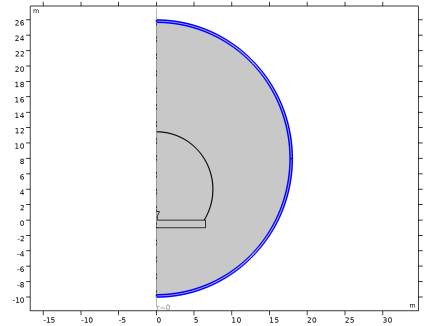
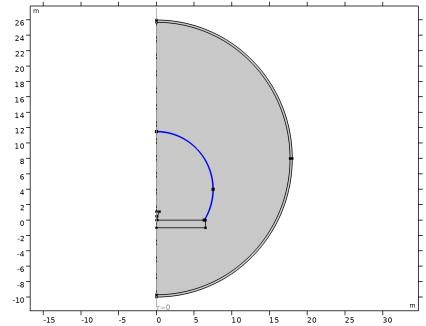
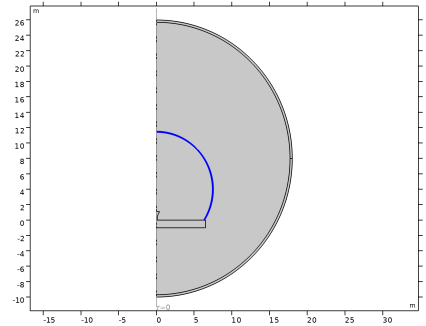
Figure 1: Circular horn antenna mounted inside a spherical radome, where all structures are symmetric about the vertical axis.
Model Definition
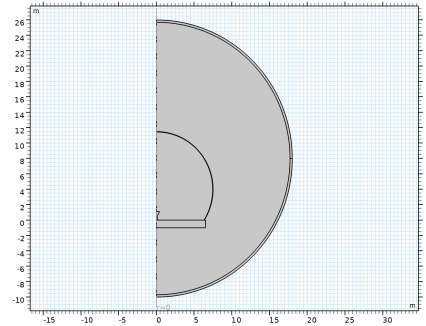
The radome geometry is represented by half of its 2D profile, utilizing axisymmetry to enable efficient simulation.
A circular horn operating at 1 GHz with an aperture size exceeding 2.6 wavelengths is mounted on a metallic support that forms the base of the spherical radome. The antenna is excited with the TE1 circular port mode and further adjusted with azimuthal mode 1 in the 2D axisymmetric formulation. This approach makes the simulation equivalent to the TE11 dominant mode of a circular port in a full 3D model.
The radome wall, 5 cm thick, is composed of a low-loss foam material with a relative permittivity of 1.05 and a loss tangent of 0.0005. It is coated with a thin fiber-glass-epoxy skin (εr = 4, tanδ = 0.01) of 2 mm thickness. Since the coating is electrically thin at 1 GHz operating frequency in the L-band, it is modeled using a transition boundary condition.
The entire radome structure is enclosed with a large air domain, whose outer boundary is terminated with a perfectly matched layer (PML) to absorb out going waves and emulate an unbounded space.
The model assumes that the metallic base support is sufficiently large to reflect any spillover from the circular horn, while the actual earth ground is not included in the simulation.
Most of the computational domain is filled with air, which primarily serves as the wave propagation region. In such cases, switching from the default quadratic discretization to cubic elements improves efficiency and accelerates computation.
Results and Discussion
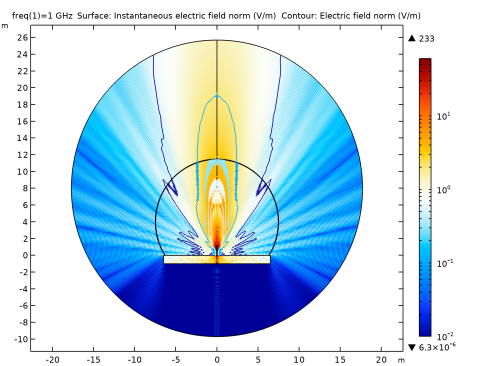
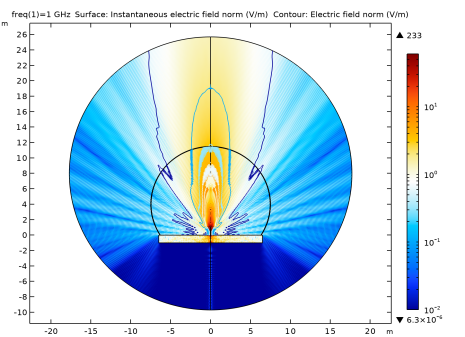
Figure 2 presents the instantaneous norm of the electric field with contour overlays with a Mirror 2D dataset. Unlike the regular norm, the instantaneous representation clearly illustrates the sinusoidal nature of the wave as it propagates radially outward. The view provides additional physical intuition about the field distribution compared to the default norm plot, which only shows the overall field intensity. The results also indicate that the field is not significantly diffracted as it penetrates the radome wall.
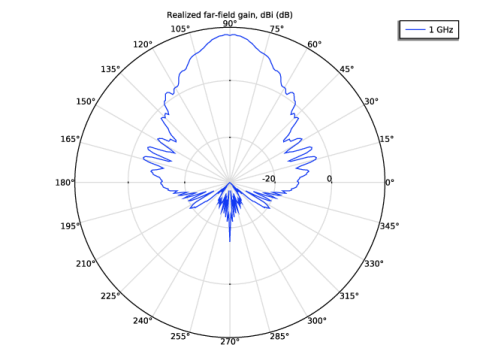
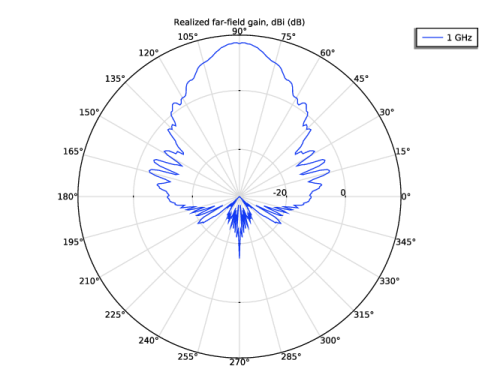
Figure 3 shows the realized gain polar plot on the xy-plane, where multiple sidelobes are observed.
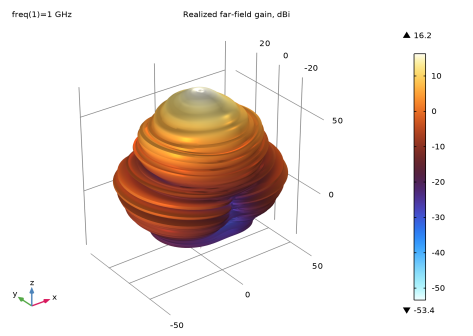
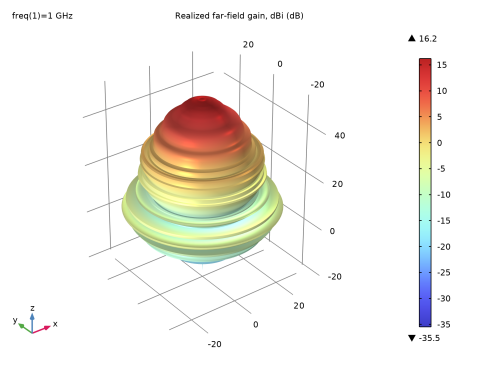
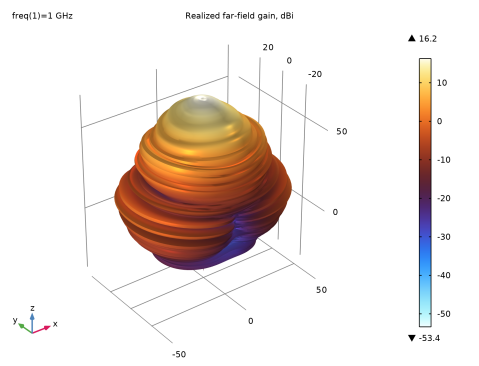
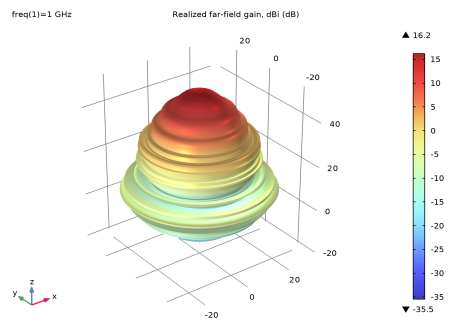
Figure 4 shows the 3D far-field realized fain pattern. This is not a true 3D result but rather a body-of-revolution of the 2D far-field, and thus the visualization is axisymmetric. In order to obtain a result equivalent to a true 3D presentation, the built-in function rGaindB3DEfar_TE11(angle) can be used, provided that the radiation and overall characteristics of the excited port mode remain undistorted. The corresponding results are shown in Figure 5.
Figure 2: Instantaneous norm of the electric field with contour overlay. The wave propagates in the positive z-direction.
Figure 3: Realized gain on the xz-plane, with the plotting dynamic range of ~55 dB.
Figure 4: 3D far-field realized gain pattern in dB scale, obtained as a body-of-revolution of the 2D polar plot.
Figure 5: 3D far-field realized gain pattern, corresponding to a 3D model excited with the TE11 circular port mode.
Notes About the COMSOL Implementation
When higher-order elements are used, it is important to monitor the reported degrees of freedom (DoFs) in the Message window. With cubic elements, the mesh may become coarser than the default quadratic mesh, thereby reducing the DoFs. However, if the geometry contains many details, the coarse mesh will be overridden by a finer one due to geometric complexity. As a result, the model may require more computational resources than the default quadratic elements, thereby losing the intended advantage.
This model requires at least 25 GB of memory for computation, whereas the default quadratic elements require a minimum of 40 GB.
Application Library path: RF_Module/Antennas/radome_spherical
Modeling Instructions
From the File menu, choose New.
New
In the New window, click  Model Wizard.
Model Wizard
1
In the Model Wizard window, click  2D Axisymmetric.
2
In the Select Physics tree, select Radio Frequency > Electromagnetic Waves, Frequency Domain (emw).
3
Click Add.
4
Click  Study.
5
In the Select Study tree, select General Studies > Frequency Domain.
6
Geometry 1
Circle 1 (c1)
1
In the Geometry toolbar, click  Circle.
2
In the Settings window for Circle, locate the Size and Shape section.
3
In the Radius text field, type 7.5.
4
Locate the Position section. In the z text field, type 4.
5
Click to expand the Layers section. In the table, enter the following settings:
Rectangle 1 (r1)
1
In the Geometry toolbar, click  Rectangle.
2
In the Settings window for Rectangle, locate the Size and Shape section.
3
In the Width text field, type 13.
4
In the Height text field, type 4.
5
Locate the Position section. From the Base list, choose Center.
6
In the z text field, type -2.
7
In the Model Builder window, click Rectangle 1 (r1).
8
From the Base list, choose Center.
Difference 1 (dif1)
1
In the Geometry toolbar, click  Booleans and Partitions and choose Difference.
2
3
In the Settings window for Difference, locate the Difference section.
4
Click to select the  Activate Selection toggle button for Objects to subtract.
5
6
Click  Build Selected.
Rectangle 2 (r2)
1
In the Geometry toolbar, click  Rectangle.
2
In the Settings window for Rectangle, locate the Size and Shape section.
3
In the Width text field, type 13.
4
Locate the Position section. From the Base list, choose Center.
5
In the z text field, type -0.5.
Circle 2 (c2)
1
In the Geometry toolbar, click  Circle.
2
In the Settings window for Circle, locate the Size and Shape section.
3
In the Radius text field, type 18.
4
Locate the Position section. In the z text field, type 8.
5
Locate the Layers section. In the table, enter the following settings:
Rectangle 3 (r3)
1
In the Geometry toolbar, click  Rectangle.
2
In the Settings window for Rectangle, locate the Size and Shape section.
3
In the Width text field, type 25.
4
In the Height text field, type 50.
5
Locate the Position section. In the r text field, type -25.
6
In the z text field, type -15.
7
Click the  Zoom Extents button in the Graphics toolbar.
8
Click  Build Selected.
Difference 2 (dif2)
1
In the Geometry toolbar, click  Booleans and Partitions and choose Difference.
2
Click the  Select Box button in the Graphics toolbar.
3
Select the objects c2, dif1, and r2 only.
4
In the Settings window for Difference, locate the Difference section.
5
Click to select the  Activate Selection toggle button for Objects to subtract.
6
7
Click  Build Selected.
8
Click the  Zoom Extents button in the Graphics toolbar.
Polygon 1 (pol1)
1
In the Geometry toolbar, click  Polygon.
2
In the Settings window for Polygon, locate the Coordinates section.
3
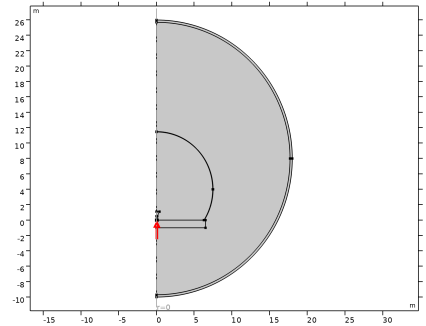
Rectangle 4 (r4)
1
In the Geometry toolbar, click  Rectangle.
2
In the Settings window for Rectangle, locate the Size and Shape section.
3
In the Width text field, type 0.1.
4
In the Height text field, type 0.5.
5
Click  Build All Objects.
Definitions
Perfectly Matched Layer 1 (pml1)
1
In the Definitions toolbar, click  Perfectly Matched Layer.
2
Electromagnetic Waves, Frequency Domain (emw)
1
In the Model Builder window, under Component 1 (comp1) click Electromagnetic Waves, Frequency Domain (emw).
2
In the Settings window for Electromagnetic Waves, Frequency Domain, click to expand the Discretization section.
3
Locate the Out-of-Plane Wave Number section. In the m text field, type 1.
4
Locate the Discretization section. From the Electric field list, choose Cubic.
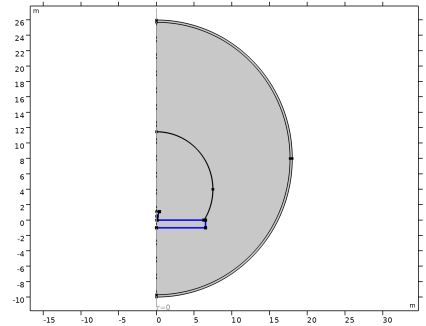
Port 1
1
In the Physics toolbar, click  Boundaries and choose Port.
2
3
In the Settings window for Port, locate the Port Properties section.
4
From the Type of port list, choose Circular.
5
Clear the Enable active port feedback checkbox.
6
Select the Activate slit condition on interior port checkbox.
7
Click Toggle Power Flow Direction.
Perfect Electric Conductor 2
1
In the Physics toolbar, click  Boundaries and choose Perfect Electric Conductor.
2
Wave Equation, Electric 2
1
In the Physics toolbar, click  Domains and choose Wave Equation, Electric.
2
3
In the Settings window for Wave Equation, Electric, locate the Electric Displacement Field section.
4
From the Electric displacement field model list, choose Loss tangent, dissipation factor.
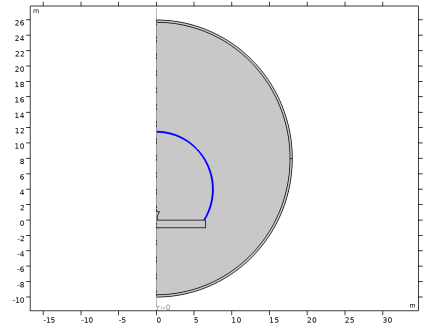
Transition Boundary Condition 1
1
In the Physics toolbar, click  Boundaries and choose Transition Boundary Condition.
2
3
In the Settings window for Transition Boundary Condition, locate the Transition Boundary Condition section.
4
From the Electric displacement field model list, choose Loss tangent, dissipation factor.
5
From the ε′ list, choose User defined. In the associated text field, type 4.
6
From the tanδ list, choose User defined. In the associated text field, type 0.01.
7
From the μr list, choose User defined. In the d text field, type 2[mm].
Far-Field Domain 1
In the Physics toolbar, click  Domains and choose Far-Field Domain.
Materials
Add Material
From the Home menu, choose Add Material.
Add Material
1
Go to the Add Material window.
2
In the tree, select Built-in > Air.
3
Click the Add to Component button in the window toolbar.
4
From the Home menu, choose Add Material.
Materials
Foam
1
In the Model Builder window, expand the Far-Field Domain 1 node.
2
Right-click Component 1 (comp1) > Materials and choose Blank Material.
3
In the Settings window for Material, type Foam in the Label text field.
4
5
Locate the Material Contents section. In the table, enter the following settings:
Study 1
1
In the Home toolbar, click  Compute.
If not already added, the physics-controlled mesh is automatically generated before computation.
Results
Mirror 2D 1
In the Results toolbar, click  More Datasets and choose Mirror 2D.
Electric Field (emw)
1
In the Model Builder window, under Results click Electric Field (emw).
2
In the Settings window for 2D Plot Group, locate the Data section.
3
From the Dataset list, choose Mirror 2D 1.
Surface 1
1
In the Model Builder window, expand the Electric Field (emw) node, then click Surface 1.
2
In the Settings window for Surface, locate the Expression section.
3
In the Expression text field, type emw.normEi.
4
Click to expand the Range section. Select the Manual color range checkbox.
5
In the Minimum text field, type 1e-2.
6
In the Maximum text field, type 60.
7
Click to expand the Range section. Locate the Coloring and Style section. From the Color table list, choose Ranitomeya.
8
From the Scale list, choose Logarithmic.
Contour 1
1
In the Model Builder window, right-click Electric Field (emw) and choose Contour.
2
In the Settings window for Contour, locate the Levels section.
3
In the Total levels text field, type 30.
4
Locate the Coloring and Style section. From the Color table list, choose Ranitomeya.
5
Clear the Color legend checkbox.
6
From the Scale list, choose Logarithmic.
Selection 1
1
Right-click Contour 1 and choose Selection.
2
3
In the Electric Field (emw) toolbar, click  Plot.
Radiation Pattern 1
1
In the Model Builder window, expand the Results > 2D Far Field (emw) node, then click Radiation Pattern 1.
2
In the Settings window for Radiation Pattern, locate the Expression section.
3
In the Expression text field, type emw.rGaindBEfar.
4
Locate the Evaluation section. Find the Angles subsection. In the Number of angles text field, type 360.
5
Find the Normal vector subsection. In the y text field, type -1.
6
Find the Reference direction subsection. In the x text field, type 1.
7
In the z text field, type 0.
8
In the 2D Far Field (emw) toolbar, click  Plot.
3D Far Field, Gain (emw)
In the Model Builder window, under Results click 3D Far Field, Gain (emw).
3D Far Field, Gain (emw), TE11
1
Right-click 3D Far Field, Gain (emw) and choose Duplicate.
2
In the Settings window for 3D Plot Group, type 3D Far Field, Gain (emw), TE11 in the Label text field.
Radiation Pattern 1
1
In the Model Builder window, expand the 3D Far Field, Gain (emw), TE11 node, then click Radiation Pattern 1.
2
In the Settings window for Radiation Pattern, locate the Expression section.
3
In the Expression text field, type emw.rGaindB3DEfar_TE11(angle).
4
Locate the Evaluation section. Find the Angles subsection. In the Azimuthal angle variable text field, type angle.
5
Locate the Coloring and Style section. From the Color table list, choose ThermalWave.
Revolution 2D, Horn
1
In the Results toolbar, click  More Datasets and choose Revolution 2D.
2
In the Settings window for Revolution 2D, type Revolution 2D, Horn in the Label text field.
Selection
1
In the Results toolbar, click  Attributes and choose Selection.
2
In the Settings window for Selection, locate the Geometric Entity Selection section.
3
From the Geometric entity level list, choose Boundary.
4
Revolution 2D, Bottom
1
In the Model Builder window, right-click Revolution 2D, Horn and choose Duplicate.
2
In the Settings window for Revolution 2D, type Revolution 2D, Bottom in the Label text field.
Selection
1
In the Model Builder window, expand the Revolution 2D, Bottom node, then click Selection.
2
In the Settings window for Selection, locate the Geometric Entity Selection section.
3
Click  Clear Selection.
4
Revolution 2D, Radome
1
In the Results toolbar, click  More Datasets and choose Revolution 2D.
2
In the Settings window for Revolution 2D, type Revolution 2D, Radome in the Label text field.
3
Click to expand the Revolution Layers section. In the Start angle text field, type -90.
4
In the Revolution angle text field, type 270.
Selection
1
In the Results toolbar, click  Attributes and choose Selection.
2
In the Settings window for Selection, locate the Geometric Entity Selection section.
3
From the Geometric entity level list, choose Domain.
4
3D Plot Group 6
In the Results toolbar, click  3D Plot Group.
Volume 1
1
Right-click 3D Plot Group 6 and choose Volume.
2
In the Settings window for Volume, locate the Data section.
3
From the Dataset list, choose Revolution 2D, Radome.
4
Locate the Expression section. In the Expression text field, type emw.normE.
5
Locate the Coloring and Style section. From the Color table list, choose Xylethrus.
Material Appearance 1
1
Right-click Volume 1 and choose Material Appearance.
2
In the Settings window for Material Appearance, locate the Appearance section.
3
From the Appearance list, choose Custom.
4
Locate the Color section. Select the Use the plot’s color checkbox.
5
In the 3D Plot Group 6 toolbar, click  Plot.
Surface 1
1
In the Model Builder window, right-click 3D Plot Group 6 and choose Surface.
2
In the Settings window for Surface, locate the Data section.
3
From the Dataset list, choose Revolution 2D, Horn.
4
Locate the Expression section. In the Expression text field, type 1.
Material Appearance 1
1
Right-click Surface 1 and choose Material Appearance.
2
In the Settings window for Material Appearance, locate the Appearance section.
3
From the Appearance list, choose Custom.
4
From the Material type list, choose Gold.
Surface 2
1
In the Model Builder window, right-click 3D Plot Group 6 and choose Surface.
2
In the Settings window for Surface, locate the Data section.
3
From the Dataset list, choose Revolution 2D, Bottom.
4
Locate the Expression section. In the Expression text field, type 1.
Material Appearance 1
1
Right-click Surface 2 and choose Material Appearance.
2
In the Settings window for Material Appearance, locate the Appearance section.
3
From the Appearance list, choose Custom.
4
From the Material type list, choose Chrome.
3D Plot Group 6
1
In the Model Builder window, under Results click 3D Plot Group 6.
2
In the Settings window for 3D Plot Group, locate the Plot Settings section.
3
Clear the Plot dataset edges checkbox.
4
In the 3D Plot Group 6 toolbar, click  Plot.
5
Click the  Zoom Extents button in the Graphics toolbar.