PDF

Notch Filter Using a Split Ring Resonator
Introduction
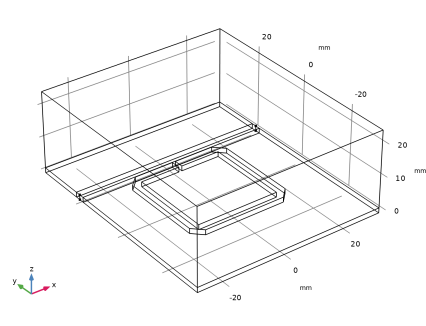
A split ring resonator (SRR) has a band-stop frequency response. In this example, a printed SRR on a dielectric substrate is coupled to a microstrip line. The entire circuit behaves as a notch (band-stop) filter, which can be used to block a specific signal frequency range.
Figure 1: A split ring resonator coupled to a microstrip line.
Model Definition
Using the resonance characteristics of a split ring resonator, either a band-pass or band-stop filter can be realized on a microstrip line type structure. The band-pass or band-stop frequency response depends on the coupling configuration between a microstrip line and a split ring resonator.
In this example, to get a band-stop filter response, the split part of the resonator is adjacent and coupled to the straight microstrip line (Figure 1). On a ground plane, the printed split ring resonator, on a 1.524 mm thick dielectric (εr = 3.38) substrate, has multiple resonant modes. Although not included in this example, the resonant modes can be identified using an eigenfrequency analysis. Among those resonant modes, the frequency close to 2.4 GHz is of interest. The split ring resonator’s frequency response is studied when it is coupled to the microstrip line.
All metal parts are modeled as perfect electric conductors (PEC). Scattering boundary conditions are assigned on all exterior boundaries of the simulation domain, except for the ground plane. The remaining part is characterized as a vacuum domain.
On the surfaces of each end of the microstrip line, including the air domain, a numeric port is added that calculates the electric mode field on the given structure, with an effective dielectric constant εr = sqrt(3.38). This is done through a Boundary Mode analysis. In the numeric port setting, “Analyzed as a TEM field” is selected. To compute the voltage and current of the port, this setting requires defined electric and magnetic field integration lines, respectively. The port characteristic impedance is calculated using the voltage and current extracted from these integration lines. The port mode field is scaled by the ratio of the calculated impedance and the reference impedance, defined in the settings window. The electric fields are guided between two conductors and the field component in the direction of propagation, the normal to the port boundary is negligible. Thus, it is reasonable to analyze the port mode as transverse electromagnetic (TEM) field.
Results and Discussion
The default electric field norm on the xy-plane is plotted in Figure 2. The electric fields are confined symmetrically along the split ring resonator at 2.4 GHz. Figure 3 shows the frequency response of the device. Around 2.4 GHz, its S11 is almost 0 dB, while its S21 is below 10 dB, so it behaves as band-stop (notch) filter.
Figure 2: The electric field norm visualized on the xy-plane.
Figure 3: The S-parameter plot showing a band-stop frequency response.
Notes About the COMSOL Implementation
To learn more about how to define integration lines for calculating the voltage and the current of the numeric TEM port, review the following examples in the Application Libraries:
RF Module/Verification Models/coaxial_cable_impedance
RF Module/Verification Models/parallel_wires_impedance
Application Library path: RF_Module/Filters/notch_filter_srr
Modeling Instructions
From the File menu, choose New.
New
In the New window, click  Model Wizard.
Model Wizard
1
In the Model Wizard window, click  3D.
2
In the Select Physics tree, select Radio Frequency > Electromagnetic Waves, Frequency Domain (emw).
3
Click Add.
4
Add Study
1
In the Home toolbar, click  Add Study to open the Add Study window.
2
Go to the Add Study window.
3
Find the Studies subsection. In the Select Study tree, select Preset Studies for Selected Physics Interfaces > Boundary Mode Analysis.
4
5
In the Home toolbar, click  Add Study to close the Add Study window.
Study 1
Step 1: Boundary Mode Analysis
Define the study frequency ahead of performing any frequency-dependent operation such as building mesh. The physics-controlled mesh uses the highest frequency value in the specified range.
1
In the Settings window for Boundary Mode Analysis, locate the Study Settings section.
2
In the Mode analysis frequency text field, type 2.4[GHz].
3
Select the Search for modes around shift checkbox. In the associated text field, type sqrt(3.38).
Step 3: Boundary Mode Analysis 1
1
Right-click Study 1 > Step 1: Boundary Mode Analysis and choose Duplicate.
2
Right-click Step 3: Boundary Mode Analysis 1 and choose Move Up.
3
In the Settings window for Boundary Mode Analysis, locate the Study Settings section.
4
In the Port name text field, type 2.
Step 3: Frequency Domain
1
In the Model Builder window, click Step 3: Frequency Domain.
2
In the Settings window for Frequency Domain, locate the Study Settings section.
3
In the Frequencies text field, type range(2.1[GHz],0.05[GHz],2.7[GHz]).
Geometry 1
1
In the Model Builder window, under Component 1 (comp1) click Geometry 1.
2
In the Settings window for Geometry, locate the Units section.
3
From the Length unit list, choose mm.
Work Plane 1 (wp1)
In the Geometry toolbar, click  Work Plane.
Work Plane 1 (wp1) > Plane Geometry
In the Model Builder window, click Plane Geometry.
Work Plane 1 (wp1) > Rectangle 1 (r1)
1
In the Work Plane toolbar, click  Rectangle.
2
In the Settings window for Rectangle, locate the Size and Shape section.
3
In the Width text field, type 60.
4
In the Height text field, type 3.2.
5
Locate the Position section. From the Base list, choose Center.
6
In the yw text field, type 18.
Work Plane 1 (wp1) > Rectangle 2 (r2)
1
In the Work Plane toolbar, click  Rectangle.
2
In the Settings window for Rectangle, locate the Size and Shape section.
3
In the Width text field, type 60.
4
In the Height text field, type 70.
5
Locate the Position section. From the Base list, choose Center.
6
Click  Build Selected.
7
Click the  Zoom Extents button in the Graphics toolbar.
Work Plane 1 (wp1) > Rectangle 3 (r3)
1
In the Work Plane toolbar, click  Rectangle.
2
In the Settings window for Rectangle, locate the Size and Shape section.
3
In the Width text field, type 32.
4
In the Height text field, type 32.
5
Locate the Position section. In the xw text field, type -16.
6
In the yw text field, type -15.7.
Work Plane 1 (wp1) > Rectangle 4 (r4)
1
In the Work Plane toolbar, click  Rectangle.
2
In the Settings window for Rectangle, locate the Size and Shape section.
3
In the Width text field, type 26.
4
In the Height text field, type 26.
5
Locate the Position section. In the xw text field, type -13.
6
In the yw text field, type -12.7.
Work Plane 1 (wp1) > Rectangle 5 (r5)
1
In the Work Plane toolbar, click  Rectangle.
2
In the Settings window for Rectangle, locate the Size and Shape section.
3
In the Height text field, type 6.
4
Locate the Position section. In the xw text field, type -0.5.
5
In the yw text field, type 12.
Work Plane 1 (wp1) > Difference 1 (dif1)
1
In the Work Plane toolbar, click  Booleans and Partitions and choose Difference.
2
3
In the Settings window for Difference, locate the Difference section.
4
Click to select the  Activate Selection toggle button for Objects to subtract.
5
Select the objects r4 and r5 only.
Work Plane 1 (wp1) > Chamfer 1 (cha1)
1
In the Work Plane toolbar, click  Chamfer.
2
In the Settings window for Chamfer, locate the Distance section.
3
In the Distance from vertex text field, type 3.
4
On the object dif1, select Points 1, 2, 11, and 12 only.
It might be easier to select the points by using the Selection List window. To open this window, in the Home toolbar click Windows and choose Selection List. (If you are running the cross-platform desktop, you find Windows in the main menu.)
Extrude 1 (ext1)
1
In the Model Builder window, right-click Geometry 1 and choose Extrude.
2
In the Settings window for Extrude, locate the Distances section.
3
4
Click  Build Selected.
5
Click the  Wireframe Rendering button in the Graphics toolbar.
Block 1 (blk1)
1
In the Geometry toolbar, click  Block.
2
In the Settings window for Block, locate the Size and Shape section.
3
In the Width text field, type 60.
4
In the Depth text field, type 70.
5
In the Height text field, type 25.
6
Locate the Position section. From the Base list, choose Center.
7
In the z text field, type 12.5.
Work Plane 2 (wp2)
1
In the Geometry toolbar, click  Work Plane.
2
In the Settings window for Work Plane, locate the Plane Definition section.
3
From the Plane list, choose yz-plane.
4
In the x-coordinate text field, type -30.
5
Click  Go to Plane Geometry.
Work Plane 2 (wp2) > Polygon 1 (pol1)
1
In the Work Plane toolbar, click  Polygon.
2
Click the  Zoom Extents button in the Graphics toolbar.
3
In the Settings window for Polygon, locate the Coordinates section.
4
Mirror 1 (mir1)
1
Right-click Geometry 1 and choose Transforms > Mirror.
2
3
In the Settings window for Mirror, locate the Input section.
4
Select the Keep input objects checkbox.
5
Locate the Normal Vector to Plane of Reflection section. In the x text field, type 1.
6
In the z text field, type 0.
7
Click  Build All Objects.
Electromagnetic Waves, Frequency Domain (emw)
Perfect Electric Conductor 2
1
In the Physics toolbar, click  Boundaries and choose Perfect Electric Conductor.
2
Scattering Boundary Condition 1
1
In the Physics toolbar, click  Boundaries and choose Scattering Boundary Condition.
2
Port 1
1
In the Physics toolbar, click  Boundaries and choose Port.
2
3
In the Settings window for Port, locate the Port Properties section.
4
From the Type of port list, choose Numeric.
For the first port, wave excitation is on by default.
5
Select the Analyze as a TEM field checkbox.
Integration Line for Voltage 1
1
In the Physics toolbar, click  Attributes and choose Integration Line for Voltage.
2
In the Settings window for Integration Line for Voltage, locate the Edge Selection section.
3
Click  Clear Selection.
4
Port 2
1
In the Physics toolbar, click  Boundaries and choose Port.
2
3
In the Settings window for Port, locate the Port Properties section.
4
From the Type of port list, choose Numeric.
5
Select the Analyze as a TEM field checkbox.
Integration Line for Voltage 1
1
In the Physics toolbar, click  Attributes and choose Integration Line for Voltage.
2
In the Settings window for Integration Line for Voltage, locate the Edge Selection section.
3
Click  Clear Selection.
4
Materials
Material 1 (mat1)
1
In the Model Builder window, under Component 1 (comp1) right-click Materials and choose Blank Material.
2
In the Settings window for Material, locate the Material Contents section.
3
Material 2 (mat2)
1
Right-click Materials and choose Blank Material.
2
In the Settings window for Material, locate the Geometric Entity Selection section.
3
Click  Paste Selection.
4
In the Paste Selection dialog, type 1, 3-5 in the Selection text field.
5
6
In the Settings window for Material, locate the Material Contents section.
7
Mesh 1
1
In the Model Builder window, expand the Component 1 (comp1) > Definitions node, then click Component 1 (comp1) > Mesh 1.
2
In the Settings window for Mesh, locate the Physics-Controlled Mesh section.
3
From the Element size list, choose Coarse.
4
Click  Build All.
Definitions
Hide for Physics 1
1
In the Model Builder window, right-click View 1 and choose Hide for Physics.
2
In the Settings window for Hide for Physics, locate the Geometric Entity Selection section.
3
From the Geometric entity level list, choose Boundary.
4
Mesh 1
1
Click the  Zoom Extents button in the Graphics toolbar.
2
In the Model Builder window, under Component 1 (comp1) click Mesh 1.
Study 1
Step 3: Frequency Domain
In the Study toolbar, click  Compute.
Results
Electric Field (emw)
1
In the Settings window for 3D Plot Group, locate the Data section.
2
From the Parameter value (freq (GHz)) list, choose 2.4.
Multislice 1
1
In the Model Builder window, expand the Electric Field (emw) node, then click Multislice 1.
2
In the Settings window for Multislice, locate the Multiplane Data section.
3
Find the X-planes subsection. In the Planes text field, type 0.
4
Find the Y-planes subsection. In the Planes text field, type 0.
5
Find the Z-planes subsection. From the Entry method list, choose Coordinates.
6
In the Coordinates text field, type 0.
7
In the Electric Field (emw) toolbar, click  Plot.
Reproduce Figure 2.
S-Parameter (emw)
1
In the Model Builder window, under Results click S-Parameter (emw).
2
In the Settings window for 1D Plot Group, locate the Legend section.
3
From the Position list, choose Lower right.
Compare the reproduced plot with Figure 3.
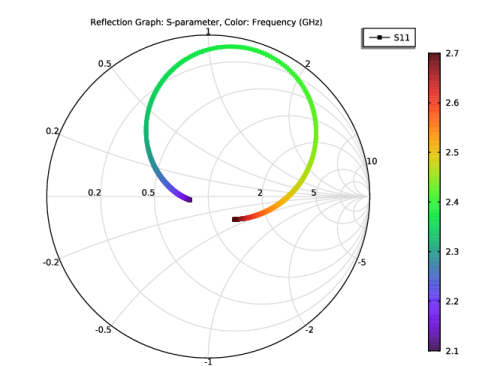
Smith Plot (emw)
In the Model Builder window, click Smith Plot (emw).
Electric Field, Logarithmic (emw)
In the Model Builder window, click Electric Field, Logarithmic (emw).
Electric Mode Field, Port 1 (emw)
In the Model Builder window, click Electric Mode Field, Port 1 (emw).
Electric Mode Field, Port 2 (emw)
In the Model Builder window, click Electric Mode Field, Port 2 (emw).
Analyze the same model with a much finer frequency resolution using Adaptive Frequency Sweep based on asymptotic waveform evaluation (AWE). When a device presents a slowly varying frequency response, the AWE provides a faster solution time when running the simulation on many frequency points. The following example with the AWE can be computed 25 times faster than regular Frequency Domain sweeps with a same finer frequency resolution.
Electromagnetic Waves, Frequency Domain (emw)
Port 1
1
In the Model Builder window, under Component 1 (comp1) > Electromagnetic Waves, Frequency Domain (emw) click Port 1.
2
In the Settings window for Port, locate the Boundary Selection section.
3
Click  Create Selection.
4
In the Create Selection dialog, type Port 1 in the Selection name text field.
5
Port 2
1
In the Model Builder window, click Port 2.
2
In the Settings window for Port, locate the Boundary Selection section.
3
Click  Create Selection.
4
In the Create Selection dialog, type Port 2 in the Selection name text field.
5
Add Study
1
In the Home toolbar, click  Add Study to open the Add Study window.
2
Go to the Add Study window.
3
Find the Studies subsection. In the Select Study tree, select Empty Study.
4
Click the Add Study button in the window toolbar.
5
In the Home toolbar, click  Add Study to close the Add Study window.
Study 1
Step 1: Boundary Mode Analysis, Step 2: Boundary Mode Analysis 1
Right-click and choose Copy.
Study 2
In the Model Builder window, right-click Study 2 and choose Paste Multiple Items.
Step 3: Adaptive Frequency Sweep
1
In the Study toolbar, click  More Study Steps and choose Frequency Domain > Adaptive Frequency Sweep.
2
In the Settings window for Adaptive Frequency Sweep, locate the Study Settings section.
3
In the Frequencies text field, type range(2.1[GHz],1[MHz],2.7[GHz]).
Use a 50 times finer frequency resolution.
4
From the AWE expression type list, choose User controlled.
5
A slowly varying scalar value curve works well for AWE expressions. For two-port bandstop-type devices, use abs(comp1.emw.S11).
Because such a fine frequency step generates a memory-intensive solution, the model file size will increase tremendously when it is saved. When only the frequency response of port related variables are of interest, it is not necessary to store all of the field solutions. By selecting the Store in Output checkbox in the Values of Dependent Variables section, we can control the part of the model on which the computed solution is saved. We only add the selection containing these boundaries where the port variables are calculated. The port size is relatively small compared to the entire modeling domain, and the saved file size with the fine frequency step is more or less that of the regular discrete frequency sweep model when only the solutions on the port boundaries are stored.
6
Click to expand the Store in Output section. In the table, enter the following settings:
7
8
Under Selections, click  Add.
9
In the Add dialog, in the Selections list, choose Port 1 and Port 2.
10
It is necessary to include the port boundaries to calculate S-parameters. By choosing only the port boundaries for Store in Output settings, it is possible to reduce the size of a model file a lot.
11
In the Study toolbar, click  Compute.
Results
Multislice 1
1
In the Model Builder window, expand the Electric Field (emw) 1 node.
2
Right-click Multislice 1 and choose Delete.
Surface 1
1
Right-click Electric Field (emw) 1 and choose Surface.
2
In the Electric Field (emw) 1 toolbar, click  Plot.
Selection 1
1
In the Model Builder window, right-click Surface 1 and choose Selection.
2
In the Settings window for Selection, locate the Selection section.
3
From the Selection list, choose Port 1.
4
In the Electric Field (emw) 1 toolbar, click  Plot.
S-Parameter (emw) 1
1
In the Model Builder window, under Results click S-Parameter (emw) 1.
2
In the Settings window for 1D Plot Group, locate the Legend section.
3
From the Position list, choose Lower right.
Global 1
1
In the Model Builder window, expand the S-Parameter (emw) 1 node, then click Global 1.
2
In the Settings window for Global, locate the y-Axis Data section.
3
Global 2
1
In the Model Builder window, right-click S-Parameter (emw) 1 and choose Global.
2
In the Settings window for Global, locate the Data section.
3
From the Dataset list, choose Study 1/Solution 1 (sol1).
4
Locate the y-Axis Data section. In the table, enter the following settings:
5
Click to expand the Coloring and Style section. Find the Line markers subsection. From the Marker list, choose Cycle.
6
In the S-Parameter (emw) 1 toolbar, click  Plot.
Smith Plot (emw) 1
In the Model Builder window, under Results click Smith Plot (emw) 1.
The following instruction shows how to use the Graph Marker subfeature to analyze 1D plots. When plotting S21 of a bandstop filter, the -10dB attenuation bandwidth of the stopband can be computed with a graph marker. Use an additional graph marker on the S11 plot to check the maximum reflection level.
S-parameter with Graph Markers
1
In the Home toolbar, click  Add Plot Group and choose 1D Plot Group.
2
In the Settings window for 1D Plot Group, type S-parameter with Graph Markers in the Label text field.
3
Locate the Data section. From the Dataset list, choose Probe Solution 4 (sol4).
Global 1
1
Right-click S-parameter with Graph Markers and choose Global.
2
In the Settings window for Global, click Replace Expression in the upper-right corner of the y-Axis Data section. From the menu, choose Component 1 (comp1) > Electromagnetic Waves, Frequency Domain > Ports > S-parameter, dB - dB > emw.S11dB - S11.
Graph Marker 1
1
Right-click Global 1 and choose Graph Marker.
2
In the Settings window for Graph Marker, locate the Display section.
3
From the Display list, choose Max.
4
Locate the Text Format section. In the Precision text field, type 2.
5
Select the Show x-coordinate checkbox.
6
Select the Include unit checkbox.
7
In the S-parameter with Graph Markers toolbar, click  Plot.
Global 2
1
In the Model Builder window, right-click S-parameter with Graph Markers and choose Global.
2
In the Settings window for Global, click Replace Expression in the upper-right corner of the y-Axis Data section. From the menu, choose Component 1 (comp1) > Electromagnetic Waves, Frequency Domain > Ports > S-parameter, dB - dB > emw.S21dB - S21.
Graph Marker 1
1
Right-click Global 2 and choose Graph Marker.
2
In the Settings window for Graph Marker, locate the Display section.
3
From the Display mode list, choose Bandwidth.
4
From the Range type list, choose Stopband.
5
In the Cutoff value text field, type -10.
6
Locate the Text Format section. In the Precision text field, type 3.
7
Select the Include unit checkbox.
8
Click to expand the Coloring and Style section. From the Orientation list, choose Vertical.
9
Select the Show frame checkbox.
10
In the S-parameter with Graph Markers toolbar, click  Plot.