PDF

RF Implant Heating in MRI
Introduction
Magnetic resonance imaging (MRI) relies on the application of time-varying magnetic fields. Among those, radio frequency (RF) fields are used for volumetric excitation of the target. This tutorial model focuses on the RF excitation and its heating effect on a passive conductive implant inserted into anatomical vertebrae1 and plunged into a jelly phantom having human body’s tissue properties.
RF-induced heating occurs any time a material with finite mass is invested by RF power; this is usually referred to as specific absorption rate (SAR):
(1)
where σ is the conductivity of material, ρ is the mass density, and |E| is the norm of the electric field (RMS). This means that a human body’s tissue yields a finite SAR even without a conductive prosthesis. However, when a passive conductive implant is present in the tissue, a secondary RF field is induced in the implant that in turn generates an additional, dominant (compared to the original excitation), scattered field toward the surroundings. As a result, the RF power absorption by the tissue, and thus the SAR, are locally enhanced. The resulting local heating increase and consequent tissue damage represent one of the major hazards for the patient under MRI test.
This MRI implant heating tutorial model shows the RF-induced heating on a passive conductive polyaxial screw implant inserted into C3-C4-C5 anatomical vertebrae and plunged into a jelly phantom brick so as to mimic the tissue enclosing the spine. The phantom has standard physical properties and geometry as reported in the ASTM‑F2182‑19e2 standard. The SAR is computed in a first Frequency Domain study step. The resulting heating is coupled to a second Time Dependent study step to assess temperature increase consistently with the procedure reported in the ASTM‑F2182-19e2 standard.
Model Definition
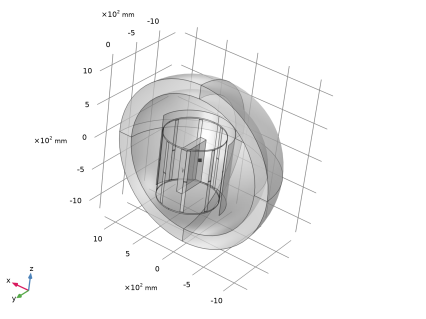
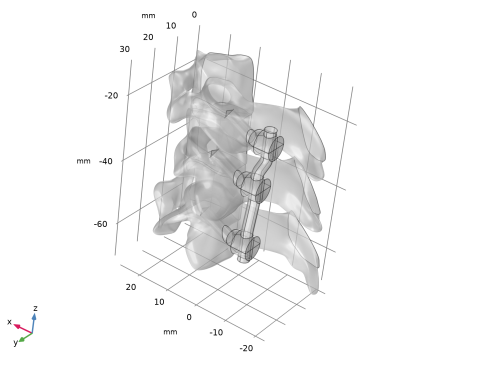
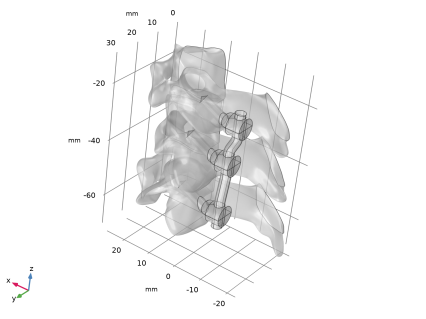
The geometry of the system is shown in Figure 1. The 3D model consists of a birdcage coil for RF excitation, a phantom brick having human body’s tissue properties, a series of C3-C4-C5 vertebrae, and a polyaxial screw implant. The vertebreae and polyaxial screws are taken directly from the tutorial STL Import 2 — Combining Geometry with an Imported Mesh in the COMSOL Multiphysics Application Library; they are shown enlarged in Figure 2 for better visualization.
The RF excitation is the same used in MRI coil tutorial model; shortly: two lumped ports are used for quadrature excitation and a number of lumped-element capacitors are included for fine frequency tuning and field uniformity inside the MRI chamber.
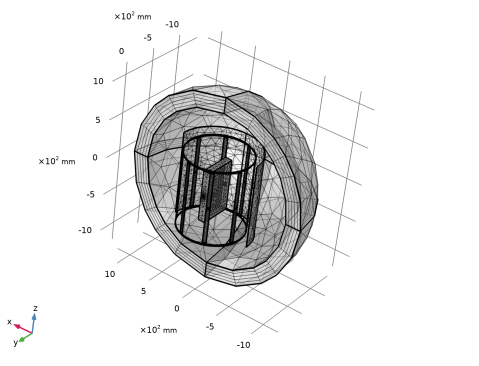
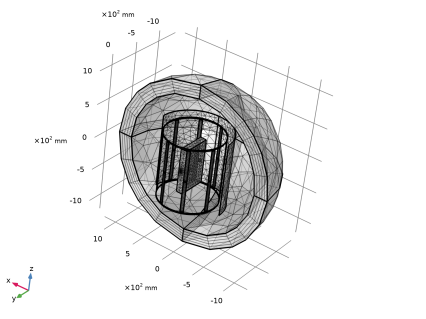
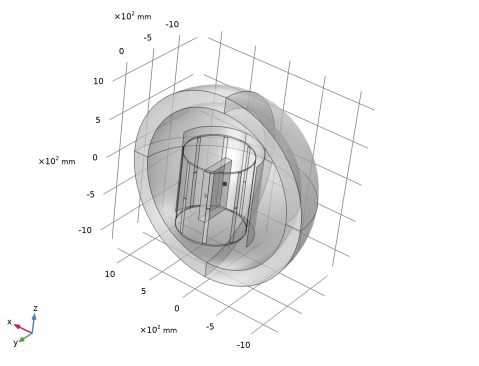
The 3D mesh is shown in Figure 3. It is built using a free tetrahedral mesh for all domains except for a swept mesh with a distributed number of elements in the outer PML domain.
The implementation requires the use of the Electromagnetic Waves, Frequency Domain interface and the Heat Transfer in Solids interface. The former interface is used to compute the SAR in the phantom and vertebrae at 63.87 MHz operation frequency. The resulting heating is then incorporated into the latter interface via a multiphysics coupling in order to evaluate the temperature evolution over 6 minutes of steady RF-heating exposure.
Figure 1: 3D geometry of the MRI system including a birdcage coil, a phantom brick, three anatomical vertebrae and a polyaxial screw implant.
Figure 2: Zoomed view on the polyaxial screw implant inserted into C3-C4-C5 vertebrae.
Figure 3: Computational mesh used in this tutorial.
Results and Discussion
Two study steps are performed in this tutorial: a Frequency Domain study step to evaluate the SAR and a Time Dependent study step to assess the temperature rise consequent to the RF heating.
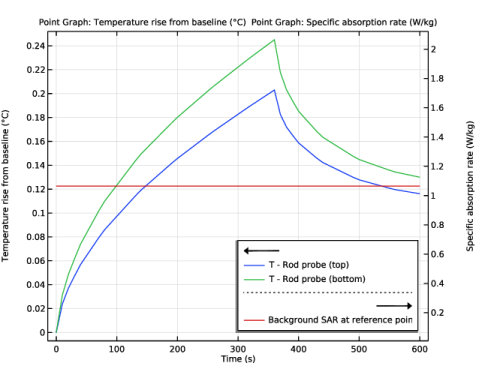
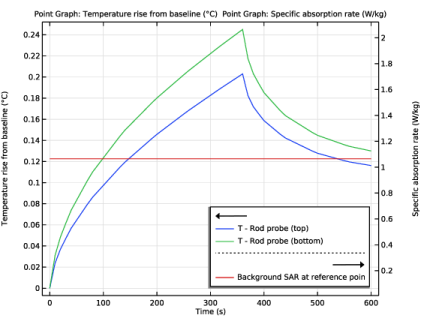
Figure 4 displays, on the primary y-axis, the temperature rise over time (with respect to the baseline) at two point probes located at the distal ends of the implant’s rod. The secondary y-axis reports the background SAR at a reference point probe in the phantom specular to the implant location.
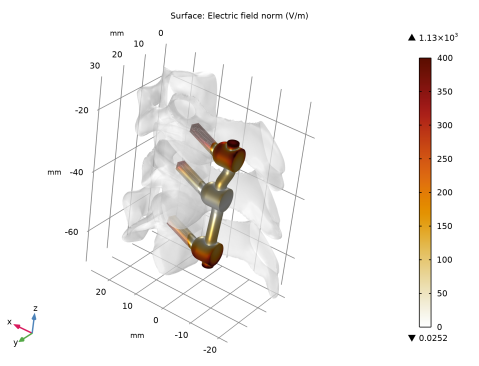
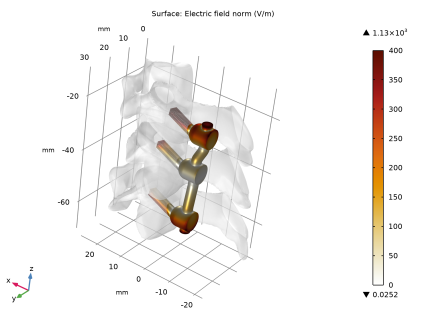
Figure 5 shows the electric field norm on the implant surface remarking that the field strengthen at the distal ends of the implant. This field enhancement stems from the scattering induced by the implant.
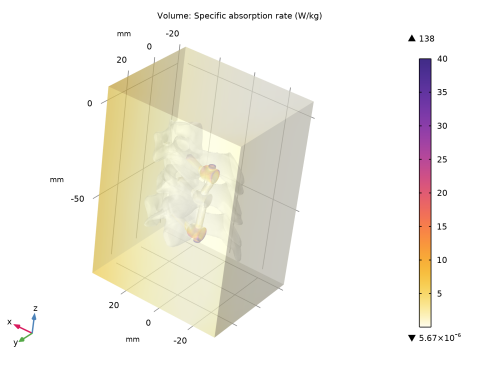
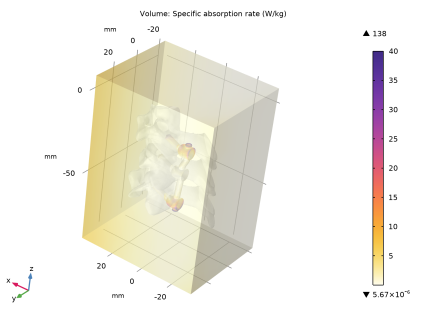
Figure 6 depicts the SAR on a phantom region surrounding the vertebrae and the implant. The SAR is maximum at the same locations where the RF field strengthen (see Figure 5).
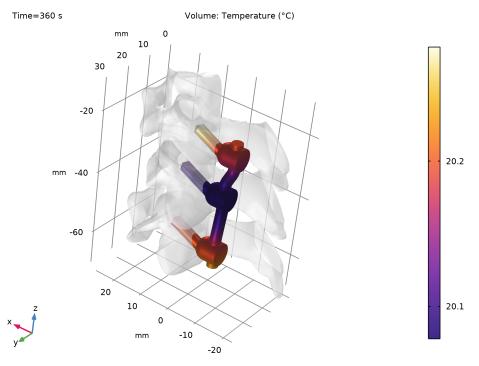
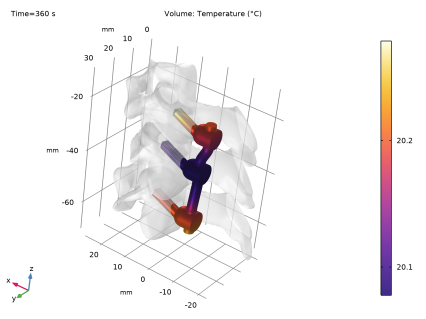
Figure 7 shows the temperature distribution on the implant after 6 minutes of steady RF-heating exposure. This result is consistent with the plot of Figure 4.
Figure 4: (left axis) Temperature evolution at rod probes, (right axis) SAR at reference probe.
Figure 5: Electric field norm on the implant surface.
Figure 6: SAR on a phantom region surrounding the implant and the vertebrae.
Figure 7: Temperature distribution on the implant after 6 min of RF-heating exposure.
Reference
1. Reprinted, with permission from ASTM‑F2182-19e2, Standard Test Method for Measurement of Radio Frequency Induced Heating On or Near Passive Implants During Magnetic Resonance Imaging, copyright ASTM International. A copy of the complete standard may be obtained from ASTM, www.astm.org.
Application Library path: RF_Module/Microwave_Heating/mri_implant_heating
Modeling Instructions
From the File menu, choose New.
New
In the New window, click  Model Wizard.
Model Wizard
1
In the Model Wizard window, click  3D.
2
Root
1
From the File menu, choose Open.
2
Global Definitions
Parameters - Vertebrae and Screw
1
In the Model Builder window, under Global Definitions click Parameters 1.
2
In the Settings window for Parameters, type Parameters - Vertebrae and Screw in the Label text field.
Parameters - Birdcage Coil
1
In the Home toolbar, click  Parameters and choose Add > Parameters.
2
In the Settings window for Parameters, type Parameters - Birdcage Coil in the Label text field.
3
Locate the Parameters section. In the table, enter the following settings:
Parameters - Phantom
1
In the Home toolbar, click  Parameters and choose Add > Parameters.
2
In the Settings window for Parameters, type Parameters - Phantom in the Label text field.
3
Locate the Parameters section. In the table, enter the following settings:
First, build the geometry of the polyaxial screw and rod.
Geometry 1
Delete Entities 1 (del1)
1
In the Model Builder window, expand the Component 1 (comp1) > Geometry 1 node, then click Delete Entities 1 (del1).
2
In the Settings window for Delete Entities, click  Build Selected.
Second, import the geometry sequence for the birdcage coil and phantom, then build all.
3
In the Geometry toolbar, click Insert Sequence and choose Insert Sequence.
4
5
In the Geometry toolbar, click  Build All.
Now define useful selections under the Geometry node.
Non-PML
1
In the Geometry toolbar, click  Selections and choose Ball Selection.
2
In the Settings window for Ball Selection, type Non-PML in the Label text field.
3
Locate the Ball Center section. In the x text field, type -0.705[cm].
4
In the y text field, type -xPhantom/2+dWall+d_rod/2+1.15*c3_zw.
5
In the z text field, type -(c3_xw+c5_xw)/2.
6
Locate the Ball Radius section. In the Radius text field, type rAir-tPml/2.
7
Locate the Output Entities section. From the Include entity if list, choose Entity inside ball.
8
Click  Build Selected.
PML
1
In the Geometry toolbar, click  Selections and choose Complement Selection.
2
In the Settings window for Complement Selection, type PML in the Label text field.
3
Locate the Input Entities section. Click  Add.
4
In the Add dialog, select Non-PML in the Selections to invert list.
5
6
In the Settings window for Complement Selection, click  Build Selected.
Non-PML Boundaries
1
In the Model Builder window, under Component 1 (comp1) > Geometry 1 right-click Non-PML (ballsel1) and choose Duplicate.
2
In the Settings window for Ball Selection, type Non-PML Boundaries in the Label text field.
3
Locate the Geometric Entity Level section. From the Level list, choose Boundary.
Build the mesh-based geometry and perform a mesh cleanup.
Mesh-Based Geometry 1
Union 1
1
In the Model Builder window, expand the Component 1 (comp1) > Mesh-Based Geometry 1 node, then click Union 1.
2
In the Settings window for Union, locate the Cleanup section.
3
From the Repair tolerance list, choose Absolute.
4
In the Absolute tolerance text field, type 0.01[mm].
5
In the Model Builder window, right-click Mesh-Based Geometry 1 and choose Build All.
6
Right-click Mesh-Based Geometry 1 and choose Cleanup and Repair > Cleanup Wizard.
Cleanup Wizard
1
Go to the Cleanup Wizard window.
2
Click the Manual button.
3
In the Detail size text field, type 0.1[mm].
4
Click the Apply button in the window toolbar.
5
Click the Apply button in the window toolbar.
6
Click the Done button in the window toolbar.
Definitions (comp1)
Step 1 (step1)
1
In the Definitions toolbar, click  More Functions and choose Step.
2
In the Settings window for Step, locate the Parameters section.
3
In the Location text field, type 0.25.
Continue setting selections under the Definitions node.
Vertebrae and Screws
1
In the Definitions toolbar, click  Union.
2
In the Settings window for Union, type Vertebrae and Screws in the Label text field.
3
Locate the Input Entities section. Under Selections to add, click  Add.
4
In the Add dialog, in the Selections to add list, choose Vertebrae and Screw Domains.
5
Discs
1
In the Definitions toolbar, click  Union.
2
In the Settings window for Union, type Discs in the Label text field.
3
Locate the Input Entities section. Under Selections to add, click  Add.
4
In the Add dialog, select Discs in the Selections to add list.
5
Vertebrae
1
In the Definitions toolbar, click  Difference.
2
In the Settings window for Difference, type Vertebrae in the Label text field.
3
Locate the Input Entities section. Under Selections to add, click  Add.
4
In the Add dialog, select Vertebrae and Screws in the Selections to add list.
5
6
In the Settings window for Difference, locate the Input Entities section.
7
Under Selections to subtract, click  Add.
8
In the Add dialog, select Screw Domains in the Selections to subtract list.
9
Port 1
1
In the Definitions toolbar, click  Explicit.
2
In the Settings window for Explicit, type Port 1 in the Label text field.
3
Locate the Input Entities section. From the Geometric entity level list, choose Boundary.
4
Click  Paste Selection.
5
In the Paste Selection dialog, type 36 in the Selection text field.
6
Port 2
1
In the Definitions toolbar, click  Explicit.
2
In the Settings window for Explicit, type Port 2 in the Label text field.
3
Locate the Input Entities section. From the Geometric entity level list, choose Boundary.
4
Click  Paste Selection.
5
In the Paste Selection dialog, type 21 in the Selection text field.
6
Phantom
1
In the Definitions toolbar, click  Explicit.
2
In the Settings window for Explicit, type Phantom in the Label text field.
3
HT Domain
1
In the Definitions toolbar, click  Union.
2
In the Settings window for Union, type HT Domain in the Label text field.
3
Locate the Input Entities section. Under Selections to add, click  Add.
4
In the Add dialog, in the Selections to add list, choose Vertebrae and Screws, Discs, Phantom, and Rod domain.
5
Implant
1
In the Definitions toolbar, click  Union.
2
In the Settings window for Union, type Implant in the Label text field.
3
Locate the Input Entities section. Under Selections to add, click  Add.
4
In the Add dialog, in the Selections to add list, choose Screw Domains and Rod domain.
5
Implant Boundary
1
In the Definitions toolbar, click  Adjacent.
2
In the Settings window for Adjacent, type Implant Boundary in the Label text field.
3
Locate the Input Entities section. Under Input selections, click  Add.
4
In the Add dialog, select Implant in the Input selections list.
5
SAR Domain
1
In the Definitions toolbar, click  Difference.
2
In the Settings window for Difference, type SAR Domain in the Label text field.
3
Locate the Input Entities section. Under Selections to add, click  Add.
4
In the Add dialog, select HT Domain in the Selections to add list.
5
6
In the Settings window for Difference, locate the Input Entities section.
7
Under Selections to subtract, click  Add.
8
In the Add dialog, select Implant in the Selections to subtract list.
9
All Elements
1
In the Definitions toolbar, click  Explicit.
2
In the Settings window for Explicit, type All Elements in the Label text field.
3
Locate the Input Entities section. From the Geometric entity level list, choose Boundary.
4
Click  Paste Selection.
5
In the Paste Selection dialog, type 19, 21, 23, 24, 26, 28, 29, 31, 33, 34, 36, 38, 171, 173, 175, 176, 178, 180, 181, 183, 185, 186, 188, 190 in the Selection text field.
6
Temperature Probes
1
In the Definitions toolbar, click  Explicit.
2
In the Settings window for Explicit, type Temperature Probes in the Label text field.
3
Locate the Input Entities section. From the Geometric entity level list, choose Point.
4
SAR Probe
1
In the Definitions toolbar, click  Explicit.
2
In the Settings window for Explicit, type SAR Probe in the Label text field.
3
Locate the Input Entities section. From the Geometric entity level list, choose Point.
4
Now add the following physics interfaces with the corresponding settings.
Add Physics
1
In the Home toolbar, click  Add Physics to open the Add Physics window.
2
Go to the Add Physics window.
3
In the tree, select Radio Frequency > Electromagnetic Waves, Frequency Domain (emw).
4
Click the Add to Component 1 button in the window toolbar.
5
In the tree, select Heat Transfer > Heat Transfer in Solids (ht).
6
Click the Add to Component 1 button in the window toolbar.
7
8
In the tree, select Mathematics > ODE and DAE Interfaces > Events (ev).
9
Click the Add to Component 1 button in the window toolbar.
10
In the Home toolbar, click  Add Physics to close the Add Physics window.
Electromagnetic Waves, Frequency Domain (emw)
Perfect Electric Conductor 2
1
In the Physics toolbar, click  Boundaries and choose Perfect Electric Conductor.
2
In the Settings window for Perfect Electric Conductor, locate the Boundary Selection section.
3
From the Selection list, choose Coil.
Perfect Electric Conductor 3
1
In the Physics toolbar, click  Boundaries and choose Perfect Electric Conductor.
2
In the Settings window for Perfect Electric Conductor, locate the Boundary Selection section.
3
Click  Paste Selection.
4
In the Paste Selection dialog, type 13, 14, 103, 116 in the Selection text field.
5
Lumped Port 1
1
In the Physics toolbar, click  Boundaries and choose Lumped Port.
2
In the Settings window for Lumped Port, locate the Boundary Selection section.
3
From the Selection list, choose Port 1.
4
Locate the Settings section. In the V0 text field, type V0.
Lumped Port 2
1
In the Physics toolbar, click  Boundaries and choose Lumped Port.
2
In the Settings window for Lumped Port, locate the Boundary Selection section.
3
From the Selection list, choose Port 2.
4
Locate the Lumped Port Properties section. From the Wave excitation at this port list, choose On.
5
Locate the Settings section. In the V0 text field, type V0.
6
In the θin text field, type pi/2.
Lumped Element 1
1
In the Physics toolbar, click  Boundaries and choose Lumped Element.
2
3
In the Settings window for Lumped Element, locate the Settings section.
4
From the Lumped element device list, choose Capacitor.
5
In the Celement text field, type c_value.
6
Click the Split by Connectivity button in the window toolbar.
Specific Absorption Rate 1
1
In the Physics toolbar, click  Domains and choose Specific Absorption Rate.
2
In the Settings window for Specific Absorption Rate, locate the Domain Selection section.
3
From the Selection list, choose SAR Domain.
Impedance Boundary Condition 1
1
In the Physics toolbar, click  Domains and choose Impedance Boundary Condition.
2
In the Settings window for Impedance Boundary Condition, locate the Domain Selection section.
3
From the Selection list, choose Implant.
Definitions (comp1)
Perfectly Matched Layer 1 (pml1)
1
In the Definitions toolbar, click  Perfectly Matched Layer.
2
In the Settings window for Perfectly Matched Layer, locate the Domain Selection section.
3
From the Selection list, choose PML.
4
Locate the Geometry section. From the Type list, choose Spherical.
Heat Transfer in Solids (ht)
1
In the Model Builder window, under Component 1 (comp1) click Heat Transfer in Solids (ht).
2
In the Settings window for Heat Transfer in Solids, locate the Domain Selection section.
3
From the Selection list, choose HT Domain.
Heat Flux 1
1
In the Physics toolbar, click  Boundaries and choose Heat Flux.
2
In the Settings window for Heat Flux, locate the Heat Flux section.
3
From the Flux type list, choose Convective heat flux.
4
In the h text field, type 5.
5
Locate the Boundary Selection section. From the Selection list, choose All boundaries.
Heat Source 1
1
In the Physics toolbar, click  Domains and choose Heat Source.
2
In the Settings window for Heat Source, locate the Domain Selection section.
3
From the Selection list, choose SAR Domain.
4
Locate the Heat Source section. In the Q0 text field, type emw.Qrh*switch*step1(t/1[s]).
Boundary Heat Source 1
1
In the Physics toolbar, click  Boundaries and choose Boundary Heat Source.
2
In the Settings window for Boundary Heat Source, locate the Boundary Selection section.
3
From the Selection list, choose Implant Boundary.
4
Locate the Boundary Heat Source section. In the Qb text field, type emw.Qsrh*switch*step1(t/1[s]).
Events (ev)
In the Model Builder window, under Component 1 (comp1) click Events (ev).
Discrete States 1
1
In the Physics toolbar, click  Global and choose Discrete States.
2
In the Settings window for Discrete States, locate the Discrete States section.
3
Explicit Event 1
1
In the Physics toolbar, click  Global and choose Explicit Event.
2
In the Settings window for Explicit Event, locate the Event Timings section.
3
In the ti text field, type 360[s].
4
Locate the Reinitialization section. In the table, enter the following settings:
At this point, add and assign the following materials to the respective domains. Set relative permeability to one for all materials.
Add Material
1
In the Materials toolbar, click  Add Material to open the Add Material window.
2
Go to the Add Material window.
3
In the tree, select Built-in > Air.
4
Click the Add to Component button in the window toolbar.
Materials
Phantom Material
1
In the Model Builder window, under Component 1 (comp1) right-click Materials and choose Blank Material.
2
In the Settings window for Material, type Phantom Material in the Label text field.
3
4
Locate the Material Contents section. In the table, enter the following settings:
Add Material
1
Go to the Add Material window.
2
In the tree, select Material Library > Titanium Alloys > Ti - 6 Al - 4 V (Grade 5) > Ti - 6 Al - 4 V (Grade 5) [solid] > Ti - 6 Al - 4 V (Grade 5) [solid,annealed].
3
Click the Add to Component button in the window toolbar.
Materials
Ti - 6 Al - 4 V (Grade 5) [solid,annealed] (mat3)
1
In the Settings window for Material, locate the Geometric Entity Selection section.
2
From the Selection list, choose Implant.
3
Locate the Material Contents section. In the table, enter the following settings:
Add Material
1
Go to the Add Material window.
2
In the tree, select AC/DC > Biological Tissues > Bone Cancellous.
3
Click the Add to Component button in the window toolbar.
Materials
Bone Cancellous (mat4)
1
In the Settings window for Material, locate the Geometric Entity Selection section.
2
From the Selection list, choose Vertebrae.
3
Locate the Material Contents section. In the table, enter the following settings:
Add Material
1
Go to the Add Material window.
2
In the tree, select Bioheat > Bone.
3
Click the Add to Component button in the window toolbar.
Materials
Bone (mat5)
In the Model Builder window, under Component 1 (comp1) > Materials right-click Bone (mat5) and choose Bone Cancellous (mat4).
Complete missing parameters for the Cartilage material using those of the phantom and assign it to the discs between vertebrae.
Add Material
1
Go to the Add Material window.
2
In the tree, select AC/DC > Biological Tissues > Cartilage.
3
Click the Add to Component button in the window toolbar.
4
In the Materials toolbar, click  Add Material to close the Add Material window.
Materials
Cartilage (mat5)
1
In the Settings window for Material, locate the Geometric Entity Selection section.
2
From the Selection list, choose Discs.
3
Locate the Material Contents section. In the table, enter the following settings:
Now build the computational mesh using the following settings.
Mesh 1
Size 2
1
In the Model Builder window, expand the Component 1 (comp1) > Mesh 1 node.
2
Right-click Mesh 1 and choose Size.
Size
1
In the Settings window for Size, locate the Element Size section.
2
Click the Predefined button.
3
From the Predefined list, choose Normal.
4
Locate the Element Size Parameters section. In the Maximum element size text field, type wl0/6.
5
In the Minimum element size text field, type 18[mm].
Size 2
1
In the Model Builder window, click Size 2.
2
In the Settings window for Size, locate the Geometric Entity Selection section.
3
From the Geometric entity level list, choose Domain.
4
From the Selection list, choose Phantom.
5
Locate the Element Size section. Click the Custom button.
6
Locate the Element Size Parameters section.
7
Select the Maximum element size checkbox. In the associated text field, type wl0/10/sqrt(epsrPhantom).
8
Select the Minimum element size checkbox. In the associated text field, type 1[mm].
Size 3
1
In the Model Builder window, right-click Mesh 1 and choose Size.
2
In the Settings window for Size, locate the Geometric Entity Selection section.
3
From the Geometric entity level list, choose Boundary.
4
From the Selection list, choose Coil.
5
Locate the Element Size section. Click the Custom button.
6
Locate the Element Size Parameters section.
7
Select the Maximum element size checkbox. In the associated text field, type 22[mm].
Size 4
1
Right-click Mesh 1 and choose Size.
2
In the Settings window for Size, locate the Geometric Entity Selection section.
3
From the Geometric entity level list, choose Boundary.
4
From the Selection list, choose All Elements.
5
Locate the Element Size section. Click the Custom button.
6
Locate the Element Size Parameters section.
7
Select the Maximum element size checkbox. In the associated text field, type 8[mm].
Size 5
1
Right-click Mesh 1 and choose Size.
2
In the Settings window for Size, locate the Geometric Entity Selection section.
3
From the Geometric entity level list, choose Boundary.
4
From the Selection list, choose Implant Boundary.
5
Locate the Element Size section. Click the Custom button.
6
Locate the Element Size Parameters section.
7
Select the Maximum element size checkbox. In the associated text field, type d_rod/3.
Free Tetrahedral 1
1
In the Mesh toolbar, click  Free Tetrahedral.
2
In the Settings window for Free Tetrahedral, locate the Domain Selection section.
3
From the Geometric entity level list, choose Domain.
4
From the Selection list, choose Non-PML.
Swept 1
1
In the Mesh toolbar, click  Swept.
2
In the Settings window for Swept, locate the Domain Selection section.
3
From the Geometric entity level list, choose Domain.
4
From the Selection list, choose PML.
Distribution 1
1
Right-click Swept 1 and choose Distribution.
2
Right-click Mesh 1 and choose Build All.
3
In the Graphics window toolbar, clicknext to  Select Domains, then choose Select Boundaries.
4
Click the  Click and Hide button in the Graphics toolbar.
5
Geometry 1
1
In the Model Builder window, under Component 1 (comp1) click Geometry 1.
2
Click the  Click and Hide button in the Graphics toolbar.
3
On the object cmf1, select Boundaries 4, 7, 8, 11, 12, 14, 100, 102–104, 106, 107, 110, and 111 only.
Mesh 1
In the Model Builder window, under Component 1 (comp1) click Mesh 1.
Add Study
1
In the Home toolbar, click  Add Study to open the Add Study window.
2
Go to the Add Study window.
3
Find the Studies subsection. In the Select Study tree, select Preset Studies for Some Physics Interfaces > Frequency Domain.
4
Click the Add Study button in the window toolbar.
5
In the Home toolbar, click  Add Study to close the Add Study window.
Study 1
Step 1: Frequency Domain
Finally, set up the two study steps and then compute.
1
In the Settings window for Frequency Domain, locate the Study Settings section.
2
In the Frequencies text field, type f0.
Step 2: Time Dependent
1
In the Study toolbar, click  Time Dependent.
2
In the Settings window for Time Dependent, locate the Study Settings section.
3
In the Output times text field, type range(0,10,600).
4
In the Study toolbar, click  Compute.
Results
Study 1/Solution 1 (sol1)
In the Model Builder window, expand the Results > Datasets node, then click Study 1/Solution 1 (sol1).
Selection
1
In the Results toolbar, click  Attributes and choose Selection.
2
In the Settings window for Selection, locate the Geometric Entity Selection section.
3
From the Geometric entity level list, choose Domain.
4
From the Selection list, choose HT Domain.
Temperature Evolution
1
In the Results toolbar, click  1D Plot Group.
2
In the Settings window for 1D Plot Group, type Temperature Evolution in the Label text field.
3
Locate the Plot Settings section. Select the Two y-axes checkbox.
4
Click the  Show Legends button in the Graphics toolbar.
5
Locate the Legend section. Select the Show legends checkbox.
6
From the Position list, choose Lower right.
Point Graph 1
1
Right-click Temperature Evolution and choose Point Graph.
2
In the Settings window for Point Graph, locate the Selection section.
3
From the Selection list, choose Temperature Probes.
4
Locate the y-Axis Data section. In the Expression text field, type T.
5
From the Unit list, choose °C.
6
In the Expression text field, type T-20.
7
Select the Description checkbox. In the associated text field, type Temperature rise from baseline.
8
Click to expand the Legends section. From the Legends list, choose Manual.
9
Point Graph 2
1
In the Model Builder window, right-click Temperature Evolution and choose Point Graph.
2
In the Settings window for Point Graph, locate the Selection section.
3
From the Selection list, choose SAR Probe.
4
Locate the y-Axis Data section. In the Expression text field, type emw.SAR.
5
Locate the y-Axis section. Select the Plot on secondary y-axis checkbox.
6
Locate the Legends section. From the Legends list, choose Manual.
7
8
In the Temperature Evolution toolbar, click  Plot.
Temperature Evolution
1
Click the  Show Legends button in the Graphics toolbar.
2
Click the  Zoom Extents button in the Graphics toolbar.
3
In the Model Builder window, click Temperature Evolution.
Multislice 1
1
In the Model Builder window, expand the Electric Field (emw) node.
2
Right-click Multislice 1 and choose Delete.
Electric Field (emw)
1
In the Settings window for 3D Plot Group, click to expand the Title section.
2
From the Title type list, choose Manual.
3
In the Title text area, type Surface: Electric field norm (V/m).
4
Clear the Parameter indicator text field.
5
Locate the Plot Settings section. Clear the Plot dataset edges checkbox.
Surface 1
1
Right-click Electric Field (emw) and choose Surface.
2
In the Settings window for Surface, locate the Expression section.
3
In the Expression text field, type 1.
Transparency 1
Right-click Surface 1 and choose Transparency.
Material Appearance 1
1
In the Model Builder window, right-click Surface 1 and choose Material Appearance.
2
In the Settings window for Material Appearance, locate the Appearance section.
3
From the Material list, choose Bone Cancellous (mat4).
4
In the Electric Field (emw) toolbar, click  Plot.
Surface 2
1
In the Model Builder window, right-click Electric Field (emw) and choose Surface.
2
In the Settings window for Surface, click to expand the Range section.
3
Select the Manual color range checkbox.
4
In the Maximum text field, type 400.
5
Locate the Coloring and Style section. From the Color table list, choose Amber.
Material Appearance 1
1
Right-click Surface 2 and choose Material Appearance.
2
In the Settings window for Material Appearance, locate the Appearance section.
3
From the Material list, choose Ti - 6 Al - 4 V (Grade 5) [solid,annealed] (mat3).
4
In the Electric Field (emw) toolbar, click  Plot.
5
Locate the Color section. Select the Use the plot’s color checkbox.
Surface 1
In the Model Builder window, under Results > Electric Field (emw) right-click Surface 1 and choose Copy.
Specific Absorption Rate (sar1)
1
In the Model Builder window, under Results click Specific Absorption Rate (sar1).
2
In the Settings window for 3D Plot Group, locate the Title section.
3
From the Title type list, choose Manual.
4
In the Title text area, type Volume: Specific absorption rate (W/kg).
5
Clear the Parameter indicator text field.
6
Locate the Plot Settings section. Clear the Plot dataset edges checkbox.
Surface 1
Right-click Specific Absorption Rate (sar1) and choose Paste Surface.
Volume 1
1
In the Settings window for Volume, click to expand the Range section.
2
Select the Manual color range checkbox.
3
In the Maximum text field, type 40.
Transparency 1
Right-click Volume 1 and choose Transparency.
Filter 1
1
Right-click Volume 1 and choose Filter.
2
In the Settings window for Filter, locate the Element Selection section.
3
In the Logical expression for inclusion text field, type abs(x-15[mm])<50[mm] && y>-20[mm] && z<10[mm] && z>-90[mm].
4
In the Specific Absorption Rate (sar1) toolbar, click  Plot.
Temperature (ht)
1
In the Model Builder window, under Results click Temperature (ht).
2
In the Settings window for 3D Plot Group, locate the Data section.
3
From the Time (s) list, choose 360.
4
Locate the Title section. From the Title type list, choose Manual.
5
In the Title text area, type Volume: Temperature (°C).
6
In the Parameter indicator text field, type Time=360 s.
7
Locate the Plot Settings section. Clear the Plot dataset edges checkbox.
Surface 1
Right-click Temperature (ht) and choose Paste Surface.
Volume 1
1
In the Settings window for Volume, locate the Expression section.
2
From the Unit list, choose °C.
Material Appearance 1
1
Right-click Volume 1 and choose Material Appearance.
2
In the Settings window for Material Appearance, locate the Appearance section.
3
From the Material list, choose Ti - 6 Al - 4 V (Grade 5) [solid,annealed] (mat3).
4
Locate the Color section. Select the Use the plot’s color checkbox.
 

1
The STL geometry is provided courtesy of Mark Yeoman, Continuum Blue, UK.