PDF

Mesh Adaptation Study for a Microstrip Patch Antenna
Introduction
In electromagnetic design and simulation, optimizing the mesh configuration is important for achieving accurate results, especially for high-Q devices. This tutorial model showcases mesh adaptation using the Microstrip Patch Antenna model from the RF Module Application Library. It illustrates how to refine the mesh in critical regions to enhance computation accuracy through the Frequency Domain, RF Adaptive Mesh study. The adapted mesh focuses on refining around the edges of the patch radiator, while excluding areas with lower field strength. This approach ensures both computational efficiency and precise characterization of antenna performance.
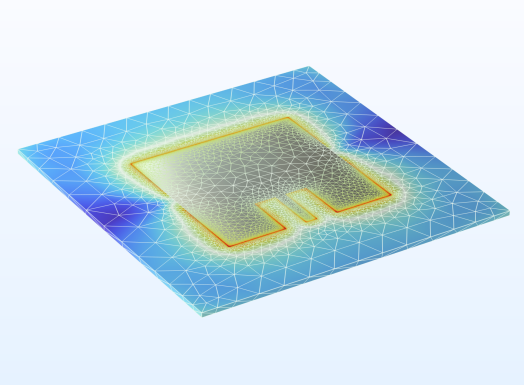
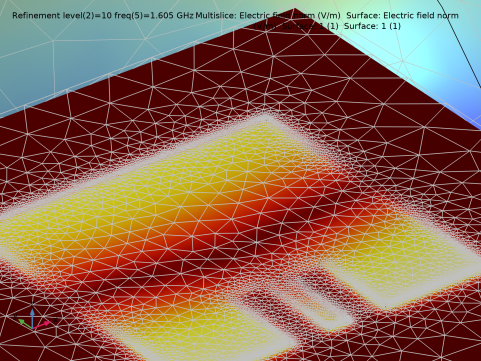
Figure 1: Microstrip patch antenna after a mesh adaptation study.
Model Definition
After loading the Microstrip Patch Antenna model from the Application Library, two additional studies are conducted:
Frequency Domain, RF Adaptive Mesh
The Frequency Domain, RF Adaptive Mesh is a dedicated mesh refinement study that dynamically refines the mesh in regions of interest by increasing the resolution around areas with high field variations. Functionally, it is similar to the Adaptation and Error Estimates in a Frequency Domain study, but with more streamlined settings tailored for RF devices. In the Frequency Domain, RF Adaptive Mesh study settings window, the default mesh refinement settings can be reviewed by switching the Mesh refinement option from Physics controlled to User controlled.
Notable settings include the Error estimate, which is set to Functional based on S-parameters. The Adaptation method uses the Rebuild mesh option and employs Goal-oriented termination with a maximum of 20 adaptation steps. The termination expression is the same as the one used in Functional, formulates with S-parameters.
Mesh refinement can be performed at a single frequency or across a bandwidth of the device under test. In this example, refinement is applied at 5 frequency points within the simulation bandwidth.
Adaptive Frequency Sweep
The Adaptive Frequency Sweep is useful for generating S-parameter plots with very fine frequency resolution. It uses the asymptotic waveform evaluation (AWE) method, which is more efficient than a regular discrete frequency sweep with fine frequency steps especially for single resonance devices or when the result scalar variable changes slowly across the simulation frequency spectrum. To manage the file size, particularly when dealing with many frequency points, consider storing output only from the Lumped port features. This approach significantly reduces file size dramatically preserving the S-parameter analysis results.
When this study is added, the mesh selection is automatically set to the refined mesh obtained from the previous study.
Results and Discussion
The this tutorial model demonstrates how mesh adaptation can be used to increase the result accuracy, by making the mesh finer in regions where it matters most for the results. Figure 2 shows the mesh after running the Frequency Domain, RF Adaptive Mesh study. Compared to the initial mesh, the adapted mesh is much finer around the patch edges, except where the field strength is low.
Figure 2: The mesh after running the Frequency Domain, RF Adaptive Mesh study.
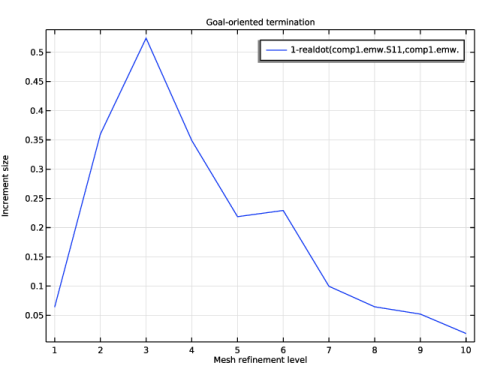
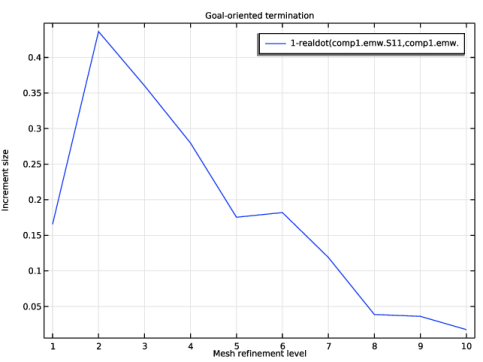
Figure 3 shows how the mesh adaptation converges to reach the termination tolerance of 0.02.
Figure 3: This plot shows the convergence of the mesh adaptation process. The process stops when the tolerance of 0.02 is reached.
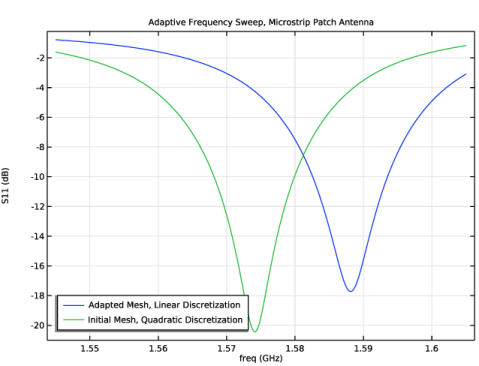
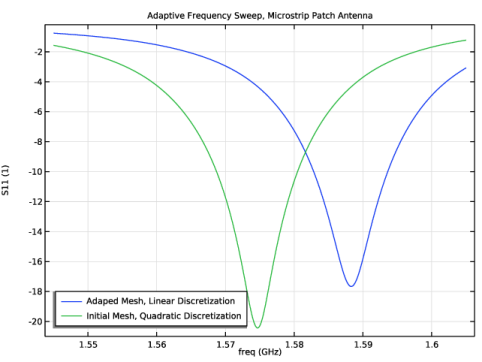
Finally, Figure 4 shows that the resonance shifts to higher frequencies when using the finer adapted mesh.
Figure 4: A comparison of the frequency spectra for the initial mesh and the adapted mesh.
Notes About the COMSOL Implementation
This example uses the Adaptive Frequency Sweep study, which employs the asymptotic waveform evaluation (AWE) model order reduction technique to compute the antenna’s frequency response with fine frequency resolution. This method is faster than a regular frequency sweep performed in a Frequency Domain study using the same frequency resolution, but it is computationally intensive, and may require more than 6 GB of RAM. The results can be sensitive to the relative tolerance value in the settings window, so using a finer value can improve the accuracy. The Frequency Domain, RF Adaptive Mesh study uses the Direct Solver and may requires more than 7 GB of RAM.
Application Library path: RF_Module/Antenna_Arrays/microstrip_patch_antenna_mesh_adaptation
Modeling Instructions
From the File menu, choose Open.
Browse to the model’s Application Libraries folder and double-click the file microstrip_patch_antenna_inset.mph.
Study 1, Quadratic Discretization
1
In the Model Builder window, click Study 1.
2
In the Settings window for Study, type Study 1, Quadratic Discretization in the Label text field.
Study 2, Quadratic Discretization, AWE
1
In the Model Builder window, click Study 2.
2
In the Settings window for Study, type Study 2, Quadratic Discretization, AWE in the Label text field.
3
Locate the Study Settings section. Clear the Generate default plots checkbox.
Add Study
If the loaded model does not have a solution, run the Study 2. Then, conduct a Frequency Domain, RF Adaptive Mesh study.
1
In the Study toolbar, click  Add Study to open the Add Study window.
2
Go to the Add Study window.
3
Find the Studies subsection. In the Select Study tree, select Preset Studies for Selected Physics Interfaces > Frequency Domain, RF Adaptive Mesh.
4
Click the Add Study button in the window toolbar.
5
In the Study toolbar, click  Add Study to close the Add Study window.
Study 3, Linear Discretization for Mesh Adaptation
In the Settings window for Study, type Study 3, Linear Discretization for Mesh Adaptation in the Label text field.
Step 1: Frequency Domain, RF Adaptive Mesh
1
In the Model Builder window, under Study 3, Linear Discretization for Mesh Adaptation click Step 1: Frequency Domain, RF Adaptive Mesh.
2
In the Settings window for Frequency Domain, RF Adaptive Mesh, locate the Study Settings section.
3
Click  Range.
4
In the Range dialog, choose Number of values from the Entry method list.
5
In the Start text field, type freq_min.
6
In the Stop text field, type freq_max.
7
In the Number of values text field, type 5.
8
Click Replace.
9
In the Model Builder window, click Study 3, Linear Discretization for Mesh Adaptation.
10
In the Settings window for Study, locate the Study Settings section.
11
Clear the Generate default plots checkbox, as the default S-parameter and far-field plots are not of interest for the mesh adaptation study. However, in the following steps a field plot is built, so the mesh adaptation progress can be followed while solving.
Solution 3 (sol3)
In the Study toolbar, click  Show Default Solver, to create the dataset for this study. The field plot that will be created will refer to this dataset.
Results
Electric Field (emw), Mesh Adaptation
1
In the Results toolbar, click  3D Plot Group.
2
In the Settings window for 3D Plot Group, type Electric Field (emw), Mesh Adaptation in the Label text field.
3
Locate the Data section. From the Dataset list, choose Study 3, Linear Discretization for Mesh Adaptation/Adaptive Mesh Refinement Solutions 1 (sol4).
4
Locate the Plot Settings section. Clear the Plot dataset edges checkbox.
Multislice 1
1
In the Electric Field (emw), Mesh Adaptation toolbar, click  More Plots and choose Multislice.
2
In the Settings window for Multislice, locate the Multiplane Data section.
3
Find the X-planes subsection. In the Planes text field, type 0.
4
Find the Y-planes subsection. In the Planes text field, type 0.
5
Locate the Coloring and Style section. From the Color table list, choose Ctenophora.
Selection 1
1
Right-click Multislice 1 and choose Selection.
2
In the Settings window for Selection, locate the Selection section.
3
From the Selection list, choose Substrate.
Electric Field (emw), Mesh Adaptation
1
In the Model Builder window, under Results click Electric Field (emw), Mesh Adaptation.
2
In the Settings window for 3D Plot Group, locate the Color Legend section.
3
Clear the Show legends checkbox.
Surface 1
1
Right-click Electric Field (emw), Mesh Adaptation and choose Surface.
2
In the Settings window for Surface, locate the Coloring and Style section.
3
From the Color table list, choose Ctenophora.
Selection 1
1
Right-click Surface 1 and choose Selection.
2
In the Settings window for Selection, locate the Selection section.
3
From the Selection list, choose PML, Inside Boundaries.
4
In the list, choose 10 (hidden) and 33 (hidden).
5
Click  Remove from Selection, to avoid that the mesh is visualized on the boundaries that otherwise are hidden in the physics view.
6
Surface 2
1
In the Model Builder window, under Results > Electric Field (emw), Mesh Adaptation right-click Surface 1 and choose Duplicate, to add the first of two surface plots to visualize the mesh.
2
In the Settings window for Surface, locate the Expression section.
3
In the Expression text field, type 1.
4
Locate the Coloring and Style section. From the Coloring list, choose Uniform.
5
From the Color list, choose Gray.
6
Select the Wireframe checkbox.
Surface 3
Right-click Surface 2 and choose Duplicate.
Selection 1
1
In the Model Builder window, expand the Surface 3 node, then click Selection 1.
2
In the Settings window for Selection, locate the Selection section.
3
From the Selection list, choose Substrate Boundaries.
Study 3, Linear Discretization for Mesh Adaptation
Step 1: Frequency Domain, RF Adaptive Mesh
1
In the Model Builder window, under Study 3, Linear Discretization for Mesh Adaptation click Step 1: Frequency Domain, RF Adaptive Mesh.
2
In the Settings window for Frequency Domain, RF Adaptive Mesh, locate the Study Settings section.
3
In the Damping factor text field, type 0.05.
4
In the Maximum number of adaptations text field, type 20.
5
Click to expand the Results While Solving section. Select the Plot checkbox.
6
Adjust the view, to clearly see the mesh on both the substrate and the boundary toward the PML.
7
Click the  Zoom Extents button in the Graphics toolbar.
8
Click the  Zoom In button in the Graphics toolbar three times.
9
In the Study toolbar, click  Compute.
In the Graphics window, follow how the mesh is adapted while solving.
Results
Electric Field (emw), Mesh Adaptation
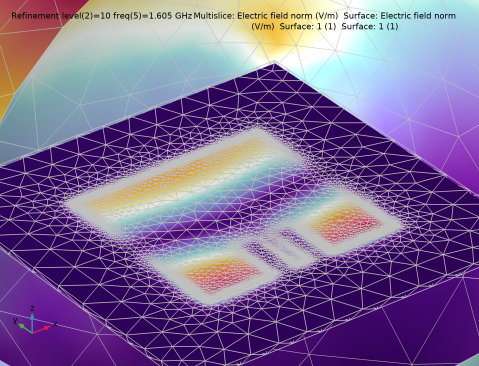
Notice that the mesh is much denser in the adapted mesh around the patch edges, compared to the original mesh, except where the field strength is low.
Goal-Oriented Termination Expression 3
1
In the Model Builder window, click Goal-Oriented Termination Expression 3.
This plot shows how the mesh adaptation converges and stops when the increment size is less than the tolerance of 0.02.
Add Study
1
In the Home toolbar, click  Add Study to open the Add Study window.
2
Go to the Add Study window.
3
Find the Studies subsection. In the Select Study tree, select Preset Studies for Selected Physics Interfaces > Adaptive Frequency Sweep.
4
Click the Add Study button in the window toolbar.
5
In the Home toolbar, click  Add Study to close the Add Study window.
Study 4, Linear Discretization with Adapted Mesh
1
In the Settings window for Study, type Study 4, Linear Discretization with Adapted Mesh in the Label text field.
2
Locate the Study Settings section. Clear the Generate default plots checkbox, as we again will not be saving the field in this study. Therefore, there is no point in generating the default field plots.
Step 1: Adaptive Frequency Sweep
1
In the Model Builder window, under Study 4, Linear Discretization with Adapted Mesh click Step 1: Adaptive Frequency Sweep.
2
In the Settings window for Adaptive Frequency Sweep, locate the Study Settings section.
3
In the Frequencies text field, type range(freq_min,100[kHz],freq_max).
4
Click to expand the Store in Output section. In the table, enter the following settings:
5
6
Under Selections, click  Add.
7
In the Add dialog, select Lumped Port in the Selections list.
8
Again, only include the lumped port boundaries in the S-parameter calculation to reduce the size of the model.
9
In the Study toolbar, click  Compute.
Results
S-parameter, Asymptotic Waveform Evaluation on Adapted Mesh
1
In the Results toolbar, click  1D Plot Group.
2
In the Settings window for 1D Plot Group, type S-parameter, Asymptotic Waveform Evaluation on Adapted Mesh in the Label text field.
3
Locate the Data section. From the Dataset list, choose Study 4, Linear Discretization with Adapted Mesh/Solution 16 (sol16).
4
Click to expand the Title section. From the Title type list, choose Manual.
5
In the Title text area, type Adaptive Frequency Sweep, Microstrip Patch Antenna.
6
Locate the Legend section. From the Position list, choose Lower left.
Global 1
1
Right-click S-parameter, Asymptotic Waveform Evaluation on Adapted Mesh and choose Global.
2
In the Settings window for Global, click Add Expression in the upper-right corner of the y-Axis Data section. From the menu, choose Component 1 (comp1) > Electromagnetic Waves, Frequency Domain > Ports > emw.S11dB - S11 - dB.
3
Click to expand the Legends section. From the Legends list, choose Manual.
4
5
Right-click Global 1 and choose Copy.
Global 2
1
In the Model Builder window, right-click S-parameter, Asymptotic Waveform Evaluation on Adapted Mesh and choose Paste Global.
2
In the Settings window for Global, locate the Data section.
3
From the Dataset list, choose Study 2, Quadratic Discretization, AWE/Solution 2 (sol2).
4
Locate the Legends section. In the table, enter the following settings:
5
In the S-parameter, Asymptotic Waveform Evaluation on Adapted Mesh toolbar, click  Plot.
For the denser, adapted mesh, the resonance has shifted to a slightly higher frequency.