PDF

Magnetic Frill
Introduction
Feeding antennas with proper signals can be difficult. The signal is often described as a voltage, and voltages are not well defined in electromagnetic wave formulations. There are several tricks to model voltage generators in such situations, and one is the magnetic frill. This example shows the basic steps of defining a magnetic frill voltage generator for a dipole antenna, and it also compares the resulting antenna impedance with known results.
Model Definition
Magnetic frills can only be defined using Electromagnetic Waves interface, which is based on the time-harmonic Faraday’s law.
Although there are no magnetic charges, it is possible to mathematically define a current of magnetic charges, called a magnetic current. This current enters the right-hand side of Faraday’s law in the same manner as the ordinary current enters the right-hand side of Ampère’s law. Similar to the ordinary current density that has the unit A/m2, the magnetic current density has the unit V/m2.
A closed loop of magnetic current therefore has the unit V and represents a voltage generator for the surface closed by the loop. In this example, the loop is located around a thin straight wire and acts as a voltage source at the center of the wire. This is a dipole antenna fed by a voltage signal in the center.
The current through the wire is measured with another loop, along which a line integral of the H-field is specified.
Note that this loop and the magnetic current loop must be two different loops.
The antenna is placed in a spherical air domain surrounded by a perfectly matched layer (PML) serving to absorb the radiation from the antenna with a minimum of reflection.
Results and Discussion
The dipole antenna is fed with a voltage signal of 1 V, and from the measured current it is possible to extract the impedance. Taken from Ref. 1, the impedance and dimensions of a typical dipole antenna are shown in the table below. The dimensions are given in terms of the wavelength, λ.
The impedance from the COMSOL Multiphysics model is 76.00 + 15.98i, which agrees well with the results from Ref. 1.
Reference
1. C.A. Balanis, Advanced Engineering Electromagnetics, John Wiley & Sons, 1989.
Application Library path: RF_Module/Antennas/magnetic_frill
Modeling Instructions
From the File menu, choose New.
New
In the New window, click  Model Wizard.
Model Wizard
1
In the Model Wizard window, click  3D.
2
In the Select Physics tree, select Radio Frequency > Electromagnetic Waves, Frequency Domain (emw).
3
Click Add.
4
Click  Study.
5
In the Select Study tree, select General Studies > Frequency Domain.
6
Global Definitions
Parameters 1
1
In the Model Builder window, under Global Definitions click Parameters 1.
2
In the Settings window for Parameters, locate the Parameters section.
3
Study 1
Step 1: Frequency Domain
Define the study frequency ahead of performing any frequency-dependent operation such as building mesh. The physics-controlled mesh uses the specified frequency value.
1
In the Model Builder window, under Study 1 click Step 1: Frequency Domain.
2
In the Settings window for Frequency Domain, locate the Study Settings section.
3
In the Frequencies text field, type f0.
Geometry 1
Work Plane 1 (wp1)
1
In the Geometry toolbar, click  Work Plane.
2
In the Settings window for Work Plane, locate the Plane Definition section.
3
From the Plane list, choose yz-plane.
4
Click  Go to Plane Geometry.
Work Plane 1 (wp1) > Rectangle 1 (r1)
1
In the Work Plane toolbar, click  Rectangle.
2
In the Settings window for Rectangle, locate the Size and Shape section.
3
In the Width text field, type r_wire.
4
In the Height text field, type L.
5
Locate the Position section. In the yw text field, type -L/2.
Work Plane 1 (wp1) > Rectangle 2 (r2)
1
In the Work Plane toolbar, click  Rectangle.
2
In the Settings window for Rectangle, locate the Size and Shape section.
3
In the Width text field, type 0.3.
4
In the Height text field, type 0.6.
5
Locate the Position section. In the xw text field, type -0.3.
6
In the yw text field, type -0.3.
Work Plane 1 (wp1) > Circle 1 (c1)
1
In the Work Plane toolbar, click  Circle.
2
In the Settings window for Circle, locate the Size and Shape section.
3
In the Radius text field, type 0.3.
Work Plane 1 (wp1) > Circle 2 (c2)
1
In the Work Plane toolbar, click  Circle.
2
In the Settings window for Circle, locate the Size and Shape section.
3
In the Radius text field, type 0.2.
Work Plane 1 (wp1) > Difference 1 (dif1)
1
In the Work Plane toolbar, click  Booleans and Partitions and choose Difference.
2
Select the objects c1 and c2 only.
Alternatively, you can select all objects and remove r1 and r2 from the selection list.
3
In the Settings window for Difference, locate the Difference section.
4
Click to select the  Activate Selection toggle button for Objects to subtract.
5
Select the objects r1 and r2 only.
Work Plane 1 (wp1) > Line Segment 1 (ls1)
1
In the Work Plane toolbar, click  More Primitives and choose Line Segment.
2
In the Settings window for Line Segment, locate the Starting Point section.
3
From the Specify list, choose Coordinates.
4
Locate the Endpoint section. From the Specify list, choose Coordinates.
5
Locate the Starting Point section. In the xw text field, type 0.2.
6
Locate the Endpoint section. In the xw text field, type 0.3.
This line segment simplifies meshing.
Work Plane 1 (wp1) > Point 1 (pt1)
1
In the Work Plane toolbar, click  Point.
2
In the Settings window for Point, locate the Point section.
3
In the xw text field, type r_wire+0.001.
Work Plane 1 (wp1) > Point 2 (pt2)
1
In the Work Plane toolbar, click  Point.
2
In the Settings window for Point, locate the Point section.
3
In the xw text field, type 0.01.
4
In the Work Plane toolbar, click  Build All.
Revolve 1 (rev1)
1
In the Model Builder window, under Component 1 (comp1) > Geometry 1 right-click Work Plane 1 (wp1) and choose Revolve.
2
In the Settings window for Revolve, locate the Revolution Angles section.
3
Click the Angles button.
4
In the End angle text field, type -90.
5
Click  Build All Objects.
6
Click the  Zoom Extents button in the Graphics toolbar.
Form Union (fin)
1
In the Model Builder window, click Form Union (fin).
2
In the Settings window for Form Union/Assembly, click  Build Selected.
3
Click the  Wireframe Rendering button in the Graphics toolbar.
Definitions
Integration 1 (intop1)
1
In the Definitions toolbar, click  Nonlocal Couplings and choose Integration.
2
In the Settings window for Integration, locate the Source Selection section.
3
From the Geometric entity level list, choose Edge.
4
Variables 1
1
In the Definitions toolbar, click  Local Variables.
2
In the Settings window for Variables, locate the Geometric Entity Selection section.
3
From the Geometric entity level list, choose Edge.
4
5
Locate the Variables section. In the table, enter the following settings:
Variables 2
1
In the Definitions toolbar, click  Local Variables.
2
In the Settings window for Variables, locate the Variables section.
3
Perfectly Matched Layer 1 (pml1)
1
In the Definitions toolbar, click  Perfectly Matched Layer.
2
3
In the Settings window for Perfectly Matched Layer, locate the Geometry section.
4
From the Type list, choose Spherical.
Add Material
1
In the Materials toolbar, click  Add Material to open the Add Material window.
2
Go to the Add Material window.
3
In the tree, select Built-in > Air.
4
Click the Add to Component button in the window toolbar.
5
In the Materials toolbar, click  Add Material to close the Add Material window.
Electromagnetic Waves, Frequency Domain (emw)
Perfect Magnetic Conductor 1
1
In the Physics toolbar, click  Boundaries and choose Perfect Magnetic Conductor.
2
Magnetic Current 1
1
In the Physics toolbar, click  Edges and choose Magnetic Current.
2
3
In the Settings window for Magnetic Current, locate the Magnetic Current section.
4
In the Im text field, type 1.
Mesh 1
1
In the Model Builder window, under Component 1 (comp1) click Mesh 1.
2
In the Settings window for Mesh, locate the Physics-Controlled Mesh section.
3
From the Element size list, choose Coarse.
4
Click  Build All.
Study 1
In the Study toolbar, click  Compute.
Results
Electric Field (emw)
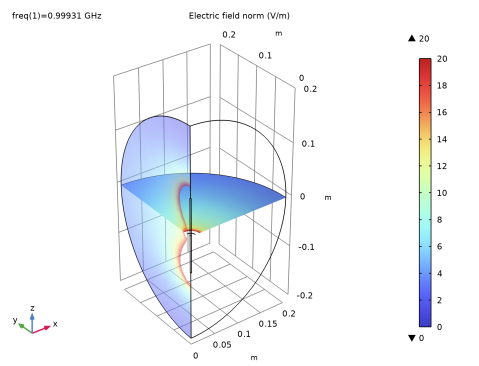
The default plot shows the electric field on slices through the geometry.
Visualize the electric field around the antenna by modifying this plot as follows:
Delete the Multislice plot.
Multislice 1
1
In the Model Builder window, expand the Electric Field (emw) node.
2
Right-click Multislice 1 and choose Delete.
Electric Field (emw)
Add two Slice plots.
Slice 1
1
Right-click Electric Field (emw) and choose Slice.
2
In the Settings window for Slice, locate the Plane Data section.
3
From the Plane list, choose XY-planes.
4
From the Entry method list, choose Coordinates.
5
Click to expand the Range section. Select the Manual color range checkbox.
6
In the Maximum text field, type 20.
7
Select the Manual data range checkbox.
8
In the Maximum text field, type 20.
Slice 2
1
Right-click Electric Field (emw) and choose Slice.
2
In the Settings window for Slice, locate the Plane Data section.
3
From the Entry method list, choose Coordinates.
4
Click to expand the Inherit Style section. From the Plot list, choose Slice 1.
Transparency 1
Right-click Slice 2 and choose Transparency.
Electric Field (emw)
1
In the Settings window for 3D Plot Group, click to expand the Title section.
2
From the Title type list, choose Manual.
3
In the Title text area, type Electric field norm (V/m).
4
In the Electric Field (emw) toolbar, click  Plot.
Global Evaluation 1
1
In the Results toolbar, click  Global Evaluation.
2
In the Settings window for Global Evaluation, locate the Expressions section.
3
4
Click  Evaluate.