
PDF

High-Speed Interconnect Tuning by Time-Domain Reflectometry
Introduction
In signal integrity (SI) applications, time-domain reflectometry (TDR) is a useful technique to analyze the effect of discontinuities in the signal path by observing the reflected signal strength. The signal quality is degraded mainly by impedance mismatch along the transmission line if there is no external noise source, crosstalk, or other undesired coupling. In this example, a staircase step function with a fast rise time is launched on a microstrip line connected from layer to layer through a metalized via hole. The signal path discontinuities are identified from the reflected signal. In a subsequent step, the geometry parts in the circuit, where the discontinuities are observed, are modified to lower the distortion.
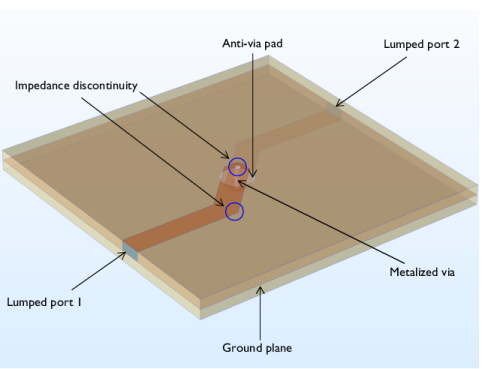
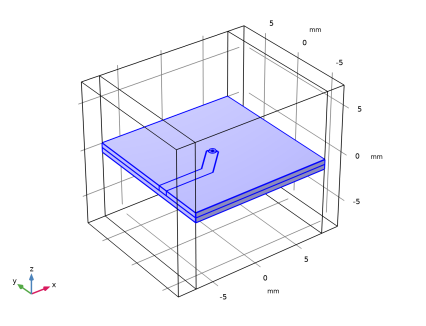
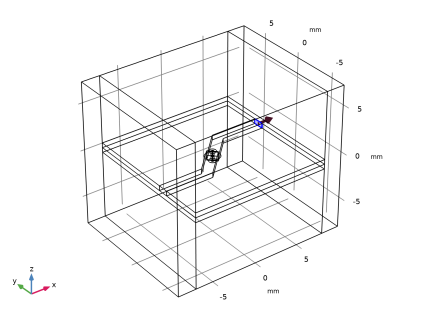
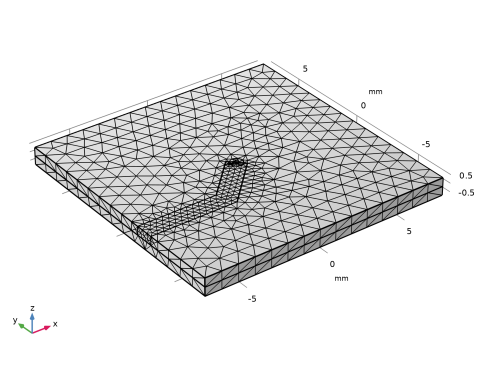
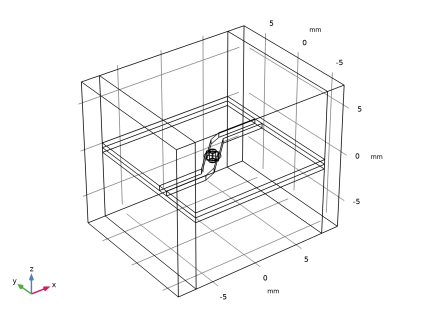
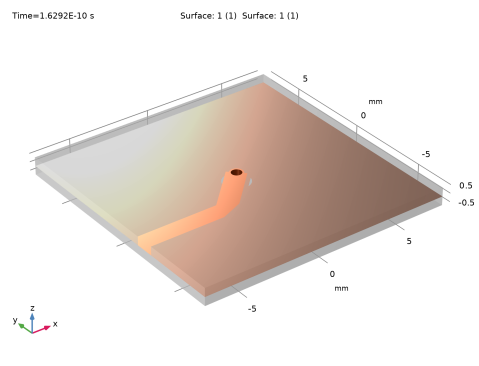
Figure 1: A microstrip line on a multilayer circuit board. A 20 mil (0.508 mm) microwave substrate is used for each dielectric layer. The ground plane with an anti-via pad is located between two dielectric layers. The top and bottom microstrip lines are connected with a metalized via hole.
Model Definition
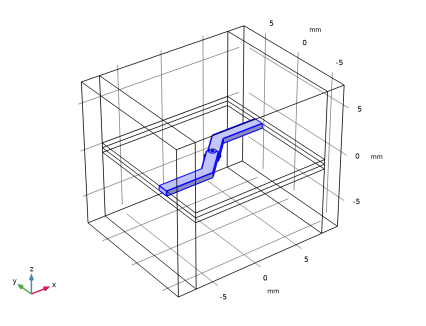
A ground plane with a 0.8 mm anti-via pad is shared by two 20 mil (0.508 mm) substrates with a dielectric constant εr = 3.38. 50 Ω microstrip lines are patterned on the top and bottom surfaces of the stacked dielectric layers. The perfect electric conductor (PEC) boundary condition is applied to all metallic parts including the patterned lines, via pad, via hole and bottom ground plane. The microstrip lines are 135° bent and connected through a metalized via.
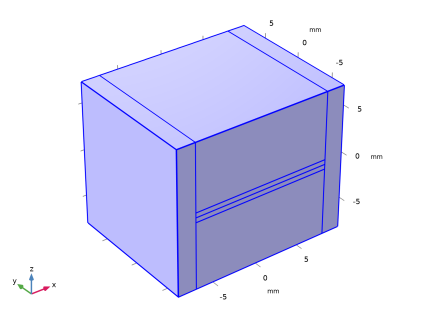
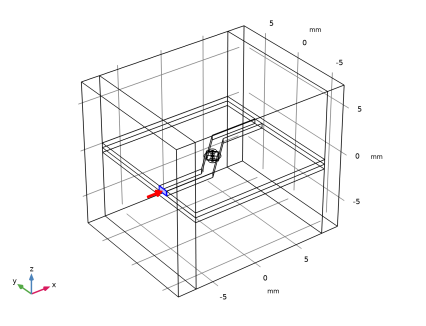
The small rectangular surfaces, bridging the microstrip lines and ground plane, are used to model lumped ports where the microstrip lines are excited or terminated by 50 Ω. The air domain outside the circuit board is defined using vacuum material properties. The simulation domain is truncated by a scattering boundary condition that is an absorbing boundary describing an open space.
A staircase step function is used as an input signal to excite the microstrip line. To avoid undesirable high-frequency components from the signal, it is necessary to apply a long enough rise time, defined by the transition zone size of the step function. Thus, the rise time of the step function is set to one eighth of the period for the 12 Gbit/s signal.
Since the mode in the microstrip line is quasi-TEM and there is no dispersive material properties used in this model, the maximum simulation time is approximated by the traveling time for the wave passing through the microstrip line given the phase velocity. The effective dielectric constant for the phase velocity calculation is obtained using an equation in Ref. 1
where d is the thickness of the substrate and W is the width of the line.
The mesh size must be small enough to resolve also the wavelengths corresponding to the highest frequencies in the signal. For this model, the maximum frequency is approximated to 96 GHz. This corresponds to a period that is half of the step function rise time. Since the wave is guided mostly between the microstrip line and the ground plane, only the maximum mesh size of the dielectric layers is set to:
where c is the speed of light, fmax is the maximum frequency, and εeff is the effective dielectric constant. The remaining area is coarsely meshed.
It is also important to define a time step that resolves the wave equally well in time as the mesh does in space. A too long time step would have a poor temporal resolution so the fast time-varying signal, especially in the smoothed transition zone, cannot be analyzed properly while a too short time step would lead to a longer simulation time without making the results more accurate. While running a transient simulation with default solver settings, the time step is continuously adjusted to meet the specified tolerances for the time-dependent solver. For this simulation, a manual time step will be used. This is done in the settings for the Time-Dependent Solve node, as explained in the following step-by-step instructions.
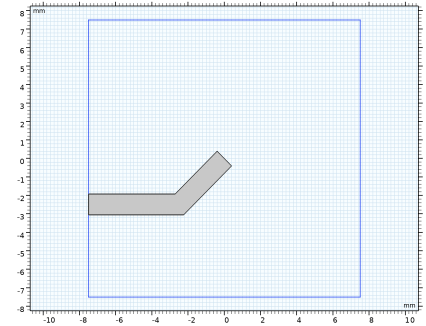
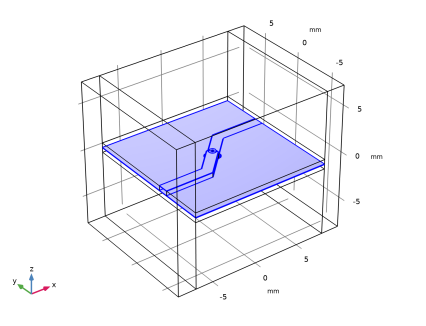
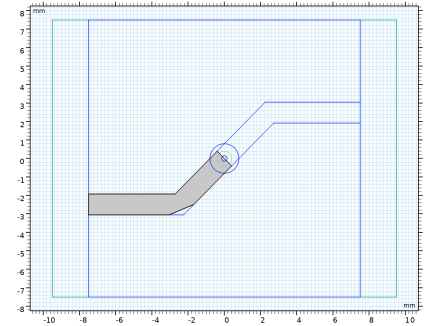
After the first simulation, the corner of 135° bent part of the microstrip line is trimmed to form a mitered bend using a chamfer geometry operation. The radius of the metalized via hole is also increased. The geometry modification is performed to adjust the impedance closer to the ideal 50 Ω transmission line characteristic impedance.
Results and Discussion
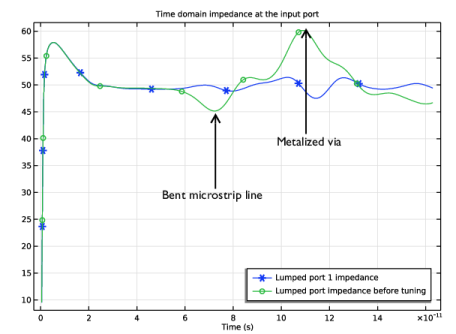
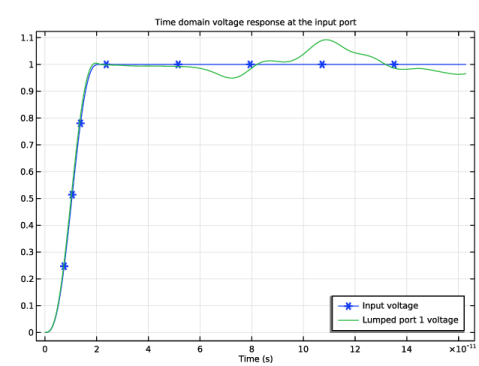
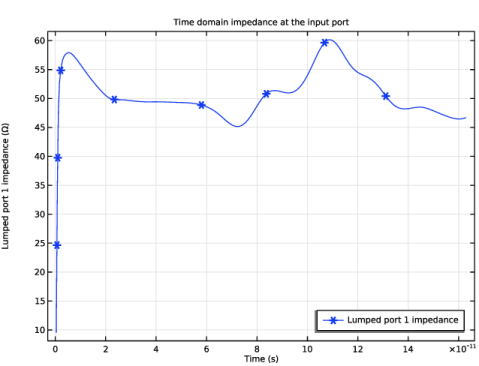
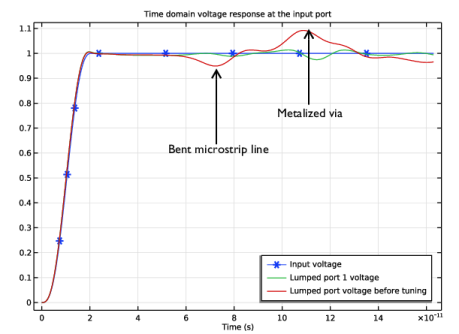
Figure 2 and Figure 3 present the voltage and impedance during the TDR simulation. The reflected wave due to the parts that have impedance discontinuities causes the signal distortions at lumped port 1. The two major impedance mismatching parts are the bent microstrip line and the metalized via hole. A mitered bend is known to reduce the discontinuity of the bent microstrip line. The undershoot of the TDR response in each plot indicates that the effective width of the microstrip line at the bent part before tuning is wider than that of the 50 Ω line. After chamfering the corner of the bent part, the undesired undershoot of the TDR response is removed. The initial radius of the metalized via hole is quite small and it is expected to have high inductance. By increasing the radius, the overshoot response from the via hole is reduced.
Figure 2: The time-domain voltage measured at lumped port 1. The undesired voltage fluctuation from the discontinuities is suppressed after tuning.
Figure 3: The time-domain impedance at lumped port 1. After tuning, the measured impedance is closer to 50 Ω.
Reference
1. D.M. Pozar, Microwave Engineering, John Wiley & Sons, 1998.
Application Library path: RF_Module/EMI_EMC_Applications/high_speed_interconnect_tdr
Modeling Instructions
From the File menu, choose New.
New
In the New window, click  Model Wizard.
Model Wizard
1
In the Model Wizard window, click  3D.
2
In the Select Physics tree, select Radio Frequency > Electromagnetic Waves, Transient (temw).
3
Click Add.
4
Click  Study.
5
In the Select Study tree, select General Studies > Time Dependent.
6
Global Definitions
Parameters 1
1
In the Model Builder window, under Global Definitions click Parameters 1.
2
In the Settings window for Parameters, locate the Parameters section.
3
Click  Load from File.
4
Geometry 1
1
In the Model Builder window, under Component 1 (comp1) click Geometry 1.
2
In the Settings window for Geometry, locate the Units section.
3
From the Length unit list, choose mm.
Block 1 (blk1)
1
In the Geometry toolbar, click  Block.
2
In the Settings window for Block, locate the Size and Shape section.
3
In the Width text field, type sub_l.
4
In the Depth text field, type sub_w.
5
In the Height text field, type sub_t.
6
Locate the Position section. From the Base list, choose Center.
7
In the z text field, type sub_t/2.
8
Click  Build Selected.
9
Click the  Wireframe Rendering button in the Graphics toolbar.
Work Plane 1 (wp1)
In the Geometry toolbar, click  Work Plane.
Work Plane 1 (wp1) > Plane Geometry
In the Model Builder window, click Plane Geometry.
Work Plane 1 (wp1) > Rectangle 1 (r1)
1
In the Work Plane toolbar, click  Rectangle.
2
In the Settings window for Rectangle, locate the Size and Shape section.
3
In the Width text field, type sub_l/4.
4
In the Height text field, type line_w.
5
Locate the Position section. From the Base list, choose Center.
6
In the xw text field, type -sub_l/8.
Work Plane 1 (wp1) > Rotate 1 (rot1)
1
In the Work Plane toolbar, click  Transforms and choose Rotate.
2
3
In the Settings window for Rotate, locate the Rotation section.
4
In the Angle text field, type 45.
5
Click  Build Selected.
Work Plane 1 (wp1) > Rectangle 2 (r2)
1
In the Work Plane toolbar, click  Rectangle.
2
In the Settings window for Rectangle, locate the Size and Shape section.
3
In the Width text field, type sub_l/2-sub_l/2/2/sqrt(2)+line_w/2/sqrt(2).
4
In the Height text field, type line_w.
5
Locate the Position section. From the Base list, choose Center.
6
In the xw text field, type -sub_l/2+(sub_l/2-sub_l/2/2/sqrt(2)+line_w/2/sqrt(2))/2.
7
In the yw text field, type -sub_l/2/2/sqrt(2)+(line_w/2-line_w/2/sqrt(2)).
Work Plane 1 (wp1) > Union 1 (uni1)
1
In the Work Plane toolbar, click  Booleans and Partitions and choose Union.
2
Click in the Graphics window and then press Ctrl+A to select both objects.
3
In the Settings window for Union, locate the Union section.
4
Clear the Keep interior boundaries checkbox.
5
Click  Build Selected.
Extrude 1 (ext1)
1
In the Model Builder window, right-click Geometry 1 and choose Extrude.
2
In the Settings window for Extrude, locate the Distances section.
3
Rotate 1 (rot1)
1
In the Geometry toolbar, click  Transforms and choose Rotate.
2
Click in the Graphics window and then press Ctrl+A to select both objects.
3
In the Settings window for Rotate, locate the Input section.
4
Select the Keep input objects checkbox.
5
Locate the Rotation section. In the Angle text field, type 180.
Cylinder 1 (cyl1)
1
In the Geometry toolbar, click  Cylinder.
2
In the Settings window for Cylinder, locate the Size and Shape section.
3
In the Radius text field, type 0.15[mm].
4
In the Height text field, type sub_t*2.
5
Locate the Position section. In the z text field, type -sub_t.
6
Locate the Rotation Angle section. In the Rotation text field, type 45.
Move 1 (mov1)
1
In the Geometry toolbar, click  Transforms and choose Move.
2
Select the objects rot1(1) and rot1(2) only.
3
In the Settings window for Move, locate the Displacement section.
4
In the z text field, type -sub_t.
Work Plane 2 (wp2)
1
In the Geometry toolbar, click  Work Plane.
2
In the Settings window for Work Plane, locate the Plane Definition section.
3
In the z-coordinate text field, type sub_t.
Work Plane 2 (wp2) > Plane Geometry
In the Model Builder window, click Plane Geometry.
Work Plane 2 (wp2) > Circle 1 (c1)
1
In the Work Plane toolbar, click  Circle.
2
In the Settings window for Circle, locate the Size and Shape section.
3
In the Radius text field, type 0.4[mm].
Copy 1 (copy1)
1
In the Model Builder window, right-click Geometry 1 and choose Transforms > Copy.
2
3
In the Settings window for Copy, locate the Displacement section.
4
In the z text field, type -sub_t*2.
5
Click  Build Selected.
Work Plane 3 (wp3)
In the Geometry toolbar, click  Work Plane.
Work Plane 3 (wp3) > Plane Geometry
In the Model Builder window, click Plane Geometry.
Work Plane 3 (wp3) > Circle 1 (c1)
1
In the Work Plane toolbar, click  Circle.
2
In the Settings window for Circle, locate the Size and Shape section.
3
In the Radius text field, type 0.8[mm].
4
Locate the Rotation Angle section. In the Rotation text field, type 45.
Block 2 (blk2)
1
In the Model Builder window, right-click Geometry 1 and choose Block.
2
In the Settings window for Block, locate the Size and Shape section.
3
In the Width text field, type sub_l+4[mm].
4
In the Depth text field, type sub_w.
5
In the Height text field, type sub_t*30.
6
Locate the Position section. From the Base list, choose Center.
7
Click to expand the Layers section. In the table, enter the following settings:
8
Find the Layer position subsection. Select the Left checkbox.
9
Select the Right checkbox.
10
Clear the Bottom checkbox.
11
In the Geometry toolbar, click  Build All.
12
In the Model Builder window, click Geometry 1.
13
Click the  Zoom Extents button in the Graphics toolbar.
Definitions
Step 1 (step1)
1
In the Definitions toolbar, click  More Functions and choose Step.
2
In the Settings window for Step, click to expand the Smoothing section.
3
In the Size of transition zone text field, type T0/8.
Analytic 1 (an1)
1
In the Definitions toolbar, click  Analytic.
2
In the Settings window for Analytic, locate the Definition section.
3
In the Expression text field, type step1((x-T0/16)/1[s]).
4
Locate the Units section. In the table, enter the following settings:
5
In the Function text field, type V.
Materials
Material 1 (mat1)
1
In the Model Builder window, under Component 1 (comp1) right-click Materials and choose Blank Material.
2
In the Settings window for Material, locate the Material Contents section.
3
Material 2 (mat2)
1
Right-click Materials and choose Blank Material.
2
In the Settings window for Material, locate the Geometric Entity Selection section.
3
Click  Paste Selection.
4
In the Paste Selection dialog, type 3, 4, 6, 7 in the Selection text field.
5
6
In the Settings window for Material, locate the Material Contents section.
7
Electromagnetic Waves, Transient (temw)
Perfect Electric Conductor 2
1
In the Physics toolbar, click  Boundaries and choose Perfect Electric Conductor.
2
In the Settings window for Perfect Electric Conductor, locate the Boundary Selection section.
3
Click  Paste Selection.
4
In the Paste Selection dialog, type 14, 21-22, 25, 34-35, 38, 41-44, 46-47, 51, 54, 58-59, 61 in the Selection text field.
5
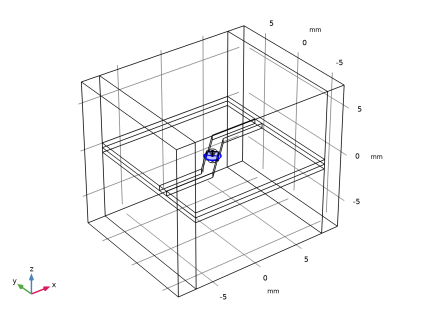
Perfect Electric Conductor includes all metallic surfaces: microstrip line, metalized via, via-pad, and ground plane. Make sure that the anti-via pad on the ground plane is excluded.
Scattering Boundary Condition 1
1
In the Physics toolbar, click  Boundaries and choose Scattering Boundary Condition.
2
In the Settings window for Scattering Boundary Condition, locate the Boundary Selection section.
3
Click  Paste Selection.
4
In the Paste Selection dialog, type 1-5, 7-8, 10, 13, 16, 18, 26-29, 67-68, 72, 75-76 in the Selection text field.
5
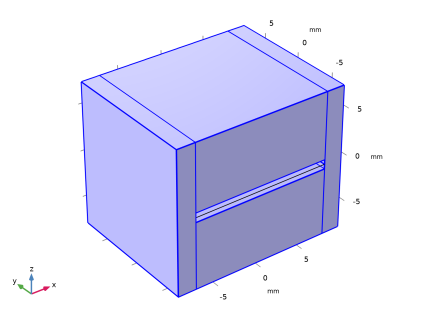
These are all exterior boundaries.
Lumped Port 1
1
In the Physics toolbar, click  Boundaries and choose Lumped Port.
2
3
In the Settings window for Lumped Port, locate the Boundary Selection section.
4
Click  Create Selection.
Use this selection to store solutions only on the excited Lumped Port boundary.
5
In the Create Selection dialog, click OK.
For the first port, wave excitation is on by default.
6
In the Settings window for Lumped Port, locate the Settings section.
7
In the V0 text field, type an1(t).
Lumped Port 2
1
In the Physics toolbar, click  Boundaries and choose Lumped Port.
2
Mesh 1
1
In the Model Builder window, under Component 1 (comp1) click Mesh 1.
2
In the Settings window for Mesh, locate the Electromagnetic Waves, Transient (temw) section.
3
In the Maximum element size in free space text field, type 5[mm].
4
In the Model Builder window, click Mesh 1.
5
Locate the Physics-Controlled Mesh section. In the table, clear the Use checkbox for Geometric Analysis, Detail Size.
6
Locate the Sequence Type section. From the list, choose User-controlled mesh.
Size
1
In the Model Builder window, under Component 1 (comp1) > Mesh 1 click Size.
2
In the Settings window for Size, locate the Element Size section.
3
Click the Custom button.
4
Locate the Element Size Parameters section. In the Maximum element size text field, type 5.
5
In the Minimum element size text field, type 0.5.
6
In the Maximum element growth rate text field, type 2.
Size 1
1
In the Model Builder window, click Size 1.
2
In the Settings window for Size, locate the Geometric Entity Selection section.
3
Click  Clear Selection.
4
Click  Paste Selection.
5
In the Paste Selection dialog, type 6-11 in the Selection text field.
6
7
In the Settings window for Size, locate the Element Size Parameters section.
8
In the Maximum element size text field, type hmax.
9
In the Minimum element size text field, type hmax/2.
Size 3
1
In the Model Builder window, right-click Mesh 1 and choose Size.
2
In the Settings window for Size, locate the Geometric Entity Selection section.
3
From the Geometric entity level list, choose Boundary.
4
Click  Paste Selection.
5
In the Paste Selection dialog, type 32-33, 40, 57 in the Selection text field.
6
7
In the Settings window for Size, locate the Element Size section.
8
Click the Custom button.
9
Locate the Element Size Parameters section.
10
Select the Maximum element size checkbox. In the associated text field, type hmax.
11
Select the Minimum element size checkbox. In the associated text field, type hmax/3.
12
In the Model Builder window, right-click Size 3 and choose Move Up.
Definitions
Hide for Physics 1
1
In the Model Builder window, right-click View 1 and choose Hide for Physics.
2
Mesh 1
1
In the Model Builder window, under Component 1 (comp1) right-click Mesh 1 and choose Build All.
2
Click the  Zoom Extents button in the Graphics toolbar.
Study 1
Step 1: Time Dependent
1
In the Model Builder window, under Study 1 click Step 1: Time Dependent.
2
In the Settings window for Time Dependent, locate the Study Settings section.
3
In the Output times text field, type range(0,sim_time_step,sim_time_max).
4
Click to expand the Store in Output section. In the table, enter the following settings:
5
6
Under Selections, click  Add.
7
In the Add dialog, select Explicit 1 in the Selections list.
8
9
In the Model Builder window, click Study 1.
10
In the Settings window for Study, locate the Study Settings section.
11
Clear the Generate default plots checkbox.
Solution 1 (sol1)
1
In the Study toolbar, click  Show Default Solver.
2
In the Model Builder window, expand the Solution 1 (sol1) node, then click Time-Dependent Solver 1.
3
In the Settings window for Time-Dependent Solver, click to expand the Time Stepping section.
4
From the Steps taken by solver list, choose Manual.
5
In the Time step text field, type sim_time_step.
6
In the Study toolbar, click  Compute.
Results
1D Plot Group 1
1
In the Results toolbar, click  1D Plot Group.
2
In the Settings window for 1D Plot Group, click to expand the Title section.
3
From the Title type list, choose Manual.
4
In the Title text area, type Time domain voltage response at the input port.
5
Locate the Legend section. From the Position list, choose Lower right.
Global 1
1
Right-click 1D Plot Group 1 and choose Global.
2
In the Settings window for Global, locate the y-Axis Data section.
3
4
Click to expand the Coloring and Style section. Find the Line markers subsection. From the Marker list, choose Cycle.
5
From the Positioning list, choose Interpolated.
Global 2
1
In the Model Builder window, right-click 1D Plot Group 1 and choose Global.
2
In the Settings window for Global, click Add Expression in the upper-right corner of the y-Axis Data section. From the menu, choose Component 1 (comp1) > Electromagnetic Waves, Transient > Ports > Voltage > temw.Vport_1 - Lumped port 1 voltage - V.
3
In the 1D Plot Group 1 toolbar, click  Plot.
The plot shows the input and measured voltage at lumped port 1. The fluctuation in the measured voltage at lumped port 1 indicates that the reflected wave from the discontinuities causes the signal distortion. The discontinuities are at the bent microstrip line and metalized via hole.
1D Plot Group 2
1
In the Results toolbar, click  1D Plot Group.
2
In the Settings window for 1D Plot Group, locate the Data section.
3
From the Time selection list, choose From list.
4
In the Times (s) list, choose 4.1667E-13, 8.3333E-13, 1.25E-12, 1.6667E-12, 2.0833E-12, 2.5E-12, 2.9167E-12, 3.3333E-12, 3.75E-12, 4.1667E-12, 4.5833E-12, 5E-12, 5.4167E-12, 5.8333E-12, 6.25E-12, 6.6667E-12, 7.0833E-12, 7.5E-12, 7.9167E-12, 8.3333E-12, 8.75E-12, 9.1667E-12, 9.5833E-12, 1E-11, 1.0417E-11, 1.0833E-11, 1.125E-11, 1.1667E-11, 1.2083E-11, 1.25E-11, 1.2917E-11, 1.3333E-11, 1.375E-11, 1.4167E-11, 1.4583E-11, 1.5E-11, 1.5417E-11, 1.5833E-11, 1.625E-11, 1.6667E-11, 1.7083E-11, 1.75E-11, 1.7917E-11, 1.8333E-11, 1.875E-11, 1.9167E-11, 1.9583E-11, 2E-11, 2.0417E-11, 2.0833E-11, 2.125E-11, 2.1667E-11, 2.2083E-11, 2.25E-11, 2.2917E-11, 2.3333E-11, 2.375E-11, 2.4167E-11, 2.4583E-11, 2.5E-11, 2.5417E-11, 2.5833E-11, 2.625E-11, 2.6667E-11, 2.7083E-11, 2.75E-11, 2.7917E-11, 2.8333E-11, 2.875E-11, 2.9167E-11, 2.9583E-11, 3E-11, 3.0417E-11, 3.0833E-11, 3.125E-11, 3.1667E-11, 3.2083E-11, 3.25E-11, 3.2917E-11, 3.3333E-11, 3.375E-11, 3.4167E-11, 3.4583E-11, 3.5E-11, 3.5417E-11, 3.5833E-11, 3.625E-11, 3.6667E-11, 3.7083E-11, 3.75E-11, 3.7917E-11, 3.8333E-11, 3.875E-11, 3.9167E-11, 3.9583E-11, 4E-11, 4.0417E-11, 4.0833E-11, 4.125E-11, 4.1667E-11, 4.2083E-11, 4.25E-11, 4.2917E-11, 4.3333E-11, 4.375E-11, 4.4167E-11, 4.4583E-11, 4.5E-11, 4.5417E-11, 4.5833E-11, 4.625E-11, 4.6667E-11, 4.7083E-11, 4.75E-11, 4.7917E-11, 4.8333E-11, 4.875E-11, 4.9167E-11, 4.9583E-11, 5E-11, 5.0417E-11, 5.0833E-11, 5.125E-11, 5.1667E-11, 5.2083E-11, 5.25E-11, 5.2917E-11, 5.3333E-11, 5.375E-11, 5.4167E-11, 5.4583E-11, 5.5E-11, 5.5417E-11, 5.5833E-11, 5.625E-11, 5.6667E-11, 5.7083E-11, 5.75E-11, 5.7917E-11, 5.8333E-11, 5.875E-11, 5.9167E-11, 5.9583E-11, 6E-11, 6.0417E-11, 6.0833E-11, 6.125E-11, 6.1667E-11, 6.2083E-11, 6.25E-11, 6.2917E-11, 6.3333E-11, 6.375E-11, 6.4167E-11, 6.4583E-11, 6.5E-11, 6.5417E-11, 6.5833E-11, 6.625E-11, 6.6667E-11, 6.7083E-11, 6.75E-11, 6.7917E-11, 6.8333E-11, 6.875E-11, 6.9167E-11, 6.9583E-11, 7E-11, 7.0417E-11, 7.0833E-11, 7.125E-11, 7.1667E-11, 7.2083E-11, 7.25E-11, 7.2917E-11, 7.3333E-11, 7.375E-11, 7.4167E-11, 7.4583E-11, 7.5E-11, 7.5417E-11, 7.5833E-11, 7.625E-11, 7.6667E-11, 7.7083E-11, 7.75E-11, 7.7917E-11, 7.8333E-11, 7.875E-11, 7.9167E-11, 7.9583E-11, 8E-11, 8.0417E-11, 8.0833E-11, 8.125E-11, 8.1667E-11, 8.2083E-11, 8.25E-11, 8.2917E-11, 8.3333E-11, 8.375E-11, 8.4167E-11, 8.4583E-11, 8.5E-11, 8.5417E-11, 8.5833E-11, 8.625E-11, 8.6667E-11, 8.7083E-11, 8.75E-11, 8.7917E-11, 8.8333E-11, 8.875E-11, 8.9167E-11, 8.9583E-11, 9E-11, 9.0417E-11, 9.0833E-11, 9.125E-11, 9.1667E-11, 9.2083E-11, 9.25E-11, 9.2917E-11, 9.3333E-11, 9.375E-11, 9.4167E-11, 9.4583E-11, 9.5E-11, 9.5417E-11, 9.5833E-11, 9.625E-11, 9.6667E-11, 9.7083E-11, 9.75E-11, 9.7917E-11, 9.8333E-11, 9.875E-11, 9.9167E-11, 9.9583E-11, 1E-10, 1.0042E-10, 1.0083E-10, 1.0125E-10, 1.0167E-10, 1.0208E-10, 1.025E-10, 1.0292E-10, 1.0333E-10, 1.0375E-10, 1.0417E-10, 1.0458E-10, 1.05E-10, 1.0542E-10, 1.0583E-10, 1.0625E-10, 1.0667E-10, 1.0708E-10, 1.075E-10, 1.0792E-10, 1.0833E-10, 1.0875E-10, 1.0917E-10, 1.0958E-10, 1.1E-10, 1.1042E-10, 1.1083E-10, 1.1125E-10, 1.1167E-10, 1.1208E-10, 1.125E-10, 1.1292E-10, 1.1333E-10, 1.1375E-10, 1.1417E-10, 1.1458E-10, 1.15E-10, 1.1542E-10, 1.1583E-10, 1.1625E-10, 1.1667E-10, 1.1708E-10, 1.175E-10, 1.1792E-10, 1.1833E-10, 1.1875E-10, 1.1917E-10, 1.1958E-10, 1.2E-10, 1.2042E-10, 1.2083E-10, 1.2125E-10, 1.2167E-10, 1.2208E-10, 1.225E-10, 1.2292E-10, 1.2333E-10, 1.2375E-10, 1.2417E-10, 1.2458E-10, 1.25E-10, 1.2542E-10, 1.2583E-10, 1.2625E-10, 1.2667E-10, 1.2708E-10, 1.275E-10, 1.2792E-10, 1.2833E-10, 1.2875E-10, 1.2917E-10, 1.2958E-10, 1.3E-10, 1.3042E-10, 1.3083E-10, 1.3125E-10, 1.3167E-10, 1.3208E-10, 1.325E-10, 1.3292E-10, 1.3333E-10, 1.3375E-10, 1.3417E-10, 1.3458E-10, 1.35E-10, 1.3542E-10, 1.3583E-10, 1.3625E-10, 1.3667E-10, 1.3708E-10, 1.375E-10, 1.3792E-10, 1.3833E-10, 1.3875E-10, 1.3917E-10, 1.3958E-10, 1.4E-10, 1.4042E-10, 1.4083E-10, 1.4125E-10, 1.4167E-10, 1.4208E-10, 1.425E-10, 1.4292E-10, 1.4333E-10, 1.4375E-10, 1.4417E-10, 1.4458E-10, 1.45E-10, 1.4542E-10, 1.4583E-10, 1.4625E-10, 1.4667E-10, 1.4708E-10, 1.475E-10, 1.4792E-10, 1.4833E-10, 1.4875E-10, 1.4917E-10, 1.4958E-10, 1.5E-10, 1.5042E-10, 1.5083E-10, 1.5125E-10, 1.5167E-10, 1.5208E-10, 1.525E-10, 1.5292E-10, 1.5333E-10, 1.5375E-10, 1.5417E-10, 1.5458E-10, 1.55E-10, 1.5542E-10, 1.5583E-10, 1.5625E-10, 1.5667E-10, 1.5708E-10, 1.575E-10, 1.5792E-10, 1.5833E-10, 1.5875E-10, 1.5917E-10, 1.5958E-10, 1.6E-10, 1.6042E-10, 1.6083E-10, 1.6125E-10, 1.6167E-10, 1.6208E-10, 1.625E-10, and 1.6292E-10.
Select all time steps except for zero second where the evaluated value might be affected by system noise.
5
Locate the Title section. From the Title type list, choose Manual.
6
In the Title text area, type Time domain impedance at the input port.
7
Locate the Legend section. From the Position list, choose Lower right.
Global 1
1
Right-click 1D Plot Group 2 and choose Global.
2
In the Settings window for Global, click Add Expression in the upper-right corner of the y-Axis Data section. From the menu, choose Component 1 (comp1) > Electromagnetic Waves, Transient > Ports > Impedance > temw.Zport_1 - Lumped port 1 impedance - Ω.
3
Locate the Coloring and Style section. Find the Line markers subsection. From the Marker list, choose Cycle.
4
From the Positioning list, choose Interpolated.
5
In the 1D Plot Group 2 toolbar, click  Plot.
The impedance at lumped port 1 fluctuates around 50 Ω.
Improve the time domain response by tuning the parts where the impedance mismatching is observed.
Geometry 1
Work Plane 1 (wp1) > Plane Geometry
In the Model Builder window, under Component 1 (comp1) > Geometry 1 > Work Plane 1 (wp1) click Plane Geometry.
Work Plane 1 (wp1) > Chamfer 1 (cha1)
1
In the Work Plane toolbar, click  Chamfer.
2
On the object uni1, select Point 4 only.
3
In the Settings window for Chamfer, locate the Distance section.
4
In the Distance from vertex text field, type 0.8.
5
Click  Build Selected.
Cylinder 1 (cyl1)
1
In the Model Builder window, under Component 1 (comp1) > Geometry 1 click Cylinder 1 (cyl1).
2
In the Settings window for Cylinder, locate the Size and Shape section.
3
In the Radius text field, type 0.3[mm].
4
Click  Build All Objects.
Study 1
Solution 1 (sol1)
1
In the Model Builder window, under Study 1 > Solver Configurations right-click Solution 1 (sol1) and choose Solution > Copy.
The solution from the previous simulation will be used to compare with the results of the tuned device.
2
In the Study toolbar, click  Compute.
Results
Global 3
1
Right-click 1D Plot Group 1 and choose Global.
2
In the Settings window for Global, locate the Data section.
3
From the Dataset list, choose Study 1/Solution 1 - Copy 1 (sol2).
4
Click Add Expression in the upper-right corner of the y-Axis Data section. From the menu, choose Component 1 (comp1) > Electromagnetic Waves, Transient > Ports > Voltage > temw.Vport_1 - Lumped port 1 voltage - V.
5
Locate the y-Axis Data section. In the table, enter the following settings:
6
In the 1D Plot Group 1 toolbar, click  Plot.
In Figure 2, the input pulse and the voltage at lumped port 1 are plotted. After tuning of the circuit, the fluctuation of the voltage is less.
Global 2
1
In the Model Builder window, under Results > 1D Plot Group 2 right-click Global 1 and choose Duplicate.
2
In the Settings window for Global, locate the Data section.
3
From the Dataset list, choose Study 1/Solution 1 - Copy 1 (sol2).
4
From the Time selection list, choose From list.
Select all time steps except for the initial time, where the evaluated value might be affected by system noise.
5
Locate the y-Axis Data section. In the table, enter the following settings:
6
In the 1D Plot Group 2 toolbar, click  Plot.
Figure 3 shows the impedance at lumped port 1. After tuning of the circuit, the impedance is closer to 50 Ω.
Though the solutions are available only on the lumped port boundary for this model, 3D visualization of the circuit board is still possible.
3D Plot Group 3
1
In the Results toolbar, click  3D Plot Group.
2
In the Settings window for 3D Plot Group, locate the Plot Settings section.
3
Clear the Plot dataset edges checkbox.
4
Locate the Color Legend section. Clear the Show legends checkbox.
Surface 1
1
Right-click 3D Plot Group 3 and choose Surface.
2
In the Settings window for Surface, locate the Expression section.
3
In the Expression text field, type 1.
Selection 1
Right-click Surface 1 and choose Selection.
Electromagnetic Waves, Transient (temw)
Perfect Electric Conductor 2
1
In the Settings window for Perfect Electric Conductor, locate the Boundary Selection section.
2
Click  Copy Selection.
Results
Selection 1
1
In the Model Builder window, under Results > 3D Plot Group 3 > Surface 1 click Selection 1.
2
In the Settings window for Selection, locate the Selection section.
3
Click  Paste Selection.
4
In the Paste Selection dialog, type 14, 21, 22, 25, 35, 36, 39, 42-45, 47, 48, 52, 55, 59, 60, 62 in the Selection text field.
5
Material Appearance 1
1
In the Model Builder window, right-click Surface 1 and choose Material Appearance.
2
In the Settings window for Material Appearance, locate the Appearance section.
3
From the Appearance list, choose Custom.
4
From the Material type list, choose Rose gold.
5
In the 3D Plot Group 3 toolbar, click  Plot.
Surface 2
1
In the Model Builder window, right-click 3D Plot Group 3 and choose Surface.
2
In the Settings window for Surface, locate the Expression section.
3
In the Expression text field, type 1.
Selection 1
1
Right-click Surface 2 and choose Selection.
2
Material Appearance 1
1
In the Model Builder window, right-click Surface 2 and choose Material Appearance.
2
In the Settings window for Material Appearance, locate the Appearance section.
3
From the Appearance list, choose Custom.
4
From the Color list, choose Gray.
Transparency 1
Right-click Surface 2 and choose Transparency.