| 
|
|
|
|
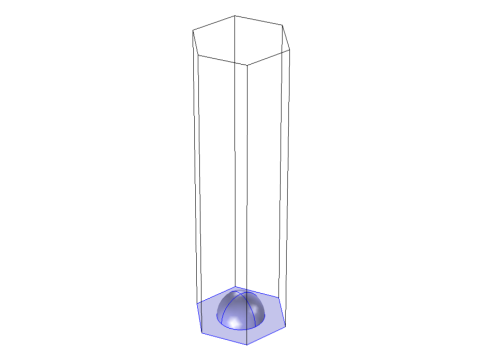
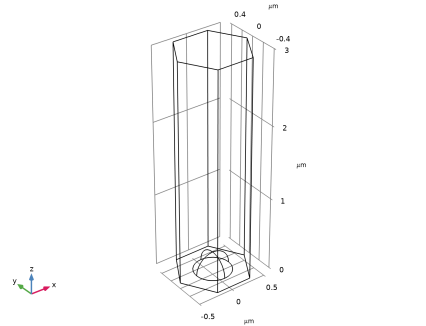
 . In Figure 2, the side vectors for the hexagonal cell starts from the point P and are denoted a1 and a2. The angle between a1 and a2 is 120 degrees. Similarly, for the rhomboid unit cell, the primitive vectors are denoted u1 and u2 and starts from the hexagon center point Q. The angle between the two primitive vectors is also 120 degrees.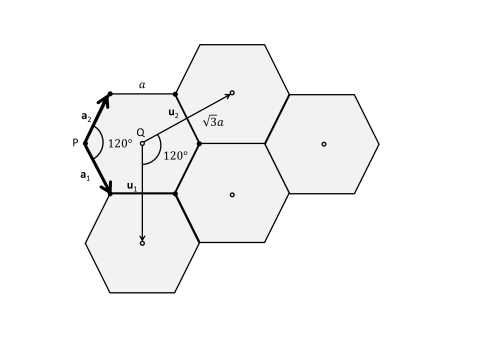
 ,
, ,
,
 ,
, ,
,
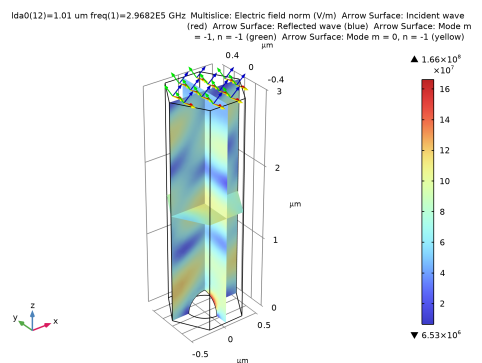
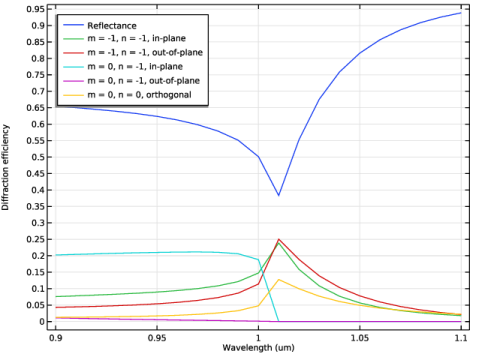
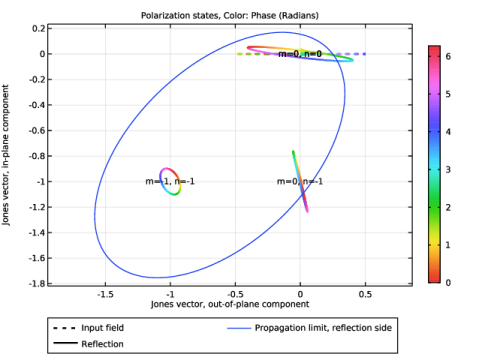
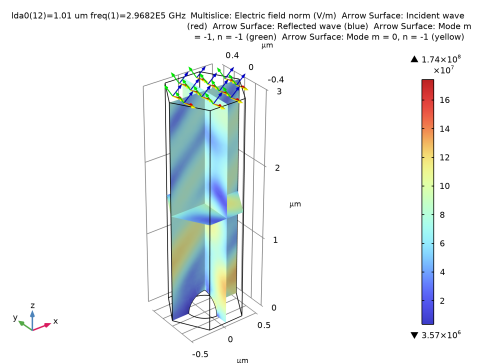
|
1
|
|
2
|
|
3
|
Click Add.
|
|
4
|
Click
 Study. Study. |
|
5
|
|
6
|
Click
 Done. Done. |
|
1
|
|
2
|
|
1
|
|
2
|
|
3
|
|
1
|
|
2
|
|
3
|
|
1
|
|
2
|
|
1
|
|
2
|
|
1
|
|
2
|
|
1
|
|
2
|
|
3
|
|
1
|
|
2
|
Select the object ext1 only.
|
|
3
|
|
4
|
|
5
|
Select the object sph1 only.
|
|
6
|
Click
 Build All Objects. Build All Objects. |
|
7
|
|
8
|
|
1
|
|
2
|
Go to the Add Material window.
|
|
3
|
|
4
|
Click the Add to Component button in the window toolbar.
|
|
5
|
|
1
|
In the Settings window for Electromagnetic Waves, Frequency Domain, locate the Analysis Methodology section.
|
|
2
|
|
1
|
|
2
|
|
3
|
Clear the Add listener port checkbox, as the bottom boundary should use the default Perfect Electric Conductor 1 node.
|
|
4
|
|
5
|
In the α2 text field, type phi, as this angle is measured from the Reference Direction subnode of the Periodic Structure.
|
|
6
|
|
7
|
Locate the Port Handling section. From the Diffraction order specification list, choose From current parameters, as no angle sweep will be done in this example model.
|
|
8
|
Click Add Diffraction Orders.
|
|
1
|
|
2
|
|
3
|
|
4
|
|
5
|
|
1
|
|
2
|
|
3
|
Click
 Add. Add. |
|
4
|
|
5
|
Click
 Range. Range. |
|
6
|
|
7
|
|
8
|
|
9
|
Click Replace.
|
|
10
|
|
12
|
|
1
|
|
2
|
In the Settings window for Arrow Surface, click Replace Expression in the upper-right corner of the Expression section. From the menu, choose Component 1 (comp1) > Electromagnetic Waves, Frequency Domain > Ports > Wave vectors > emw.kIncx_1,...,emw.kIncz_1 - Incident wave vector.
|
|
3
|
Locate the Expression section.
|
|
4
|
|
5
|
|
6
|
Locate the Coloring and Style section.
|
|
7
|
|
1
|
|
1
|
In the Model Builder window, under Results > Electric Field (emw) right-click Arrow Surface 1 and choose Duplicate.
|
|
2
|
In the Settings window for Arrow Surface, click Replace Expression in the upper-right corner of the Expression section. From the menu, choose Component 1 (comp1) > Electromagnetic Waves, Frequency Domain > Ports > Wave vectors > emw.kModex_1,...,emw.kModez_1 - Port mode wave vector, port 1.
|
|
3
|
|
4
|
|
1
|
|
2
|
In the Settings window for Arrow Surface, click Replace Expression in the upper-right corner of the Expression section. From the menu, choose Component 1 (comp1) > Electromagnetic Waves, Frequency Domain > Ports > Wave vectors > emw.kModex_3,...,emw.kModez_3 - Port mode wave vector, port 3.
|
|
3
|
|
4
|
|
1
|
|
2
|
In the Settings window for Arrow Surface, click Replace Expression in the upper-right corner of the Expression section. From the menu, choose Component 1 (comp1) > Electromagnetic Waves, Frequency Domain > Ports > Wave vectors > emw.kModex_5,...,emw.kModez_5 - Port mode wave vector, port 5.
|
|
3
|
|
4
|
|
1
|
|
2
|
|
3
|
|
4
|
|
5
|
|
1
|
|
2
|
|
4
|
|
5
|
Select the Description checkbox.
|
|
6
|
|
1
|
|
2
|
|
3
|
|
4
|
|
5
|
|
6
|
|
1
|
|
2
|
|
3
|
|
4
|
|
5
|
|
6
|
|
1
|
In the Model Builder window, under Component 1 (comp1) > Electromagnetic Waves, Frequency Domain (emw) click Periodic Structure 1.
|
|
2
|
|
3
|
From the list, choose Transverse magnetic (TM).
|
|
4
|
|
1
|
|
2
|
|
3
|
|
1
|
|
2
|
|
1
|
|
2
|
|
1
|
|
2
|
|
3
|
Click
 Add Physical Quantity. Add Physical Quantity. |
|
4
|
|
5
|
|
6
|
Click OK.
|
|
7
|
|
1
|
|
2
|
|
3
|
|
1
|
|
2
|
In the Settings window for Global, click Replace Expression in the upper-right corner of the y-Axis Data section. From the menu, choose Component 1 (comp1) > Electromagnetic Waves, Frequency Domain > Ports > Elevation angle, by order > All expressions in this group.
|
|
3
|
|
4
|
|
5
|
|
6
|
|
1
|
|
2
|
In the Settings window for Global, click Replace Expression in the upper-right corner of the y-Axis Data section. From the menu, choose Component 1 (comp1) > Electromagnetic Waves, Frequency Domain > Ports > Azimuth angle, by order > All expressions in this group.
|
|
3
|
Click to expand the Coloring and Style section. Find the Line style subsection. From the Line list, choose None.
|
|
4
|
|
5
|
|
6
|
|
1
|
|
2
|
|
3
|
|
4
|
Locate the Plot Settings section.
|
|
5
|
|
6
|
|
7
|
|
8
|
|
9
|