PDF

Modeling of a Grounded CPW Using Numeric TEM Ports
Introduction
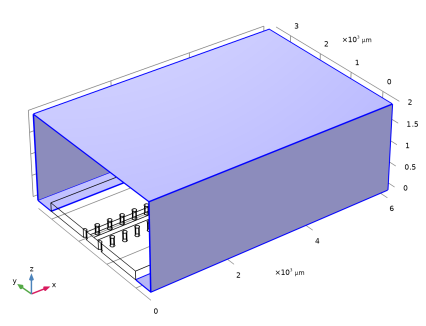
This tutorial model shows how to set up port features in a physics interface when designing a grounded coplanar waveguide (GCPW) circuit that is useful for mmWave applications.
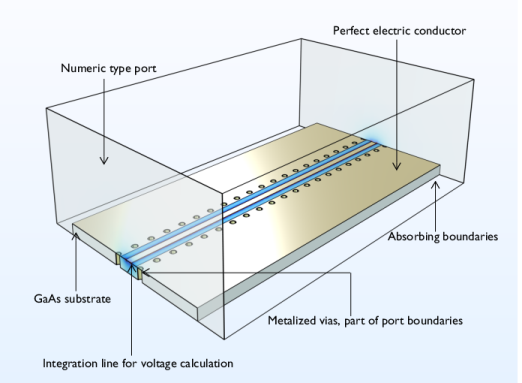
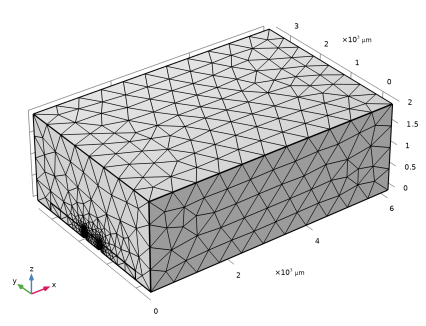
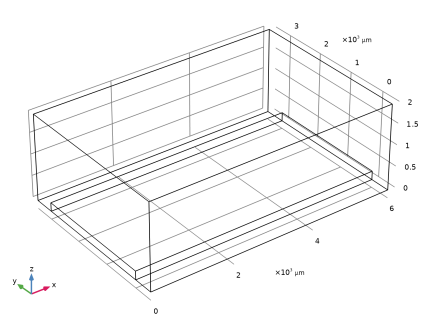
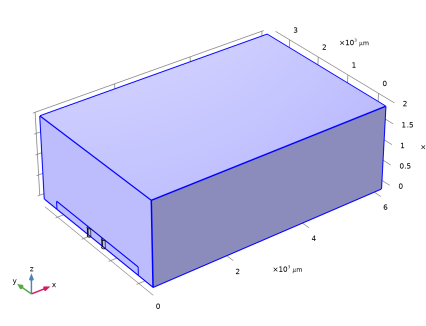
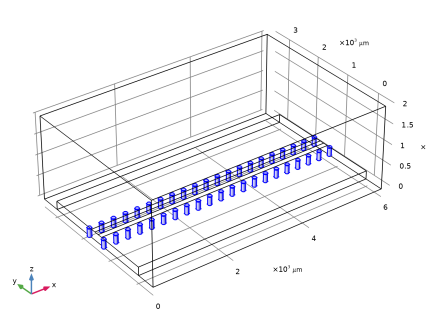
Figure 1: Grounded coplanar waveguide (GCPW) simulation model.
Model Definition
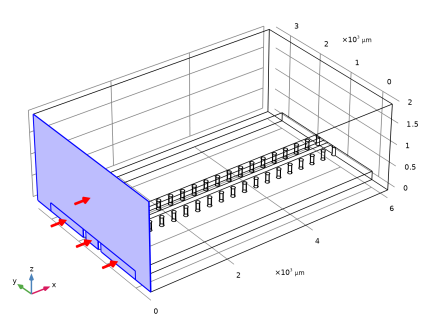
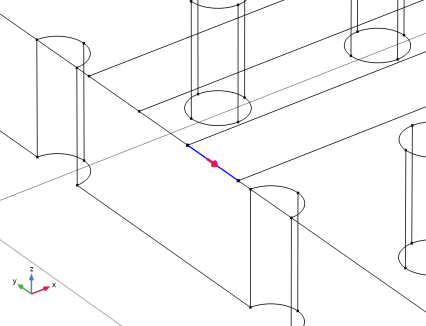
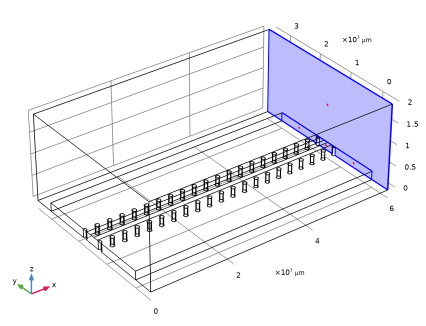
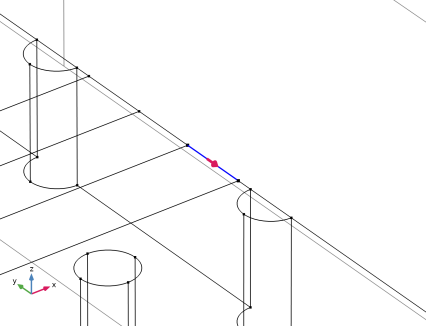
Port features can be used to excite and terminate a grounded CPW. In this tutorial, a basic CPW circuit grounded by metalized vias is modeled using Numeric type ports with Analyze as a TEM field option. This configuration requires adding a Boundary Mode Analysis in the study and an Integration Line for Voltage subfeature for each port feature to calculate the TEM mode characteristic impedance. The TEM mode characteristic impedance is calculated based on the power on port boundaries and voltage obtained from the user-defined integration through the abovementioned subfeature. The computed impedance scales the mode field that is mapped to the port boundaries to excite or terminate the end cross-section of the circuit. Note that the metalized conductive edges must be included on the numeric port boundaries to capture a proper mode propagating through the grounded CPW circuit.
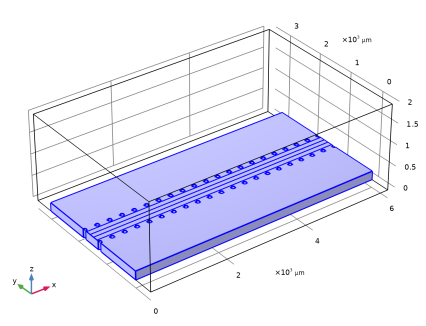
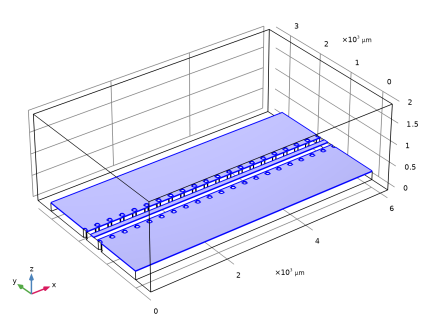
All conductive boundaries representing metalized or plated surfaces are defined as perfect electric conductors (PEC) to simplify the modeling steps. Since the volume of the vias are removed from the geometry and simulation domains, their surfaces are set to PEC by default. If the loss due to the finite conductivity is assumed to be nonnegligible, these boundaries can be replaced by a transition boundary condition to take the loss in the model into account.
A scattering boundary conditions is applied to the outermost boundaries. A scattering boundary condition absorbs any possible radiation from the circuit and mimics an open space.
Results and Discussion
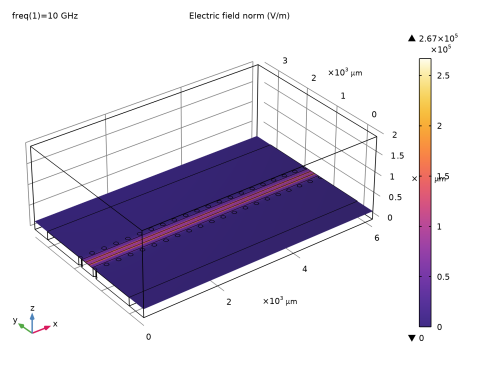
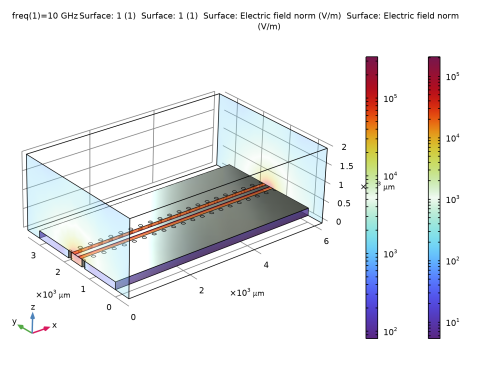
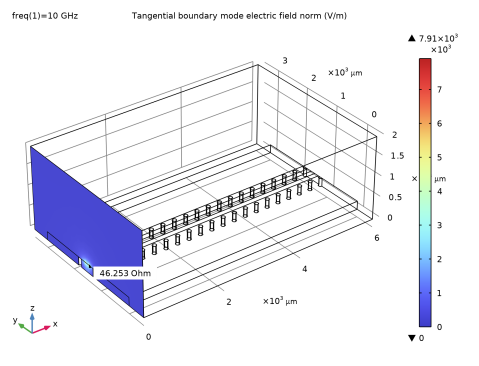
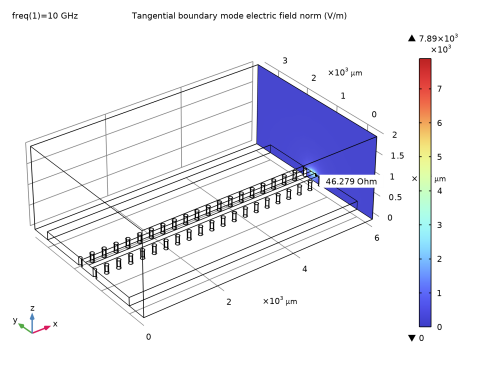
The computed S-parameters indicate that the reflection due to the impedance mismatch is marginal (below 30 dB) and the insertion loss is below 0.05 dB. When the computation is completed, three defaults plots are automatically generated. From the electric field norm plot, it is possible to see where the strong electric fields are confined, along the conductive edges around slots between the center conductor and a pair of ground planes. When performing a boundary mode analysis for each port, the default mode field plot is available with an annotation of the computed impedance value. See the Modeling Instruction section below for details.
Application Library path: RF_Module/Transmission_Lines_and_Waveguides/gcpw_numeric_tem_port
Modeling Instructions
From the File menu, choose New.
New
In the New window, click  Model Wizard.
Model Wizard
1
In the Model Wizard window, click  3D.
2
In the Select Physics tree, select Radio Frequency > Electromagnetic Waves, Frequency Domain (emw).
3
Click Add.
4
Click  Study.
5
In the Select Study tree, select Preset Studies for Selected Physics Interfaces > Boundary Mode Analysis.
6
Study 1
Step 1: Boundary Mode Analysis
Define the study frequency ahead of performing any frequency-dependent operation such as building mesh. The physics-controlled mesh uses the specified frequency value.
1
In the Model Builder window, under Study 1 click Step 1: Boundary Mode Analysis.
2
In the Settings window for Boundary Mode Analysis, locate the Study Settings section.
3
In the Mode analysis frequency text field, type 10[GHz].
4
Select the Search for modes around shift checkbox. In the associated text field, type sqrt(12.9)/1.5.
Step 3: Boundary Mode Analysis 1
1
Right-click Study 1 > Step 1: Boundary Mode Analysis and choose Duplicate.
2
Drag and drop Step 3: Boundary Mode Analysis 1 below Step 1: Boundary Mode Analysis.
3
In the Settings window for Boundary Mode Analysis, locate the Study Settings section.
4
In the Port name text field, type 2.
Step 3: Frequency Domain
1
In the Model Builder window, click Step 3: Frequency Domain.
2
In the Settings window for Frequency Domain, locate the Study Settings section.
3
In the Frequencies text field, type 10[GHz].
Geometry 1
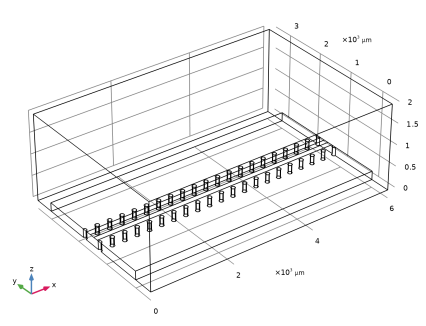
The basic model geometry is available as a parameterized geometry sequence in a separate MPH file. If you want to build it from scratch, follow the instructions in the section Appendix: Geometry Modeling Instructions. Otherwise load it from file with the following steps.
1
In the Geometry toolbar, click Insert Sequence and choose Insert Sequence.
2
3
In the Geometry toolbar, click  Build All.
4
Click the  Zoom Extents button in the Graphics toolbar.
5
Click the  Wireframe Rendering button in the Graphics toolbar.
6
In the Model Builder window, under Component 1 (comp1) click Geometry 1.
Materials
Material 1 (mat1)
1
In the Model Builder window, under Component 1 (comp1) right-click Materials and choose Blank Material.
2
In the Settings window for Material, locate the Material Contents section.
3
Material 2 (mat2)
1
Right-click Materials and choose Blank Material.
2
3
In the Settings window for Material, locate the Material Contents section.
4
Electromagnetic Waves, Frequency Domain (emw)
Perfect Electric Conductor 2
1
In the Physics toolbar, click  Boundaries and choose Perfect Electric Conductor.
2
Scattering Boundary Condition 1
1
In the Physics toolbar, click  Boundaries and choose Scattering Boundary Condition.
2
Port 1
1
In the Physics toolbar, click  Boundaries and choose Port.
2
3
In the Settings window for Port, locate the Port Properties section.
4
From the Type of port list, choose Numeric.
5
Select the Analyze as a TEM field checkbox.
Integration Line for Voltage 1
1
In the Physics toolbar, click  Attributes and choose Integration Line for Voltage.
2
In the Settings window for Integration Line for Voltage, locate the Edge Selection section.
3
Click  Clear Selection.
4
5
Locate the Settings section. Click Toggle Voltage Drop Direction.
Port 2
1
In the Physics toolbar, click  Boundaries and choose Port.
2
3
In the Settings window for Port, locate the Port Properties section.
4
From the Type of port list, choose Numeric.
5
Select the Analyze as a TEM field checkbox.
Integration Line for Voltage 1
1
In the Physics toolbar, click  Attributes and choose Integration Line for Voltage.
2
In the Settings window for Integration Line for Voltage, locate the Edge Selection section.
3
Click  Clear Selection.
4
Mesh 1
1
In the Model Builder window, under Component 1 (comp1) click Mesh 1.
2
In the Settings window for Mesh, locate the Physics-Controlled Mesh section.
3
From the Element size list, choose Coarse.
4
Click  Build All.
5
In the Graphics window toolbar, clicknext to  Select Edges, then choose Select Boundaries.
6
Click the  Click and Hide button in the Graphics toolbar.
7
8
Click the  Click and Hide button in the Graphics toolbar.
9
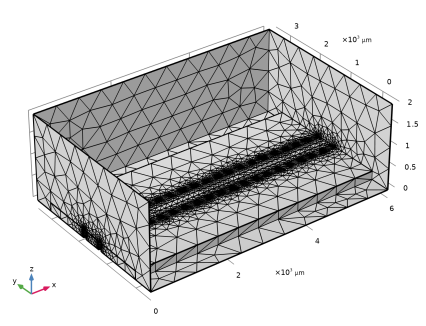
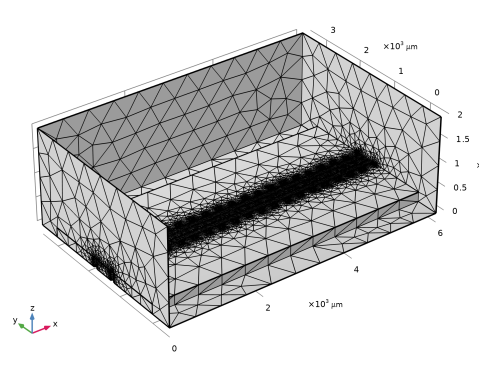
Locate the Electromagnetic Waves, Frequency Domain (emw) section. Select the Refine conductive edges checkbox.
10
In the Relative size to default mesh text field, type 0.02/sqrt(12.9).
11
Click  Build All.
12
In the Home toolbar, click  Compute.
Results
Multislice 1
1
In the Model Builder window, expand the Electric Field (emw) node, then click Multislice 1.
2
In the Settings window for Multislice, locate the Multiplane Data section.
3
Find the X-planes subsection. In the Planes text field, type 0.
4
Find the Y-planes subsection. In the Planes text field, type 0.
5
Find the Z-planes subsection. From the Entry method list, choose Coordinates.
6
In the Coordinates text field, type 200.
7
Locate the Coloring and Style section. From the Color table list, choose HeatCameraLight.
Electric Field, Logarithmic (emw)
In the Model Builder window, under Results click Electric Field, Logarithmic (emw).
Inspect the mode field and the computed TEM mode impedance in the default plot.
Electric Mode Field, Port 1 (emw)
In the Model Builder window, click Electric Mode Field, Port 1 (emw).
Electric Mode Field, Port 2 (emw)
In the Model Builder window, click Electric Mode Field, Port 2 (emw).
Appendix: Geometry Modeling Instructions
Add Component
In the Home toolbar, click  Add Component and choose 3D.
Global Definitions
Parameters 1
1
In the Model Builder window, under Global Definitions click Parameters 1.
2
In the Settings window for Parameters, locate the Parameters section.
3
Geometry 1
1
In the Model Builder window, under Component 1 (comp1) click Geometry 1.
2
In the Settings window for Geometry, locate the Units section.
3
From the Length unit list, choose µm.
Block 1 (blk1)
1
In the Geometry toolbar, click  Block.
2
In the Settings window for Block, locate the Size and Shape section.
3
In the Width text field, type 6000.
4
In the Depth text field, type 4000.
5
In the Height text field, type 2000.
6
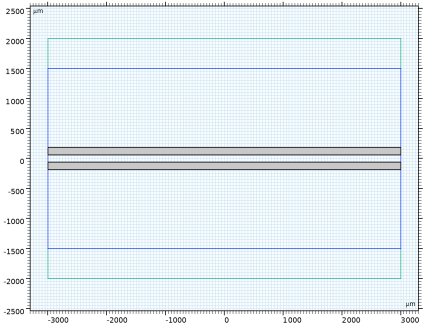
Locate the Position section. In the y text field, type -500.
Block 2 (blk2)
1
In the Geometry toolbar, click  Block.
2
In the Settings window for Block, locate the Size and Shape section.
3
In the Width text field, type 6000.
4
In the Depth text field, type 3000.
5
In the Height text field, type thickness.
6
Click  Build Selected.
7
Click the  Wireframe Rendering button in the Graphics toolbar.
Work Plane 1 (wp1)
1
In the Geometry toolbar, click  Work Plane.
2
In the Settings window for Work Plane, locate the Plane Definition section.
3
From the Plane type list, choose Face parallel.
4
On the object blk2, select Boundary 4 only.
Work Plane 1 (wp1) > Plane Geometry
In the Model Builder window, click Plane Geometry.
Work Plane 1 (wp1) > Rectangle 1 (r1)
1
In the Work Plane toolbar, click  Rectangle.
2
In the Settings window for Rectangle, locate the Size and Shape section.
3
In the Width text field, type 6000.
4
In the Height text field, type w_c.
5
Locate the Position section. From the Base list, choose Center.
Work Plane 1 (wp1) > Rectangle 2 (r2)
1
Right-click Component 1 (comp1) > Geometry 1 > Work Plane 1 (wp1) > Plane Geometry > Rectangle 1 (r1) and choose Duplicate.
2
In the Settings window for Rectangle, locate the Size and Shape section.
3
In the Height text field, type w_s.
4
Locate the Position section. From the Base list, choose Center.
Work Plane 1 (wp1) > Difference 1 (dif1)
1
In the Work Plane toolbar, click  Booleans and Partitions and choose Difference.
2
3
In the Settings window for Difference, locate the Difference section.
4
Click to select the  Activate Selection toggle button for Objects to subtract.
5
6
Click  Build Selected.
Cylinder 1 (cyl1)
1
In the Model Builder window, right-click Geometry 1 and choose Cylinder.
2
In the Settings window for Cylinder, locate the Size and Shape section.
3
In the Radius text field, type 50.
4
In the Height text field, type 200.
5
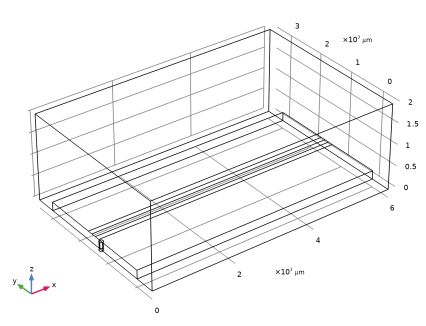
Locate the Position section. In the y text field, type 1500-w_s/2-80.
6
Click  Build Selected.
Array 1 (arr1)
1
In the Geometry toolbar, click  Transforms and choose Array.
2
3
In the Settings window for Array, locate the Size section.
4
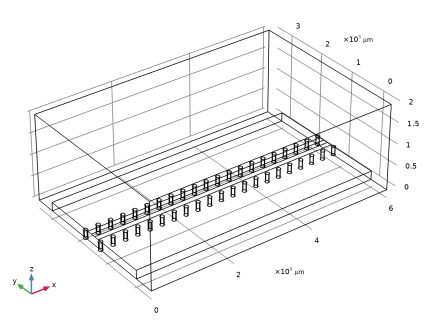
In the x size text field, type 21.
5
Locate the Displacement section. In the x text field, type 300.
6
In the y text field, type w_s+80*2.
7
Locate the Size section. In the y size text field, type 2.
8
Locate the Selections of Resulting Entities section. Find the Cumulative selection subsection. Click New.
9
Click  Build Selected.
10
In the New Cumulative Selection dialog, click OK.
Difference 1 (dif1)
1
In the Geometry toolbar, click  Booleans and Partitions and choose Difference.
2
Select the objects blk1 and blk2 only.
3
In the Settings window for Difference, locate the Difference section.
4
Click to select the  Activate Selection toggle button for Objects to subtract.
5
From the Objects to subtract list, choose Cumulative Selection 1.
6
Click  Build All Objects.