|
|
|







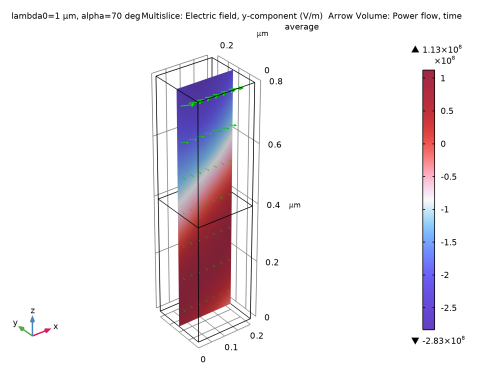
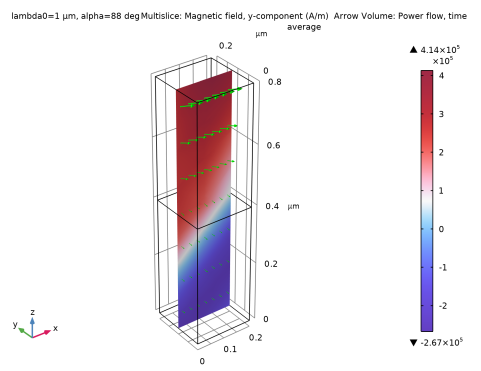
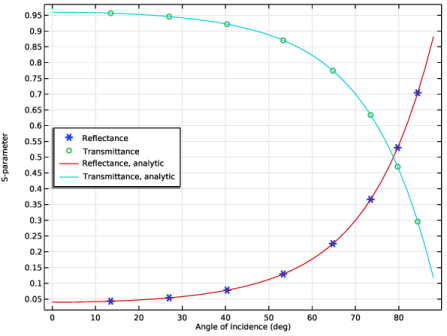
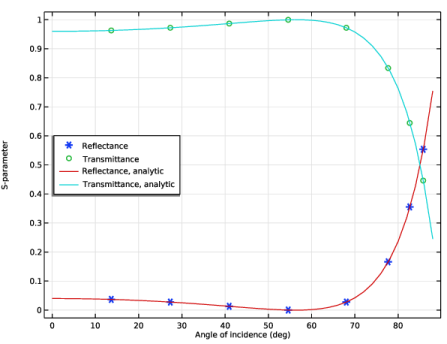
|
1
|
|
2
|
|
3
|
Click Add.
|
|
4
|
Click
 Study. Study. |
|
5
|
|
6
|
Click
 Done. Done. |
|
1
|
|
2
|
|
1
|
|
2
|
|
1
|
|
2
|
|
3
|
|
1
|
|
2
|
|
3
|
|
4
|
|
5
|
|
6
|
Click to expand the Layers section. In the table, enter the following settings:
|
|
7
|
Click
 Build All Objects. Build All Objects. |
|
8
|
|
9
|
|
1
|
In the Model Builder window, under Component 1 (comp1) click Electromagnetic Waves, Frequency Domain (emw).
|
|
2
|
In the Settings window for Electromagnetic Waves, Frequency Domain, type Electromagnetic Waves, Frequency Domain (TE) in the Label text field.
|
|
1
|
|
2
|
|
3
|
|
1
|
In the Model Builder window, expand the Periodic Structure 1 node, then click Wave Equation, Electric 1.
|
|
2
|
|
3
|
|
1
|
In the Model Builder window, under Component 1 (comp1) right-click Materials and choose Blank Material.
|
|
2
|
|
4
|
Locate the Material Contents section. In the table, enter the following settings:
|
|
1
|
|
2
|
|
4
|
Locate the Material Contents section. In the table, enter the following settings:
|
|
1
|
|
2
|
|
3
|
Click
 Add. Add. |
|
5
|
|
1
|
|
1
|
|
2
|
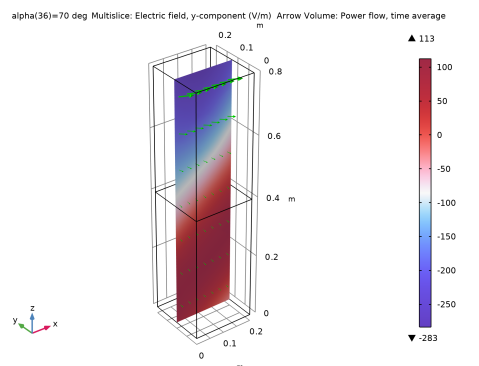
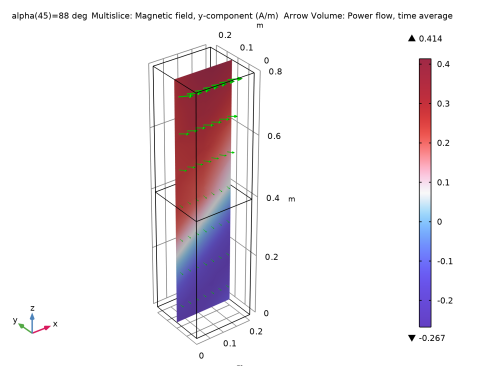
In the Settings window for Multislice, click Replace Expression in the upper-right corner of the Expression section. From the menu, choose Component 1 (comp1) > Electromagnetic Waves, Frequency Domain (TE) > Electric > Electric field - V/m > emw.Ey - Electric field, y-component.
|
|
3
|
|
4
|
|
5
|
|
1
|
|
2
|
In the Settings window for Arrow Volume, click Replace Expression in the upper-right corner of the Expression section. From the menu, choose Component 1 (comp1) > Electromagnetic Waves, Frequency Domain (TE) > Energy and power > emw.Poavx,...,emw.Poavz - Power flow, time average.
|
|
3
|
Locate the Arrow Positioning section. Find the Y grid points subsection. In the Points text field, type 1.
|
|
4
|
|
1
|
|
2
|
|
3
|
|
4
|
|
5
|
|
1
|
|
2
|
|
3
|
|
4
|
|
5
|
|
6
|
|
1
|
|
2
|
|
4
|
|
5
|
Click to expand the Coloring and Style section. Find the Line style subsection. From the Line list, choose None.
|
|
6
|
|
7
|
|
1
|
|
2
|
|
4
|
|
5
|
|
7
|
|
1
|
|
2
|
|
3
|
|
1
|
In the Model Builder window, expand the Results > Smith Plot (emw, TE) > Reflection Graph 1 node, then click Color Expression 1.
|
|
2
|
|
3
|
|
4
|
|
1
|
|
2
|
|
3
|
|
4
|
|
5
|
|
1
|
|
2
|
|
3
|
|
1
|
In the Model Builder window, right-click Component 1 (comp1) and choose Paste Electromagnetic Waves, Frequency Domain.
|
|
2
|
|
3
|
In the Settings window for Electromagnetic Waves, Frequency Domain, type Electromagnetic Waves, Frequency Domain (TM) in the Label text field.
|
|
1
|
|
2
|
|
3
|
In the Solve for column of the table, under Component 1 (comp1), clear the checkbox for Electromagnetic Waves, Frequency Domain (TM) (emw2).
|
|
1
|
In the Model Builder window, expand the Component 1 (comp1) > Electromagnetic Waves, Frequency Domain (TM) (emw2) node, then click Periodic Structure 1.
|
|
2
|
|
3
|
From the list, choose Transverse magnetic (TM). This will change the port mode fields to be polarized parallel to the plane of incidence.
|
|
1
|
|
2
|
Go to the Add Study window.
|
|
3
|
|
4
|
Click the Add Study button in the window toolbar.
|
|
5
|
|
1
|
|
2
|
|
3
|
Locate the Physics and Variables Selection section. In the Solve for column of the table, under Component 1 (comp1), clear the checkbox for Electromagnetic Waves, Frequency Domain (TE) (emw).
|
|
4
|
In the Solve for column of the table, under Component 1 (comp1), select the checkbox for Electromagnetic Waves, Frequency Domain (TM) (emw2).
|
|
5
|
|
6
|
|
1
|
|
2
|
|
3
|
Click
 Add. Add. |
|
5
|
|
1
|
|
2
|
|
3
|
|
4
|
|
5
|
|
6
|
|
1
|
|
2
|
|
3
|
|
4
|
|
5
|
|
6
|
Locate the Arrow Positioning section. Find the Y grid points subsection. In the Points text field, type 1.
|
|
7
|
|
8
|
|
1
|
|
2
|
|
3
|
|
4
|
|
5
|
|
6
|
|
1
|
|
2
|
|
4
|
Locate the Coloring and Style section. Find the Line style subsection. From the Line list, choose None.
|
|
5
|
|
6
|
|
1
|
|
2
|
|
4
|
|
6
|
|
7
|
|
1
|
|
2
|
|
3
|
|
1
|
In the Model Builder window, expand the Results > Smith Plot (emw2, TM) > Reflection Graph 1 node, then click Color Expression 1.
|
|
2
|
|
3
|
|
4
|
|
1
|
|
2
|
|
3
|
|
4
|
|
5
|
|
1
|
|
2
|
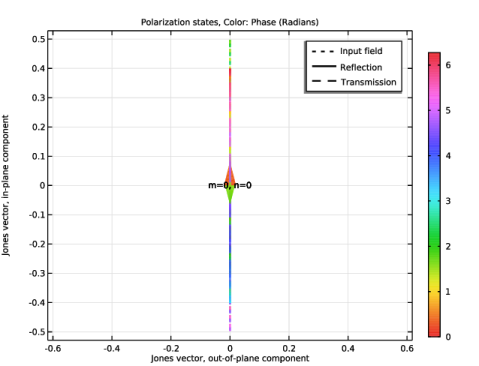
In the Settings window for 1D Plot Group, type Polarization Plot (emw2, TM) in the Label text field.
|
|
3
|