PDF

CPW Resonator for Circuit Quantum Electrodynamics
Introduction
Developments in the last decade have led to circuit quantum electrodynamics (cQED) becoming the leading architecture candidate for quantum computation. The cQED architecture for quantum hardware has three main components: superconducting qubits, transmission lines, and transmission line resonators. Superconducting qubits are the artificial meta-atoms that serve as a two-level quantum system, transmission line resonators are high-quality superconducting oscillators that play the role of cavities, and transmission lines route energy through the architecture.
The energy difference between the quantum states of superconducting qubits is given by E01 = hf01, wherein a two-level quantum system E01 is the energy difference between the ground state and the excited state, h is the Planck constant, and f01 is the transition frequency between the states. This frequency is typically designed to be in the range of 4–8 GHz so that it is above the thermal energy of dilution refrigerators (~10 mK) but also well below the superconducting gap of any constituent materials, like aluminum (82 GHz). Just like atoms, superconducting quantum qubits interact with microwave photons at quanta levels.
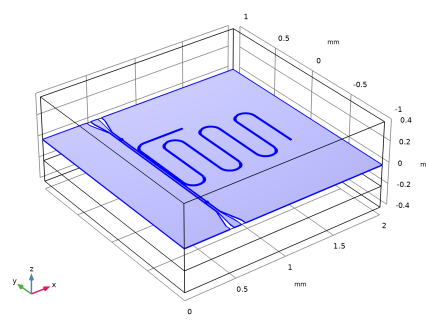
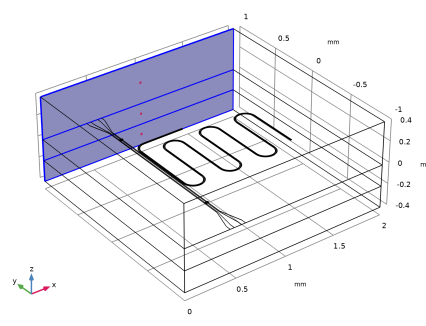
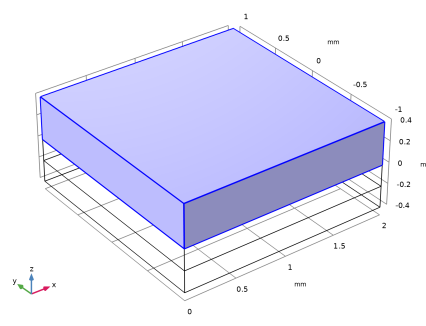
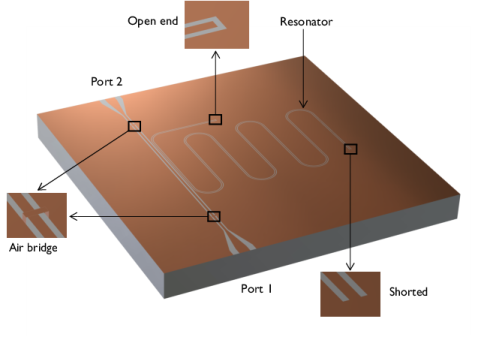
Figure 1: A CPW resonator coupled to a CPW transmission line. The air domains are removed for a better view.
In this model, one of the main components of cQEDs, a transmission line resonator, is demonstrated. This resonator can be built from CPW transmission lines terminated with a combination of open and short ends. These ends create a resonator out of a CPW, with the open and short ends functioning as zero current and zero voltage boundary conditions, respectively. Figure 1 illustrates a quarter-wave resonator, which is formed from a CPW terminated with an open and a shorted end, and shows how the quarter-wave resonator can be coupled to a CPW feeding line.
Model Definition
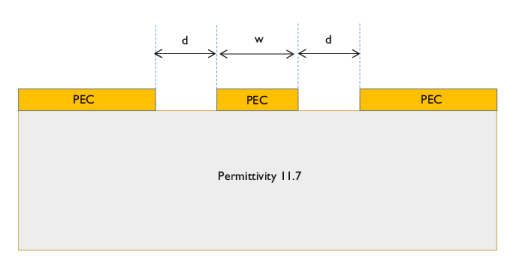
Figure 2 shows the schematic cross section of the CPW line used for the resonator and the feed line. The impedance of CPW is related to the dielectric constant of the substrate and the ratio between the center conductor and gap widths. The conductive regions are treated as perfect conductors to capture the lossless behavior of the superconducting metal, and these regions are also treated as 2D layer because they are much thinner than any other relevant length scales in the model. The substrate is silicon with a relative permittivity of 11.7.
Figure 2: Schematic of the CPW cross section where w/d=7/4 and the characteristic impedance is 50 Ω.
Numeric ports are used to excite and terminate the feeding CPW line. Therefore, the boundary conditions on those surfaces are the corresponding mode fields. Scattering boundary conditions are used on the remaining boundaries, although due to the highly confined mode structure of CPW this results in very little loss in the system and an extremely high the quality. To model this system in a computationally efficient manner, an adaptive frequency sweep is used. This is because very fine frequency resolution is required to capture the narrow bandwidth of the resonance, and an adaptive frequency sweep allows evaluation of many frequency points without explicit calculation of each and every one based on asymptotic waveform evaluation (AWE).
To further reduce the model size, no field solution is stored for the adaptive frequency sweep study in this model. By default, COMSOL stores the electromagnetic field values for the entire computational domain for each frequency evaluated, but because of the large number of frequencies accounted for in the adaptive frequency sweep, this can result in a massive file size. Only the S-parameters are of interest for the AWE and they are stored in the global S-parameter variables through the port feature.
Results and Discussion
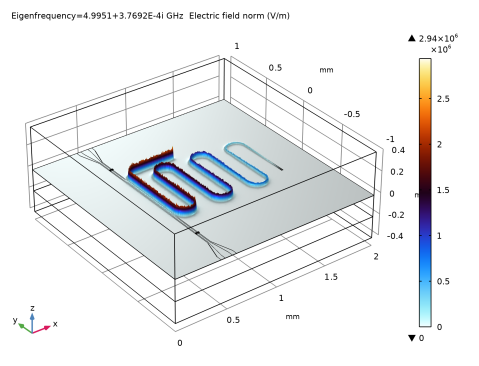
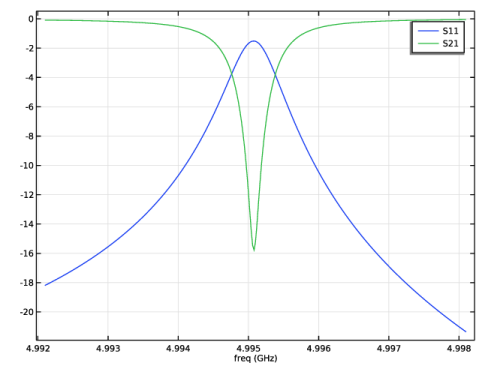
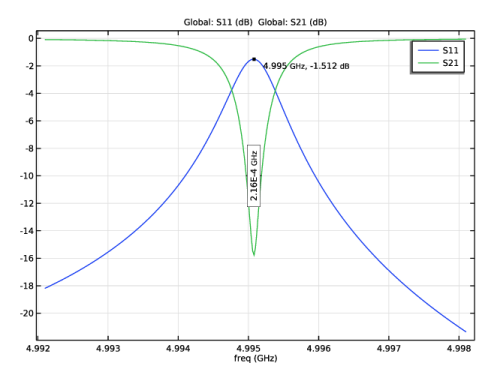
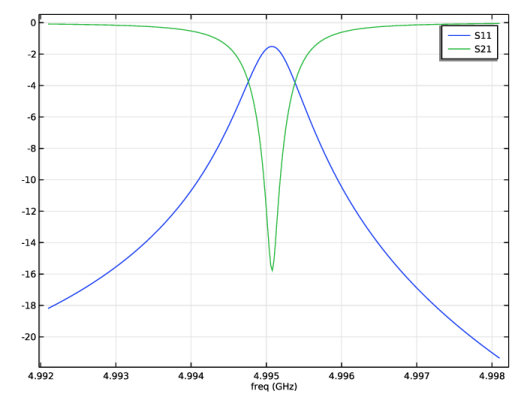
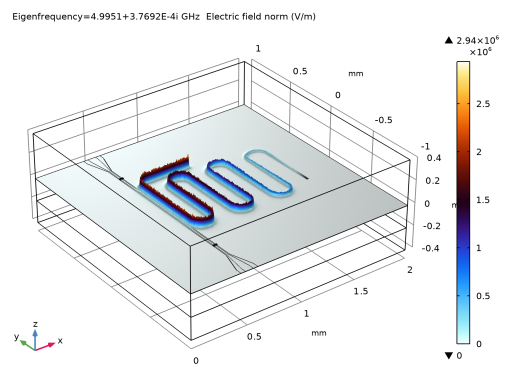
Figure 3 shows the S-parameters of the system. The behavior of the quarter-wave resonator can be seen in the strong resonant reflectivity in S11dB, whereas there feed line is highly transmissive away from the resonance frequency. This is further illustrated in Figure 4, which shows the standing wave formation in the CPW resonator. There is a large electric field enhancement at the open end and zero field at the shorted end, consistent with the anticipated behavior of the boundary conditions.
Figure 3: The S-parameters plot demonstrates a very narrow resonance behavior.
Figure 4: Illustration of standing wave pattern formed within the resonator. The height distribution corresponds to the total electric field. Antinode and node can be observed at the open and short ends.
Notes About the COMSOL Implementation
In this model we conduct two studies. The first is an eigenfrequency simulation to find the resonant frequency of the structure. The second performs a frequency sweep +/- 3 MHz around this point to calculate the S-Parameters for the feed line.
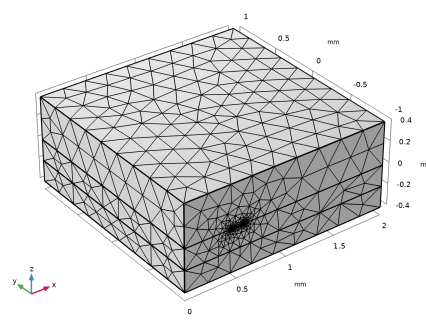
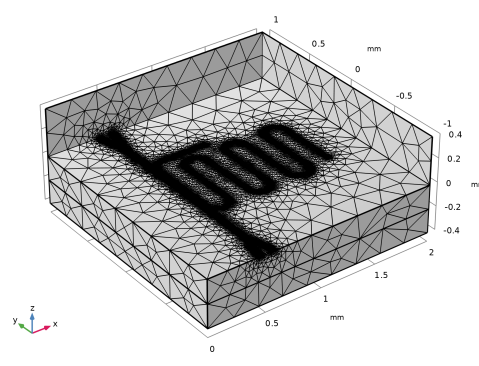
Since the CPW resonator is a very high-quality factor system, it can be a challenging structure to simulate. High-Q systems can be extremely mesh sensitive, and a mesh refinement study is necessary to ensure reliable results. Very fine meshes in turn require more memory, which may require fine tuning of the solver settings for large models. For this demonstration, you can obtain a reasonable mesh using the Refine conductive edges feature and a size setting close to the dielectric gap width. In your own modeling, we recommend performing a mesh refinement investigation. Inherent in a mesh refinement study is a tradeoff between computational resources and accuracy, and so an important question to consider is exactly how accurately the resonance frequency needs to be known. Slight changes to the mesh used here can result in shifts on the order of ~1 MHz, and the model takes ~20 GB of memory to solve. As a result of this large model size, the Eigenfrequency solver settings require slight modifications to converge.
Application Library path: RF_Module/Filters/cpw_resonator
Modeling Instructions
From the File menu, choose New.
New
In the New window, click  Model Wizard.
Model Wizard
1
In the Model Wizard window, click  3D.
2
In the Select Physics tree, select Radio Frequency > Electromagnetic Waves, Frequency Domain (emw).
3
Click Add.
4
Click  Study.
5
In the Select Study tree, select Empty Study.
6
Geometry 1
1
In the Model Builder window, under Component 1 (comp1) click Geometry 1.
2
In the Settings window for Geometry, locate the Units section.
3
From the Length unit list, choose mm.
Work Plane 1 (wp1)
1
In the Geometry toolbar, click  Work Plane.
2
Click the  Wireframe Rendering button in the Graphics toolbar.
Work Plane 1 (wp1) > Plane Geometry
In the Model Builder window, click Plane Geometry.
Part Libraries
1
In the Home toolbar, click  Windows and choose Part Libraries.
2
In the Part Libraries window, select RF Module > Coplanar Waveguides > cpw_straight_onchip in the tree.
3
Click  Add to Geometry.
Geometry 1
Work Plane 1 (wp1) > Coplanar Waveguide Trace, Straight, On Chip 1 (pi1)
1
In the Model Builder window, under Component 1 (comp1) > Geometry 1 > Work Plane 1 (wp1) > Plane Geometry click Coplanar Waveguide Trace, Straight, On Chip 1 (pi1).
2
In the Settings window for Part Instance, locate the Input Parameters section.
3
4
Locate the Position and Orientation of Output section. In the Rotation angle text field, type 90.
5
In the xw-displacement text field, type 0.515.
6
Click  Build Selected.
Part Libraries
1
In the Home toolbar, click  Windows and choose Part Libraries.
2
In the Model Builder window, under Component 1 (comp1) > Geometry 1 > Work Plane 1 (wp1) click Plane Geometry.
3
In the Part Libraries window, select RF Module > Coplanar Waveguides > cpw_transition_onchip in the tree.
4
Click  Add to Geometry.
Geometry 1
Work Plane 1 (wp1) > Coplanar Waveguide Trace, Transition, On Chip 1 (pi2)
1
In the Model Builder window, under Component 1 (comp1) > Geometry 1 > Work Plane 1 (wp1) > Plane Geometry click Coplanar Waveguide Trace, Transition, On Chip 1 (pi2).
2
In the Settings window for Part Instance, locate the Input Parameters section.
3
4
Locate the Position and Orientation of Output section. In the xw-displacement text field, type 0.515.
5
In the yw-displacement text field, type 0.85.
6
In the Rotation angle text field, type 90.
7
Click  Build Selected.
Work Plane 1 (wp1) > Mirror 1 (mir1)
1
In the Work Plane toolbar, click  Transforms and choose Mirror.
2
3
In the Settings window for Mirror, locate the Normal Vector to Line of Reflection section.
4
In the xw text field, type 0.
5
In the yw text field, type 1.
6
Click  Build Selected.
7
Locate the Input section. Select the Keep input objects checkbox.
8
Click  Build Selected.
9
Click the  Zoom Extents button in the Graphics toolbar.
Work Plane 1 (wp1) > Coplanar Waveguide Trace, Straight, On Chip 2 (pi3)
1
In the Model Builder window, under Component 1 (comp1) > Geometry 1 > Work Plane 1 (wp1) > Plane Geometry right-click Coplanar Waveguide Trace, Straight, On Chip 1 (pi1) and choose Duplicate.
2
In the Settings window for Part Instance, locate the Input Parameters section.
3
4
Locate the Position and Orientation of Output section. In the xw-displacement text field, type 0.834.
5
In the yw-displacement text field, type 0.4425.
6
In the Rotation angle text field, type 0.
7
Click  Build Selected.
Work Plane 1 (wp1) > Coplanar Waveguide Trace, Straight, On Chip 3 (pi4)
1
Right-click Component 1 (comp1) > Geometry 1 > Work Plane 1 (wp1) > Plane Geometry > Coplanar Waveguide Trace, Straight, On Chip 2 (pi3) and choose Duplicate.
2
In the Settings window for Part Instance, locate the Input Parameters section.
3
4
Locate the Position and Orientation of Output section. In the xw-displacement text field, type 0.5435.
5
In the yw-displacement text field, type 0.
6
In the Rotation angle text field, type 90.
7
Click  Build Selected.
Work Plane 1 (wp1) > Array 1 (arr1)
1
In the Work Plane toolbar, click  Transforms and choose Array.
2
Click the  Select Box button in the Graphics toolbar.
3
4
In the Settings window for Array, locate the Size section.
5
In the xw size text field, type 6.
6
Locate the Displacement section. In the xw text field, type 0.185.
7
Click  Build Selected.
8
Click the  Zoom Extents button in the Graphics toolbar.
Work Plane 1 (wp1) > Coplanar Waveguide Trace, Straight, On Chip 4 (pi5)
1
In the Model Builder window, under Component 1 (comp1) > Geometry 1 > Work Plane 1 (wp1) > Plane Geometry right-click Coplanar Waveguide Trace, Straight, On Chip 3 (pi4) and choose Duplicate.
2
In the Settings window for Part Instance, locate the Input Parameters section.
3
4
Locate the Position and Orientation of Output section. In the yw-displacement text field, type 0.3.
5
Click  Build Selected.
Part Libraries
1
In the Work Plane toolbar, click  Part Libraries.
2
In the Model Builder window, under Component 1 (comp1) > Geometry 1 > Work Plane 1 (wp1) click Plane Geometry.
3
In the Part Libraries window, select RF Module > Coplanar Waveguides > cpw_90_round_bend_onchip in the tree.
4
Click  Add to Geometry.
Geometry 1
Work Plane 1 (wp1) > Coplanar Waveguide Trace, 90-Degree Round-Bend, On Chip 1 (pi6)
1
In the Model Builder window, under Component 1 (comp1) > Geometry 1 > Work Plane 1 (wp1) > Plane Geometry click Coplanar Waveguide Trace, 90-Degree Round-Bend, On Chip 1 (pi6).
2
In the Settings window for Part Instance, locate the Input Parameters section.
3
4
Locate the Position and Orientation of Output section. In the xw-displacement text field, type 0.636.
5
In the yw-displacement text field, type 0.35.
6
In the Rotation angle text field, type 90.
7
Click  Build Selected.
Part Libraries
1
In the Work Plane toolbar, click  Part Libraries.
2
In the Model Builder window, under Component 1 (comp1) > Geometry 1 > Work Plane 1 (wp1) click Plane Geometry.
3
In the Part Libraries window, select RF Module > Coplanar Waveguides > cpw_180_round_bend_onchip in the tree.
4
Click  Add to Geometry.
Geometry 1
Work Plane 1 (wp1) > Coplanar Waveguide Trace, 180-Degree Round-Bend, On Chip 1 (pi7)
1
In the Model Builder window, under Component 1 (comp1) > Geometry 1 > Work Plane 1 (wp1) > Plane Geometry click Coplanar Waveguide Trace, 180-Degree Round-Bend, On Chip 1 (pi7).
2
In the Settings window for Part Instance, locate the Input Parameters section.
3
4
Locate the Position and Orientation of Output section. In the xw-displacement text field, type 0.636.
5
In the yw-displacement text field, type -0.25.
6
In the Rotation angle text field, type -90.
7
Click  Build Selected.
Work Plane 1 (wp1) > Array 2 (arr2)
1
In the Work Plane toolbar, click  Transforms and choose Array.
2
Click the  Select Box button in the Graphics toolbar.
3
4
In the Settings window for Array, locate the Size section.
5
In the xw size text field, type 3.
6
Locate the Displacement section. In the xw text field, type 0.37.
7
Click  Build Selected.
Work Plane 1 (wp1) > Rotate 1 (rot1)
1
In the Work Plane toolbar, click  Transforms and choose Rotate.
2
Select the objects arr2(1,1), arr2(2,1), and arr2(3,1) only.
3
In the Settings window for Rotate, locate the Input section.
4
Select the Keep input objects checkbox.
5
Locate the Rotation section. In the Angle text field, type 180.
6
Locate the Center of Rotation section. In the xw text field, type 1.0985.
7
Click  Build Selected.
Work Plane 1 (wp1) > Coplanar Waveguide Trace, Straight, On Chip 5 (pi8)
1
In the Model Builder window, under Component 1 (comp1) > Geometry 1 > Work Plane 1 (wp1) > Plane Geometry right-click Coplanar Waveguide Trace, Straight, On Chip 3 (pi4) and choose Duplicate.
2
In the Settings window for Part Instance, locate the Input Parameters section.
3
4
Locate the Position and Orientation of Output section. In the xw-displacement text field, type 1.6535.
5
Click  Build Selected.
Block 1 (blk1)
1
In the Model Builder window, right-click Geometry 1 and choose Block.
2
In the Settings window for Block, locate the Position section.
3
From the Base list, choose Center.
4
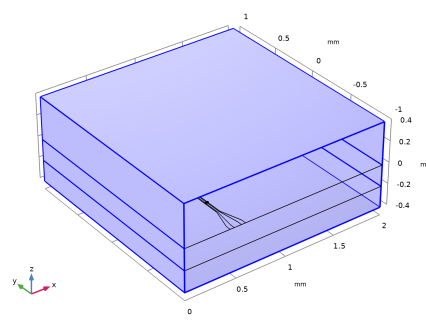
Locate the Size and Shape section. In the Width text field, type 2.
5
In the Depth text field, type 2.
6
In the Height text field, type 0.8.
7
Locate the Position section. In the x text field, type 1.
8
Click to expand the Layers section. In the table, enter the following settings:
9
Click  Build All Objects.
Block 2 (blk2)
1
In the Geometry toolbar, click  Block.
2
In the Settings window for Block, locate the Position section.
3
From the Base list, choose Center.
4
In the Model Builder window, click Block 2 (blk2).
5
Locate the Size and Shape section. In the Width text field, type 0.03.
6
In the Depth text field, type 0.01.
7
In the Height text field, type 0.01.
8
Locate the Position section. In the x text field, type 0.515.
9
In the z text field, type 0.005.
10
In the y text field, type -0.595.
11
Click  Build Selected.
Mirror 1 (mir1)
1
In the Geometry toolbar, click  Transforms and choose Mirror.
2
3
In the Settings window for Mirror, locate the Normal Vector to Plane of Reflection section.
4
In the y text field, type 1.
5
In the z text field, type 0.
6
Locate the Input section. Select the Keep input objects checkbox.
7
Click  Build Selected.
Electromagnetic Waves, Frequency Domain (emw)
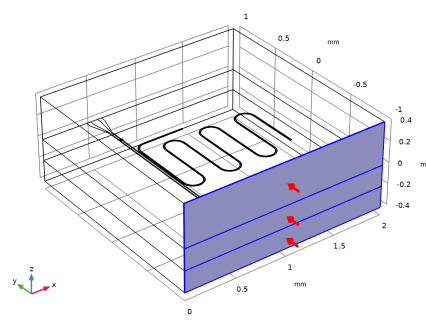
Perfect Electric Conductor 2
1
In the Physics toolbar, click  Boundaries and choose Perfect Electric Conductor.
2
Scattering Boundary Condition 1
1
In the Physics toolbar, click  Boundaries and choose Scattering Boundary Condition.
2
Port 1
1
In the Physics toolbar, click  Boundaries and choose Port.
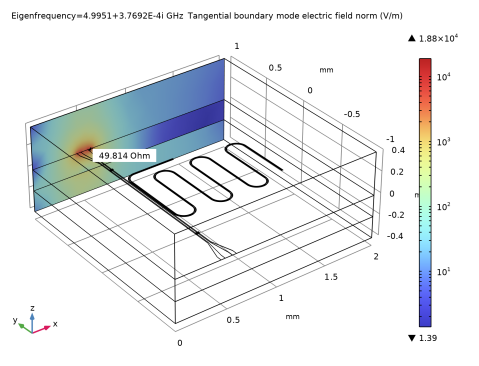
To excite the CPW we need the mode profile of the electromagnetic fields. Since there is no analytical equation to define these fields, we use numeric ports and calculate them as a preprocessing step using two Boundary Mode Analysis study steps. The field distributions obtained are used for both the eigenfrequency and frequency domain analysis. Since a quasi-TEM wave is propagating on a CPW, use the Analyze as a TEM field option and define Integration Line for Voltage.
2
3
In the Settings window for Port, locate the Port Properties section.
4
From the Type of port list, choose Numeric.
5
Select the Analyze as a TEM field checkbox.
Integration Line for Voltage 1
1
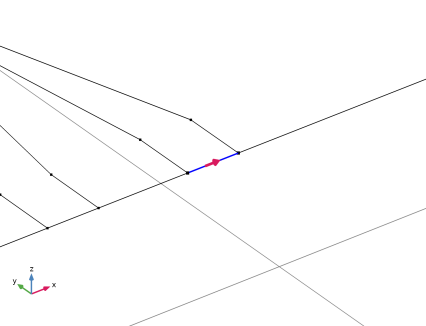
In the Physics toolbar, click  Attributes and choose Integration Line for Voltage.
2
In the Settings window for Integration Line for Voltage, locate the Edge Selection section.
3
Click  Clear Selection.
4
Port 2
1
In the Physics toolbar, click  Boundaries and choose Port.
2
3
In the Settings window for Port, locate the Port Properties section.
4
From the Type of port list, choose Numeric.
5
Select the Analyze as a TEM field checkbox.
Integration Line for Voltage 1
1
In the Physics toolbar, click  Attributes and choose Integration Line for Voltage.
2
In the Settings window for Integration Line for Voltage, locate the Edge Selection section.
3
Click  Clear Selection.
4
5
Locate the Settings section. Click Toggle Voltage Drop Direction.
Add Material
1
In the Materials toolbar, click  Add Material to open the Add Material window.
2
Go to the Add Material window.
3
In the tree, select Built-in > Air.
4
Click the Add to Component button in the window toolbar.
5
In the tree, select Built-in > Silicon.
6
Click the Add to Component button in the window toolbar.
7
In the Materials toolbar, click  Add Material to close the Add Material window.
Materials
Silicon (mat2)
Select Domain 2 only.
Field is confined in the close vicinity of the CPW gaps. Use Refine conductive edges to refine the mesh in the vicinity of CPW gap.
Mesh 1
1
In the Model Builder window, under Component 1 (comp1) click Mesh 1.
2
In the Settings window for Mesh, locate the Electromagnetic Waves, Frequency Domain (emw) section.
3
Select the Refine conductive edges checkbox.
4
From the Size type list, choose User defined.
5
In the Size text field, type 5[um].
6
Click  Build All.
To see the mesh structure on the CPW surface, Use Hide for Physics.
Definitions
Hide for Physics 1
1
In the Model Builder window, expand the Component 1 (comp1) > Definitions node.
2
Right-click View 1 and choose Hide for Physics.
3
In the Settings window for Hide for Physics, locate the Geometric Entity Selection section.
4
From the Geometric entity level list, choose Boundary.
5
Mesh 1
In the Model Builder window, under Component 1 (comp1) click Mesh 1.
Here we perform the Boundary Mode Analysis to calculate the mode profiles. The field distributions obtained will be used for both the Eigenfrequency and Adaptive Frequency Sweep.
Study 1
Step 1: Boundary Mode Analysis
1
In the Study toolbar, click  More Study Steps and choose Other > Boundary Mode Analysis.
2
In the Settings window for Boundary Mode Analysis, locate the Study Settings section.
3
In the Mode analysis frequency text field, type 5[GHz].
4
In the Search for modes around shift text field, type 2.5217.
Step 2: Boundary Mode Analysis 1
1
Right-click Step 1: Boundary Mode Analysis and choose Duplicate.
2
In the Settings window for Boundary Mode Analysis, locate the Study Settings section.
3
In the Port name text field, type 2.
Step 3: Eigenfrequency
1
In the Study toolbar, click  More Study Steps and choose Eigenfrequency > Eigenfrequency.
2
In the Settings window for Eigenfrequency, locate the Study Settings section.
3
In the Search for eigenfrequencies around shift text field, type 4.94[GHz].
4
Select the Desired number of eigenfrequencies checkbox. In the associated text field, type 1.
5
From the Search method around shift list, choose Larger real part.
Solution 1 (sol1)
1
In the Study toolbar, click  Show Default Solver.
For this specific example, using the combination of boundary mode analysis and eigenfrequency with a case of high-contrast material properties, such as the combination of air and silicon, one can take advantage of the Vanka presmoother in the settings of Eigenvalue Solver to achieve faster convergence and reduce computational time.
2
In the Model Builder window, expand the Solution 1 (sol1) node.
3
In the Model Builder window, expand the Study 1 > Solver Configurations > Solution 1 (sol1) > Eigenvalue Solver 3 node.
4
Right-click Study 1 > Solver Configurations > Solution 1 (sol1) > Eigenvalue Solver 3 > Suggested Iterative Solver (emw) 2 and choose Enable.
5
In the Study toolbar, click  Compute.
Results
Multislice 1
1
In the Model Builder window, expand the Electric Field (emw) node, then click Multislice 1.
2
In the Settings window for Multislice, locate the Multiplane Data section.
3
Find the X-planes subsection. In the Planes text field, type 0.
4
Find the Y-planes subsection. In the Planes text field, type 0.
5
Locate the Coloring and Style section. From the Color table list, choose ThermalWaveDark.
Deformation 1
1
Right-click Multislice 1 and choose Deformation.
2
In the Settings window for Deformation, locate the Expression section.
3
In the X-component text field, type 0.
4
In the Y-component text field, type 0.
5
In the Z-component text field, type emw.normE.
6
In the Electric Field (emw) toolbar, click  Plot.
Surface 1
1
In the Model Builder window, expand the Electric Mode Field, Port 2 (emw) node, then click Surface 1.
2
In the Settings window for Surface, locate the Coloring and Style section.
3
From the Scale list, choose Logarithmic.
Add Study
1
In the Home toolbar, click  Add Study to open the Add Study window.
2
Go to the Add Study window.
3
Find the Studies subsection. In the Select Study tree, select Empty Study.
4
Click the Add Study button in the window toolbar.
5
In the Home toolbar, click  Add Study to close the Add Study window.
Study 1
Step 1: Boundary Mode Analysis, Step 2: Boundary Mode Analysis 1
Right-click and choose Copy.
Study 2
1
In the Model Builder window, right-click Study 2 and choose Paste Multiple Items.
2
In the Settings window for Study, locate the Study Settings section.
3
Clear the Generate default plots checkbox.
Step 3: Adaptive Frequency Sweep
1
In the Study toolbar, click  More Study Steps and choose Frequency Domain > Adaptive Frequency Sweep.
Use the evaluated resonant frequency for frequency sweep study settings that can be directly copied from the Table 1. Right click on the frequency value in the Table 1 to access the context menu and choose Copy Cell to Clipboard for use later.
In the Frequencies input field, sweep +-3MHz around the resonant frequency with 0.02MHz step. For instance, if the computed resonant frequency is 5GHz, then type range(5[GHz]-3[MHz],0.02[MHz],5[GHz]+3[MHz]).
Since the CPW resonator has a very sharp resonance, the Adaptive Frequency Sweep can be utilized to reduce computational time. A good choice for the Asymptotic Waveform Evaluation (AWE) expressions increases the efficiency of adaptive frequency sweep. Magnitude of S11 is a suitable choice for this problem to decrease computational cost.
The physics-controlled mesh uses the highest frequency value in the specified range. Since the model is a high-Q narrow-band device, it would be sensitive to a small mesh change by choosing a different frequency range unless a finer mesh is set with a smaller value of Relative size to default mesh in Refine conductive edges option in the mesh settings.
2
In the Settings window for Adaptive Frequency Sweep, locate the Study Settings section.
3
From the AWE expression type list, choose User controlled.
4
5
Click to expand the Store in Output section. In the table, enter the following settings:
Only the S-parameters are of interest for this study. They are stored in the global S-parameter variables through the port features, so there is no need to store the field solution. Since the adaptive frequency sweep runs with a fine frequency resolution, this choice helps reduce the saved file size.
6
In the Study toolbar, click  Compute.
Results
S-parameter
1
In the Results toolbar, click  1D Plot Group.
2
In the Settings window for 1D Plot Group, type S-parameter in the Label text field.
3
Locate the Data section. From the Dataset list, choose Probe Solution 4 (sol4).
Global 1
1
Right-click S-parameter and choose Global.
2
In the Settings window for Global, click Replace Expression in the upper-right corner of the y-Axis Data section. From the menu, choose Component 1 (comp1) > Electromagnetic Waves, Frequency Domain > Ports > S-parameter, dB - dB > emw.S11dB - S11.
3
Click Add Expression in the upper-right corner of the y-Axis Data section. From the menu, choose Component 1 (comp1) > Electromagnetic Waves, Frequency Domain > Ports > S-parameter, dB - dB > emw.S21dB - S21.
4
In the S-parameter toolbar, click  Plot.
The following instruction shows how to use the Graph Marker subfeature to analyze 1D plots. When plotting S21 of a bandstop filter, the -10dB attenuation bandwidth of the stopband can be computed with a graph marker. Use an additional graph marker on the S11 plot to check the maximum reflection level.
S-parameter with Graph Markers
1
In the Home toolbar, click  Add Plot Group and choose 1D Plot Group.
2
In the Settings window for 1D Plot Group, type S-parameter with Graph Markers in the Label text field.
3
Locate the Data section. From the Dataset list, choose Probe Solution 4 (sol4).
Global 1
1
Right-click S-parameter with Graph Markers and choose Global.
2
In the Settings window for Global, click Replace Expression in the upper-right corner of the y-Axis Data section. From the menu, choose Component 1 (comp1) > Electromagnetic Waves, Frequency Domain > Ports > S-parameter, dB - dB > emw.S11dB - S11.
Graph Marker 1
1
Right-click Global 1 and choose Graph Marker.
2
In the Settings window for Graph Marker, locate the Display section.
3
From the Display list, choose Max.
4
Locate the Text Format section. In the Precision text field, type 4.
5
Select the Show x-coordinate checkbox.
6
Select the Include unit checkbox.
7
In the S-parameter with Graph Markers toolbar, click  Plot.
Global 2
1
In the Model Builder window, right-click S-parameter with Graph Markers and choose Global.
2
In the Settings window for Global, click Replace Expression in the upper-right corner of the y-Axis Data section. From the menu, choose Component 1 (comp1) > Electromagnetic Waves, Frequency Domain > Ports > S-parameter, dB - dB > emw.S21dB - S21.
Graph Marker 1
1
Right-click Global 2 and choose Graph Marker.
2
In the Settings window for Graph Marker, locate the Display section.
3
From the Display mode list, choose Bandwidth.
4
From the Range type list, choose Stopband.
5
In the Cutoff value text field, type -10.
6
Locate the Text Format section. In the Precision text field, type 3.
7
Select the Include unit checkbox.
8
Click to expand the Coloring and Style section. From the Orientation list, choose Vertical.
9
Select the Show frame checkbox.
10
In the S-parameter with Graph Markers toolbar, click  Plot.