|
|
|
|
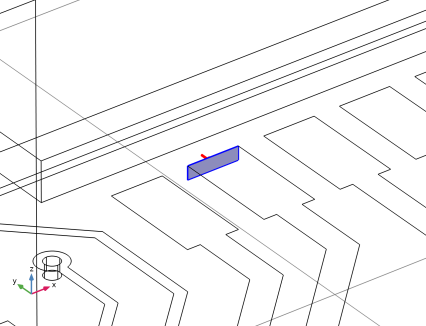
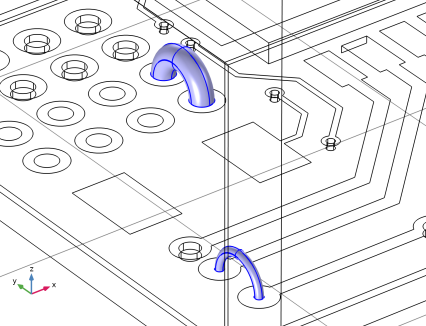
50 Ω via termination
|
|||
|
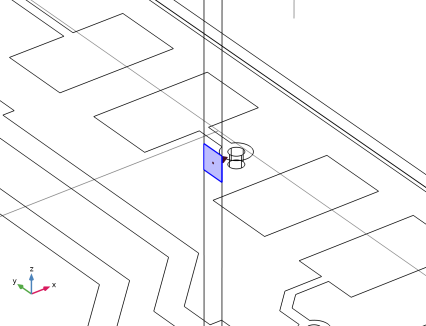
50 Ω via termination
|
|||

|
1
|
|
2
|
|
3
|
Click Add.
|
|
4
|
Click
 Study. Study. |
|
5
|
|
6
|
Click
 Done. Done. |
|
1
|
|
2
|
|
3
|
|
1
|
|
2
|
|
3
|
Click
 Browse. Browse. |
|
4
|
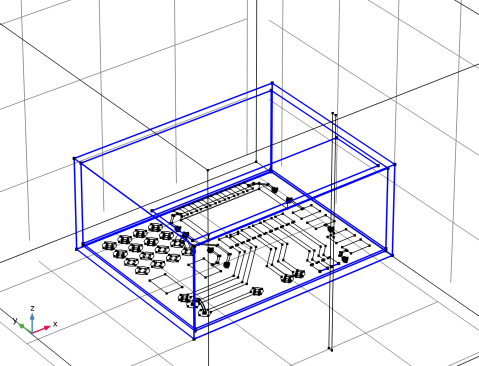
Browse to the model’s Application Libraries folder and double-click the file circuit_emiemc.mphbin.
|
|
5
|
Click to expand the Selections of Resulting Entities section. Select the Resulting objects selection checkbox.
|
|
6
|
|
1
|
|
2
|
|
3
|
|
4
|
|
5
|
|
6
|
|
7
|
|
8
|
|
1
|
|
2
|
|
3
|
|
4
|
|
5
|
|
6
|
|
7
|
|
8
|
Click
 Build Selected. Build Selected. |
|
9
|
|
1
|
|
2
|
|
3
|
|
4
|
|
5
|
|
6
|
|
7
|
|
8
|
|
1
|
|
2
|
|
3
|
|
4
|
|
1
|
|
2
|
|
3
|
|
4
|
|
5
|
|
6
|
|
7
|
|
1
|
In the Model Builder window, right-click Geometry 1 and choose Booleans and Partitions > Difference.
|
|
2
|
Select the object blk2 only.
|
|
3
|
|
4
|
|
5
|
Select the object blk1 only.
|
|
6
|
Click
 Build Selected. Build Selected. |
|
1
|
|
2
|
|
3
|
|
4
|
|
5
|
|
6
|
|
7
|
|
8
|
|
1
|
|
2
|
|
3
|
|
1
|
|
2
|
|
3
|
|
4
|
In the Height text field, type 55[mm]. The size is approximated for the antenna operating in the Wi-Fi frequency range.
|
|
5
|
|
6
|
|
7
|
|
8
|
Click to expand the Layers section. In the table, enter the following settings:
|
|
9
|
Select the Layers on top checkbox.
|
|
1
|
|
2
|
|
3
|
|
4
|
|
1
|
|
2
|
|
3
|
|
4
|
|
5
|
|
6
|
|
7
|
|
8
|
|
1
|
|
2
|
|
3
|
|
4
|
|
1
|
|
2
|
|
3
|
|
4
|
Select the Group by continuous tangent checkbox.
|
|
1
|
|
2
|
|
3
|
|
4
|
Select the Group by continuous tangent checkbox.
|
|
1
|
|
2
|
Go to the Add Material window.
|
|
3
|
|
4
|
Click the Add to Component button in the window toolbar.
|
|
5
|
|
6
|
Click the Add to Component button in the window toolbar.
|
|
1
|
Go to the Add Material window.
|
|
2
|
|
3
|
Click the Add to Component button in the window toolbar.
|
|
4
|
|
1
|
|
2
|
Locate the Geometric Entity Selection section. From the Geometric entity level list, choose Boundary.
|
|
3
|
|
1
|
|
2
|
|
4
|
Locate the Material Contents section. In the table, enter the following settings:
|
|
1
|
|
2
|
|
4
|
Locate the Material Contents section. In the table, enter the following settings:
|
|
1
|
|
1
|
|
3
|
|
4
|
|
1
|
|
1
|
|
2
|
|
3
|
|
4
|
|
1
|
|
2
|
|
3
|
|
1
|
|
2
|
|
3
|
|
1
|
|
1
|
|
3
|
|
4
|
|
1
|
|
3
|
|
4
|
|
1
|
|
1
|
|
2
|
|
3
|
Click
 Clear Selection. Clear Selection. |
|
1
|
|
2
|
|
3
|
|
1
|
|
2
|
|
1
|
|
2
|
|
3
|
|
4
|
|
6
|
|
1
|
|
2
|
|
1
|
|
2
|
|
1
|
|
2
|
|
3
|
Click
 Range. Range. |
|
4
|
|
5
|
|
6
|
|
7
|
Click Replace.
|
|
8
|
|
9
|
Select the Modify model configuration for study step checkbox.
|
|
10
|
In the tree, select Component 1 (comp1) > Electromagnetic Waves, Frequency Domain (emw) > Lumped Port 2.
|
|
11
|
Click
 Disable. Disable. |
|
12
|
In the tree, select Component 1 (comp1) > Electromagnetic Waves, Frequency Domain (emw) > Perfect Electric Conductor 2.
|
|
13
|
Click
 Disable. Disable. |
|
14
|
|
1
|
In the Model Builder window, expand the Results > Electric Field (emw) node, then click Electric Field (emw).
|
|
2
|
|
3
|
|
1
|
In the Model Builder window, right-click Surface 1 and choose Selection. The Selection subfeature let you plot the results only on the desired boundaries.
|
|
2
|
|
3
|
|
4
|
|
1
|
|
2
|
|
3
|
|
4
|
|
1
|
|
2
|
|
3
|
|
4
|
|
5
|
|
6
|
Locate the Scale section.
|
|
7
|
|
1
|
|
2
|
|
3
|
Click to select the
 Activate Selection toggle button. Activate Selection toggle button. |
|
1
|
|
2
|
|
3
|
|
4
|
Clear the Color legend checkbox.
|
|
1
|
|
2
|
|
3
|
Click to select the
 Activate Selection toggle button. Activate Selection toggle button. |
|
1
|
|
2
|
|
3
|
|
4
|
Clear the Color legend checkbox.
|
|
1
|
Right-click Surface 3 and choose Transparency. Using the Transparency subfeature, the plot can be partially transparent.
|
|
2
|
|
3
|
|
1
|
|
2
|
|
3
|
Clear the Plot dataset edges checkbox.
|
|
4
|
|
1
|
|
2
|
|
3
|
|
1
|
|
2
|
|
3
|
|
4
|
|
1
|
|
2
|
|
3
|
|
4
|
|
1
|
|
2
|
|
3
|
|
4
|
Clear the Color legend checkbox.
|
|
1
|
|
2
|
|
3
|
Click
 Paste Selection. Paste Selection. |
|
4
|
|
5
|
|
6
|
|
1
|
|
1
|
In the Model Builder window, expand the Results > 3D Far Field, Gain (emw) node, then click Radiation Pattern 1.
|
|
2
|
|
3
|
|
1
|
|
2
|
|
3
|
|
4
|
|
1
|
|
2
|
|
3
|
|
4
|
|
5
|
|
6
|
|
1
|
|
3
|
|
1
|
|
2
|
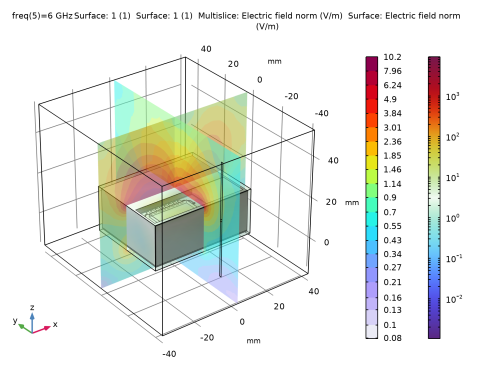
In the Settings window for 3D Plot Group, type Radiated Emission - Near Field in the Label text field.
|
|
3
|
|
1
|
|
2
|
|
1
|
|
1
|
|
2
|
|
3
|
|
1
|
|
2
|
|
3
|
|
4
|
|
5
|
|
6
|
|
7
|
|
8
|
|
1
|
|
2
|
|
3
|
|
4
|
|
5
|
|
1
|
|
2
|
|
4
|
|
1
|
|
2
|
|
3
|
|
4
|
|
5
|
|
1
|
|
2
|
|
4
|
|
1
|
|
2
|
Go to the Add Study window.
|
|
3
|
|
4
|
Click the Add Study button in the window toolbar.
|
|
5
|
|
1
|
|
2
|
Locate the Study Settings section. Clear the Generate default plots checkbox. The default plots will not be generated. Instead, some of the plots from the first study will be duplicated after computation.
|
|
1
|
|
2
|
|
3
|
|
4
|
Locate the Physics and Variables Selection section. Select the Modify model configuration for study step checkbox.
|
|
5
|
In the tree, select Component 1 (comp1) > Electromagnetic Waves, Frequency Domain (emw) > Lumped Port 1.
|
|
6
|
Right-click and choose Disable.
|
|
7
|
In the tree, select Component 1 (comp1) > Electromagnetic Waves, Frequency Domain (emw) > Far-Field Domain 1.
|
|
8
|
Right-click and choose Disable.
|
|
9
|
|
1
|
|
2
|
In the Settings window for 3D Plot Group, type Electric Field (emw) - Circuit Board, Immunity in the Label text field.
|
|
3
|
|
4
|
|
5
|
|
6
|
|
1
|
In the Model Builder window, expand the Results > Electric Field (emw) - Circuit Board, Immunity > Surface 1 node, then click Deformation 1.
|
|
2
|
|
3
|
|
1
|
In the Model Builder window, expand the Results > Electric Field (emw) - Circuit Board, Immunity > Surface 2 node, then click Deformation 1.
|
|
2
|
|
3
|
|
4
|
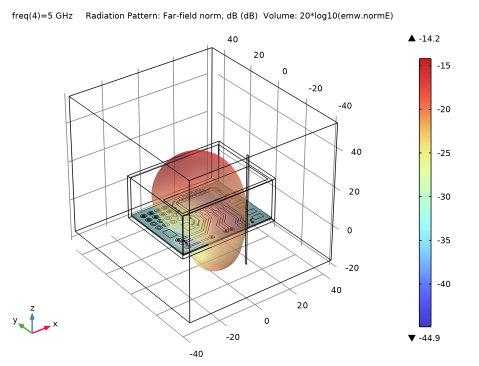
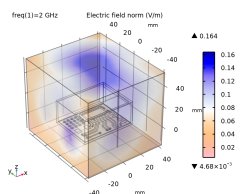
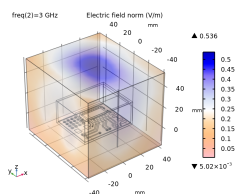
In the Electric Field (emw) - Circuit Board, Immunity toolbar, click
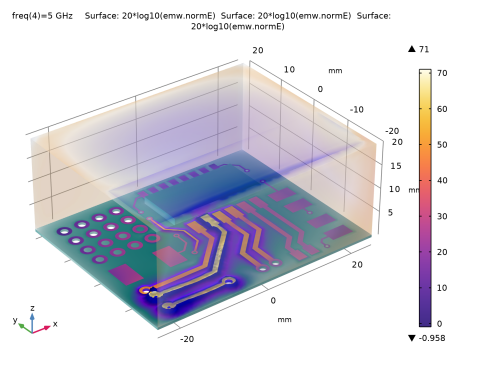
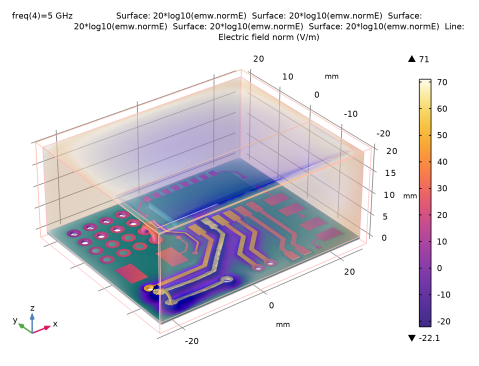
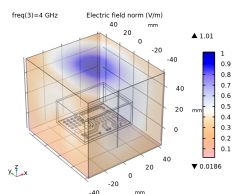
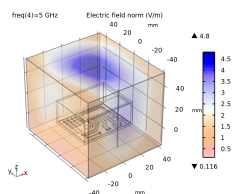
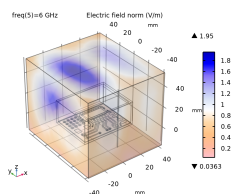
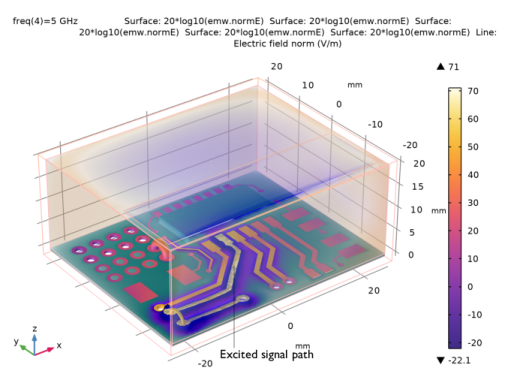
 Plot. This plot describes the field strength coupled to the circuit board and interior walls of the enclosure from the radiation of the printed dipole antenna. Plot. This plot describes the field strength coupled to the circuit board and interior walls of the enclosure from the radiation of the printed dipole antenna.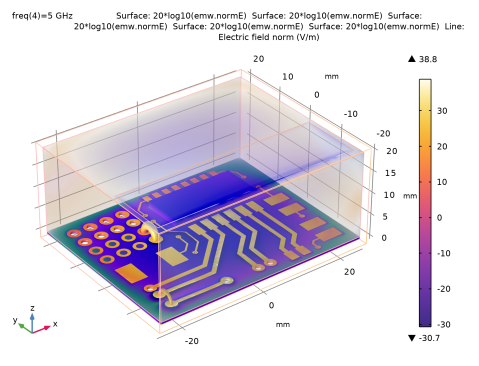 |
|
1
|
|
2
|
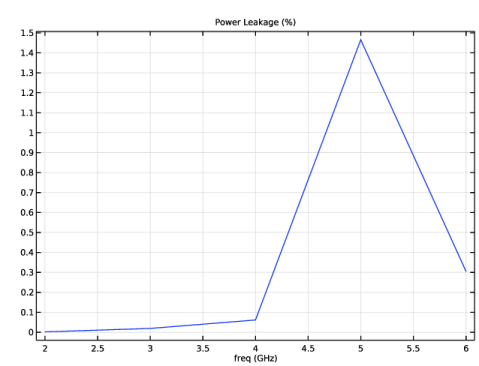
In the Settings window for 1D Plot Group, type Noise Coupling to Signal Line in the Label text field.
|
|
3
|
|
1
|
|
2
|
|
4
|
|
1
|
|
2
|