
|
|
|




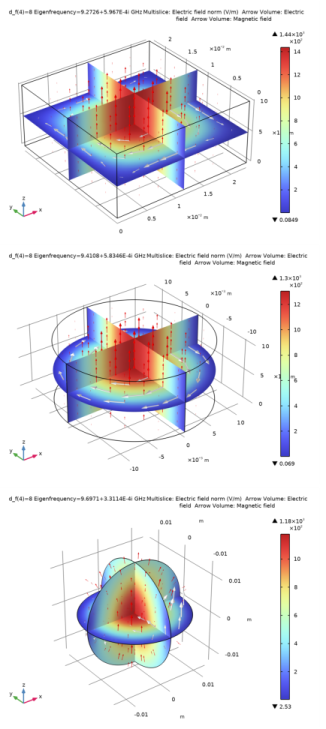
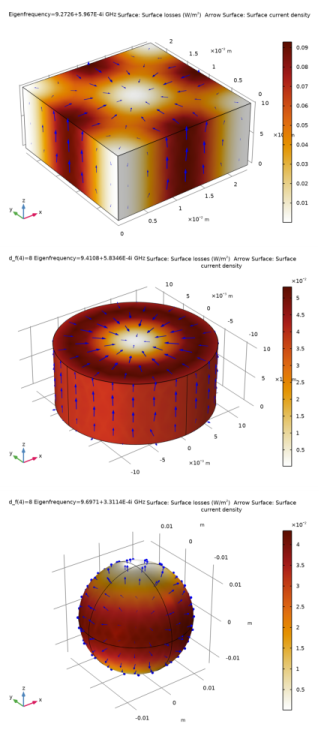
|
1
|
|
2
|
|
3
|
Click Add.
|
|
4
|
Click
 Study. Study. |
|
5
|
|
6
|
Click
 Done. Done. |
|
1
|
|
2
|
|
3
|
Click
 Load from File. Load from File. |
|
4
|
Browse to the model’s Application Libraries folder and double-click the file cavity_resonators_parameters.txt.
|
|
1
|
|
2
|
Go to the Add Material window.
|
|
3
|
|
4
|
Right-click and choose Add to Global Materials.
|
|
5
|
|
1
|
In the Model Builder window, under Global Definitions right-click Materials and choose Blank Material.
|
|
2
|
|
3
|
Click to expand the Material Properties section. In the Material properties tree, select Basic Properties > Relative Permittivity.
|
|
4
|
Click
 Add to Material. Add to Material. |
|
5
|
|
6
|
Click
 Add to Material. Add to Material. |
|
7
|
|
8
|
Click
 Add to Material. Add to Material. |
|
9
|
Locate the Material Contents section. In the table, enter the following settings:
|
|
1
|
|
2
|
|
3
|
|
4
|
|
5
|
|
6
|
|
1
|
|
2
|
|
3
|
|
1
|
|
2
|
|
3
|
|
4
|
|
5
|
|
1
|
|
2
|
|
3
|
|
1
|
|
2
|
|
3
|
|
4
|
|
1
|
|
2
|
|
3
|
Click
 Load from File. Load from File. |
|
4
|
Browse to the model’s Application Libraries folder and double-click the file cavity_resonators_model1_variables.txt.
|
|
1
|
|
2
|
|
3
|
Click the Custom button.
|
|
4
|
Locate the Element Size Parameters section. In the Maximum element size text field, type h_max_r/d_f.
|
|
5
|
|
6
|
|
7
|
|
8
|
Click
 Build All. Build All. |
|
1
|
|
2
|
|
3
|
|
4
|
|
1
|
|
2
|
|
3
|
Click
 Add. Add. |
|
5
|
|
1
|
|
2
|
In the Settings window for Arrow Volume, click Replace Expression in the upper-right corner of the Expression section. From the menu, choose Component 1 (comp1) > Electromagnetic Waves, Frequency Domain > Electric > emw.Ex,emw.Ey,emw.Ez - Electric field.
|
|
3
|
|
1
|
|
2
|
In the Settings window for Arrow Volume, click Replace Expression in the upper-right corner of the Expression section. From the menu, choose Component 1 (comp1) > Electromagnetic Waves, Frequency Domain > Magnetic > emw.Hx,emw.Hy,emw.Hz - Magnetic field.
|
|
3
|
Locate the Arrow Positioning section. Find the Z grid points subsection. In the Points text field, type 1.
|
|
4
|
|
5
|
|
6
|
|
1
|
|
2
|
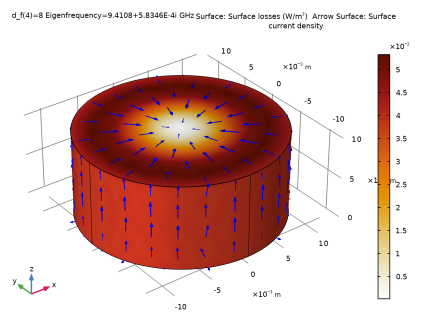
In the Settings window for Surface, click Replace Expression in the upper-right corner of the Expression section. From the menu, choose Component 1 (comp1) > Electromagnetic Waves, Frequency Domain > Heating and losses > emw.Qsh - Surface losses - W/m².
|
|
3
|
|
1
|
|
2
|
|
1
|
|
2
|
In the Settings window for Arrow Surface, click Replace Expression in the upper-right corner of the Expression section. From the menu, choose Component 1 (comp1) > Electromagnetic Waves, Frequency Domain > Currents and charge > emw.Jsx,...,emw.Jsz - Surface current density.
|
|
3
|
|
4
|
|
1
|
|
2
|
Go to the Add Physics window.
|
|
3
|
|
4
|
Click the Add to Component 2 button in the window toolbar.
|
|
5
|
|
1
|
|
2
|
Go to the Add Study window.
|
|
3
|
|
4
|
Click the Add Study button in the window toolbar.
|
|
5
|
|
1
|
|
2
|
|
3
|
|
4
|
|
5
|
|
1
|
|
2
|
|
3
|
|
1
|
|
2
|
|
3
|
|
4
|
|
5
|
|
1
|
|
2
|
|
3
|
|
1
|
|
2
|
|
3
|
|
4
|
|
1
|
|
2
|
|
3
|
Click
 Load from File. Load from File. |
|
4
|
Browse to the model’s Application Libraries folder and double-click the file cavity_resonators_model2_variables.txt.
|
|
1
|
|
2
|
|
3
|
Click the Custom button.
|
|
4
|
Locate the Element Size Parameters section. In the Maximum element size text field, type h_max_c/d_f.
|
|
5
|
|
6
|
|
7
|
|
8
|
Click
 Build All. Build All. |
|
1
|
In the Model Builder window, under Study 1, Ctrl-click to select Parametric Sweep and Step 1: Eigenfrequency.
|
|
2
|
Right-click and choose Copy.
|
|
1
|
|
2
|
|
3
|
In the Solve for column of the table, under Component 1 (comp1), clear the checkbox for Electromagnetic Waves, Frequency Domain (emw).
|
|
4
|
In the Solve for column of the table, under Component 2 (comp2), select the checkbox for Electromagnetic Waves, Frequency Domain 2 (emw2).
|
|
5
|
|
1
|
|
2
|
In the Settings window for Arrow Volume, click Replace Expression in the upper-right corner of the Expression section. From the menu, choose Component 2 (comp2) > Electromagnetic Waves, Frequency Domain 2 > Electric > emw2.Ex,emw2.Ey,emw2.Ez - Electric field.
|
|
3
|
|
1
|
|
2
|
In the Settings window for Arrow Volume, click Replace Expression in the upper-right corner of the Expression section. From the menu, choose Component 2 (comp2) > Electromagnetic Waves, Frequency Domain 2 > Magnetic > emw2.Hx,emw2.Hy,emw2.Hz - Magnetic field.
|
|
3
|
Locate the Arrow Positioning section. Find the Z grid points subsection. In the Points text field, type 1.
|
|
4
|
|
5
|
|
6
|
|
1
|
|
2
|
|
3
|
|
1
|
|
2
|
In the Settings window for Surface, click Replace Expression in the upper-right corner of the Expression section. From the menu, choose Component 2 (comp2) > Electromagnetic Waves, Frequency Domain 2 > Heating and losses > emw2.Qsh - Surface losses - W/m².
|
|
3
|
|
1
|
|
2
|
|
1
|
|
2
|
In the Settings window for Arrow Surface, click Replace Expression in the upper-right corner of the Expression section. From the menu, choose Component 2 (comp2) > Electromagnetic Waves, Frequency Domain 2 > Currents and charge > emw2.Jsx,...,emw2.Jsz - Surface current density.
|
|
3
|
|
4
|
|
1
|
|
2
|
Go to the Add Physics window.
|
|
3
|
|
4
|
Click the Add to Component 3 button in the window toolbar.
|
|
5
|
|
1
|
|
2
|
Go to the Add Study window.
|
|
3
|
|
4
|
Click the Add Study button in the window toolbar.
|
|
5
|
|
1
|
|
2
|
|
3
|
|
4
|
|
1
|
|
2
|
|
3
|
|
1
|
|
2
|
|
3
|
|
4
|
|
5
|
|
1
|
|
2
|
|
3
|
|
1
|
|
2
|
|
3
|
|
4
|
|
1
|
|
2
|
|
3
|
Click
 Load from File. Load from File. |
|
4
|
Browse to the model’s Application Libraries folder and double-click the file cavity_resonators_model3_variables.txt.
|
|
1
|
|
2
|
|
3
|
Click the Custom button.
|
|
4
|
Locate the Element Size Parameters section. In the Maximum element size text field, type h_max_s/d_f.
|
|
5
|
|
6
|
|
7
|
|
8
|
Click
 Build All. Build All. |
|
1
|
In the Model Builder window, under Study 2, Ctrl-click to select Parametric Sweep and Step 1: Eigenfrequency.
|
|
2
|
Right-click and choose Copy.
|
|
1
|
|
2
|
|
3
|
In the Solve for column of the table, under Component 1 (comp1), clear the checkbox for Electromagnetic Waves, Frequency Domain (emw).
|
|
4
|
In the Solve for column of the table, under Component 2 (comp2), clear the checkbox for Electromagnetic Waves, Frequency Domain 2 (emw2).
|
|
5
|
In the Solve for column of the table, under Component 3 (comp3), select the checkbox for Electromagnetic Waves, Frequency Domain 3 (emw3).
|
|
1
|
|
2
|
Click
 Compute. Compute. |
|
1
|
|
2
|
In the Settings window for Arrow Volume, click Replace Expression in the upper-right corner of the Expression section. From the menu, choose Component 3 (comp3) > Electromagnetic Waves, Frequency Domain 3 > Electric > emw3.Ex,emw3.Ey,emw3.Ez - Electric field.
|
|
1
|
|
2
|
In the Settings window for Arrow Volume, click Replace Expression in the upper-right corner of the Expression section. From the menu, choose Component 3 (comp3) > Electromagnetic Waves, Frequency Domain 3 > Magnetic > emw3.Hx,emw3.Hy,emw3.Hz - Magnetic field.
|
|
3
|
Locate the Arrow Positioning section. Find the Z grid points subsection. In the Points text field, type 1.
|
|
4
|
|
5
|
|
6
|
|
1
|
|
2
|
|
3
|
|
1
|
|
2
|
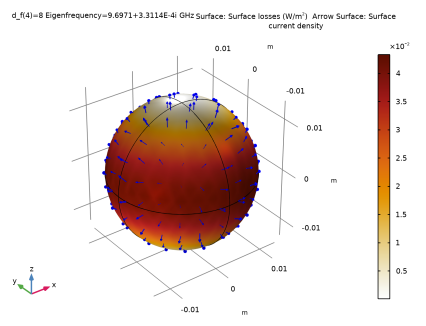
In the Settings window for Surface, click Replace Expression in the upper-right corner of the Expression section. From the menu, choose Component 3 (comp3) > Electromagnetic Waves, Frequency Domain 3 > Heating and losses > emw3.Qsh - Surface losses - W/m².
|
|
3
|
|
1
|
|
2
|
|
1
|
|
2
|
In the Settings window for Arrow Surface, click Replace Expression in the upper-right corner of the Expression section. From the menu, choose Component 3 (comp3) > Electromagnetic Waves, Frequency Domain 3 > Currents and charge > emw3.Jsx,...,emw3.Jsz - Surface current density.
|
|
3
|
|
4
|
|
1
|
|
2
|
|
3
|
|
4
|
|
5
|
|
6
|
Click Replace Expression in the upper-right corner of the Expressions section. From the menu, choose Component 1 (comp1) > Definitions > Variables > Q_computed - Q-factor, computed from eigenvalue - 1.
|
|
7
|
Click
 Evaluate. Evaluate. |
|
8
|
|
9
|
Click
 Evaluate. Evaluate. |
|
10
|
|
11
|
Click
 Evaluate. Evaluate. |
|
1
|
|
2
|
|
3
|
|
4
|
Click Replace Expression in the upper-right corner of the Expressions section. From the menu, choose Component 1 (comp1) > Definitions > Variables > Q_definition - Q-factor, definition - 1.
|
|
5
|
|
6
|
|
7
|
Click
 Evaluate. Evaluate. |
|
8
|
|
9
|
Click
 Evaluate. Evaluate. |
|
1
|
In the Model Builder window, under Results > Derived Values right-click Global Evaluation 1 and choose Duplicate.
|
|
2
|
|
3
|
|
4
|
Click Replace Expression in the upper-right corner of the Expressions section. From the menu, choose Component 1 (comp1) > Definitions > Variables > frequency - Frequency, simulated - Hz.
|
|
5
|
|
6
|
|
7
|
Click
 Evaluate. Evaluate. |
|
8
|
|
9
|
Click
 Evaluate. Evaluate. |
 .
.


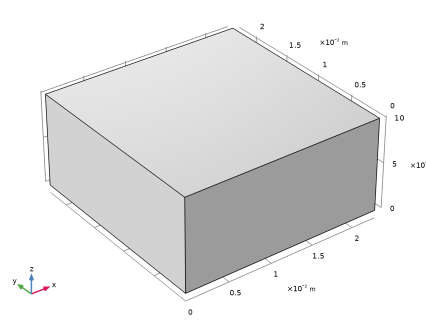


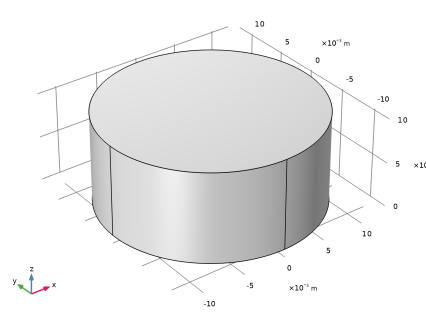







 next to
 next to