|
|
|
|
1
|
|
2
|
|
3
|
Click Add.
|
|
4
|
Click
 Study. Study. |
|
5
|
|
6
|
Click
 Done. Done. |
|
1
|
|
2
|
|
3
|
|
1
|
|
2
|
|
3
|
|
1
|
|
2
|
|
3
|
|
1
|
|
2
|
|
3
|
|
4
|
|
5
|
|
6
|
Click
 Build Selected. Build Selected. |
|
1
|
|
2
|
|
3
|
|
4
|
Click
 Go to Plane Geometry. Go to Plane Geometry. |
|
1
|
|
2
|
|
3
|
|
4
|
|
5
|
|
6
|
Click
 Build Selected. Build Selected. |
|
1
|
|
2
|
Select the object wp1 only.
|
|
3
|
|
4
|
|
5
|
Click
 Build Selected. Build Selected. |
|
6
|
|
1
|
|
2
|
|
1
|
|
2
|
|
3
|
|
4
|
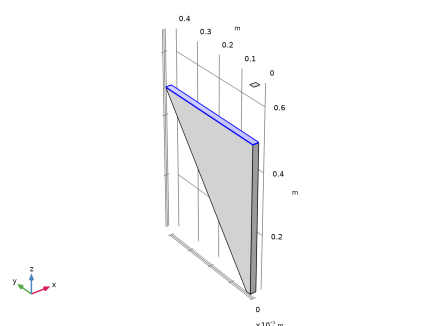
On the object loft1, select Boundary 4 only.
|
|
5
|
Click to expand the End Profile section. Click to select the
 Activate Selection toggle button for End profile. Activate Selection toggle button for End profile. |
|
6
|
On the object copy1, select Boundary 1 only.
|
|
7
|
|
1
|
|
2
|
On the object loft2, select Boundaries 1, 2, 4–6, 10, and 11 only.
|
|
3
|
|
1
|
|
2
|
Select the object del1 only.
|
|
3
|
|
4
|
|
5
|
|
1
|
|
2
|
|
3
|
|
4
|
|
5
|
|
1
|
|
2
|
|
3
|
|
4
|
|
5
|
|
6
|
Locate the Selections of Resulting Entities section. Find the Cumulative selection subsection. Click New.
|
|
7
|
In the New Cumulative Selection dialog, By creating the selection of resulting entities, you can easily choose the all antenna radiator surfaces when setting up the physics later on.
|
|
8
|
|
9
|
Click OK.
|
|
10
|
|
11
|
|
1
|
|
2
|
|
3
|
|
4
|
Click
 Go to Plane Geometry. Go to Plane Geometry. |
|
1
|
|
2
|
|
3
|
|
4
|
|
5
|
|
6
|
|
7
|
|
1
|
|
2
|
|
3
|
|
4
|
Click to expand the Layers section. In the table, enter the following settings:
|
|
5
|
|
6
|
|
1
|
|
3
|
|
4
|
|
1
|
|
2
|
|
3
|
|
1
|
|
2
|
Go to the Add Material window.
|
|
3
|
|
4
|
Click the Add to Component button in the window toolbar.
|
|
5
|
|
1
|
|
2
|
|
3
|
|
1
|
|
2
|
|
1
|
|
2
|
|
3
|
|
4
|
|
1
|
|
1
|
|
2
|
|
3
|
|
4
|
|
5
|
|
6
|
|
1
|
|
2
|
|
3
|
|
4
|
|
5
|
|
6
|
|
7
|
|
8
|
|
1
|
|
2
|
|
3
|
|
4
|
|
5
|
|
6
|
|
1
|
|
2
|
|
3
|
|
4
|
|
5
|
|
1
|
|
2
|
|
3
|
Select the Manual axis limits checkbox.
|
|
4
|
|
5
|
|
1
|
|
2
|
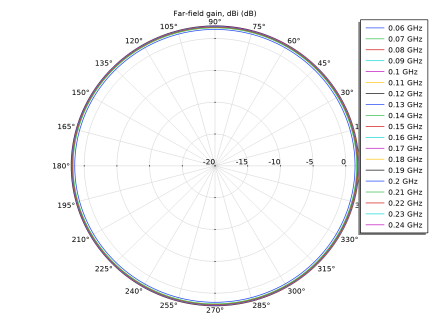
In the Settings window for Radiation Pattern, click Replace Expression in the upper-right corner of the Expression section. From the menu, choose Component 1 (comp1) > Electromagnetic Waves, Frequency Domain > Far field > emw.gaindBEfar - Far-field gain, dBi - dB.
|
|
3
|
|
1
|
|
2
|
|
3
|
|
4
|
|
1
|
|
2
|
|
1
|
|
2
|
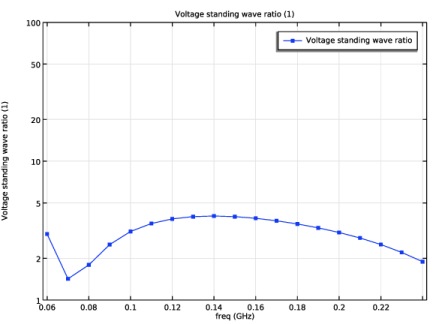
In the Settings window for Global, click Add Expression in the upper-right corner of the y-Axis Data section. From the menu, choose Component 1 (comp1) > Electromagnetic Waves, Frequency Domain > Ports > emw.VSWR_1 - Voltage standing wave ratio - 1.
|
|
3
|
Click to expand the Coloring and Style section. Find the Line markers subsection. From the Marker list, choose Point.
|
|
1
|
|
2
|
|
3
|
Select the y-axis log scale checkbox.
|
|
4
|
Select the Manual axis limits checkbox.
|
|
5
|
|
6
|
|
7
|
|
1
|
|
2
|
|
3
|
|
4
|
|
5
|
|
6
|
|
1
|
|
2
|
|
3
|
|
4
|
|
5
|
|
1
|
|
3
|