|
|
|







|
10 m3/(s·mol)
|
||
|
1 m3/(s·mol)
|
||
|
1
|
|
2
|
In the Select Physics tree, select Fluid Flow > Porous Media and Subsurface Flow > Richards’ Equation (dl).
|
|
3
|
Click Add.
|
|
4
|
Click
 Study. Study. |
|
5
|
|
6
|
Click
 Done. Done. |
|
1
|
|
2
|
Browse to the model’s Application Libraries folder and double-click the file rapid_detection_test_2d_geom_sequence.mph.
|
|
3
|
|
4
|
|
1
|
|
2
|
|
3
|
|
4
|
|
5
|
Click
 Update. Update. |
|
6
|
|
1
|
|
2
|
|
1
|
|
2
|
|
3
|
Click
 Load from File. Load from File. |
|
4
|
Browse to the model’s Application Libraries folder and double-click the file rapid_detection_test_2d_parameters_material.txt.
|
|
5
|
|
1
|
|
2
|
|
3
|
Click
 Load from File. Load from File. |
|
4
|
Browse to the model’s Application Libraries folder and double-click the file rapid_detection_test_2d_parameters_operating_conditions.txt.
|
|
5
|
|
1
|
|
2
|
|
3
|
Clear the Include gravity checkbox as the geometry is so flat that gravity does not take any effect.
|
|
4
|
|
1
|
In the Model Builder window, under Component 1 (comp1) > Richards’ Equation (dl) click Unsaturated Porous Medium 1.
|
|
2
|
|
3
|
|
1
|
|
2
|
|
3
|
|
4
|
|
5
|
|
6
|
|
7
|
|
1
|
In the Model Builder window, under Component 1 (comp1) > Richards’ Equation (dl) click Initial Values 1.
|
|
2
|
|
3
|
|
1
|
In the Model Builder window, under Component 1 (comp1) right-click Materials and choose Blank Material.
|
|
2
|
|
3
|
Locate the Material Contents section. In the table, enter the following settings:
|
|
1
|
|
2
|
|
3
|
|
4
|
|
5
|
|
1
|
|
2
|
|
3
|
|
1
|
|
2
|
|
3
|
|
4
|
|
1
|
|
3
|
|
4
|
|
1
|
|
2
|
|
3
|
|
1
|
|
2
|
|
3
|
|
1
|
|
2
|
|
3
|
Select the Adjust edge mesh checkbox.
|
|
1
|
|
2
|
|
3
|
|
5
|
|
6
|
Locate the Element Size Parameters section.
|
|
7
|
|
1
|
|
3
|
|
4
|
|
1
|
|
3
|
|
4
|
|
5
|
|
6
|
|
7
|
Select the Reverse direction checkbox.
|
|
1
|
|
2
|
|
3
|
Click
 Paste Selection. Paste Selection. |
|
4
|
|
5
|
Click OK.
|
|
6
|
|
7
|
|
8
|
Click
 Build All. Build All. |
|
1
|
|
2
|
|
3
|
|
4
|
|
1
|
In the Model Builder window, expand the Domain Point Probe 1 node, then click Point Probe Expression 1 (ppb1).
|
|
2
|
|
3
|
|
1
|
|
2
|
Go to the Add Physics window.
|
|
3
|
|
4
|
Click the Add to Component 1 button in the window toolbar.
|
|
5
|
|
1
|
|
2
|
|
1
|
|
2
|
|
3
|
In the Condition text field, type saturated>0 as the event is triggered when the condition changes sign.
|
|
4
|
Locate the Reinitialization section. In the table, enter the following settings:
|
|
5
|
|
1
|
|
2
|
|
3
|
|
4
|
|
1
|
|
2
|
|
3
|
|
4
|
|
5
|
Find the Algebraic variable settings subsection. From the Consistent initialization list, choose Off.
|
|
6
|
|
7
|
In the Model Builder window, expand the Study 1 > Solver Configurations > Solution 1 (sol1) > Time-Dependent Solver 1 node, then click Fully Coupled 1.
|
|
8
|
|
9
|
|
10
|
|
11
|
In the Model Builder window, under Study 1 > Solver Configurations > Solution 1 (sol1) > Time-Dependent Solver 1 click Direct, pressure (dl) (Merged).
|
|
12
|
|
13
|
|
14
|
|
15
|
|
16
|
Clear the Generate default plots checkbox.
|
|
17
|
|
1
|
|
2
|
Go to the Result Templates window.
|
|
3
|
In the tree, select Study 1/Solution 1 (sol1) > Richards’ Equation > Pressure (dl) and Study 1/Solution 1 (sol1) > Richards’ Equation > Effective Saturation (dl).
|
|
4
|
Click the Add Result Template button in the window toolbar.
|
|
5
|
|
1
|
|
2
|
|
3
|
|
4
|
|
5
|
|
6
|
|
7
|
|
1
|
|
2
|
|
3
|
|
4
|
|
5
|
|
6
|
|
1
|
|
2
|
|
4
|
|
1
|
|
2
|
|
1
|
In the Model Builder window, expand the Results > Effective Saturation (dl) node, then click Effective Saturation (dl).
|
|
2
|
|
3
|
|
4
|
|
5
|
|
6
|
|
7
|
|
1
|
|
2
|
|
3
|
|
4
|
|
1
|
In the Model Builder window, right-click Effective Saturation (dl) and choose Paste Table Annotation.
|
|
2
|
|
3
|
|
1
|
|
2
|
|
3
|
Browse to the model’s Application Libraries folder and double-click the file rapid_detection_test_2d_geom_sequence.mph.
|
|
4
|
Click OK.
|
|
1
|
|
2
|
Go to the Add Physics window.
|
|
3
|
In the tree, select Chemical Species Transport > Transport of Diluted Species in Porous Media (tds).
|
|
4
|
Find the Physics interfaces in study subsection. In the table, clear the Solve checkbox for Study 1 as the chemical reactions and transport variables will be solved for in a different study.
|
|
5
|
Click the Add to Component 1 button in the window toolbar.
|
|
6
|
|
1
|
In the Settings window for Transport of Diluted Species in Porous Media, click to expand the Discretization section.
|
|
2
|
|
3
|
|
4
|
In the Concentrations (mol/m³) table, enter the following settings:
|
|
1
|
In the Model Builder window, under Component 1 (comp1) > Transport of Diluted Species in Porous Media (tds) > Porous Medium 1 click Fluid 1.
|
|
2
|
|
3
|
|
4
|
|
5
|
|
6
|
|
7
|
|
8
|
|
9
|
|
10
|
|
1
|
|
3
|
|
4
|
|
5
|
|
6
|
|
1
|
In the Model Builder window, under Component 1 (comp1) right-click Definitions and choose Variables.
|
|
2
|
|
3
|
|
4
|
Browse to the model’s Application Libraries folder and double-click the file rapid_detection_test_2d_variables_reaction_rates.txt.
|
|
1
|
|
2
|
|
3
|
|
4
|
|
5
|
|
6
|
|
7
|
|
1
|
|
2
|
|
3
|
|
4
|
|
5
|
|
1
|
|
2
|
|
3
|
|
4
|
|
1
|
|
2
|
|
3
|
|
4
|
|
1
|
|
2
|
|
3
|
|
4
|
|
1
|
|
2
|
Go to the Add Study window.
|
|
3
|
Find the Physics interfaces in study subsection. In the table, clear the Solve checkboxes for Richards’ Equation (dl) and Events (ev).
|
|
4
|
|
5
|
Click the Add Study button in the window toolbar.
|
|
6
|
|
1
|
|
2
|
|
3
|
|
4
|
|
5
|
|
6
|
Clear the Generate default plots checkbox.
|
|
7
|
|
8
|
In the Settings window for Time Dependent, click to expand the Values of Dependent Variables section.
|
|
9
|
Find the Values of variables not solved for subsection. From the Settings list, choose User controlled.
|
|
10
|
|
11
|
|
12
|
|
1
|
|
2
|
|
3
|
|
4
|
|
5
|
In the Model Builder window, under Study 2 > Solver Configurations > Solution 2 (sol2) click Time-Dependent Solver 1.
|
|
6
|
|
7
|
|
8
|
Find the Algebraic variable settings subsection. From the Consistent initialization list, choose Off.
|
|
9
|
|
1
|
|
2
|
|
3
|
In the Solve for column of the table, under Component 1 (comp1), clear the checkbox for Reactions (dode).
|
|
1
|
|
2
|
|
1
|
|
2
|
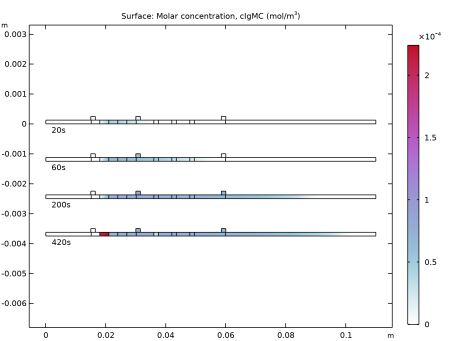
In the Settings window for Surface, click Replace Expression in the upper-right corner of the Expression section. From the menu, choose Component 1 (comp1) > Transport of Diluted Species in Porous Media > Species cIgMC > cIgMC - Molar concentration, cIgMC - mol/m³.
|
|
3
|
|
1
|
|
2
|
|
3
|
|
4
|
|
1
|
|
2
|
|
3
|
|
4
|
|
5
|
|
1
|
|
2
|
|
3
|
|
5
|
|
1
|
|
2
|
|
3
|
|
4
|
|
5
|
|
6
|
|
1
|
|
2
|
|
3
|
|
1
|
|
2
|
|
3
|
|
4
|
|
1
|
|
2
|
|
3
|
|
1
|
|
2
|
|
3
|
|
4
|
|
1
|
|
2
|
In the Settings window for Evaluation Group, type Evaluation Group: Test Line in the Label text field.
|
|
3
|
|
1
|
|
2
|
|
3
|
|
4
|
|
1
|
|
2
|
|
4
|
|
1
|
|
2
|
|
3
|
|
4
|
Locate the Expressions section. In the table, enter the following settings:
|
|
1
|
|
2
|
|
1
|
Go to the Evaluation Group: Test Line window.
|
|
2
|
Click the Table Graph button in the window toolbar.
|
|
1
|
|
2
|
Select the Show legends checkbox.
|
|
3
|
|
1
|
|
2
|
|
3
|
|
4
|
Locate the Plot Settings section.
|
|
5
|
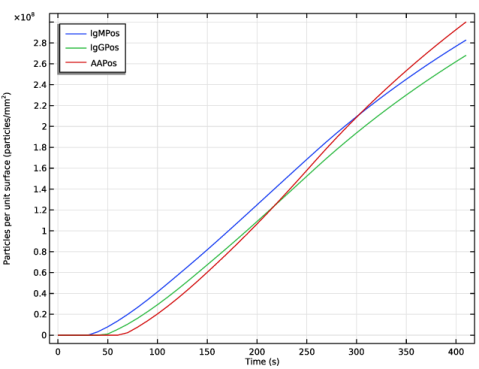
Select the y-axis label checkbox. In the associated text field, type Particles per unit surface (mm<sup>2</sup>).
|
|
6
|
|
7
|
|
8
|
|
9
|
|
10
|