


PDF

Performance of a Porous Microchannel Heat Sink
Introduction
This model studies the performance of a microchannel heat sink (MCHS) with a porous block structure and compares its performance with that of a conventional MCHS. Todays demands on electronic components to become smaller and more efficient at the same time place equally high demands on the corresponding cooling devices. The use of porous material along the flow channels can enhance the heat transfer, by increasing the heat transfer surface area. At the same time, the pressure drop is also increased, requiring more pumping power. With a parametric study over the thickness of the porous substrate an optimized design of the porous MCHS can be found.
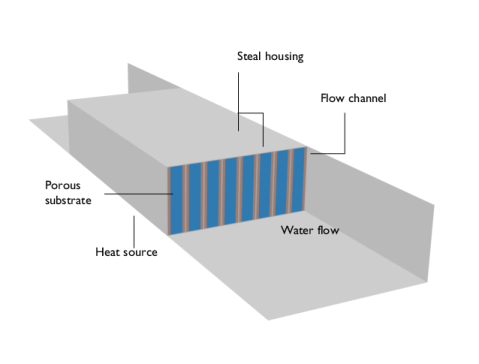
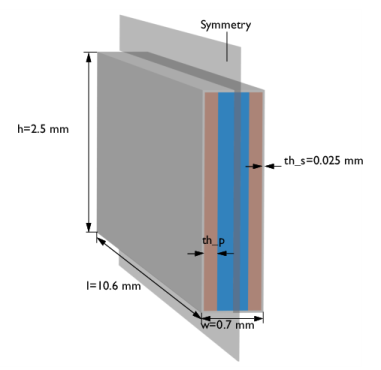
Figure 1: Geometry and operating conditions of the porous MCHS.
Model Definition
The design and operating conditions are taken from Ref. 1 and are illustrated in Figure 1. The problem can be reduced to modeling only one half of a single channel. This is sufficient, because the performance is mainly influenced by the pressure drop and heat transfer from the bottom boundary to the water in the channel. The geometry of the modeled domain is shown in Figure 2.
Figure 2: Geometry of the modeling domain. The free flow domain used to provide the inflow profile for the MCHS is not shown.
The flow channels contain sintered porous metal blocks with a porosity of ε = 0.404 on each side. A heat source with qin = 100 W/cm2 is attached to the bottom. Water with an inlet velocity of u = 0.2 m/s and a temperature of Tin = 300 K is used as cooling fluid. The flow is assumed to be laminar, incompressible and stationary. The flow properties are also independent of the temperature field. Inside the porous domains the governing equation is the Brinkman equation with a Forchheimer correction term (also known as the Brinkman–Forchheimer or Darcy–Brinkman–Forchheimer equation). The pressure drop depends on the velocity field u as
(1)
where μ (Pa·s) is the fluid viscosity, ρ (kg/m3) the density, and κ (m2) the permeability of the porous substrate.
To evaluate the performance of the porous MCHS over the conventional MCHS, the first computation solves the model assuming only free flow. Then, a second study performs a parametric sweep over the thickness of the porous substrate (thp). The following performance parameters are evaluated:
1
2
(2)
with the average wall temperature at the bottom centerline .
3
(3)
with the hydraulic diameter Dh (m) that is defined based on the length and width of the free flow channel, lf and wf, respectively, as follows:
4
(4)
where kf is the fluids thermal conductivity.
5
(5)
The index ref refers to the values for the MCHS without the porous structure and Ω = uinlfwfΔp is the pumping power.
Equation 1 is valid for 1 ≤ Re ≤ 1000. An estimation of the Reynolds number (Equation 3) results in Re ∼ 300 such that the choice of the Brinkman-Forchheimer equation is valid.
Results and Discussion
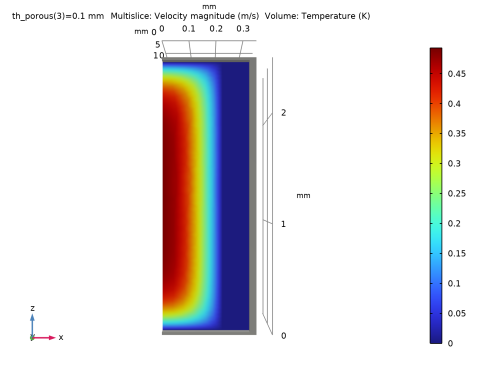
Figure 3 shows the velocity field in a cross section of the channel. The velocity magnitude inside the porous structure is small (dark blue) compared to that of the free flow channel.
Figure 3: Cross section of the velocity field. One can easily recognize the area of the porous medium on the right side by the blue color which implies low velocities.
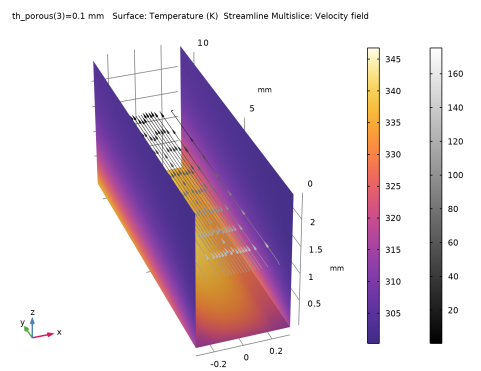
The temperature distribution is shown together with the velocity profile in Figure 4.
Figure 4: Temperature distribution (color) and velocity field (arrows) with the gray scale indicating the pressure.
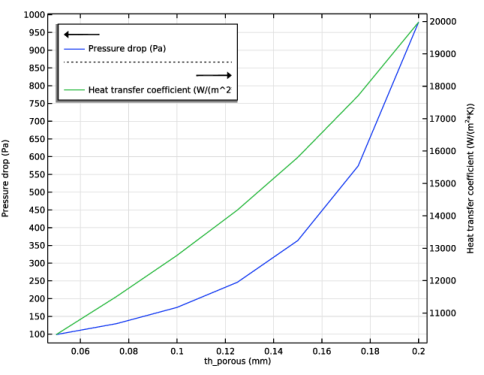
The pressure drop and average heat transfer coefficient as a function of the thickness of the porous structure are shown in Figure 5. With increasing thickness, both values also increase.
Figure 5: Pressure drop and average heat transfer coefficient.
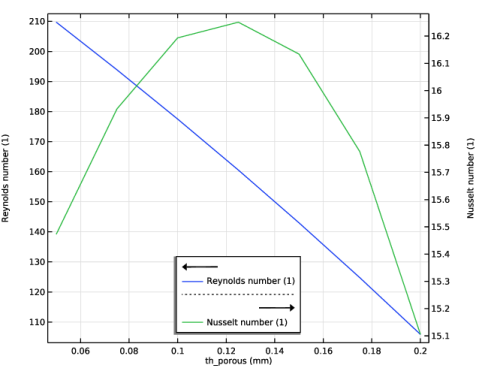
Figure 6 shows how the dimensionless Reynolds and Nusselt numbers depend on this thickness. The Reynolds number decreases with increasing thp and varies in the range from 100 to 210, meaning that the choice of the Brinkman–Forchheimer equation is justified. The Nusselt number has a maximum at thp = 0.125 mm.
Figure 6: Reynolds and Nusselt numbers.
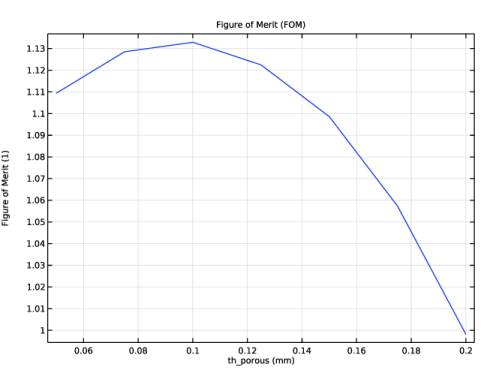
The Figure of Merit (Figure 7) shows that the optimal performance is achieved for thp = 0.1 mm.
Figure 7: The Figure of Merit comparing the performances of the porous and the conventional MCHS.
Notes About the COMSOL Implementation
This model shows how to analyze the performance of the porous MCHS for varying porous substrate thickness. The model geometry and operating conditions are fully parameterized, such that you can easily extend the model for various parameters, as for example the inlet velocity or other channel dimensions.
Reference
1. A. Ghahremannezhad and K. Vafai, “Thermal and hydraulic performance enhancement of microchannel heat sinks utilizing porous substrates,” Int. J. Heat Mass Transf., vol. 122, pp. 1313–1326, 2018.
Application Library path: Porous_Media_Flow_Module/Heat_Transfer/porous_microchannel_heat_sink
Modeling Instructions
From the File menu, choose New.
New
In the New window, click  Model Wizard.
Model Wizard
1
In the Model Wizard window, click  3D.
2
In the Select Physics tree, select Heat Transfer > Conjugate Heat Transfer > Laminar Flow.
3
Click Add.
4
Click  Study.
5
In the Select Study tree, select Preset Studies for Selected Multiphysics > Stationary, One-Way NITF.
6
Geometry 1
1
In the Geometry toolbar, click Insert Sequence and choose Insert Sequence.
2
3
In the Geometry toolbar, click  Build All.
The geometry parameters are already present after loading the file. Add a few more parameters for the material properties and operating conditions.
Global Definitions
Geometry Parameters
1
In the Model Builder window, under Global Definitions click Parameters 1.
2
In the Settings window for Parameters, type Geometry Parameters in the Label text field.
Material Properties and Operating Conditions
1
In the Home toolbar, click  Parameters and choose Add > Parameters.
2
In the Settings window for Parameters, type Material Properties and Operating Conditions in the Label text field.
3
Locate the Parameters section. In the table, enter the following settings:
Next, add the materials. For the fluid use a user-defined material with the parameters defined above. Load steel from the Material Library.
Water
1
In the Model Builder window, under Global Definitions right-click Materials and choose Blank Material.
2
In the Settings window for Material, type Water in the Label text field.
Add Material
1
In the Materials toolbar, click  Add Material to open the Add Material window.
2
Go to the Add Material window.
3
In the tree, select Built-in > Steel AISI 4340.
4
Click the Add to Global Materials button in the window toolbar.
5
In the Materials toolbar, click  Add Material to close the Add Material window.
Materials
Material Link 1 (matlnk1)
In the Model Builder window, under Component 1 (comp1) right-click Materials and choose More Materials > Material Link.
Material Link 2 (matlnk2)
1
Right-click Materials and choose More Materials > Material Link.
2
In the Settings window for Material Link, locate the Link Settings section.
3
From the Material list, choose Steel AISI 4340 (mat2).
4
Locate the Geometric Entity Selection section. From the Selection list, choose Solid.
Porous Material 1 (pmat1)
1
Right-click Materials and choose More Materials > Porous Material.
2
In the Settings window for Porous Material, locate the Geometric Entity Selection section.
3
From the Selection list, choose Porous.
Now, set up the domain conditions. This determines which material properties are required and you can fill in the missing materials afterward. For this step the selections are helpful.
Heat Transfer in Solids and Fluids (ht)
Porous Medium 1
1
In the Physics toolbar, click  Domains and choose Porous Medium.
2
In the Settings window for Porous Medium, locate the Domain Selection section.
3
From the Selection list, choose Porous.
Porous Matrix 1
1
In the Model Builder window, click Porous Matrix 1.
2
In the Settings window for Porous Matrix, locate the Matrix Properties section.
3
From the Define list, choose Solid phase properties.
Laminar Flow (spf)
Assume incompressible flow.
1
In the Model Builder window, under Component 1 (comp1) click Laminar Flow (spf).
2
In the Settings window for Laminar Flow, locate the Physical Model section.
3
From the Compressibility list, choose Incompressible flow.
4
Select the Enable porous media domains checkbox.
5
Locate the Domain Selection section. From the Selection list, choose Flow Domain.
Porous Medium 1
1
In the Physics toolbar, click  Domains and choose Porous Medium.
2
In the Settings window for Porous Medium, locate the Domain Selection section.
3
From the Selection list, choose Porous.
4
Locate the Porous Medium section. From the Flow model list, choose Non-Darcian.
This enables the Forchheimer pressure drop.
Porous Matrix 1
1
In the Model Builder window, click Porous Matrix 1.
2
In the Settings window for Porous Matrix, locate the Matrix Properties section.
3
From the κ list, choose User defined. In the associated text field, type kappa.
Heat Transfer in Solids and Fluids (ht)
Fluid 1
1
In the Model Builder window, under Component 1 (comp1) > Heat Transfer in Solids and Fluids (ht) click Fluid 1.
2
In the Settings window for Fluid, locate the Domain Selection section.
3
From the Selection list, choose Flow Domain.
You can now specify the values of the missing material properties.
Materials
Porous Material 1 (pmat1)
1
In the Model Builder window, expand the Component 1 (comp1) > Materials > Porous Material 1 (pmat1) node, then click Porous Material 1 (pmat1).
2
In the Settings window for Porous Material, locate the Phase-Specific Properties section.
3
Click  Add Required Phase Nodes.
Solid 1 (pmat1.solid1)
1
In the Model Builder window, click Solid 1 (pmat1.solid1).
2
In the Settings window for Solid, locate the Solid Properties section.
3
From the Material list, choose Steel AISI 4340 (mat2).
4
In the θs text field, type 1-por.
Porous Material 1 (pmat1)
1
In the Model Builder window, click Porous Material 1 (pmat1).
2
In the Settings window for Porous Material, locate the Homogenized Material section.
3
From the Material list, choose Water (mat1).
This Homogenized Material is used for all physics features that are not related to a porous medium feature in any of the physics interfaces.
Global Definitions
Water (mat1)
1
In the Model Builder window, under Global Definitions > Materials click Water (mat1).
2
In the Settings window for Material, locate the Material Contents section.
3
Complete the physics setup by adding the boundary conditions.
Heat Transfer in Solids and Fluids (ht)
Boundary Heat Source 1
1
In the Physics toolbar, click  Boundaries and choose Boundary Heat Source.
2
3
In the Settings window for Boundary Heat Source, locate the Boundary Heat Source section.
4
In the Qb text field, type q_in.
Inflow 1
1
In the Physics toolbar, click  Boundaries and choose Inflow.
2
In the Settings window for Inflow, locate the Boundary Selection section.
3
From the Selection list, choose Inlet.
4
Locate the Upstream Properties section. In the Tustr text field, type T_in.
Outflow 1
1
In the Physics toolbar, click  Boundaries and choose Outflow.
2
In the Settings window for Outflow, locate the Boundary Selection section.
3
From the Selection list, choose Outlet.
Symmetry 1
1
In the Physics toolbar, click  Boundaries and choose Symmetry.
2
In the Settings window for Symmetry, locate the Boundary Selection section.
3
From the Selection list, choose Symmetry.
Laminar Flow (spf)
In the Model Builder window, under Component 1 (comp1) click Laminar Flow (spf).
Inlet 1
1
In the Physics toolbar, click  Boundaries and choose Inlet.
2
In the Settings window for Inlet, locate the Boundary Selection section.
3
From the Selection list, choose Inlet.
4
Locate the Boundary Condition section. From the list, choose Fully developed flow.
5
Locate the Fully Developed Flow section. In the Uav text field, type u_in.
Outlet 1
1
In the Physics toolbar, click  Boundaries and choose Outlet.
2
In the Settings window for Outlet, locate the Boundary Selection section.
3
From the Selection list, choose Outlet.
Symmetry 1
1
In the Physics toolbar, click  Boundaries and choose Symmetry.
2
In the Settings window for Symmetry, locate the Boundary Selection section.
3
From the Selection list, choose Symmetry.
Definitions (comp1)
The performance and efficiency of a heat sink can be described by Equation 2 to Equation 5. Load the variables from a text file. Before, to evaluate the pressure drop, define a nonlocal average coupling at the inlet of the porous MCHS. Use the average temperature of the centerline at the bottom surface to evaluate the heat transfer coefficient.
Average: Inlet
1
In the Definitions toolbar, click  Nonlocal Couplings and choose Average.
2
In the Settings window for Average, locate the Source Selection section.
3
From the Geometric entity level list, choose Boundary.
4
From the Selection list, choose Inlet.
5
In the Label text field, type Average: Inlet.
Average: Centerline, Bottom Surface
1
In the Definitions toolbar, click  Nonlocal Couplings and choose Average.
2
In the Settings window for Average, locate the Source Selection section.
3
From the Geometric entity level list, choose Edge.
4
5
In the Label text field, type Average: Centerline, Bottom Surface.
Variables 1
1
In the Model Builder window, right-click Definitions and choose Variables.
2
In the Settings window for Variables, locate the Variables section.
3
Click  Load from File.
4
Mesh 1
1
In the Model Builder window, under Component 1 (comp1) click Mesh 1.
2
In the Settings window for Mesh, locate the Physics-Controlled Mesh section.
3
From the Element size list, choose Finer.
4
Right-click Component 1 (comp1) > Mesh 1 and choose Edit Physics-Induced Sequence.
Corner Refinement 1
In the Model Builder window, under Component 1 (comp1) > Mesh 1 right-click Corner Refinement 1 and choose Build Selected.
Free Triangular 1
1
In the Mesh toolbar, click  More Generators and choose Free Triangular.
2
In the Settings window for Free Triangular, locate the Boundary Selection section.
3
From the Selection list, choose Inlet.
4
Click  Build Selected.
5
Click the  Go to XZ View button in the Graphics toolbar.
Free Tetrahedral 1
In the Model Builder window, right-click Free Tetrahedral 1 and choose Delete.
Boundary Layers 1
1
In the Settings window for Boundary Layers, locate the Geometric Entity Selection section.
2
From the Geometric entity level list, choose Boundary.
3
From the Selection list, choose Inlet.
Boundary Layer Properties 1
1
In the Model Builder window, expand the Boundary Layers 1 node, then click Boundary Layer Properties 1.
2
3
In the Settings window for Boundary Layer Properties, click  Build Selected.
Swept 1
1
In the Mesh toolbar, click  Swept.
2
In the Settings window for Swept, locate the Domain Selection section.
3
From the Geometric entity level list, choose Domain.
4
From the Selection list, choose Flow Domain.
5
Click  Build Selected.
Swept 2
In the Mesh toolbar, click  Swept.
Distribution 1
1
Right-click Swept 2 and choose Distribution.
2
In the Settings window for Distribution, locate the Distribution section.
3
In the Number of elements text field, type 2.
4
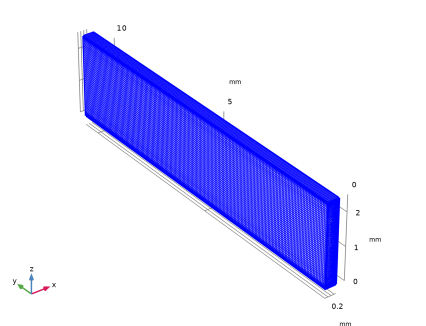
Click  Build All  and compare with the image below.
5
Click the  Go to Default View button in the Graphics toolbar.
Laminar Flow (spf)
To compare the performance of the porous MCHS with that of a conventional one, ignore the porous domain in the first study. To do so, deactivate the relevant features.
Porous Medium 1
In the Model Builder window, under Component 1 (comp1) > Laminar Flow (spf) right-click Porous Medium 1 and choose Disable in All Studies.
Heat Transfer in Solids and Fluids (ht)
In the Model Builder window, under Component 1 (comp1) > Heat Transfer in Solids and Fluids (ht) right-click Porous Medium 1 and choose Disable in All Studies.
Study 1: Reference MCHS
1
In the Model Builder window, click Study 1.
2
In the Settings window for Study, type Study 1: Reference MCHS in the Label text field.
3
In the Study toolbar, click  Compute.
Definitions (comp1)
Next, calculate the MCHS design with a porous substrate and conduct a parametric sweep on the substrate thickness in a second study. Although a parametric sweep can be done on multiple parameters, a single parameter will suffice to demonstrate the fundamental approach for this demo model.
To compare the different designs in terms of overall performance, the figure of merit can be calculated according to Equation 5. To obtain the reference values for the heat sink without a porous material, the result from the first study is used by employing the withsol operator. Complete the variable list.
Variables 1
1
In the Model Builder window, under Component 1 (comp1) > Definitions click Variables 1.
2
In the Settings window for Variables, locate the Variables section.
3
Add Study
Add a second study and perform a parametric sweep over the thickness of the porous substrate. Of course you can run a parametric sweep over many parameters. For this demo model a single parameter is sufficient to demonstrate the principal approach.
1
In the Home toolbar, click  Add Study to open the Add Study window.
2
Go to the Add Study window.
3
Find the Studies subsection. In the Select Study tree, select Preset Studies for Selected Multiphysics > Stationary, One-Way NITF.
4
Click the Add Study button in the window toolbar.
5
In the Home toolbar, click  Add Study to close the Add Study window.
Study 2: Parametric
In the Settings window for Study, type Study 2: Parametric in the Label text field.
Parametric Sweep
1
In the Study toolbar, click  Parametric Sweep.
2
In the Settings window for Parametric Sweep, locate the Study Settings section.
3
4
5
In the Study toolbar, click  Compute.
Results
Arrange the plots into groups to facilitate their association with the different studies.
Pressure (spf), Temperature (ht), Temperature and Fluid Flow (nitf1), Velocity (spf)
1
In the Model Builder window, under Results, Ctrl-click to select Temperature (ht), Velocity (spf), Pressure (spf), and Temperature and Fluid Flow (nitf1).
2
Reference MCHS
In the Settings window for Group, type Reference MCHS in the Label text field.
Pressure (spf) 1, Temperature (ht) 1, Temperature and Fluid Flow (nitf1) 1, Velocity (spf) 1
1
In the Model Builder window, under Results, Ctrl-click to select Temperature (ht) 1, Velocity (spf) 1, Pressure (spf) 1, and Temperature and Fluid Flow (nitf1) 1.
2
Parametric MCHS
In the Settings window for Group, type Parametric MCHS in the Label text field.
Global Evaluation 1
Evaluate the performance of the porous microchannel heat sink.
1
In the Results toolbar, click  Global Evaluation.
2
In the Settings window for Global Evaluation, locate the Data section.
3
From the Dataset list, choose Study 2: Parametric/Parametric Solutions 1 (sol5).
4
Click Replace Expression in the upper-right corner of the Expressions section. From the menu, choose Component 1 (comp1) > Definitions > Variables > dp - Pressure drop - Pa.
5
6
Click  Evaluate.
Table 1
1
Go to the Table 1 window.
2
Click the Table Graph button in the window toolbar.
Results
Table Graph 1
1
In the Settings window for Table Graph, locate the Data section.
2
From the Plot columns list, choose Manual.
3
In the Columns list box, select Pressure drop (Pa).
4
Click to expand the Legends section. Select the Show legends checkbox.
Table Graph 2
1
Right-click Results > 1D Plot Group 9 > Table Graph 1 and choose Duplicate.
2
In the Settings window for Table Graph, locate the Data section.
3
In the Columns list box, select Heat transfer coefficient (W/(m^2*K)).
4
In the 1D Plot Group 9 toolbar, click  Plot.
Heat Transfer Coefficient and Pressure Drop
1
In the Model Builder window, under Results click 1D Plot Group 9.
2
In the Settings window for 1D Plot Group, type Heat Transfer Coefficient and Pressure Drop in the Label text field.
3
Locate the Plot Settings section. Select the Two y-axes checkbox.
4
In the table, select the Plot on secondary y-axis checkbox for Table Graph 2.
5
Locate the Legend section. From the Position list, choose Upper left.
6
In the Heat Transfer Coefficient and Pressure Drop toolbar, click  Plot, and compare with Figure 5.
Reynolds and Nusselt Numbers
Plot the dimensionless Reynolds and Nusselt numbers in the same way.
1
Right-click Heat Transfer Coefficient and Pressure Drop and choose Duplicate.
2
In the Settings window for 1D Plot Group, type Reynolds and Nusselt Numbers in the Label text field.
Table Graph 1
1
In the Model Builder window, expand the Reynolds and Nusselt Numbers node, then click Table Graph 1.
2
In the Settings window for Table Graph, locate the Data section.
3
In the Columns list box, select Reynolds number (1).
Table Graph 2
1
In the Model Builder window, click Table Graph 2.
2
In the Settings window for Table Graph, locate the Data section.
3
In the Columns list box, select Nusselt number (1).
4
In the Reynolds and Nusselt Numbers toolbar, click  Plot, and compare with Figure 6.
Reynolds and Nusselt Numbers
1
In the Model Builder window, click Reynolds and Nusselt Numbers.
2
In the Settings window for 1D Plot Group, locate the Legend section.
3
From the Position list, choose Lower middle.
Global Evaluation 2
1
In the Results toolbar, click  Global Evaluation.
2
In the Settings window for Global Evaluation, locate the Data section.
3
From the Dataset list, choose Study 2: Parametric/Parametric Solutions 1 (sol5).
4
Locate the Expressions section. In the table, enter the following settings:
5
Clicknext to  Evaluate, then choose New Table.
Table 2
1
Go to the Table 2 window.
2
Click the Table Graph button in the window toolbar.
Results
FOM
1
In the Model Builder window, under Results click 1D Plot Group 11.
2
In the Settings window for 1D Plot Group, click to expand the Title section.
3
From the Title type list, choose Manual.
4
In the Title text area, type Figure of Merit (FOM).
5
In the 1D Plot Group 11 toolbar, click  Plot, and compare with fig Figure 7.
6
In the Label text field, type FOM.
With a porous substrate thickness of 0.1 mm the performance has increased by approximately 13%.
Modify the velocity plot as follows:
Multislice 1
1
In the Model Builder window, expand the Results > Parametric MCHS > Velocity (spf) 1 node, then click Multislice 1.
2
In the Settings window for Multislice, locate the Multiplane Data section.
3
Find the x-planes subsection. In the Planes text field, type 0.
4
Find the y-planes subsection. In the Planes text field, type 6.
5
Find the z-planes subsection. In the Planes text field, type 0.
Volume 1
In the Model Builder window, right-click Velocity (spf) 1 and choose Volume.
Selection 1
1
In the Model Builder window, right-click Volume 1 and choose Selection.
2
In the Settings window for Selection, locate the Selection section.
3
From the Selection list, choose Solid.
Material Appearance 1
1
In the Model Builder window, right-click Volume 1 and choose Material Appearance.
2
In the Settings window for Material Appearance, locate the Appearance section.
3
From the Appearance list, choose Custom.
4
From the Material type list, choose Steel.
Velocity (spf) 1
To better display the results, create and set up a new view as follows.
1
In the Model Builder window, under Results > Parametric MCHS click Velocity (spf) 1.
2
In the Settings window for 3D Plot Group, locate the Plot Settings section.
3
From the View list, choose New view.
4
In the Velocity (spf) 1 toolbar, click  Plot.
5
Click  Go to Source.
Camera
1
In the Model Builder window, expand the View 3D 5 node, then click Camera.
2
In the Settings window for Camera, locate the Camera section.
3
From the View scale list, choose Manual.
4
In the x scale text field, type 5.
5
In the z scale text field, type 2.
Velocity (spf) 1
1
In the Model Builder window, under Results > Parametric MCHS click Velocity (spf) 1.
2
In the Settings window for 3D Plot Group, locate the Data section.
3
From the Parameter value (th_porous (mm)) list, choose 0.1.
4
Locate the Plot Settings section. Clear the Plot dataset edges checkbox.
5
In the Velocity (spf) 1 toolbar, click  Plot.
6
Click the  Go to XZ View button in the Graphics toolbar and compare with Figure 3.
The velocity profile clearly shows which part is free flow and which part is porous media flow.
7
Click the  Go to Default View button in the Graphics toolbar to return to the previous view.
Mirror 3D 1
1
In the Results toolbar, click  More Datasets and choose Mirror 3D.
2
In the Settings window for Mirror 3D, locate the Data section.
3
From the Dataset list, choose Study 2: Parametric/Parametric Solutions 1 (sol5).
3D Plot Group 12
1
In the Results toolbar, click  3D Plot Group.
2
In the Settings window for 3D Plot Group, locate the Data section.
3
From the Dataset list, choose Mirror 3D 1.
Surface 1
1
Right-click 3D Plot Group 12 and choose Surface.
2
In the Settings window for Surface, locate the Coloring and Style section.
3
From the Color table list, choose HeatCameraLight.
Selection 1
1
Right-click Surface 1 and choose Selection.
2
In the Settings window for Selection, locate the Selection section.
3
From the Selection list, choose Wall Boundaries.
4
5
Click the  Zoom Extents button in the Graphics toolbar.
3D Plot Group 12
In the Model Builder window, under Results > Parametric MCHS click 3D Plot Group 12.
Streamline Multislice 1
1
In the 3D Plot Group 12 toolbar, click  More Plots and choose Streamline Multislice.
2
In the Settings window for Streamline Multislice, click Replace Expression in the upper-right corner of the Expression section. From the menu, choose Component 1 (comp1) > Laminar Flow > Velocity and pressure > u,v,w - Velocity field.
3
Locate the Multiplane Data section. Find the x-planes subsection. In the Planes text field, type 0.
4
Find the y-planes subsection. In the Planes text field, type 0.
5
Locate the Streamline Positioning section. From the Positioning list, choose Magnitude controlled.
6
In the Minimum density level text field, type 9.4.
7
In the Maximum density level text field, type 12.8.
8
Locate the Coloring and Style section. Find the Point style subsection. From the Type list, choose Arrow.
9
From the Arrow type list, choose Cone.
Color Expression 1
1
Right-click Streamline Multislice 1 and choose Color Expression.
2
In the Settings window for Color Expression, locate the Expression section.
3
In the Expression text field, type p.
4
Locate the Coloring and Style section. From the Color table list, choose GrayScale.
Velocity and Temperature Fields
1
In the Model Builder window, under Results > Parametric MCHS click 3D Plot Group 12.
2
In the Settings window for 3D Plot Group, type Velocity and Temperature Fields in the Label text field.
3
Locate the Data section. From the Parameter value (th_porous (mm)) list, choose 0.1.
4
Locate the Plot Settings section. From the View list, choose View 3D 5.
5
Clear the Plot dataset edges checkbox.
Rotate the geometry to get a similar result as in Figure 4.
6
In the Velocity and Temperature Fields toolbar, click  Plot.