


PDF

Phase Change in a Semi-Infinite Soil Column
Introduction
The freezing of subsurface water has a high impact on groundwater flow and subsurface heat transfer. This example models the freezing of a soil column over time. This is a benchmark model with an existing analytical solution, derived by Lunardini in 1985.
Lunardini developed an exact analytical solution for the propagation of subfreezing temperatures in a semi-infinite, initially unfrozen porous medium with time. He therefore divided the porous medium in three zones: A totally frozen zone (for temperatures T < Tm), a so-called mushy or partially frozen zone (Tm < T < Tf), and a totally unfrozen or liquid water zone (T > Tf).
This example uses the Phase Change Material subfeature from the Heat Transfer in Porous Media interface.
This example demonstrates how to model a phase change between water and ice using a user-defined phase transition function. The solution should be equal to that of Lunardini.
Model Definition
In this example, the soil column is approximated by a line interval of 10 m length. The initial temperature is 4°C and the temperature at one end is set to 6°C while the other end is thermally isolated.
The following equation is solved:
(1)
Here, T is the temperature (K) and Q is a heat source (W/m3). The effective values are defined as
(2)
(3)
where ρ (kg/m3) is the density (of the fluid, solid, and immobile fluid), Cp (J/(kg·K)) the heat capacity at constant pressure, and k the thermal conductivity (W/(m·K)).
Results and Discussion
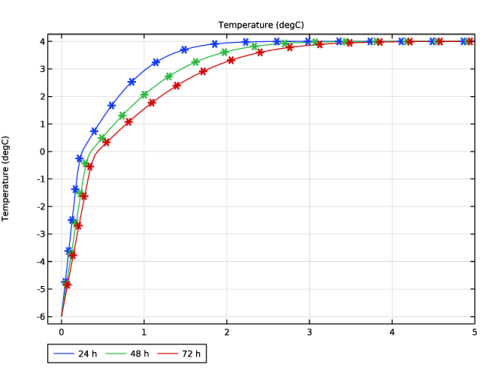
Figure 1 shows the temperature profile after 24, 48, and 72 h and compares the computed results (solid line) with the analytical solution (Ref. 1).
Figure 1: Computed (solid line) compared to analytical solution (asterisks) after 24, 48, and 72 h.
The results match very well.
Reference
1. N. Tubini, S. Gruber, and R. Rigon, “A method for solving heat transfer with phase change in ice or soil that allows for large time steps while guaranteeing energy conservation,” The Cryosphere, vol. 15, pp. 2541–2568, 2021.
Application Library path: Porous_Media_Flow_Module/Verification_Examples/phase_change_lunardini
Modeling Instructions
From the File menu, choose New.
New
In the New window, click  Model Wizard.
Model Wizard
1
In the Model Wizard window, click  1D.
2
In the Select Physics tree, select Heat Transfer > Porous Media > Heat Transfer in Porous Media (ht).
3
Click Add.
4
Click  Study.
5
In the Select Study tree, select General Studies > Time Dependent.
6
Geometry 1
Interval 1 (i1)
The model domain is approximated by a 1D line segment of 10 m length.
1
In the Model Builder window, under Component 1 (comp1) right-click Geometry 1 and choose Interval.
2
In the Settings window for Interval, locate the Interval section.
3
4
Click  Build All Objects.
Global Definitions
Now, enter the parameters used in the model. You can import them from an external file.
Parameters 1
1
In the Model Builder window, under Global Definitions click Parameters 1.
2
In the Settings window for Parameters, locate the Parameters section.
3
Click  Load from File.
4
Heat Transfer in Porous Media (ht)
Follow the steps below to set up the physics.
Fluid 1
In the Model Builder window, expand the Component 1 (comp1) > Heat Transfer in Porous Media (ht) > Porous Medium 1 > Fluid 1 node, then click Fluid 1.
Phase Change Material 1
1
In the Physics toolbar, click  Attributes and choose Phase Change Material.
2
In the Settings window for Phase Change Material, locate the Phase Change section.
3
From the Phase transition function list, choose User defined. In the L12 text field, type L.
4
In the α12 text field, type f_phtr(T), which is yet to be defined.
5
Locate the Phase 1 section. From the k1 list, choose User defined. In the associated text field, type k_ice.
6
From the ρ1 list, choose User defined. In the associated text field, type rho_ice.
7
From the Cp,1 list, choose User defined. In the associated text field, type Cv/rho_ice.
8
Locate the Phase 2 section. From the k2 list, choose User defined. In the associated text field, type k_water.
9
From the ρ2 list, choose User defined. In the associated text field, type rho_water.
10
From the Cp,2 list, choose User defined. In the associated text field, type Cv/rho_water.
Definitions
Now, define the phase transition function as follows.
Interpolation 1 (int1)
1
In the Definitions toolbar, click  Interpolation.
2
In the Settings window for Interpolation, locate the Definition section.
3
In the Function name text field, type f_phtr.
4
5
Locate the Units section. In the Function table, enter the following settings:
6
In the Argument table, enter the following settings:
7
Heat Transfer in Porous Media (ht)
Add the soil properties next.
Porous Matrix 1
1
In the Model Builder window, under Component 1 (comp1) > Heat Transfer in Porous Media (ht) > Porous Medium 1 click Porous Matrix 1.
2
In the Settings window for Porous Matrix, locate the Matrix Properties section.
3
From the εp list, choose User defined. In the associated text field, type por.
4
From the Define list, choose Solid phase properties.
5
Locate the Heat Conduction, Porous Matrix section. From the ks list, choose User defined. In the associated text field, type k_solid.
6
Locate the Thermodynamics, Porous Matrix section. From the ρs list, choose User defined. In the associated text field, type rho_solid.
7
From the Cp,s list, choose User defined. In the associated text field, type Cv/rho_solid.
Initial Values 1
1
In the Model Builder window, under Component 1 (comp1) > Heat Transfer in Porous Media (ht) click Initial Values 1.
2
In the Settings window for Initial Values, locate the Initial Values section.
3
In the T text field, type T_init.
Temperature 1
1
In the Physics toolbar, click  Boundaries and choose Temperature.
2
3
In the Settings window for Temperature, locate the Temperature section.
4
In the T0 text field, type T_in.
Mesh 1
As the model is cooled from one end of the domain, the mesh is created to resolve the area with the highest temperature gradient best.
Edge 1
In the Mesh toolbar, click  Edge.
Distribution 1
1
Right-click Edge 1 and choose Distribution.
2
In the Settings window for Distribution, locate the Distribution section.
3
From the Distribution type list, choose Predefined.
4
In the Number of elements text field, type 100.
5
In the Element ratio text field, type 10.
Edge 1
In the Model Builder window, right-click Edge 1 and choose Build All.
Study 1
Now set up the study with output times after 1, 2, and 3 days.
Step 1: Time Dependent
1
In the Model Builder window, under Study 1 click Step 1: Time Dependent.
2
In the Settings window for Time Dependent, locate the Study Settings section.
3
From the Time unit list, choose h.
4
In the Output times text field, type 0 24 48 72.
The time step has to be small enough to catch the temperature decrease and the phase change correctly. Therefore, restrict the maximum time step to 2 minutes.
Solution 1 (sol1)
1
In the Study toolbar, click  Show Default Solver.
2
In the Model Builder window, expand the Solution 1 (sol1) node, then click Time-Dependent Solver 1.
3
In the Settings window for Time-Dependent Solver, click to expand the Time Stepping section.
4
From the Maximum step constraint list, choose Constant.
5
In the Maximum step text field, type 2[min].
6
In the Study toolbar, click  Compute.
Results
Temperature (ht)
Per default, the temperature is plotted. With the next steps you can change the temperature unit to degC and add a legend to the plot.
1
In the Settings window for 1D Plot Group, locate the Data section.
2
From the Time selection list, choose From list.
3
In the Times (h) list, choose 24, 48, and 72.
4
Locate the Legend section. From the Layout list, choose Outside graph axis area.
5
From the Position list, choose Bottom.
Line Graph 1
1
In the Model Builder window, expand the Temperature (ht) node, then click Line Graph 1.
2
In the Settings window for Line Graph, locate the y-Axis Data section.
3
In the Unit field, type degC.
4
Click to expand the Legends section. Select the Show legends checkbox.
Table 1: Analytical Solution
The analytical solution provided by Ref. 1 is available in a text file. Load it into the model and plot it to compare.
1
In the Results toolbar, click  Table.
2
In the Settings window for Table, locate the Data section.
3
Click  Import.
4
5
In the Label text field, type Table 1: Analytical Solution.
Table Graph 1
1
In the Model Builder window, right-click Temperature (ht) and choose Table Graph.
2
In the Settings window for Table Graph, locate the Coloring and Style section.
3
Find the Line style subsection. From the Line list, choose None.
4
From the Color list, choose Cycle (reset).
5
Find the Line markers subsection. From the Marker list, choose Asterisk.
6
From the Positioning list, choose Interpolated.
7
In the Number text field, type 25.
Temperature (ht)
1
In the Model Builder window, click Temperature (ht).
2
In the Settings window for 1D Plot Group, locate the Axis section.
3
Select the Manual axis limits checkbox.
4
In the x maximum text field, type 5.
5
In the Temperature (ht) toolbar, click  Plot. Compare with Figure 1