PDF

Two-Phase Flow over a Low Permeable Lens
Introduction
This example concerns two-phase flow in a porous medium that contains a low permeable lens. The heavier phase infiltrates the porous medium from above, and the low permeable lens is infiltrated only when a critical saturation at the outside of the lens is reached. As the saturation of the heavier phase is discontinuous at the boundary of the lens, this requires the use of the Porous Medium Discontinuity boundary condition.
Model Definition
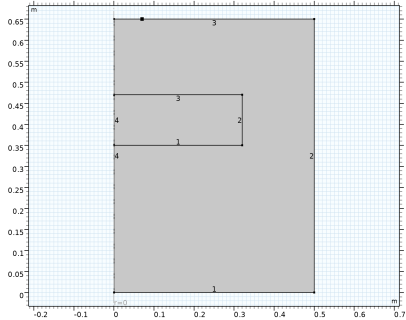
The porous domain is assumed to be axially symmetric, with a radius of 0.5 m and a height of 0.65 m. The low permeable lens has radius of 0.32 m and a height of 0.12 m. The bottom boundary of the lens is located at a height of 0.35 m. Initially the porous domain, including the lens, is occupied with phase 1. Phase 2 flows into the porous medium at the top boundary through a circle with radius 0.07 m with a uniform and constant mass flux. See Figure 1 below for a graphic representation of the geometry.
Figure 1: Cross section of the axially symmetric geometry.
Initially the porous domain, including the lens, is occupied with phase 1. Phase 2 flows into the domain with a constant mass flux. The properties of the two phases are given in Table 1.
ρ1
ρ2
μ1
10-3 Pa·s
μ2
0.9·10-3 Pa·s
The properties of the solid matrix and the parameters for the constitutive relations for the relative permeabilities and capillary pressure curves, which are described by the Brooks and Corey model, are given in Table 2.
εp
κ
3.32·10-11 m2
6.64·10-11 m2
sr1
sr2
λp
pec
The initial values for the saturation of phase 1 and the pressure of phase 2 are given in Table 3.
Table 3: Initial values.
s2
The boundary conditions are given in Table 4. In this table q0,si denotes the normal mass flux of phase i. The number of the boundaries refer to the numbers indicated in Figure 1. The time interval for the simulation is 100 minutes.
s2 = 0, q0,s1 = 0
q0,s1=0, q0,s2=0.25 kg/(m2·s)
q0,s1=0, q0,s2=0
s2 = 0, p = (0.65-z)*g_const*1000[kg/m^3]
Results and Discussion
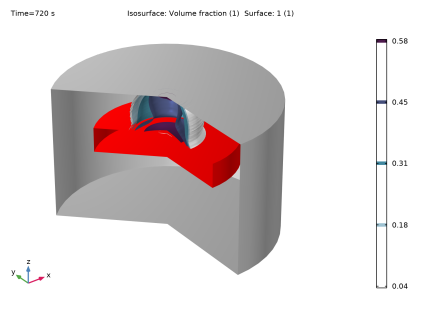
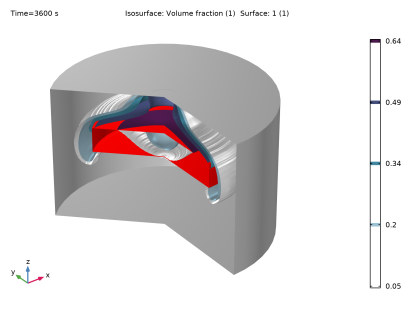
Due to gravity, the heavier phase 2 infiltrates the porous domain and flows down over the low permeable lens. Since the entry capillary pressure of the lens is higher than the entry capillary pressure of the surrounding material, phase 2 will not enter the lens directly when it reaches the lens. Phase 2 will only enter the lens when a critical saturation is reached. This condition, which applies at boundaries where the porous medium properties, and especially the capillary pressure curves, are discontinuous, is implemented in the model using a Porous Medium Discontinuity boundary condition. This condition allows for a discontinuity in the saturation of phase 2 and determines the critical saturation at which phase 2 enters the low permeable domain. Figure 2 and Figure 3 below show that this happens after around 12 minutes. After approximately 60 minutes, phase 2 has reached the bottom of the lens.
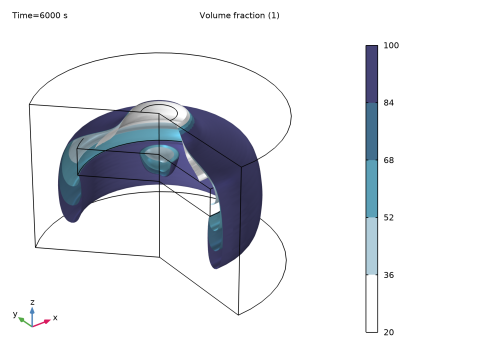
Figure 4 shows the how the isosurface of volume fraction of phase 2 being 20% evolves with time.
This simulation is inspired by a very similar model as discussed in Ref. 1and Ref. 2.
Notes About the COMSOL Implementation
In the present implementation of the model, the dependent variables are the saturation of phase 2, s2, and the pressure of phase 1, p. The equation for the saturation takes as boundary flux the mass flux of phase 2, and the equation for the pressure takes as boundary flux the total mass flux (mass fluxes of phase 1 and 2 added together). The boundary condition at the bottom boundary prescribes the saturation of phase 2 and the mass flux of phase 1. To be able to prescribe the total mass flux in the equation for p, the mass flux of phase 2 is also needed. This mass flux is computed automatically if the saturation condition for phase 2 is implemented as a weak constraint, see the instructions in the Modeling Instructions section.
Figure 2: Isosurfaces of the penetrating phase 2 after 12 minutes. Phase 2 just starts entering the low permeable lens at this instant in time.
Figure 3: Isosurfaces of the penetrating phase 2 after 60 minutes. Phase 2 has now reached the bottom of the low permeable lens.
Figure 4: Evolution of isosurface of volume fraction of phase 2, s2= 0.2, with time (plotted every 20 minutes).
References
1. R. Helmig, Multiphase Flow and Transport Processes in the Subsurface – A Contribution to the Modeling of Hydrosystems, Springer Verlag, 1997.
2. P. Bastian, Numerical Computation of Multiphase Flows in Porous Media, Habilitationsschrift Universität Kiel, 1999.
Application Library path: Porous_Media_Flow_Module/Fluid_Flow/low_permeable_lens
Modeling Instructions
From the File menu, choose New.
New
In the New window, click  Model Wizard.
Model Wizard
1
In the Model Wizard window, click  2D Axisymmetric.
2
In the Select Physics tree, select Fluid Flow > Porous Media and Subsurface Flow > Multiphase Flow in Porous Media.
3
Click Add.
4
Click  Study.
5
In the Select Study tree, select General Studies > Time Dependent.
6
Geometry 1
Rectangle 1 (r1)
1
In the Geometry toolbar, click  Rectangle.
2
In the Settings window for Rectangle, locate the Size and Shape section.
3
In the Width text field, type 0.5.
4
In the Height text field, type 0.65.
Rectangle 2 (r2)
1
In the Geometry toolbar, click  Rectangle.
2
In the Settings window for Rectangle, locate the Size and Shape section.
3
In the Width text field, type 0.32.
4
In the Height text field, type 0.12.
5
Locate the Position section. In the z text field, type 0.35.
Point 1 (pt1)
1
In the Geometry toolbar, click  Point.
2
In the Settings window for Point, locate the Point section.
3
In the r text field, type 0.07.
4
In the z text field, type 0.65.
5
Click  Build All Objects.
Phase Transport in Porous Media (phtr)
1
In the Model Builder window, under Component 1 (comp1) click Phase Transport in Porous Media (phtr).
2
In the Settings window for Phase Transport in Porous Media, locate the Gravity Effects section.
3
Select the Include gravity checkbox.
Fluid 1
1
In the Model Builder window, under Component 1 (comp1) > Phase Transport in Porous Media (phtr) > Porous Medium 1 click Fluid 1.
2
In the Settings window for Fluid, locate the Capillary Pressure section.
3
From the Capillary pressure model list, choose Brooks and Corey.
4
In the pec text field, type 1163.5.
5
Locate the Phase 1 Properties section. From the ρs1 list, choose User defined. From the μs1 list, choose User defined. In the srs1 text field, type 0.12.
6
Locate the Phase 2 Properties section. From the ρs2 list, choose User defined. In the associated text field, type 1460[kg/m^3].
7
From the μs2 list, choose User defined. In the associated text field, type 0.0009[Pa*s].
Porous Medium 2
1
In the Physics toolbar, click  Domains and choose Porous Medium.
2
Fluid 1
1
In the Model Builder window, expand the Porous Medium 2 node, then click Fluid 1.
2
In the Settings window for Fluid, locate the Capillary Pressure section.
3
From the Capillary pressure model list, choose Brooks and Corey.
4
In the pec text field, type 755.
5
In the λp text field, type 2.7.
6
Locate the Phase 1 Properties section. From the ρs1 list, choose User defined. From the μs1 list, choose User defined. In the srs1 text field, type 0.1.
7
Locate the Phase 2 Properties section. From the ρs2 list, choose User defined. In the associated text field, type 1460[kg/m^3].
8
From the μs2 list, choose User defined. In the associated text field, type 0.0009[Pa*s].
Mass Flux 1
1
In the Physics toolbar, click  Boundaries and choose Mass Flux.
2
3
In the Settings window for Mass Flux, locate the Mass Flux section.
4
Select the Phase s2 checkbox.
5
In the q0,s2 text field, type 0.25.
Volume Fraction 1
1
In the Physics toolbar, click  Boundaries and choose Volume Fraction.
2
3
In the Settings window for Volume Fraction, locate the Volume Fraction section.
4
Select the Phase s2 checkbox.
5
Click the  Show More Options button in the Model Builder toolbar.
6
In the Show More Options dialog, in the tree, select the checkbox for the node Physics > Advanced Physics Options.
7
8
In the Settings window for Volume Fraction, click to expand the Constraint Settings section.
9
From the Constraint list, choose Weak constraints.
Porous Medium Discontinuity 1
1
In the Physics toolbar, click  Boundaries and choose Porous Medium Discontinuity.
2
Darcy’s Law (dl)
1
In the Model Builder window, under Component 1 (comp1) click Darcy’s Law (dl).
2
In the Settings window for Darcy’s Law, locate the Gravity Effects section.
3
Select the Include gravity checkbox.
Gravity 1
In the Gravity node specify a reference position to ensure that the pressure is zero at the upper boundary of the model.
1
In the Model Builder window, under Component 1 (comp1) > Darcy’s Law (dl) click Gravity 1.
2
In the Settings window for Gravity, locate the Gravity section.
3
Select the Specify reference position checkbox.
4
Specify the rref vector as
Porous Matrix 1
1
In the Model Builder window, under Component 1 (comp1) > Darcy’s Law (dl) > Porous Medium 1 click Porous Matrix 1.
2
In the Settings window for Porous Matrix, locate the Matrix Properties section.
3
From the εp list, choose User defined. In the associated text field, type 0.39.
4
From the κ list, choose User defined. In the associated text field, type 3.32e-11[m^2].
Porous Medium 2
1
In the Physics toolbar, click  Domains and choose Porous Medium.
2
Porous Matrix 1
1
In the Model Builder window, click Porous Matrix 1.
2
In the Settings window for Porous Matrix, locate the Matrix Properties section.
3
From the εp list, choose User defined. In the associated text field, type 0.4.
4
From the κ list, choose User defined. In the associated text field, type 6.64e-11[m^2].
Initial Values 1
1
In the Model Builder window, under Component 1 (comp1) > Darcy’s Law (dl) click Initial Values 1.
2
In the Settings window for Initial Values, locate the Initial Values section.
3
Click the Hydraulic head button. This way the initial pressure field is forced to equal the hydraulic pressure.
Inlet 1
1
In the Physics toolbar, click  Boundaries and choose Inlet.
2
3
In the Settings window for Inlet, locate the Boundary Condition section.
4
From the Boundary condition list, choose Mass flow.
5
Locate the Mass Flow section. From the Mass flow type list, choose Pointwise mass flux.
6
In the N0 text field, type 0.25.
Pressure 1
1
In the Physics toolbar, click  Boundaries and choose Pressure.
2
3
In the Settings window for Pressure, locate the Pressure section.
4
In the p0 text field, type (0.65-z)*g_const*1000[kg/m^3]  to compensate for hydrostatic pressure.
Mass Flux 1
1
In the Physics toolbar, click  Boundaries and choose Mass Flux.
2
3
In the Settings window for Mass Flux, locate the Mass Flux section.
4
In the N0 text field, type s2_lm.
Mesh 1
Free Triangular 1
In the Mesh toolbar, click  Free Triangular.
Size
1
In the Model Builder window, click Size.
2
In the Settings window for Size, locate the Element Size section.
3
Click the Custom button.
4
Locate the Element Size Parameters section. In the Maximum element size text field, type 0.01.
Study 1
1
In the Model Builder window, click Study 1.
2
In the Settings window for Study, locate the Study Settings section.
3
Clear the Generate default plots checkbox.
Step 1: Time Dependent
1
In the Model Builder window, under Study 1 click Step 1: Time Dependent.
2
In the Settings window for Time Dependent, locate the Study Settings section.
3
In the Output times text field, type range(0,60,6000).
Solution 1 (sol1)
1
In the Study toolbar, click  Show Default Solver.
2
In the Model Builder window, expand the Solution 1 (sol1) node, then click Dependent Variables 1.
3
In the Settings window for Dependent Variables, locate the Scaling section.
4
From the Method list, choose Initial-value based. This setting ensures that the variable scaling is based on the supplied initial hydrostatic pressure profile, which in this case gives a better scaling than the automatic setting. Scaling is important to obtain well weighted error estimates and avoid ill-conditioned matrices which may hamper or slow down the solution procedure.
5
In the Study toolbar, click  Compute.
Results
Follow the instructions below to obtain the plots as shown in the Results and Discussion section above.
In the Model Builder window, expand the Results node.
Revolution 2D 1
1
In the Model Builder window, expand the Results > Datasets node.
2
Right-click Results > Datasets and choose Revolution 2D.
3
In the Settings window for Revolution 2D, click to expand the Revolution Layers section.
4
In the Start angle text field, type -90.
5
In the Revolution angle text field, type 225.
6
Volume Fraction of Phase 2
1
In the Results toolbar, click  3D Plot Group.
2
In the Settings window for 3D Plot Group, locate the Data section.
3
From the Time (s) list, choose 3600.
4
Locate the Plot Settings section. Clear the Plot dataset edges checkbox.
5
In the Label text field, type Volume Fraction of Phase 2.
6
Click the  Show Grid button in the Graphics toolbar.
Isosurface 1
1
Right-click Volume Fraction of Phase 2 and choose Isosurface.
2
In the Settings window for Isosurface, locate the Expression section.
3
In the Expression text field, type s2.
Surface 1
1
In the Model Builder window, right-click Volume Fraction of Phase 2 and choose Surface.
2
In the Settings window for Surface, locate the Expression section.
3
In the Expression text field, type 1.
4
Locate the Coloring and Style section. From the Coloring list, choose Uniform.
5
From the Color list, choose Gray.
Selection 1
1
Right-click Surface 1 and choose Selection.
2
3
In the Settings window for Selection, locate the Revolution Selection section.
4
Clear the Evaluate the start cap checkbox.
5
Clear the Evaluate the end cap checkbox.
6
In the Volume Fraction of Phase 2 toolbar, click  Plot.
7
Locate the Selection section. Click to select the  Activate Selection toggle button.
8
9
In the Volume Fraction of Phase 2 toolbar, click  Plot.
Surface 2
1
In the Model Builder window, right-click Volume Fraction of Phase 2 and choose Surface.
2
In the Settings window for Surface, locate the Expression section.
3
In the Expression text field, type 1.
4
Locate the Coloring and Style section. From the Coloring list, choose Uniform.
5
Click to expand the Title section. From the Title type list, choose None.
Selection 1
1
Right-click Surface 2 and choose Selection.
2
3
In the Settings window for Selection, locate the Revolution Selection section.
4
Clear the Evaluate the start cap checkbox.
5
Clear the Evaluate the end cap checkbox.
6
In the Volume Fraction of Phase 2 toolbar, click  Plot.
To plot the volume fraction of phase 2 for different times in one plot, follow the steps below.
Volume fraction, isosurface series
1
In the Results toolbar, click  3D Plot Group.
2
In the Settings window for 3D Plot Group, type Volume fraction, isosurface series in the Label text field.
Isosurface Series 1
1
In the Volume fraction, isosurface series toolbar, click  More Plots and choose Isosurface Series.
2
In the Settings window for Isosurface Series, locate the Expression section.
3
In the Expression text field, type s2.
4
Locate the Levels section. In the Level text field, type 0.2.
5
Locate the Data section. From the Time selection list, choose Manual.
6
Click  Range.
7
In the Integer Range dialog, type 10 in the Step text field.
8
In the Stop text field, type 101.
9
In the Step text field, type 20.
10
Click Replace.
Color Expression 1
1
Right-click Isosurface Series 1 and choose Color Expression.
2
In the Settings window for Color Expression, locate the Expression section.
3
In the Expression text field, type t.
4
From the Unit list, choose min.
5
Locate the Coloring and Style section. From the Color table type list, choose Discrete.
6
From the Color table list, choose Pelagic.
7
In the Number of bands text field, type 5.
8
In the Volume fraction, isosurface series toolbar, click  Plot.