|
|
|

 .
.
|
1
|
|
2
|
|
3
|
Click Add.
|
|
4
|
Click
 Study. Study. |
|
5
|
|
6
|
Click
 Done. Done. |
|
1
|
|
2
|
|
3
|
|
4
|
Browse to the model’s Application Libraries folder and double-click the file linear_biphasic_poroelasticity_parameters.txt.
|
|
1
|
|
2
|
|
3
|
|
4
|
Browse to the model’s Application Libraries folder and double-click the file linear_biphasic_poroelasticity_torsion.txt.
|
|
1
|
|
2
|
|
3
|
|
4
|
Browse to the model’s Application Libraries folder and double-click the file linear_biphasic_poroelasticity_indentation.txt.
|
|
1
|
In the Model Builder window, under Global Definitions right-click Materials and choose Blank Material.
|
|
2
|
|
1
|
|
2
|
|
1
|
|
2
|
|
3
|
Clear the Size of transition zone checkbox.
|
|
4
|
Click to expand the Plot Parameters section.
|
|
1
|
|
2
|
|
3
|
Select the Cutoff checkbox.
|
|
4
|
|
1
|
|
2
|
|
1
|
|
2
|
|
3
|
|
1
|
|
2
|
|
3
|
|
4
|
|
5
|
Click
 Build Selected. Build Selected. |
|
1
|
|
2
|
Select the Include circumferential displacement checkbox.
|
|
3
|
|
1
|
In the Model Builder window, under Component 1: Torsion Test (comp1) > Solid Mechanics (solid) click Linear Elastic Material 1.
|
|
2
|
|
3
|
|
1
|
|
2
|
In the Settings window for Viscoelasticity, type Viscoelasticity, Deviatoric in the Label text field.
|
|
3
|
Locate the Viscoelasticity Model section. In the table, enter the following settings:
|
|
4
|
Click
 Add. Add. |
|
6
|
Click
 Add. Add. |
|
1
|
|
2
|
In the Settings window for Viscoelasticity, type Viscoelasticity, Volumetric in the Label text field.
|
|
3
|
|
1
|
|
1
|
|
3
|
|
4
|
|
5
|
|
1
|
|
2
|
|
1
|
|
2
|
|
3
|
|
4
|
Click
 Build All. Build All. |
|
1
|
|
2
|
|
3
|
|
1
|
|
2
|
|
3
|
In the Output times text field, type range(0, 0.1, 1) range(1, 1, 35) to resolve the step function properly.
|
|
4
|
|
1
|
|
2
|
Go to the Result Templates window.
|
|
3
|
|
4
|
Click the Add Result Template button in the window toolbar.
|
|
5
|
|
1
|
|
2
|
|
3
|
|
4
|
|
1
|
|
2
|
|
3
|
|
5
|
|
1
|
|
2
|
|
1
|
|
2
|
In the Settings window for Table, type Torsion Data, Ehlers and Markert (2001) in the Label text field.
|
|
3
|
|
4
|
Browse to the model’s Application Libraries folder and double-click the file linear_biphasic_poroelasticity_torsion_comp.txt.
|
|
1
|
Go to the Torsion Data, Ehlers and Markert (2001) window.
|
|
2
|
Click the Table Graph button in the window toolbar to plot the reference data in a table plot.
|
|
1
|
|
2
|
|
1
|
|
2
|
|
3
|
|
4
|
|
5
|
|
6
|
|
1
|
|
2
|
|
3
|
|
4
|
Click Add Expression in the upper-right corner of the y-Axis Data section. From the menu, choose Component 1: Torsion Test (comp1) > Definitions > Variables > Tm - Torsional moment - N·m.
|
|
5
|
|
1
|
|
2
|
|
3
|
Select the Manual axis limits checkbox.
|
|
4
|
|
5
|
|
6
|
|
7
|
|
8
|
|
9
|
|
10
|
|
11
|
|
12
|
|
13
|
|
14
|
|
1
|
|
2
|
Go to the Add Physics window.
|
|
3
|
|
4
|
Click the Add to Component 2: Indentation Test button in the window toolbar.
|
|
5
|
|
1
|
|
2
|
|
1
|
|
2
|
|
3
|
|
4
|
|
5
|
Click
 Build Selected. Build Selected. |
|
1
|
|
2
|
|
3
|
|
4
|
|
5
|
|
6
|
Click
 Build Selected. Build Selected. |
|
7
|
|
1
|
|
2
|
On the object r2, select Boundary 3 only.
|
|
3
|
|
1
|
|
2
|
|
1
|
|
2
|
On the object fin, select Domain 2 only.
|
|
3
|
|
4
|
|
1
|
In the Model Builder window, under Component 2: Indentation Test (comp2) right-click Materials and choose More Materials > Porous Material.
|
|
2
|
|
3
|
Click
 Add Required Phase Nodes. Add Required Phase Nodes. |
|
1
|
In the Model Builder window, under Component 2: Indentation Test (comp2) > Solid Mechanics 2 (solid2) click Linear Elastic Material 1.
|
|
2
|
|
3
|
|
4
|
Right-click Component 2: Indentation Test (comp2) > Solid Mechanics 2 (solid2) > Linear Elastic Material 1 and choose Paste Multiple Items.
|
|
1
|
|
1
|
|
3
|
|
4
|
|
5
|
|
1
|
|
1
|
In the Model Builder window, under Component 2: Indentation Test (comp2) > Multiphysics click Poroelasticity 1 (poro1).
|
|
2
|
|
3
|
|
4
|
|
1
|
In the Model Builder window, under Component 2: Indentation Test (comp2) > Materials > Porous Material 1 (pmat1) click Fluid 1 (pmat1.fluid1).
|
|
2
|
|
3
|
|
1
|
|
2
|
|
1
|
In the Model Builder window, under Component 2: Indentation Test (comp2) > Materials > Porous Material 1 (pmat1) click Solid 1 (pmat1.solid1).
|
|
2
|
|
3
|
|
1
|
|
2
|
|
3
|
|
4
|
Click
 Go to Material. Go to Material. |
|
1
|
|
2
|
|
1
|
|
2
|
Right-click Component 2: Indentation Test (comp2) > Definitions and choose Nonlocal Couplings > Integration.
|
|
3
|
|
4
|
|
6
|
|
1
|
|
2
|
|
1
|
|
2
|
|
3
|
|
1
|
|
2
|
|
3
|
|
5
|
|
6
|
Locate the Element Size Parameters section.
|
|
7
|
|
8
|
Click
 Build Selected. Build Selected. |
|
1
|
|
2
|
|
3
|
|
1
|
|
2
|
Go to the Add Study window.
|
|
3
|
|
4
|
Find the Physics interfaces in study subsection. In the table, clear the Solve checkbox for Solid Mechanics (solid).
|
|
5
|
Click the Add Study button in the window toolbar.
|
|
6
|
|
1
|
|
2
|
|
1
|
|
2
|
|
3
|
In the Output times text field, type range(0, 0.25*t_ind, t_ind) 10^{range(log10(1.1*t_ind[1/s]),1/15,log10(t_end[1/s]))} t_end.
|
|
1
|
|
2
|
|
3
|
Click
 Add. Add. |
|
5
|
|
6
|
|
1
|
|
2
|
Go to the Result Templates window.
|
|
3
|
In the tree, select Study 2: Indentation Test/Parametric Solutions 1 (5) (sol3) > Darcy’s Law > Pressure (dl).
|
|
4
|
Click the Add Result Template button in the window toolbar.
|
|
5
|
|
1
|
In the Settings window for 2D Plot Group, type Pore Pressure (dl), Indentation Test in the Label text field.
|
|
2
|
Click to collapse the Data section. Click to expand the Data section. From the Parameter value (t_ind (s)) list, choose 5.
|
|
3
|
|
4
|
|
1
|
In the Model Builder window, expand the Pore Pressure (dl), Indentation Test node, then click Surface.
|
|
2
|
|
3
|
|
1
|
|
2
|
|
3
|
|
4
|
|
5
|
|
1
|
In the Model Builder window, expand the Results > Pore Pressure (dl), Indentation Test > Surface 2 node, then click Surface 2.
|
|
2
|
|
3
|
|
4
|
|
5
|
|
6
|
|
7
|
|
1
|
|
2
|
|
3
|
|
4
|
|
5
|
|
1
|
|
2
|
|
3
|
|
5
|
|
6
|
|
7
|
|
8
|
Select the Manual indexing checkbox.
|
|
9
|
|
10
|
|
11
|
|
1
|
|
2
|
In the Settings window for Table, type Indentation Data, Ehlers and Markert (2001) in the Label text field.
|
|
3
|
|
4
|
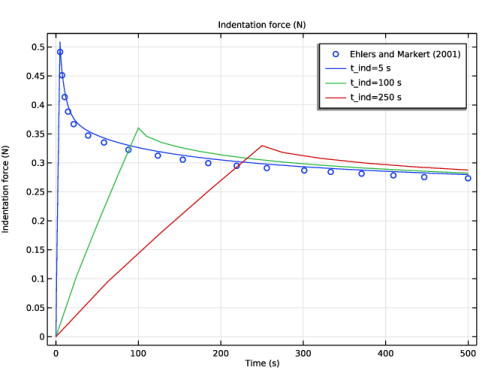
Browse to the model’s Application Libraries folder and double-click the file linear_biphasic_poroelasticity_indentation_comp.txt.
|
|
1
|
Go to the Indentation Data, Ehlers and Markert (2001) window.
|
|
2
|
Click the Table Graph button in the window toolbar.
|
|
1
|
|
2
|
|
1
|
|
2
|
|
3
|
|
4
|
|
5
|
|
1
|
|
2
|
In the Settings window for Global, click Add Expression in the upper-right corner of the y-Axis Data section. From the menu, choose Component 2: Indentation Test (comp2) > Definitions > Variables > comp2.RF - Indentation force - N.
|
|
3
|
Locate the Data section. From the Dataset list, choose Study 2: Indentation Test/Parametric Solutions 1 (4) (sol3).
|
|
4
|
|
5
|
|
6
|
|
1
|
|
2
|
|
3
|
Select the Show legends checkbox.
|
|
1
|
|
2
|
|
3
|
Select the y-axis label checkbox.
|
|
4
|
Select the x-axis label checkbox.
|
|
5
|
|
1
|
|
2
|
|
3
|