|
|
|

 denotes the molar flux of solvent (SI unit: mol/(m2·s)), Q is the volumetric flux, and Vm is the molar volume (SI unit: m3/mol) of the solvent. When inertia is neglected, the local momentum balance takes the form






 . Note that the constitutive law for the solvent flux is analogous to Darcy’s law in porous media; in fact, we can identify the material permeability tensor κ = μfM (SI unit: m2) given the solvent viscosity μf. In Ref. 1, an expression for the spatial solvent mobility tensor is derived based on the solvent diffusivity D, which is assumed to be isotropic in the current configuration. After converting the units, applying a pull-back operation to the material frame, and using the molecular incompressibility constraint, the material mobility tensor analogous to Equation (30) in Ref. 1 reads








|
-2.6376·105 Pa
|
||
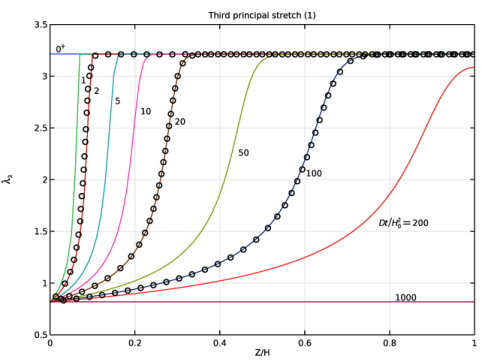
 . Note that the normal stress is constant through the thickness, as required by the momentum balance. At the bottom of the gel, most of the load is borne by fluid pressurization, whereas at the top of the gel, the load is borne primarily by the polymer network.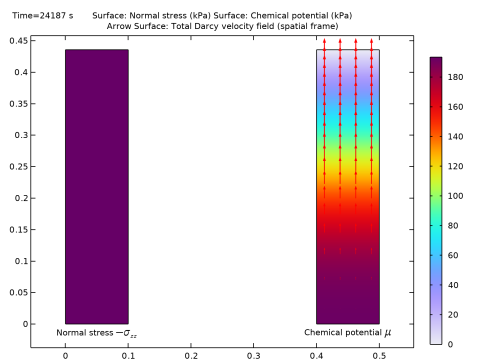
|
1
|
|
2
|
|
3
|
Click Add.
|
|
4
|
Click
 Study. Study. |
|
5
|
|
6
|
Click
 Done. Done. |
|
1
|
|
2
|
|
3
|
Locate the Parameters section. In the table, enter the following settings:
|
|
1
|
|
2
|
|
3
|
Locate the Parameters section. In the table, enter the following settings:
|
|
1
|
|
2
|
|
3
|
Locate the Parameters section. In the table, enter the following settings:
|
|
1
|
|
2
|
|
4
|
|
5
|
In the Argument table, enter the following settings:
|
|
1
|
In the Model Builder window, expand the Component 1 (comp1) > Geometry 1 node, then click Geometry 1.
|
|
2
|
|
3
|
|
1
|
|
2
|
|
3
|
|
4
|
|
1
|
|
2
|
|
3
|
|
4
|
|
5
|
|
1
|
|
2
|
On the object r2, select Boundary 3 only.
|
|
3
|
|
5
|
|
1
|
|
2
|
|
3
|
|
4
|
Clear the Create pairs checkbox.
|
|
5
|
|
1
|
|
2
|
|
3
|
|
1
|
|
3
|
|
4
|
Click to select the
 Activate Selection toggle button. Activate Selection toggle button. |
|
1
|
|
2
|
|
3
|
|
5
|
|
6
|
Browse to the model’s Application Libraries folder and double-click the file hydrogel_swelling_variables.txt.
|
|
1
|
|
2
|
|
3
|
|
1
|
|
1
|
|
3
|
|
4
|
|
5
|
|
6
|
Click to expand the Advanced section. In the Eeq text field, type 3*G. When simulating contact, the equivalent Young’s modulus is used to estimate the contact pressure. For soft materials like gels, the default value is too high, leading to an ill-conditioned problem.
|
|
1
|
|
2
|
|
3
|
|
4
|
|
1
|
|
1
|
|
3
|
|
4
|
|
5
|
|
1
|
In the Model Builder window, under Component 1 (comp1) > Darcy’s Law (dl) > Porous Medium 1 click Fluid 1.
|
|
2
|
|
3
|
|
4
|
|
5
|
|
1
|
|
2
|
|
3
|
|
4
|
|
5
|
Specify the κ matrix as
|
|
1
|
|
2
|
|
3
|
|
1
|
|
2
|
|
3
|
Select the Disconnect pair checkbox.
|
|
1
|
|
2
|
|
4
|
|
1
|
|
2
|
|
3
|
|
1
|
In the Model Builder window, under Component 1 (comp1) > Multiphysics click Poroelasticity 1 (poro1).
|
|
2
|
|
3
|
|
4
|
|
1
|
|
2
|
|
3
|
|
1
|
|
3
|
|
4
|
|
1
|
|
3
|
|
4
|
|
1
|
|
2
|
|
3
|
|
1
|
|
3
|
|
4
|
|
1
|
|
3
|
|
4
|
|
5
|
Click
 Build All. Build All. |
|
1
|
|
2
|
|
3
|
|
1
|
|
2
|
|
3
|
Click
 Add. Add. |
|
1
|
|
2
|
|
3
|
|
1
|
|
2
|
Expand the Solution 1 (sol1) node.
|
|
3
|
In the Model Builder window, expand the Inhomogeneous Swelling > Solver Configurations > Solution 1 (sol1) > Dependent Variables 1 node, then click Pressure (comp1.mu).
|
|
4
|
|
5
|
|
6
|
|
7
|
|
8
|
|
9
|
|
10
|
|
11
|
|
12
|
Clear the Interpolate solution at end time checkbox.
|
|
13
|
In the Model Builder window, expand the Inhomogeneous Swelling > Solver Configurations > Solution 1 (sol1) > Time-Dependent Solver 1 node, then click Direct.
|
|
14
|
|
15
|
|
16
|
|
17
|
|
18
|
|
19
|
|
20
|
|
21
|
|
1
|
|
2
|
Go to the Result Templates window.
|
|
3
|
In the tree, select Inhomogeneous Swelling/Parametric Solutions 1 (sol2) > Solid Mechanics > Stress (solid).
|
|
4
|
Click the Add Result Template button in the window toolbar.
|
|
5
|
|
1
|
|
2
|
|
3
|
|
4
|
|
5
|
Clear the Plot dataset edges checkbox.
|
|
1
|
|
2
|
|
3
|
|
4
|
Locate the Data section. From the Dataset list, choose Inhomogeneous Swelling/Parametric Solutions 1 (sol2).
|
|
5
|
|
6
|
|
7
|
|
1
|
|
2
|
|
3
|
|
4
|
|
5
|
|
6
|
|
1
|
|
2
|
|
3
|
|
1
|
|
2
|
|
3
|
|
1
|
|
2
|
|
3
|
|
1
|
|
2
|
|
3
|
|
1
|
In the Model Builder window, under Results > Swelling Ratio, Ctrl-click to select Surface 2 and Mesh 2.
|
|
2
|
Right-click and choose Duplicate.
|
|
1
|
|
2
|
|
1
|
|
2
|
|
3
|
|
1
|
|
2
|
|
3
|
|
1
|
|
2
|
|
3
|
|
1
|
|
2
|
|
3
|
|
5
|
|
6
|
|
7
|
|
8
|
|
1
|
|
2
|
|
3
|
Locate the Data section. From the Dataset list, choose Inhomogeneous Swelling/Parametric Solutions 1 (sol2).
|
|
4
|
|
5
|
|
6
|
|
7
|
Locate the Plot Settings section.
|
|
8
|
|
9
|
Select the y-axis label checkbox. In the associated text field, type Normalized gel height h/H<sub>0</sub>.
|
|
10
|
|
11
|
|
12
|
|
13
|
|
14
|
|
15
|
Select the x-axis log scale checkbox.
|
|
16
|
|
17
|
|
18
|
|
1
|
|
3
|
|
4
|
|
5
|
|
6
|
|
7
|
|
1
|
|
2
|
Go to the Add Physics window.
|
|
3
|
|
4
|
Click the Add to Component 1 button in the window toolbar.
|
|
5
|
|
1
|
|
3
|
|
4
|
In the Source term quantity table, enter the following settings:
|
|
1
|
|
2
|
Go to the Add Study window.
|
|
3
|
|
4
|
Click the Add Study button in the window toolbar.
|
|
5
|
|
1
|
|
2
|
|
1
|
|
2
|
|
3
|
Select the Modify model configuration for study step checkbox.
|
|
4
|
|
5
|
Click
 Disable. Disable. |
|
6
|
In the tree, select Component 1 (comp1) > Solid Mechanics (solid), Controls spatial frame and Component 1 (comp1) > Darcy’s Law (dl).
|
|
7
|
Click
 Disable in Model. Disable in Model. |
|
8
|
|
9
|
Click
 Disable in Model. Disable in Model. |
|
10
|
Click to expand the Mesh Selection section. In the table, enter the following settings:
|
|
11
|
|
1
|
|
2
|
In the Settings window for Evaluation Group, type Homogeneous Swelling Stretches in the Label text field.
|
|
3
|
|
1
|
|
2
|
|
1
|
|
2
|
|
4
|
|
5
|
|
1
|
|
2
|
|
3
|
|
5
|
|
6
|
|
7
|
|
1
|
|
2
|
|
3
|
Locate the Parameters section. In the table, enter the following settings:
|
|
1
|
|
2
|
|
3
|
Locate the Parameters section. In the table, enter the following settings:
|
|
1
|
|
2
|
|
3
|
|
4
|
|
1
|
|
3
|
|
4
|
|
1
|
|
1
|
|
2
|
|
4
|
|
1
|
|
2
|
|
3
|
|
1
|
|
3
|
|
4
|
|
1
|
|
3
|
|
4
|
|
1
|
|
2
|
|
3
|
|
1
|
|
3
|
|
4
|
|
5
|
Click
 Build All. Build All. |
|
1
|
|
2
|
Go to the Add Study window.
|
|
3
|
|
4
|
Click the Add Study button in the window toolbar.
|
|
5
|
|
1
|
|
2
|
Clear the Generate default plots checkbox.
|
|
3
|
|
1
|
|
2
|
|
3
|
|
4
|
Click
 Add twice. Add twice. |
|
1
|
|
2
|
|
3
|
|
4
|
Locate the Physics and Variables Selection section. Select the Modify model configuration for study step checkbox.
|
|
5
|
|
6
|
Click
 Disable. Disable. |
|
7
|
In the tree, select Component 1 (comp1) > Darcy’s Law (dl) > Contact (Swelling) and Component 1 (comp1) > Darcy’s Law (dl) > Free Flow (Swelling).
|
|
8
|
Click
 Disable. Disable. |
|
9
|
|
10
|
Click
 Disable in Model. Disable in Model. |
|
1
|
|
2
|
Expand the Solution 12 (sol12) node.
|
|
3
|
In the Model Builder window, expand the Uniaxial Consolidation > Solver Configurations > Solution 12 (sol12) > Dependent Variables 1 node, then click Pressure (comp1.mu).
|
|
4
|
|
5
|
|
6
|
|
7
|
|
8
|
|
9
|
|
10
|
|
11
|
|
12
|
|
13
|
Select the Initial step checkbox.
|
|
14
|
In the Model Builder window, expand the Uniaxial Consolidation > Solver Configurations > Solution 12 (sol12) > Time-Dependent Solver 1 node, then click Direct.
|
|
15
|
|
16
|
|
17
|
|
18
|
|
19
|
|
20
|
|
21
|
|
1
|
|
2
|
|
3
|
|
1
|
|
2
|
Go to the Result Templates window.
|
|
3
|
|
4
|
Click the Add Result Template button in the window toolbar.
|
|
5
|
|
1
|
|
2
|
In the Settings window for 2D Plot Group, type Stress and Chemical Potential in the Label text field.
|
|
3
|
|
4
|
|
5
|
|
6
|
|
7
|
|
1
|
|
2
|
|
3
|
|
4
|
|
5
|
|
1
|
|
2
|
|
3
|
|
4
|
|
5
|
|
1
|
|
2
|
|
3
|
|
4
|
|
5
|
Locate the Arrow Positioning section. Find the R grid points subsection. In the Points text field, type 4.
|
|
6
|
|
7
|
|
8
|
Clear the Arrow scale factor checkbox.
|
|
9
|
Clear the Color checkbox.
|
|
10
|
Clear the Color and data range checkbox.
|
|
11
|
|
12
|
|
1
|
|
2
|
|
3
|
|
5
|
Select the LaTeX markup checkbox.
|
|
6
|
|
7
|
|
1
|
|
2
|
|
3
|
|
4
|
In the Title text area, type
|
|
5
|
|
6
|
|
1
|
|
2
|
|
3
|
|
4
|
Locate the Plot Settings section.
|
|
5
|
|
6
|
|
7
|
|
8
|
|
9
|
|
10
|
|
11
|
|
12
|
|
13
|
|
14
|
|
1
|
|
3
|
|
4
|
|
5
|
|
6
|
|
7
|
|
8
|
|
1
|
|
2
|
|
3
|
|
5
|
Select the LaTeX markup checkbox.
|
|
6
|
|
7
|
|
8
|
|
1
|
|
2
|
In the Settings window for Table, type Reference Data, Hong and others (2008), t=2 in the Label text field.
|
|
3
|
|
4
|
Browse to the model’s Application Libraries folder and double-click the file hydrogel_swelling_uniaxial_t2.txt.
|
|
1
|
|
2
|
In the Settings window for Table, type Reference Data, Hong and others (2008), t=20 in the Label text field.
|
|
3
|
|
4
|
Browse to the model’s Application Libraries folder and double-click the file hydrogel_swelling_uniaxial_t20.txt.
|
|
1
|
|
2
|
In the Settings window for Table, type Reference Data, Hong and others (2008), t=100 in the Label text field.
|
|
3
|
|
4
|
Browse to the model’s Application Libraries folder and double-click the file hydrogel_swelling_uniaxial_t100.txt.
|
|
1
|
|
2
|
|
3
|
|
4
|
|
5
|
|
6
|
|
1
|
|
2
|
|
3
|
|
4
|
|
1
|
|
2
|
In the Settings window for Table Graph, type Reference Data, Hong and others (2008), t=100 in the Label text field.
|
|
3
|
|
4
|
|
1
|
|
2
|
|
3
|
Select the Modify model configuration for study step checkbox.
|
|
4
|
|
5
|
Click
 Disable in Model. Disable in Model. |
|
6
|
In the tree, select Component 1 (comp1) > Solid Mechanics (solid), Controls spatial frame > Boundary Load 1 and Component 1 (comp1) > Solid Mechanics (solid), Controls spatial frame > Roller 1.
|
|
7
|
Click
 Disable. Disable. |
|
8
|
|
9
|
Click
 Disable. Disable. |
 denoting the chemical potential of the solvent in units of J/mol. By invoking thermodynamic restrictions, the expression for the first Piola–Kirchhoff stress, the solvent concentration, and the solvent flux read