
PDF

Viscoelastic Flow Through a Channel with a Flexible Wall
Introduction
The correct description of blood circulation requires an understanding of its complex rheological behavior and its interaction with the blood vessel walls. Depending on the size of the vessel, we may consider microcirculation as the flow in arterioles, venules, and capillaries, and macrocirculation as the flow in larger arteries. In macrocirculation, inertia effects tend to be dominant and the non-Newtonian behavior of the blood plays a lesser role. In microcirculation, inertia effects are smaller and we need to include the rheological behavior of blood.
In Ref. 1 and Ref. 2, a benchmark geometry for fluid-structure interaction with a Newtonian liquid in a thin two-dimensional channel, partially bounded by an elastic wall, was extended to viscoelastic flow to serve as a preliminary study of microcirculation in vessels where capturing the elastic nature of the wall and the viscoelastic character of blood is important. This models reproduces their results using the Viscoelastic Flow interface and the Fluid-Structure Interaction multiphysics coupling.
Note: This application requires the Polymer Flow Module and the Structural Mechanics Module.
Model Definition
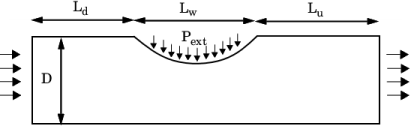
The geometry of the model is depicted in Figure 1 and Table 1. The flow is from the left to the right, and it is affected by an elastic section of the wall which is loaded with a uniform external pressure Pext = 1.755 Pa. The upper wall has a thickness b = 0.1 mm, and is made of a solid material obeying Hooke’s law with a Young modulus of 35.9 kPa and a Poison ratio of 0.45. The flow enters from the left with an average velocity Uin = 0.03 m/s, and reaches an outlet pressure Pout = 0 Pa at the right-hand side of the channel. A no-slip boundary condition is enforced at the walls.
Figure 1: Channel geometry.
The fluid is assumed to be an Oldroyd-B fluid with density 1000 kg/m3. The solvent viscosity ratio is β = μs/μ0 = 0.5, with μp = μs  = 0.5 mPas. These parameters correspond to an inlet Reynolds number of
Studies of viscoelastic flows use the Weissenberg number to compare the magnitude of the elastic forces to the viscous forces. In this case, it can be defined as
where λ represents the relaxation time of the polymer. In this model, three different relaxation times are used — 0.05 s, 0.1 s, and 0.2 s — corresponding to Wi = 0.15, Wi = 0.3, and Wi = 0.6, respectively.
Results and Discussion
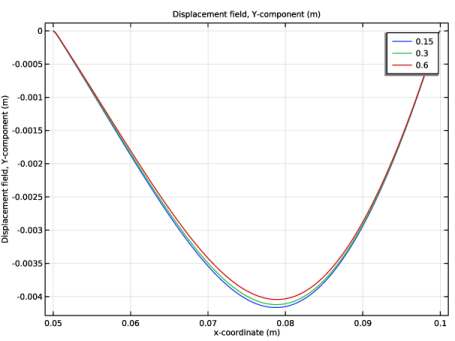
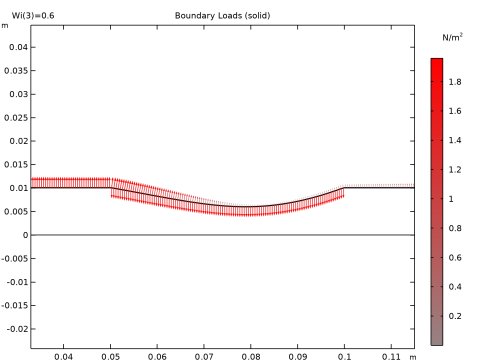
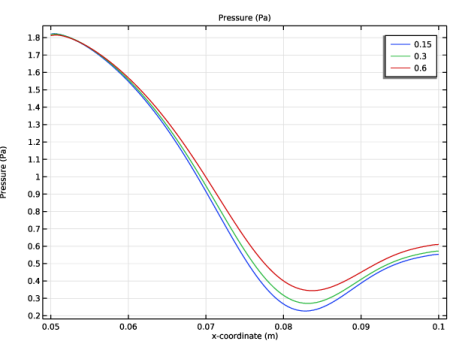
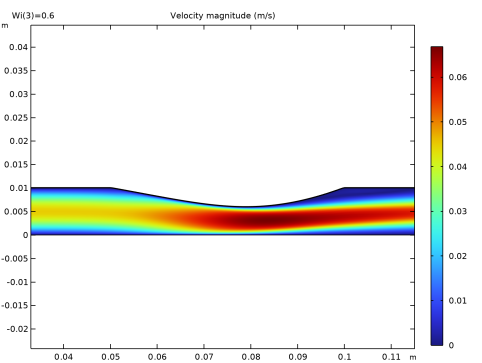
The deformation of the plate and the boundary loads on the wall are plotted in Figure 2 for a Weissenberg number of 0.6. Arrows pointing upward represent the loads due to the interaction with the fluid, while the downward arrows represent the external pressure on the elastic plate. As commented in Ref. 1 and formally proven in Ref. 3, the normal component of the viscous and elastic stresses are negligible, and the normal forces on the wall are mainly due to the pressure on the elastic plate, which is plotted for all studied Weissenberg numbers in Figure 3. The pressure from the fluid, pointing upward, acts against the external pressure on the plate, but has smaller magnitude. This results in a downward deformation of the plate, as plotted in Figure 4 for all Weissenberg numbers. Even though the normal component of the viscoelastic stresses does not have a direct effect on the plate, different relaxation times result in different distributions of pressure and plate displacement. Specifically, increasing the Weissenberg number results in an increased pressure downstream of the narrowest gap in the channel and a slightly smaller plate displacement. Narrowing the channel also affects the velocity distribution as seen in Figure 5.
Figure 2: Boundary loads applied to the wall for Wi = 0.6. The upper arrows represent the fluid forces exerted on the wall. The downward pointing arrows represent the uniform pressure on the flexible wall.
Figure 3: Distribution of fluid pressure on the elastic wall for the different Weissenberg numbers.
Figure 4: Elastic wall displacement for the different Weissenberg numbers.
Figure 5: Velocity magnitude in the deformed channel for Wi = 0.6.
Notes About the COMSOL Implementation
The present application solves a coupled fluid-structure interaction problem with a stationary study. A robust way to solve this model is to provide a good initial solution for the nonlinear problem by first solving the fluid and solid parts separately. First, solve the viscoelastic flow in the deformed channel. Then, solve for the structural displacements using the fluid loads for an undeformed channel. Finally, solve the coupled problem for the different Weissenberg numbers using the previous solution fields as the initial values.
References
1. E. Turkoz, Numerical Modeling of Fluid-Structure Interaction with Rheologically Complex Fluids, PhD thesis, Department of Mechanical Engineering, Technische Universität, 2014.
2. D. Chakraborty and others, “Viscoelastic Flow in a Two-Dimensional Collapsible Channel,” J. Non-Newtonian Fluid Mech., vol. 165, pp. 1204–1218, 2010.
3. N.A. Patankar and others, “Normal Stresses on the Surface of a Rigid Body in an Oldroyd-B Fluid,” J. Fluid Eng., vol. 124, pp. 279–280, 2002.
Application Library path: Polymer_Flow_Module/Verification_Examples/viscoelastic_fsi_flexible_wall
Modeling Instructions
From the File menu, choose New.
New
In the New window, click  Model Wizard.
Model Wizard
1
In the Model Wizard window, click  2D.
2
In the Select Physics tree, select Fluid Flow > Fluid–Structure Interaction > Viscoelastic Flow > Fluid–Solid Interaction.
3
Click Add.
4
Click  Study.
5
In the Select Study tree, select General Studies > Stationary.
6
Load the model parameters from a text file.
Global Definitions
Parameters 1
1
In the Model Builder window, under Global Definitions click Parameters 1.
2
In the Settings window for Parameters, locate the Parameters section.
3
Click  Load from File.
4
Geometry 1
Rectangle 1 (r1)
1
In the Geometry toolbar, click  Rectangle.
2
In the Settings window for Rectangle, locate the Size and Shape section.
3
In the Width text field, type L.
4
In the Height text field, type D.
Rectangle 2 (r2)
1
In the Geometry toolbar, click  Rectangle.
2
In the Settings window for Rectangle, locate the Size and Shape section.
3
In the Height text field, type b.
4
Locate the Position section. In the y text field, type D.
5
Click to expand the Layers section. Clear the Layers on bottom checkbox.
6
Select the Layers to the left checkbox.
7
8
Click  Build All Objects.
Moving Mesh
Deforming Domain 1
1
In the Model Builder window, under Component 1 (comp1) > Moving Mesh click Deforming Domain 1.
2
Geometry 1
Rectangle 2 (r2)
1
In the Model Builder window, under Component 1 (comp1) > Geometry 1 click Rectangle 2 (r2).
2
In the Settings window for Rectangle, locate the Size and Shape section.
3
In the Width text field, type L.
4
Click  Build All Objects.
Viscoelastic Flow (vef)
1
In the Model Builder window, under Component 1 (comp1) click Viscoelastic Flow (vef).
2
In the Settings window for Viscoelastic Flow, locate the Domain Selection section.
3
4
Click  Remove from Selection.
5
Fluid Properties 1
1
In the Model Builder window, under Component 1 (comp1) > Viscoelastic Flow (vef) click Fluid Properties 1.
2
In the Settings window for Fluid Properties, locate the Fluid Properties section.
3
From the ρ list, choose User defined. In the associated text field, type rho_f.
4
Find the Constitutive relation subsection. From the μs list, choose User defined. In the associated text field, type mu_s.
5
Inlet 1
1
In the Physics toolbar, click  Boundaries and choose Inlet.
2
Click the  Zoom Extents button in the Graphics toolbar.
3
4
In the Settings window for Inlet, locate the Boundary Condition section.
5
From the list, choose Fully developed flow.
6
Locate the Fully Developed Flow section. In the Uav text field, type Uin.
Outlet 1
1
In the Physics toolbar, click  Boundaries and choose Outlet.
2
Solid Mechanics (solid)
Linear Elastic Material 1
1
In the Model Builder window, under Component 1 (comp1) > Solid Mechanics (solid) click Linear Elastic Material 1.
2
In the Settings window for Linear Elastic Material, locate the Linear Elastic Material section.
3
From the E list, choose User defined. In the associated text field, type E_s.
4
From the ν list, choose User defined. In the associated text field, type nu_s.
5
From the ρ list, choose User defined. In the associated text field, type rho_s.
Fixed Constraint 1
1
In the Physics toolbar, click  Boundaries and choose Fixed Constraint.
2
In the Settings window for Fixed Constraint, locate the Boundary Selection section.
3
Click  Paste Selection.
4
In the Paste Selection dialog, type 3 4 10 13 in the Selection text field.
5
Boundary Load 1
1
In the Physics toolbar, click  Boundaries and choose Boundary Load.
2
In the Settings window for Boundary Load, locate the Boundary Selection section.
3
Click  Paste Selection.
4
In the Paste Selection dialog, type 8 in the Selection text field.
5
6
In the Settings window for Boundary Load, locate the Force section.
7
Specify the fA vector as
Mesh 1
1
In the Model Builder window, under Component 1 (comp1) click Mesh 1.
2
In the Settings window for Mesh, locate the Physics-Controlled Mesh section.
3
From the Element size list, choose Fine.
4
Locate the Sequence Type section. From the list, choose User-controlled mesh.
Free Triangular 1
In the Model Builder window, under Component 1 (comp1) > Mesh 1 right-click Free Triangular 1 and choose Delete.
Mapped 1
In the Mesh toolbar, click  Mapped.
Distribution 1
1
Right-click Mapped 1 and choose Distribution.
2
In the Settings window for Distribution, locate the Boundary Selection section.
3
Click  Paste Selection.
4
In the Paste Selection dialog, type 6 in the Selection text field.
5
6
In the Settings window for Distribution, locate the Distribution section.
7
In the Number of elements text field, type 4.
Distribution 2
1
In the Model Builder window, right-click Mapped 1 and choose Distribution.
2
In the Settings window for Distribution, locate the Boundary Selection section.
3
Click  Paste Selection.
4
In the Paste Selection dialog, type 1 in the Selection text field.
5
6
In the Settings window for Distribution, locate the Distribution section.
7
From the Distribution type list, choose Predefined.
8
In the Number of elements text field, type 30.
9
In the Element ratio text field, type 10.
10
Select the Symmetric distribution checkbox.
11
Click  Build All.
Study 1
Step 1: Stationary
1
In the Model Builder window, under Study 1 click Step 1: Stationary.
2
In the Settings window for Stationary, locate the Physics and Variables Selection section.
3
In the Solve for column of the table, under Component 1 (comp1), clear the checkboxes for Solid Mechanics (solid) and Moving Mesh.
4
In the Solve for column of the table, under Component 1 (comp1) > Multiphysics, clear the checkbox for Fluid–Structure Interaction 1 (fsi1).
Step 2: Stationary 2
1
In the Study toolbar, click  Stationary.
2
In the Settings window for Stationary, locate the Physics and Variables Selection section.
3
In the Solve for column of the table, under Component 1 (comp1), clear the checkbox for Viscoelastic Flow (vef).
Step 3: Stationary 3
1
In the Study toolbar, click  Stationary.
2
In the Settings window for Stationary, click to expand the Study Extensions section.
3
Select the Auxiliary sweep checkbox.
4
5
6
In the Study toolbar, click  Show Default Plots.
Solution 1 (sol1)
1
In the Study toolbar, click  Show Default Solver.
2
Click  Compute.
Results
Plate Deformation
1
In the Results toolbar, click  1D Plot Group.
2
In the Settings window for 1D Plot Group, type Plate Deformation in the Label text field.
Line Graph 1
1
Right-click Plate Deformation and choose Line Graph.
2
3
In the Settings window for Line Graph, locate the y-Axis Data section.
4
In the Expression text field, type v_solid.
5
Locate the x-Axis Data section. From the Parameter list, choose Expression.
6
In the Expression text field, type x.
7
Click to expand the Legends section. Select the Show legends checkbox.
8
From the Legends list, choose Automatic.
9
In the Plate Deformation toolbar, click  Plot.
Pressure at the Plate
1
In the Results toolbar, click  1D Plot Group.
2
In the Settings window for 1D Plot Group, type Pressure at the Plate in the Label text field.
Line Graph 1
1
Right-click Pressure at the Plate and choose Line Graph.
2
3
In the Settings window for Line Graph, locate the y-Axis Data section.
4
In the Expression text field, type p.
5
Locate the x-Axis Data section. From the Parameter list, choose Expression.
6
In the Expression text field, type x.
7
Click to expand the Legends section. Select the Show legends checkbox.
8
From the Legends list, choose Automatic.
9
In the Pressure at the Plate toolbar, click  Plot.