|
|
|



|
1
|
|
2
|
In the Select Physics tree, select Fluid Flow > Multiphase Flow > Two-Phase Flow, Phase Field > Laminar Flow.
|
|
3
|
Click Add.
|
|
4
|
Click
 Study. Study. |
|
5
|
In the Select Study tree, select Preset Studies for Selected Multiphysics > Time Dependent with Phase Initialization.
|
|
6
|
Click
 Done. Done. |
|
1
|
|
2
|
|
3
|
Click
 Load from File. Load from File. |
|
4
|
Browse to the model’s Application Libraries folder and double-click the file slot_die_coating_2d_parameters.txt.
|
|
1
|
|
2
|
|
3
|
Click
 Load from File. Load from File. |
|
4
|
Browse to the model’s Application Libraries folder and double-click the file slot_die_coating_2d_viscosity_input.txt.
|
|
5
|
Locate the Data Column Settings section. In the table, click to select the cell at row number 1 and column number 1.
|
|
6
|
|
7
|
|
9
|
|
10
|
|
11
|
|
12
|
Locate the Parameters section. In the table, enter the following settings:
|
|
13
|
Click
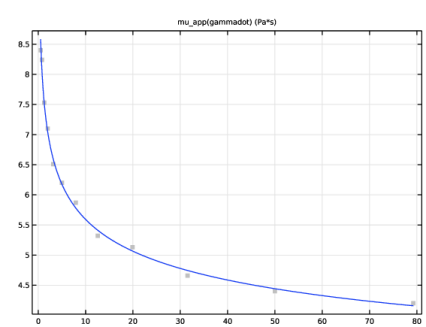
 Fit Parameters. The computed parameter values from the least-squares fit appear in the Parameters table. Fit Parameters. The computed parameter values from the least-squares fit appear in the Parameters table. |
|
14
|
Click
 Create Plot, to see how close data points are to the fitted function. Create Plot, to see how close data points are to the fitted function. |
|
1
|
|
2
|
|
3
|
|
4
|
|
1
|
|
2
|
|
3
|
|
4
|
|
1
|
|
2
|
|
3
|
|
4
|
|
5
|
|
6
|
|
7
|
Click to expand the Layers section. In the table, enter the following settings:
|
|
8
|
Click
 Build Selected. Build Selected. |
|
1
|
|
2
|
|
4
|
Click
 Build Selected. Build Selected. |
|
5
|
|
1
|
|
2
|
|
3
|
|
1
|
|
2
|
|
3
|
|
1
|
In the Model Builder window, under Component 1 (comp1) > Multiphysics click Two-Phase Flow, Phase Field 1 (tpf1).
|
|
2
|
|
3
|
Click
 Add Multiphase Material. Add Multiphase Material. |
|
1
|
In the Model Builder window, under Component 1 (comp1) > Materials > Multiphase Material 1 (mpmat1) click Phase 1 (mpmat1.phase1).
|
|
2
|
|
3
|
Click
 Add Material from Library . This button is found when expanding the options next to the Material list. Add Material from Library . This button is found when expanding the options next to the Material list. |
|
1
|
Go to the Add Material to Phase 1 (mpmat1.phase1) window.
|
|
2
|
|
3
|
Click Add Material.
|
|
1
|
In the Model Builder window, under Component 1 (comp1) > Materials > Multiphase Material 1 (mpmat1) click Phase 2 (mpmat1.phase2).
|
|
2
|
|
3
|
|
1
|
|
2
|
|
3
|
Click to expand the Material Properties section. In the Material properties tree, select Fluid Flow > Inelastic Non-Newtonian > Power Law.
|
|
4
|
Right-click and choose Add to Material.
|
|
5
|
Locate the Material Contents section. In the table, enter the following settings:
|
|
1
|
In the Model Builder window, under Component 1 (comp1) > Materials click Multiphase Material 1 (mpmat1).
|
|
2
|
|
4
|
Right-click and choose Edit Mixing Rule.
|
|
5
|
|
6
|
|
7
|
Click
 Next Row (Store Changes). Next Row (Store Changes). |
|
8
|
|
9
|
Click
 Next Row (Store Changes). Next Row (Store Changes). |
|
10
|
|
11
|
Click OK.
|
|
1
|
|
3
|
|
4
|
|
5
|
|
6
|
|
1
|
|
3
|
|
4
|
From the list, choose Fully developed flow.
|
|
5
|
|
1
|
|
1
|
In the Model Builder window, under Component 1 (comp1) > Phase Field in Fluids (pf) click Initial Values, Fluid 2.
|
|
1
|
|
2
|
|
3
|
|
1
|
|
2
|
|
3
|
|
1
|
|
1
|
|
3
|
|
4
|
|
1
|
|
2
|
|
3
|
|
4
|
Click OK.
|
|
5
|
In the Model Builder window, under Component 1 (comp1) > Multiphysics click Two-Phase Flow, Phase Field 1 (tpf1).
|
|
6
|
In the Settings window for Two-Phase Flow, Phase Field, click to expand the Advanced Settings section.
|
|
7
|
Select the Shift surface tension force to the heaviest phase checkbox.
|
|
8
|
Locate the Surface Tension section. From the Surface tension coefficient list, choose User defined. In the σ text field, type 0.049.
|
|
1
|
|
2
|
|
3
|
Select the Plot checkbox.
|
|
5
|
|
6
|
|
7
|
|
1
|
|
2
|
|
3
|
|
4
|
|
5
|
|
6
|
|
7
|
|
8
|
|
1
|
|
2
|
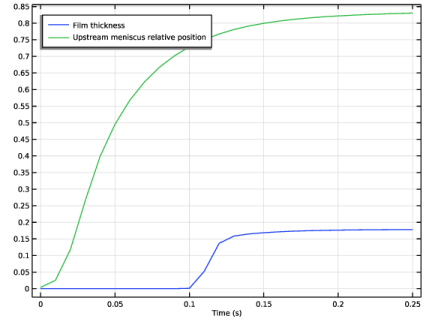
In the Settings window for 1D Plot Group, type Film Thickness and Upstream Meniscus Position in the Label text field.
|
|
3
|
|
1
|
|
2
|
|
4
|