PDF

Blood Flow in a Stenosed Pulmonary Artery
Introduction
Modeling blood flow through a stenosed pulmonary artery is crucial for diagnosing and treating cardiovascular diseases. Simulations can help predict how arterial stenosis impacts blood circulation and guide clinical interventions.
In this example, a Carreau fluid is used to capture the non-Newtonian behavior of blood. The stenosis is modeled as a porous medium to capture the resistance and flow disturbances caused by the narrowing.
Although this example does not provide real data or results, the demonstrated approach offers valuable insights into blood flow dynamics, which are crucial for improving diagnostic tools and treatment strategies for pulmonary artery stenosis.
Model Definition
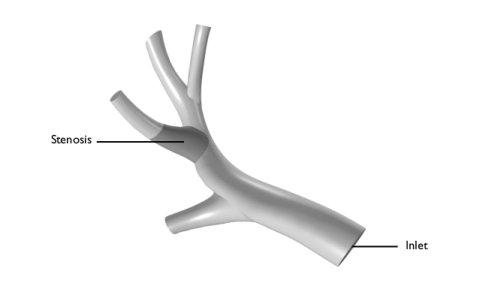
The modeled geometry is shown in Figure 1.
Figure 1: Modeled geometry with stenosis (dark gray)
The idea for this model comes from Ref. 1. The authors studied the hemodynamics of chronic thromboembolic pulmonary hypertension (CTEPH), comparing the effects of Newtonian and non-Newtonian fluid models on blood flow and pressure within stenosed pulmonary arteries. The authors did not provide a detailed mathematical description of the stenosed area. In this model, a Porous Medium is used to simulate blood flow through the stenosis. The blood is modeled as a Carreau fluid, similar to the approach used by the authors. The apparent viscosity, denoted as μapp, of a Carreau fluid is defined as follows:
(1)
with the viscosity μinf at infinite shear rate, the relaxation time λ and the power index n and the shear rate . To account for the effect of stenosis on the non-Newtonian behavior of blood, the apparent shear rate method is employed in Equation 1 using the capillary bundle approach. For the porous domain, an apparent shear rate is defined, which considers the influence of the porous material on the fluid’s non-Newtonian properties.
This is done by incorporating parameters such as the permeability κ and porosity εp of the stenosed region, the velocity magnitude |u|, and a correction factor α that accounts for the shape of the pores (for example, tortuosity). The correction factor needs to be determined experimentally or through numerical simulations at the pore scale. An approximation can be made using the capillary bundle approach:
with the tortuosity factor C. The parameters used in this model are summarized in Table 1 The Carreau parameters for blood are taken from Ref. 1. The parameters describing the porous medium are estimated values; one approach to determining these parameters involves modeling the stenosed area at the pore level and computing the permeability based on the pressure drop (Ref. 2).
εp
10-7 m2
μinf
One measurement of the severity of the stenosis is the Quantitative Pulmonary Pressure Ratio (QPPR) which relates the pressures at both ends of the stenosis as follows
(2)
For this model, QPPR is determined for the maximum systolic pressure.
Results and Discussion
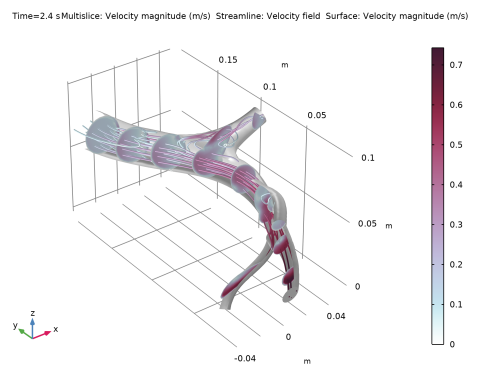
The velocity distribution at the end of the simulation is depicted in Figure 2.
Figure 2: Velocity field after 2.4 s.
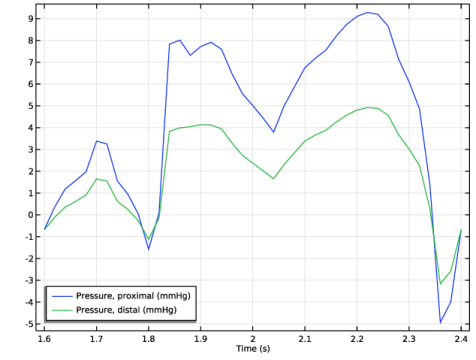
The pressure at both ends of the stenosis over the last cycle is shown in Figure 3
Figure 3: Pressure over the last cycle at proximal and distal ends of the stenosis.
Notes About the COMSOL Implementation
The modeling process begins by opening an mph file that includes a mesh part. This mesh part imports the artery’s mesh, which is then adjusted to include the stenosis area and refined to ensure good resolution for fluid flow calculations.
The computation starts with a stationary step to get an initial velocity distribution for the subsequent time-dependent step over three blood flow cycles.
References
1. F. He, X. Wang, L. Hua, and T. Guo, “Non-Newtonian Effects of Blood Flow on Hemodynamics in Pulmonary Stenosis: Numerical Simulation,” Appl. Bionics Biomech., 1434832, 7 pages, 2023; doi.org/10.1155/2023/1434832.
2. P. Owasit and S. Sriyab, “Mathematical modeling of non-Newtonian fluid in arterial blood flow through various stenoses,” Adv. Differ. Equ., 340, 2021; doi.org/10.1186/s13662-021-03492-9.
Application Library path: Polymer_Flow_Module/Tutorials/pulmonary_artery_stenosis
Modeling Instructions
From the Main Toolbar menu, choose New.
New
In the New window, click  Model Wizard.
Model Wizard
1
In the Model Wizard window, click  3D.
2
In the Select Physics tree, select Fluid Flow > Porous Media and Subsurface Flow > Free and Porous Media Flow, Brinkman (fp).
3
Click Add.
4
Click  Study.
5
In the Select Study tree, select General Studies > Stationary.
6
Component 1 (comp1)
Start by importing an mphbin file of the artery.
Mesh-Based Geometry 1
In the Mesh toolbar, click Add Mesh and choose Add Mesh-Based Geometry.
Import 1
1
In the Settings window for Import, locate the Import section.
2
Click  Browse.
3
4
Click  Import.
5
Clear the Import selections checkbox.
Intersect with Plane 1
The stenosed area is introduced by modifying the imported mesh.
1
In the Mesh toolbar, click  Booleans and Partitions and choose Intersect with Plane.
2
In the Settings window for Intersect with Plane, locate the Geometric Entity Selection section.
3
From the Geometric entity level list, choose Boundary.
4
5
Locate the Plane Definition section. From the Plane type list, choose Face parallel.
6
7
In the Offset in normal direction text field, type 3.8[cm].
8
Select the Reverse normal direction checkbox.
9
Click  Build Selected.
Create Domains 1
1
In the Mesh toolbar, click  Entities and choose Create Domains.
2
In the Settings window for Create Domains, click  Build All.
Free and Porous Media Flow, Brinkman (fp)
Now, continue with the setup of the physics.
Fluid Properties 1
1
In the Model Builder window, under Component 1 (comp1) > Free and Porous Media Flow, Brinkman (fp) click Fluid Properties 1.
2
In the Settings window for Fluid Properties, locate the Fluid Properties section.
3
Find the Constitutive relation subsection. From the list, choose Inelastic non-Newtonian.
4
From the Inelastic model list, choose Carreau.
Porous Medium 1
1
In the Physics toolbar, click  Domains and choose Porous Medium.
2
Fluid 1
1
In the Model Builder window, click Fluid 1.
2
In the Settings window for Fluid, locate the Fluid Properties section.
3
Find the Constitutive relation subsection. From the list, choose Inelastic non-Newtonian.
4
From the Inelastic model list, choose Carreau.
5
Find the Apparent shear rate subsection. From the Correction factor list, choose Capillary bundle approach.
Materials
Material 1 (mat1)
1
In the Model Builder window, under Component 1 (comp1) right-click Materials and choose Blank Material.
2
In the Settings window for Material, locate the Material Contents section.
3
Free and Porous Media Flow, Brinkman (fp)
Porosity and permeability are highly influenced by the degree of stenosis. The values used here are estimates (see Table 1).
Inlet 1
1
In the Physics toolbar, click  Boundaries and choose Inlet.
2
Global Definitions
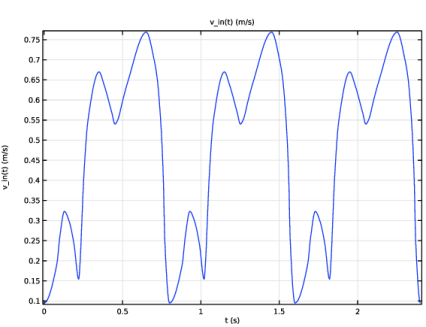
The inlet velocity is a time-dependent function that models the blood flow cycle and will be defined in the following steps.
Interpolation 1 (int1)
1
In the Home toolbar, click  Functions and choose Global > Interpolation.
2
In the Settings window for Interpolation, locate the Definition section.
3
Click  Load from File.
4
5
Locate the Interpolation and Extrapolation section. From the Interpolation list, choose Piecewise cubic.
6
To make the interpolation function periodic, create an analytic function that references the interpolation function and enforces periodicity.
Analytic 1 (an1)
1
In the Home toolbar, click  Functions and choose Global > Analytic.
2
In the Settings window for Analytic, type v_in in the Function name text field.
3
Locate the Definition section. In the Expression text field, type int1(t).
4
In the Arguments text field, type t.
5
Click to expand the Periodic Extension section. Select the Make periodic checkbox.
6
In the Upper limit text field, type 0.8.
7
Locate the Units section. In the Function text field, type m/s.
8
9
Locate the Plot Parameters section. In the table, enter the following settings:
10
Next, call the function for the inlet velocity, which is time dependent and should be invoked with the argument t using the expression v_in(t). Since the computation first calculates a stationary solution to establish an initial velocity distribution for the subsequent time-dependent study step, the variable t for time is not defined at that stage. This would cause the stationary study to produce an error with the v_in(t) expression. To prevent this error, use the try_catch operator in the form v_in(try_catch(t,0)). This means that the expression will first attempt to evaluate v_in for t, and if t is undefined, it will default to evaluating v_in for 0.
Free and Porous Media Flow, Brinkman (fp)
Inlet 1
1
In the Model Builder window, under Component 1 (comp1) > Free and Porous Media Flow, Brinkman (fp) click Inlet 1.
2
In the Settings window for Inlet, locate the Velocity section.
3
In the U0 text field, type v_in(try_catch(t,0)).
Outlet 1
1
In the Physics toolbar, click  Boundaries and choose Outlet.
2
Now, build the physics-controlled mesh.
Mesh 1
1
In the Model Builder window, under Component 1 (comp1) click Mesh 1.
2
In the Settings window for Mesh, locate the Physics-Controlled Mesh section.
3
In the table, clear the Use checkbox for Geometric Analysis, Detail SizeThe geometric details might not be accurately captured this way, but they could just be artifacts from the imported mesh rather than real details. So there is no strong justification for including them in the mesh, and excluding them reduces computational effort.
4
Click  Build All.
Study 1
Step 2: Time Dependent
1
In the Study toolbar, click  Time Dependent.
2
In the Settings window for Time Dependent, locate the Study Settings section.
3
In the Output times text field, type range(0,0.02,2.4).
4
In the Model Builder window, click Study 1.
5
In the Settings window for Study, locate the Study Settings section.
6
Clear the Generate default plots checkbox.
7
In the Study toolbar, click  Compute.
Result Templates
1
In the Results toolbar, click  Result Templates to open the Result Templates window.
2
Go to the Result Templates window.
3
In the tree, select Study 1/Solution 1 (sol1) > Free and Porous Media Flow, Brinkman > Velocity (fp).
4
Click the Add Result Template button in the window toolbar.
5
In the Results toolbar, click  Result Templates to close the Result Templates window.
Results
Multislice 1
1
In the Model Builder window, expand the Results > Velocity (fp) node, then click Multislice 1.
2
In the Settings window for Multislice, locate the Multiplane Data section.
3
Find the x-planes subsection. In the Planes text field, type 0.
4
Find the y-planes subsection. In the Planes text field, type 8.
5
Find the z-planes subsection. In the Planes text field, type 0.
6
Locate the Coloring and Style section. From the Color table list, choose Passiflora.
Streamline 1
1
In the Model Builder window, right-click Velocity (fp) and choose Streamline.
2
3
In the Settings window for Streamline, locate the Selection section.
4
Click  Clear Selection.
5
Locate the Streamline Positioning section. From the Positioning list, choose Uniform density.
6
In the Density level text field, type 10.
7
Locate the Coloring and Style section. Find the Line style subsection. From the Type list, choose Tube.
8
Select the Radius scale factor checkbox. In the associated text field, type 5e-4.
9
Click to expand the Inherit Style section. From the Plot list, choose Multislice 1.
Color Expression 1
Right-click Streamline 1 and choose Color Expression.
Surface 1
1
In the Model Builder window, right-click Velocity (fp) and choose Surface.
2
In the Settings window for Surface, locate the Coloring and Style section.
3
From the Coloring list, choose Uniform.
4
From the Color list, choose Gray.
Selection 1
1
Right-click Surface 1 and choose Selection.
2
3
In the Velocity (fp) toolbar, click  Plot.
Velocity (fp)
1
In the Model Builder window, under Results click Velocity (fp).
2
In the Settings window for 3D Plot Group, locate the Plot Settings section.
3
Clear the Plot dataset edges checkbox.
4
In the Velocity (fp) toolbar, click  Plot.
Result Templates
Visualize the pressure and the location of the maximum pressure as in Figure 3.
1
In the Results toolbar, click  Result Templates to open the Result Templates window.
2
Go to the Result Templates window.
3
In the tree, select Study 1/Solution 1 (sol1) > Free and Porous Media Flow, Brinkman > Pressure (fp).
4
Click the Add Result Template button in the window toolbar.
5
In the Results toolbar, click  Result Templates to close the Result Templates window.
Results
Surface
1
In the Model Builder window, expand the Pressure (fp) node, then click Surface.
2
In the Settings window for Surface, locate the Coloring and Style section.
3
In the Number of bands text field, type 40.
Pressure (fp)
In the Model Builder window, click Pressure (fp).
Max/Min Volume 1
1
In the Pressure (fp) toolbar, click  More Plots and choose Max/Min Volume.
2
In the Settings window for Max/Min Volume, locate the Expression section.
3
In the Expression text field, type p.
4
Locate the Display section. From the Display list, choose Max.
5
In the Pressure (fp) toolbar, click  Plot.
Maximum and Minimum Values
Go to the Maximum and Minimum Values window.
Next, evaluate the pressure at both ends of the stenosis for the last cycle.
Results
Surface Average 1
1
In the Results toolbar, click  More Derived Values and choose Average > Surface Average.
2
3
In the Settings window for Surface Average, locate the Data section.
4
From the Time selection list, choose Interpolated.
5
In the Times (s) text field, type range(1.6,0.02,2.4).
6
Locate the Expressions section. In the table, enter the following settings:
7
Click  Evaluate.
Surface Average 2
1
Right-click Surface Average 1 and choose Duplicate.
2
In the Settings window for Surface Average, locate the Selection section.
3
Click  Clear Selection.
4
5
Locate the Expressions section. In the table, enter the following settings:
6
Clicknext to  Evaluate, then choose Table 1 - Surface Average 1.
Table 1
1
Go to the Table 1 window.
2
Click the Table Graph button in the window toolbar.
Results
Table Graph 1
1
In the Settings window for Table Graph, click to expand the Legends section.
2
Select the Show legends checkbox.
Pressure at Stenosis
1
In the Model Builder window, under Results click 1D Plot Group 3.
2
In the Settings window for 1D Plot Group, type Pressure at Stenosis in the Label text field.
3
Locate the Legend section. From the Position list, choose Lower left.
4
In the Pressure at Stenosis toolbar, click  Plot.
One important quantity for assessing the severity of a stenosis is the Quantitative Pulmonary Pressure Ratio (Equation 2). To calculate this, we apply averaging operators at the boundaries of the stenosis and update the model to include these values in the solution, without requiring a recomputation.
Definitions
Average: Proximal
1
In the Definitions toolbar, click  Nonlocal Couplings and choose Average.
2
In the Settings window for Average, locate the Source Selection section.
3
From the Geometric entity level list, choose Boundary.
4
5
In the Label text field, type Average: Proximal.
Average: Distal
1
In the Definitions toolbar, click  Nonlocal Couplings and choose Average.
2
In the Settings window for Average, type Average: Distal in the Label text field.
3
Locate the Source Selection section. From the Geometric entity level list, choose Boundary.
4
Study 1
In the Study toolbar, click  Update Solution.
Results
Global Evaluation 1
1
In the Results toolbar, click  Global Evaluation.
2
In the Settings window for Global Evaluation, locate the Expressions section.
3
4
Locate the Data section. From the Time selection list, choose From list.
5
In the Times (s) list box, select 1.86, which corresponds to the maximum systolic pressure.
6
Click  Evaluate.
The value for QPPR is about 0.5.