
PDF

Flow in an Internal Mixer
Introduction
When mixing highly viscous non-Newtonian polymers and rubbers, it is important to keep track of both the temperature and the torque that is applied to the rotors in the vessel. The process must be tuned so that the temperature during mixing is below the disassociation temperature, but high enough so that mixing can occur. In this example, a HDPE polymer is stirred in an internal mixer with nonisothermal flow and a non-Newtonian Carreau model for the apparent viscosity of the fluid. Thermal effects are included in the form of an exponential law.
Model Definition
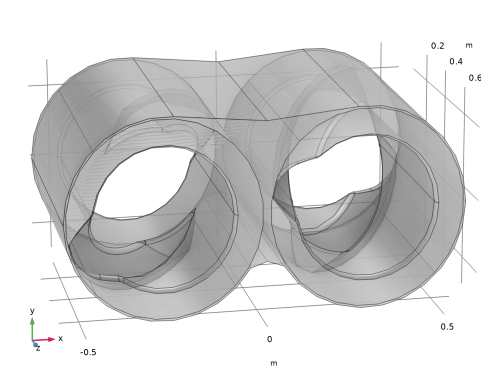
The geometry is a chamber with two counter-rotating impellers as shown in Figure 1.
Figure 1: Mixer with two counter-rotating impellers.
The viscous fluid is a HDPE (high density polyethylene) with a non-Newtonian Carreau model for the apparent viscosity. The equation for the shear, and temperature, dependent viscosity is
(1)
where is the thermal contribution to the viscosity defined by thermal coefficients b and T0. Moreover μ, μ0, λ, and n are model parameters while is the strain rate in the fluid. The outside of the cavity has a convective heat flux condition, while the other boundaries are thermally insulated. Viscous heating is a major contribution for such viscous fluids and is included as a source in the heat transfer equation as Qvd = τ : ∇u, where τ is the viscous tensor and u is the velocity vector.
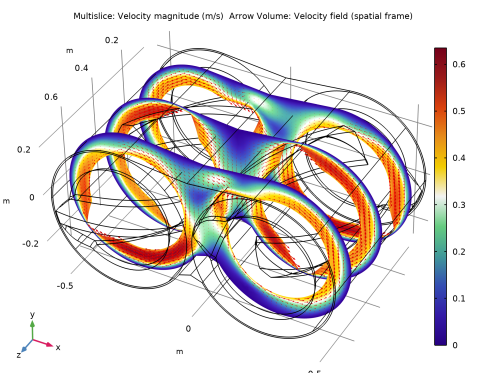
The model is solved in two different studies. The first part uses a frozen-rotor approach where the rotation of the impellers is modeled in a stationary manner. This gives a stationary solution for the temperature, velocity and pressure. In order to analyze the start up and mixing behavior, a time dependent study is included. Transient results for torque on the rotors and the temperature at specific locations in the mixing cavity are presented.
Results and Discussion
The velocity together with velocity arrows obtained from the Frozen Rotor study can be seen in Figure 2.
Figure 2: Velocity and velocity arrows for the Frozen Rotor study.
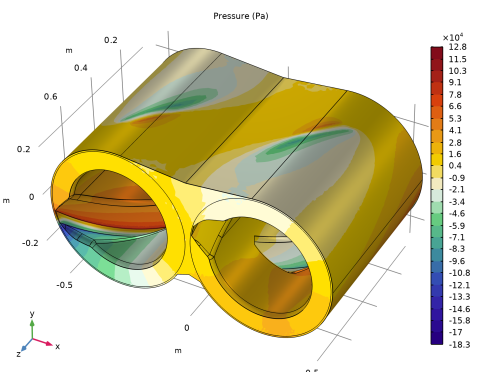
Figure 3 shows the pressure.
Figure 3: Pressure distribution for the Frozen Rotor study.
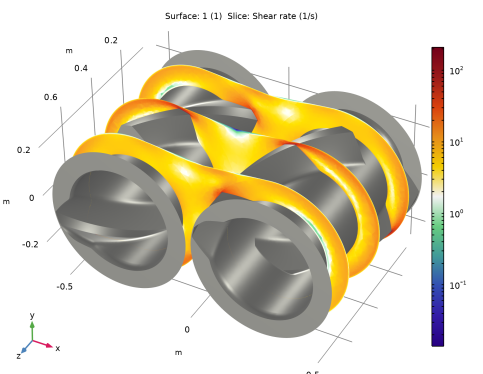
Figure 4 shows the shear rate.
Figure 4: Shear rate for the Frozen Rotor study.
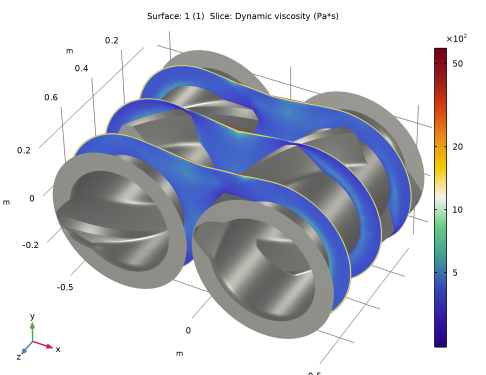
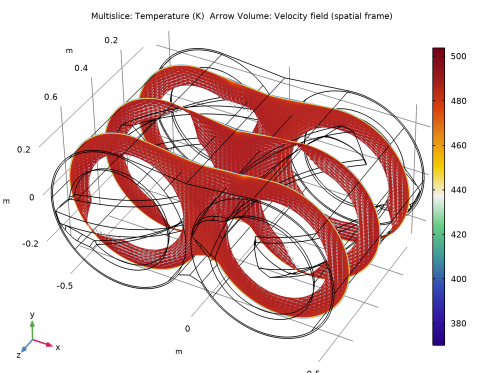
Figure 5 shows the viscosity and Figure 6 shows the temperature for the Frozen Rotor study.
Figure 5: Dynamic viscosity for the Frozen Rotor study.
Figure 6: Temperature and velocity arrows for the Frozen Rotor study.
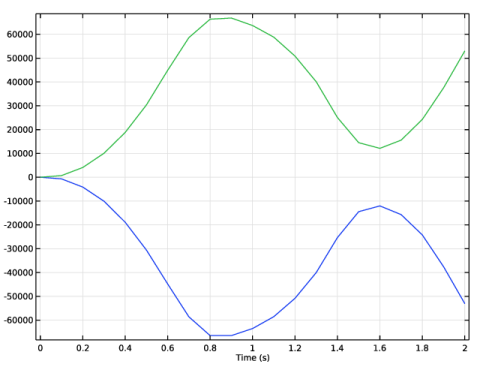
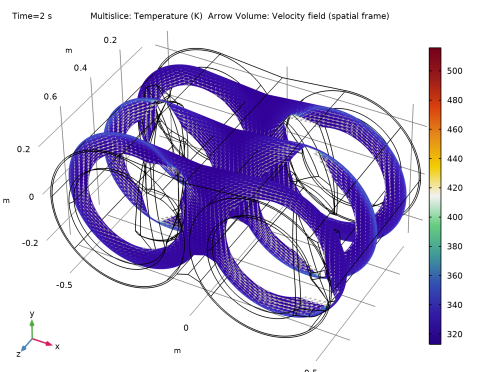
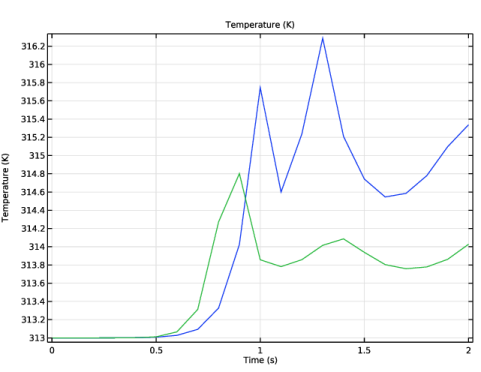
For the time-dependent study, it is interesting to investigate the torque from the rotors onto the fluid (which is the reciprocal of the torque on the rotors). The rotors have a forced rotation velocity which increases slowly from 0 to 20 RPM during the first second. The torque as a function of time from the two rotors is shown in Figure 7. Moreover, the temperature after two seconds is shown in Figure 8 and the temperature as a function of time at a couple of points located at the center of the cavity is shown in Figure 9. Note that a stationary result is not achieved for the transient simulations as we have focused on investigating only the first couple of revolutions.
Figure 7: Impeller torque as a function of time during startup.
Figure 8: Temperature after two seconds.
Figure 9: Temperature at a couple of points in the middle of the cavity as a function of time.
Application Library path: Polymer_Flow_Module/Tutorials/internal_mixer
Notes About the COMSOL Implementation
The geometry is made as an assembly to make it easier to go from Frozen Rotor to a Time Dependent study. Note that to run the frozen rotor simulation, the rotational velocity must be set to 20 RPM.
Modeling Instructions
From the File menu, choose New.
New
In the New window, click  Model Wizard.
Model Wizard
1
In the Model Wizard window, click  3D.
2
In the Select Physics tree, select Fluid Flow > Nonisothermal Flow > Rotating Machinery, Nonisothermal Flow > Laminar Flow.
3
Click Add.
4
Click  Study.
5
In the Select Study tree, select Preset Studies for Selected Physics Interfaces > Frozen Rotor.
6
Geometry 1
Disable the analysis of the geometry as the remaining small geometric details can be kept.
1
In the Model Builder window, under Component 1 (comp1) click Geometry 1.
2
In the Settings window for Geometry, locate the Cleanup section.
3
Clear the Automatic detection of small details checkbox.
Import the geometry from a file.
Import 1 (imp1)
1
In the Geometry toolbar, click  Import.
2
In the Settings window for Import, locate the Source section.
3
Click  Browse.
4
5
Click  Build All Objects.
Add a centroid measurement node to find the rotation axis of the two rotors. The geometry parameters are later used in the definition of the rotating domains.
Centroid Measurement 1 (cm1)
1
In the Geometry toolbar, click  Measurements and choose Centroid Measurement.
2
On the object imp1(3), select Points 4, 6, 10, and 12 only.
3
In the Settings window for Centroid Measurement, click  Build Selected.
Centroid Measurement 2 (cm2)
1
Right-click Centroid Measurement 1 (cm1) and choose Duplicate.
2
In the Settings window for Centroid Measurement, locate the Vertex Selection section.
3
Click the  Clear Selection button for Vertices.
4
On the object imp1(3), select Points 22, 24, 28, and 30 only.
5
Click  Build Selected.
Form Union (fin)
1
In the Model Builder window, under Component 1 (comp1) > Geometry 1 click Form Union (fin).
2
In the Settings window for Form Union/Assembly, locate the Form Union/Assembly section.
3
From the Action list, choose Form an assembly.
4
Click  Build Selected.
Create a selection for the boundaries of the rotors that you can use later when postprocessing.
Definitions
Rotors
1
In the Model Builder window, expand the Component 1 (comp1) > Definitions node.
2
Right-click Definitions and choose Selections > Explicit.
3
In the Settings window for Explicit, type Rotors in the Label text field.
4
Locate the Input Entities section. From the Geometric entity level list, choose Boundary.
5
Select the Group by continuous tangent checkbox.
6
In the Angular tolerance text field, type 50.
7
Moving Mesh
Rotating Domain 1
1
In the Model Builder window, under Component 1 (comp1) > Moving Mesh click Rotating Domain 1.
2
3
In the Settings window for Rotating Domain, locate the Rotation section.
4
In the f text field, type -1/3.
5
Locate the Axis section. Specify the rax vector as
Rotating Domain 2
1
Right-click Component 1 (comp1) > Moving Mesh > Rotating Domain 1 and choose Duplicate.
2
3
In the Settings window for Rotating Domain, locate the Rotation section.
4
In the f text field, type 1/3.
5
Locate the Axis section. Specify the rax vector as
Laminar Flow (spf)
Fluid Properties 1
1
In the Model Builder window, under Component 1 (comp1) > Laminar Flow (spf) click Fluid Properties 1.
2
In the Settings window for Fluid Properties, locate the Fluid Properties section.
3
Find the Constitutive relation subsection. From the list, choose Inelastic non-Newtonian.
4
From the Inelastic model list, choose Carreau.
Materials
HDPE
1
In the Model Builder window, under Component 1 (comp1) right-click Materials and choose Blank Material.
2
In the Settings window for Material, type HDPE in the Label text field.
3
Locate the Material Contents section. In the table, enter the following settings:
Laminar Flow (spf)
Fluid Properties 1
1
In the Model Builder window, under Component 1 (comp1) > Laminar Flow (spf) click Fluid Properties 1.
2
In the Settings window for Fluid Properties, click to expand the Thermal Effects section.
3
From the Thermal function list, choose Exponential.
4
In the T0 text field, type 453.
5
In the b text field, type 0.02.
Pressure Point Constraint 1
1
In the Physics toolbar, click  Points and choose Pressure Point Constraint.
2
Heat Transfer in Fluids (ht)
Initial Values 1
1
In the Model Builder window, under Component 1 (comp1) > Heat Transfer in Fluids (ht) click Initial Values 1.
2
In the Settings window for Initial Values, locate the Initial Values section.
3
In the T text field, type 313.
Heat Flux 1
1
In the Physics toolbar, click  Boundaries and choose Heat Flux.
Add a convective heat flux to all boundaries.
2
3
In the Settings window for Heat Flux, locate the Boundary Selection section.
4
From the Selection list, choose All boundaries.
5
Locate the Heat Flux section. From the Flux type list, choose Convective heat flux.
6
In the h text field, type 40.
7
In the Text text field, type 313.
Now apply "Thermal insulation" boundary condition to the boundaries of the rotors. This overrides the previous boundary condition on these boundaries.
Thermal Insulation 2
1
In the Physics toolbar, click  Boundaries and choose Thermal Insulation.
2
In the Settings window for Thermal Insulation, locate the Boundary Selection section.
3
From the Selection list, choose Rotors.
Mesh 1
1
In the Model Builder window, under Component 1 (comp1) click Mesh 1.
2
In the Settings window for Mesh, locate the Physics-Controlled Mesh section.
3
In the table, select the Use checkbox for Geometric Analysis, Detail Size.
4
From the Element size list, choose Fine.
5
Locate the Sequence Type section. From the list, choose User-controlled mesh.
Boundary Layer Properties 1
1
In the Model Builder window, expand the Boundary Layers 1 node, then click Boundary Layer Properties 1.
2
In the Settings window for Boundary Layer Properties, locate the Layers section.
3
In the Number of layers text field, type 5.
4
In the Stretching factor text field, type 1.15.
5
In the Thickness adjustment factor text field, type 1.5.
6
Click  Build All.
7
Click the  Mesh Rendering button in the Graphics toolbar.
Study 1
In the Study toolbar, click  Compute.
Results
Multislice 1
1
In the Model Builder window, expand the Velocity (spf) node, then click Multislice 1.
2
In the Settings window for Multislice, locate the Multiplane Data section.
3
Find the x-planes subsection. In the Planes text field, type 0.
4
Find the y-planes subsection. In the Planes text field, type 0.
5
Find the z-planes subsection. In the Planes text field, type 3.
6
Locate the Coloring and Style section. From the Color table list, choose Tectocoris.
7
In the Velocity (spf) toolbar, click  Plot.
Arrow Volume 1
1
In the Model Builder window, right-click Velocity (spf) and choose Arrow Volume.
2
In the Settings window for Arrow Volume, locate the Arrow Positioning section.
3
Find the x grid points subsection. In the Points text field, type 60.
4
Find the y grid points subsection. In the Points text field, type 40.
5
Find the z grid points subsection. In the Points text field, type 3.
6
In the Velocity (spf) toolbar, click  Plot.
Viscosity
1
In the Results toolbar, click  3D Plot Group.
2
In the Settings window for 3D Plot Group, type Viscosity in the Label text field.
Surface 1
1
Right-click Viscosity and choose Surface.
2
In the Settings window for Surface, locate the Expression section.
3
In the Expression text field, type 1.
Material Appearance 1
1
Right-click Surface 1 and choose Material Appearance.
2
In the Settings window for Material Appearance, locate the Appearance section.
3
From the Appearance list, choose Custom.
4
From the Material type list, choose Steel.
Selection 1
1
In the Model Builder window, right-click Surface 1 and choose Selection.
2
In the Settings window for Selection, locate the Selection section.
3
From the Selection list, choose Rotors.
Slice 1
1
In the Model Builder window, right-click Viscosity and choose Slice.
2
In the Settings window for Slice, locate the Expression section.
3
In the Expression text field, type spf.mu.
4
Locate the Plane Data section. From the Plane list, choose xy-planes.
5
In the Planes text field, type 3.
6
Locate the Coloring and Style section. From the Color table list, choose Tectocoris.
7
From the Scale list, choose Logarithmic.
Viscosity
1
In the Model Builder window, click Viscosity.
2
In the Settings window for 3D Plot Group, locate the Plot Settings section.
3
Clear the Plot dataset edges checkbox.
4
In the Viscosity toolbar, click  Plot.
Shear Rate
1
Right-click Viscosity and choose Duplicate.
2
In the Settings window for 3D Plot Group, type Shear Rate in the Label text field.
Slice 1
1
In the Model Builder window, expand the Shear Rate node, then click Slice 1.
2
In the Settings window for Slice, locate the Expression section.
3
In the Expression text field, type spf.sr.
4
In the Shear Rate toolbar, click  Plot.
Temperature
1
In the Model Builder window, right-click Velocity (spf) and choose Duplicate.
2
In the Settings window for 3D Plot Group, type Temperature in the Label text field.
Multislice 1
1
In the Model Builder window, expand the Temperature node, then click Multislice 1.
2
In the Settings window for Multislice, locate the Expression section.
3
In the Expression text field, type T.
Arrow Volume 1
1
In the Model Builder window, click Arrow Volume 1.
2
In the Settings window for Arrow Volume, locate the Coloring and Style section.
3
From the Color list, choose Gray.
4
In the Temperature toolbar, click  Plot.
Define a step function so that you can specify a smooth startup of the rotation velocity for the rotors.
Definitions
Step 1 (step1)
1
In the Definitions toolbar, click  More Functions and choose Step.
2
In the Settings window for Step, click to expand the Smoothing section.
3
In the Size of transition zone text field, type 0.5.
4
5
Locate the Parameters section. In the Location text field, type .5.
6
Locate the Smoothing section. In the Size of transition zone text field, type 1.
7
Moving Mesh
Rotating Domain 1
1
In the Model Builder window, under Component 1 (comp1) > Moving Mesh click Rotating Domain 1.
2
In the Settings window for Rotating Domain, locate the Rotation section.
3
In the f text field, type -1/3*step1(t).
Rotating Domain 2
1
In the Model Builder window, click Rotating Domain 2.
2
In the Settings window for Rotating Domain, locate the Rotation section.
3
In the f text field, type 1/3*step1(t).
Add Study
1
In the Home toolbar, click  Windows and choose Add Study.
2
Go to the Add Study window.
3
Find the Studies subsection. In the Select Study tree, select General Studies > Time Dependent.
4
Click the Add Study button in the window toolbar.
5
In the Home toolbar, click  Add Study to close the Add Study window.
Study 2
Step 1: Time Dependent
1
In the Settings window for Time Dependent, locate the Study Settings section.
2
In the Output times text field, type range(0,0.1,2).
Laminar Flow (spf)
1
In the Model Builder window, under Component 1 (comp1) click Laminar Flow (spf).
2
In the Settings window for Laminar Flow, locate the Physical Model section.
3
From the Compressibility list, choose Incompressible flow.
4
Click the  Show More Options button in the Model Builder toolbar.
5
In the Show More Options dialog, select Physics > Stabilization in the tree.
6
7
8
In the Settings window for Laminar Flow, click to expand the Consistent Stabilization section.
9
Find the Navier–Stokes equations subsection. Select the Limit small time steps effect on stabilization time scale checkbox.
Study 2
1
In the Model Builder window, click Study 2.
2
In the Settings window for Study, locate the Study Settings section.
3
Clear the Generate default plots checkbox  to disable the generation of default plots for this study. Instead, the plots from the first study will be copied and adapted for this study.
Solution 2 (sol2)
1
In the Study toolbar, click  Show Default Solver.
2
In the Model Builder window, expand the Solution 2 (sol2) node.
3
In the Model Builder window, expand the Study 2 > Solver Configurations > Solution 2 (sol2) > Time-Dependent Solver 1 node.
4
In the Model Builder window, expand the Study 2 > Solver Configurations > Solution 2 (sol2) > Dependent Variables 1 node, then click Pressure (comp1.p).
5
Drag and drop below Pressure (comp1.p).
6
In the Settings window for Field, locate the Residual Scaling section.
7
From the Method list, choose Manual.
8
In the Scale text field, type 1e5.
9
In the Model Builder window, under Study 2 > Solver Configurations > Solution 2 (sol2) > Dependent Variables 1 click Temperature (comp1.T).
10
In the Settings window for Field, locate the Scaling section.
11
From the Method list, choose Manual.
12
In the Scale text field, type 350.
13
In the Model Builder window, under Study 2 > Solver Configurations > Solution 2 (sol2) > Dependent Variables 1 click Velocity Field (Spatial Frame) (comp1.u).
14
In the Settings window for Field, locate the Scaling section.
15
From the Method list, choose Manual.
16
In the Study toolbar, click  Compute.
Results
Velocity (spf) 1
1
In the Model Builder window, right-click Velocity (spf) and choose Duplicate.
2
In the Settings window for 3D Plot Group, locate the Data section.
3
From the Dataset list, choose Study 2/Solution 2 (sol2).
4
In the Velocity (spf) 1 toolbar, click  Plot.
Also duplicate the Temperature and Shear Rate plot.
Shear Rate, Temperature
1
In the Model Builder window, under Results, Ctrl-click to select Shear Rate and Temperature.
2
Temperature 1
1
In the Settings window for 3D Plot Group, locate the Data section.
2
From the Dataset list, choose Study 2/Solution 2 (sol2).
3
In the Temperature 1 toolbar, click  Plot.
Shear Rate 1
1
In the Model Builder window, click Shear Rate 1.
2
In the Settings window for 3D Plot Group, locate the Data section.
3
From the Dataset list, choose Study 2/Solution 2 (sol2).
4
In the Shear Rate 1 toolbar, click  Plot.
Set up some selections and integration operators to evaluate the torque exerted on the rotors.
Definitions
Rotor 1
1
In the Definitions toolbar, click  Explicit.
By using the continuous tangent and a large angle tolerance you will be able to select all the boundaries on the rotor by just clicking at one surface.
2
In the Settings window for Explicit, locate the Input Entities section.
3
From the Geometric entity level list, choose Boundary.
4
Select the Group by continuous tangent checkbox.
5
In the Angular tolerance text field, type 50.
6
7
In the Label text field, type Rotor 1.
Rotor 2
1
Right-click Rotor 1 and choose Duplicate.
2
In the Settings window for Explicit, type Rotor 2 in the Label text field.
3
Locate the Input Entities section. Click  Clear Selection.
4
Integration 1 (intop1)
1
In the Definitions toolbar, click  Nonlocal Couplings and choose Integration.
2
In the Settings window for Integration, locate the Source Selection section.
3
From the Geometric entity level list, choose Boundary.
4
From the Selection list, choose Rotor 1.
Integration 2 (intop2)
1
Right-click Integration 1 (intop1) and choose Duplicate.
2
In the Settings window for Integration, locate the Source Selection section.
3
From the Selection list, choose Rotor 2.
Add the expression for the torque on the two rotors by using the integration operator from the previous step.
Variables 1
1
In the Model Builder window, right-click Definitions and choose Variables.
2
In the Settings window for Variables, locate the Variables section.
3
Update the solution to incorporate the newly defined operators and expressions.
Study 2
In the Study toolbar, click  Update Solution.
Results
Rotor Torque
1
In the Results toolbar, click  1D Plot Group.
2
In the Settings window for 1D Plot Group, locate the Data section.
3
From the Dataset list, choose Study 2/Solution 2 (sol2).
4
In the Label text field, type Rotor Torque.
Global 1
1
Right-click Rotor Torque and choose Global.
2
In the Settings window for Global, locate the y-Axis Data section.
3
4
Click to expand the Legends section. Clear the Show legends checkbox.
5
In the Rotor Torque toolbar, click  Plot.
Add a couple of cut points in the middle of the cavity for monitoring temperature, pressure and shear rate as functions of time.
Cut Point 3D 1
1
In the Results toolbar, click  Cut Point 3D.
2
In the Settings window for Cut Point 3D, locate the Data section.
3
From the Dataset list, choose Study 2/Solution 2 (sol2).
4
Locate the Point Data section. In the x text field, type 0.
5
In the y text field, type 0.
6
In the z text field, type 0.3 0.6.
7
Cavity Temperature
1
In the Results toolbar, click  1D Plot Group.
2
In the Settings window for 1D Plot Group, locate the Data section.
3
From the Dataset list, choose Cut Point 3D 1.
4
In the Label text field, type Cavity Temperature.
Point Graph 1
1
Right-click Cavity Temperature and choose Point Graph.
2
In the Settings window for Point Graph, locate the y-Axis Data section.
3
In the Expression text field, type T.
4
In the Cavity Temperature toolbar, click  Plot.
Cavity Shear Rate
1
In the Results toolbar, click  1D Plot Group.
2
In the Settings window for 1D Plot Group, type Cavity Shear Rate in the Label text field.
3
Locate the Data section. From the Dataset list, choose Cut Point 3D 1.
Point Graph 1
1
Right-click Cavity Shear Rate and choose Point Graph.
2
In the Settings window for Point Graph, locate the y-Axis Data section.
3
In the Expression text field, type spf.sr.
4
In the Cavity Shear Rate toolbar, click  Plot.