










PDF

Thermal Plasma
Introduction
Low pressure discharges are characterized by the fact that the electron temperature is much higher than the neutral gas temperature. As the gas pressure increases, the number of collisions between the electrons and neutrals increases. At high enough pressures the electron temperature becomes equal to the gas temperature. At this point the plasma is in local thermodynamic equilibrium and a much simpler MHD model can be used to model the plasma.
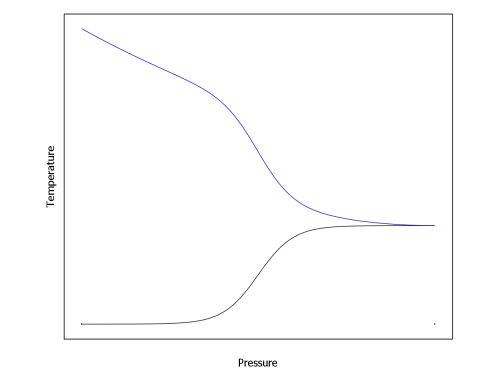
This model simulates a plasma at medium pressure (1 torr), where the gas temperature cannot be assumed to be constant but the plasma is still not in local thermodynamic equilibrium. In Figure 1 the electron (blue) and gas (black) temperatures are plotted as a function of pressure. At low pressures the two temperatures are decoupled, but as the pressure increases the temperatures tend toward the same limit. There are no axes on the plot since the exact temperature and pressure depend strongly on the gas in question.
Note: This application requires the Plasma Module and AC/DC Module.
Figure 1: Plot of electron (blue) and gas (black) temperature versus pressure. At higher pressures the two temperatures become equal.
Model Definition
Electron transport is modeled by solving the continuity equation, the momentum equation under the drift-diffusion approximation, and the mean electron energy equation (for detailed information on electron transport, see Theory for the Drift Diffusion Interface in the Plasma Module User’s Guide)
The source coefficients in the above equations are determined by the plasma chemistry. The electron rate expression is defined as
where νe,j is the stoichiometric coefficient, and the reaction rate is defined as
where kjf is the forward rate constant and kjr is the reversed rate constant. Both the Electron Impact Reaction feature and Reaction feature can contribute to the electron rate expression. However, when using the Reaction feature it is important to note that the associated electron energy gain or loss is not included in the source term of the electron mean energy equation.
The rate constants can be computed from electron impact cross-section data
where γ = (2q/me)1/2 (SI unit: C1/2/kg1/2), me is the electron mass (SI unit: kg), ε is the electron energy (SI unit: V), σ is the electron impact collision cross section (SI unit: m2), and f is the electron energy distribution function.
When Townsend coefficients are used, the reaction rate is defined as
where αj/Nn is the reduced Townsend coefficient for reaction j (SI unit: m2) and Γe is the electron flux as defined above (SI unit: 1/(m2·s)). Townsend coefficients can increase the stability of the numerical scheme when the electron flux is field driven as is the case with DC discharges.
The total electron energy loss or gained is calculated by summing the collisional energy changes from all reactions defined with the Electron Impact Reaction feature as
where Δεj is the energy loss from reaction j (SI unit: V) and F is the Faraday constant (SI unit: C/mol). For excitation and ionization collisions Δεj corresponds to the energy of the excited state being excited/deexcited or ionized, for attachment Δεj is set to zero, and for elastic collisions
where me and mk are the electron and heavy species mass in kg, Te is the electron temperature in eV, and Tgas is the gas temperature in K.
For heavy species, the following equation is solved for the mass fraction of each species (for detailed information on the transport of the nonelectron species, see Theory for the Heavy Species Transport Interface in the Plasma Module User’s Guide):
The electrostatic field is computed using the following equation:
The space charge density ρ is automatically computed based on the plasma chemistry specified in the model using the formula
For detailed information about electrostatics see Theory for the Electrostatics Interface in the Plasma Module User’s Guide.
plasma chemistry
Argon is one of the simplest mechanisms to implement at low pressures. The electronically excited states can be lumped into a single species which results in a chemical mechanism consisting of only 3 species and 7 reactions (electron impact cross sections are obtained from Ref. 2):
Stepwise ionization (reaction 5) can play an important role in sustaining low pressure argon discharges. Excited argon atoms are consumed via superelastic collisions with electrons, quenching with neutral argon atoms, ionization or Penning ionization where two metastable argon atoms react to form a neutral argon atom, an argon ion and an electron. Reaction number 1, elastic collisions with electrons is primarily responsible for heating of the gas. In addition to volumetric reactions, the following surface reactions are implemented:
When a metastable argon atom makes contact with the wall, it reverts to the ground state argon atom with some probability (the sticking coefficient).
electrical excitation
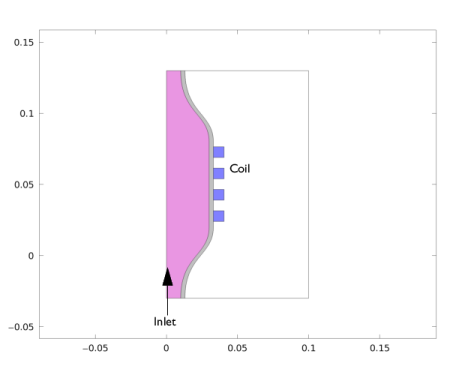
The reactor geometry is simply a cylindrical glass tube with a 4-turn coil wrapped around it. Gas flows in from the bottom and exits out of the top. The gas is heated through elastic and inelastic collisions. A fixed power of 700 W is applied to the coil.
Figure 2: Schematic of the ICP reactor. Flow enters from the base and leaves out the top.
Strategy to setup a model with inlets and outlets
In this model, an inlet or argon is added in the system. There is also an outlet responsible to fix the system pressure. After setting the Inlet and Outlet features in the Laminar Flow interface the following reasoning should be used to set up the Inlet and Outflow subfeatures of the species in the Plasma interface:
If a species is set From mass constraint it does not need any Inlet and Outflow subfeature since its mass fraction is computed so that the mass in the system is conserved. There are no dependent variables being solved for the mass constraint species and as such does not need the boundary conditions set by the subfeatures.
If the feed into the system contains another species (the present model does not have) one of these species should be set as mass constraint and the other should use an Inlet subfeature that specifies the appropriate proportion. Consider as an example of a feed of Ar/O2 at 60/40 mole fraction. If Ar is set as mass constrain than O2 should have an Inlet subfeature with a mole fraction of 0.4.
Results
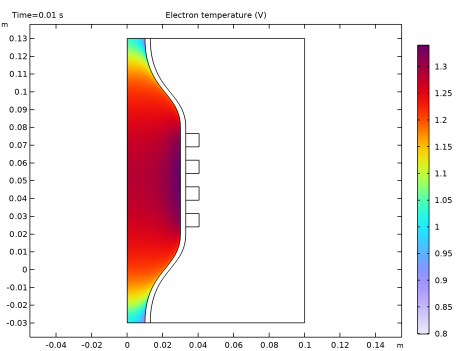
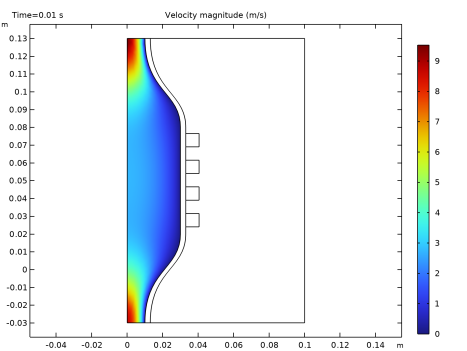
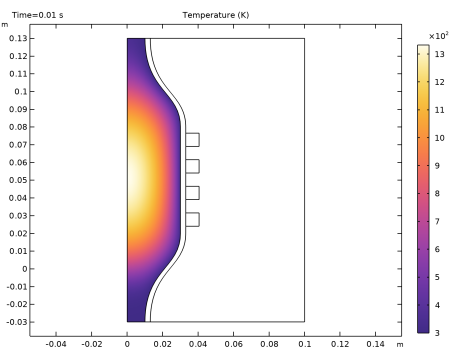
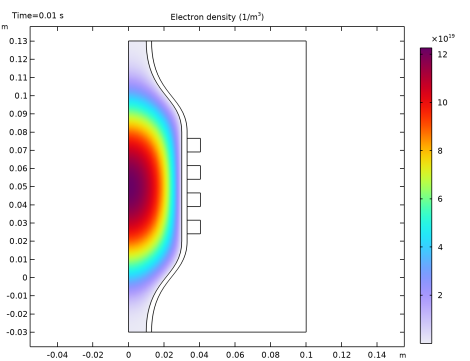
Results of the different quantities computed in this model are presented below. The electron density reaches high values while the electron temperature is kept very low meaning that electron losses by transport are small. The gas temperature in the system peaks to 1300 K showing that there is a considerable amount of energy transferred from the electrons to the heavy species that is not lost in transport. More that 90% of the heating of the gas is caused by electron impact elastic collisions defined in reaction 1.
Figure 3: Electron density inside the column.
Figure 4: Electron temperature inside the plasma source.
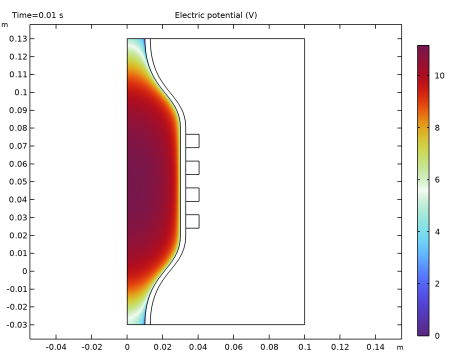
Figure 5: Plasma potential inside the plasma source.
Figure 6: Velocity field inside the plasma source.
Figure 7: Temperature inside the plasma source.
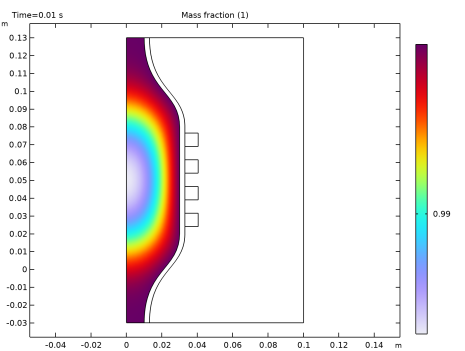
Figure 8: Mass fraction of ground state argon.
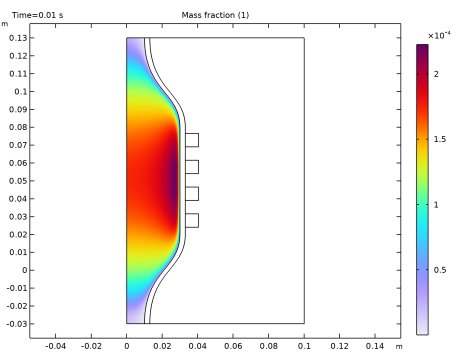
Figure 9: Mass fraction of electronically excited argon atoms.
References
1. M.A. Lieberman and A.J. Lichtenberg, Principles of Plasma Discharges and Materials Processing, John Wiley & Sons, 2005.
2. Phelps database, www.lxcat.net, retrieved 2017.
Application Library path: Plasma_Module/Inductively_Coupled_Plasmas/thermal_plasma
Modeling Instructions
From the File menu, choose New.
New
In the New window, click  Model Wizard.
Model Wizard
1
In the Model Wizard window, click  2D Axisymmetric.
2
In the Select Physics tree, select Plasma > Nonisothermal Plasma Flow > Inductively Coupled Plasma.
3
Click Add.
4
Click  Study.
5
In the Select Study tree, select Preset Studies for Selected Multiphysics > Frequency–Transient.
6
Geometry 1
1
Click the  Show More Options button in the Model Builder toolbar.
2
In the Show More Options dialog, in the tree, select the checkbox for the node Physics > Advanced Physics Options.
3
4
Import 1 (imp1)
1
In the Geometry toolbar, click  Import.
2
In the Settings window for Import, locate the Source section.
3
Click  Browse.
4
5
Click  Import.
Global Definitions
Parameters 1
1
In the Model Builder window, under Global Definitions click Parameters 1.
2
In the Settings window for Parameters, locate the Parameters section.
3
Definitions
Plasma
1
In the Definitions toolbar, click  Explicit.
2
3
In the Settings window for Explicit, type Plasma in the Label text field.
Walls
1
In the Definitions toolbar, click  Explicit.
2
In the Settings window for Explicit, locate the Input Entities section.
3
From the Geometric entity level list, choose Boundary.
4
5
In the Label text field, type Walls.
Outlet
1
In the Definitions toolbar, click  Explicit.
2
In the Settings window for Explicit, locate the Input Entities section.
3
From the Geometric entity level list, choose Boundary.
4
5
In the Label text field, type Outlet.
Coil Walls
1
In the Definitions toolbar, click  Explicit.
2
In the Settings window for Explicit, locate the Input Entities section.
3
From the Geometric entity level list, choose Boundary.
4
5
In the Label text field, type Coil Walls.
Start by importing the cross sections for argon and by activating the convection and thermodynamic property evaluation.
Plasma (plas)
1
In the Model Builder window, under Component 1 (comp1) click Plasma (plas).
2
In the Settings window for Plasma, locate the Domain Selection section.
3
From the Selection list, choose Plasma.
Cross Section Import 1
1
In the Physics toolbar, click  Global and choose Cross Section Import.
2
In the Settings window for Cross Section Import, locate the Cross Section Import section.
3
Click  Browse.
4
5
Click  Import.
6
In the Model Builder window, click Plasma (plas).
7
In the Settings window for Plasma, locate the Plasma Properties section.
8
Select the Use reduced electron transport properties checkbox.
Reaction 1
1
In the Physics toolbar, click  Domains and choose Reaction.
2
In the Settings window for Reaction, locate the Reaction Formula section.
3
In the Formula text field, type Ars+Ars=>e+Ar+Ar+.
4
Locate the Reaction Parameters section. In the kf text field, type 3.734E8.
Reaction 2
1
In the Physics toolbar, click  Domains and choose Reaction.
2
In the Settings window for Reaction, locate the Reaction Formula section.
3
In the Formula text field, type Ars+Ar=>Ar+Ar.
4
Locate the Reaction Parameters section. In the kf text field, type 1807.
Ground 1
1
In the Physics toolbar, click  Boundaries and choose Ground.
2
In the Settings window for Ground, locate the Boundary Selection section.
3
From the Selection list, choose Walls.
Surface Reaction 1
1
In the Physics toolbar, click  Boundaries and choose Surface Reaction.
2
In the Settings window for Surface Reaction, locate the Boundary Selection section.
3
From the Selection list, choose Walls.
4
Locate the Reaction Formula section. In the Formula text field, type Ar+=>Ar.
Surface Reaction 2
1
In the Physics toolbar, click  Boundaries and choose Surface Reaction.
2
In the Settings window for Surface Reaction, locate the Boundary Selection section.
3
From the Selection list, choose Walls.
4
Locate the Reaction Formula section. In the Formula text field, type Ars=>Ar.
Wall 1
1
In the Physics toolbar, click  Boundaries and choose Wall.
2
In the Settings window for Wall, locate the Boundary Selection section.
3
From the Selection list, choose Walls.
Outflow 1
1
In the Physics toolbar, click  Boundaries and choose Outflow.
2
In the Settings window for Outflow, locate the Boundary Selection section.
3
From the Selection list, choose Outlet.
4
Locate the Ions section. Select the Include ions checkbox.
Species: Ar
1
In the Model Builder window, click Species: Ar.
2
In the Settings window for Species, locate the Species Formula section.
3
Select the From mass constraint checkbox.
4
Locate the General Parameters section. From the Preset species data list, choose Ar.
Species: Ars
1
In the Model Builder window, click Species: Ars.
2
In the Settings window for Species, locate the General Parameters section.
3
In the x0 text field, type 1E-4.
4
From the Preset species data list, choose Ar.
5
Click to expand the Species Thermodynamic Parameters section. In the Δh text field, type 11.5.
The thermodynamic properties for the electronically excited argon atoms can be the same as for the ground state species plus the threshold energy for the electron impact reaction. In this case this corresponds to an energy of 11.5eV. This is added in the text field Additional enthalpy contribution.
Species: Ar+
1
In the Model Builder window, click Species: Ar+.
2
In the Settings window for Species, locate the Species Formula section.
3
Select the Initial value from electroneutrality constraint checkbox.
4
Locate the General Parameters section. From the Preset species data list, choose Ar.
5
Locate the Species Thermodynamic Parameters section. In the Δh text field, type 15.8.
The thermodynamic properties for the argon ions can be the same as for the ground state species plus the threshold energy for ionization. In this case this corresponds to an energy of 15.8eV. This is added in the text field Additional enthalpy contribution.
You can set the gas temperature and pressure in the plasma model to the computed gas pressure and temperature from other physics interfaces. The velocity field is also set to the velocity field computed from the Laminar Flow interface.
Plasma Model 1
1
In the Model Builder window, click Plasma Model 1.
2
In the Settings window for Plasma Model, locate the Electron Density and Energy section.
3
In the μeNn text field, type 4E24.
Initial Values 1
1
In the Model Builder window, click Initial Values 1.
2
In the Settings window for Initial Values, locate the Initial Values section.
3
In the ne,0 text field, type 1E15.
4
In the ε0 text field, type 3.
Magnetic Fields (mf)
In the Model Builder window, under Component 1 (comp1) click Magnetic Fields (mf).
Domain Coil 1
1
In the Physics toolbar, click  Domains and choose Domain Coil.
2
3
In the Settings window for Domain Coil, locate the Coil section.
4
From the Coil excitation list, choose Power.
5
Select the Coil group checkbox.
6
In the Pcoil text field, type 700[W].
Laminar Flow (spf)
1
In the Model Builder window, under Component 1 (comp1) click Laminar Flow (spf).
2
In the Settings window for Laminar Flow, click to expand the Consistent Stabilization section.
3
Find the Navier–Stokes equations subsection. Clear the Crosswind diffusion checkbox.
Define the pressure reference level to be 1 torr.
4
Locate the Physical Model section. In the pref text field, type p0.
5
Locate the Domain Selection section. Click  Clear Selection.
6
7
Click to expand the Equation section. From the Equation form list, choose Stationary.
Inlet 1
1
In the Physics toolbar, click  Boundaries and choose Inlet.
2
3
In the Settings window for Inlet, locate the Boundary Condition section.
4
5
Locate the Mass Flow section. From the Mass flow type list, choose Standard flow rate (SCCM).
6
In the Qsccm text field, type 100*tanh(1E5*t[1/s]).
Outlet 1
1
In the Physics toolbar, click  Boundaries and choose Outlet.
2
Heat Transfer in Fluids (ht)
1
In the Model Builder window, under Component 1 (comp1) click Heat Transfer in Fluids (ht).
2
In the Settings window for Heat Transfer in Fluids, locate the Domain Selection section.
3
Click  Clear Selection.
4
Initial Values 1
1
In the Model Builder window, under Component 1 (comp1) > Heat Transfer in Fluids (ht) click Initial Values 1.
2
In the Settings window for Initial Values, locate the Initial Values section.
3
In the T text field, type 300.
Temperature 1
1
In the Physics toolbar, click  Boundaries and choose Temperature.
2
3
In the Settings window for Temperature, locate the Temperature section.
4
In the T0 text field, type 300.
Outflow 1
1
In the Physics toolbar, click  Boundaries and choose Outflow.
2
Materials
Dielectric
1
In the Model Builder window, under Component 1 (comp1) right-click Materials and choose Blank Material.
2
3
In the Settings window for Material, locate the Material Contents section.
4
5
In the Label text field, type Dielectric.
Air
1
Right-click Materials and choose Blank Material.
2
3
In the Settings window for Material, locate the Material Contents section.
4
5
In the Label text field, type Air.
Copper coil
1
Right-click Materials and choose Blank Material.
2
3
In the Settings window for Material, locate the Material Contents section.
4
5
In the Label text field, type Copper coil.
A boundary layer mesh is used on the reactor walls so that the region of space charge separation between the ions and electrons can be resolved.
Mesh 1
1
In the Model Builder window, under Component 1 (comp1) click Mesh 1.
2
In the Settings window for Mesh, locate the Physics-Controlled Mesh section.
3
From the Element size list, choose Extra fine.
Edge 1
1
In the Mesh toolbar, click  More Generators and choose Edge.
2
Size 1
1
Right-click Edge 1 and choose Size.
2
In the Settings window for Size, locate the Element Size section.
3
From the Predefined list, choose Extremely fine.
4
Click to expand the Element Size Parameters section. Locate the Element Size section. Click the Custom button.
5
Locate the Element Size Parameters section.
6
Select the Maximum element size checkbox. In the associated text field, type 0.001.
Free Triangular 1
1
In the Mesh toolbar, click  Free Triangular.
2
In the Settings window for Free Triangular, locate the Domain Selection section.
3
From the Geometric entity level list, choose Domain.
4
Size 1
1
Right-click Free Triangular 1 and choose Size.
2
In the Settings window for Size, locate the Element Size section.
3
From the Predefined list, choose Extra fine.
Boundary Layers 1
1
In the Mesh toolbar, click  Boundary Layers.
2
In the Settings window for Boundary Layers, locate the Domain Selection section.
3
From the Geometric entity level list, choose Domain.
4
Boundary Layer Properties
1
In the Model Builder window, click Boundary Layer Properties.
2
In the Settings window for Boundary Layer Properties, locate the Boundary Selection section.
3
From the Selection list, choose Walls.
4
Locate the Layers section. In the Number of layers text field, type 5.
5
In the Stretching factor text field, type 1.5.
Mapped 1
1
In the Mesh toolbar, click  Mapped.
2
In the Settings window for Mapped, locate the Domain Selection section.
3
From the Geometric entity level list, choose Domain.
4
Distribution 1
1
Right-click Mapped 1 and choose Distribution.
2
In the Settings window for Distribution, locate the Boundary Selection section.
3
From the Selection list, choose Coil Walls.
4
Locate the Distribution section. From the Distribution type list, choose Predefined.
5
In the Number of elements text field, type 35.
6
In the Element ratio text field, type 8.
7
From the Growth rate list, choose Exponential.
8
Select the Symmetric distribution checkbox.
Free Triangular 2
1
In the Mesh toolbar, click  Free Triangular.
2
In the Settings window for Free Triangular, click  Build All.
Study 1
Step 1: Frequency–Transient
1
In the Model Builder window, under Study 1 click Step 1: Frequency–Transient.
2
In the Settings window for Frequency–Transient, locate the Study Settings section.
3
In the Output times text field, type 0.
4
Click  Range.
5
In the Range dialog, choose Number of values from the Entry method list.
6
In the Start text field, type -8.
7
In the Stop text field, type -2.
8
In the Number of values text field, type 21.
9
From the Function to apply to all values list, choose exp10(x) – Exponential function (base 10).
10
Click Add.
11
In the Settings window for Frequency–Transient, locate the Study Settings section.
12
In the Frequency text field, type 13.56E6.
13
In the Study toolbar, click  Compute.
Results
Electron Density (plas)
Click the  Zoom Extents button in the Graphics toolbar.
Argon Mass Fraction
1
In the Results toolbar, click  2D Plot Group.
2
In the Settings window for 2D Plot Group, type Argon Mass Fraction in the Label text field.
Surface 1
1
Right-click Argon Mass Fraction and choose Surface.
2
In the Settings window for Surface, click Replace Expression in the upper-right corner of the Expression section. From the menu, choose Component 1 (comp1) > Plasma > Mass fractions > plas.wAr - Mass fraction - 1.
3
In the Argon Mass Fraction toolbar, click  Plot.
Excited Argon Mass Fraction
1
In the Results toolbar, click  2D Plot Group.
2
In the Settings window for 2D Plot Group, type Excited Argon Mass Fraction in the Label text field.
Surface 1
1
Right-click Excited Argon Mass Fraction and choose Surface.
2
In the Settings window for Surface, click Replace Expression in the upper-right corner of the Expression section. From the menu, choose Component 1 (comp1) > Plasma > Mass fractions > plas.wArs - Mass fraction - 1.
3
In the Excited Argon Mass Fraction toolbar, click  Plot.