







PDF

Negative Streamer in Nitrogen
Introduction
Streamers are transient filamentary electric discharges that can develop in a nonconducting background in the presence of an intense electric field. These discharges can attain high electron number density and, consequently, a high concentration of chemical active species that are relevant for numerous applications. Industrial applications include: ozone production, pollution control, and surface processing.
The propagation of streamers is driven by very nonlinear dynamics that involve very steep density gradients and high space-charge density distributed in very thin layers. The charge separation at the front (or head) of the streamer generates intense electric fields that are responsible for sharp ionization fronts propagating into the neutral medium.
In negative (anode directed) streamers, ionizing electrons are accelerated outward by the space-charge (the streamer extends toward the anode). These high energy electrons may have been transported by drift or diffusion, or created by another mechanism that provides preionization ahead of the streamer such as photoionization or ionization from runway electrons. In positive (or cathode directed) streamers the space-charge field in the streamer head accelerates the electrons inward. Consequently, the ionizing electrons must be produced by a preionization mechanism. The preionization of the streamer is a complex subject that is believed to be critical for both negative and positive streamers propagation and is still under intense investigation. This document is an introduction to streamer modeling with focus on basic concepts of streamer propagation. With that in mind it is followed a simplified approach where all preionization is neglected and only negative streamers are discussed.
This example presents a study of a negative streamer in atmospheric pressure nitrogen. The streamer propagates with a constant electric field of 100 kV/cm in front of the streamer. The model here presented is similar to the fluid model used in Ref. 1 and gives similar results. Furthermore, in Ref. 1, results from a fluid and particle-in-cell model are compared to agree very well for fields below 50 kV/cm (at atmospheric pressure).
Model Definition
The model is one dimensional and describes the transient behavior of an initial electron seed in the presence of a strong electric field using fluid-type equations.
The simulation is design with emphasis in the streamer propagation. The streamer develops from an initial small electron density placed near the cathode. Without preionization only a negative streamer develops toward the anode. The initial number density and exact location of the seed are chosen to form a streamer long before it reaches the anode. The distance between electrodes is 1.15 mm. The cathode (placed on the left) is grounded and at the anode is given a constant electric field of 100 kV/cm. A constant electric field ahead of the streamer allows for an equilibrium in the electron density growth and a constant propagation velocity.
The model solves the electron and ion continuity and momentum equations, in the drift-diffusion approximation, self-consistently coupled with Poisson’s equation. The local field approximation is used, which means that transport and source coefficients are assumed to be well parameterized through the reduced electric field (E/N). In the local field approximation the fluid equation for the mean electron energy is not solved, which reduces significantly the complexity of the numerical problem.
The local field approximation is valid in a situation where the rate of electron energy gain from the electric field is locally balanced by the energy loss rate. When this condition is met the electrons are said to be in local equilibrium with the electric field and the electron mean properties can be expressed as a function the reduced electric field.
Domain Equations
Electron transport is modeled by solving the continuity equation and the momentum equation under the drift-diffusion approximation (for detailed information on electron transport, see Theory for the Drift Diffusion Interface in the Plasma Module User’s Guide)
The source coefficients in the above equations are determined by the plasma chemistry. The electron rate expression is defined as
where νe,j is the stoichiometric coefficient, and the reaction rate is defined as
where kjf is the forward rate constant and kjr is the reversed rate constant. Both the Electron Impact Reaction feature and Reaction feature can contribute to the electron rate expression. However, when using the Reaction feature it is important to note that the associated electron energy gain or loss is not included in the source term of the electron mean energy equation.
The rate constants can be computed from electron impact cross-section data
where γ = (2q/me)1/2 (SI unit: C1/2/kg1/2), me is the electron mass (SI unit: kg), ε is the electron energy (SI unit: V), σ is the electron impact collision cross section (SI unit: m2), and f is the electron energy distribution function.
When Townsend coefficients are used, the reaction rate is defined as
where αj/Nn is the reduced Townsend coefficient for reaction j (SI unit: m2) and Γe is the electron flux as defined above (SI unit: 1/(m2·s)). Townsend coefficients can increase the stability of the numerical scheme when the electron flux is field driven as is the case with DC discharges.
For heavy species, the following equation is solved for the mass fraction of each species (for detailed information on the transport of the nonelectron species, see Theory for the Heavy Species Transport Interface in the Plasma Module User’s Guide):
The electrostatic field is computed using the following equation:
The space charge density ρ is automatically computed based on the plasma chemistry specified in the model using the formula
For detailed information about electrostatics see Theory for the Electrostatics Interface in the Plasma Module User’s Guide.
Boundary Conditions
The present simulation is arranged in a way that the charged particle interaction with the wall is irrelevant to what happen to the streamer propagation. Nevertheless boundary conditions must be given. Electrons are lost to the wall due to random motion within a few mean free paths of the wall resulting in the boundary condition for the electron flux
(1).
For the heavy species, ions are lost to the wall due to surface reactions and the fact that the electric field is directed toward the wall:
(2)
The streamer propagates (from left to right) with a constant electric field ahead of -100 kV/cm. The cathode on the left is grounded,
Plasma Chemistry
The chemistry of a plasma sustained in nitrogen can be very complex and a detailed study of the main excited states could easily have hundreds of reactions. The main goal of this model is to study the charge particle density profiles in the presence of strong electric fields. With that in mind it is used one single ionization reaction as presented in Table 1 that describes correctly the creation of charged species in a background of nitrogen. In this work it is used the Townsend coefficient as a function of the mean electron energy provided in Ref. 1.
Δε (eV)
kf (m3/s)
In addition to the volumetric reactions, the following surface reaction is implemented:
When an ions reach the wall, they are assumed to change back to neutral atoms.
Results and Discussion
The results in this section are for a streamer propagating in a background gas kept at a constant density as obtained by the ideal gas law at atmospheric pressure and at a temperature of 293.15 K. All transport and source coefficients used in this simulation are form Ref. 1. There, the electron mobility and diffusion coefficients, the Townsend coefficient, and the mean electron energy as a function of the reduced electric field are obtain using particle swarm simulations.
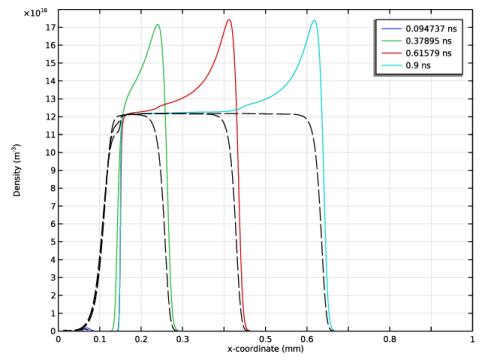
Figure 1 presents the spatial distribution of the electron and ion density for several instants during the streamer simulation. The streamer is initiated by a localized number of electrons near the cathode (left in all figures below). In a first phase there is electron drift and growth in an unperturbed electric field. The first instant in Figure 1 marks the end of this period. A streamer is formed if the amplification of the electron density is enough to generate intense space-charge electric fields and electric shielding before the streamer arrives to the anode. The last three instants of Figure 1 correspond to the streamer phase.
In the streamer phase the maximum electron and ion density reach a constant value and propagate at constant velocity (because the electric field ahead of the streamer is kept constant). The streamer morphology is composed of (i) a region of strong charge separation and strong density gradients (the streamer head), and (ii) a quasi-neutral region with flat profiles (the streamer body) that increases its length with the streamer propagation.
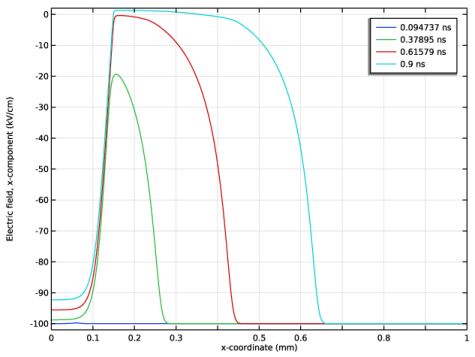
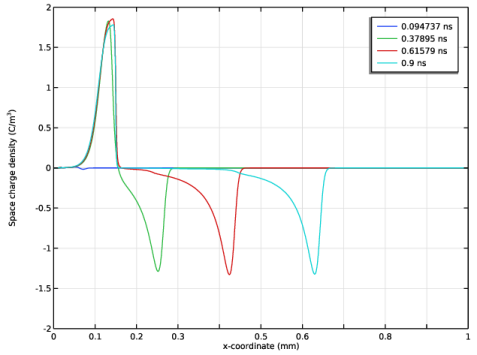
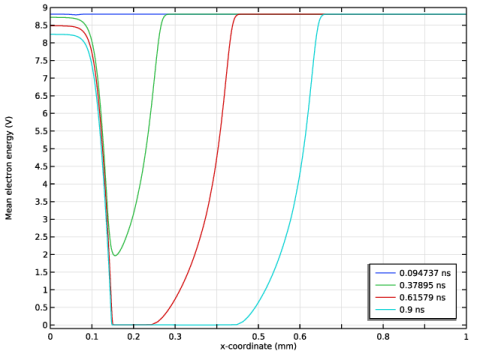
Figure 2, Figure 3, and Figure 4 show the spatial distribution of the electric field, space-charge density, and mean electron energy, respectively, for several instants during the streamer simulation. Note how the quasi-neutral streamer body shields the electric field to very small values causing the electrons to cool down. This makes the electron creation in the body negligible.
On the left there is also a charge separation region. This region is created because the electrons are pulled toward the anode leaving the created ions behind. The ions, being much less mobile than electrons, do not have time to drift in this 0.9 ns simulation. Note also that this charge separation region does not move in time, which is achieved by setting low levels of preionization.
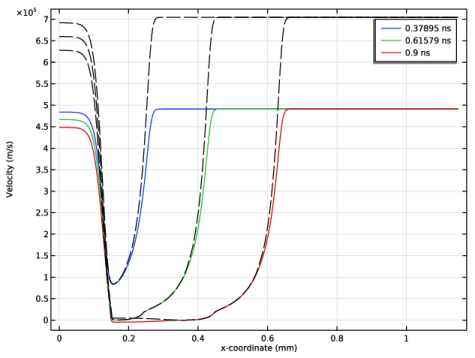
The ionization front moves with a velocity larger than the electron drift velocity
(3).
determined solely by the electric field in the leading edge of the streamer. The ionization front velocity has also contributions from electron diffusion and creation of new electrons and can be given by the expression Ref. 1
(4).
The values of the electron drift velocity and the ionization front propagation are plotted in Ref. 5. Equation 4 is an analytic solution obtained for planar fronts.
There is a general excellent agreement with the results from the model here presented and the ones from the fluid model presented in Ref. 1 when comparing values of peak electron density, ionization level in the body, electron mean energy, streamer propagation velocity, and spatial profiles of different quantities.
Figure 1: Spatial distribution of the electron (colored solid lines) and ion number density (black dashed lines) for four time instants during the streamer propagation.
Figure 2: Electric field spatial distribution for four time instants during the streamer propagation.
Figure 3: Space charge density for four time instants during the streamer propagation.
Figure 4: Mean electron energy for four time instants during the streamer propagation.
Figure 5: Electron drift velocity (colored solid lines) and velocity computed using Equation 4(black dashed lines) for three time instants during the streamer propagation.
References
1. C. Li, W.J.M. Brok, U. Ebert, and J.J.A.M. van der Mullen, “Deviations from the local field approximation in negative streamer heads,” J. Appl. Phys., vol. 101, pp. 123305–1–11, 2007.
2. M.A. Lieberman and A.J. Lichtenberg, Principles of Plasma Discharges and Materials Processing, John Wiley & Sons, 2005.
Application Library path: Plasma_Module/Direct_Current_Discharges/streamer_1d
Modeling Instructions
From the File menu, choose New.
New
In the New window, click  Model Wizard.
Model Wizard
1
In the Model Wizard window, click  1D.
2
In the Select Physics tree, select Plasma > Plasma (plas).
3
Click Add.
4
Click  Study.
5
In the Select Study tree, select General Studies > Time Dependent.
6
Geometry 1
Follow the steps below to create the model geometry: a simple 1D geometry consisting of a grounded electrode on the left (cathode) and a boundary condition to fix a constant electric field on the right (anode).
1
In the Model Builder window, under Component 1 (comp1) click Geometry 1.
2
In the Settings window for Geometry, locate the Units section.
3
From the Length unit list, choose mm.
Interval 1 (i1)
1
Right-click Component 1 (comp1) > Geometry 1 and choose Interval.
2
In the Settings window for Interval, locate the Interval section.
3
Interval 2 (i2)
1
In the Model Builder window, right-click Geometry 1 and choose Interval.
2
In the Settings window for Interval, locate the Interval section.
3
4
Click  Build All Objects.
Definitions
Variables 1
1
In the Model Builder window, under Component 1 (comp1) right-click Definitions and choose Variables.
2
In the Settings window for Variables, locate the Variables section.
3
Global Definitions
Parameters 1
1
In the Model Builder window, under Global Definitions click Parameters 1.
2
In the Settings window for Parameters, locate the Parameters section.
3
4
Click the  Show More Options button in the Model Builder toolbar.
5
In the Show More Options dialog, in the tree, select the checkbox for the node Physics > Stabilization.
6
Plasma (plas)
1
In the Model Builder window, under Component 1 (comp1) click Plasma (plas).
2
In the Settings window for Plasma, click to expand the Stabilization section.
3
Clear the Source stabilization checkbox.
4
Clear the Reaction source stabilization checkbox.
5
Locate the Plasma Properties section. Select the Use reduced electron transport properties checkbox.
This model uses the local field approximation to parameterize in space source and transport coefficients.
6
From the Mean electron energy list, choose Local field approximation.
Electron Impact Reaction 1
1
In the Physics toolbar, click  Domains and choose Electron Impact Reaction.
Add an ionization reaction.
2
In the Settings window for Electron Impact Reaction, locate the Reaction Formula section.
3
In the Formula text field, type e+N=>2e+N+.
4
Locate the Collision Type section. From the Collision type list, choose Ionization.
5
In the Δε text field, type 15.6.
Import the ionization Townsend coefficient.
6
Locate the Collision section. From the Specify reaction using list, choose Use lookup table.
7
Locate the Reaction Parameters section. From the Rate constant form list, choose Townsend coefficient.
8
Find the Townsend coefficient data subsection. Click  Load from File.
9
Species: N
When solving any type of reacting flow problem one species must always be chosen to fulfill the mass constraint. This should be taken as the species with the largest mass fraction.
1
In the Model Builder window, click Species: N.
2
In the Settings window for Species, locate the Species Formula section.
3
Select the From mass constraint checkbox.
4
Locate the General Parameters section. From the Preset species data list, choose N2.
Species: N+
1
In the Model Builder window, click Species: N+.
2
In the Settings window for Species, locate the Species Formula section.
3
Select the Initial value from electroneutrality constraint checkbox.
4
Locate the General Parameters section. From the Preset species data list, choose N2.
Surface Reaction 1
1
In the Physics toolbar, click  Boundaries and choose Surface Reaction.
2
In the Settings window for Surface Reaction, locate the Reaction Formula section.
3
In the Formula text field, type N+=>N.
4
Locate the Boundary Selection section. From the Selection list, choose All boundaries.
5
6
Click  Remove from Selection.
7
Plasma Model 1
Import the tables of the electron mobility and diffusivity, and the mean electron energy as a function of the reduced electric field.
1
In the Model Builder window, click Plasma Model 1.
2
In the Settings window for Plasma Model, locate the Electron Density and Energy section.
3
From the Electron transport properties list, choose Use lookup tables.
4
Find the Reduced electron mobility subsection. Click  Load from File.
5
6
Find the Reduced electron diffusivity subsection. Click  Load from File.
7
8
Locate the Mean Electron Energy Specification section. From the Specify using list, choose Use lookup table.
9
Find the Mean electron energy subsection. Click  Load from File.
10
Initial Values 1
1
In the Model Builder window, click Initial Values 1.
2
In the Settings window for Initial Values, locate the Initial Values section.
3
In the ne,0 text field, type ne0.
Wall 1
1
In the Physics toolbar, click  Boundaries and choose Wall.
2
In the Settings window for Wall, locate the Boundary Selection section.
3
From the Selection list, choose All boundaries.
Ground 1
1
In the Physics toolbar, click  Boundaries and choose Ground.
2
Electric Displacement Field 1
1
In the Physics toolbar, click  Boundaries and choose Electric Displacement Field.
2
In the Settings window for Electric Displacement Field, locate the Electric Displacement Field section.
3
Specify the D0 vector as
4
Locate the Boundary Selection section. From the Selection list, choose All boundaries.
Charge Conservation 1
1
In the Physics toolbar, click  Domains and choose Charge Conservation.
2
In the Settings window for Charge Conservation, locate the Domain Selection section.
3
From the Selection list, choose All domains.
4
5
Click  Remove from Selection.
6
7
Locate the Constitutive Relation D-E section. From the εr list, choose User defined. In the associated text field, type 10.
Mesh 1
Edge 1
In the Mesh toolbar, click  Edge.
Distribution 1
1
Right-click Edge 1 and choose Distribution.
2
In the Settings window for Distribution, locate the Domain Selection section.
3
4
Click  Remove from Selection.
5
6
Locate the Distribution section. In the Number of elements text field, type 2000.
Edge 2
In the Model Builder window, under Component 1 (comp1) > Mesh 1 right-click Edge 1 and choose Duplicate.
Distribution 1
1
In the Model Builder window, expand the Edge 2 node, then click Distribution 1.
2
In the Settings window for Distribution, locate the Domain Selection section.
3
From the Selection list, choose All domains.
4
5
Click  Remove from Selection.
6
7
Locate the Distribution section. In the Number of elements text field, type 10.
8
Click  Build All.
Study 1
1
In the Model Builder window, click Study 1.
2
In the Settings window for Study, locate the Study Settings section.
3
Clear the Generate default plots checkbox.
Step 1: Time Dependent
1
In the Model Builder window, under Study 1 click Step 1: Time Dependent.
2
In the Settings window for Time Dependent, locate the Study Settings section.
3
From the Time unit list, choose ns.
4
In the Output times text field, type range(0,0.9/19,0.9).
5
Click to expand the Results While Solving section. Select the Plot checkbox.
6
From the Update at list, choose Time steps taken by solver.
Get the initial values to prepare a plot to show the electron and ion densities while the solver runs.
7
In the Study toolbar, click  Get Initial Value.
Results
Charged Species
1
In the Model Builder window, expand the Results node.
2
Right-click Results and choose 1D Plot Group.
3
In the Settings window for 1D Plot Group, type Charged Species in the Label text field.
4
Locate the Data section. From the Time selection list, choose Last.
5
Click to expand the Title section. From the Title type list, choose None.
6
Locate the Plot Settings section.
7
Select the y-axis label checkbox. In the associated text field, type Density (m<sup>-3</sup>).
8
Locate the Axis section. Select the Manual axis limits checkbox.
9
In the x minimum text field, type 0.
10
In the x maximum text field, type 1.
11
In the y minimum text field, type 0.
12
In the y maximum text field, type 1.8e19.
Electrons
1
Right-click Charged Species and choose Line Graph.
2
In the Settings window for Line Graph, type Electrons in the Label text field.
3
4
Locate the x-Axis Data section. From the Parameter list, choose Expression.
5
In the Expression text field, type x.
6
Click to expand the Legends section. Select the Show legends checkbox.
Ions
1
Right-click Electrons and choose Duplicate.
2
In the Settings window for Line Graph, type Ions in the Label text field.
3
Locate the y-Axis Data section. In the Expression text field, type plas.n_wN_1p.
4
Click to expand the Coloring and Style section. Find the Line style subsection. From the Line list, choose Dashed.
5
From the Color list, choose Black.
6
Locate the Legends section. Clear the Show legends checkbox.
7
In the Home toolbar, click  Compute.
Charged Species
1
In the Settings window for 1D Plot Group, locate the Data section.
2
From the Time selection list, choose From list.
3
In the Times (ns) list, choose 0.094737, 0.37895, 0.61579, and 0.9.
4
In the Charged Species toolbar, click  Plot.
Mean electron energy
1
In the Results toolbar, click  1D Plot Group.
2
In the Settings window for 1D Plot Group, type Mean electron energy in the Label text field.
3
Locate the Data section. From the Time selection list, choose From list.
4
In the Times (ns) list, choose 0.094737, 0.37895, 0.61579, and 0.9.
5
Locate the Title section. From the Title type list, choose None.
6
Locate the Axis section. Select the Manual axis limits checkbox.
7
In the x minimum text field, type 0.
8
In the x maximum text field, type 1.
9
In the y minimum text field, type -0.1.
10
In the y maximum text field, type 9.
11
Locate the Legend section. From the Position list, choose Lower right.
Line Graph 1
1
Right-click Mean electron energy and choose Line Graph.
2
In the Settings window for Line Graph, locate the y-Axis Data section.
3
In the Expression text field, type plas.ebar.
4
5
Locate the x-Axis Data section. From the Parameter list, choose Expression.
6
In the Expression text field, type x.
7
Locate the Legends section. Select the Show legends checkbox.
8
In the Mean electron energy toolbar, click  Plot.
Space charge
1
In the Model Builder window, right-click Mean electron energy and choose Duplicate.
2
In the Settings window for 1D Plot Group, type Space charge in the Label text field.
3
Locate the Axis section. In the y minimum text field, type -2.
4
In the y maximum text field, type 2.
5
Locate the Legend section. From the Position list, choose Upper right.
Line Graph 1
1
In the Model Builder window, expand the Space charge node, then click Line Graph 1.
2
In the Settings window for Line Graph, locate the y-Axis Data section.
3
In the Expression text field, type plas.scharge.
4
In the Space charge toolbar, click  Plot.
Velocity
1
In the Results toolbar, click  1D Plot Group.
2
In the Settings window for 1D Plot Group, type Velocity in the Label text field.
3
Locate the Data section. From the Time selection list, choose From list.
4
In the Times (ns) list, choose 0.37895, 0.61579, and 0.9.
5
Locate the Title section. From the Title type list, choose None.
6
Locate the Plot Settings section.
7
Select the y-axis label checkbox. In the associated text field, type Velocity (m/s).
Drift velocity
1
Right-click Velocity and choose Line Graph.
2
In the Settings window for Line Graph, type Drift velocity in the Label text field.
3
4
Locate the y-Axis Data section. In the Expression text field, type plas.mflux_nex/plas.ne.
5
Locate the x-Axis Data section. From the Parameter list, choose Expression.
6
In the Expression text field, type x.
7
Locate the Legends section. Select the Show legends checkbox.
Analytic
1
In the Model Builder window, right-click Velocity and choose Line Graph.
2
In the Settings window for Line Graph, type Analytic in the Label text field.
3
4
Locate the y-Axis Data section. In the Expression text field, type plas.muexx*abs(plas.Ex)+2*sqrt(plas.Dexx*plas.muexx*abs(plas.Ex)*plas.alpha_1*plas.Nn).
5
Locate the x-Axis Data section. From the Parameter list, choose Expression.
6
In the Expression text field, type x.
7
Locate the Coloring and Style section. Find the Line style subsection. From the Line list, choose Dashed.
8
From the Color list, choose Black.
Velocity
1
In the Model Builder window, click Velocity.
2
In the Velocity toolbar, click  Plot.
Electric field
1
In the Model Builder window, right-click Mean electron energy and choose Duplicate.
2
In the Settings window for 1D Plot Group, type Electric field in the Label text field.
3
Locate the Axis section. In the x minimum text field, type 0.
4
In the x maximum text field, type 1.
5
In the y minimum text field, type -102.
6
In the y maximum text field, type 2.
7
Locate the Legend section. From the Position list, choose Upper right.
Line Graph 1
1
In the Model Builder window, expand the Electric field node, then click Line Graph 1.
2
In the Settings window for Line Graph, locate the y-Axis Data section.
3
In the Expression text field, type plas.Ex.
4
In the Unit field, type kV/cm.
5
In the Electric field toolbar, click  Plot.