




PDF

Global Model of an SF6/Argon Plasma
Introduction
This tutorial studies the chemistry of a SF6/argon plasma in moderate pressures using a global model. The main goal is to show how to prepare a model with a mixture of different elements (in this case Ar and SF6) in which one of the species can dissociate by electron impact into many fragments (SF6 dissociates into SFx, F, and S) and where multiple negative ions exist.
A simplified plasma chemistry is used to discuss the main aspects of such discharges. It is important to keep in mind that a benchmark is not attempted and the idea is to provide a template that can be used to develop more complex and precise chemistries. In fact, quite probably it will be necessary to modify the data used and add more reactions to achieve experimental verification. The chemistry is based on Ref. 1, Ref. 2, Ref. 3, and Ref. 4.
Model Definition
The model used in this work considers that the spatial distribution of the different quantities in the plasma reactor can be treated as uniform. Without the spatial derivatives the numerical solution of the equation set becomes considerably simpler and the computation time is reduced. These advantages make a global model a good first approach to study a plasma reactor, especially when complex chemistries are involved or the influence of the EEDF is to be studied.
When using a global plasma model the species densities and the electron temperature are treated as volume-averaged quantities. Detailed information on the global model can be found in the section Theory for Global Models in the Plasma Module User’s Guide. For heavy species the following equation is solved for the mass fraction
where ρ is the mass density (SI unit: kg/m3), wk is the mass fraction, wf,k is the mass fraction in the feed, mf and mo are the mass-flow rates of the total feed and outlet, and Rk is the rate expression (SI unit: kg/(m3·s)). The fourth term on the right-hand side accounts for surface losses and creation, where Al is the surface area, hl is a dimensionless correction term, V is the reactor volume, Mk is the species molar mass (SI unit: kg/mol) and Rsurf,k,l is the surface rate expression (SI unit: mol/(m2·s)) at a surface l. The last term is introduced because the species mass balance equations are written in the nonconservative form and it used the mass-continuity equation to replace for the mass density time derivative. In the last term Mf,l is the inward mass flux of surface l (SI unit: kg/(m2·s)). The sum in the last two terms is over all surfaces where there are surface reactions.
To take possible variations of the system’s total mass or pressure into account, the mass-continuity equation can also be solved:
.
The electron number density is obtained from electroneutrality:
Using the local energy approximation (LEA), the electron energy density nε (SI unit: V/ m3) is computed from
where Rε is the electron energy loss due to inelastic and elastic collisions, Pabs is the power absorbed by the electrons (SI unit: W), and e is the elementary charge. The last term on the right side accounts for the kinetic energy transported to the surface by electrons and ions. The summation is over all positive ions, εe is the mean kinetic energy lost per electron lost, εi is the mean kinetic energy lost per ion lost, and Na is Avogadro’s number. If using the local field approximation (LFA) the electron mean energy equation is not solved and the electron mean energy can be: (i) provided as a function of the electric field; or (ii) obtained by solving the Boltzmann equation in the two-term approximation.
The rate coefficients for electron impact reactions can be computed by appropriate averaging of cross sections over an EEDF. The EEDF can either be analytic or obtained by solving the steady-state Boltzmann equation in the two-term approximation coupled with the equation system (The Boltzmann Equation, Two-Term Approximation Interface in the Plasma Module User’s Guide). When solving for the EEDF, the coupling between the equations is as follows: (i) if the LEA is used, the electron mean energy obtained from the electron mean energy equation is given as input to the Boltzmann solver; (ii) if the LFA is used, the reduced electric field must be given as input to the Boltzmann solver and the electron mean energy comes from averaging over the computed EEDF.
This work uses the LEA and a Maxwellian EEDF.
The present study also solves the gas heat equation
where Cp is the specific heat at constant pressure of the mixture, T is the gas temperature, hf,k is the enthalpy of species k in the feed, hk is the enthalpy of species k. The heat source (SI unit: W/m3) is given as:
where Δεj is the electron energy loss from reaction j (SI unit: V) and F is the Faraday constant (SI unit: C/mol). The last term in the equation above is only added for electron impact reactions to account for the energy loss or gain by the electron. Note that the electron enthalpy is set to zero and does not contribute to Hj. For electron impact reactions resulting in excitation and ionization Δεj corresponds to the energy of the excited state being excited/deexcited or ionized, for attachment Δεj is set to zero, and for elastic collisions
where me and mk are the electron and heavy species mass in kg, Te is the electron temperature in eV, and Tgas is the gas temperature in K. Heat losses by transport are including in a simplified form:
where k is the thermal conductivity of the mixture, TS is the surface temperature, and ΛS is the diffusion length.
Plasma Chemistry
The plasma chemistry is based on Ref. 1, Ref. 2 and Ref. 3. The electron impact cross sections for SF6 are from Ref. 4 and Ref. 6, and for F and F2 are from Ref. 5 and Ref. 7. Argon cross sections are from Ref. 8. For the rate constants of heavy species reactions were given generic order of magnitude values characteristic of the reaction type. The model includes 28 species: electrons, SFx, SFx+, SFx-, Fx, Fx+, Fx-, Ar, Ars, and Ar+.
This plasma chemistry is completely prepared in text data files and then imported using the Plasma Chemistry Import feature. Five reaction groups are created as listed in Table 1.
Fx
In addition to the volume reactions, 11 surface reactions are also implemented.
Results and Discussion
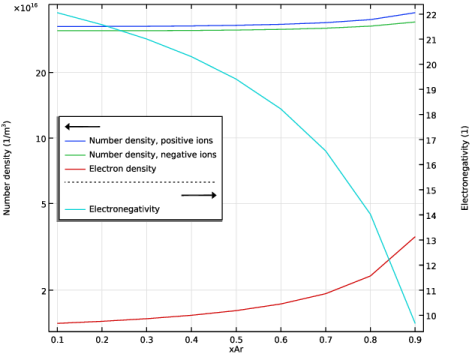
On this work, 3 studies are made. In the first study, a base case is solved using a stationary solver for an input power of 2000 W and an argon mole fraction of 0.1. In the second study, a power sweep is solved for the input power ranging from 2000 W down to 300 W. In the third study, the argon mole fraction is swept from 0.1 to 0.9. For all cases the pressure is kept constant at 20 mTorr, a Maxwellian electron energy distribution function is used, and the heavy species heat equation is solved for.
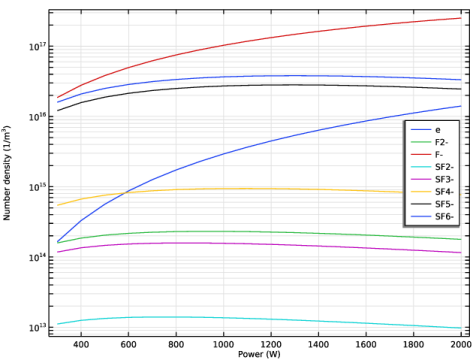
Figure 1 shows the number densities of negatively charged species as a function of input power. The values are in agreement with Ref. 1. The density of F- shows significant increase with power because of higher dissociation degree.
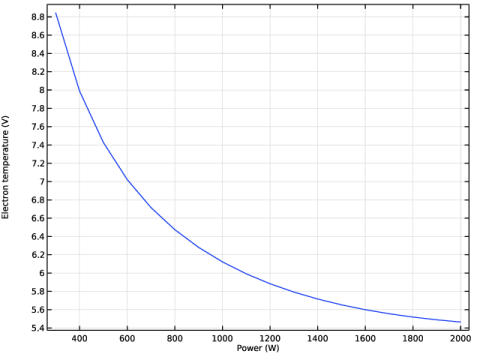
Figure 2 shows the electron temperature as a function of input power. The electron temperature decreases with power increase in agreement with Ref. 1 suggesting that the plasma is better confined at higher powers.
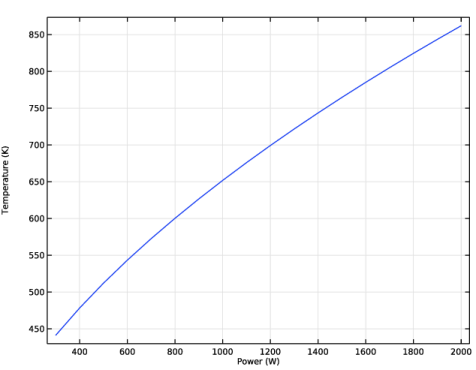
Figure 3 shows the gas temperature as a function of input power. The gas temperature increases significantly with power as expected. The values are in a reasonable range for the present operation conditions.
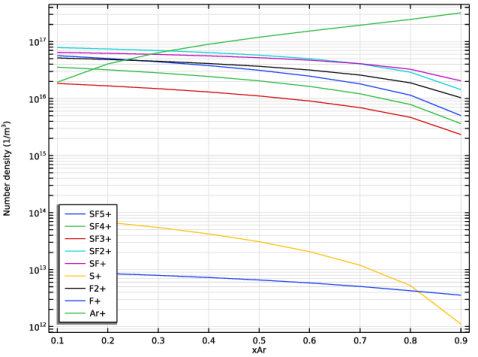
Figure 4 shows the number densities of positively charged species as a function of the argon mole fraction. As expected, the Ar+ density increases with the argon mole fraction as more argon is available to ionize.
Figure 5 shows the electronegativity as a function of argon mole fraction. As expected, the electronegativity drops as the mixture becomes lean in SF6 but the dominant charged species are still ions even at 90% argon.
Figure 1: Number densities of negatively charged species as a function of input power.
Figure 2: Electron temperature as a function of input power.
Figure 3: Gas temperature as a function of input power.
Figure 4: Number densities of positively charged species as a function of argon mole fraction.
Figure 5: Electronegativity as a function of argon mole fraction.
References
1. M. Mao, Y.N. Wang, and A. Bogaerts, “Numerical study of the plasma chemistry in inductively coupled SF6 and SF6/Ar plasmas used for deep silicon etching applications,” J. Phys. D: Appl. Phys., vol. 44, no. 43, p. 435202, 2011.
2. G. Kokkoris and others, “A global model for SF6 plasmas coupling reaction kinetics in the gas phase and on the surface of the reactor walls,” J. Phys. D: Appl. Phys, vol. 42, no. 5, p. 055209, 2009.
3. L. Lallement, and others, “Global model and diagnostic of a low-pressure SF6/Ar inductively coupled plasma,” Plasma Sources Sci. Technol., vol. 18, no. 2, p. 025001, 2009.
4. L.G. Christophorou and J.K. Olthoff, “Electron interactions with SF6,” J. Phys. Chem. Ref. Data, vol. 29, no. 3, pp. 267–330, 2000 ( www.lxcat.net, retrieved May 2024).
5. V. Gedeon and others, “B-spline R-matrix-with-pseudostates calculations for electron-impact excitation and ionization of fluorine,” Phys. Rev. A, vol. 89, no. 5, p. 052713, 2014.
6. Biagi database, www.lxcat.net, retrieved on 2024.
7. Morgan database, www.lxcat.net, retrieved on 2024.
8. Phelps database, www.lxcat.net, retrieved 2017.
Application Library path: Plasma_Module/Global_Modeling/sf6_argon_global_model
Modeling Instructions
From the File menu, choose New.
New
In the New window, click  Model Wizard.
Model Wizard
1
In the Model Wizard window, click  2D Axisymmetric.
2
In the Select Physics tree, select Plasma > Plasma (plas).
3
Click Add.
4
Click  Study.
5
In the Select Study tree, select General Studies > Stationary.
6
Global Definitions
Parameters 1
Add some parameters to be used in the model.
1
In the Model Builder window, under Global Definitions click Parameters 1.
2
In the Settings window for Parameters, locate the Parameters section.
3
Geometry 1
1
In the Model Builder window, under Component 1 (comp1) click Geometry 1.
2
In the Settings window for Geometry, locate the Units section.
3
From the Length unit list, choose cm.
Set the domain dimensions. The volume and surface areas used in the global model of the reactor are obtained automatically from this geometry.
Rectangle 1 (r1)
1
In the Geometry toolbar, click  Rectangle.
2
In the Settings window for Rectangle, locate the Size and Shape section.
3
In the Width text field, type width.
4
In the Height text field, type height.
5
Click  Build All Objects.
Plasma (plas)
Choose to solve for a global model of a constant pressure reactor and include the heavy species energy equation.
1
In the Model Builder window, under Component 1 (comp1) click Plasma (plas).
2
In the Settings window for Plasma, locate the Diffusion Model section.
3
From the Diffusion model list, choose Global.
4
Locate the Reactor section. From the Reactor type list, choose Constant pressure.
5
Locate the Transport Settings section. Select the Calculate thermodynamic properties checkbox.
6
Click to expand the Heavy Species Energy Balance section. Select the Include heavy species energy conservation equation checkbox.
Plasma Model 1
Set the temperature, pressure, mass flow, power absorbed by the electrons, mean kinetic energy lost per electron lost, an estimation of the plasma sheath voltage drop (for the mean kinetic energy lost per ion lost), surface temperature, and the diffusion length for the heat equation.
1
In the Model Builder window, under Component 1 (comp1) > Plasma (plas) click Plasma Model 1.
2
In the Settings window for Plasma Model, locate the Model Inputs section.
3
In the T0 text field, type Temp.
4
In the pA text field, type pA.
5
Locate the Total Mass Flow section. In the Qsccm text field, type Qfeed.
6
In the Tf text field, type Temp.
7
Locate the Mean Electron Energy Specification section. In the Pabs text field, type Pabs.
8
In the εe text field, type 2*plas.Te.
9
In the εi text field, type 10[V].
10
Locate the Heat Transfer to Surfaces section. In the TS text field, type Temp.
11
In the ΛS text field, type lambda_diff.
The Plasma Chemistry Import feature
The next steps have instructions to use the Plasma Chemistry Import feature to import a file that automatically creates the SF6/Ar plasma chemistry.
The following is set or created automatically:
a
b
c
The documentation accompanying the Plasma Chemistry Import feature contains more information about the file structure and what can be set automatically.
Plasma Chemistry Import 1
1
In the Physics toolbar, click  Global and choose Plasma Chemistry Import.
2
In the Settings window for Plasma Chemistry Import, locate the Plasma Chemistry Import section.
3
Click  Browse.
4
5
Click  Import.
Set properties for some species.
Set SF6 to be the species that the mass fraction is found from mass constraint.
Species: SF6
1
In the Model Builder window, expand the Component 1 (comp1) > Plasma (plas) > Group - Species node, then click Species: SF6.
2
In the Settings window for Species, locate the Species Formula section.
3
Select the From mass constraint checkbox.
4
Locate the General Parameters section. In the xfeed text field, type 1-xAr.
Species: Ar
1
In the Model Builder window, click Species: Ar.
2
In the Settings window for Species, locate the General Parameters section.
3
In the xfeed text field, type xAr.
Species: F2+
1
In the Model Builder window, click Species: F2+.
2
In the Settings window for Species, click to expand the Species Thermodynamic Parameters section.
3
In the Δh text field, type 15.69.
Species: F+
1
In the Model Builder window, click Species: F+.
2
In the Settings window for Species, locate the Species Thermodynamic Parameters section.
3
In the Δh text field, type 17.687.
Species: Ars
1
In the Model Builder window, click Species: Ars.
2
In the Settings window for Species, locate the Species Thermodynamic Parameters section.
3
In the Δh text field, type 11.50.
Species: Ar+
1
In the Model Builder window, click Species: Ar+.
2
In the Settings window for Species, locate the Species Thermodynamic Parameters section.
3
In the Δh text field, type 15.80.
Group - Species
In the Model Builder window, collapse the Component 1 (comp1) > Plasma (plas) > Group - Species node.
The surface reactions used in the model were created automatically but it is still necessary to specify the boundaries where they take place.
Surface Reactions - Neutrals
1
In the Model Builder window, click Surface Reactions - Neutrals.
2
In the Settings window for Surface Reaction Group, locate the Boundary Selection section.
3
From the Selection list, choose All boundaries.
Surface Reactions - Ions
1
In the Model Builder window, click Surface Reactions - Ions.
2
In the Settings window for Surface Reaction Group, locate the Boundary Selection section.
3
From the Selection list, choose All boundaries.
In the following prepare a base study with an input power of 2000 W, the results of this base study can be used as the initial values for the following parametric studies.
Study 1 - Base Case
1
In the Model Builder window, click Study 1.
2
In the Settings window for Study, type Study 1 - Base Case in the Label text field.
3
Locate the Study Settings section. Clear the Generate default plots checkbox.
4
In the Study toolbar, click  Compute.
In the following measure number densities of all the species, which can be used to benchmark with reference results.
Results
Global Evaluation 1
1
In the Model Builder window, expand the Results node.
2
Right-click Results > Derived Values and choose Global Evaluation.
3
In the Settings window for Global Evaluation, locate the Expressions section.
4
5
Click  Evaluate.
In the following prepare a parameterization of the input power from 2000 to 300 W with a step of 100 W.
Add Study
1
In the Home toolbar, click  Add Study to open the Add Study window.
2
Go to the Add Study window.
3
Find the Studies subsection. In the Select Study tree, select General Studies > Stationary.
4
Click the Add Study button in the window toolbar.
5
In the Home toolbar, click  Add Study to close the Add Study window.
Study 2 - Power Sweep
1
In the Settings window for Study, type Study 2 - Power Sweep in the Label text field.
2
Locate the Study Settings section. Clear the Generate default plots checkbox.
Step 1: Stationary
1
In the Model Builder window, under Study 2 - Power Sweep click Step 1: Stationary.
2
In the Settings window for Stationary, click to expand the Values of Dependent Variables section.
3
Find the Initial values of variables solved for subsection. From the Settings list, choose User controlled.
4
From the Method list, choose Solution.
5
From the Study list, choose Study 1 - Base Case, Stationary.
6
Click to expand the Study Extensions section. Select the Auxiliary sweep checkbox.
7
8
9
10
Click  Range.
11
In the Range dialog, type 2000 in the Start text field.
12
In the Step text field, type -100.
13
In the Stop text field, type 300.
14
Click Add.
15
In the Study toolbar, click  Compute.
In the following create plots for the number densities of neutral, positive, and negative species respectively as a function of input power. The electron temperature, electronegativity and gas temperature are also plotted with respect to input power.
Results
Species densities vs. Power - Neutral
1
In the Results toolbar, click  1D Plot Group.
2
In the Settings window for 1D Plot Group, type Species densities vs. Power - Neutral in the Label text field.
3
Locate the Data section. From the Dataset list, choose Study 2 - Power Sweep/Solution 2 (sol2).
4
Click to expand the Title section. From the Title type list, choose None.
5
Locate the Plot Settings section.
6
Select the x-axis label checkbox. In the associated text field, type Power (W).
7
Select the y-axis label checkbox. In the associated text field, type Number density (1/m<sup>3</sup>).
8
Locate the Axis section. Select the y-axis log scale checkbox.
9
Locate the Legend section. From the Position list, choose Middle right.
Global 1
1
Right-click Species densities vs. Power - Neutral and choose Global.
2
In the Settings window for Global, locate the y-Axis Data section.
3
4
Click to expand the Legends section. Find the Include subsection. Clear the Solution checkbox.
5
In the Species densities vs. Power - Neutral toolbar, click  Plot.
Species densities vs. Power - Positive
1
In the Model Builder window, right-click Species densities vs. Power - Neutral and choose Duplicate.
2
In the Settings window for 1D Plot Group, type Species densities vs. Power - Positive in the Label text field.
3
Locate the Legend section. From the Position list, choose Lower right.
Global 1
1
In the Model Builder window, expand the Species densities vs. Power - Positive node, then click Global 1.
2
In the Settings window for Global, locate the y-Axis Data section.
3
Click  Clear Table.
4
5
In the Species densities vs. Power - Positive toolbar, click  Plot.
Species densities vs. Power - Negative
1
In the Model Builder window, right-click Species densities vs. Power - Positive and choose Duplicate.
2
In the Settings window for 1D Plot Group, type Species densities vs. Power - Negative in the Label text field.
3
Locate the Legend section. From the Position list, choose Middle right.
Global 1
1
In the Model Builder window, expand the Species densities vs. Power - Negative node, then click Global 1.
2
In the Settings window for Global, locate the y-Axis Data section.
3
Click  Clear Table.
4
5
In the Species densities vs. Power - Negative toolbar, click  Plot.
Electron Temperature vs. Power
1
In the Results toolbar, click  1D Plot Group.
2
In the Settings window for 1D Plot Group, type Electron Temperature vs. Power in the Label text field.
3
Locate the Data section. From the Dataset list, choose Study 2 - Power Sweep/Solution 2 (sol2).
4
Locate the Title section. From the Title type list, choose None.
5
Locate the Plot Settings section.
6
Select the x-axis label checkbox. In the associated text field, type Power (W).
7
Locate the Legend section. Clear the Show legends checkbox.
Global 1
1
Right-click Electron Temperature vs. Power and choose Global.
2
In the Settings window for Global, locate the y-Axis Data section.
3
4
In the Electron Temperature vs. Power toolbar, click  Plot.
Electronegativity vs. Power
1
In the Model Builder window, right-click Electron Temperature vs. Power and choose Duplicate.
2
In the Settings window for 1D Plot Group, type Electronegativity vs. Power in the Label text field.
3
Locate the Plot Settings section. Select the Two y-axes checkbox.
4
Select the y-axis label checkbox. In the associated text field, type Number density (1/m<sup>3</sup>).
5
Select the Secondary y-axis label checkbox. In the associated text field, type Electronegativity (1).
6
Locate the Legend section. Select the Show legends checkbox.
7
From the Position list, choose Middle right.
Global 2
1
Right-click Electronegativity vs. Power and choose Global.
2
In the Settings window for Global, locate the y-Axis section.
3
Select the Plot on secondary y-axis checkbox.
4
Locate the y-Axis Data section. In the table, enter the following settings:
Global 1
1
In the Model Builder window, click Global 1.
2
In the Settings window for Global, locate the y-Axis Data section.
3
Click  Clear Table.
4
5
In the Electronegativity vs. Power toolbar, click  Plot.
6
Click the  y-Axis Log Scale button in the Graphics toolbar.
Gas Temperature vs. Power
1
In the Model Builder window, right-click Electron Temperature vs. Power and choose Duplicate.
2
In the Settings window for 1D Plot Group, type Gas Temperature vs. Power in the Label text field.
Global 1
1
In the Model Builder window, expand the Gas Temperature vs. Power node, then click Global 1.
2
In the Settings window for Global, locate the y-Axis Data section.
3
Click  Clear Table.
4
5
In the Gas Temperature vs. Power toolbar, click  Plot.
Electron Temperature vs. Power, Electronegativity vs. Power, Gas Temperature vs. Power, Species densities vs. Power - Negative, Species densities vs. Power - Neutral, Species densities vs. Power - Positive
1
In the Model Builder window, under Results, Ctrl-click to select Species densities vs. Power - Neutral, Species densities vs. Power - Positive, Species densities vs. Power - Negative, Electron Temperature vs. Power, Electronegativity vs. Power, and Gas Temperature vs. Power.
2
Power Sweep
1
In the Settings window for Group, type Power Sweep in the Label text field.
2
In the Model Builder window, collapse the Power Sweep node.
In the following prepare a parameterization of the argon feed mole fraction xAr from 0.1 to 0.9 with a step of 0.1.
Add Study
1
In the Home toolbar, click  Add Study to open the Add Study window.
2
Go to the Add Study window.
3
Find the Studies subsection. In the Select Study tree, select General Studies > Stationary.
4
Click the Add Study button in the window toolbar.
5
In the Home toolbar, click  Add Study to close the Add Study window.
Study 3 - xAr Sweep
1
In the Settings window for Study, type Study 3 - xAr Sweep in the Label text field.
2
Locate the Study Settings section. Clear the Generate default plots checkbox.
Step 1: Stationary
1
In the Model Builder window, under Study 3 - xAr Sweep click Step 1: Stationary.
2
In the Settings window for Stationary, locate the Values of Dependent Variables section.
3
Find the Initial values of variables solved for subsection. From the Settings list, choose User controlled.
4
From the Method list, choose Solution.
5
From the Study list, choose Study 2 - Power Sweep, Stationary.
6
From the Parameter value (Pinp (W)) list, choose 2000 W.
7
Locate the Study Extensions section. Select the Auxiliary sweep checkbox.
8
9
10
11
Click  Range.
12
In the Range dialog, type 0.1 in the Start text field.
13
In the Step text field, type 0.1.
14
In the Stop text field, type 0.9.
15
Click Add.
16
In the Study toolbar, click  Compute.
In the following duplicate the same set of plots created for the Power sweep, make sure the correct dataset is selected, and change the x axis to argon feed mole fraction xAr.
Results
xAr Sweep
1
In the Model Builder window, right-click Power Sweep and choose Duplicate.
2
In the Settings window for Group, type xAr Sweep in the Label text field.
Species densities vs. xAr - Neutral
1
In the Model Builder window, expand the xAr Sweep node, then click Species densities vs. Power - Neutral 1.
2
In the Settings window for 1D Plot Group, type Species densities vs. xAr - Neutral in the Label text field.
3
Locate the Data section. From the Dataset list, choose Study 3 - xAr Sweep/Solution 3 (sol3).
4
Locate the Plot Settings section. In the x-axis label text field, type xAr.
5
In the Species densities vs. xAr - Neutral toolbar, click  Plot.
6
Locate the Legend section. From the Position list, choose Lower left.
Species densities vs. xAr - Positive
1
In the Model Builder window, under Results > xAr Sweep click Species densities vs. Power - Positive 1.
2
In the Settings window for 1D Plot Group, type Species densities vs. xAr - Positive in the Label text field.
3
Locate the Data section. From the Dataset list, choose Study 3 - xAr Sweep/Solution 3 (sol3).
4
Locate the Plot Settings section. In the x-axis label text field, type xAr.
5
In the Species densities vs. xAr - Positive toolbar, click  Plot.
6
Locate the Legend section. From the Position list, choose Lower left.
Species densities vs. xAr - Negative
1
In the Model Builder window, under Results > xAr Sweep click Species densities vs. Power - Negative 1.
2
In the Settings window for 1D Plot Group, type Species densities vs. xAr - Negative in the Label text field.
3
Locate the Data section. From the Dataset list, choose Study 3 - xAr Sweep/Solution 3 (sol3).
4
Locate the Plot Settings section. In the x-axis label text field, type xAr.
5
In the Species densities vs. xAr - Negative toolbar, click  Plot.
Electron Temperature vs. xAr
1
In the Model Builder window, under Results > xAr Sweep click Electron Temperature vs. Power 1.
2
In the Settings window for 1D Plot Group, type Electron Temperature vs. xAr in the Label text field.
3
Locate the Data section. From the Dataset list, choose Study 3 - xAr Sweep/Solution 3 (sol3).
4
Locate the Plot Settings section. In the x-axis label text field, type xAr.
5
In the Electron Temperature vs. xAr toolbar, click  Plot.
Electronegativity vs. xAr
1
In the Model Builder window, under Results > xAr Sweep click Electronegativity vs. Power 1.
2
In the Settings window for 1D Plot Group, type Electronegativity vs. xAr in the Label text field.
3
Locate the Data section. From the Dataset list, choose Study 3 - xAr Sweep/Solution 3 (sol3).
4
Locate the Plot Settings section. In the x-axis label text field, type xAr.
5
In the Electronegativity vs. xAr toolbar, click  Plot.
6
Locate the Legend section. From the Position list, choose Middle left.
Gas Temperature vs. xAr
1
In the Model Builder window, under Results > xAr Sweep click Gas Temperature vs. Power 1.
2
In the Settings window for 1D Plot Group, type Gas Temperature vs. xAr in the Label text field.
3
Locate the Data section. From the Dataset list, choose Study 3 - xAr Sweep/Solution 3 (sol3).
4
Locate the Plot Settings section. In the x-axis label text field, type xAr.
5
In the Gas Temperature vs. xAr toolbar, click  Plot.
xAr Sweep
In the Model Builder window, collapse the Results > xAr Sweep node.