












PDF

Model of an SF6/Argon Inductively Coupled Plasma Reactor
Introduction
This tutorial studies the chemistry of a SF6/Ar plasma in an inductively coupled plasma reactor with moderate pressures. The main goal is to show how to prepare a model with a mixture of different elements (in this case Ar and SF6) in which one of the species can dissociate by electron impact into many fragments (SF6 dissociates into SFx, F, and S) and where multiple negative ions exist.
A simplified plasma chemistry is used to discuss the main aspects of such discharges. It is important to keep in mind that a benchmark is not attempted and the idea is to provide a template that can be used to develop more complex and precise chemistries. In fact, quite probably it will be necessary to modify the data used and add more reactions to achieve experimental verification. The chemistry is based on Ref. 1, Ref. 2, Ref. 3 and Ref. 4.
The plasma model is solved self-consistently with the Magnetic Fields, Laminar Flow and Heat Transfer in Fluids interfaces. An initial Frequency-Transient study step is used to get a solution for the plasma problem alone without solving for fluid flow and heat transfer. In the following studies, the Plasma, Magnetic Fields, Laminar Flow and Heat Transfer in Fluids interfaces are solved fully coupled. Two parameterization studies are performed with respect to the input power and the argon mole fraction.
Model Definition
Electron transport is modeled by solving the continuity equation, the momentum equation under the drift-diffusion approximation, and the mean electron energy equation (for detailed information on electron transport, see Theory for the Drift Diffusion Interface in the Plasma Module User’s Guide)
The source coefficients in the above equations are determined by the plasma chemistry. The electron rate expression is defined as
where νe,j is the stoichiometric coefficient, and the reaction rate is defined as
where kjf is the forward rate constant and kjr is the reversed rate constant. Both the Electron Impact Reaction feature and Reaction feature can contribute to the electron rate expression. However, when using the Reaction feature it is important to note that the associated electron energy gain or loss is not included in the source term of the electron mean energy equation.
The rate constants can be computed from electron impact cross-section data
where γ = (2q/me)1/2 (SI unit: C1/2/kg1/2), me is the electron mass (SI unit: kg), ε is the electron energy (SI unit: V), σ is the electron impact collision cross section (SI unit: m2), and f is the electron energy distribution function.
When Townsend coefficients are used, the reaction rate is defined as
where αj/Nn is the reduced Townsend coefficient for reaction j (SI unit: m2) and Γe is the electron flux as defined above (SI unit: 1/(m2·s)). Townsend coefficients can increase the stability of the numerical scheme when the electron flux is field driven as is the case with DC discharges.
The total electron energy loss or gained is calculated by summing the collisional energy changes from all reactions defined with the Electron Impact Reaction feature as
where Δεj is the energy loss from reaction j (SI unit: V) and F is the Faraday constant (SI unit: C/mol). For excitation and ionization collisions Δεj corresponds to the energy of the excited state being excited/deexcited or ionized, for attachment Δεj is set to zero, and for elastic collisions
where me and mk are the electron and heavy species mass in kg, Te is the electron temperature in eV, and Tgas is the gas temperature in K.
For heavy species, the following equation is solved for the mass fraction of each species (for detailed information on the transport of the nonelectron species, see Theory for the Heavy Species Transport Interface in the Plasma Module User’s Guide):
The electrostatic field is computed using the following equation:
The space charge density ρ is automatically computed based on the plasma chemistry specified in the model using the formula
For detailed information about electrostatics see Theory for the Electrostatics Interface in the Plasma Module User’s Guide.
For a nonmagnetized, nonpolarized plasma, the induction currents are computed in the frequency domain using the following equation:
The electromagnetic wave “sees” a plasma defined by the plasma conductivity in the cold plasma approximation that is set in the Plasma Conductivity Coupling multiphysics feature:
where ne is the electron density, q is the electron charge, me is the electron mass, νe is the collision frequency, and ω is the angular frequency. The Joule heating term that is responsible to heat the electrons is set in the Electron Heat Source multiphysics feature.
boundary conditions
Electrons are lost to the wall due to random motion within a few mean free paths of the wall and gained due to secondary emission effects, resulting in the following boundary condition for the electron flux:
and the electron energy flux:
For the heavy species, ions are lost to the wall due to surface reactions and the fact that the electric field is directed toward the wall:
The walls of the reactor are grounded.
Plasma Chemistry
Negative ions are created in certain molecular gaseous discharges (like chlorine, oxygen, hydrogen, fluorocarbons, and so on) and these discharges tend to have complex plasma chemistries with many ions, dissociative products, and excited states.
The plasma chemistry is based on Ref. 1, Ref. 2, and Ref. 3. The electron impact cross sections for SF6 are from Ref. 4 and Ref. 6, and for F and F2 are from Ref. 5 and Ref. 7. Argon cross sections are from Ref. 8. All cross-section data were retrieved from Ref. 9. For the rate constants of heavy species reactions were given generic order of magnitude values characteristic of the reaction type. The model includes 28 species: electrons, SFx, SFx+, SFx-, Fx, Fx+, Fx-, Ar, Ars, and Ar+.
This plasma chemistry is completely prepared in text data files and then imported using the Plasma Chemistry Import feature. Five reaction groups are created as listed in Table 1.
Fx
Argon is one of the simplest mechanisms to implement at low pressures. The electronically excited states can be lumped into a single species, which results in a chemical mechanism consisting of only three species and five electron impact reactions.
SF6 has a much more rich reaction set that includes vibrational and rotational excitations, excitation of several electronic excited states, electron impact dissociation, dissociative attachment, and many others. Here we have made the simplification that the excited rotational and vibrational states are not treated explicitly but instead lumped into the corresponding neutral species.
In addition to the volume reactions, 11 surface reactions are also implemented. It is by using surface reactions that boundary conditions for heavy species are introduced in the model. If no surface reactions that leads to the lost of a given species at a surface are introduced in the model, that species will not have losses by transport. This can lead to the unbounded growth of a given species and a steady state solution might not be possible.
Atomic recombination (such as F=>0.5F2) at a surface is an important aspect of plasma discharges with molecular species since it influences the dissociation degree in the discharge. The sticking coefficient for atomic recombination is a function of the surface type and temperature.
Electronegative plasmas
Electronegative plasmas are plasmas that contain negative ions. Negative ions are mainly created by electron dissociative attachment (for example, e+SF6=>SF5+F-). This reaction tends to be very effective at low electron energies and can reduce the electrons in a discharge to a point that an ion–ion discharge is obtained. The transport and volume creation/destruction mechanisms tend to be more complex than electropositive plasmas in many aspects. Here only a few are mentioned with emphasis on the numerical difficulties that they introduce.
In electronegative discharges negative ions are well confined by the ambipolar electric field and losses by transport are very small. This means that to achieve a steady state volume losses need to be included for negative ions. The mechanisms by which negative ions are lost depend on the gas mixture and pressure and they are: mutual recombination with positive ions, detachment in collisions with excited or neutral atoms or molecules, and electron-impact detachment.
In electronegative discharges it is often possible to identify two spatial regions using the electronegativity (ratio of the negative ion density to the electron density): (i) one in the core of the discharge (the electronegative core) with high electronegativity where the dominant charge species are positive and negative ions; (ii) and the other close to the boundaries (electropositive edges) where the dominant charged species are electron and positive ions. In the transition between these two regions the negative ion density drops abruptly causing a chock-like phenomena. This transition needs to be well resolved spatially. If not, oscillations can be seen in the negative ion density and the model might not converge. Some strategies to deal with this are:
Increase the negative ion temperature of about 0.3 eV. A higher ion temperature makes the transport numerical easier. The ion temperature is defined in the section Mobility and Diffusivity Expressions in the species Settings. By default the ion temperature is the gas temperature.
Enable Isotropic diffusion for ions in the Inconsistent Stabilization section (the stabilization sections are visible when Stabilization is selected in Show More Options). This option adds artificial diffusion to all ions and helps smoothing the sharp transition of the negative ion density between the electropositive edge and the electronegative core, and also increase the density of the negative ions in the electropositive edge effectively increasing its losses by transport. This option should be used very carefully since completely wrong results can be obtained if too much diffusion is used (the tuning parameter for ions should not be larger than 0.1). A useful strategy is to start with a large Tuning parameter for ions (for example, 0.5) and ramp it down using an Auxiliary sweep.
Inflow and outflow
When solving for plasmas with chemistries that contain more than one element (for example, Ar and SF6) with a stationary solver the mass fraction of each element is not conserved if no constraint is used. This problem is similar in nature to the one found when solving for Navier–Stokes equations in steady state without fixing the pressure somewhere. The Inflow boundary condition fixes the mass fraction or mole fraction of specified species and it is used in this model as a real inlet for Ar and as a strategy to fix its mass fraction. An important aspect to remember is that no Inflow is used for SF6 since this species is being computed From mass constraint. It is assumed that ions are neutralized at the outlet boundary and as such no Outflow boundary condition is applied. For the species to which an Outflow boundary condition is applied no surface reaction is applied at the same boundary to represent a species that flows out of the system without interacting with a surface.
Results and Discussion
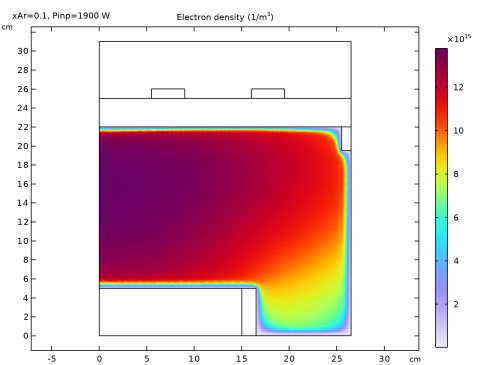
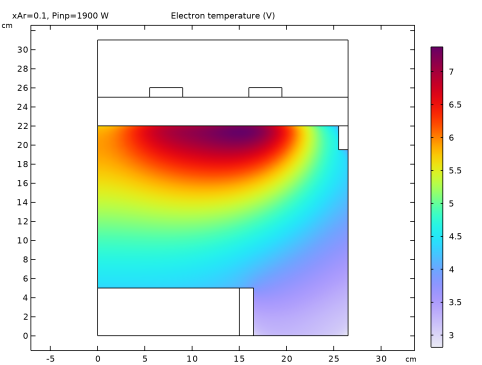
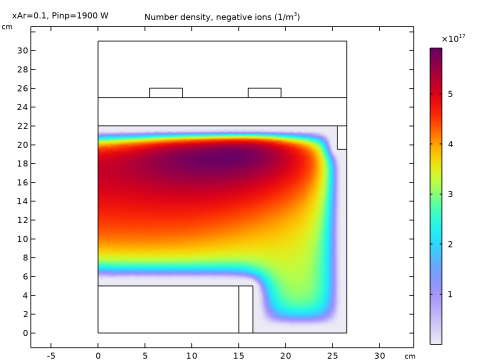
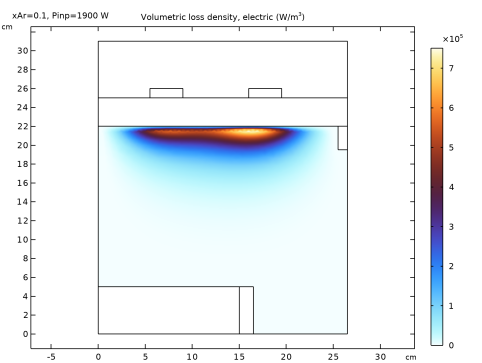
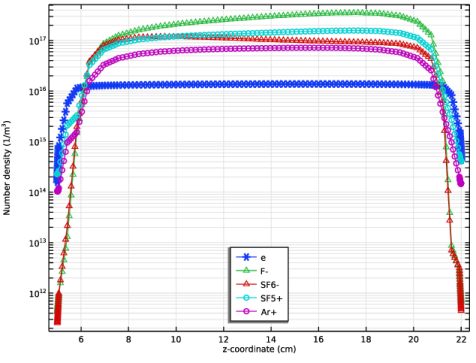
Figure 1 to Figure 4 show spatial distributions of the electron density, electron temperature, negative ion density, and power absorbed by the electrons at 1900 W with argon mole fraction of 0.1. The power absorbed by the electrons and electron temperature profiles are typical of an ICP discharge. Most of the power deposition occurs below the coil and is shielded by the high dense plasma, and the electron temperature is relatively flat in the plasma region. The electron and negative ion density have a typical distribution of electronegative plasmas with an electronegative core (where the electrons have a flat profile) and electropositive edges (where the negative ion density drops fast toward the surface). These regions can be better observed in Figure 5 that shows the distribution of the charged species along the axis of symmetry.
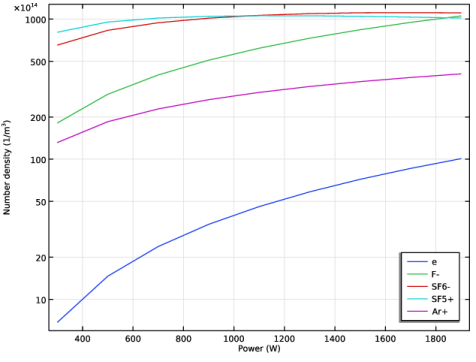
Figure 6 presents the space average number density of charged species as a function of power. For all the power range from 300 W to 1900 W, the negative ions SF6- and F- are always the dominant species with electrons having 10 to 100 time less density.
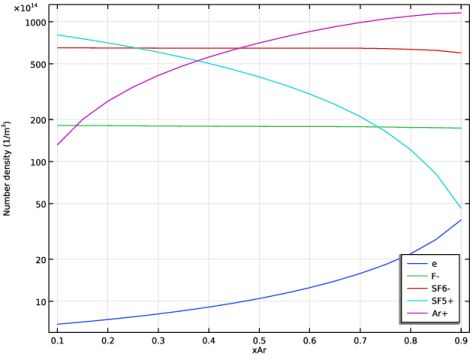
Figure 7 presents the space average number density of charged species as a function of the mole fraction of argon. With low argon content the discharge has high electronegativity and SF6- is the dominant negative ion. Increasing the argon content leads to lower electronegativity and a progressive change of the dominant positive ion to be Ar+.
Figure 1: Electron number density spatial distribution at 1900 W with argon mole fraction of 0.1.
Figure 2: Electron temperature spatial distribution at 1900 W with argon mole fraction of 0.1.
Figure 3: Negative ions total number density spatial distribution at 1900 W with argon mole fraction of 0.1.
Figure 4: Power absorbed by the electrons at 1900 W with argon mole fraction of 0.1.
Figure 5: Charged species distribution along the axis-of-symmetry at 1900 W with argon mole fraction of 0.1.
Figure 6: Spatial averaged number density of the charged species as a function of power with argon mole fraction of 0.1.
Figure 7: Spatial averaged number density of the charged species as a function of argon mole fraction at 300 W.
References
1. M. Mao, Y.N. Wang, and A. Bogaerts, “Numerical study of the plasma chemistry in inductively coupled SF6 and SF6/Ar plasmas used for deep silicon etching applications,” J. Phys. D: Appl. Phys., vol. 44, no. 43, p. 435202, 2011.
2. G. Kokkoris and others, “A global model for SF6 plasmas coupling reaction kinetics in the gas phase and on the surface of the reactor walls,” J. Phys. D: Appl. Phys., vol. 42, no. 5, 055209, 2009.
3. L. Lallement, and others, “Global model and diagnostic of a low-pressure SF6/Ar inductively coupled plasma,” Plasma Sources Sci. Technol., vol. 18, no. 2, p. 025001, 2009.
4. L.G. Christophorou and J.K. Olthoff, “Electron interactions with SF6,” J. Phys. Chem. Ref. Data, vol. 29, no. 3, pp.  267–330, 2000 (www.lxcat.net, retrieved May 2024).
5. V. Gedeon and others, “B-spline R-matrix-with-pseudostates calculations for electron-impact excitation and ionization of fluorine,” Phys. Rev. A, vol. 89, no. 5, p. 052713, 2014.
6. Biagi database, www.lxcat.net, retrieved on May 13, 2024.
7. Morgan database, www.lxcat.net, retrieved on May 17, 2024.
8. Phelps database, www.lxcat.net, retrieved 2017.
9. www.lxcat.net, retrieved 2023.
10. G.J.M. Hagelaar and L.C. Pitchford, “Solving the Boltzmann equation to obtain electron transport coefficients and rate coefficients for fluid models,” Plasma Sources Sci. Technol., vol. 14, p. 722, 2005.
Application Library path: Plasma_Module/Inductively_Coupled_Plasmas/icp_sf6_argon
Modeling Instructions
From the File menu, choose New.
New
In the New window, click  Model Wizard.
Model Wizard
1
In the Model Wizard window, click  2D Axisymmetric.
2
In the Select Physics tree, select Plasma > Nonisothermal Plasma Flow > Inductively Coupled Plasma.
3
Click Add.
4
Click  Study.
5
In the Select Study tree, select Preset Studies for Selected Multiphysics > Frequency–Transient.
6
Global Definitions
Parameters - Geometry
Add some parameters to be used to set up the geometry.
1
In the Model Builder window, under Global Definitions click Parameters 1.
2
In the Settings window for Parameters, type Parameters - Geometry in the Label text field.
3
Locate the Parameters section. In the table, enter the following settings:
Parameters - Physics
1
In the Home toolbar, click  Parameters and choose Add > Parameters.
Add some parameters to be used to set up the physics.
2
In the Settings window for Parameters, type Parameters - Physics in the Label text field.
3
Locate the Parameters section. In the table, enter the following settings:
Geometry 1
1
In the Model Builder window, under Component 1 (comp1) click Geometry 1.
2
In the Settings window for Geometry, locate the Units section.
3
From the Length unit list, choose cm.
Rectangle 1 (r1)
1
In the Geometry toolbar, click  Rectangle.
2
In the Settings window for Rectangle, locate the Size and Shape section.
3
In the Width text field, type chamber_w.
4
In the Height text field, type chamber_h.
Rectangle 2 (r2)
1
In the Geometry toolbar, click  Rectangle.
2
In the Settings window for Rectangle, locate the Size and Shape section.
3
In the Width text field, type chamber_w.
4
In the Height text field, type window_h.
5
Locate the Position section. In the z text field, type window_z.
Rectangle 3 (r3)
1
In the Geometry toolbar, click  Rectangle.
2
In the Settings window for Rectangle, locate the Size and Shape section.
3
In the Width text field, type coil_w.
4
In the Height text field, type coil_h.
5
Locate the Position section. In the r text field, type coil_r.
6
In the z text field, type window_z+window_h.
Array 1 (arr1)
1
In the Geometry toolbar, click  Transforms and choose Array.
2
3
In the Settings window for Array, locate the Size section.
4
In the r size text field, type coil_num_r.
5
Locate the Displacement section. In the r text field, type coil_dis.
Rectangle 4 (r4)
1
In the Geometry toolbar, click  Rectangle.
2
In the Settings window for Rectangle, locate the Size and Shape section.
3
In the Width text field, type substrate_w.
4
In the Height text field, type substrate_h.
Rectangle 5 (r5)
1
In the Geometry toolbar, click  Rectangle.
2
In the Settings window for Rectangle, locate the Size and Shape section.
3
In the Width text field, type shell_w.
4
In the Height text field, type substrate_h.
5
Locate the Position section. In the r text field, type substrate_w.
Rectangle 6 (r6)
1
In the Geometry toolbar, click  Rectangle.
2
In the Settings window for Rectangle, locate the Size and Shape section.
3
In the Width text field, type inlet_block_w.
4
In the Height text field, type inlet_block_h.
5
Locate the Position section. In the r text field, type chamber_w-inlet_block_w.
6
In the z text field, type window_z-inlet_block_h.
Line Segment 1 (ls1)
1
In the Geometry toolbar, click  More Primitives and choose Line Segment.
2
In the Settings window for Line Segment, locate the Starting Point section.
3
From the Specify list, choose Coordinates.
4
In the r text field, type chamber_w-inlet_block_w.
5
In the z text field, type inlet_z.
6
Locate the Endpoint section. From the Specify list, choose Coordinates.
7
In the r text field, type chamber_w-inlet_block_w.
8
In the z text field, type inlet_z+inlet_h.
9
In the Geometry toolbar, click  Build All.
10
In the Model Builder window, collapse the Geometry 1 node.
Define some explicit selections to be used later for boundary conditions.
Definitions
Walls
1
In the Definitions toolbar, click  Explicit.
2
In the Settings window for Explicit, type Walls in the Label text field.
3
4
Locate the Output Entities section. From the Output entities list, choose Adjacent boundaries.
Coils
1
In the Definitions toolbar, click  Explicit.
2
In the Settings window for Explicit, type Coils in the Label text field.
3
Coil Boundaries
1
In the Definitions toolbar, click  Explicit.
2
In the Settings window for Explicit, type Coil Boundaries in the Label text field.
3
4
Locate the Output Entities section. From the Output entities list, choose Adjacent boundaries.
Inlet
1
In the Definitions toolbar, click  Explicit.
2
In the Settings window for Explicit, type Inlet in the Label text field.
3
Locate the Input Entities section. From the Geometric entity level list, choose Boundary.
4
Outlet
1
In the Definitions toolbar, click  Explicit.
2
In the Settings window for Explicit, type Outlet in the Label text field.
3
Locate the Input Entities section. From the Geometric entity level list, choose Boundary.
4
Define an average function to be used later for plotting.
Average 1 (aveop1)
1
In the Definitions toolbar, click  Nonlocal Couplings and choose Average.
2
3
In the Model Builder window, collapse the Definitions node.
Add Material from Library
In the Home toolbar, click  Windows and choose Add Material from Library.
Add Material
1
Go to the Add Material window.
2
In the tree, select Built-in > Air.
3
Click the Add to Component button in the window toolbar.
Materials
Air (mat1)
1
In the Settings window for Material, locate the Geometric Entity Selection section.
2
Click  Clear Selection.
3
Add Material
1
Go to the Add Material window.
2
In the tree, select Built-in > Glass (quartz).
3
Click the Add to Component button in the window toolbar.
Materials
Glass (quartz) (mat2)
Select Domain 3 only.
Add Material
1
Go to the Add Material window.
2
In the tree, select Built-in > Copper.
3
Click the Add to Component button in the window toolbar.
4
In the Home toolbar, click  Add Material to close the Add Material window.
Materials
Copper (mat3)
1
2
In the Model Builder window, collapse the Component 1 (comp1) > Materials node.
The Plasma Chemistry Import feature
The next steps have instructions to use the Plasma Chemistry Import feature to import a file that automatically creates the SF6/Ar plasma chemistry.
The following is set or created automatically:
a
b
c
The documentation accompanying the Plasma Chemistry Import feature contains more information about the file structure and what can be set automatically.
Plasma (plas)
Plasma Chemistry Import 1
1
In the Physics toolbar, click  Global and choose Plasma Chemistry Import.
2
In the Settings window for Plasma Chemistry Import, locate the Plasma Chemistry Import section.
3
Click  Browse.
4
5
Click  Import.
6
In the Model Builder window, click Plasma (plas).
7
In the Settings window for Plasma, locate the Domain Selection section.
8
Click  Clear Selection.
9
10
Locate the Transport Settings section. Select the Mixture diffusion correction checkbox.
This model needs stabilization because the density of the negative ions can drop sharply when approaching the reactor edges.
11
Click the  Show More Options button in the Model Builder toolbar.
12
In the Show More Options dialog, select Physics > Stabilization in the tree.
13
14
15
In the Settings window for Plasma, click to expand the Inconsistent Stabilization section.
16
Select the Isotropic diffusion for ions checkbox.
17
In the δid,i text field, type 0.1.
Set properties for some species.
Set SF6 to be the species that the mass fraction is found from mass constraint.
Species: SF6
1
In the Model Builder window, expand the Component 1 (comp1) > Plasma (plas) > Group - Species node, then click Species: SF6.
2
In the Settings window for Species, locate the Species Formula section.
3
Select the From mass constraint checkbox.
Species: Ar
1
In the Model Builder window, click Species: Ar.
2
In the Settings window for Species, locate the General Parameters section.
3
In the x0 text field, type xAr.
Species: Ar+
1
In the Model Builder window, click Species: Ar+.
2
In the Settings window for Species, locate the Species Formula section.
3
Select the Initial value from electroneutrality constraint checkbox.
Set the Additional enthalpy contribution field for species with internal energy so that the reaction enthalpy is correctly computed.
Species: F2+
1
In the Model Builder window, click Species: F2+.
2
In the Settings window for Species, click to expand the Species Thermodynamic Parameters section.
3
In the Δh text field, type 15.69.
Species: F+
1
In the Model Builder window, click Species: F+.
2
In the Settings window for Species, locate the Species Thermodynamic Parameters section.
3
In the Δh text field, type 17.687.
Species: Ars
1
In the Model Builder window, click Species: Ars.
2
In the Settings window for Species, locate the Species Thermodynamic Parameters section.
3
In the Δh text field, type 11.5.
Species: Ar+
1
In the Model Builder window, click Species: Ar+.
2
In the Settings window for Species, locate the Species Thermodynamic Parameters section.
3
In the Δh text field, type 15.8.
Group - Species
In the Model Builder window, collapse the Component 1 (comp1) > Plasma (plas) > Group - Species node.
The surface reactions used in the model were created automatically but it is still necessary to specify the boundaries where they take place.
Surface Reactions - Neutrals
1
In the Model Builder window, click Surface Reactions - Neutrals.
2
In the Settings window for Surface Reaction Group, locate the Boundary Selection section.
3
From the Selection list, choose Walls.
4
5
Click  Remove from Selection.
6
Surface Reactions - Ions
1
In the Model Builder window, click Surface Reactions - Ions.
2
In the Settings window for Surface Reaction Group, locate the Boundary Selection section.
3
From the Selection list, choose Walls.
Plasma Model 1
1
In the Model Builder window, click Plasma Model 1.
2
In the Settings window for Plasma Model, locate the Electron Density and Energy section.
3
From the Electron transport properties list, choose From electron impact reactions.
Initial Values 1
1
In the Model Builder window, click Initial Values 1.
2
In the Settings window for Initial Values, locate the Initial Values section.
3
In the ne,0 text field, type 1E15[1/m^3].
Inflow 1
1
In the Physics toolbar, click  Boundaries and choose Inflow.
2
In the Settings window for Inflow, locate the Boundary Selection section.
3
From the Selection list, choose Inlet.
4
Locate the Inflow section. Click  Add.
5
6
7
8
9
10
11
12
13
14
15
16
17
18
19
20
21
22
23
Outflow 1
1
In the Physics toolbar, click  Boundaries and choose Outflow.
2
In the Settings window for Outflow, locate the Boundary Selection section.
3
From the Selection list, choose Outlet.
Ground 1
1
In the Physics toolbar, click  Boundaries and choose Ground.
2
In the Settings window for Ground, locate the Boundary Selection section.
3
From the Selection list, choose Walls.
4
5
Click  Remove from Selection.
6
Wall 1
1
In the Physics toolbar, click  Boundaries and choose Wall.
2
In the Settings window for Wall, locate the Boundary Selection section.
3
From the Selection list, choose Walls.
Laminar Flow (spf)
1
In the Model Builder window, under Component 1 (comp1) click Laminar Flow (spf).
2
In the Settings window for Laminar Flow, locate the Domain Selection section.
3
Click  Clear Selection.
4
5
Locate the Physical Model section. In the pref text field, type pA.
Inlet 1
1
In the Physics toolbar, click  Boundaries and choose Inlet.
2
In the Settings window for Inlet, locate the Boundary Selection section.
3
From the Selection list, choose Inlet.
4
Locate the Boundary Condition section. From the list, choose Mass flow.
5
Locate the Mass Flow section. From the Mass flow type list, choose Standard flow rate (SCCM).
6
In the Qsccm text field, type Qfeed.
Outlet 1
1
In the Physics toolbar, click  Boundaries and choose Outlet.
2
In the Settings window for Outlet, locate the Boundary Selection section.
3
From the Selection list, choose Outlet.
Heat Transfer in Fluids (ht)
1
In the Model Builder window, under Component 1 (comp1) click Heat Transfer in Fluids (ht).
2
In the Settings window for Heat Transfer in Fluids, locate the Domain Selection section.
3
Click  Clear Selection.
4
5
Locate the Physical Model section. In the Tref text field, type Temp.
Initial Values 1
1
In the Model Builder window, under Component 1 (comp1) > Heat Transfer in Fluids (ht) click Initial Values 1.
2
In the Settings window for Initial Values, locate the Initial Values section.
3
In the T text field, type Temp.
Temperature 1
1
In the Physics toolbar, click  Boundaries and choose Temperature.
2
In the Settings window for Temperature, locate the Boundary Selection section.
3
From the Selection list, choose Walls.
4
Locate the Temperature section. In the T0 text field, type Temp.
Magnetic Fields (mf)
1
In the Model Builder window, under Component 1 (comp1) click Magnetic Fields (mf).
2
In the Settings window for Magnetic Fields, locate the Domain Selection section.
3
Click  Clear Selection.
4
Domain Coil 1
1
In the Physics toolbar, click  Domains and choose Domain Coil.
2
In the Settings window for Domain Coil, locate the Domain Selection section.
3
From the Selection list, choose Coils.
4
Locate the Coil section. Select the Coil group checkbox.
5
From the Coil excitation list, choose Power.
6
In the Pcoil text field, type Pinp.
Mesh 1
1
In the Model Builder window, under Component 1 (comp1) click Mesh 1.
2
In the Settings window for Mesh, locate the Sequence Type section.
3
From the list, choose User-controlled mesh.
Size
1
In the Model Builder window, under Component 1 (comp1) > Mesh 1 click Size.
2
In the Settings window for Size, locate the Element Size section.
3
From the Predefined list, choose Finer.
Size 1
1
In the Model Builder window, click Size 1.
2
In the Settings window for Size, locate the Geometric Entity Selection section.
3
Click  Clear Selection.
4
5
Locate the Element Size section. From the Predefined list, choose Coarse.
Size 2
1
In the Model Builder window, click Size 2.
2
In the Settings window for Size, locate the Geometric Entity Selection section.
3
From the Selection list, choose Walls.
4
5
Click  Remove from Selection.
6
7
Locate the Element Size section. From the Predefined list, choose Finer.
Mapped 1
1
In the Mesh toolbar, click  Mapped.
2
3
In the Settings window for Mapped, locate the Domain Selection section.
4
From the Geometric entity level list, choose Domain.
5
From the Selection list, choose Coils.
Distribution 1
1
Right-click Mapped 1 and choose Distribution.
2
3
In the Settings window for Distribution, locate the Distribution section.
4
From the Distribution type list, choose Predefined.
5
In the Number of elements text field, type 25.
6
In the Element ratio text field, type 20.
7
Select the Symmetric distribution checkbox.
Distribution 2
1
Right-click Distribution 1 and choose Duplicate.
2
In the Settings window for Distribution, locate the Boundary Selection section.
3
Click  Clear Selection.
4
5
Locate the Distribution section. In the Number of elements text field, type 75.
Edge 1
1
In the Mesh toolbar, click  More Generators and choose Edge.
2
3
In the Settings window for Edge, locate the Boundary Selection section.
4
From the Selection list, choose Inlet.
Distribution 1
1
Right-click Edge 1 and choose Distribution.
2
In the Settings window for Distribution, locate the Distribution section.
3
In the Number of elements text field, type 8.
Corner Refinement 1
In the Model Builder window, under Component 1 (comp1) > Mesh 1 right-click Corner Refinement 1 and choose Disable.
Free Triangular 1
1
In the Model Builder window, click Free Triangular 1.
2
In the Settings window for Free Triangular, locate the Domain Selection section.
3
From the Geometric entity level list, choose Remaining.
Boundary Layers 1
1
In the Model Builder window, click Boundary Layers 1.
2
In the Settings window for Boundary Layers, click to expand the Corner Settings section.
3
From the Handling of sharp corners list, choose No special handling.
4
Click to expand the Transition section. Clear the Smooth transition to interior mesh checkbox.
Boundary Layer Properties 1
1
In the Model Builder window, expand the Boundary Layers 1 node, then click Boundary Layer Properties 1.
2
In the Settings window for Boundary Layer Properties, locate the Layers section.
3
In the Number of layers text field, type 4.
4
In the Thickness adjustment factor text field, type 1.
Boundary Layer Properties 2
1
In the Model Builder window, right-click Boundary Layer Properties 2 and choose Disable.
2
Right-click Mesh 1 and choose Build All.
For the first study we do a decoupled plasma-only solve where the fluid flow and heat transfer are not solved. This is because a fully coupled model with complex electronegative chemistry is quite difficult to converge.
The solution of this study will be used in the next fully coupled study as initial conditions.
Study 1 - No Flow, No Heat
1
In the Model Builder window, click Study 1.
2
In the Settings window for Study, type Study 1 - No Flow, No Heat in the Label text field.
3
Locate the Study Settings section. Clear the Generate default plots checkbox.
Step 1: Frequency–Transient
1
In the Model Builder window, under Study 1 - No Flow, No Heat click Step 1: Frequency–Transient.
2
In the Settings window for Frequency–Transient, locate the Study Settings section.
3
In the Frequency text field, type 13.56[MHz].
4
Locate the Physics and Variables Selection section. In the Solve for column of the table, under Component 1 (comp1), clear the checkboxes for Laminar Flow (spf) and Heat Transfer in Fluids (ht).
5
In the Solve for column of the table, under Component 1 (comp1) > Multiphysics, clear the checkbox for Nonisothermal Plasma Flow 1 (nipf1).
6
In the Study toolbar, click  Compute.
Add a study to do a fully coupled stationary solve. This study will use the solution of the previous study as initial conditions to save computation time.
The Initial damping factor is set to 1 because a solution is used as initial condition.
Add Study
1
In the Home toolbar, click  Add Study to open the Add Study window.
2
Go to the Add Study window.
3
Find the Studies subsection. In the Select Study tree, select Preset Studies for Selected Multiphysics > Frequency–Stationary.
4
Click the Add Study button in the window toolbar.
5
In the Home toolbar, click  Add Study to close the Add Study window.
Study 2 - Fully Coupled
In the Settings window for Study, type Study 2 - Fully Coupled in the Label text field.
Step 1: Frequency–Stationary
1
In the Model Builder window, under Study 2 - Fully Coupled click Step 1: Frequency–Stationary.
2
In the Settings window for Frequency–Stationary, locate the Study Settings section.
3
In the Frequency text field, type 13.56[MHz].
4
Click to expand the Values of Dependent Variables section. Find the Initial values of variables solved for subsection. From the Settings list, choose User controlled.
5
From the Method list, choose Solution.
6
From the Study list, choose Study 1 - No Flow, No Heat, Frequency–Transient.
7
From the Time (s) list, choose Last.
Solution 2 (sol2)
1
In the Study toolbar, click  Show Default Solver.
2
In the Model Builder window, expand the Solution 2 (sol2) node.
3
In the Model Builder window, expand the Study 2 - Fully Coupled > Solver Configurations > Solution 2 (sol2) > Stationary Solver 1 node, then click Fully Coupled 1.
4
In the Settings window for Fully Coupled, click to expand the Method and Termination section.
5
In the Initial damping factor text field, type 1.
Solver Configurations
1
In the Model Builder window, collapse the Study 2 - Fully Coupled > Solver Configurations node.
2
In the Study toolbar, click  Compute.
Results
Electric Potential (plas), Electron Density (plas), Electron Temperature (plas), Magnetic Flux Density (mf), Magnetic Flux Density, Revolved Geometry (mf), Pressure (spf), Temperature (ht), Velocity (spf), Velocity, 3D (spf)
1
In the Model Builder window, under Results, Ctrl-click to select Electron Density (plas), Electron Temperature (plas), Electric Potential (plas), Velocity (spf), Pressure (spf), Velocity, 3D (spf), Temperature (ht), Magnetic Flux Density (mf), and Magnetic Flux Density, Revolved Geometry (mf).
2
Fully Coupled
1
In the Settings window for Group, type Fully Coupled in the Label text field.
2
In the Model Builder window, collapse the Fully Coupled node.
In the following prepare a parameterization of the argon feed mole fraction xAr from 0.9 to 0.1. This study will use the solution of the previous study as initial conditions to save computation time.
The Initial damping factor is set to 1 because a solution is used as initial condition and because the next parameter will use the previous solution.
Add Study
1
In the Home toolbar, click  Add Study to open the Add Study window.
2
Go to the Add Study window.
3
Find the Studies subsection. In the Select Study tree, select Preset Studies for Selected Multiphysics > Frequency–Stationary.
4
Click the Add Study button in the window toolbar.
5
In the Home toolbar, click  Add Study to close the Add Study window.
Study 3 - xAr Sweep
In the Settings window for Study, type Study 3 - xAr Sweep in the Label text field.
Step 1: Frequency–Stationary
1
In the Model Builder window, under Study 3 - xAr Sweep click Step 1: Frequency–Stationary.
2
In the Settings window for Frequency–Stationary, locate the Study Settings section.
3
In the Frequency text field, type 13.56[MHz].
4
Locate the Values of Dependent Variables section. Find the Initial values of variables solved for subsection. From the Settings list, choose User controlled.
5
From the Method list, choose Solution.
6
From the Study list, choose Study 2 - Fully Coupled, Frequency–Stationary.
7
Click to expand the Study Extensions section. Select the Auxiliary sweep checkbox.
8
9
10
11
Click  Range.
12
In the Range dialog, type 0.9 in the Start text field.
13
In the Step text field, type -0.05.
14
In the Stop text field, type 0.1.
15
Click Add.
Solution 3 (sol3)
1
In the Study toolbar, click  Show Default Solver.
2
In the Model Builder window, expand the Solution 3 (sol3) node.
3
In the Model Builder window, expand the Study 3 - xAr Sweep > Solver Configurations > Solution 3 (sol3) > Stationary Solver 1 node, then click Fully Coupled 1.
4
In the Settings window for Fully Coupled, locate the Method and Termination section.
5
In the Initial damping factor text field, type 1.
Solver Configurations
1
In the Model Builder window, collapse the Study 3 - xAr Sweep > Solver Configurations node.
2
In the Study toolbar, click  Compute.
Results
Electric Potential (plas) 1, Electron Density (plas) 1, Electron Temperature (plas) 1, Magnetic Flux Density (mf) 1, Magnetic Flux Density, Revolved Geometry (mf) 1, Pressure (spf) 1, Temperature (ht) 1, Velocity (spf) 1, Velocity, 3D (spf) 1
1
In the Model Builder window, under Results, Ctrl-click to select Electron Density (plas) 1, Electron Temperature (plas) 1, Electric Potential (plas) 1, Velocity (spf) 1, Pressure (spf) 1, Velocity, 3D (spf) 1, Temperature (ht) 1, Magnetic Flux Density (mf) 1, and Magnetic Flux Density, Revolved Geometry (mf) 1.
2
xAr Sweep
1
In the Settings window for Group, type xAr Sweep in the Label text field.
2
In the Model Builder window, collapse the xAr Sweep node.
In the following prepare a parameterization of the input power from 300 to 2000 W. This study will use the solution of the previous study as initial conditions to save computation time.
The Initial damping factor is set to 1 because a solution is used as initial condition and because the next parameter will use the previous solution.
Add Study
1
In the Home toolbar, click  Add Study to open the Add Study window.
2
Go to the Add Study window.
3
Find the Studies subsection. In the Select Study tree, select Preset Studies for Selected Multiphysics > Frequency–Stationary.
4
Click the Add Study button in the window toolbar.
5
In the Home toolbar, click  Add Study to close the Add Study window.
Study 4 - Power Sweep
In the Settings window for Study, type Study 4 - Power Sweep in the Label text field.
Step 1: Frequency–Stationary
1
In the Model Builder window, under Study 4 - Power Sweep click Step 1: Frequency–Stationary.
2
In the Settings window for Frequency–Stationary, locate the Study Settings section.
3
In the Frequency text field, type 13.56[MHz].
4
Locate the Values of Dependent Variables section. Find the Initial values of variables solved for subsection. From the Settings list, choose User controlled.
5
From the Method list, choose Solution.
6
From the Study list, choose Study 3 - xAr Sweep, Frequency–Stationary.
7
From the Parameter value (xAr) list, choose Last.
8
Locate the Study Extensions section. Select the Auxiliary sweep checkbox.
9
10
11
12
Click  Range.
13
In the Range dialog, type 300 in the Start text field.
14
In the Step text field, type 200.
15
In the Stop text field, type 2000.
16
Click Add.
17
In the Settings window for Frequency–Stationary, locate the Study Extensions section.
18
19
20
From the Sweep type list, choose All combinations.
Solution 4 (sol4)
1
In the Study toolbar, click  Show Default Solver.
2
In the Model Builder window, expand the Solution 4 (sol4) node.
3
In the Model Builder window, expand the Study 4 - Power Sweep > Solver Configurations > Solution 4 (sol4) > Stationary Solver 1 node, then click Fully Coupled 1.
4
In the Settings window for Fully Coupled, locate the Method and Termination section.
5
In the Initial damping factor text field, type 1.
Solver Configurations
1
In the Model Builder window, collapse the Study 4 - Power Sweep > Solver Configurations node.
2
In the Study toolbar, click  Compute.
Results
Electric Potential (plas) 2, Electron Density (plas) 2, Electron Temperature (plas) 2, Magnetic Flux Density (mf) 2, Magnetic Flux Density, Revolved Geometry (mf) 2, Pressure (spf) 2, Temperature (ht) 2, Velocity (spf) 2, Velocity, 3D (spf) 2
1
In the Model Builder window, under Results, Ctrl-click to select Electron Density (plas) 2, Electron Temperature (plas) 2, Electric Potential (plas) 2, Velocity (spf) 2, Pressure (spf) 2, Velocity, 3D (spf) 2, Temperature (ht) 2, Magnetic Flux Density (mf) 2, and Magnetic Flux Density, Revolved Geometry (mf) 2.
2
Power Sweep
In the Settings window for Group, type Power Sweep in the Label text field.
In the following create a surface plot for the total number density of all negative species except electrons.
Negative Ions Density
1
In the Model Builder window, right-click Electron Density (plas) 2 and choose Duplicate.
2
In the Settings window for 2D Plot Group, type Negative Ions Density in the Label text field.
Surface 1
1
In the Model Builder window, expand the Negative Ions Density node, then click Surface 1.
2
In the Settings window for Surface, locate the Expression section.
3
In the Expression text field, type plas.nm.
4
In the Negative Ions Density toolbar, click  Plot.
In the following create a surface plot for the power absorbed by electrons.
Power Absorbed by Electrons
1
In the Model Builder window, right-click Temperature (ht) 2 and choose Duplicate.
2
In the Settings window for 2D Plot Group, type Power Absorbed by Electrons in the Label text field.
3
Click to expand the Selection section. From the Geometric entity level list, choose Domain.
4
5
Click to collapse the Selection section.
Surface 1
1
In the Model Builder window, expand the Power Absorbed by Electrons node, then click Surface 1.
2
In the Settings window for Surface, locate the Expression section.
3
In the Expression text field, type mf.Qrh.
4
Locate the Coloring and Style section. From the Color table list, choose ThermalWave.
5
In the Power Absorbed by Electrons toolbar, click  Plot.
In the following create a 1D line plot for the charged species number densities along axis-of-symmetry.
Charged Species Along Axis-of-Symmetry
1
In the Results toolbar, click  1D Plot Group.
2
In the Settings window for 1D Plot Group, type Charged Species Along Axis-of-Symmetry in the Label text field.
3
Locate the Data section. From the Dataset list, choose Study 4 - Power Sweep/Solution 4 (sol4).
4
From the Parameter selection (Pinp) list, choose Last.
5
Click to expand the Title section. From the Title type list, choose None.
6
Click to collapse the Title section. Locate the Plot Settings section.
7
Select the y-axis label checkbox. In the associated text field, type Number density (1/m<sup>3</sup>).
8
Locate the Axis section. Select the y-axis log scale checkbox.
9
Locate the Legend section. From the Position list, choose Lower middle.
Line Graph 1
1
Right-click Charged Species Along Axis-of-Symmetry and choose Line Graph.
2
3
In the Settings window for Line Graph, locate the y-Axis Data section.
4
Select the Description checkbox. In the associated text field, type e.
5
Locate the x-Axis Data section. From the Parameter list, choose Expression.
6
In the Expression text field, type z.
7
Click to expand the Coloring and Style section. Find the Line markers subsection. From the Marker list, choose Asterisk.
8
Click to expand the Legends section. Select the Show legends checkbox.
9
Find the Include subsection. Clear the Solution checkbox.
10
Select the Description checkbox.
11
Click to collapse the Legends section.
Line Graph 2
1
Right-click Line Graph 1 and choose Duplicate.
2
In the Settings window for Line Graph, locate the y-Axis Data section.
3
In the Expression text field, type plas.n_wF_1m.
4
In the Description text field, type F-.
5
Locate the Coloring and Style section. Find the Line markers subsection. From the Marker list, choose Triangle.
Line Graph 3
1
Right-click Line Graph 2 and choose Duplicate.
2
In the Settings window for Line Graph, locate the y-Axis Data section.
3
In the Expression text field, type plas.n_wSF6_1m.
4
In the Description text field, type SF6-.
Line Graph 4
1
Right-click Line Graph 3 and choose Duplicate.
2
In the Settings window for Line Graph, locate the y-Axis Data section.
3
In the Expression text field, type plas.n_wSF5_1p.
4
In the Description text field, type SF5+.
5
Locate the Coloring and Style section. Find the Line markers subsection. From the Marker list, choose Circle.
Line Graph 5
1
Right-click Line Graph 4 and choose Duplicate.
2
In the Settings window for Line Graph, locate the y-Axis Data section.
3
In the Expression text field, type plas.n_wAr_1p.
4
In the Description text field, type Ar+.
5
In the Charged Species Along Axis-of-Symmetry toolbar, click  Plot.
In the following create a 1D line plot for the spatial averaged number density of the charged species as a function of power.
Space Averaged Charged Species vs. Power
1
In the Results toolbar, click  1D Plot Group.
2
In the Settings window for 1D Plot Group, type Space Averaged Charged Species vs. Power in the Label text field.
3
Locate the Data section. From the Dataset list, choose Study 4 - Power Sweep/Solution 4 (sol4).
4
Click to expand the Title section. From the Title type list, choose None.
5
Click to collapse the Title section. Locate the Plot Settings section.
6
Select the x-axis label checkbox. In the associated text field, type Power (W).
7
Select the y-axis label checkbox. In the associated text field, type Number density (1/m<sup>3</sup>).
8
Locate the Axis section. Select the y-axis log scale checkbox.
9
Locate the Legend section. From the Position list, choose Lower right.
Global 1
1
Right-click Space Averaged Charged Species vs. Power and choose Global.
2
In the Settings window for Global, locate the y-Axis Data section.
3
4
Locate the x-Axis Data section. From the Axis source data list, choose Pinp.
5
Click to expand the Legends section. Find the Include subsection. Clear the Solution checkbox.
6
Click to collapse the Legends section. In the Space Averaged Charged Species vs. Power toolbar, click  Plot.
In the following create a 1D line plot for the spatial averaged number density of the charged species as a function of argon mole fraction.
Space Averaged Charged Species vs. Power
In the Model Builder window, right-click Space Averaged Charged Species vs. Power and choose Copy.
Space Averaged Charged Species vs. xAr
1
In the Model Builder window, right-click xAr Sweep and choose Paste 1D Plot Group.
2
In the Settings window for 1D Plot Group, type Space Averaged Charged Species vs. xAr in the Label text field.
3
Locate the Data section. From the Dataset list, choose Study 3 - xAr Sweep/Solution 3 (sol3).
4
Locate the Plot Settings section. In the x-axis label text field, type xAr.
5
In the Space Averaged Charged Species vs. xAr toolbar, click  Plot.
xAr Sweep
In the Model Builder window, collapse the Results > xAr Sweep node.
Power Sweep
In the Model Builder window, collapse the Results > Power Sweep node.