












PDF

Coil Optimization of an ICP Reactor
Introduction
This model shows how shape optimization can be used to design the coils of an ICP reactor to obtain plasma uniformity. The reactor under study is a planar ICP with the coils distributed along the radial direction. The Optimization study step is used to find the best coil placement so that the gradient of the electron density in the reactor center is minimized. A target electron density in the reactor center is also imposed by varying the coil power.
Note: This application requires the Plasma Module, the AC/DC Module, and the Optimization Module.
Model Definition
Optimization Setup
The coils are moved along the radial direction using the Free Shape Domain, the Linear Shape Domain, and the Symmetry/Roller features. The objective function is expressed as a minimization problem of the gradient of the electron density along the radial direction
where ne0 is a normalization constant. This type of problem can be solved using the GCMMA optimization method. The electron density is fixed at the reactor center and the power of the coil is allowed to vary to match this density. Constraining the density is not necessary but it is used here to demonstrate the possibility.
Plasma Model
Electron transport is modeled by solving the continuity equation, the momentum equation under the drift-diffusion approximation, and the mean electron energy equation (for detailed information on electron transport, see Theory for the Drift Diffusion Interface in the Plasma Module User’s Guide)
The source coefficients in the above equations are determined by the plasma chemistry. The electron rate expression is defined as
where νe,j is the stoichiometric coefficient, and the reaction rate is defined as
where kjf is the forward rate constant and kjr is the reversed rate constant. Both the Electron Impact Reaction feature and Reaction feature can contribute to the electron rate expression. However, when using the Reaction feature it is important to note that the associated electron energy gain or loss is not included in the source term of the electron mean energy equation.
The rate constants can be computed from electron impact cross-section data
where γ = (2q/me)1/2 (SI unit: C1/2/kg1/2), me is the electron mass (SI unit: kg), ε is the electron energy (SI unit: V), σ is the electron impact collision cross section (SI unit: m2), and f is the electron energy distribution function.
When Townsend coefficients are used, the reaction rate is defined as
where αj/Nn is the reduced Townsend coefficient for reaction j (SI unit: m2) and Γe is the electron flux as defined above (SI unit: 1/(m2·s)). Townsend coefficients can increase the stability of the numerical scheme when the electron flux is field driven as is the case with DC discharges.
The total electron energy loss or gained is calculated by summing the collisional energy changes from all reactions defined with the Electron Impact Reaction feature as
where Δεj is the energy loss from reaction j (SI unit: V) and F is the Faraday constant (SI unit: C/mol). For excitation and ionization collisions Δεj corresponds to the energy of the excited state being excited/deexcited or ionized, for attachment Δεj is set to zero, and for elastic collisions
where me and mk are the electron and heavy species mass in kg, Te is the electron temperature in eV, and Tgas is the gas temperature in K.
For heavy species, the following equation is solved for the mass fraction of each species (for detailed information on the transport of the nonelectron species, see Theory for the Heavy Species Transport Interface in the Plasma Module User’s Guide):
The electrostatic field is computed using the following equation:
The space charge density ρ is automatically computed based on the plasma chemistry specified in the model using the formula
For detailed information about electrostatics see Theory for the Electrostatics Interface in the Plasma Module User’s Guide.
For a nonmagnetized, nonpolarized plasma, the induction currents are computed in the frequency domain using the following equation:
The plasma conductivity needs to be specified as a material property, usually from the cold plasma approximation:
where ne is the electron density, q is the electron charge, me is the electron mass, νe is the collision frequency, and ω is the angular frequency.
boundary conditions
Electrons are lost to the wall due to random motion within a few mean free paths of the wall and gained due to secondary emission effects, resulting in the following boundary condition for the electron flux:
and the electron energy flux:
For the heavy species, ions are lost to the wall due to surface reactions and the fact that the electric field is directed toward the wall:
The walls of the reactor are grounded.
plasma chemistry
Because the physics occurring in an inductively coupled plasma is rather complex, it is always best to start a modeling project with a simple chemical mechanism. Argon is one of the simplest mechanisms to implement at low pressures. The electronically excited states can be lumped into a single species, which results in a chemical mechanism consisting of only 3 species and 7 reactions (electron impact cross sections are obtained from Ref. 3):
Stepwise ionization (reaction 5) can play an important role in sustaining low pressure argon discharges. Excited argon atoms are consumed via superelastic collisions with electrons, quenching with neutral argon atoms, ionization or Penning ionization where two metastable argon atoms react to form a neutral argon atom, an argon ion and an electron. In addition to volumetric reactions, the following surface reactions are implemented:
When a metastable argon atom makes contact with the wall, it reverts to the ground state argon atom with some probability (the sticking coefficient).
electrical excitation
From an electrical point of view, the reactor behaves as a transformer. A current is applied to the driving coil (the primary) and this induces a current in the plasma (the secondary). The plasma then induces an opposing current back in the coil, increasing its resistance. The current flowing in the plasma depends on the current applied to the coil and the reaction kinetics. The total plasma current can vary from no current (plasma not sustained) to the same current as the primary which corresponds to perfect coupling between the coil and the plasma.
Results and Discussion
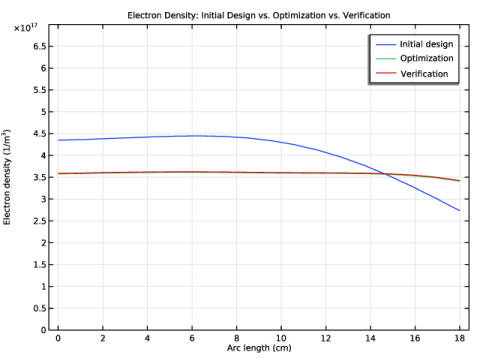
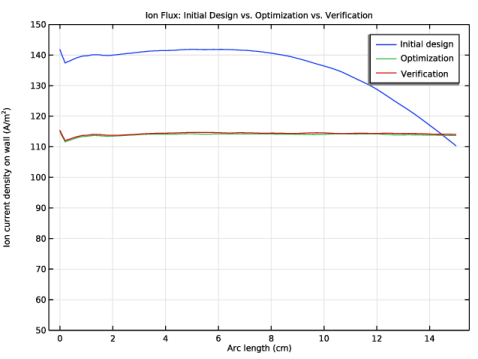
Figure 1 and Figure 2 show the electron density and the ion flux along the radial direction. The optimized solution is obviously more uniform along the radial direction.
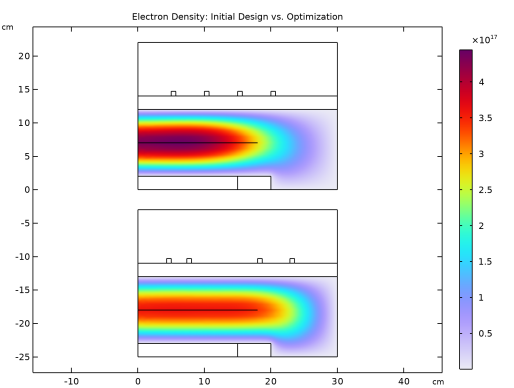
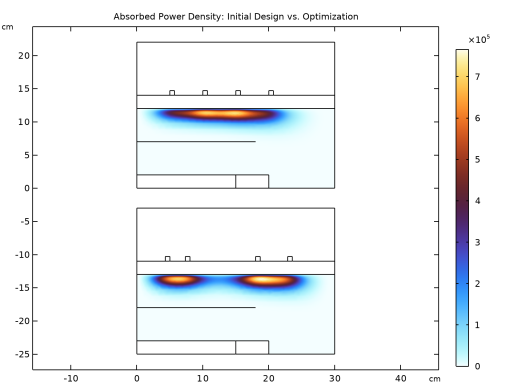
Figure 3 and Figure 4 show 2D plots of the electron density and the power absorbed by electrons. In these figures it possible to observe the optimized coil position. The two outer coils are placed away from the center to control the plasma density drop at the reactor edge. The two inner coils are moved toward the center thus creating a pattern in the power absorbed by the electrons with two distinct maxima that sit below the inner and outer final coil arrangement.
The coil power needs to increase to 1800 W from the 1500 W of the initial design to obtain the desired density set for the optimization study.
Figure 1: Electron density along the radial direction at z = 7 cm.
Figure 2: Ion flux perpendicular to the surface at the bottom surface.
Figure 3: Electron densities obtained with the initial design (top) and the optimized configuration (bottom).
Figure 4: Power absorbed by the electrons obtained with the initial design (top) and the optimized configuration (bottom).
References
1. G.J.M. Hagelaar and L.C. Pitchford, “Solving the Boltzmann Equation to Obtain Electron Transport Coefficients and Rate Coefficients for Fluid Models,” Plasma Sources Sci. Technol., vol. 14, pp. 722–733, 2005.
2. D.P. Lymberopoulos and D.J. Economou, “Two-Dimensional Self-Consistent Radio Frequency Plasma Simulations Relevant to the Gaseous Electronics Conference RF Reference Cell,” J. Res. Natl. Inst. Stand. Technol., vol. 100, pp. 473–494, 1995.
3. Phelps database, www.lxcat.net, retrieved 2017.
Application Library path: Plasma_Module/Inductively_Coupled_Plasmas/icp_coil_optimization
Modeling Instructions
The following instructions show how to create a 2D model of a planar ICP reactor whose coil positioning is optimized to enhance plasma uniformity. Three studies are used:
1
2
3
From the File menu, choose New.
New
In the New window, click  Model Wizard.
Model Wizard
1
In the Model Wizard window, click  2D Axisymmetric.
2
In the Select Physics tree, select Plasma > Inductively Coupled Plasma.
3
Click Add.
4
Click  Study.
5
In the Select Study tree, select Preset Studies for Selected Multiphysics > Frequency–Stationary.
6
Global Definitions
Add some parameters for the reactor dimensions, power, and pressure.
Parameters 1
1
In the Model Builder window, under Global Definitions click Parameters 1.
2
In the Settings window for Parameters, locate the Parameters section.
3
Click  Load from File.
4
Create the geometry and add selections to avoid using explicit selections in the rest of the model. Using implicit selection ensures a better compatibility with the optimization process, for example, when topological changes are introduced by increasing the number of coils.
Some of the selections will make sense when preparing the optimization in the second study.
To facilitate integration along the center of the reactor, a line is introduced; the optimization will minimize the gradient of the electron density along this line.
Geometry 1
1
In the Model Builder window, under Component 1 (comp1) click Geometry 1.
2
In the Settings window for Geometry, locate the Units section.
3
From the Length unit list, choose cm.
Rectangle 1 (r1)
1
In the Geometry toolbar, click  Rectangle.
2
In the Settings window for Rectangle, locate the Size and Shape section.
3
In the Width text field, type Wc.
4
In the Height text field, type Hc.
Rectangle 2 (r2)
1
In the Geometry toolbar, click  Rectangle.
2
In the Settings window for Rectangle, locate the Size and Shape section.
3
In the Width text field, type Ws.
4
In the Height text field, type Hs.
5
Locate the Selections of Resulting Entities section. Select the Resulting objects selection checkbox.
Rectangle 3 (r3)
1
In the Geometry toolbar, click  Rectangle.
2
In the Settings window for Rectangle, locate the Size and Shape section.
3
In the Width text field, type Wd.
4
In the Height text field, type Hd.
5
Locate the Position section. In the r text field, type Ws.
6
Locate the Selections of Resulting Entities section. Select the Resulting objects selection checkbox.
Rectangle 4 (r4)
1
In the Geometry toolbar, click  Rectangle.
2
In the Settings window for Rectangle, locate the Size and Shape section.
3
In the Width text field, type Ww.
4
In the Height text field, type Hw.
5
Locate the Position section. In the z text field, type Hs+dplasma.
6
Locate the Selections of Resulting Entities section. Select the Resulting objects selection checkbox.
Rectangle 5 (r5)
1
In the Geometry toolbar, click  Rectangle.
2
In the Settings window for Rectangle, locate the Size and Shape section.
3
In the Width text field, type Ww.
4
In the Height text field, type Hs+dplasma.
5
Locate the Selections of Resulting Entities section. Select the Resulting objects selection checkbox.
Rectangle 6 (r6)
1
In the Geometry toolbar, click  Rectangle.
2
In the Settings window for Rectangle, locate the Size and Shape section.
3
In the Width text field, type Ww.
4
In the Height text field, type Hc-dplasma-Hw-Hs.
5
Locate the Position section. In the z text field, type Hs+dplasma+Hw.
6
Locate the Selections of Resulting Entities section. Select the Resulting objects selection checkbox.
Coils
1
In the Geometry toolbar, click  Rectangle.
2
In the Settings window for Rectangle, type Coils in the Label text field.
3
Locate the Size and Shape section. In the Width text field, type Lcoil.
4
In the Height text field, type Lcoil.
5
Locate the Position section. In the r text field, type rc.
6
In the z text field, type Zcoil.
7
Locate the Selections of Resulting Entities section. Select the Resulting objects selection checkbox.
Line Segment 1 (ls1)
1
In the Geometry toolbar, click  More Primitives and choose Line Segment.
2
In the Settings window for Line Segment, locate the Starting Point section.
3
From the Specify list, choose Coordinates.
4
In the z text field, type 7.
5
Locate the Endpoint section. From the Specify list, choose Coordinates.
6
In the r text field, type 18.
7
In the z text field, type 7.
Array 1 (arr1)
1
In the Geometry toolbar, click  Transforms and choose Array.
2
In the Settings window for Array, locate the Input section.
3
From the Input objects list, choose Coils.
4
Locate the Size section. In the r size text field, type nCoil.
5
Locate the Displacement section. In the r text field, type coilSpace.
Form Union (fin)
In the Geometry toolbar, click  Build All.
Plasma
1
In the Geometry toolbar, click  Selections and choose Difference Selection.
2
In the Settings window for Difference Selection, type Plasma in the Label text field.
3
Locate the Input Entities section. Click the  Add button for Selections to add.
4
In the Add dialog, select Rectangle 5 in the Selections to add list.
5
6
In the Settings window for Difference Selection, locate the Input Entities section.
7
Click the  Add button for Selections to subtract.
8
In the Add dialog, in the Selections to subtract list, choose Rectangle 2 and Rectangle 3.
9
Axis
1
In the Geometry toolbar, click  Selections and choose Box Selection.
2
In the Settings window for Box Selection, locate the Geometric Entity Level section.
3
From the Level list, choose Boundary.
4
Locate the Box Limits section. In the r maximum text field, type eps.
5
Locate the Output Entities section. From the Include entity if list, choose Entity inside box.
6
In the Label text field, type Axis.
Adjacent Selection 1 (adjsel1)
1
In the Geometry toolbar, click  Selections and choose Adjacent Selection.
2
In the Settings window for Adjacent Selection, locate the Input Entities section.
3
4
In the Add dialog, select Plasma in the Input selections list.
5
Walls
1
In the Geometry toolbar, click  Selections and choose Difference Selection.
2
In the Settings window for Difference Selection, type Walls in the Label text field.
3
Locate the Geometric Entity Level section. From the Level list, choose Boundary.
4
Locate the Input Entities section. Click the  Add button for Selections to add.
5
In the Add dialog, select Adjacent Selection 1 in the Selections to add list.
6
7
In the Settings window for Difference Selection, locate the Input Entities section.
8
Click the  Add button for Selections to subtract.
9
In the Add dialog, select Axis in the Selections to subtract list.
10
Adjacent Domains to Coils
1
In the Geometry toolbar, click  Selections and choose Adjacent Selection.
2
In the Settings window for Adjacent Selection, type Adjacent Domains to Coils in the Label text field.
3
Locate the Input Entities section. Click  Add.
4
In the Add dialog, select Coils in the Input selections list.
5
6
In the Settings window for Adjacent Selection, locate the Output Entities section.
7
From the Geometric entity level list, choose Adjacent domains.
Coil Boundaries
1
In the Geometry toolbar, click  Selections and choose Adjacent Selection.
2
In the Settings window for Adjacent Selection, type Coil Boundaries in the Label text field.
3
Locate the Input Entities section. Click  Add.
4
In the Add dialog, select Coils in the Input selections list.
5
Magnetic Fields
1
In the Geometry toolbar, click  Selections and choose Union Selection.
2
In the Settings window for Union Selection, type Magnetic Fields in the Label text field.
3
Locate the Input Entities section. Click  Add.
4
In the Add dialog, in the Selections to add list, choose Rectangle 4, Coils, Plasma, and Adjacent Domains to Coils.
5
Top Dielectric
1
In the Geometry toolbar, click  Selections and choose Intersection Selection.
2
In the Settings window for Intersection Selection, locate the Geometric Entity Level section.
3
From the Level list, choose Boundary.
4
Locate the Input Entities section. Click  Add.
5
In the Add dialog, in the Selections to intersect list, choose Rectangle 4 and Rectangle 6.
6
7
In the Settings window for Intersection Selection, type Top Dielectric in the Label text field.
Roller
1
In the Geometry toolbar, click  Selections and choose Difference Selection.
2
In the Settings window for Difference Selection, locate the Geometric Entity Level section.
3
From the Level list, choose Boundary.
4
Locate the Input Entities section. Click the  Add button for Selections to add.
5
In the Add dialog, select Top Dielectric in the Selections to add list.
6
7
In the Settings window for Difference Selection, locate the Input Entities section.
8
Click the  Add button for Selections to subtract.
9
In the Add dialog, select Coils in the Selections to subtract list.
10
11
In the Settings window for Difference Selection, type Roller in the Label text field.
12
In the Geometry toolbar, click  Build All.
Materials
Define the material properties to use in the model.
Material 1 (mat1)
1
In the Model Builder window, under Component 1 (comp1) right-click Materials and choose Blank Material.
2
In the Settings window for Material, locate the Geometric Entity Selection section.
3
From the Selection list, choose Coils.
4
Locate the Material Contents section. In the table, enter the following settings:
Material 2 (mat2)
1
Right-click Materials and choose Blank Material.
2
3
In the Settings window for Material, locate the Material Contents section.
4
Material 3 (mat3)
1
Right-click Materials and choose Blank Material.
2
3
In the Settings window for Material, locate the Material Contents section.
4
Prepare the plasma model. Choose to use reduced transport properties, import electron impact reactions for argon, and add two heavy-species reactions.
Plasma (plas)
1
In the Model Builder window, under Component 1 (comp1) click Plasma (plas).
2
In the Settings window for Plasma, locate the Domain Selection section.
3
From the Selection list, choose Plasma.
4
Locate the Plasma Properties section. Select the Use reduced electron transport properties checkbox.
Cross Section Import 1
1
In the Physics toolbar, click  Global and choose Cross Section Import.
2
In the Settings window for Cross Section Import, locate the Cross Section Import section.
3
Click  Browse.
4
5
Click  Import.
Reaction 1
1
In the Physics toolbar, click  Domains and choose Reaction.
2
In the Settings window for Reaction, locate the Reaction Formula section.
3
In the Formula text field, type Ars+Ars=>e+Ar+Ar+.
4
Locate the Reaction Parameters section. In the kf text field, type 3.734E8.
7: Ars+Ars=>e+Ar+Ar+
1
Right-click 6: Ars+Ars=>e+Ar+Ar+ and choose Duplicate.
2
In the Settings window for Reaction, locate the Reaction Formula section.
3
In the Formula text field, type Ars+Ar=>Ar+Ar.
4
Locate the Reaction Parameters section. In the kf text field, type 1807.
When solving any type of reacting-flow problem, one species always needs to be selected to fulfill the mass constraint. This should be taken as the species with the largest mass fraction.
Species: Ar
1
In the Model Builder window, click Species: Ar.
2
In the Settings window for Species, locate the Species Formula section.
3
Select the From mass constraint checkbox.
4
Locate the General Parameters section. From the Preset species data list, choose Ar.
Species: Ars
1
In the Model Builder window, click Species: Ars.
2
In the Settings window for Species, locate the General Parameters section.
3
From the Preset species data list, choose Ar.
When solving a plasma problem, the plasma must be initially charge neutral. COMSOL Multiphysics automatically computes the initial concentration of a selected ionic species so that the initial electroneutrality constraint is satisfied. Once the simulation begins to time step, the plasma does not have to be charge neutral. In fact, the separation of space charge between the ions and electrons close to the wall is a critical component in sustaining the discharge.
Species: Ar+
1
In the Model Builder window, click Species: Ar+.
2
In the Settings window for Species, locate the Species Formula section.
3
Select the Initial value from electroneutrality constraint checkbox.
4
Locate the General Parameters section. From the Preset species data list, choose Ar.
Plasma Model 1
1
In the Model Builder window, click Plasma Model 1.
2
In the Settings window for Plasma Model, locate the Model Inputs section.
3
In the T text field, type T0.
4
In the pA text field, type p0.
5
Locate the Electron Density and Energy section. In the μeNn text field, type mueN.
Initial conditions for the electron number density and mean electron energy are critical for any plasma model. If the initial electron density is too low, the plasma may not be able to sustain itself and may self extinguish.
Initial Values 1
1
In the Model Builder window, click Initial Values 1.
2
In the Settings window for Initial Values, locate the Initial Values section.
3
In the ne,0 text field, type 1E16[1/m^3].
4
In the ε0 text field, type 2[V].
Add boundary conditions to the plasma transport and Poisson’s equations.
Surface reactions must always be included in a plasma model since they describe how ionic, excited, and radical species interact with the wall.
Wall 1
1
In the Physics toolbar, click  Boundaries and choose Wall.
2
In the Settings window for Wall, locate the Boundary Selection section.
3
From the Selection list, choose Walls.
4
Locate the General Wall Settings section. In the re text field, type 0.2.
Ground 1
1
In the Physics toolbar, click  Boundaries and choose Ground.
2
In the Settings window for Ground, locate the Boundary Selection section.
3
From the Selection list, choose Walls.
Surface Reaction 1
1
In the Physics toolbar, click  Boundaries and choose Surface Reaction.
2
In the Settings window for Surface Reaction, locate the Reaction Formula section.
3
In the Formula text field, type Ars=>Ar.
4
Locate the Boundary Selection section. From the Selection list, choose Walls.
2: Ars=>Ar
1
Right-click 1: Ars=>Ar and choose Duplicate.
2
In the Settings window for Surface Reaction, locate the Reaction Formula section.
3
In the Formula text field, type Ar+=>Ar.
Prepare the model to compute the Magnetic Fields. This simple step is only needed to create a coil.
The Coil feature is used to electrically excite the system. The coil operates with a fixed total power of 1500 W in the first study.
Magnetic Fields (mf)
1
In the Model Builder window, under Component 1 (comp1) click Magnetic Fields (mf).
2
In the Settings window for Magnetic Fields, locate the Domain Selection section.
3
From the Selection list, choose Magnetic Fields.
Domain Coil 1
1
In the Physics toolbar, click  Domains and choose Domain Coil.
2
In the Settings window for Domain Coil, locate the Domain Selection section.
3
From the Selection list, choose Coils.
4
Locate the Coil section. Select the Coil group checkbox.
5
From the Coil excitation list, choose Power.
6
In the Pcoil text field, type Psp.
Meshing is a critical step in any plasma model; boundary layer meshing on the reactor walls is nearly always necessary to capture the separation of space charge between the electrons and ions close to the wall. Also, add a fine mesh in the coil domains since the skin depth needs to be resolved.
Mesh 1
1
In the Model Builder window, under Component 1 (comp1) click Mesh 1.
2
In the Settings window for Mesh, locate the Physics-Controlled Mesh section.
3
In the table, clear the Use checkboxes for Plasma (plas), Magnetic Fields (mf), Plasma Conductivity Coupling 1 (pcc1), and Electron Heat Source 1 (ehs1).
4
Locate the Sequence Type section. From the list, choose User-controlled mesh.
Size
1
In the Model Builder window, under Component 1 (comp1) > Mesh 1 click Size.
2
In the Settings window for Size, locate the Element Size section.
3
From the Predefined list, choose Finer.
Free Triangular 1
1
In the Model Builder window, click Free Triangular 1.
2
In the Settings window for Free Triangular, locate the Domain Selection section.
3
From the Geometric entity level list, choose Domain.
4
From the Selection list, choose Plasma.
Size 1
1
Right-click Free Triangular 1 and choose Size.
2
In the Settings window for Size, locate the Element Size section.
3
From the Predefined list, choose Finer.
Edge 1
1
In the Mesh toolbar, click  More Generators and choose Edge.
2
In the Settings window for Edge, locate the Boundary Selection section.
3
From the Selection list, choose Walls.
Size 1
1
Right-click Edge 1 and choose Size.
2
In the Settings window for Size, locate the Element Size section.
3
Click the Custom button.
4
Locate the Element Size Parameters section.
5
Select the Maximum element size checkbox. In the associated text field, type 2E-3[m].
Boundary Layers 1
1
In the Mesh toolbar, click  Boundary Layers.
2
In the Settings window for Boundary Layers, locate the Domain Selection section.
3
From the Geometric entity level list, choose Domain.
4
From the Selection list, choose Plasma.
5
Click to expand the Transition section. Clear the Smooth transition to interior mesh checkbox.
Boundary Layer Properties
1
In the Model Builder window, click Boundary Layer Properties.
2
In the Settings window for Boundary Layer Properties, locate the Boundary Selection section.
3
From the Selection list, choose Walls.
4
Locate the Layers section. In the Number of layers text field, type 5.
5
In the Stretching factor text field, type 1.4.
Mapped 1
1
In the Mesh toolbar, click  Mapped.
2
In the Settings window for Mapped, locate the Domain Selection section.
3
From the Geometric entity level list, choose Domain.
4
From the Selection list, choose Coils.
Distribution 1
1
Right-click Mapped 1 and choose Distribution.
2
In the Settings window for Distribution, locate the Boundary Selection section.
3
From the Selection list, choose Coil Boundaries.
4
Locate the Distribution section. From the Distribution type list, choose Predefined.
5
In the Number of elements text field, type 25.
6
In the Element ratio text field, type 20.
7
Select the Symmetric distribution checkbox.
Free Triangular 2
In the Mesh toolbar, click  Free Triangular.
Edge 1
1
In the Model Builder window, click Edge 1.
2
3
In the Settings window for Edge, click  Build All.
Get the initial values and group them so that the Results section stays organized when adding more studies.
Then, label the study, choose to look at the results while solving, and solve the problem.
Study 1
In the Study toolbar, click  Get Initial Value.
Results
Electric Potential (plas), Electron Density (plas), Electron Temperature (plas), Magnetic Flux Density (mf), Magnetic Flux Density, Revolved Geometry (mf)
1
In the Model Builder window, under Results, Ctrl-click to select Electron Density (plas), Electron Temperature (plas), Electric Potential (plas), Magnetic Flux Density (mf), and Magnetic Flux Density, Revolved Geometry (mf).
2
Initial Design
In the Settings window for Group, type Initial Design in the Label text field.
Study 1
Step 1: Frequency–Stationary
1
In the Model Builder window, expand the Study 1 > Solver Configurations node, then click Study 1 > Step 1: Frequency–Stationary.
2
In the Settings window for Frequency–Stationary, locate the Study Settings section.
3
In the Frequency text field, type 13.56[MHz].
Solution 1 (sol1)
1
In the Model Builder window, expand the Study 1 > Solver Configurations > Solution 1 (sol1) > Stationary Solver 1 node, then click Fully Coupled 1.
2
In the Settings window for Fully Coupled, click to expand the Results While Solving section.
3
Select the Plot checkbox.
4
In the Study toolbar, click  Compute.
5
In the Model Builder window, click Study 1.
6
In the Settings window for Study, type Study 1: Initial Design in the Label text field.
Definitions
Next, add two probes for use in the Optimization study step.
Gradient Minimization
1
In the Definitions toolbar, click  Probes and choose Boundary Probe.
2
In the Settings window for Boundary Probe, type Gradient Minimization in the Label text field.
3
In the Variable name text field, type int_grad_ne.
4
Locate the Source Selection section. Click  Clear Selection.
5
6
Locate the Probe Type section. From the Type list, choose Integral.
7
Locate the Expression section. In the Expression text field, type sqrt(d(plas.ne,r)^2).
8
Locate the Integration Settings section. Clear the Compute surface integral checkbox.
Constraint for Electron Density at the Center
1
In the Definitions toolbar, click  Probes and choose Point Probe.
2
In the Settings window for Point Probe, type Constraint for Electron Density at the Center in the Label text field.
3
In the Variable name text field, type ne_center. This variable will be used to fix the electron density.
4
Locate the Source Selection section. Click  Clear Selection.
5
6
Locate the Expression section. In the Expression text field, type plas.ne/ne0.
Component 1 (comp1)
Use a Shape Optimization feature to define the domain to be optimized.
Free Shape Domain 1
1
In the Physics toolbar, click  Optimization and choose Shape Optimization.
2
In the Settings window for Free Shape Domain, locate the Domain Selection section.
3
From the Selection list, choose Adjacent Domains to Coils.
In a Transformation feature, specify that the coils can be displaced only along the radial direction in an interval of [-3, +3] cm from their initial positions.
Transformation 1
1
In the Shape Optimization toolbar, click  Transformation.
2
In the Settings window for Transformation, locate the Translation section.
3
4
Locate the Scaling section. From the Scaling type list, choose No scaling.
5
Locate the Geometric Entity Selection section. From the Selection list, choose Coils.
Use a Symmetry/Roller feature to ensure that the top of the dielectric is not deformed.
Symmetry/Roller 1
1
In the Shape Optimization toolbar, click  Symmetry/Roller.
2
In the Settings window for Symmetry/Roller, locate the Boundary Selection section.
3
From the Selection list, choose Roller.
Definitions
Variables 1
1
In the Definitions toolbar, click  Local Variables.
2
In the Settings window for Variables, locate the Variables section.
3
Add a study with a Frequency-Stationary study step, then add an Optimization study step to it.
Add Study
1
In the Home toolbar, click  Add Study to open the Add Study window.
2
Go to the Add Study window.
3
Find the Studies subsection. In the Select Study tree, select Preset Studies for Selected Multiphysics > Frequency–Stationary.
4
Click the Add Study button in the window toolbar.
5
In the Home toolbar, click  Add Study to close the Add Study window.
Study 2
Step 1: Frequency–Stationary
1
In the Settings window for Frequency–Stationary, locate the Study Settings section.
2
In the Frequency text field, type 13.56[MHz].
3
In the Model Builder window, click Study 2.
4
In the Settings window for Study, type Study 2: Optimization in the Label text field.
General Optimization
1
In the Study toolbar, click  Optimization and choose General Optimization.
2
In the Settings window for General Optimization, locate the Optimization Solver section.
3
From the Method list, choose GCMMA.
4
In the Maximum number of model evaluations text field, type 20.
Specify the objective function for the minimization of the electron density gradient.
5
Click Add Expression in the upper-right corner of the Objective Function section. From the menu, choose Component 1 (comp1) > Definitions > Variables > comp1.obj_negrad - Objective gradient - 1.
Add the coil power as a control parameter so that it can be adjusted to match the electron density constraint.
6
Locate the Control Variables and Parameters section. Click  Add.
7
Add a density constraint in the reactor center.
8
Locate the Constraints section. In the table, enter the following settings:
9
In the Study toolbar, click  Get Initial Value.
Results
Electric Potential (plas) 1, Electron Density (plas) 1, Electron Temperature (plas) 1, Magnetic Flux Density (mf) 1, Magnetic Flux Density, Revolved Geometry (mf) 1, Probe Plot Group 6, Shape Optimization
1
In the Model Builder window, under Results, Ctrl-click to select Probe Plot Group 6, Electron Density (plas) 1, Electron Temperature (plas) 1, Electric Potential (plas) 1, Magnetic Flux Density (mf) 1, Magnetic Flux Density, Revolved Geometry (mf) 1, and Shape Optimization.
2
Optimization
In the Settings window for Group, type Optimization in the Label text field.
Study 2: Optimization
General Optimization
1
In the Model Builder window, under Study 2: Optimization click General Optimization.
2
In the Settings window for General Optimization, click to expand the Output section.
3
Select the Plot checkbox.
4
5
From the Probes list, choose None.
Solver Configurations
In the Model Builder window, expand the Study 2: Optimization > Solver Configurations node.
Solution 2 (sol2)
1
In the Model Builder window, expand the Study 2: Optimization > Solver Configurations > Solution 2 (sol2) > Optimization Solver 1 > Stationary Solver 1 node, then click Direct (Merged).
2
In the Settings window for Direct, click to expand the Error section.
3
From the Check error estimate list, choose No.
4
In the Study toolbar, click  Compute.
The next set of instructions mesh the optimized geometry.
Results
Study 2: Optimization/Solution 2 (sol2)
1
In the Model Builder window, expand the Results > Datasets node.
2
Right-click Results > Datasets > Study 2: Optimization/Solution 2 (sol2) and choose Remesh Deformed Configuration.
Mesh 2
1
In the Model Builder window, expand the Deformed Configuration 1 (frommesh1) node.
2
Right-click Component 1 (comp1) > Meshes > Deformed Configuration 1 (frommesh1) > Mesh 2 and choose Build All.
Next, add a final study to verify that there are no artifacts introduced by the mesh deformation.
Add Study
1
In the Home toolbar, click  Add Study to open the Add Study window.
2
Go to the Add Study window.
3
Find the Studies subsection. In the Select Study tree, select Preset Studies for Selected Multiphysics > Frequency–Stationary.
4
Click the Add Study button in the window toolbar.
5
In the Home toolbar, click  Add Study to close the Add Study window.
Study 3
Step 1: Frequency–Stationary
1
In the Settings window for Frequency–Stationary, locate the Study Settings section.
2
In the Frequency text field, type 13.56[MHz].
3
Locate the Physics and Variables Selection section. In the Solve for column of the table, under Component 1 (comp1), clear the checkbox for Deformed Geometry.
4
Click to expand the Values of Dependent Variables section. Find the Initial values of variables solved for subsection. From the Settings list, choose User controlled.
5
From the Method list, choose Solution.
6
From the Study list, choose Study 2: Optimization, Frequency–Stationary.
7
Find the Values of variables not solved for subsection. From the Settings list, choose User controlled.
8
From the Method list, choose Solution.
9
From the Study list, choose Study 2: Optimization, Frequency–Stationary.
10
In the Model Builder window, click Study 3.
11
In the Settings window for Study, type Study 3: Verification in the Label text field.
12
In the Study toolbar, click  Compute.
Results
Electric Potential (plas) 2, Electron Density (plas) 2, Electron Temperature (plas) 2, Magnetic Flux Density (mf) 2, Magnetic Flux Density, Revolved Geometry (mf) 2, Shape Optimization 1
Right-click and choose Group.
Verification
In the Settings window for Group, type Verification in the Label text field.
Add a set of plots to show the results of the optimization.
Begin by adding 1D plots of the electron density and the ion flux to show the radial uniformity obtained. Next, create 2D plots of the electron density and the power absorbed by the electrons.
Electron Density: Initial Design vs. Optimization vs. Verification
1
In the Results toolbar, click  1D Plot Group.
2
In the Settings window for 1D Plot Group, type Electron Density: Initial Design vs. Optimization vs. Verification in the Label text field.
3
Click to expand the Title section. From the Title type list, choose Label.
Line Graph 1
1
Right-click Electron Density: Initial Design vs. Optimization vs. Verification and choose Line Graph.
2
3
In the Settings window for Line Graph, click to expand the Legends section.
4
Select the Show legends checkbox.
5
From the Legends list, choose Manual.
6
7
In the Electron Density: Initial Design vs. Optimization vs. Verification toolbar, click  Plot.
Line Graph 2
1
Right-click Line Graph 1 and choose Duplicate.
2
In the Settings window for Line Graph, locate the Data section.
3
From the Dataset list, choose Study 2: Optimization/Solution 2 (sol2).
4
Locate the Legends section. In the table, enter the following settings:
Line Graph 3
1
Right-click Line Graph 2 and choose Duplicate.
2
In the Settings window for Line Graph, locate the Data section.
3
From the Dataset list, choose Study 3: Verification/Solution 3 (sol3).
4
Locate the Legends section. In the table, enter the following settings:
5
In the Electron Density: Initial Design vs. Optimization vs. Verification toolbar, click  Plot.
Electron Density: Initial Design vs. Optimization vs. Verification
1
In the Model Builder window, click Electron Density: Initial Design vs. Optimization vs. Verification.
2
In the Settings window for 1D Plot Group, locate the Axis section.
3
Select the Manual axis limits checkbox.
4
In the y minimum text field, type 0.
5
In the y maximum text field, type 7e17.
6
In the Electron Density: Initial Design vs. Optimization vs. Verification toolbar, click  Plot.
Ion Flux: Initial Design vs. Optimization vs. Verification
1
Right-click Electron Density: Initial Design vs. Optimization vs. Verification and choose Duplicate.
2
In the Model Builder window, click Electron Density: Initial Design vs. Optimization vs. Verification 1.
3
In the Settings window for 1D Plot Group, type Ion Flux: Initial Design vs. Optimization vs. Verification in the Label text field.
Line Graph 1
1
In the Model Builder window, click Line Graph 1.
2
In the Settings window for Line Graph, locate the Selection section.
3
Click to select the  Activate Selection toggle button.
4
Click  Clear Selection.
5
6
Locate the y-Axis Data section. In the Expression text field, type plas.nJi_wAr_1p.
7
Click to expand the Quality section. From the Evaluation settings list, choose Manual.
8
From the Recover list, choose Within domains.
Line Graph 2
1
In the Model Builder window, click Line Graph 2.
2
In the Settings window for Line Graph, locate the Selection section.
3
Click to select the  Activate Selection toggle button.
4
Click  Clear Selection.
5
6
Locate the y-Axis Data section. In the Expression text field, type plas.nJi_wAr_1p.
7
Locate the Quality section. From the Evaluation settings list, choose Manual.
8
From the Recover list, choose Within domains.
Line Graph 3
1
In the Model Builder window, click Line Graph 3.
2
In the Settings window for Line Graph, locate the Selection section.
3
Click to select the  Activate Selection toggle button.
4
Click  Clear Selection.
5
6
Locate the y-Axis Data section. In the Expression text field, type plas.nJi_wAr_1p.
7
Locate the Quality section. From the Evaluation settings list, choose Manual.
8
From the Recover list, choose Within domains.
Ion Flux: Initial Design vs. Optimization vs. Verification
1
In the Model Builder window, click Ion Flux: Initial Design vs. Optimization vs. Verification.
2
In the Settings window for 1D Plot Group, locate the Axis section.
3
In the y maximum text field, type 150.
4
In the y minimum text field, type 50.
5
In the x maximum text field, type 15.5.
6
In the Ion Flux: Initial Design vs. Optimization vs. Verification toolbar, click  Plot.
Electron Density: Initial Design vs. Optimization
1
In the Results toolbar, click  2D Plot Group.
2
In the Settings window for 2D Plot Group, type Electron Density: Initial Design vs. Optimization in the Label text field.
3
Click to expand the Title section. From the Title type list, choose Label.
Surface 1
1
Right-click Electron Density: Initial Design vs. Optimization and choose Surface.
2
In the Settings window for Surface, locate the Data section.
3
From the Dataset list, choose Study 1: Initial Design/Solution 1 (sol1).
Surface 2
1
In the Model Builder window, right-click Electron Density: Initial Design vs. Optimization and choose Surface.
2
In the Settings window for Surface, locate the Data section.
3
From the Dataset list, choose Study 3: Verification/Solution 3 (sol3).
4
Click to expand the Inherit Style section. From the Plot list, choose Surface 1.
Deformation 1
1
Right-click Surface 2 and choose Deformation.
2
In the Settings window for Deformation, locate the Expression section.
3
In the z-component text field, type -25.
4
Locate the Scale section.
5
Select the Scale factor checkbox. In the associated text field, type 1.
Line 1
1
In the Model Builder window, right-click Electron Density: Initial Design vs. Optimization and choose Line.
2
In the Settings window for Line, locate the Data section.
3
From the Dataset list, choose Study 3: Verification/Solution 3 (sol3).
4
Locate the Expression section. In the Expression text field, type 1.
5
Locate the Coloring and Style section. From the Coloring list, choose Uniform.
6
From the Color list, choose Black.
Deformation 1
1
Right-click Line 1 and choose Deformation.
2
In the Settings window for Deformation, locate the Expression section.
3
In the z-component text field, type -25.
4
Locate the Scale section.
5
Select the Scale factor checkbox. In the associated text field, type 1.
6
In the Electron Density: Initial Design vs. Optimization toolbar, click  Plot.
7
Click the  Zoom Extents button in the Graphics toolbar.
Absorbed Power Density: Initial Design vs. Optimization
1
In the Model Builder window, right-click Electron Density: Initial Design vs. Optimization and choose Duplicate.
2
In the Settings window for 2D Plot Group, type Absorbed Power Density: Initial Design vs. Optimization in the Label text field.
Surface 1
1
In the Model Builder window, expand the Absorbed Power Density: Initial Design vs. Optimization node, then click Surface 1.
2
In the Settings window for Surface, locate the Expression section.
3
In the Expression text field, type mf.Qrh.
4
Locate the Coloring and Style section. From the Color table list, choose ThermalWave.
Surface 2
1
In the Model Builder window, click Surface 2.
2
In the Settings window for Surface, locate the Expression section.
3
In the Expression text field, type mf.Qrh.
Selection 1
1
Right-click Surface 2 and choose Selection.
2
Selection 1
1
In the Model Builder window, right-click Surface 1 and choose Selection.
2
3
In the Absorbed Power Density: Initial Design vs. Optimization toolbar, click  Plot.