


















PDF

Dipolar Microwave Plasma Source
Introduction
This model presents a 2D axisymmetric dipolar microwave plasma source sustained through resonant heating of the electrons. This is known as electron cyclotron resonance (ECR), which occurs when a suitable high magnetic flux density is present along with the microwaves.
This is an advanced model that showcases many of the features that make COMSOL Multiphysics unique, including:
Note: This application requires the Plasma Module, AC/DC Module, and RF Module.
Model Definition — Static Magnetic Field
For the static magnetic field, Ampère’s law governs the azimuthal component of the magnetic vector potential:
where the external current density, only has an azimuthal component and is defined in the coil as:
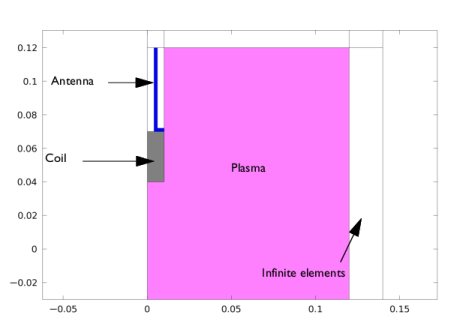
where N is the number of turns in the coil I is the total current and A is the cross-sectional area. To represent the fact that the coil is in free space, infinite elements are used far away from the coil, as shown in Figure 1. A stationary study type is used to compute the static magnetic field. This field is then fed into a self-consistent model for the plasma.
Figure 1: Basic concept for the plasma source. A stationary azimuthal current flows in the coil which generates a static magnetic field in the surroundings. Resonant heating of the electrons occurs on the contour of the critical magnetic flux density.
The plasma conductivity becomes a full tensor in the presence of a static magnetic field. At some critical magnetic field the electrons continually gain energy from the electric fields. This leads to a resonance zone in the plasma where the incoming electromagnetic wave is absorbed over a very short distance. The critical magnetic field is only dependent on the angular frequency, the electron mass, and the charge:
At 2.45 GHz the critical magnetic flux density is 875 gauss or 0.0875 T. Therefore you can use functional-based mesh adaptation to ensure that the ECR surface is adequately meshed for the plasma model. The functional is somewhat arbitrary; it is chosen such that it is zero everywhere but becomes large at the resonant magnetic flux density. In this model, use the functional
(1)
where δ is a small number to prevent division by zero.
Model Definition — Microwave Plasma
In this example, you solve the following wave equation for the high-frequency component of the electric field in the frequency domain:
Here σ is the plasma conductivity, which is a full tensor and a function of the electron density, collision frequency, and the static magnetic flux density. Using the definitions
(2)
where q is the electron charge, me is the electron mass, νe is the electron-neutral collision frequency, and ω is the angular frequency. The inverse of the plasma conductivity is defined as
(3)
where ne is the electron number density. Using the inverse of the plasma conductivity is convenient because it can be written in a compact form. Because the plasma conductivity tensor is a full tensor, all three components of the electric field are computed despite the fact that the only excitation from the coaxial port occurs in the rz-plane.
In Ref. 1 the size of the resonance is smoothed over a distance which can be resolved by the mesh. It is argued that this has a physical basis corresponding to collision-less heating. In Ref. 2 the physical reasoning behind the broadening of the resonance zone is Doppler shifting of the electrons into resonance. The same smoothing used in Ref. 1 is available in the COMSOL software by selecting the Doppler broadening checkbox in the Microwave Plasma interface properties. In this case, the collision frequency, νe in Equation 2 is replaced by an effective collision frequency:
(4)
where δ is chosen to be 20. This is very simple from an implementation point of view but does lead to unphysical power absorption away from the resonance zone. The approach taken in Ref. 2 leads to the ECR surface being broadened only at the resonance zone.
For the electrons, the continuity and electron mean energy equations are solved and the drift-diffusion approximation is used to simplify the momentum equation:
The electron diffusivity, energy mobility and energy diffusivity are calculated from the electron mobility using
The electron transport properties are, like the plasma conductivity, full tensors. The electron mobility in the direction of the magnetic field lines is up to 8 orders of magnitude higher than the cross-field electron mobility. As such, electrons are only transported along magnetic field lines. The inverse of the electron mobility can be written in compact form as
(5)
where μdc is the electron mobility in the absence of a magnetic field. The electron rate expression is defined as
where νe,j is the stoichiometric coefficient, and the reaction rate is defined as
where kjf is the forward rate constant and kjr is the reversed rate constant. Both the Electron Impact Reaction feature and Reaction feature can contribute to the electron rate expression. However, when using the Reaction feature it is important to note that the associated electron energy gain or loss is not included in the source term of the electron mean energy equation. The rate constants can be computed from electron impact cross-section data
where γ = (2q/me)1/2 (SI unit: C1/2/kg1/2), me is the electron mass (SI unit: kg), ε is the electron energy (SI unit: V), σ is the electron impact collision cross section (SI unit: m2), and f is the electron energy distribution function.
The total electron energy loss or gained is calculated by summing the collisional energy changes from all reactions defined with the Electron Impact Reaction feature as
where Δεj is the energy loss from reaction j (SI unit: V) and F is the Faraday constant (SI unit: C/mol). For excitation and ionization collisions Δεj corresponds to the energy of the excited state being excited/deexcited or ionized, for attachment Δεj is set to zero, and for elastic collisions
where me and mk are the electron and heavy species mass in kg, Te is the electron temperature in eV, and Tgas is the gas temperature in K.
The Joule term E · Γe in this model, is separated in two parts. One in the time domain that includes motion in the ambipolar field in the rz-plane and another in the frequency domain representing the heating term from the electromagnetic waves.
For nonelectron species, the following equation is solved for the mass fraction of species k:
(6)
As with the electrons, the ion transport properties are functions of the static magnetic flux density. The magnetic force is included as it can generate a significant ion velocity in the azimuthal direction close to the antenna. The ion mobility is also a function of the ambipolar electric field and is specified as a lookup table. The ion diffusion velocity, vk, is related to the diffusive flux via
where
(7)
Equation 6 can be re-arranged to give an expression for the diffusion velocity as
where
(8)
COMSOL automatically inverts Equation 8 when defining the diffusion velocity for each of the ionic species. The electrostatic field is computed using the equation
The space charge density ρ is automatically computed based on the plasma chemistry specified in the model using the formula
Plasma Chemistry
The model considers argon plasma chemistry with the following set of collisions including elastic, excitation, direct ionization and stepwise ionization. Penning ionization and metastable quenching are also included in the model (electron cross sections are obtained from Ref. 3).
On surfaces, the following two reactions are considered:
Boundary Conditions
The above partial differential equations must be supplemented with a suitable set of boundary conditions.
For the electrons, neglect reflection as well as secondary and thermal emission to get the following boundary condition on the electron flux:
and the electron energy flux:
Losses at the wall for the heavy species is due to surface reactions and migration due to the ambipolar field:
The reactor walls are grounded.
Solution Strategy
This problem is solved in two stages. First, compute the static magnetic field using adaptive mesh refinement. Then, in separate study steps, solve for the plasma problem. The magnetic flux density computed in the first study step is used to define the tensor plasma conductivity as well as electron and ion transport properties.
The plasma problem also uses a two-study approach (giving a total of 3 studies in this model). In the first study that solves for the plasma problem (labeled Pin=20 W) a Frequency-Transient study step is used to obtain a solution. In the next study (labeled Pin 20 to 80 W) a Frequency-Stationary study step is used to ramp the input power using the Auxiliary sweep option. Using a stationary solver to make parameterizations is very efficient but it is difficult to obtain a solution for a plasma problem using arbitrary flat profiles for the initial conditions.
For resonant plasma problems such as this one some effort is needed in choosing the input power and the initial electron density. If the input power is too high it might happen the electron density grows to values where the model used is not valid. Another problem is that if the initial electron density is too low a plasma might not be formed (the electron density goes to zero). The search for the right initial conditions and input power tend to be easier with a transient solver. And once a solution is found a stationary solver can be used to efficiently make parameterizations.
It is possible to set the power absorbed by the plasma as the input quantity instead of the input power by checking the box Enable active port feedback in the Port feature. However, this approach is not robust in resonant problems like this one and it is not recommended.
Results and Discussion — Static Magnetic Field Model
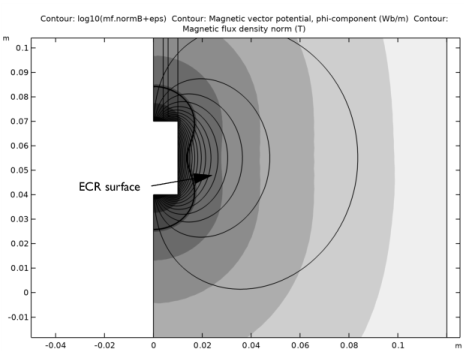
Figure 2 and Figure 3 present the results from the first study step. As expected, the azimuthal current in the coil generates a static magnetic field that has a “3”-shaped contour at a flux density of 0.0875 T. The magnetic field lines form a circular pattern around the coil, which is important to bear in mind when discuss the transport of the charged particles later.
Figure 2: Plot of the static magnetic flux density on a log scale (filled contour), magnetic field lines (thin lines), and the ECR surface at 0.0875 T (thick black line).
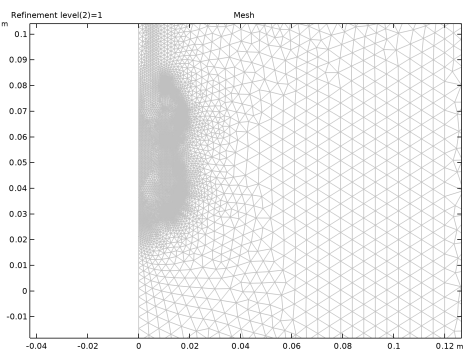
In Figure 3 the mesh, which has adapted based on the functional given in Equation 1 is shown. The mesh has clearly been significantly refined around the contour of the resonant magnetic flux density. This is required to accurately resolve the region where all the power deposition to the electrons occurs.
Figure 3: Mesh generated after one refinement using functional-based mesh adaptation. The mesh is very fine on the ECR surface and relatively coarse away from the resonance zone.
Results and Discussion — Microwave Plasma Model
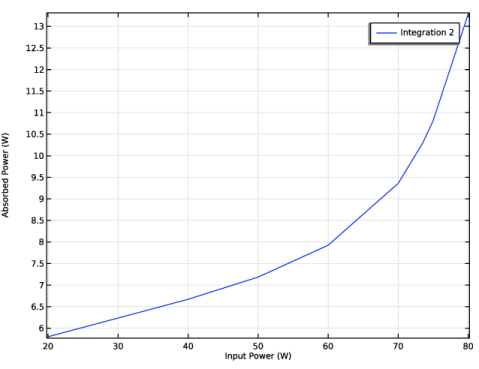
Figure 4 shows the absorbed power absorbed by the plasma as a function of the input power. As can be seen only a small amount of power is absorbed by the plasma. In the following, only results for the case where the plasma absorbs 10 W (corresponding to an input power of 73.5 W) are presented to compare directly to results of Ref. 1.
Figure 4: Power absorbed by the plasma as a function of input power.
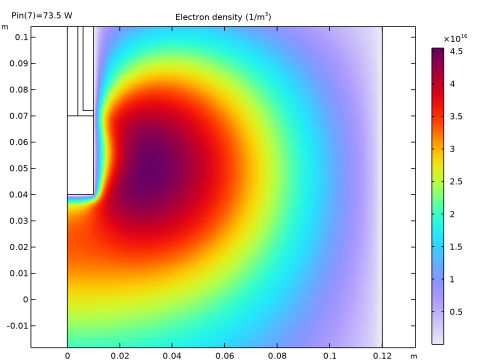
The electron density at the quasi steady state solution is plotted in Figure 5. The peak electron density is around 5·1016 m3 and peaks radially outward from the center of the coil. The magnitude of the electron number density and its profile agree well with the results in Ref. 1.
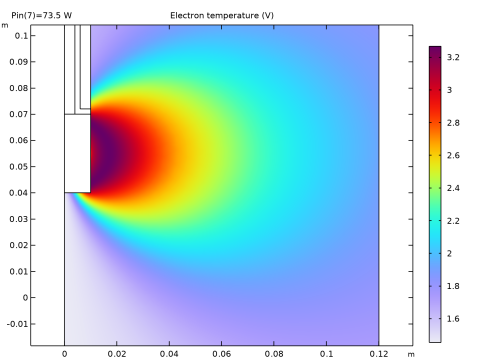
Despite the fact that power is only deposited to the plasma on the ECR surface, the electron temperature, plotted in Figure 6, is not sharply peaked at the critical magnetic flux density. Recall from Figure 2 that the magnetic field lines show the circular pattern away from the coil. The high degree of anisotropy in the electron transport properties results in strong energy transport along the magnetic field lines and little transport across the magnetic field lines. Indeed, the circular pattern along which the electron temperature is constant is consistent with the magnetic field lines. The peak electron temperature is around 3.8 eV and around 1.78 eV below the coil, which is again consistent with the results in Ref. 1.
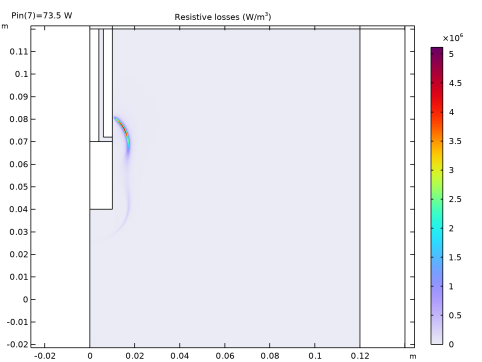
The electron density profile shows no signs of the resonance zone, which is clearly seen in Figure 8. The power deposition is very high, peaking at 35 W/cm3. All of the power deposition into the plasma from the electromagnetic field occurs in this resonance zone.
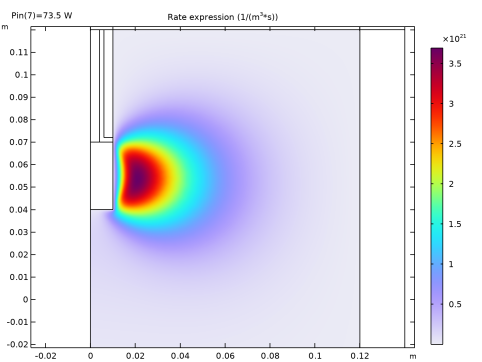
The ionization source, plotted in Figure 9 is localized around the coil. This corresponds to the region where the electron density and electron temperature are highest. Because the ionization rate scales linearly with the electron density and exponentially with the electron temperature this is to be expected.
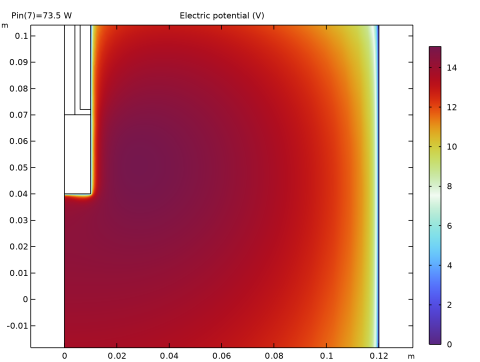
The plasma potential, plotted in Figure 7, peaks at around 16 V. The plasma potential is uniform throughout the plasma, even though the electron temperature shows large variations. The physical basis for the flat plasma potential is explained in Ref. 1.
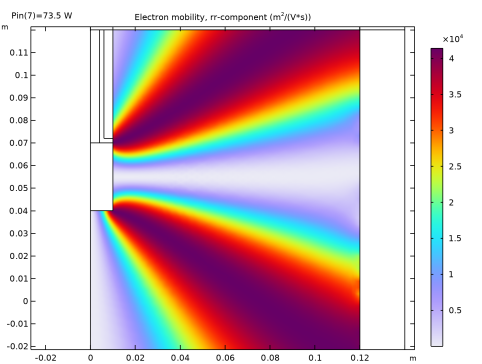
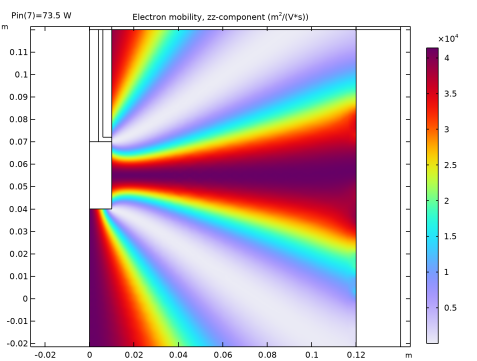
The degree of anisotropy in the electron transport properties can be seen in Figure 10 and Figure 11. In Figure 10 the electron mobility varies by 8 orders of magnitude, it is 4·104 m2/(Vs) toward the coil edges and 104 m2/(Vs) radially outward from the coil center. In Figure 11 the opposite is true, the electron mobility is very high in the z direction at the center of the coil, and very small toward the coil edges. This leads to migration of electrons along the magnetic field lines when they are produced in the ionization region (see Figure 9).
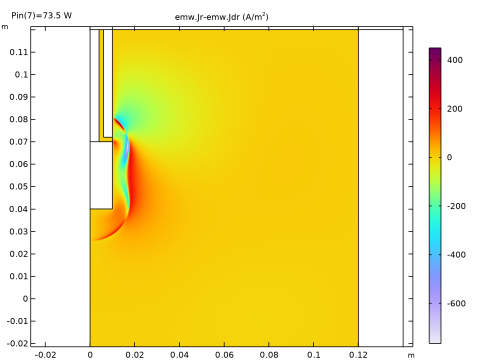
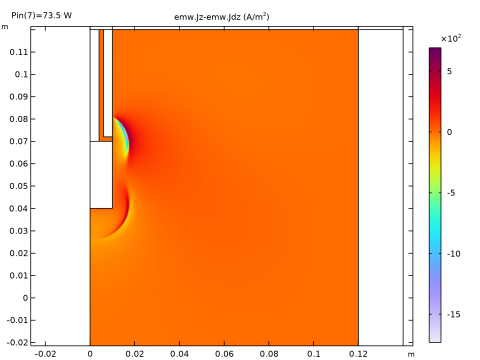
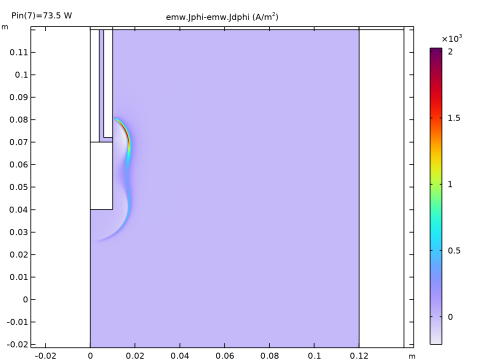
The conduction current due to the microwaves is plotted in Figure 12, Figure 13, and Figure 14. The largest component of the conduction current is actually in the azimuthal direction despite the coaxial port only propagating in the TM mode. Despite this, the heating (cooling) due to the dot product of the azimuthal components of the current and electric fields is small, due to the much lower value of the azimuthal component of the electric field.
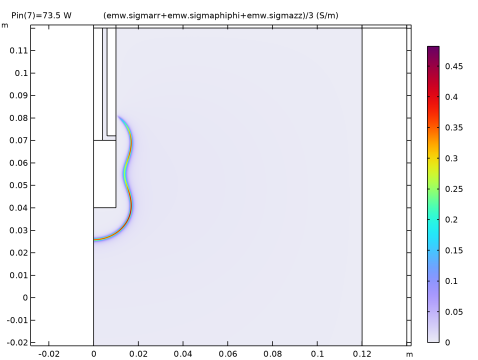
Finally, the trace of the plasma conductivity is plotted in Figure 15. The resonance zone is evident and the locally high electric conductivity leads to the propagating electromagnetic waves to be absorbed.
It is worth mentioning that the electron density in this example model is below the critical plasma density everywhere (7.4·1016 m3 at 2.45 GHz). If either the pressure or the power is increased, the power absorption can shift from the ECR surface to the contour where the plasma density is equal to the critical plasma density. On this contour the phase velocity approaches infinity whereas the group velocity approaches zero. The numerical instabilities caused by this are also smoothed out by adding an effective collision frequency to the actual collision frequency using Equation 4.
Figure 5: Plot of the electron density for an input power of 73.5 W and absorbed power of 10 W.
Figure 6: Plot of the electron temperature.
Figure 7: Plot of the plasma potential.
Figure 8: Plot of the power deposition into the plasma. Nearly all the power deposition occurs on the ECR surface.
Figure 9: Plot of the rate expression for electrons generated via ionization.
Figure 10: Plot of the electron mobility tensor’s rr-component. The mobility varies by 8 orders of magnitude over the space of only a couple of centimeters.
Figure 11: Plot of the electron mobility tensor’s zz-component.
Figure 12: Unnormalized radial component of the microwave conduction current.
Figure 13: Unnormalized axial component of the microwave conduction current.
Figure 14: Unnormalized azimuthal component of the microwave conduction current.
Figure 15: Plot of the trace of the plasma conductivity tensor.
References
1. G.J.M. Hagelaar, K. Makasheva, L. Garrigues, and J.-P. Boeuf, “Modelling of a dipolar microwave plasma sustained by electron cyclotron resonance,” J. Phys. D: Appl. Phys., vol. 42, p. 194019 (12pp), 2009.
2. R.L. Kinder and M.J. Kushner, “Consequences of mode structure on plasma properties in electron cyclotron resonance sources,” J. Vac. Sci. Technol. A, vol. 175, 1999.
3. Phelps database, www.lxcat.net, retrieved 2017.
Application Library path: Plasma_Module/Wave-Heated_Discharges/dipolar_ecr_source
Modeling Instructions
From the File menu, choose New.
New
In the New window, click  Model Wizard.
Model Wizard
1
In the Model Wizard window, click  2D Axisymmetric.
2
In the Select Physics tree, select AC/DC > Electromagnetic Fields > Magnetic Fields (mf).
3
Click Add.
4
Click  Study.
5
In the Select Study tree, select General Studies > Stationary.
6
Magnetic Fields (mf)
Ampère’s Law in Fluids 1
1
In the Physics toolbar, click  Domains and choose Ampère’s Law in Fluids.
2
In the Settings window for Ampère’s Law in Fluids, locate the Domain Selection section.
3
From the Selection list, choose All domains.
Geometry 1
1
Click the  Show More Options button in the Model Builder toolbar.
2
In the Show More Options dialog, in the tree, select the checkbox for the node Physics > Advanced Physics Options.
3
Add parameters to use in the model, such as the power input into the reactor.
Global Definitions
Parameters 1
1
In the Model Builder window, under Global Definitions click Parameters 1.
2
In the Settings window for Parameters, locate the Parameters section.
3
Geometry 1
Create the geometry of an ECR reactor.
Rectangle 1 (r1)
1
In the Geometry toolbar, click  Rectangle.
2
In the Settings window for Rectangle, locate the Size and Shape section.
3
In the Width text field, type r0.
4
In the Height text field, type z0.
5
Locate the Position section. In the z text field, type -z0/2.
Rectangle 2 (r2)
1
In the Geometry toolbar, click  Rectangle.
2
In the Settings window for Rectangle, locate the Size and Shape section.
3
In the Width text field, type 0.01.
4
In the Height text field, type 0.03.
5
Locate the Position section. In the z text field, type 0.04.
Rectangle 3 (r3)
1
In the Geometry toolbar, click  Rectangle.
2
In the Settings window for Rectangle, locate the Size and Shape section.
3
In the Width text field, type 0.004.
4
In the Height text field, type 0.048.
5
Locate the Position section. In the r text field, type 0.006.
6
In the z text field, type 0.072.
Rectangle 4 (r4)
1
In the Geometry toolbar, click  Rectangle.
2
In the Settings window for Rectangle, locate the Size and Shape section.
3
In the Width text field, type 0.004.
4
In the Height text field, type 0.05.
5
Locate the Position section. In the z text field, type 0.07.
Rectangle 5 (r5)
1
In the Geometry toolbar, click  Rectangle.
2
In the Settings window for Rectangle, locate the Size and Shape section.
3
In the Width text field, type r0-0.01.
4
In the Height text field, type 0.02.
5
Locate the Position section. In the r text field, type 0.01.
6
In the z text field, type 0.12.
Rectangle 6 (r6)
1
In the Geometry toolbar, click  Rectangle.
2
In the Settings window for Rectangle, locate the Size and Shape section.
3
In the Width text field, type 0.02.
4
In the Height text field, type 0.02.
5
Locate the Position section. In the r text field, type r0.
6
In the z text field, type 0.12.
Rectangle 7 (r7)
1
In the Geometry toolbar, click  Rectangle.
2
In the Settings window for Rectangle, locate the Size and Shape section.
3
In the Width text field, type 0.02.
4
In the Height text field, type z0.
5
Locate the Position section. In the r text field, type r0.
6
In the z text field, type -z0/2.
Rectangle 8 (r8)
1
In the Geometry toolbar, click  Rectangle.
2
In the Settings window for Rectangle, locate the Size and Shape section.
3
In the Width text field, type 0.02.
4
In the Height text field, type 0.02.
5
Locate the Position section. In the r text field, type r0.
6
In the z text field, type -0.02-z0/2.
Rectangle 9 (r9)
1
In the Geometry toolbar, click  Rectangle.
2
In the Settings window for Rectangle, locate the Size and Shape section.
3
In the Width text field, type r0.
4
In the Height text field, type 0.02.
5
Locate the Position section. In the z text field, type -0.02-z0/2.
Rectangle 10 (r10)
1
In the Geometry toolbar, click  Rectangle.
2
In the Settings window for Rectangle, locate the Size and Shape section.
3
In the Width text field, type 0.01.
4
In the Height text field, type 0.02.
5
Locate the Position section. In the z text field, type 0.12.
Line Segment 1 (ls1)
1
In the Geometry toolbar, click  More Primitives and choose Line Segment.
2
In the Settings window for Line Segment, locate the Starting Point section.
3
From the Specify list, choose Coordinates.
4
Locate the Endpoint section. From the Specify list, choose Coordinates.
5
Locate the Starting Point section. In the r text field, type 0.01.
6
Locate the Endpoint section. In the r text field, type 0.01.
7
Locate the Starting Point section. In the z text field, type 0.072.
8
Locate the Endpoint section. In the z text field, type 0.07.
9
Click  Build All Objects.
Definitions
Make a View that zooms in the resonant region.
View 2
1
In the Model Builder window, expand the Component 1 (comp1) > Definitions node.
2
Right-click Definitions and choose View.
Axis
1
In the Model Builder window, expand the View 2 node, then click Axis.
2
In the Settings window for Axis, locate the Axis section.
3
In the r minimum text field, type -0.05.
4
In the r maximum text field, type 0.16.
5
In the z minimum text field, type -0.02.
6
In the z maximum text field, type 0.12.
7
Click  Update.
View 2
1
In the Model Builder window, click View 2.
2
In the Settings window for View, locate the View section.
3
Select the Lock axis checkbox.
Add an explicit selection to make it easier to specify feature selections below.
Walls
1
In the Definitions toolbar, click  Explicit.
2
In the Settings window for Explicit, locate the Input Entities section.
3
From the Geometric entity level list, choose Boundary.
4
5
In the Label text field, type Walls.
Add an Infinite Element Domain to the region outside the plasma reactor.
Infinite Element Domain 1 (ie1)
1
In the Definitions toolbar, click  Infinite Element Domain.
2
In the Settings window for Infinite Element Domain, locate the Geometry section.
3
From the Type list, choose Cylindrical.
4
Add materials and define the electromagnetic properties of the domains.
Materials
Material 1 (mat1)
1
In the Model Builder window, under Component 1 (comp1) right-click Materials and choose Blank Material.
2
3
In the Settings window for Material, locate the Material Contents section.
4
Material 2 (mat2)
1
Right-click Materials and choose Blank Material.
2
3
In the Settings window for Material, locate the Material Contents section.
4
Material 3 (mat3)
1
Right-click Materials and choose Blank Material.
2
3
In the Settings window for Material, locate the Material Contents section.
4
Add two Integration operators. One to be used in the mesh adaptation process and the other to compute the power absorbed by the plasma in the results analysis.
Definitions
Integration 1 (intop1)
1
In the Definitions toolbar, click  Nonlocal Couplings and choose Integration.
2
3
In the Settings window for Integration, locate the Advanced section.
4
Clear the Compute integral in revolved geometry checkbox.
Integration 2 (intop2)
1
In the Definitions toolbar, click  Nonlocal Couplings and choose Integration.
2
Magnetic Fields (mf)
In the following add a Magnetic Fields interface and prepare the model to compute the stationary magnetic field that is going to be used in the plasma simulation.
An adaptive mesh refinement is used to refine the mesh in the resonant region. This mesh is going to be used in the plasma simulation.
Domain Coil 1
1
In the Physics toolbar, click  Domains and choose Domain Coil.
2
3
In the Settings window for Domain Coil, locate the Coil section.
4
From the Conductor model list, choose Homogenized multiturn.
5
Locate the Homogenized Conductor section. In the N text field, type 5000.
6
Locate the Coil section. In the Icoil text field, type 14.
7
Click the  Zoom Extents button in the Graphics toolbar.
Mesh 1
Edge 1
1
In the Mesh toolbar, click  More Generators and choose Edge.
2
Size 1
1
Right-click Edge 1 and choose Size.
2
In the Settings window for Size, locate the Element Size section.
3
From the Predefined list, choose Extremely fine.
4
Click the Custom button.
5
Locate the Element Size Parameters section.
6
Select the Maximum element size checkbox. In the associated text field, type 0.0005.
Edge 2
1
In the Mesh toolbar, click  More Generators and choose Edge.
2
Size 1
1
Right-click Edge 2 and choose Size.
2
In the Settings window for Size, locate the Element Size section.
3
From the Predefined list, choose Extremely fine.
4
Click the Custom button.
5
Locate the Element Size Parameters section.
6
Select the Maximum element size checkbox. In the associated text field, type 0.0015.
Free Triangular 1
1
In the Mesh toolbar, click  Free Triangular.
2
In the Settings window for Free Triangular, locate the Domain Selection section.
3
From the Geometric entity level list, choose Domain.
4
Size 1
1
Right-click Free Triangular 1 and choose Size.
2
In the Settings window for Size, locate the Element Size section.
3
From the Predefined list, choose Extra fine.
Free Triangular 2
1
In the Mesh toolbar, click  Free Triangular.
2
In the Settings window for Free Triangular, locate the Domain Selection section.
3
From the Geometric entity level list, choose Domain.
4
Size 1
1
Right-click Free Triangular 2 and choose Size.
2
In the Settings window for Size, locate the Element Size section.
3
From the Predefined list, choose Extremely fine.
4
Click the Custom button.
5
Locate the Element Size Parameters section.
6
Select the Maximum element size checkbox. In the associated text field, type 0.001.
Free Triangular 3
1
In the Mesh toolbar, click  Free Triangular.
2
In the Settings window for Free Triangular, click  Build All.
Study 1
Step 1: Stationary
1
In the Model Builder window, under Study 1 click Step 1: Stationary.
2
In the Settings window for Stationary, click to expand the Adaptation and Error Estimates section.
3
From the Adaptation and error estimates list, choose Adaptation and error estimates.
4
From the Error estimate list, choose Functional.
5
From the Functional type list, choose Manual.
6
In the Functional text field, type comp1.intop1(1/(abs(comp1.mf.normB-0.0875)+1e-4)).
7
Find the Mesh adaptation subsection. From the Adaptation method list, choose Rebuild mesh.
8
Select the Maximum number of adaptations checkbox.
9
In the Model Builder window, click Study 1.
10
In the Settings window for Study, type Static Magnetic Field in the Label text field.
11
Locate the Study Settings section. Clear the Generate default plots checkbox.
Solution 1 (sol1)
1
In the Study toolbar, click  Show Default Solver.
2
In the Model Builder window, expand the Solution 1 (sol1) node.
3
In the Model Builder window, expand the Static Magnetic Field > Solver Configurations > Solution 1 (sol1) > Stationary Solver 1 node, then click Adaptive Mesh Refinement.
4
In the Settings window for Adaptive Mesh Refinement, locate the General section.
5
Find the Mesh adaptation subsection. In the Maximum coarsening factor text field, type 1.
6
In the Study toolbar, click  Compute.
Results
In the Model Builder window, expand the Results node.
Static Magnetic Field/Solution 1 (sol1)
In the Model Builder window, expand the Results > Datasets node, then click Static Magnetic Field/Solution 1 (sol1).
Selection
1
In the Results toolbar, click  Attributes and choose Selection.
2
In the Settings window for Selection, locate the Geometric Entity Selection section.
3
From the Geometric entity level list, choose Domain.
4
Stationary Magnetic Flux Density
1
In the Results toolbar, click  2D Plot Group.
2
In the Settings window for 2D Plot Group, type Stationary Magnetic Flux Density in the Label text field.
Contour 1
1
Right-click Stationary Magnetic Flux Density and choose Contour.
2
In the Settings window for Contour, locate the Expression section.
3
In the Expression text field, type log10(mf.normB+eps).
4
Locate the Levels section. In the Total levels text field, type 8.
5
Locate the Coloring and Style section. From the Contour type list, choose Filled.
6
From the Color table list, choose GrayScale.
7
Clear the Color legend checkbox.
8
From the Color table transformation list, choose Reverse.
Contour 2
1
In the Model Builder window, right-click Stationary Magnetic Flux Density and choose Contour.
2
In the Settings window for Contour, locate the Expression section.
3
In the Expression text field, type Aphi.
4
Locate the Coloring and Style section. From the Coloring list, choose Uniform.
5
From the Color list, choose Black.
6
Clear the Color legend checkbox.
Contour 3
1
Right-click Contour 2 and choose Duplicate.
2
In the Settings window for Contour, click Replace Expression in the upper-right corner of the Expression section. From the menu, choose Component 1 (comp1) > Magnetic Fields > Magnetic > mf.normB - Magnetic flux density norm - T.
3
Locate the Levels section. From the Entry method list, choose Levels.
4
Click  Range.
5
In the Range dialog, choose Number of values from the Entry method list.
6
In the Start text field, type 0.086.
7
In the Stop text field, type 0.089.
8
In the Number of values text field, type 20.
9
Click Replace.
10
In the Stationary Magnetic Flux Density toolbar, click  Plot.
Next, visualize the refined mesh.
Adaptive Mesh
1
In the Results toolbar, click  2D Plot Group.
2
In the Settings window for 2D Plot Group, type Adaptive Mesh in the Label text field.
3
Locate the Data section. From the Dataset list, choose Static Magnetic Field/Adaptive Mesh Refinement Solutions 1 (sol2).
Mesh 1
1
Right-click Adaptive Mesh and choose Mesh.
2
In the Settings window for Mesh, locate the Coloring and Style section.
3
From the Element color list, choose None.
4
From the Wireframe color list, choose Custom.
5
Click Define custom colors.
6
7
Click Add to custom colors.
8
Click Show color palette only or OK on the cross-platform desktop.
9
In the Adaptive Mesh toolbar, click  Plot.
Add a Microwave Plasma interface and prepare the ECR model. By selecting Compute tensor electron transport properties and Compute tensor ion transport properties both electrons and ions have tensor transport properties that depend on the magnetic field.
The plasma conductivity is also set to be a tensor that depends on the magnetic field by checking the box Compute tensor plasma conductivity in the multiphysics feature Plasma Conductivity Coupling.
Add Physics
1
In the Home toolbar, click  Add Physics to open the Add Physics window.
2
Go to the Add Physics window.
3
In the tree, select Plasma > Microwave Plasma.
4
Find the Physics interfaces in study subsection. In the table, clear the Solve checkbox for Static Magnetic Field.
5
Click the Add to Component 1 button in the window toolbar.
6
In the Home toolbar, click  Add Physics to close the Add Physics window.
Plasma (plas)
Select Domains 1, 2, 5, 6, and 8–11 only.
Electromagnetic Waves, Frequency Domain (emw)
1
In the Model Builder window, under Component 1 (comp1) click Electromagnetic Waves, Frequency Domain (emw).
2
In the Settings window for Electromagnetic Waves, Frequency Domain, locate the Domain Selection section.
3
Click  Clear Selection.
4
Plasma (plas)
1
In the Model Builder window, under Component 1 (comp1) click Plasma (plas).
2
In the Settings window for Plasma, locate the Transport Settings section.
3
Select the Full expression for diffusivity checkbox.
4
Select the Compute tensor ion transport properties checkbox.
5
Locate the Plasma Properties section. Select the Compute tensor electron transport properties checkbox.
Multiphysics
Plasma Conductivity Coupling 1 (pcc1)
1
In the Model Builder window, under Component 1 (comp1) > Multiphysics click Plasma Conductivity Coupling 1 (pcc1).
2
In the Settings window for Plasma Conductivity Coupling, locate the Compute Tensor Plasma Conductivity section.
3
Select the Compute tensor plasma conductivity checkbox.
4
In the δ text field, type 20.
Plasma (plas)
1
In the Model Builder window, under Component 1 (comp1) click Plasma (plas).
2
In the Settings window for Plasma, locate the Domain Selection section.
3
Click  Clear Selection.
4
Cross Section Import 1
1
In the Physics toolbar, click  Global and choose Cross Section Import.
2
In the Settings window for Cross Section Import, locate the Cross Section Import section.
3
Click  Browse.
4
5
Click  Import.
Reaction 1
1
In the Physics toolbar, click  Domains and choose Reaction.
2
In the Settings window for Reaction, locate the Reaction Formula section.
3
In the Formula text field, type Ars+Ar=>Ar+Ar.
4
Locate the Reaction Parameters section. In the kf text field, type 1807.
Reaction 2
1
In the Physics toolbar, click  Domains and choose Reaction.
2
In the Settings window for Reaction, locate the Reaction Formula section.
3
In the Formula text field, type Ars+Ars=>e+Ar+Ar+.
4
Locate the Reaction Parameters section. In the kf text field, type 3.734E8.
Species: Ar
1
In the Model Builder window, click Species: Ar.
2
In the Settings window for Species, locate the Species Formula section.
3
Select the From mass constraint checkbox.
4
Locate the General Parameters section. From the Preset species data list, choose Ar.
Species: Ars
1
In the Model Builder window, click Species: Ars.
2
In the Settings window for Species, locate the General Parameters section.
3
From the Preset species data list, choose Ar.
4
In the x0 text field, type 1E-4.
Species: Ar+
1
In the Model Builder window, click Species: Ar+.
2
In the Settings window for Species, locate the Species Formula section.
3
Select the Initial value from electroneutrality constraint checkbox.
4
Locate the General Parameters section. From the Preset species data list, choose Ar.
5
Locate the Mobility and Diffusivity Expressions section. From the Specification list, choose Specify mobility, compute diffusivity.
6
Locate the Mobility Specification section. From the Specify using list, choose Lookup table.
7
Find the Ion mobility subsection. Click  Load from File.
8
Surface Reaction 1
1
In the Physics toolbar, click  Boundaries and choose Surface Reaction.
2
In the Settings window for Surface Reaction, locate the Reaction Formula section.
3
In the Formula text field, type Ar+=>Ar.
4
Locate the Boundary Selection section. From the Selection list, choose Walls.
Surface Reaction 2
1
In the Physics toolbar, click  Boundaries and choose Surface Reaction.
2
In the Settings window for Surface Reaction, locate the Reaction Formula section.
3
In the Formula text field, type Ars=>Ar.
4
Locate the Boundary Selection section. From the Selection list, choose Walls.
Wall 1
1
In the Physics toolbar, click  Boundaries and choose Wall.
2
In the Settings window for Wall, locate the Boundary Selection section.
3
From the Selection list, choose Walls.
Ground 1
1
In the Physics toolbar, click  Boundaries and choose Ground.
2
In the Settings window for Ground, locate the Boundary Selection section.
3
From the Selection list, choose Walls.
Initial Values 1
1
In the Model Builder window, click Initial Values 1.
2
In the Settings window for Initial Values, locate the Initial Values section.
3
In the ne,0 text field, type 1E17[1/m^3].
4
In the ε0 text field, type 2[V].
Plasma Model 1
1
In the Model Builder window, click Plasma Model 1.
2
In the Settings window for Plasma Model, locate the Model Inputs section.
3
From the B list, choose Magnetic flux density (mf).
4
In the T text field, type 300.
5
In the pA text field, type 1.
6
Locate the DC Electron Mobility section. In the μdc text field, type 1E25[1/(m*V*s)]/plas.Nn.
Electromagnetic Waves, Frequency Domain (emw)
In the Model Builder window, under Component 1 (comp1) click Electromagnetic Waves, Frequency Domain (emw).
Port 1
1
In the Physics toolbar, click  Boundaries and choose Port.
In the Port feature set the input power. This is different that the power absorbed by the plasma as it will be shown in the Results section.
2
3
In the Settings window for Port, locate the Port Properties section.
4
From the Type of port list, choose Coaxial.
5
In the Pin text field, type Pin.
Mesh 2
In the Mesh toolbar, click Add Mesh and choose Add Mesh.
Reference 1
1
In the Mesh toolbar, click  Modify and choose Reference.
2
In the Settings window for Reference, locate the Reference section.
3
From the Mesh list, choose Level 1 Adapted Mesh 1.
Refine 1
1
In the Mesh toolbar, click  Modify and choose Refine.
2
In the Settings window for Refine, locate the Geometric Entity Selection section.
3
From the Geometric entity level list, choose Domain.
4
5
Locate the Refine Options section. From the Number of refinements list, choose 2.
Boundary Layers 1
1
In the Mesh toolbar, click  Boundary Layers.
2
In the Settings window for Boundary Layers, locate the Domain Selection section.
3
From the Geometric entity level list, choose Domain.
4
Boundary Layer Properties
1
In the Model Builder window, click Boundary Layer Properties.
2
In the Settings window for Boundary Layer Properties, locate the Boundary Selection section.
3
From the Selection list, choose Walls.
4
Locate the Layers section. In the Number of layers text field, type 4.
5
In the Stretching factor text field, type 1.4.
6
Click  Build All.
Add a Frequency-Transient study to solve for an input power of 20 W. The solution of this study is going to be used as initial conditions of a following Frequency-Stationary study.
In this and following studies, the magnetic field is not solved for and the refined mesh is used.
Add Study
1
In the Home toolbar, click  Add Study to open the Add Study window.
2
Go to the Add Study window.
3
Find the Physics interfaces in study subsection. In the table, clear the Solve checkbox for Magnetic Fields (mf).
4
Find the Studies subsection. In the Select Study tree, select Preset Studies for Selected Multiphysics > Frequency–Transient.
5
Click the Add Study button in the window toolbar.
6
In the Home toolbar, click  Add Study to close the Add Study window.
Study 2
Step 1: Frequency–Transient
1
In the Settings window for Frequency–Transient, locate the Study Settings section.
2
In the Output times text field, type 0 10^{range(-8,6/10,0)}.
3
In the Frequency text field, type 2.45E9.
4
Locate the Physics and Variables Selection section. In the Solve for column of the table, under Component 1 (comp1), clear the checkbox for Magnetic Fields (mf).
5
Click to expand the Mesh Selection section. In the table, enter the following settings:
6
Click to expand the Values of Dependent Variables section. Find the Values of variables not solved for subsection. From the Settings list, choose User controlled.
7
From the Method list, choose Solution.
8
From the Study list, choose Static Magnetic Field, Stationary.
9
From the Solution list, choose Adaptive Mesh Refinement Solutions 1 (sol2).
10
From the Use list, choose Level 1 Refined Solution 4 (sol4).
Solution 5 (sol5)
1
In the Study toolbar, click  Show Default Solver.
2
In the Model Builder window, expand the Solution 5 (sol5) node, then click Dependent Variables 1.
3
In the Settings window for Dependent Variables, locate the General section.
4
From the Defined by study step list, choose User defined.
5
In the Model Builder window, click Study 2.
6
In the Settings window for Study, type Pin=20 W in the Label text field.
7
In the Study toolbar, click  Compute.
Results
Electric Field (emw), Electric Potential (plas), Electron Density (plas), Electron Temperature (plas)
Right-click and choose Group.
Pin=20 W
In the Settings window for Group, type Pin=20 W in the Label text field.
Add a Frequency-Stationary study to ramp up the input power. It is difficult to obtain a solution for a plasma problem using a stationary solver using arbitrary flat profiles as initial conditions. That is why the solution of the Frequency-Transient study is used as initial conditions.
Add Study
1
In the Home toolbar, click  Add Study to open the Add Study window.
2
Go to the Add Study window.
3
Find the Studies subsection. In the Select Study tree, select Preset Studies for Selected Multiphysics > Frequency–Stationary.
4
Click the Add Study button in the window toolbar.
5
In the Home toolbar, click  Add Study to close the Add Study window.
Study 3
Step 1: Frequency–Stationary
1
In the Settings window for Frequency–Stationary, locate the Study Settings section.
2
In the Frequency text field, type 2.45e9.
3
Locate the Physics and Variables Selection section. In the Solve for column of the table, under Component 1 (comp1), clear the checkbox for Magnetic Fields (mf).
4
Click to expand the Values of Dependent Variables section. Find the Initial values of variables solved for subsection. From the Settings list, choose User controlled.
5
From the Method list, choose Solution.
6
From the Study list, choose Pin=20 W, Frequency–Transient.
7
Find the Values of variables not solved for subsection. From the Settings list, choose User controlled.
8
From the Method list, choose Solution.
9
From the Study list, choose Static Magnetic Field, Stationary.
10
From the Solution list, choose Adaptive Mesh Refinement Solutions 1 (sol2).
11
Click to expand the Study Extensions section. Select the Auxiliary sweep checkbox.
12
13
14
In the Study toolbar, click  Compute.
Results
Electric Field (emw) 1, Electric Potential (plas) 1, Electron Density (plas) 1, Electron Temperature (plas) 1, S-Parameter (emw), Smith Plot (emw)
Right-click and choose Group.
Pin 20 to 80 W
In the Settings window for Group, type Pin 20 to 80 W in the Label text field.
Pin 20 to 80 W
1
In the Model Builder window, click Study 3.
2
In the Settings window for Study, type Pin 20 to 80 W in the Label text field.
Results
Electron Density (plas) 1
1
In the Model Builder window, under Results > Pin 20 to 80 W click Electron Density (plas) 1.
2
In the Settings window for 2D Plot Group, locate the Data section.
3
From the Parameter value (Pin (W)) list, choose 73.5.
4
In the Electron Density (plas) 1 toolbar, click  Plot.
Electron Temperature (plas) 1
1
In the Model Builder window, click Electron Temperature (plas) 1.
2
In the Settings window for 2D Plot Group, locate the Data section.
3
From the Parameter value (Pin (W)) list, choose 73.5.
4
In the Electron Temperature (plas) 1 toolbar, click  Plot.
Electric Potential (plas) 1
1
In the Model Builder window, click Electric Potential (plas) 1.
2
In the Settings window for 2D Plot Group, locate the Data section.
3
From the Parameter value (Pin (W)) list, choose 73.5.
4
In the Electric Potential (plas) 1 toolbar, click  Plot.
Electric Field (emw) 1
1
In the Model Builder window, click Electric Field (emw) 1.
2
In the Settings window for 2D Plot Group, locate the Data section.
3
From the Parameter value (Pin (W)) list, choose 73.5.
4
In the Electric Field (emw) 1 toolbar, click  Plot.
Absorbed Power vs. Input Power
1
In the Results toolbar, click  1D Plot Group.
2
In the Settings window for 1D Plot Group, type Absorbed Power vs. Input Power in the Label text field.
3
Locate the Data section. From the Dataset list, choose Pin 20 to 80 W/Solution 6 (sol6).
4
Locate the Legend section. Clear the Show legends checkbox.
5
Click to expand the Title section. From the Title type list, choose None.
Global 1
1
Right-click Absorbed Power vs. Input Power and choose Global.
2
In the Settings window for Global, locate the y-Axis Data section.
3
4
In the Absorbed Power vs. Input Power toolbar, click  Plot.
Absorbed Power vs. Input Power
1
In the Model Builder window, click Absorbed Power vs. Input Power.
2
In the Settings window for 1D Plot Group, locate the Plot Settings section.
3
Select the x-axis label checkbox. In the associated text field, type Input Power (W).
4
Select the y-axis label checkbox. In the associated text field, type Absorbed Power (W).
5
In the Absorbed Power vs. Input Power toolbar, click  Plot.
Power Deposition
1
In the Results toolbar, click  2D Plot Group.
2
In the Settings window for 2D Plot Group, locate the Data section.
3
From the Dataset list, choose Pin 20 to 80 W/Solution 6 (sol6).
4
From the Parameter value (Pin (W)) list, choose 73.5.
5
In the Label text field, type Power Deposition.
Surface 1
1
Right-click Power Deposition and choose Surface.
2
In the Settings window for Surface, locate the Expression section.
3
In the Expression text field, type emw.Qrh.
4
Locate the Coloring and Style section. From the Color table list, choose Prism.
5
In the Power Deposition toolbar, click  Plot.
Electron Source
1
In the Model Builder window, right-click Power Deposition and choose Duplicate.
2
In the Settings window for 2D Plot Group, type Electron Source in the Label text field.
Surface 1
1
In the Model Builder window, expand the Electron Source node, then click Surface 1.
2
In the Settings window for Surface, locate the Expression section.
3
In the Expression text field, type plas.Re.
4
In the Electron Source toolbar, click  Plot.
Electron Source 1
In the Model Builder window, right-click Electron Source and choose Duplicate.
Electron Mobility, rr Component
In the Settings window for 2D Plot Group, type Electron Mobility, rr Component in the Label text field.
Surface 1
1
In the Model Builder window, expand the Results > Pin 20 to 80 W > Electron Source 1 node, then click Surface 1.
2
In the Settings window for Surface, locate the Expression section.
3
In the Expression text field, type plas.muerr.
4
In the Electron Source 1 toolbar, click  Plot.
Electron Mobility, zz-Component
1
In the Model Builder window, right-click Electron Source 1 and choose Duplicate.
2
In the Model Builder window, click Electron Source 1.1.
3
In the Settings window for 2D Plot Group, type Electron Mobility, zz-Component in the Label text field.
Surface 1
1
In the Model Builder window, click Surface 1.
2
In the Settings window for Surface, locate the Expression section.
3
In the Expression text field, type plas.muezz.
4
In the Electron Mobility, zz-Component toolbar, click  Plot.
Conduction Current Density, r-Component
1
In the Model Builder window, right-click Electron Mobility, zz-Component and choose Duplicate.
2
In the Settings window for 2D Plot Group, type Conduction Current Density, r-Component in the Label text field.
Surface 1
1
In the Model Builder window, expand the Conduction Current Density, r-Component node, then click Surface 1.
2
In the Settings window for Surface, locate the Expression section.
3
In the Expression text field, type emw.Jr-emw.Jdr.
4
In the Conduction Current Density, r-Component toolbar, click  Plot.
Conduction Current Density, z-Component
1
In the Model Builder window, right-click Conduction Current Density, r-Component and choose Duplicate.
2
In the Model Builder window, click Conduction Current Density, r-Component 1.
3
In the Settings window for 2D Plot Group, type Conduction Current Density, z-Component in the Label text field.
Surface 1
1
In the Model Builder window, click Surface 1.
2
In the Settings window for Surface, locate the Expression section.
3
In the Expression text field, type emw.Jz-emw.Jdz.
4
In the Conduction Current Density, z-Component toolbar, click  Plot.
Conduction Current Density, phi-Component
1
In the Model Builder window, right-click Conduction Current Density, z-Component and choose Duplicate.
2
In the Settings window for 2D Plot Group, type Conduction Current Density, phi-Component in the Label text field.
Surface 1
1
In the Model Builder window, expand the Conduction Current Density, phi-Component node, then click Surface 1.
2
In the Settings window for Surface, locate the Expression section.
3
In the Expression text field, type emw.Jphi-emw.Jdphi.
4
In the Conduction Current Density, phi-Component toolbar, click  Plot.
Mean Plasma Electric conductivity
1
In the Model Builder window, right-click Conduction Current Density, phi-Component and choose Duplicate.
2
In the Settings window for 2D Plot Group, type Mean Plasma Electric conductivity in the Label text field.
Surface 1
1
In the Model Builder window, expand the Mean Plasma Electric conductivity node, then click Surface 1.
2
In the Settings window for Surface, locate the Expression section.
3
In the Expression text field, type (emw.sigmarr+emw.sigmaphiphi+emw.sigmazz)/3.
4
In the Mean Plasma Electric conductivity toolbar, click  Plot.