












PDF

3D ICP Reactor, Argon Chemistry
Introduction
Although not recommended, 3-dimensional plasma modeling is possible to do in COMSOL. A square coil is placed on top of a dielectric window and it electrically excited at 13.56 MHz. A plasma is formed in the chamber beneath the dielectric window, which contains argon gas at low pressure (20 mtorr). The gas flows into the process chamber from two 2 inch ports and the gas is extracted through a single 4 inch port. The plasma is sustained via electromagnetic induction where power is transferred from the electromagnetic fields to the electrons.
Note: This application requires the Plasma Module and the AC/DC Module.
Model Definition
Electron transport is modeled by solving the continuity equation, the momentum equation under the drift-diffusion approximation, and the mean electron energy equation (for detailed information on electron transport, see Theory for the Drift Diffusion Interface in the Plasma Module User’s Guide)
The source coefficients in the above equations are determined by the plasma chemistry. The electron rate expression is defined as
where νe,j is the stoichiometric coefficient, and the reaction rate is defined as
where kjf is the forward rate constant and kjr is the reversed rate constant. Both the Electron Impact Reaction feature and Reaction feature can contribute to the electron rate expression. However, when using the Reaction feature it is important to note that the associated electron energy gain or loss is not included in the source term of the electron mean energy equation.
The rate constants can be computed from electron impact cross-section data
where γ = (2q/me)1/2 (SI unit: C1/2/kg1/2), me is the electron mass (SI unit: kg), ε is the electron energy (SI unit: V), σ is the electron impact collision cross section (SI unit: m2), and f is the electron energy distribution function.
When Townsend coefficients are used, the reaction rate is defined as
where αj/Nn is the reduced Townsend coefficient for reaction j (SI unit: m2) and Γe is the electron flux as defined above (SI unit: 1/(m2·s)). Townsend coefficients can increase the stability of the numerical scheme when the electron flux is field driven as is the case with DC discharges.
The total electron energy loss or gained is calculated by summing the collisional energy changes from all reactions defined with the Electron Impact Reaction feature as
where Δεj is the energy loss from reaction j (SI unit: V) and F is the Faraday constant (SI unit: C/mol). For excitation and ionization collisions Δεj corresponds to the energy of the excited state being excited/deexcited or ionized, for attachment Δεj is set to zero, and for elastic collisions
where me and mk are the electron and heavy species mass in kg, Te is the electron temperature in eV, and Tgas is the gas temperature in K.
For heavy species, the following equation is solved for the mass fraction of each species (for detailed information on the transport of the nonelectron species, see Theory for the Heavy Species Transport Interface in the Plasma Module User’s Guide):
The electrostatic field is computed using the following equation:
The space charge density ρ is automatically computed based on the plasma chemistry specified in the model using the formula
For detailed information about electrostatics see Theory for the Electrostatics Interface in the Plasma Module User’s Guide.
For a nonmagnetized, nonpolarized plasma, the induction currents are computed in the frequency domain using the following equation:
The electromagnetic wave “sees” a plasma defined by the plasma conductivity in the cold plasma approximation that is set in the Plasma Conductivity Coupling multiphysics feature:
where ne is the electron density, q is the electron charge, me is the electron mass, νe is the collision frequency, and ω is the angular frequency. The Joule heating term that is responsible to heat the electrons is set in the Electron Heat Source multiphysics feature.
boundary conditions
Electrons are lost to the wall due to random motion within a few mean free paths of the wall and gained due to secondary emission effects, resulting in the following boundary condition for the electron flux:
and the electron energy flux:
For the heavy species, ions are lost to the wall due to surface reactions and the fact that the electric field is directed toward the wall:
The walls of the reactor are grounded.
plasma chemistry
Since the physics occurring in an inductively coupled plasma is rather complex, it is always best to start a modeling project with a simple chemical mechanism. Argon is one of the simplest mechanisms to implement at low pressures. The electronically excited states can be lumped into a single species which results in a chemical mechanism consisting of only 3 species and 7 reactions (electron impact cross section are obtained from Ref. 3):
Stepwise ionization (reaction 5) can play an important role in sustaining low pressure argon discharges. Excited argon atoms are consumed via superelastic collisions with electrons, quenching with neutral argon atoms, ionization or Penning ionization where two metastable argon atoms react to form a neutral argon atom, an argon ion and an electron. In addition to volumetric reactions, the following surface reactions are implemented:
When a metastable argon atom makes contact with the wall, it reverts to the ground state argon atom with some probability (the sticking coefficient).
electrical excitation
From an electrical point of view, the GEC reactor behaves as a transformer. A current is applied to the driving coil (the primary) and this induces a current in the plasma (the secondary). The plasma then induces an opposing current back in the coil, increasing its impedance. The current flowing in the plasma depends on the current applied to the coil and the reaction kinetics. The total plasma current may vary from no current (plasma not sustained) to the same current as the primary which corresponds to perfect coupling between the coil and the plasma. Since this is a 3D model it is not practical to resolve the skin depth in the driving coil. Instead an impedance boundary condition is used which only computes the coil current density in the tangential direction of the coil surface. This means the mesh does not have to resolve the skin depth in the coil, which at 13.56MHz for copper is only 17 microns.
Results and Discussion
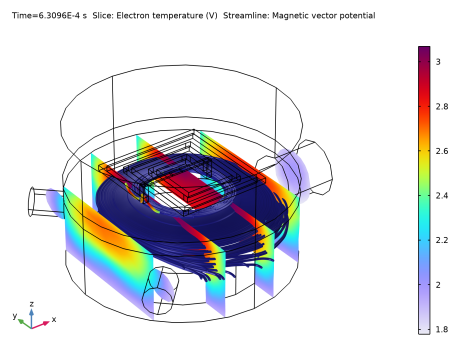
The peak electron density occurs at the center of the reactor, underneath the RF coil. The electron density in this case is high enough to cause some shielding of the azimuthal electric field.
Figure 1: Plot of electron temperature (slice), magnetic vector potential (streamlines) and electric field norm (streamline color).
The electron temperature is highest directly underneath the coil, which is where the bulk of the power deposition occurs. The streamlines in Figure 1 show the norm of the electric field. The streamlines are not perfectly circular since the coil is asymmetric.
References
1. G.J.M. Hagelaar and L.C. Pitchford, “Solving the Boltzmann Equation to Obtain Electron Transport Coefficients and Rate Coefficients for Fluid Models,” Plasma Sources Sci. Technol, vol. 14, pp. 722–733, 2005.
2. D.P. Lymberopoulos and D.J. Economou, “Two-Dimensional Self-Consistent Radio Frequency Plasma Simulations Relevant to the Gaseous Electronics Conference RF Reference Cell,” J. Res. Natl. Inst. Stand. Technol., vol. 100, pp. 473–494, 1995.
3. Phelps database, www.lxcat.net, retrieved 2017.
Application Library path: Plasma_Module/Inductively_Coupled_Plasmas/argon_3d_icp
Modeling Instructions
From the File menu, choose New.
New
In the New window, click  Model Wizard.
Model Wizard
1
In the Model Wizard window, click  3D.
2
In the Select Physics tree, select Fluid Flow > Single-Phase Flow > Laminar Flow (spf).
3
Click Add.
4
In the Select Physics tree, select Plasma > Inductively Coupled Plasma.
5
Click Add.
6
Geometry 1
1
Click the  Show More Options button in the Model Builder toolbar.
2
In the Show More Options dialog, in the tree, select the checkbox for the node Physics > Advanced Physics Options.
3
Import 1 (imp1)
1
In the Geometry toolbar, click  Import.
2
In the Settings window for Import, locate the Source section.
3
Click  Browse.
4
5
Click  Import.
Definitions
Coil boundaries
1
In the Definitions toolbar, click  Explicit.
2
Click the  Wireframe Rendering button in the Graphics toolbar.
3
4
In the Settings window for Explicit, type Coil boundaries in the Label text field.
5
Locate the Output Entities section. From the Output entities list, choose Adjacent boundaries.
Current density
1
In the Definitions toolbar, click  Explicit.
2
3
In the Settings window for Explicit, locate the Output Entities section.
4
From the Output entities list, choose Adjacent boundaries.
5
In the Label text field, type Current density.
Plasma
1
In the Definitions toolbar, click  Explicit.
2
3
In the Settings window for Explicit, type Plasma in the Label text field.
Inlets
1
In the Definitions toolbar, click  Explicit.
2
In the Settings window for Explicit, locate the Input Entities section.
3
From the Geometric entity level list, choose Boundary.
4
5
In the Label text field, type Inlets.
Outlet
1
In the Definitions toolbar, click  Explicit.
2
3
In the Settings window for Explicit, locate the Input Entities section.
4
From the Geometric entity level list, choose Boundary.
5
6
In the Label text field, type Outlet.
7
Click the  Go to Default View button in the Graphics toolbar.
ICP domains
1
In the Definitions toolbar, click  Explicit.
2
3
In the Settings window for Explicit, type ICP domains in the Label text field.
Plasma walls
1
In the Definitions toolbar, click  Explicit.
2
In the Settings window for Explicit, locate the Input Entities section.
3
From the Geometric entity level list, choose Boundary.
4
5
In the Label text field, type Plasma walls.
View 1
1
In the Model Builder window, under Component 1 (comp1) > Definitions click View 1.
2
In the Settings window for View, locate the View section.
3
Clear the Show grid checkbox.
4
Click the  Go to Default View button in the Graphics toolbar.
Variables 1
1
In the Definitions toolbar, click  Local Variables.
2
In the Settings window for Variables, locate the Variables section.
3
Plasma (plas)
1
In the Model Builder window, under Component 1 (comp1) click Plasma (plas).
2
In the Settings window for Plasma, locate the Domain Selection section.
3
Click  Clear Selection.
4
Magnetic Fields (mf)
1
In the Model Builder window, under Component 1 (comp1) click Magnetic Fields (mf).
2
Laminar Flow (spf)
Since the density variation is not small, the flow cannot be regarded as incompressible. Therefore set the flow to be compressible.
1
In the Model Builder window, under Component 1 (comp1) click Laminar Flow (spf).
2
In the Settings window for Laminar Flow, locate the Physical Model section.
3
From the Compressibility list, choose Compressible flow (Ma<0.3).
4
Locate the Domain Selection section. Click  Clear Selection.
5
Define the pressure reference level in the interface properties.
6
Locate the Physical Model section. In the pref text field, type 0.
Plasma (plas)
In the Model Builder window, under Component 1 (comp1) click Plasma (plas).
Cross Section Import 1
1
In the Physics toolbar, click  Global and choose Cross Section Import.
2
In the Settings window for Cross Section Import, locate the Cross Section Import section.
3
Click  Browse.
4
5
Click  Import.
6
In the Model Builder window, click Plasma (plas).
7
In the Settings window for Plasma, locate the Transport Settings section.
8
Select the Convection checkbox.
Species: Ar
1
In the Model Builder window, click Species: Ar.
2
In the Settings window for Species, locate the Species Formula section.
3
Select the From mass constraint checkbox.
Species: Ar+
1
In the Model Builder window, click Species: Ar+.
2
In the Settings window for Species, locate the Species Formula section.
3
Select the Initial value from electroneutrality constraint checkbox.
Species: Ars
1
In the Model Builder window, click Species: Ars.
2
In the Settings window for Species, locate the General Parameters section.
3
In the x0 text field, type 1E-4.
Initial Values 1
1
In the Model Builder window, click Initial Values 1.
2
In the Settings window for Initial Values, locate the Initial Values section.
3
In the ne,0 text field, type 1E16.
4
In the ε0 text field, type 4.
Plasma Model 1
1
In the Model Builder window, click Plasma Model 1.
2
In the Settings window for Plasma Model, locate the Electron Density and Energy section.
3
In the μe text field, type 4E24[1/(m*V*s)]/plas.Nn.
4
Locate the Model Inputs section. From the u list, choose Velocity field (spf).
5
In the T text field, type T.
6
From the pA list, choose Absolute pressure (spf).
Magnetic Fields (mf)
In the Model Builder window, under Component 1 (comp1) click Magnetic Fields (mf).
Impedance Boundary Condition 1
1
In the Physics toolbar, click  Boundaries and choose Impedance Boundary Condition.
2
In the Settings window for Impedance Boundary Condition, locate the Boundary Selection section.
3
From the Selection list, choose Coil boundaries.
Surface Current Density 1
1
In the Physics toolbar, click  Boundaries and choose Surface Current Density.
2
In the Settings window for Surface Current Density, locate the Boundary Selection section.
3
From the Selection list, choose Current density.
4
Locate the Surface Current Density section. Specify the Js0 vector as
Plasma (plas)
In the Model Builder window, under Component 1 (comp1) click Plasma (plas).
Ground 1
1
In the Physics toolbar, click  Boundaries and choose Ground.
2
In the Settings window for Ground, locate the Boundary Selection section.
3
From the Selection list, choose Plasma walls.
Wall 1
1
In the Physics toolbar, click  Boundaries and choose Wall.
2
In the Settings window for Wall, locate the Boundary Selection section.
3
From the Selection list, choose Plasma walls.
Surface Reaction 1
1
In the Physics toolbar, click  Boundaries and choose Surface Reaction.
2
In the Settings window for Surface Reaction, locate the Boundary Selection section.
3
From the Selection list, choose Plasma walls.
4
Locate the Reaction Formula section. In the Formula text field, type Ar+=>Ar.
Surface Reaction 2
1
In the Physics toolbar, click  Boundaries and choose Surface Reaction.
2
In the Settings window for Surface Reaction, locate the Boundary Selection section.
3
From the Selection list, choose Plasma walls.
4
Locate the Reaction Formula section. In the Formula text field, type Ars=>Ar.
Outflow 1
1
In the Physics toolbar, click  Boundaries and choose Outflow.
2
In the Settings window for Outflow, locate the Boundary Selection section.
3
From the Selection list, choose Outlet.
4
Locate the Ions section. Select the Include ions checkbox.
Laminar Flow (spf)
1
In the Model Builder window, under Component 1 (comp1) click Laminar Flow (spf).
2
In the Settings window for Laminar Flow, locate the Physical Model section.
3
In the pref text field, type p0.
Fluid Properties 1
1
In the Model Builder window, under Component 1 (comp1) > Laminar Flow (spf) click Fluid Properties 1.
2
In the Settings window for Fluid Properties, locate the Fluid Properties section.
3
From the ρ list, choose Density (plas/pes1).
4
From the μ list, choose Dynamic viscosity (plas/pes1).
Inlet 1
1
In the Physics toolbar, click  Boundaries and choose Inlet.
2
In the Settings window for Inlet, locate the Boundary Selection section.
3
From the Selection list, choose Inlets.
4
Locate the Boundary Condition section. From the list, choose Fully developed flow.
5
Locate the Fully Developed Flow section. Click the Flow rate button.
6
In the V0 text field, type Qin.
Outlet 1
1
In the Physics toolbar, click  Boundaries and choose Outlet.
2
In the Settings window for Outlet, locate the Boundary Selection section.
3
From the Selection list, choose Outlet.
Materials
Material 1 (mat1)
1
In the Model Builder window, under Component 1 (comp1) right-click Materials and choose Blank Material.
2
3
In the Settings window for Material, locate the Material Contents section.
4
Material 2 (mat2)
1
Right-click Materials and choose Blank Material.
2
In the Settings window for Material, locate the Geometric Entity Selection section.
3
From the Geometric entity level list, choose Boundary.
4
From the Selection list, choose Coil boundaries.
5
Locate the Material Contents section. In the table, enter the following settings:
Mesh 1
Free Tetrahedral 1
1
In the Mesh toolbar, click  Free Tetrahedral.
2
In the Model Builder window, right-click Mesh 1 and choose Build All.
Mesh 2
1
In the Mesh toolbar, click Add Mesh and choose Add Mesh.
2
In the Mesh toolbar, click  Free Tetrahedral.
1
In the Settings window for Free Tetrahedral, locate the Domain Selection section.
2
From the Geometric entity level list, choose Domain.
3
Boundary Layers 1
1
In the Mesh toolbar, click  Boundary Layers.
2
In the Settings window for Boundary Layers, locate the Geometric Entity Selection section.
3
From the Geometric entity level list, choose Domain.
4
From the Selection list, choose Plasma.
Boundary Layer Properties
1
In the Model Builder window, click Boundary Layer Properties.
2
In the Settings window for Boundary Layer Properties, locate the Boundary Selection section.
3
From the Selection list, choose Plasma walls.
4
In the Model Builder window, right-click Mesh 2 and choose Build All.
Add Study
1
In the Home toolbar, click  Add Study to open the Add Study window.
2
Go to the Add Study window.
3
Find the Studies subsection. In the Select Study tree, select Empty Study.
4
Click the Add Study button in the window toolbar.
5
In the Home toolbar, click  Add Study to close the Add Study window.
Study 1
Step 1: Stationary
1
In the Study toolbar, click  Stationary.
2
In the Settings window for Stationary, locate the Physics and Variables Selection section.
3
In the Solve for column of the table, under Component 1 (comp1), clear the checkboxes for Plasma (plas) and Magnetic Fields (mf).
Step 2: Frequency–Transient
1
In the Study toolbar, click  More Study Steps and choose Time Dependent > Frequency–Transient.
2
In the Settings window for Frequency–Transient, locate the Study Settings section.
3
In the Output times text field, type 0 10^{range(-8,6/10,-3)}.
4
In the Frequency text field, type 13.56[MHz].
5
Locate the Physics and Variables Selection section. In the Solve for column of the table, under Component 1 (comp1), clear the checkbox for Laminar Flow (spf).
6
Click to expand the Mesh Selection section. In the Study toolbar, click  Compute.
Results
Study 1/Solution Store 1 (3) (sol2)
1
In the Model Builder window, expand the Results > Datasets node.
2
Right-click Results > Datasets > Study 1/Solution Store 1 (sol2) and choose Duplicate.
3
In the Settings window for Solution, locate the Solution section.
4
From the Solution list, choose Solution 1 (sol1).
Selection
1
In the Results toolbar, click  Attributes and choose Selection.
2
In the Settings window for Selection, locate the Geometric Entity Selection section.
3
From the Geometric entity level list, choose Domain.
4
Streamline 1
1
In the Model Builder window, right-click Electron Temperature (plas) and choose Streamline.
2
In the Settings window for Streamline, click Replace Expression in the upper-right corner of the Expression section. From the menu, choose Component 1 (comp1) > Magnetic Fields > Magnetic > Ax,Ay,Az - Magnetic vector potential.
3
Locate the Data section. From the Dataset list, choose Study 1/Solution 1 (1) (sol1).
4
Locate the Streamline Positioning section. From the Positioning list, choose Starting-point controlled.
5
From the Entry method list, choose Coordinates.
6
In the x text field, type range(-0.12,0.02,0.12).
7
In the y text field, type -0.12.
8
In the z text field, type -0.05.
9
Locate the Coloring and Style section. Find the Line style subsection. From the Type list, choose Tube.
Color Expression 1
1
Right-click Streamline 1 and choose Color Expression.
2
In the Settings window for Color Expression, click Replace Expression in the upper-right corner of the Expression section. From the menu, choose Component 1 (comp1) > Magnetic Fields > Electric > mf.normE - Electric field norm - V/m.
3
Locate the Coloring and Style section. Clear the Color legend checkbox.
4
In the Electron Temperature (plas) toolbar, click  Plot.