




PDF

Insulation of a Pipeline Section
Introduction
As oil flows through a pipeline, heat is dissipated due to internal viscous shear in the fluid. With good insulation of the pipeline, this generated heat can be used to avoid the need of preheating of the oil, despite the fact that it needs to be transported in a cold environment over long distances.
This model uses the Nonisothermal Pipe Flow interface to set up and solve the flow and energy equations describing oil transport in a pipeline section. With the addition of an Optimization study, the thickness of the pipeline insulation can be found such that the temperature is constant along the pipe stretch.
Note: The third study in this application requires the Optimization Module.
Model Definition
Oil flowing at a rate of 2500 m3/h enters a 150 km pipeline section with a temperature of 25°C. The average temperature outside of the pipeline is 10°C.
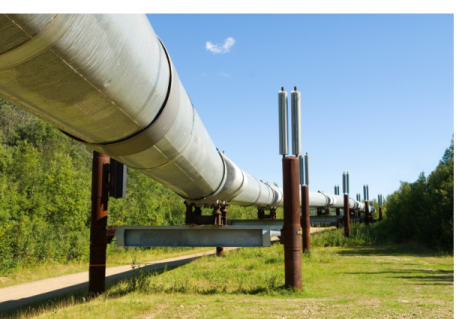
Figure 1: A section of pipeline transporting crude oil.
Flow Equations
The continuity and momentum equations below describe the flow of oil inside a horizontal pipe:
(1)
Above, A (SI unit: m2) is the cross section area of the pipe, ρ (SI unit: kg/m3) is the density, u (SI unit: m/s) is the fluid velocity, and p (SI unit: N/m2) is the pressure.
The second term on the right-hand side of Equation 1 describes the pressure drop due to internal viscous shear. The term contains the Darcy friction factor, fD, which is a function of the Reynolds number and the surface roughness divided by the hydraulic pipe diameter. In this example, fD is calculated from the Haaland equation (Ref. 1). It can recover both small and large relative roughness limits for a wide range of Reynolds numbers (4·103 < Re < 1·108):
(2)
The pipe flow interfaces have the Haaland equation and several other friction models predefined and automatically calculate the friction factor based on the local properties of the pipe, the fluid physical properties, and the fluid velocity.
Heat Transfer Equations
The energy equation the pipeline flow is:
(3)
where Cp (SI unit: J/(kg·K)) is the heat capacity at constant pressure, T is the temperature (SI unit: K), and k (SI unit: W/(m·K)) is the thermal conductivity. The second term on the right-hand side of Equation 3 corresponds to heat released due to the work of internal friction forces. Qwall (SI unit: W/m) is a source/sink term due to heat exchange with the surroundings through the pipe wall:
Where Z (m) is the perimeter of the pipe, h (W/(m2·K)) an overall heat transfer coefficient and Text (K) the external temperature outside the pipe.
The overall heat transfer coefficient includes contribution from internal film resistance, wall resistance, and external film resistance.
For a circular pipe, assuming equal temperature around the circumference of the pipe, and that the heat transfer through the wall is quasi static, an effective hZ in Equation 3 is given by
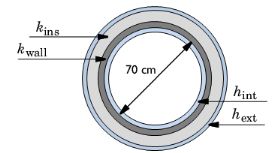
where rn is the outer radius of wall n, hint, and hext are the film heat transfer coefficients on the inside and outside of the tube, respectively, and kn is the thermal conductivity of wall n. In this model, the pipe wall and one layer of insulation is modeled (Figure 2)
Figure 2: Pipeline cross section. A two layered wall (dark and light gray) and the film resistances on the inside and outside (light blue).
Properties of the pipe and insulation material is given in the table below.
dwall
kwall
dins
kins
The film resistance inside the pipe is given by:
with the following Nusselt correlation (Ref. 2):
The film resistance due to the external flow of air around the pipeline is:
where Nuext is calculated with a forced convection relation, assuming an average air speed of 5 m/s.
Results and Discussion
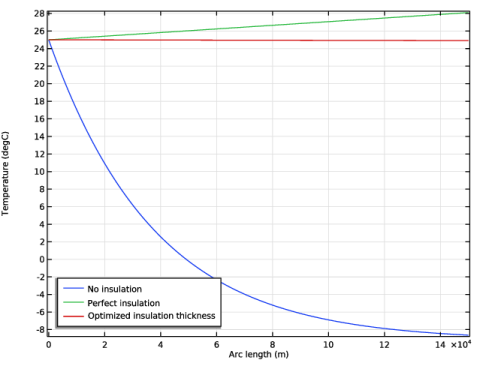
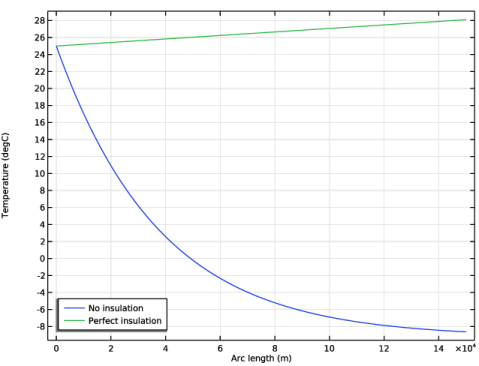
A first study calculates the temperature along the pipeline assuming perfect insulation, as well as case where the pipeline in uninsulated. Figure 3 shows that the heat generated due to friction increases the temperature of the oil by approximately 3°C over 150 km. With no pipeline insulation the temperature at the outlet is close to that of the surroundings.
Figure 3: Oil temperature as a function of position in the pipeline assuming no heat transfer across the pipe wall, heat transfer with no insulating material around the pipe, and with an optimized insulation thickness.
Optimization calculations performed under the constraint that the temperature at the outlet should be the same as inlet temperature, predicts that the thickness of the insulating material should be approximately 8.6 cm.
It is always advisable to check the Reynolds number and verify that the friction model is valid under the present flow conditions. In this case Re = 1.1·105 confirming that the Haaland equation is valid for calculating fD.
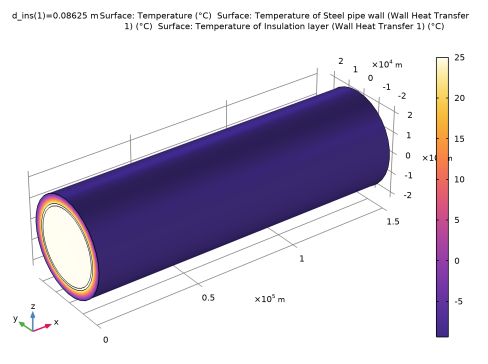
Figure 4shows the temperature distribution in the pipe insulation layer visualized using a special Pipe dataset.
Figure 4: Temperature distribution.
Notes About the COMSOL Implementation
This modeling example involves three study.
1
2
3
References
1. S.E. Haaland, “Simple and Explicit Formulas for the Friction Factor in Turbulent Flow,” J. Fluids Engineering (ASME), vol. 103, no. 5, pp. 89–90, 1983.
2. F.P. Incropera and D.P. DeWitt, Fundamentals of Heat and Mass Transfer, 4th ed., John Wiley & Sons, 1996. Eq 8.62 and Eq 7.55, respectively.
Application Library path: Pipe_Flow_Module/Heat_Transfer/pipeline_insulation
Modeling Instructions
From the File menu, choose New.
New
In the New window, click  Model Wizard.
Model Wizard
1
In the Model Wizard window, Start by setting up the nonisothermal flow problem, solving for the cases of perfect insulation and no insulation of the pipeline.
2
3
In the Select Physics tree, select Fluid Flow > Nonisothermal Flow > Nonisothermal Pipe Flow (nipfl).
4
Click Add.
5
Click  Study.
6
In the Select Study tree, select General Studies > Stationary.
7
Geometry 1
Polygon 1 (pol1)
1
In the Geometry toolbar, click  More Primitives and choose Polygon.
2
In the Settings window for Polygon, locate the Coordinates section.
3
4
Click  Build Selected.
Next, import parameter values from text file.
Global Definitions
Parameters 1
1
In the Model Builder window, under Global Definitions click Parameters 1.
2
In the Settings window for Parameters, locate the Parameters section.
3
Click  Load from File.
4
Materials
Now create the crude oil material needed for the simulation. The air properties needed for the external forced convection cooling is taken from the built-in materials database.
Crude oil
1
In the Model Builder window, under Component 1 (comp1) right-click Materials and choose Blank Material.
2
In the Settings window for Material, type Crude oil in the Label text field.
3
Locate the Material Contents section. In the table, enter the following settings:
Add Material
1
In the Materials toolbar, click  Add Material to open the Add Material window.
2
Go to the Add Material window.
3
In the tree, select Built-in > Air.
4
Click the Add to Component button in the window toolbar.
5
In the Materials toolbar, click  Add Material to close the Add Material window.
Materials
Air (mat2)
Use the default settings for the Nonisothermal Pipe Flow and the Fluid 1 nodes. You can click them if you want to inspect the defaults.
Nonisothermal Pipe Flow (nipfl)
Pipe Properties 1
1
In the Model Builder window, under Component 1 (comp1) > Nonisothermal Pipe Flow (nipfl) click Pipe Properties 1.
2
In the Settings window for Pipe Properties, locate the Pipe Shape section.
3
4
In the di text field, type 70[cm].
5
Locate the Flow Resistance section. From the Friction model list, choose Haaland.
6
From the Surface roughness list, choose Commercial steel (0.046 mm).
Temperature 1
1
In the Model Builder window, click Temperature 1.
2
In the Settings window for Temperature, locate the Temperature section.
3
In the Tin text field, type T_in.
Heat Outflow 1
1
In the Physics toolbar, click  Points and choose Heat Outflow.
2
Inlet 1
1
In the Physics toolbar, click  Points and choose Inlet.
2
3
In the Settings window for Inlet, locate the Inlet Specification section.
4
From the Specification list, choose Volumetric flow rate.
5
In the qv,0 text field, type oil_rate.
Next, set up the wall heat transfer components.
Wall Heat Transfer 1
1
In the Physics toolbar, click  Edges and choose Wall Heat Transfer.
2
3
In the Settings window for Wall Heat Transfer, locate the Heat Transfer Model section.
4
In the Text text field, type T_ext.
Internal Film Resistance 1
In the Physics toolbar, click  Attributes and choose Internal Film Resistance.
Wall Heat Transfer 1
Add two layers of wall material.
1
In the Model Builder window, click Wall Heat Transfer 1.
Steel pipe wall
1
In the Physics toolbar, click  Attributes and choose Wall Layer.
2
In the Settings window for Wall Layer, type Steel pipe wall in the Label text field.
3
Locate the Specification section. From the k list, choose User defined.
4
5
From the Δw list, choose User defined.
6
Wall Heat Transfer 1
In the Model Builder window, click Wall Heat Transfer 1.
Insulation layer
1
In the Physics toolbar, click  Attributes and choose Wall Layer.
2
In the Settings window for Wall Layer, type Insulation layer in the Label text field.
3
Locate the Specification section. From the k list, choose User defined.
4
5
From the Δw list, choose User defined.
6
Wall Heat Transfer 1
Now add the external film resistance to model the forced convection.
1
In the Model Builder window, click Wall Heat Transfer 1.
External Film Resistance 1
1
In the Physics toolbar, click  Attributes and choose External Film Resistance.
2
In the Settings window for External Film Resistance, locate the Specification section.
3
From the Surrounding fluid list, choose Air (mat2).
4
In the uext text field, type v_air.
Mesh 1
1
In the Model Builder window, under Component 1 (comp1) click Mesh 1.
2
In the Settings window for Mesh, locate the Physics-Controlled Mesh section.
3
From the Element size list, choose Extra fine.
4
Click  Build All.
Study 1
The first study calculates the temperature for the uninsulated pipeline.
Step 1: Stationary
1
In the Model Builder window, under Study 1 click Step 1: Stationary.
2
In the Settings window for Stationary, locate the Physics and Variables Selection section.
3
Select the Modify model configuration for study step checkbox.
4
In the tree, select Component 1 (comp1) > Nonisothermal Pipe Flow (nipfl) > Wall Heat Transfer 1 > Insulation layer.
5
6
In the Model Builder window, click Study 1.
7
In the Settings window for Study, locate the Study Settings section.
8
Clear the Generate default plots checkbox.
9
In the Label text field, type No insulation.
10
In the Study toolbar, click  Compute.
Results
Plot the temperature distribution along the pipeline.
1D Plot Group 1
In the Results toolbar, click  1D Plot Group.
Line Graph 1
1
Right-click 1D Plot Group 1 and choose Line Graph.
2
In the Settings window for Line Graph, locate the Selection section.
3
From the Selection list, choose All edges.
4
Click Replace Expression in the upper-right corner of the y-Axis Data section. From the menu, choose Component 1 (comp1) > Nonisothermal Pipe Flow (Heat Transfer in Pipes) > T - Temperature - K.
5
Locate the y-Axis Data section. In the Unit field, type degC.
6
Click to expand the Legends section. Select the Show legends checkbox.
7
From the Legends list, choose Manual.
8
9
In the 1D Plot Group 1 toolbar, click  Plot.
Add the second study for the perfect insulation case.
Add Study
1
In the Home toolbar, click  Add Study to open the Add Study window.
2
Go to the Add Study window.
3
Find the Studies subsection. In the Select Study tree, select General Studies > Stationary.
4
Click the Add Study button in the window toolbar.
5
In the Home toolbar, click  Add Study to close the Add Study window.
Study 2
Step 1: Stationary
1
In the Settings window for Stationary, locate the Physics and Variables Selection section.
2
Select the Modify model configuration for study step checkbox.
3
In the tree, select Component 1 (comp1) > Nonisothermal Pipe Flow (nipfl) > Wall Heat Transfer 1.
4
5
In the Model Builder window, click Study 2.
6
In the Settings window for Study, locate the Study Settings section.
7
Clear the Generate default plots checkbox.
8
In the Label text field, type Perfect insulation.
9
In the Study toolbar, click  Compute.
Results
Line Graph 2
1
In the Model Builder window, under Results > 1D Plot Group 1 right-click Line Graph 1 and choose Duplicate.
2
In the Settings window for Line Graph, locate the Data section.
3
From the Dataset list, choose Perfect insulation/Solution 2 (sol2).
4
Locate the Legends section. In the table, enter the following settings:
5
In the 1D Plot Group 1 toolbar, click  Plot.
Finish the plot by adjusting the title and legend positioning.
1D Plot Group 1
1
In the Model Builder window, click 1D Plot Group 1.
2
In the Settings window for 1D Plot Group, click to expand the Title section.
3
From the Title type list, choose None.
4
Locate the Legend section. From the Position list, choose Lower left.
5
In the 1D Plot Group 1 toolbar, click  Plot.
Definitions
Next, set up the study to optimize the insulation thickness.
Integration 1 (intop1)
1
In the Definitions toolbar, click  Nonlocal Couplings and choose Integration.
2
In the Settings window for Integration, locate the Source Selection section.
3
From the Geometric entity level list, choose Point.
4
Variables 1
1
In the Definitions toolbar, click  Local Variables.
2
In the Settings window for Variables, locate the Variables section.
3
Add Study
1
In the Home toolbar, click  Add Study to open the Add Study window.
2
Go to the Add Study window.
3
Find the Studies subsection. In the Select Study tree, select General Studies > Stationary.
4
Click the Add Study button in the window toolbar.
5
In the Home toolbar, click  Add Study to close the Add Study window.
Study 3
General Optimization
1
In the Study toolbar, click  Optimization and choose General Optimization.
2
In the Settings window for General Optimization, locate the Objective Function section.
3
4
Locate the Control Variables and Parameters section. Click  Add.
5
6
In the Model Builder window, click Study 3.
7
In the Settings window for Study, locate the Study Settings section.
8
Clear the Generate default plots checkbox.
9
In the Label text field, type Insulation thickness optimization.
10
In the Study toolbar, click  Compute.
Results
Temperature
1
In the Model Builder window, under Results click 1D Plot Group 1.
2
In the Settings window for 1D Plot Group, type Temperature in the Label text field.
Line Graph 3
1
In the Model Builder window, under Results > Temperature right-click Line Graph 2 and choose Duplicate.
2
In the Settings window for Line Graph, locate the Data section.
3
From the Dataset list, choose Insulation thickness optimization/Solution 3 (sol3).
4
Locate the Legends section. In the table, enter the following settings:
5
In the Temperature toolbar, click  Plot.
Compare this plot with Figure 3.
Objective Table 2
Scroll down the table to find the resulting values of the insulation thickness.
Plot a temperature distribution in the pipe with optimized insulation thickness using a special Pipe dataset.
1
From the Results menu, choose Result Templates.
Result Templates
1
Go to the Result Templates window.
2
In the tree, select Insulation thickness optimization/Parametric Solutions 1 (sol4) > Nonisothermal Pipe Flow > Temperature, 3D (nipfl).
3
Click the Add Result Template button in the window toolbar.
4
From the Results menu, choose Result Templates.
Results
Temperature, 3D (nipfl)
In the Model Builder window, expand the Results > Tables node.
Pipe
1
In the Model Builder window, expand the Results > Datasets node, then click Pipe.
2
In the Settings window for Pipe, locate the Cross Section section.
3
In the Scale text field, type 50e3.
4
5
Click the  Zoom Extents button in the Graphics toolbar.
Temperature, 3D (nipfl)
1
In the Model Builder window, under Results click Temperature, 3D (nipfl).
2
In the Settings window for 3D Plot Group, locate the Plot Settings section.
3
Select the Plot dataset edges checkbox.
4
Click the  Zoom Extents button in the Graphics toolbar.
5
In the Temperature, 3D (nipfl) toolbar, click  Plot.
Preferred Units 1
1
In the Results toolbar, click  Configurations and choose Preferred Units.
2
In the Settings window for Preferred Units, locate the Units section.
3
Click  Add Physical Quantity.
4
In the Physical Quantity dialog, select General > Temperature (K) in the tree.
5
6
In the Settings window for Preferred Units, locate the Units section.
7
8
Click  Apply.
Temperature, 3D (nipfl)
1
In the Model Builder window, under Results click Temperature, 3D (nipfl).
2
In the Settings window for 3D Plot Group, locate the Plot Settings section.
3
From the View list, choose New view to generate a dedicated view for this plot.
4
In the Temperature, 3D (nipfl) toolbar, click  Plot.
5
Click the  Zoom Extents button in the Graphics toolbar.
6
Click  Go to Source.
Section View
1
In the Model Builder window, under Results > Views click View 3D 2.
2
In the Settings window for View 3D, type Section View in the Label text field.